
How to view and edit video transcript
When a video testimonial is added to your Senja account, we automatically transcribe it for you. You can also edit the transcription manually to correct any errors.
This feature is available on any Senja plans: Free, Starter, and Pro.
How to view a video transcription
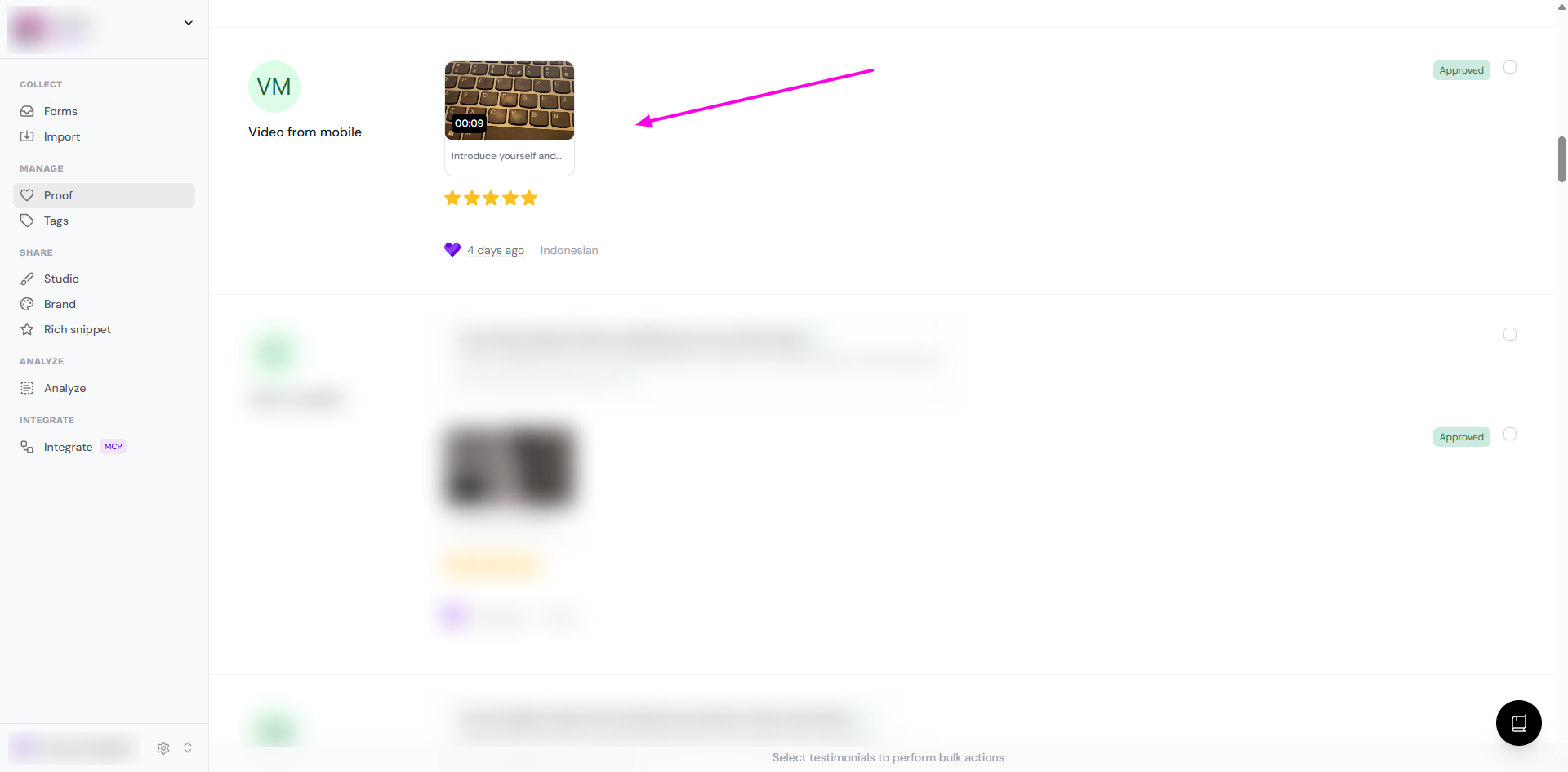
Go to your Proof page: https://app.senja.io/
Open the customer/testimonial that you want
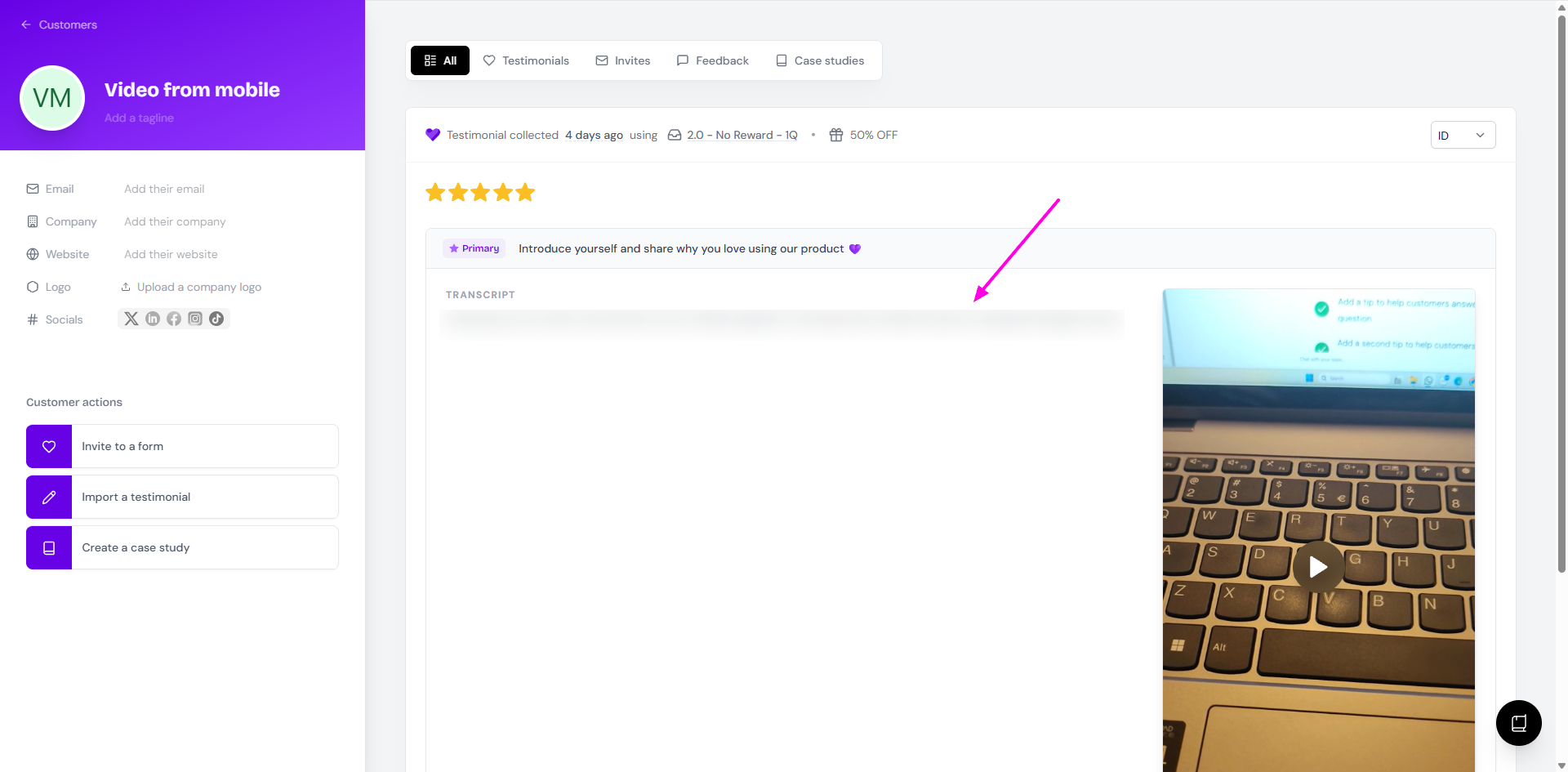
You can see the transcript on the left-hand side of the video
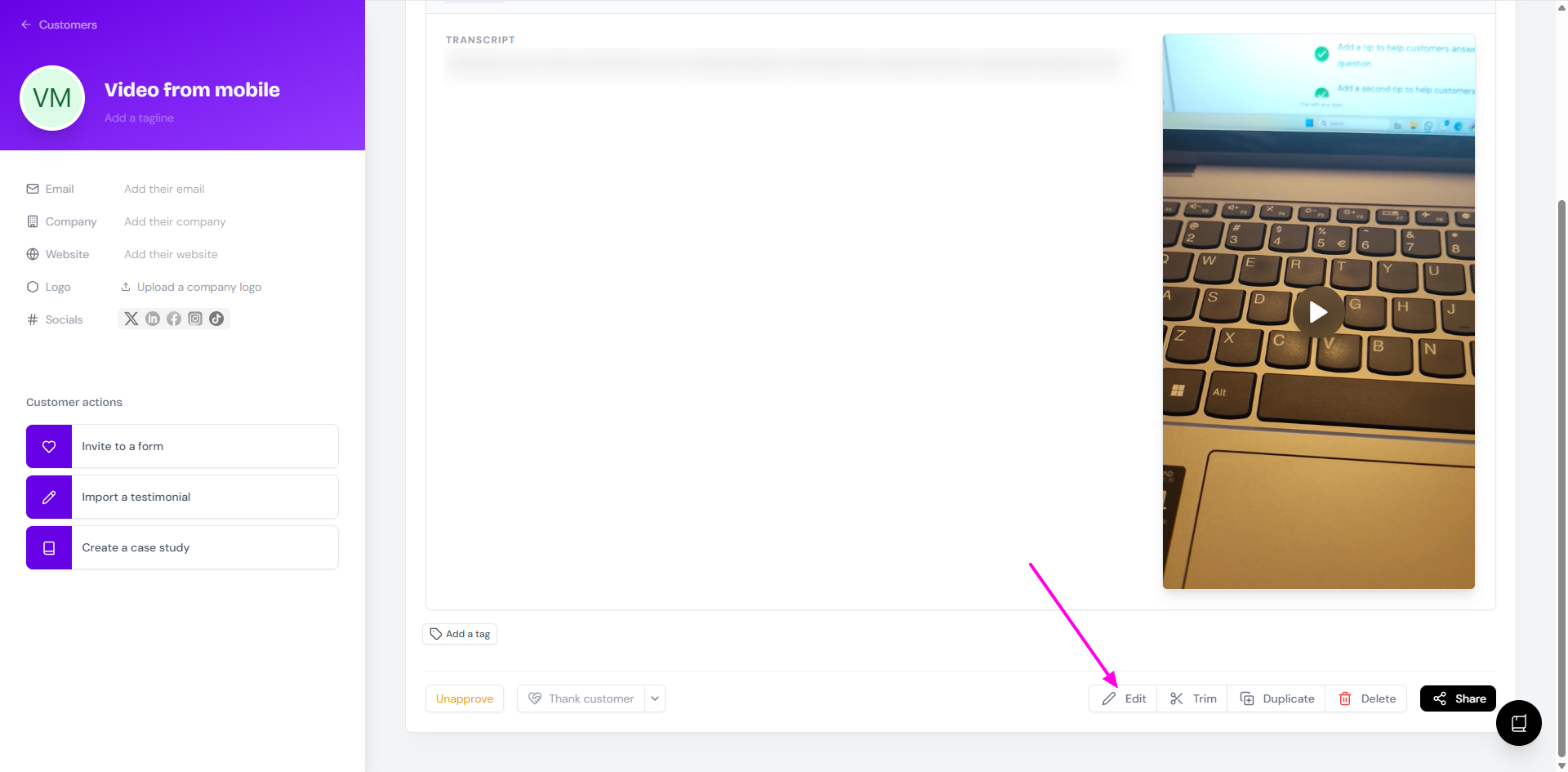
Click Edit to update the transcription
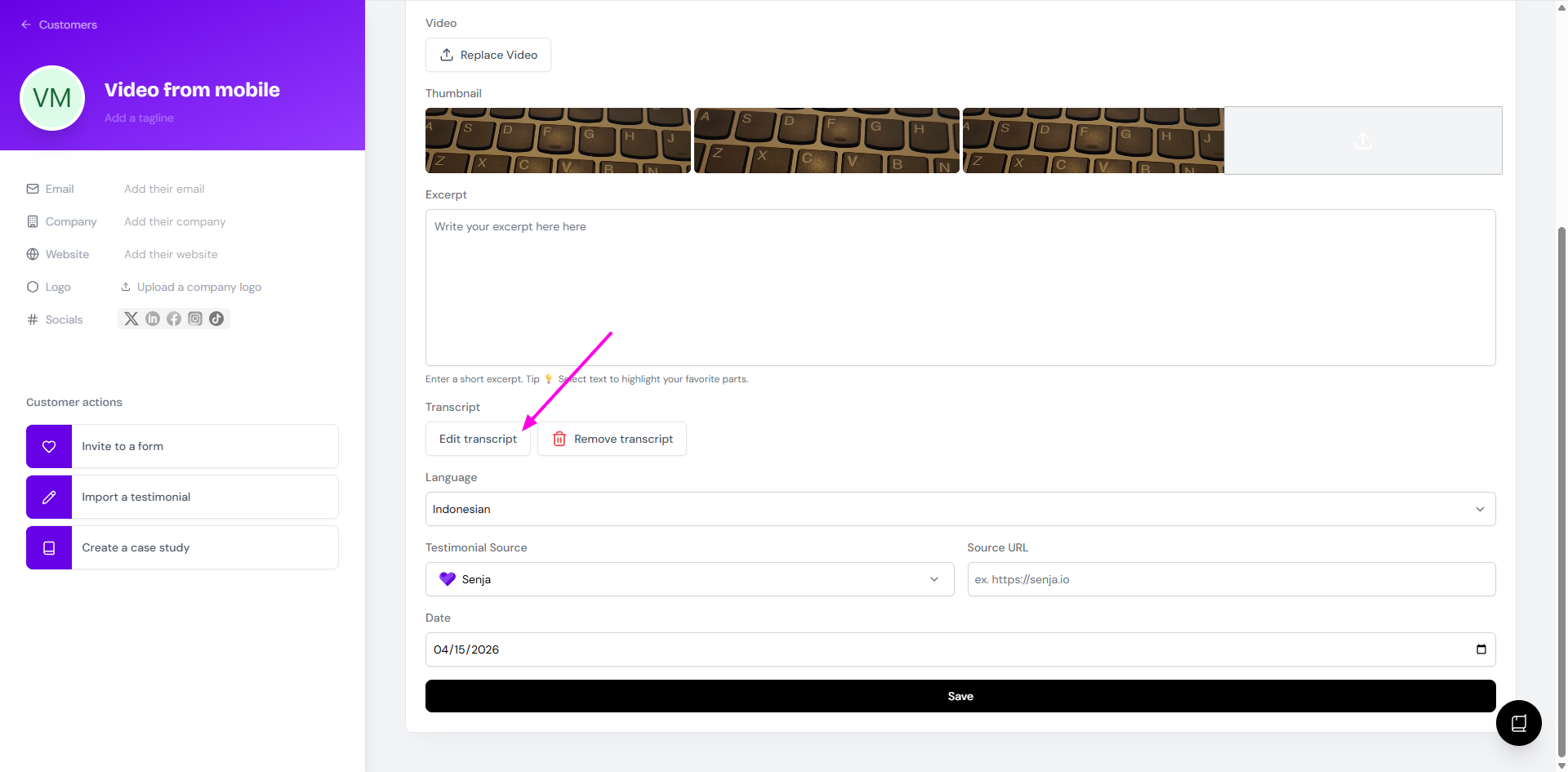
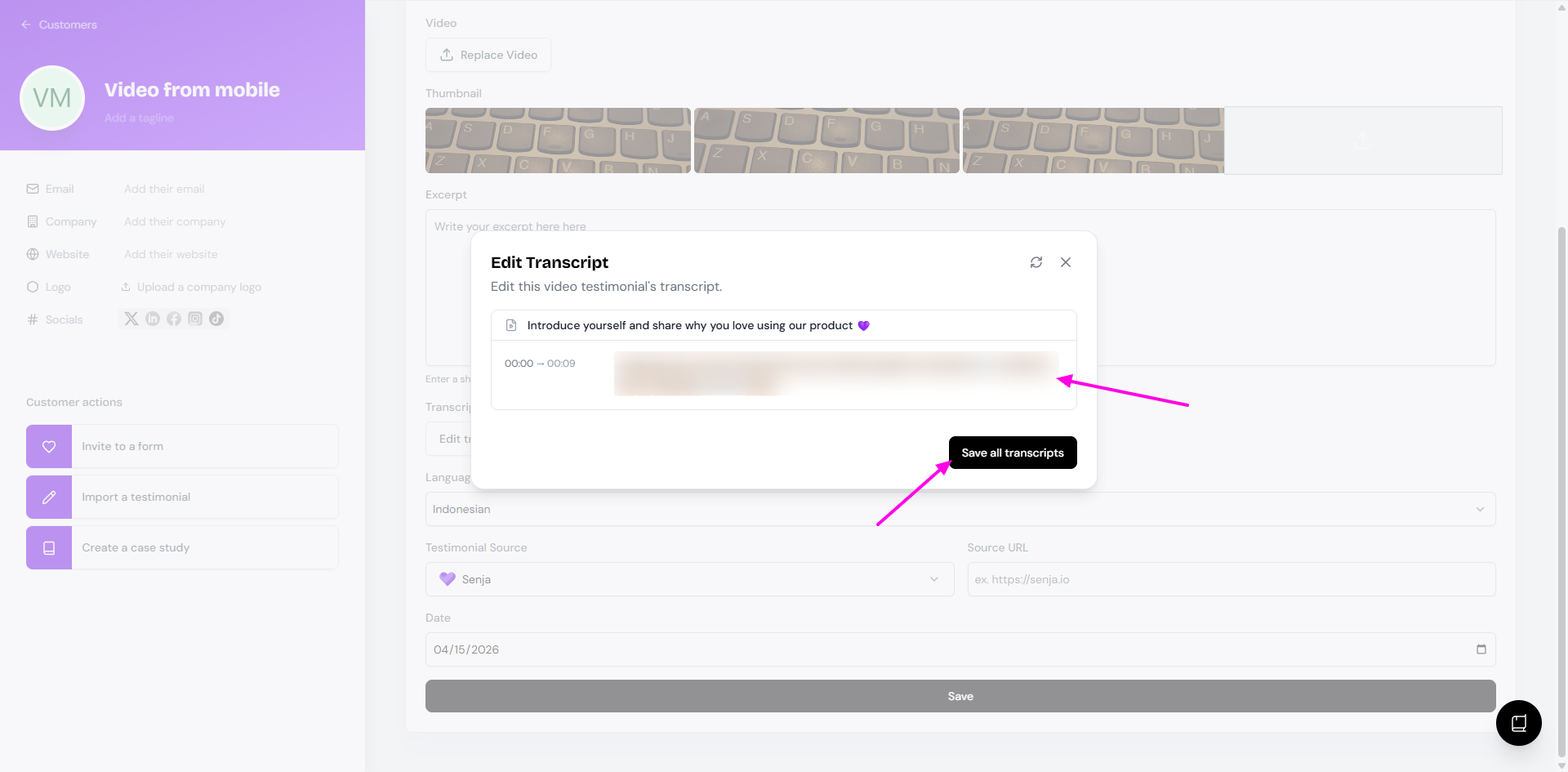
Click Edit transcript
Make the changes on the script board
Click Save all transcripts when you're done
Note: Transcription processing time may vary depending on the length of the video. If the transcript isn’t available right away, check back later. If it's not available after 20 minutes please contact Senja Support.
Was this helpful?
Was this helpful?