
Troubleshooting form URL error
When your feedback form URL isn't working or giving an error when your customers open it, it can be frustrating. This guide will help you troubleshoot and resolve the most common issues.
This is applicable to any Senja plans: Free, Starter, and Pro.
Troubleshooting checklist
Before you dive into detailed troubleshooting, here's a quick checklist of common causes:
Is your form published? An unpublished form will not be accessible.
Are the permissions set correctly? Incorrect permissions can prevent users from accessing the form.
Are you using the correct form link? Ensure you're sharing the right URL with your subscribers.
If embedded, is the embed code correct? An incorrect or incomplete embed code can cause the form to fail.
Check if your form is published
An unpublished or paused form is a common reason for a non-working link. To check the publishing status:
Go to your Forms page: https://app.senja.io/forms
Find the form you want to check
Make sure that there's a green dot next to the form name
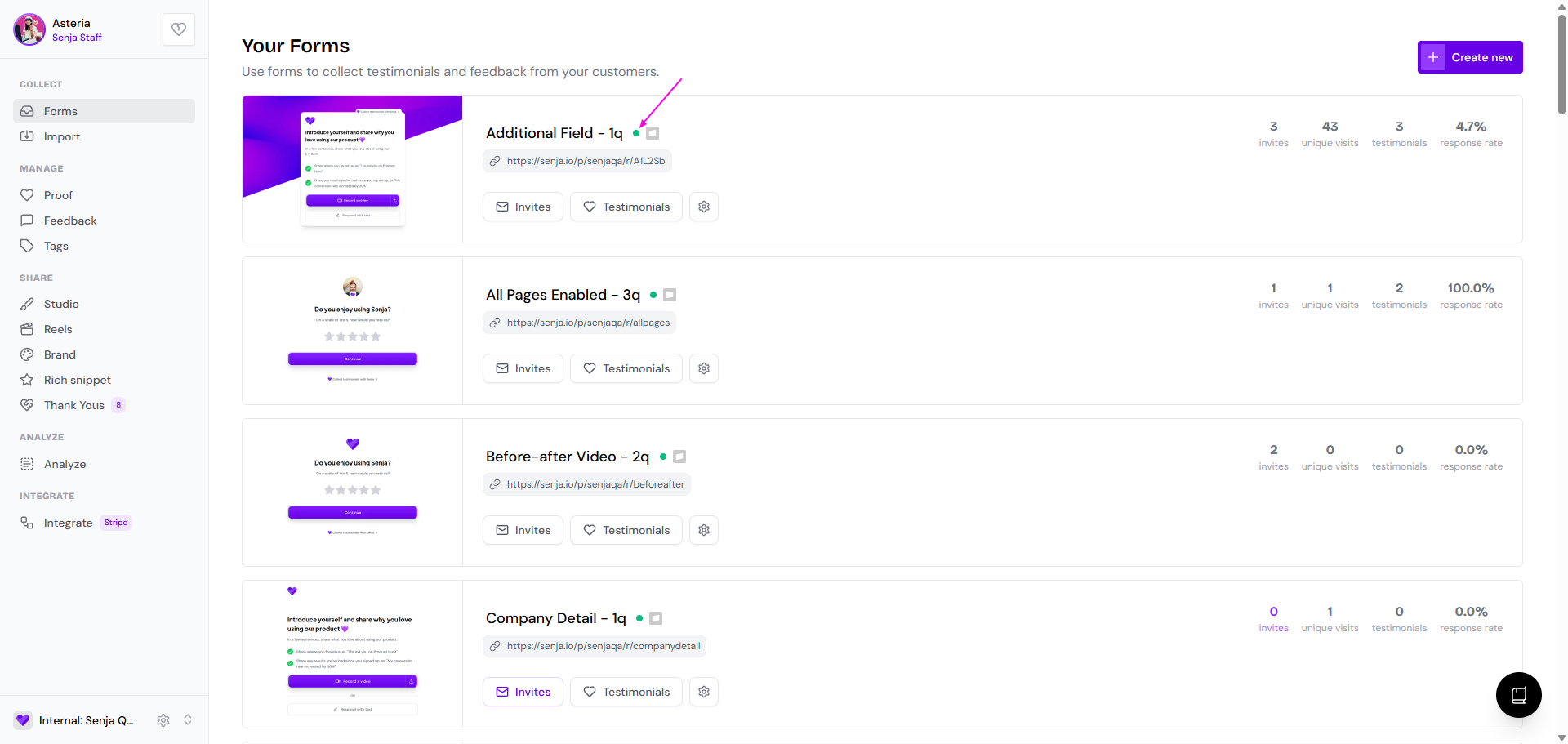
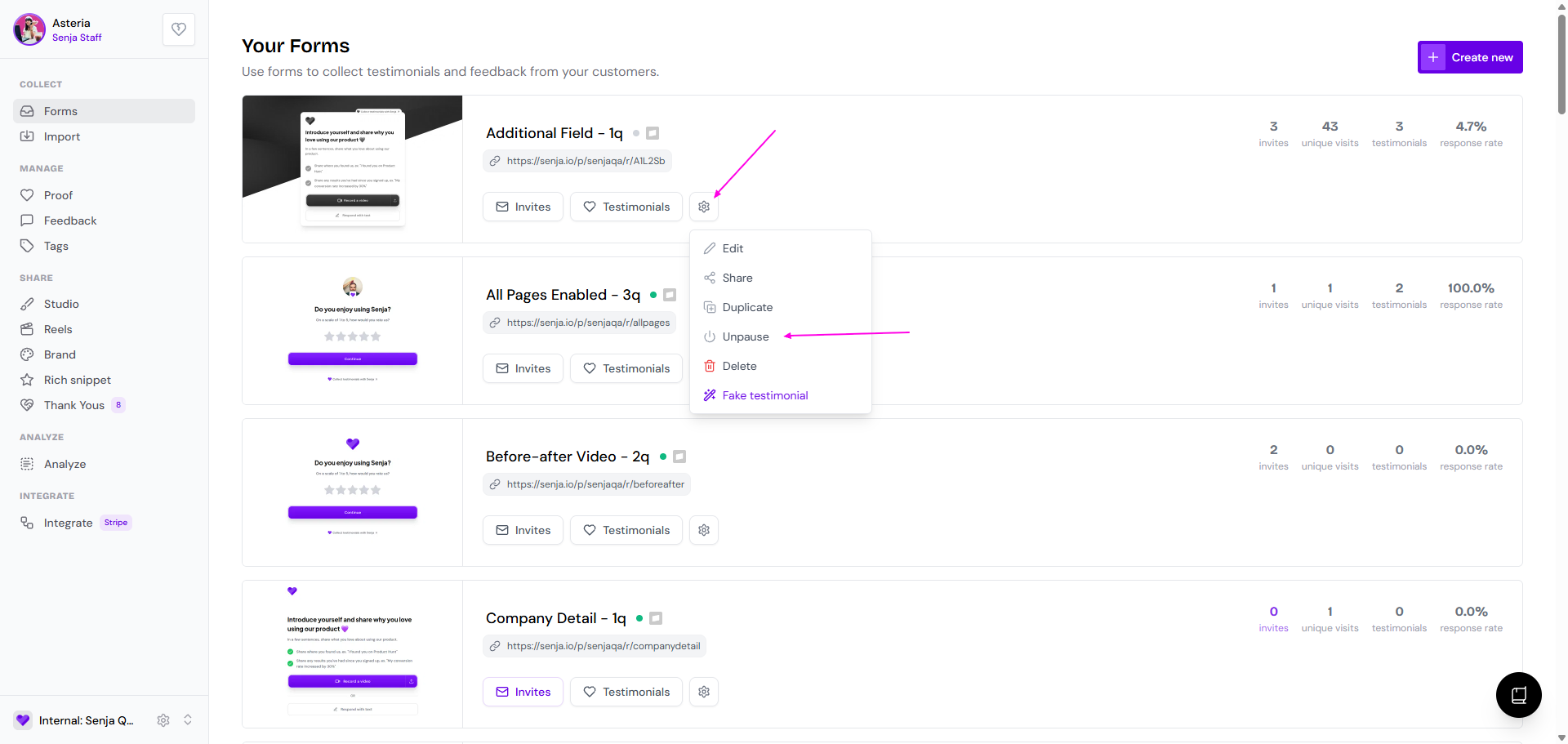
If it's grey, click on the ⚙️, choose Unpause to publish the form
If you've recently made changes to your form, you may need to republish it for the changes to take effect.
Make sure the form link is correct
It's important to use the correct link when sharing your form.
Go to your Forms page: https://app.senja.io/forms
Find the form you want to check
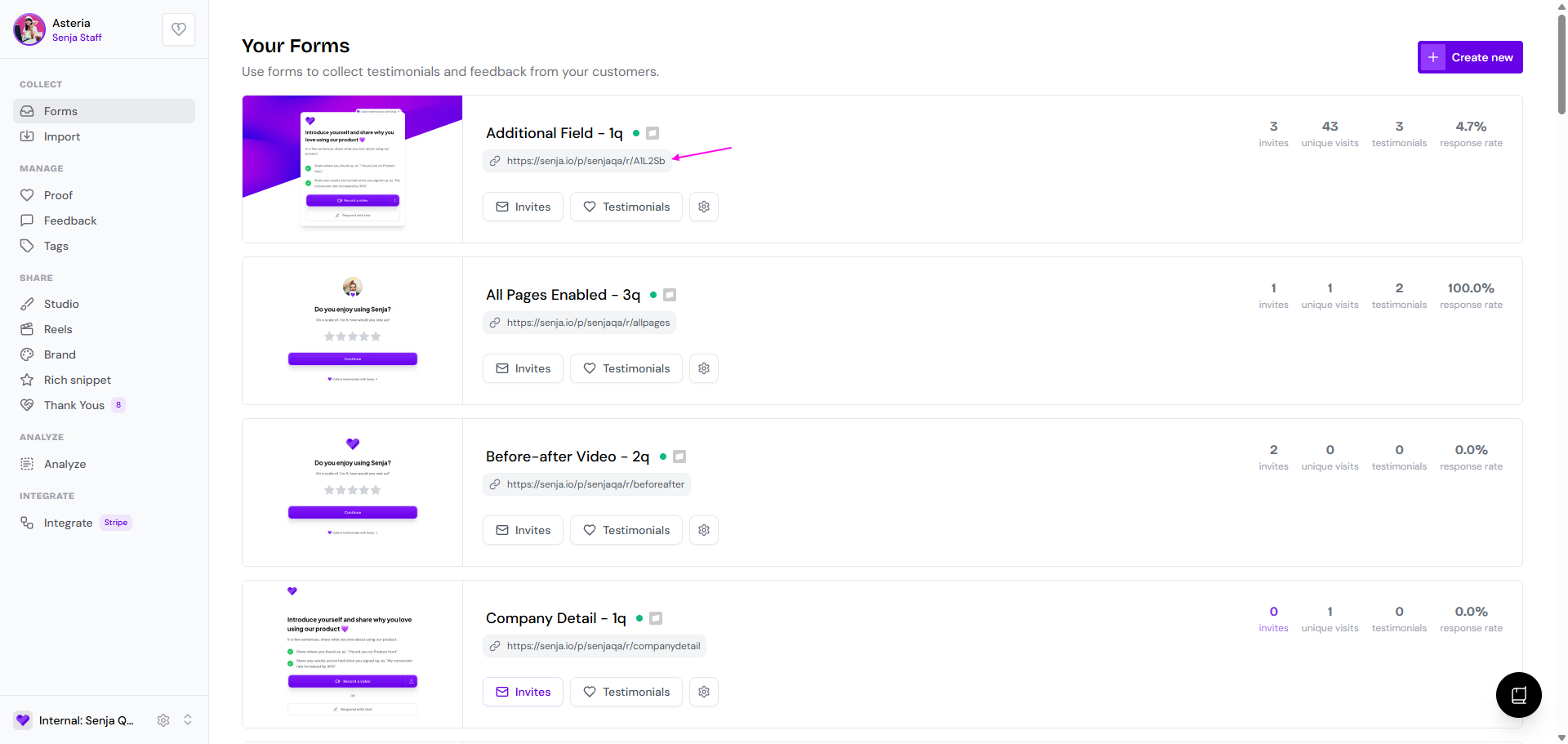
Compare the URL that you shared to your customers with the one shown in the dashboard
Verify your embed code
If you're embedding the form on your website, an incorrect embed code is a likely culprit. Ensure you've copied the entire embed code and that it's placed correctly in your website's HTML.
Go to your Forms page: https://app.senja.io/forms
Find the form you want to check
Click on the ⚙️, choose Share
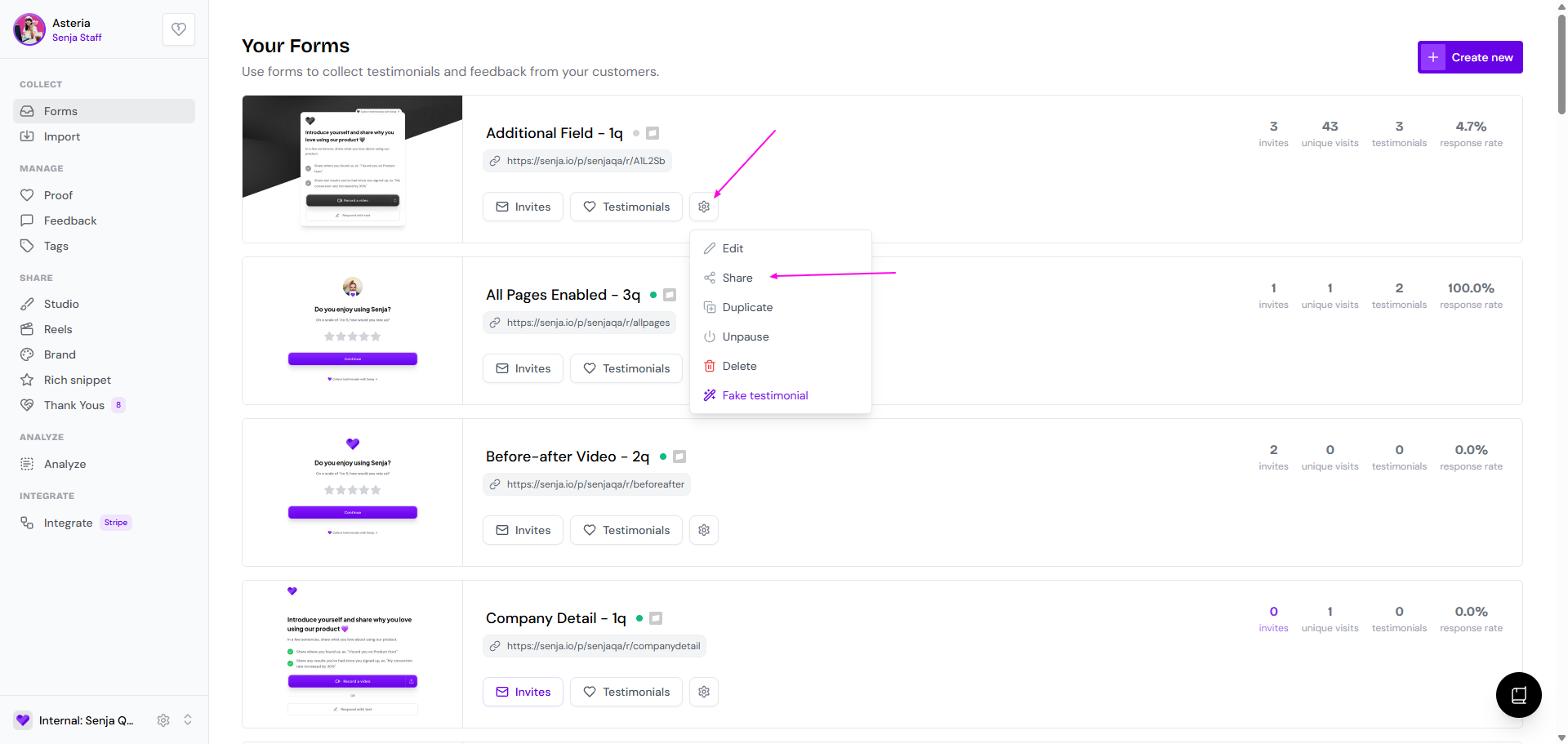
Click Embed tab and copy the code under Your Code Snippet
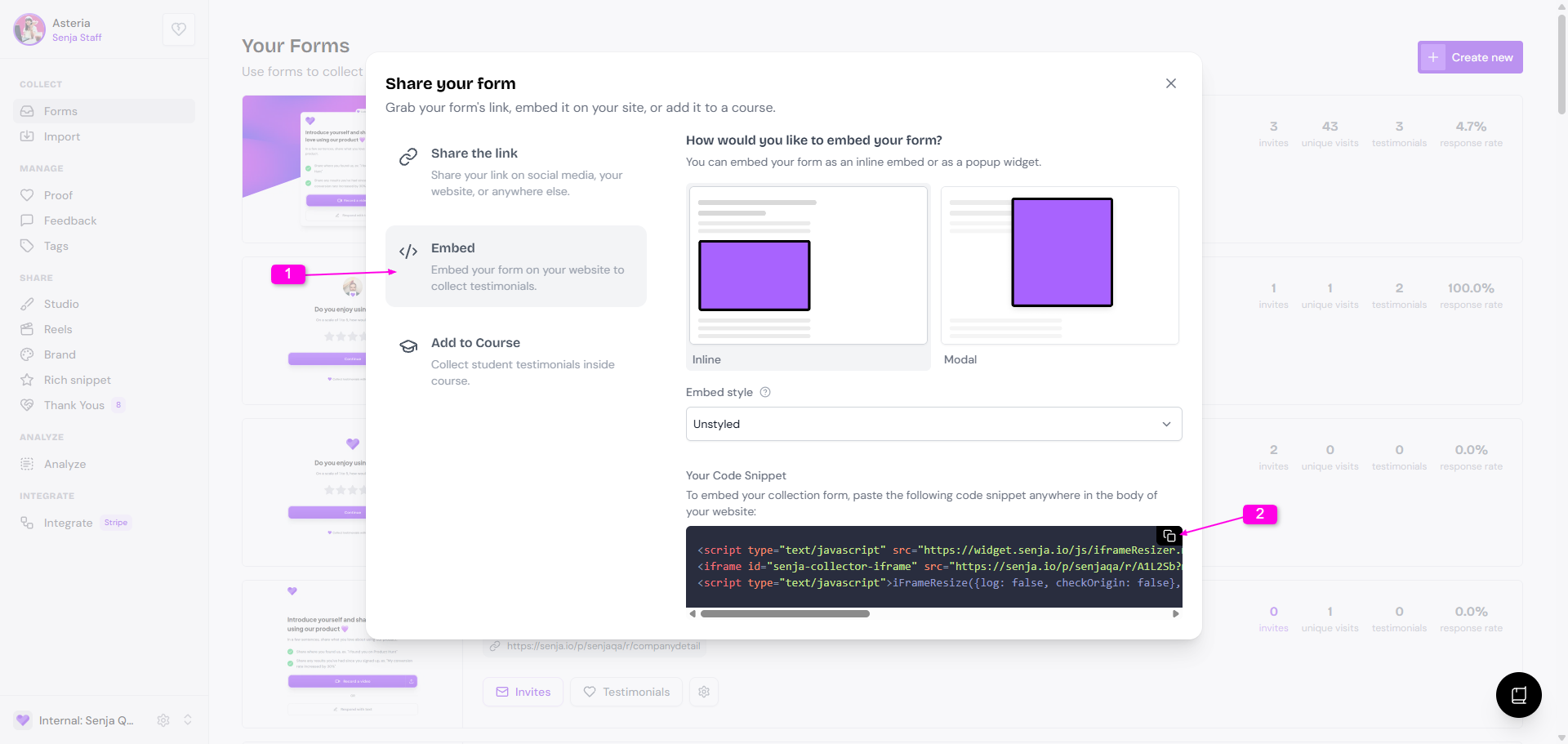
Some website builders can interfere with embed codes. If you're using a website builder, try embedding the form on a plain HTML page to see if the issue persists.
Check for missing required fields
In some cases, a form may fail to submit if a required field is missing. For example, if the Name field is required but not included in your form, it can cause submission errors. Review your form's fields to ensure all required fields are present.
Contacting support
If you've tried all of the above and your form link is still not working, please contact our support team.
To help us resolve your issue as quickly as possible, please provide the following information:
A link to the form you're having trouble with.
A description of the issue your subscribers are reporting.
A screenshot of any error messages they're seeing.