
How to approve testimonials (and what it means)
There are 2 testimonial statuses that you can find in Senja; approved and unapproved. This status setup is meant to prevent unwanted testimonials to be added to your Studio assets (widget, Wall of Love, etc.). Testimonials coming to your Senja page will have different default status, depending on the collection method that you choose.
This is applicable on any Senja plans: Free, Starter, and Pro.
Setting up approval
Forms
When you collect testimonials using form, you can choose to approve them automatically or manually. Here's how you set up automatic approval:
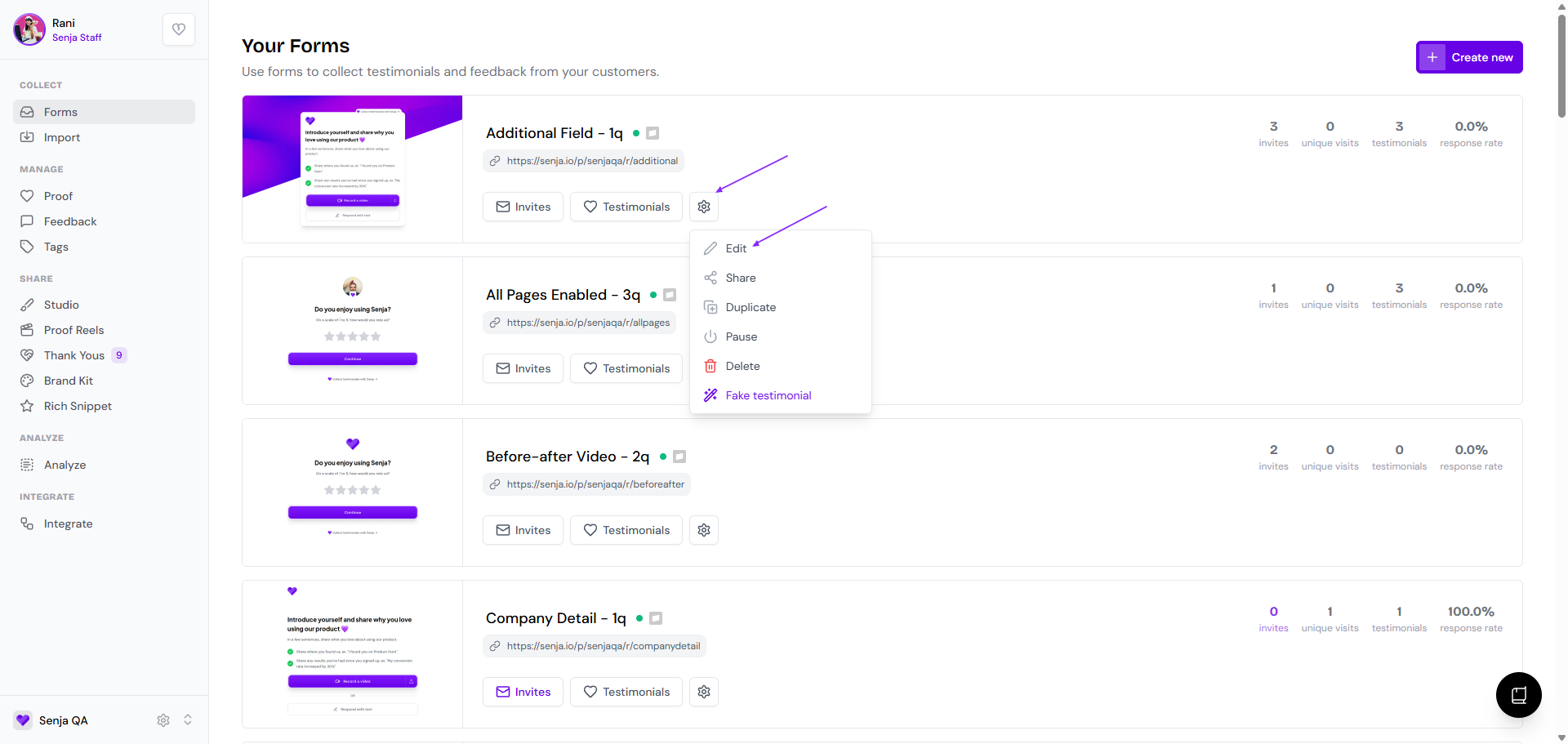
Go to your Forms page: https://app.senja.io/forms
Click the ⚙️ icon and choose Edit
Go to Settings tab
Enable Approve testimonials by clicking the toggle on
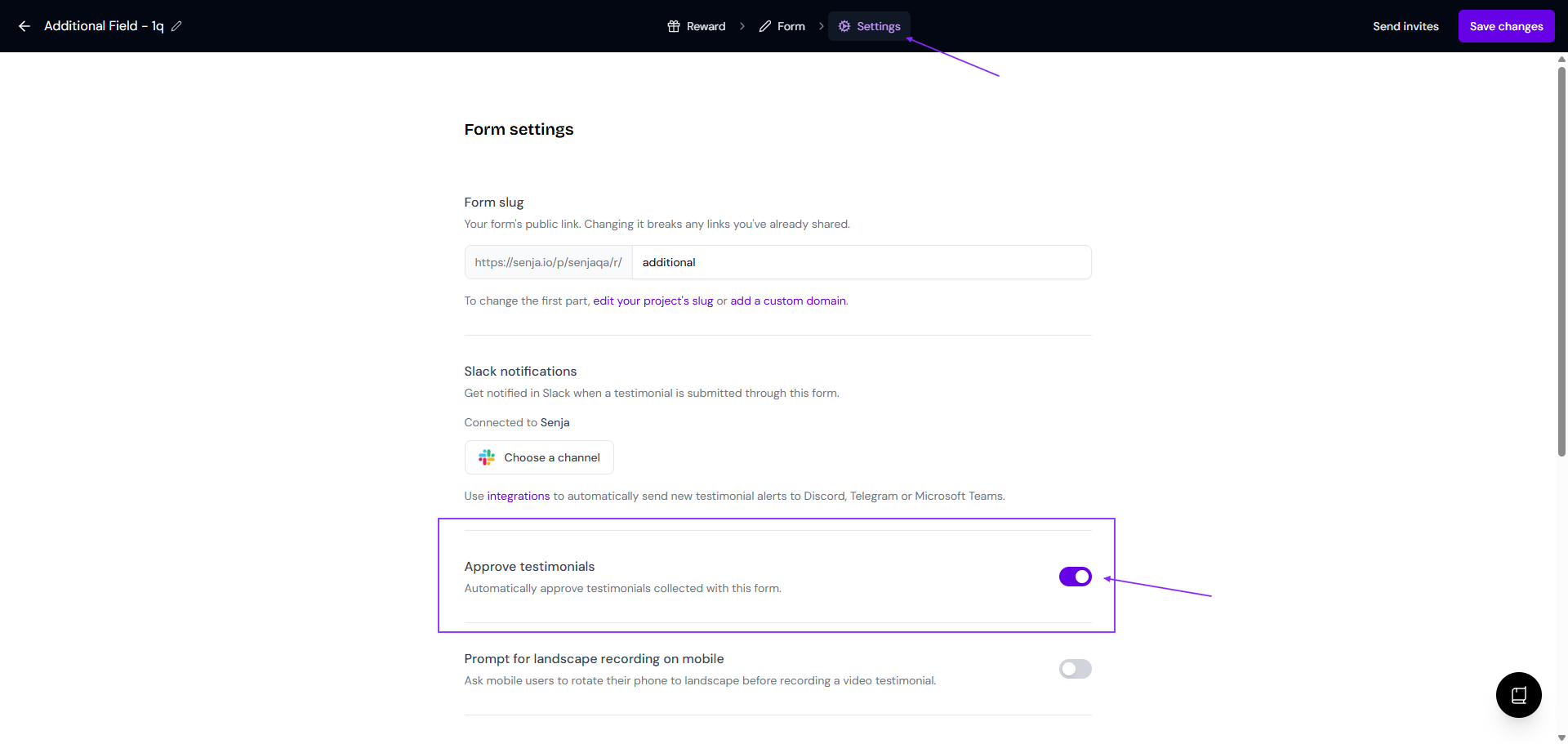
This will automatically approve all testimonials coming from this form
The setting is applicable to individual form. If you want to set auto-approval on all forms, you have to change the settings in all forms that you have.
Auto-import
When setting up your auto-import, you can choose to approve the testimonials automatically or leave everything unapproved, so you can review it first. Here's how you set up automatic approval:
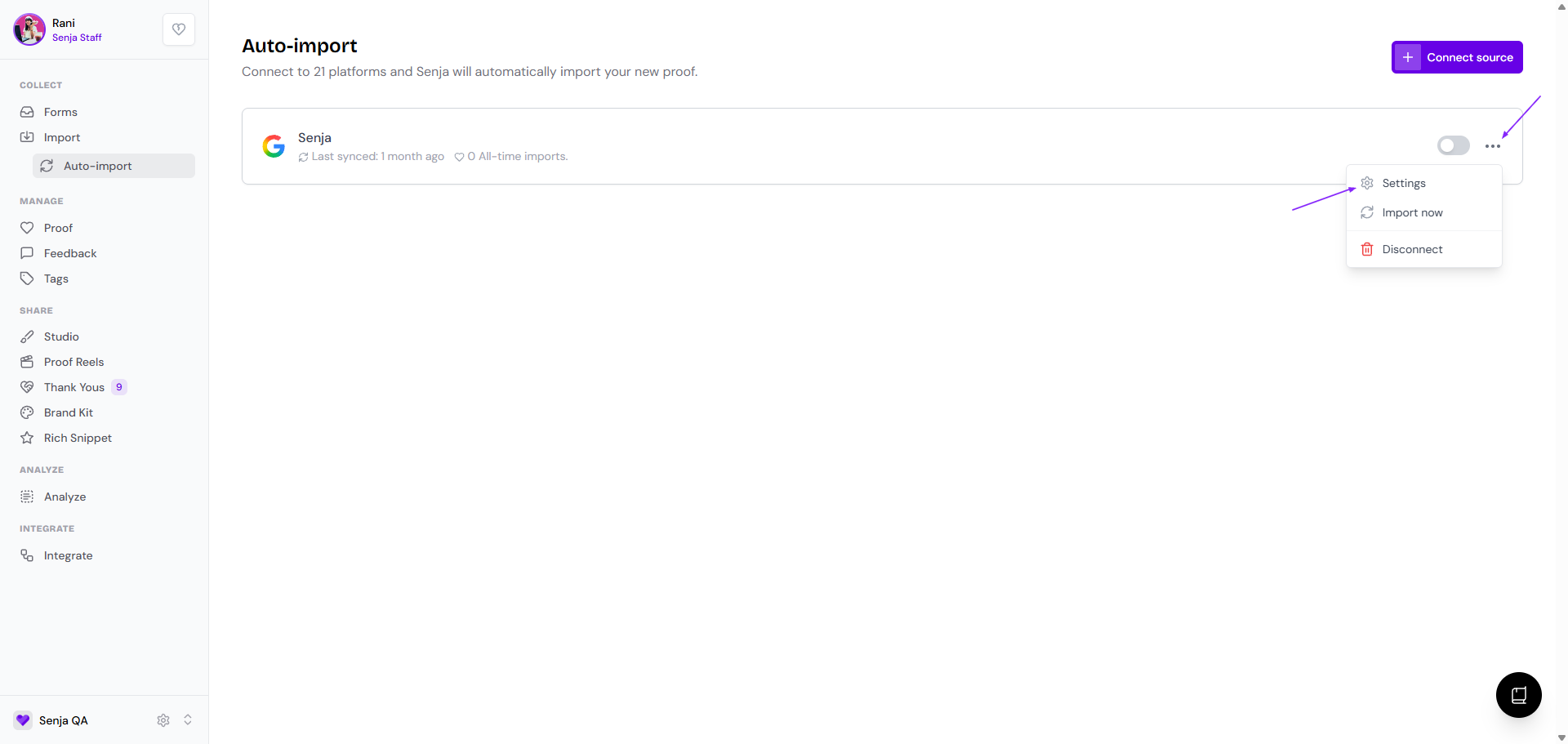
Go to Import → Auto-import: https://app.senja.io/import/auto
Click the 3-dots next to your connected platform, choose Settings
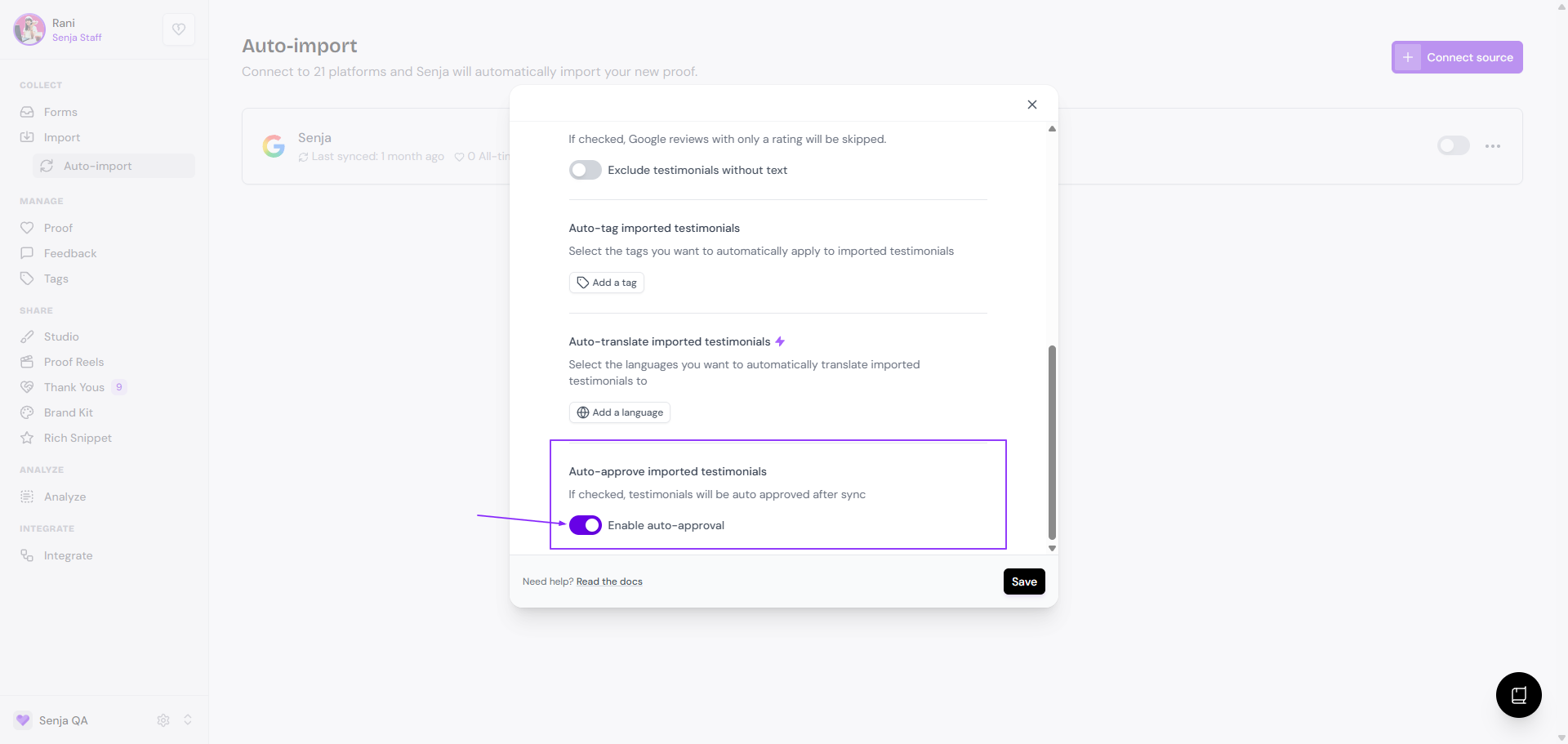
Scroll down and enable the Enable auto-approval by clicking the toggle on
Import from web
By default, any testimonials imported from web (https://app.senja.io/import/web) will be approved
This is intended, because during the import process, you are given the option to cherry-pick the testimonials you want to import
Upload spreadsheet
By default, any testimonials imported from uploading CSV/XLS will be approved
This is intended, because when importing the testimonials, ideally you already reviewed the testimonials beforehand
Manual import
By default, any testimonials imported manually (https://app.senja.io/import/manual) will be approved
This is intended, because when importing manually, ideally you already reviewed the testimonials beforehand
Where do you see approved and unapproved testimonials?
Go to your Proof page: https://app.senja.io/
All testimonials, either approved or not, will be listed in this Proof page
On the right side of each block, you can see if it's approved or unapproved
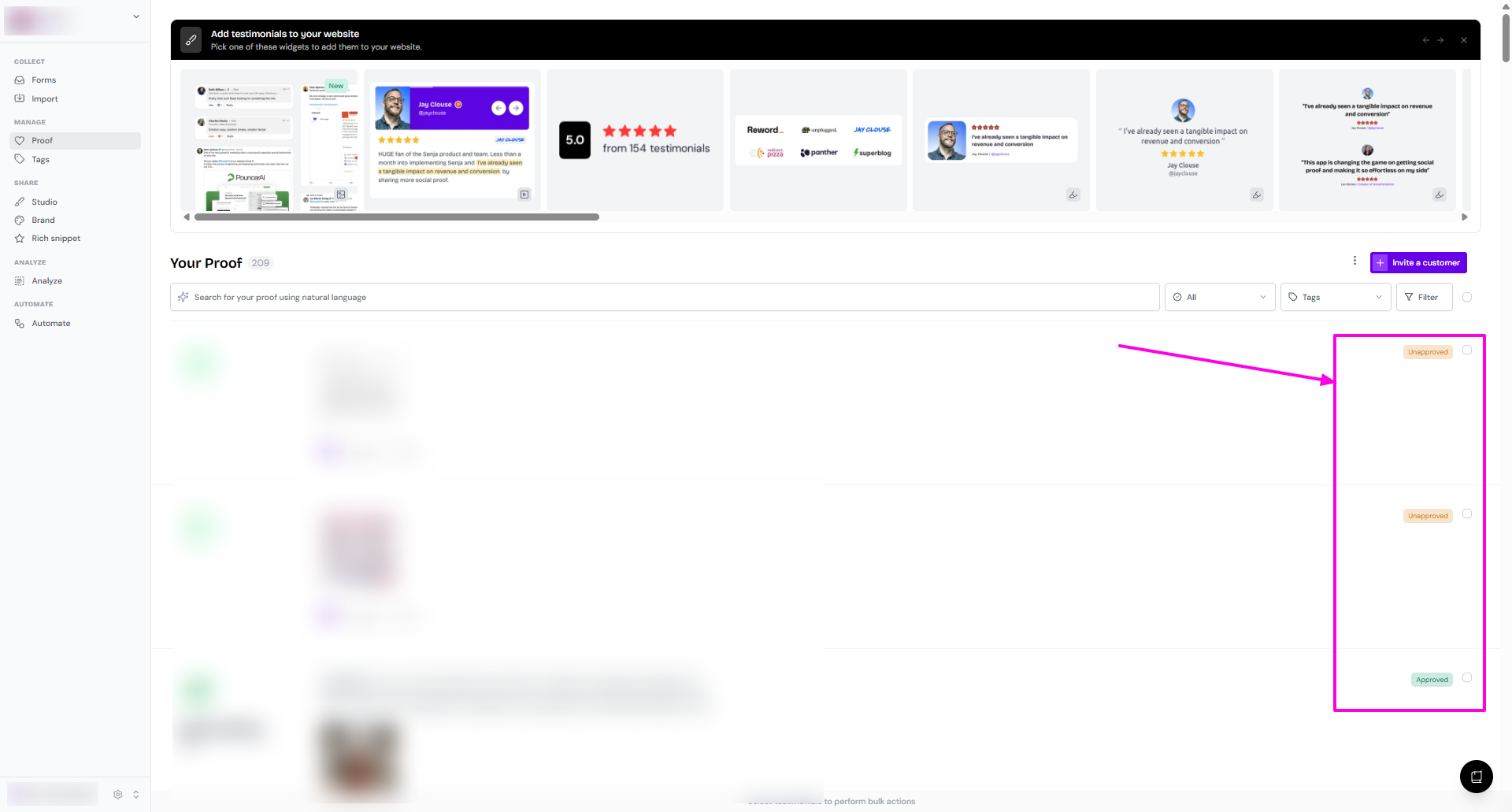
Click on the testimonials to read/review the testimonial
To change the status, follow How to approve unapproved testimonials below
The difference between approved and unapproved testimonial
Scope | Approved testimonials | Unapproved testimonials |
Available in Proof page | Yes | Yes |
Available in Senja Chrome extension | Yes | Yes |
Can be shared as a link | Yes | Yes |
Can be used in Studio | Yes | No |
Can be used in Proof Reels | Yes | No |
What happens when a testimonial is approved?
If you setup a widget/Wall of Love using Auto-add selection, the approved testimonials will be automatically added to the widget/Wall of Love
If the widget/Wall of Love is embedded on external platform, the testimonials added to those widget/Wall of Love will be reflected as well in the embedded widget/Wall of Love
If you haven't created or published any widget/Wall of Love, the testimonials (that are added to the widget/Wall of Love) will not be publicly visible
How to approve unapproved testimonials
From Proof page
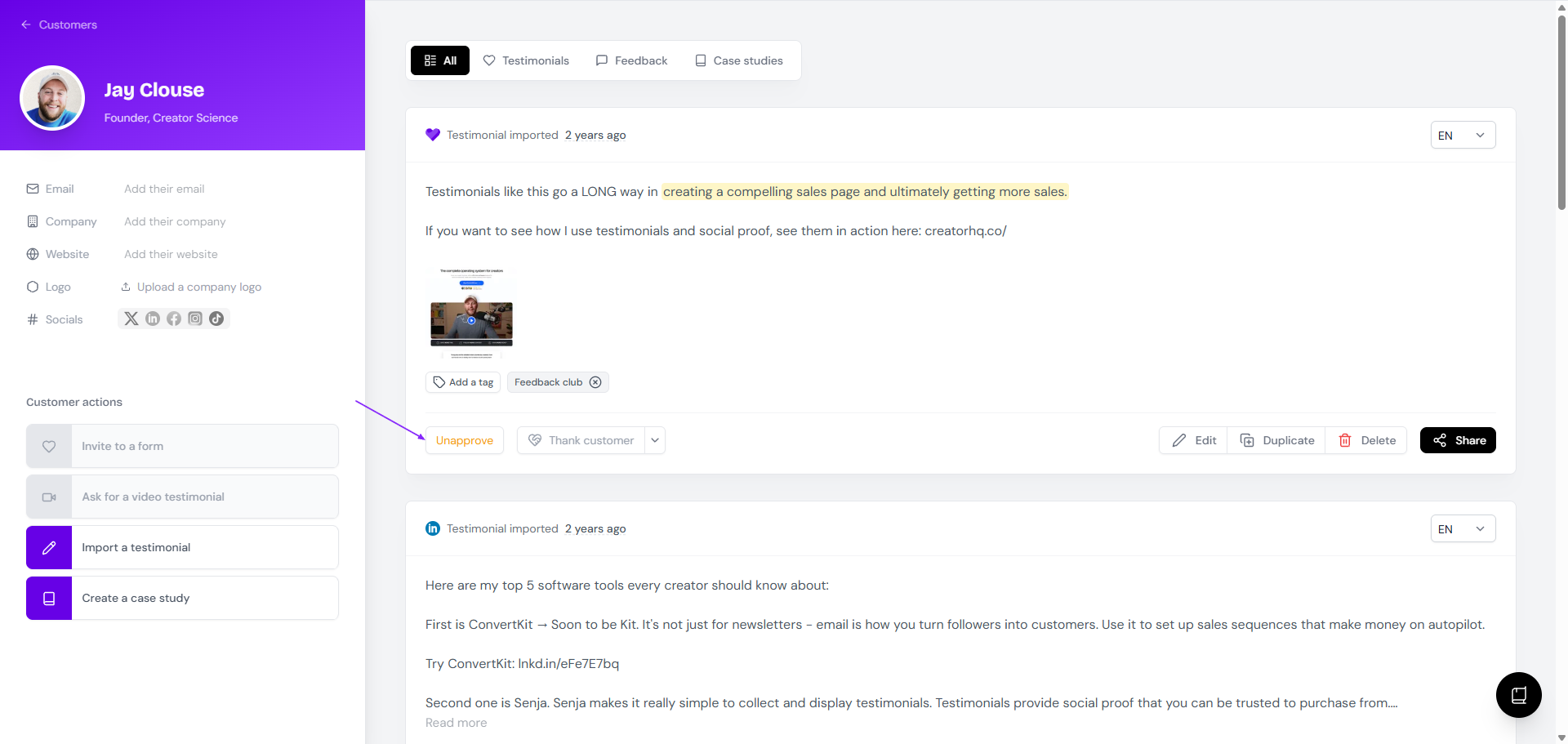
Go to your Proof page and open the testimonial you want to approve or unapprove
If it's Approved already, you will find the Unapprove button in the customer's page to change the status from Approved to Unapproved
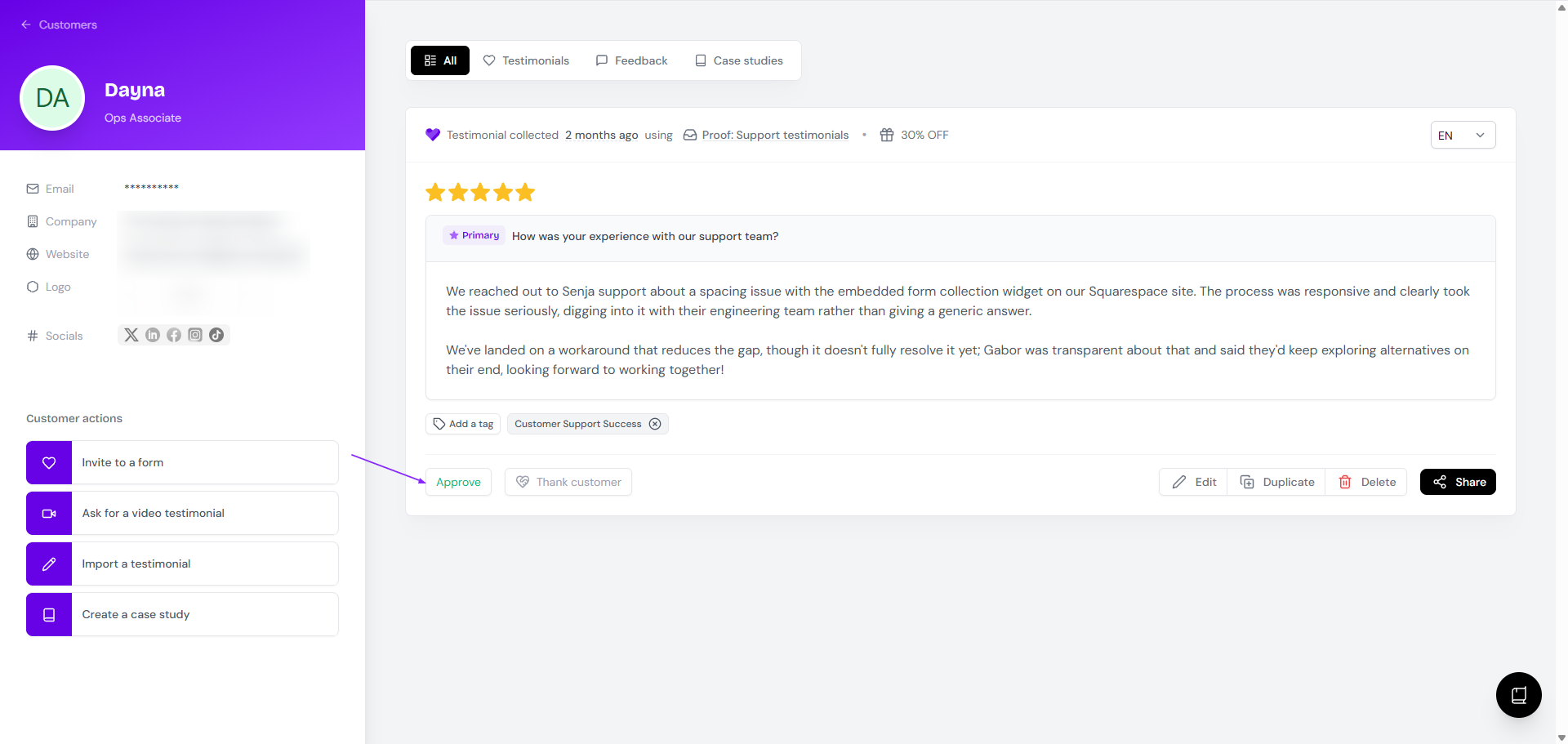
If the current status is Unapproved, you will find the Approve button in the customer's page to change the status from Unapproved to Approved
Approve/unapprove in bulk
Go to your Proof page: https://app.senja.io/
Filter the status to show only Unapproved ones
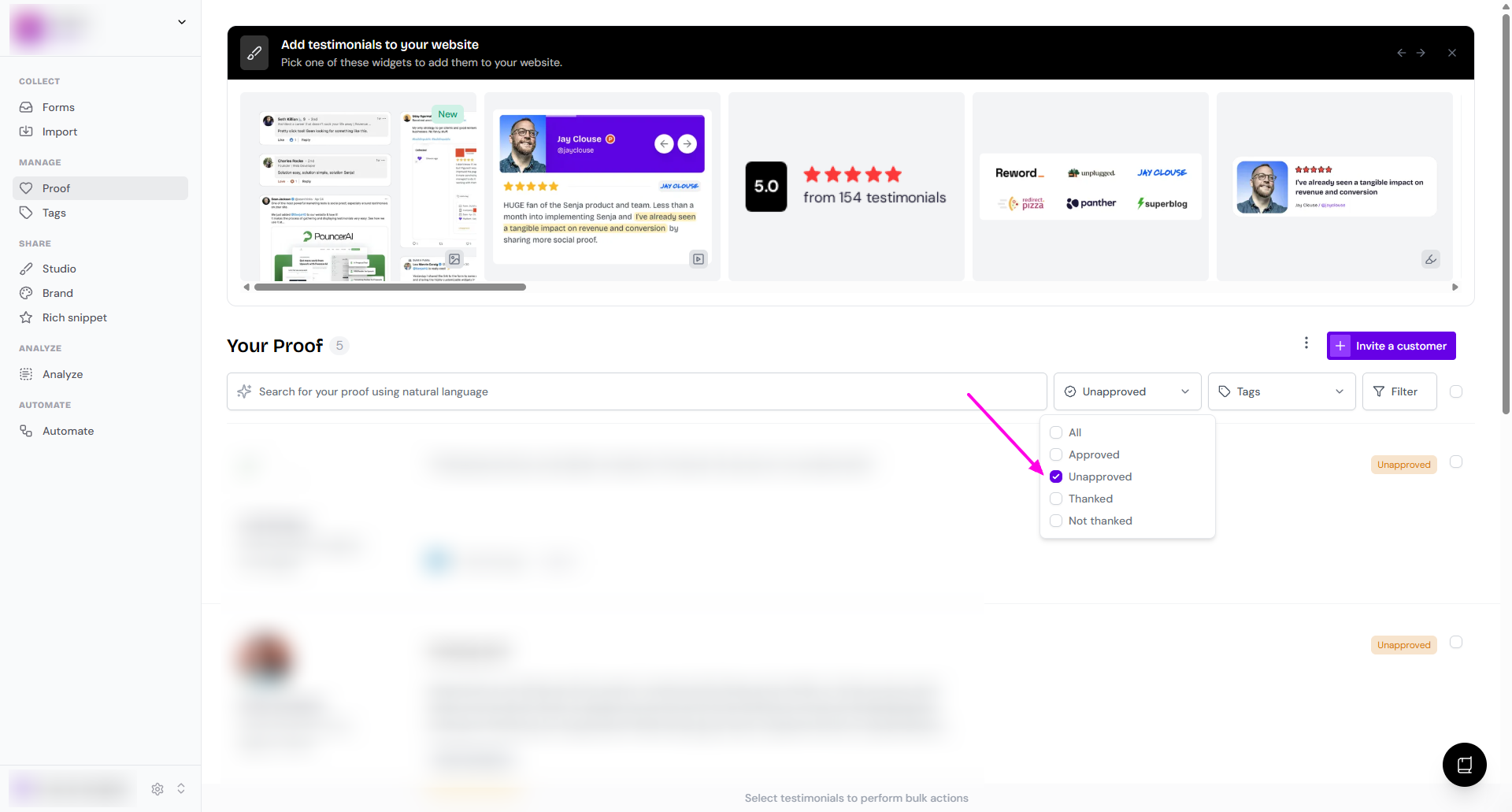
Select all, using the checkbox next to Filter
You can also select some of them by clicking the checkbox one by one
Click Approve on the bottom popup toolbar
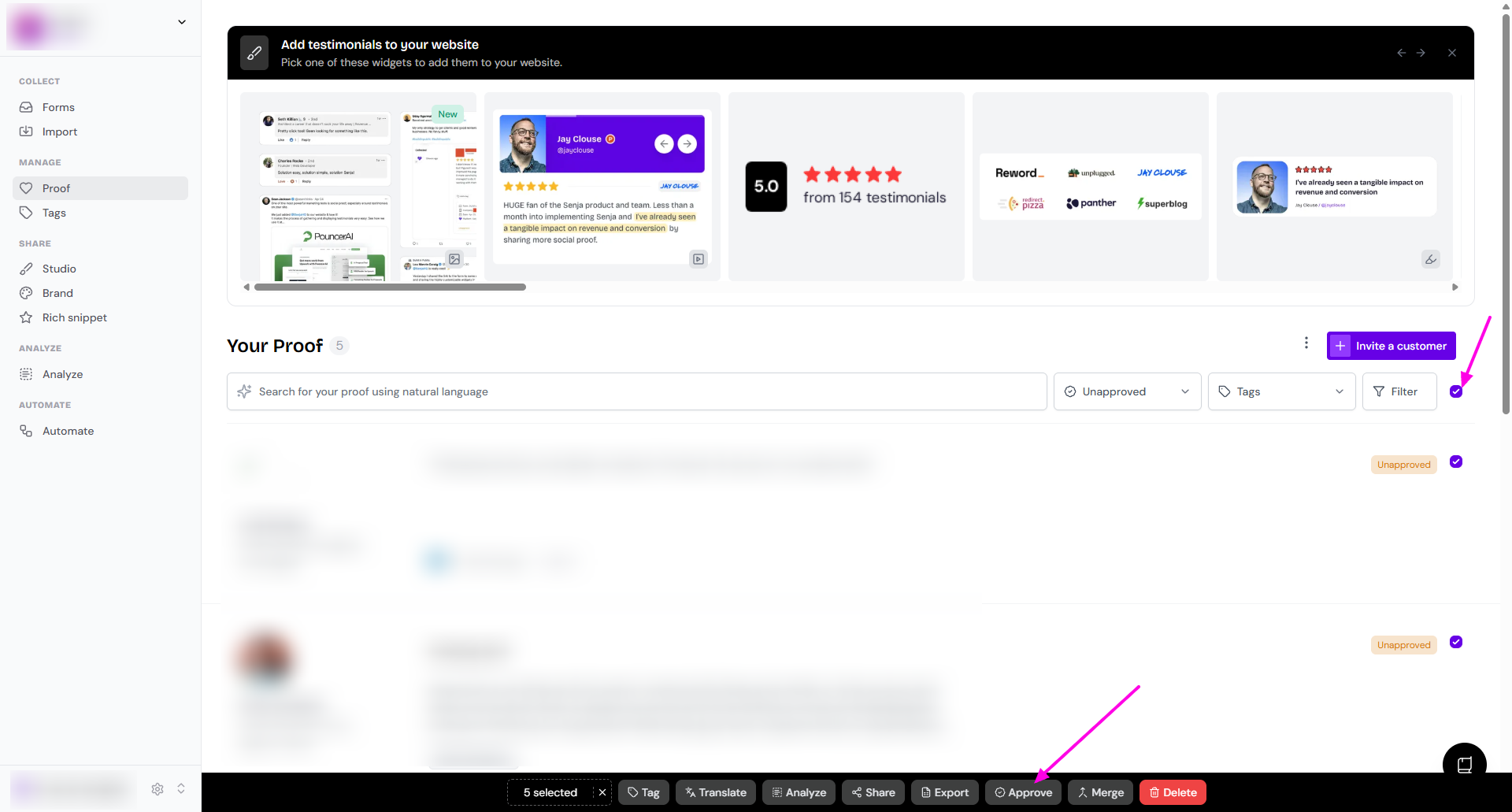
You can also unapprove approved testimonials using the same way.