
How do I edit my video testimonial?
You can edit the details attached to a video testimonial or trim a video testimonial directly from your Senja dashboard.
This feature is available for any Senja plans: Free, Starter, and Pro.
How to edit a video testimonial
Go to your Proof page: https://app.senja.io/
Find the video testimonial you want to edit
Click the testimonial to open it
You can edit the customer's details on the left part
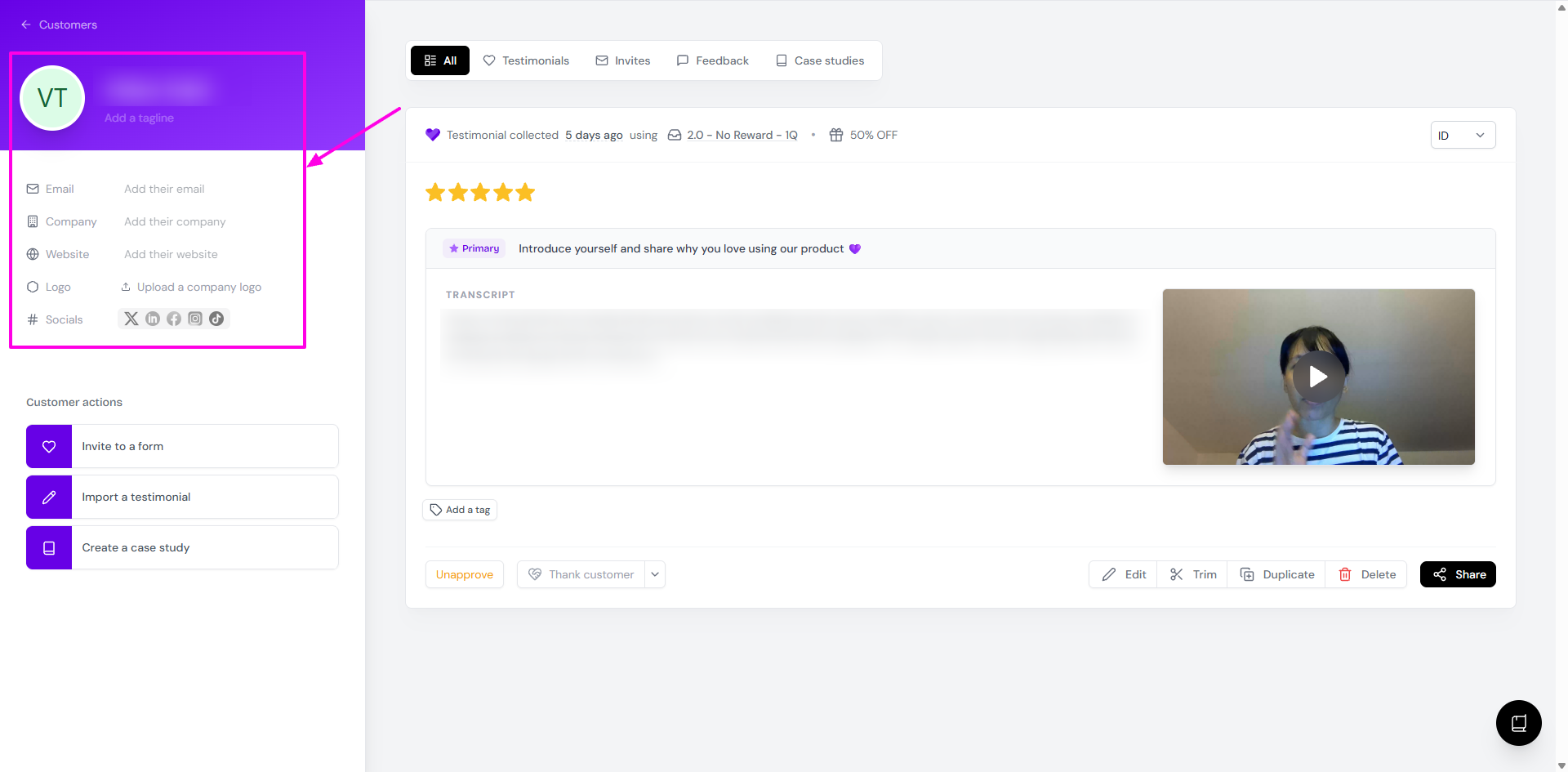
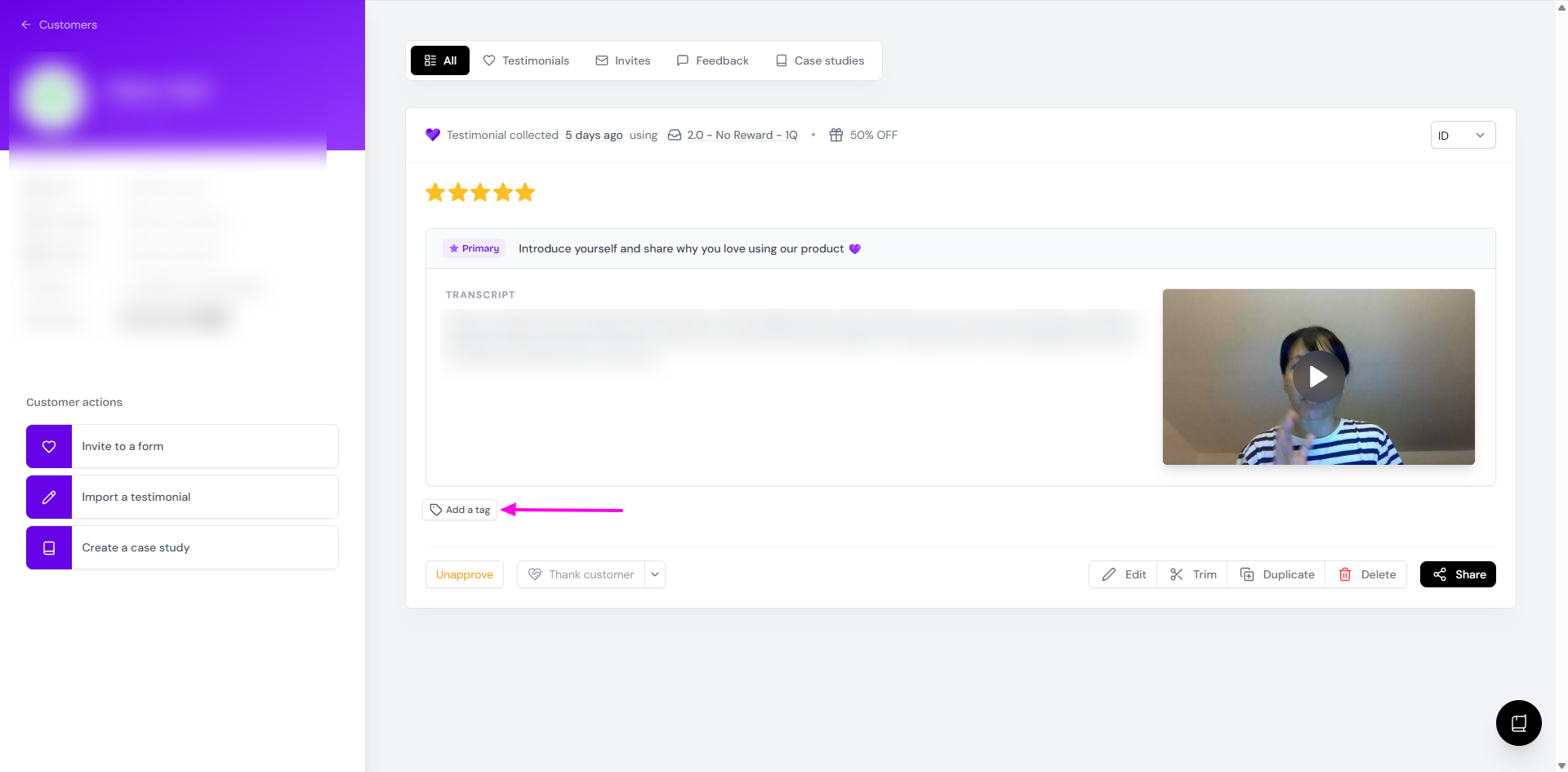
Click Add a tag to assign specific tags to your video testimonials
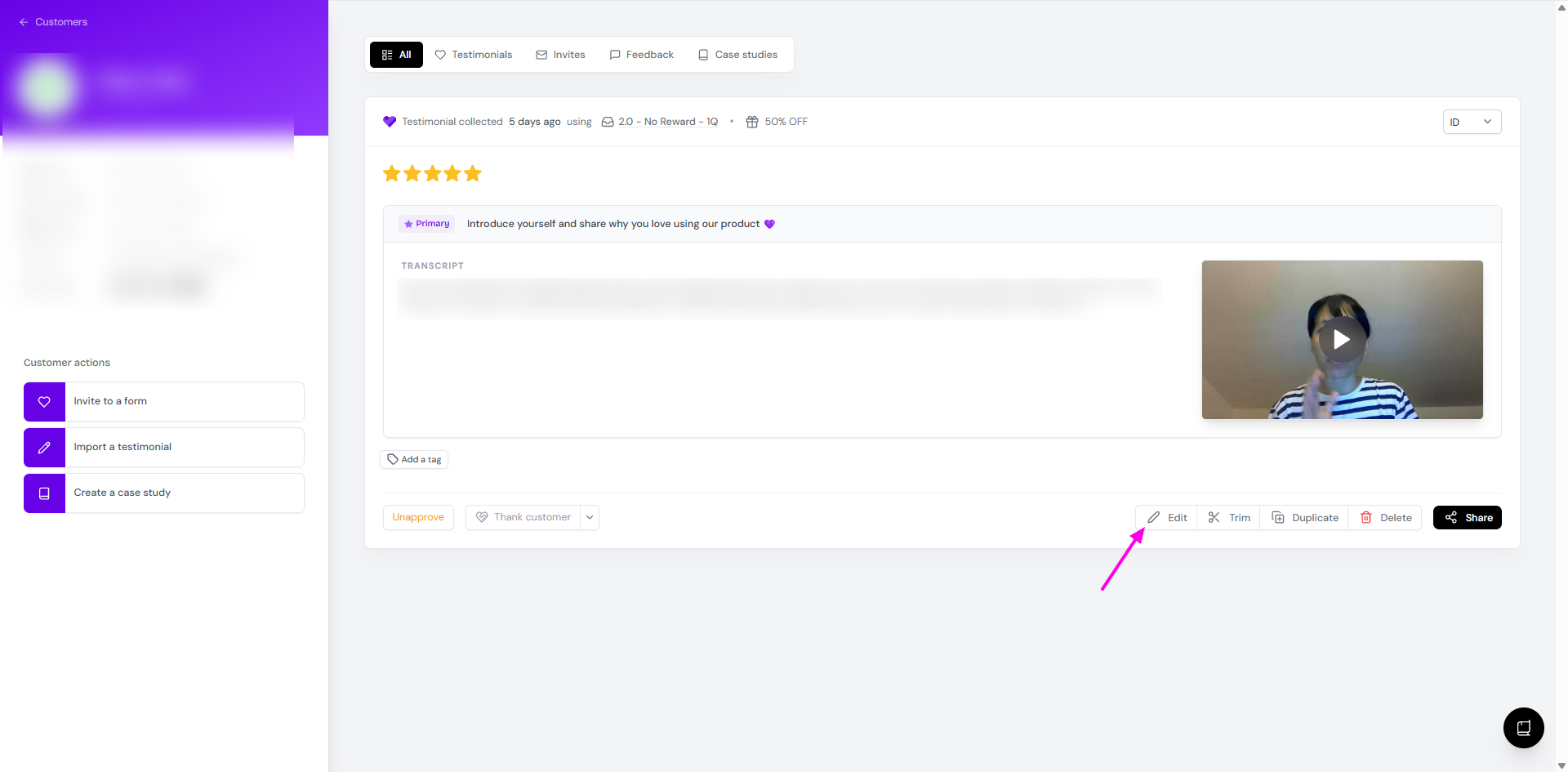
Click Edit
Make your changes on
Testimonial Title: can be a summary of the talking points
Rating: change the rating, but make sure you get a consent from your customer on the changes
Replace Video: make sure you have a new video from your customer and get a consent on using the new one
Thumbnail: add an image to act as a thumbnail for your video
Excerpt: add a short highlight quote pulled from the testimonial, useful for displaying a key snippet without showing the full text
Edit transcript: modify the transcript text, especially when there's a wrong mention of your business/product name
Remove transcript: delete the transcript fully
Language: the language is automatically detected, but if it gives the wrong information you can update it
Testimonial Source: change the source (Senja, Google, etc.)
Source URL: add a link relevant to the video
Date: the date of testimonial submission, not the date of testimonial modification
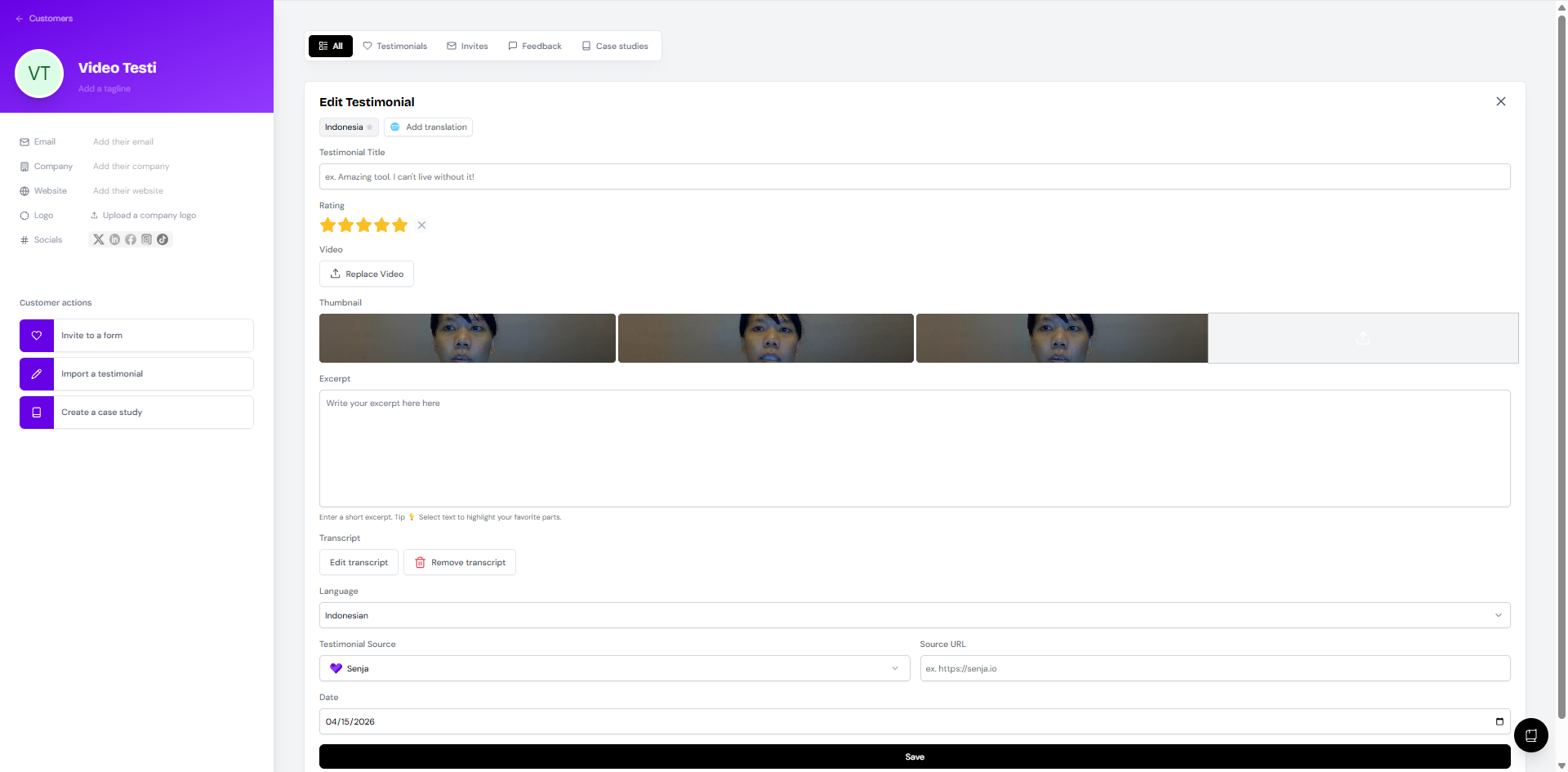
Click Save when you're done
The changes will be reflected also in the widgets if you include this video testimonial to any widget
How to trim the video
In the case when there are a long pause before or after the talking points, you can trim the video:
Go to your Proof page: https://app.senja.io/
Find the video testimonial you want to edit
Click the testimonial to open it
Click Trim
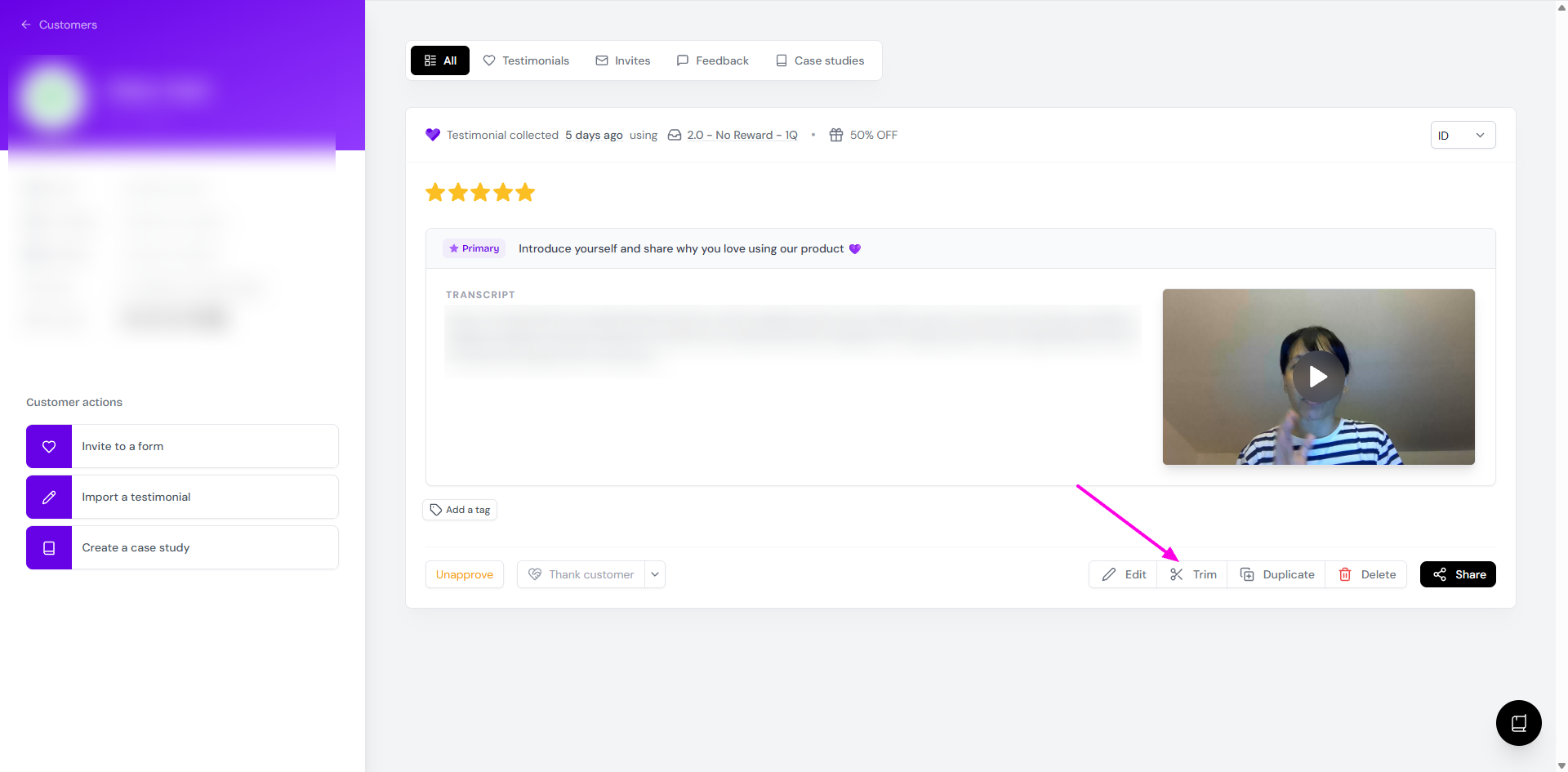
Move the left/right margin in the navigation bar to cut the beginning/end of the video
Click Save changes when you finish
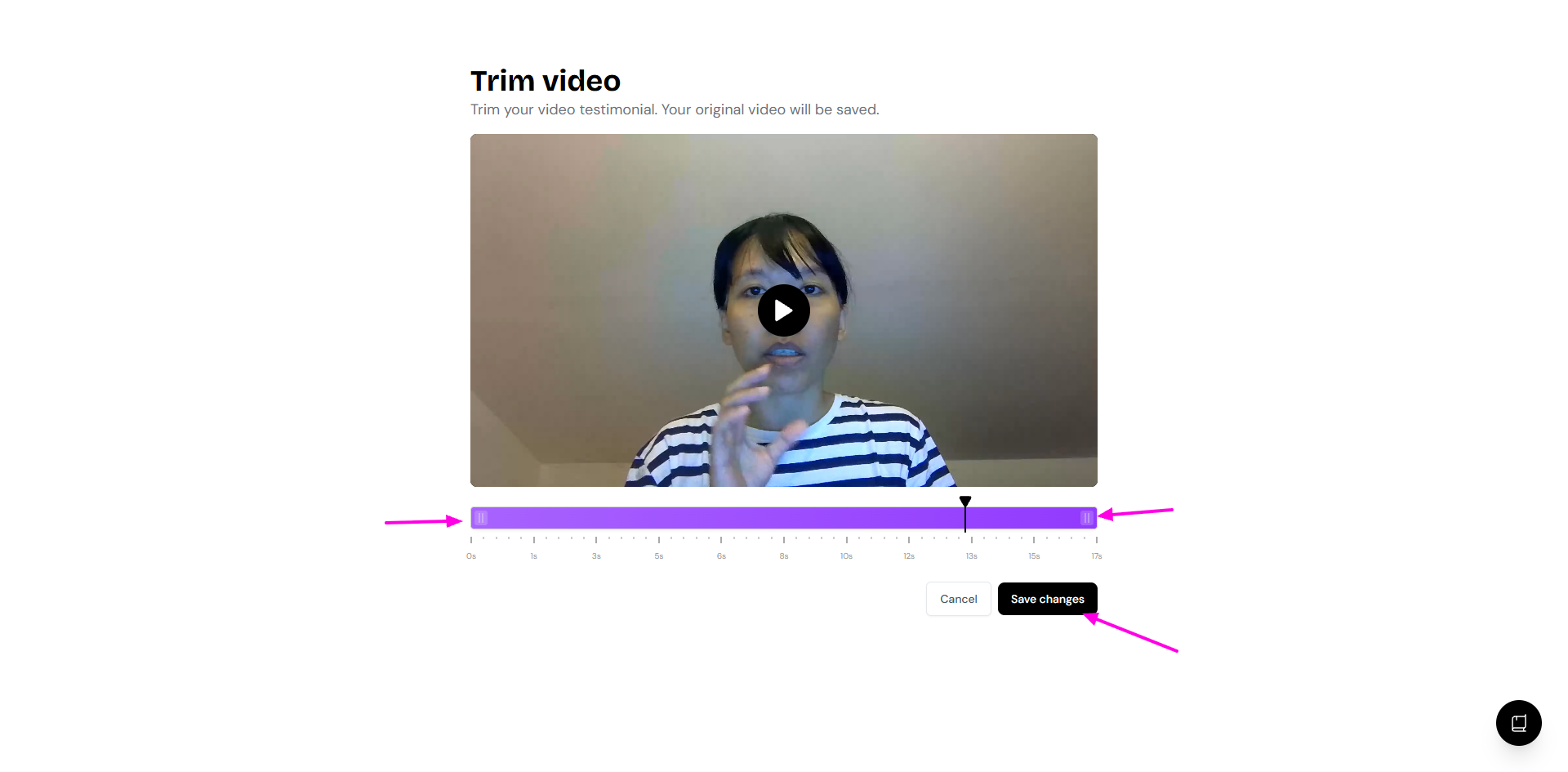
You cannot trim the middle part of the video testimonial. To do this, you need to download the video and using external video editing platform, or use Proof Reels to edit your video (see How to create reels in Senja).
How to resize a video testimonial
If your video appears vertically too long, it may be because it was recorded in portrait mode on a mobile device. You can fix this by re-uploading the video in landscape format.
Download the video from Senja
Use a video editor to convert the video from portrait to landscape (ideal size 1080px x 1920px)
Re-upload the corrected video to Senja
Reuploading edited video to Senja
If you're downloading video from Senja and then edited it using external platform, the next steps would be:
Go to Import → Manual import: https://app.senja.io/import/manual
Choose Video testimonial
Find your customer name from the dropdown on Customer name, to make sure the new video upload will be listed under the original video
When the import is completed, go to Proof page
Click the testimonial to open the customer page
The video you have just imported will be displayed as separate entry, not overwriting the original one
The importance of thumbnails in video testimonials
If you're using video testimonials, you can create visual distinction by customizing video thumbnails:
Use different thumbnails for each testimonial, even if they share the same video content
This helps users differentiate between testimonials when you add multiple videos in your widget/Wall of Love