
How to create image template
Image templates let you save your customized testimonial designs for reuse. Once created, you can apply them to new testimonials instantly without redoing your styling.
This feature is available for any Senja plans: Free, Starter, and Pro.
Creating image templates from Proof page
Go to Proof page: https://app.senja.io/
Choose any testimonial
Click Share
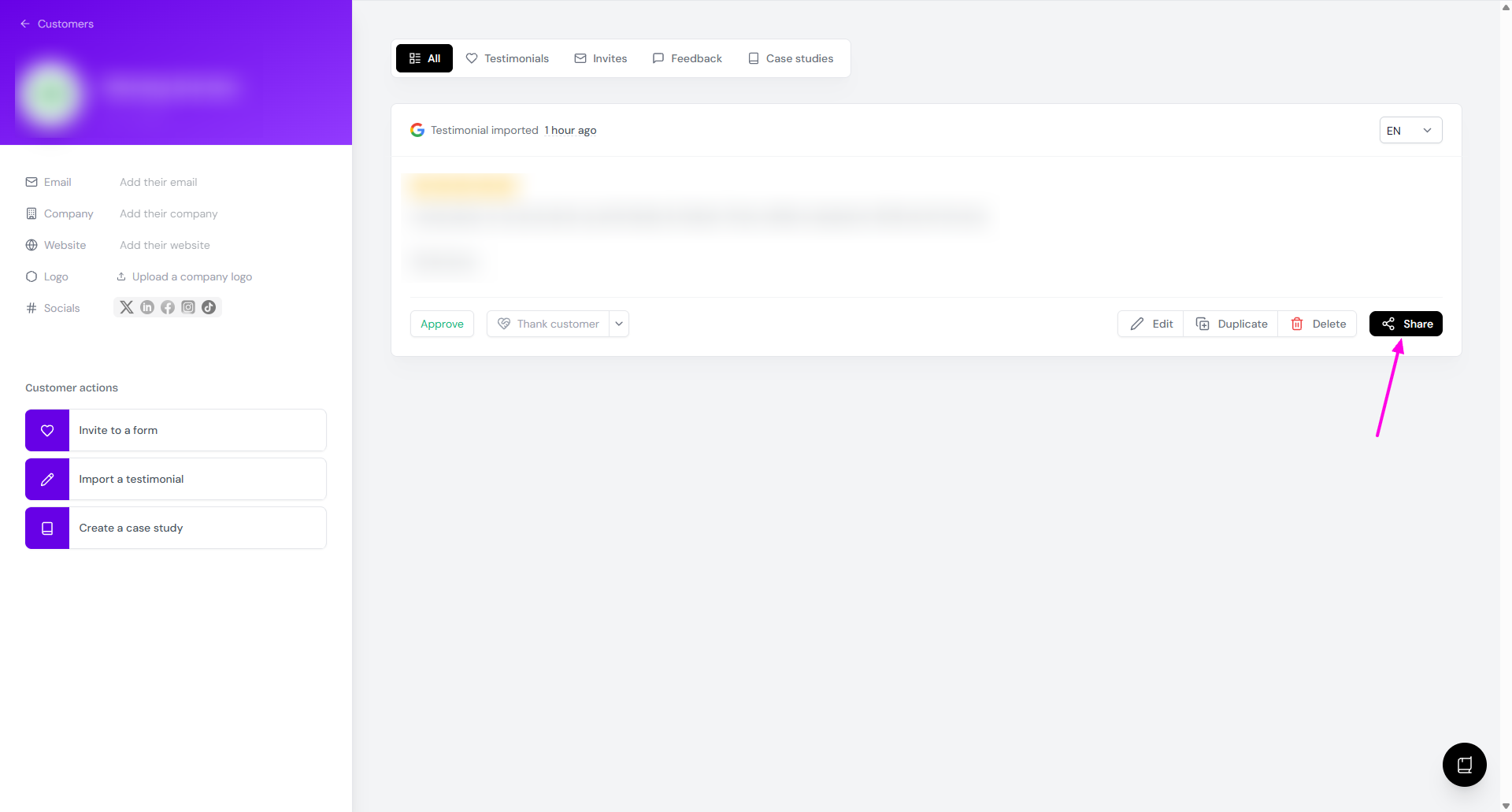
Click Create an image
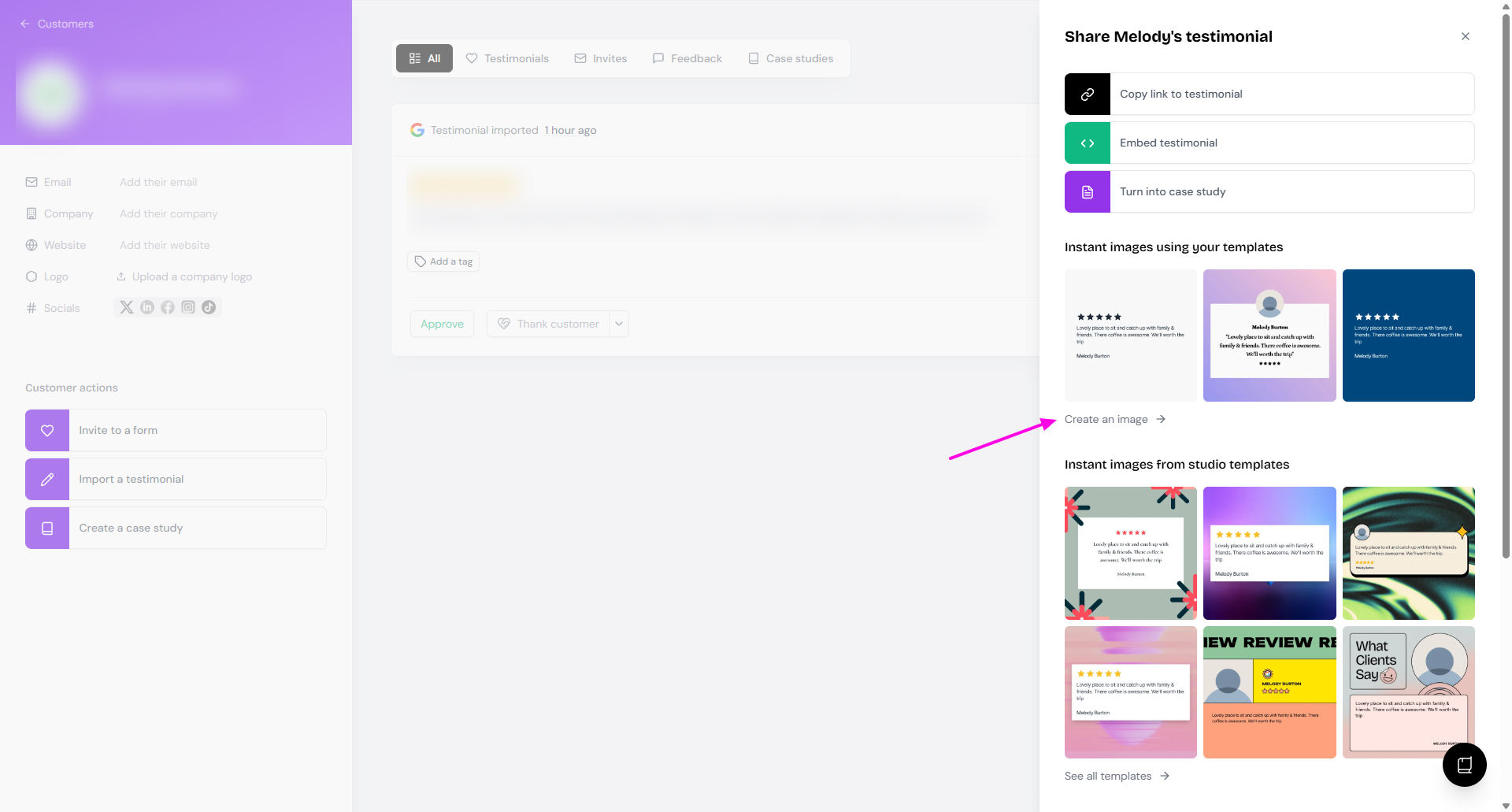
Update the Background, Branding, and Resize
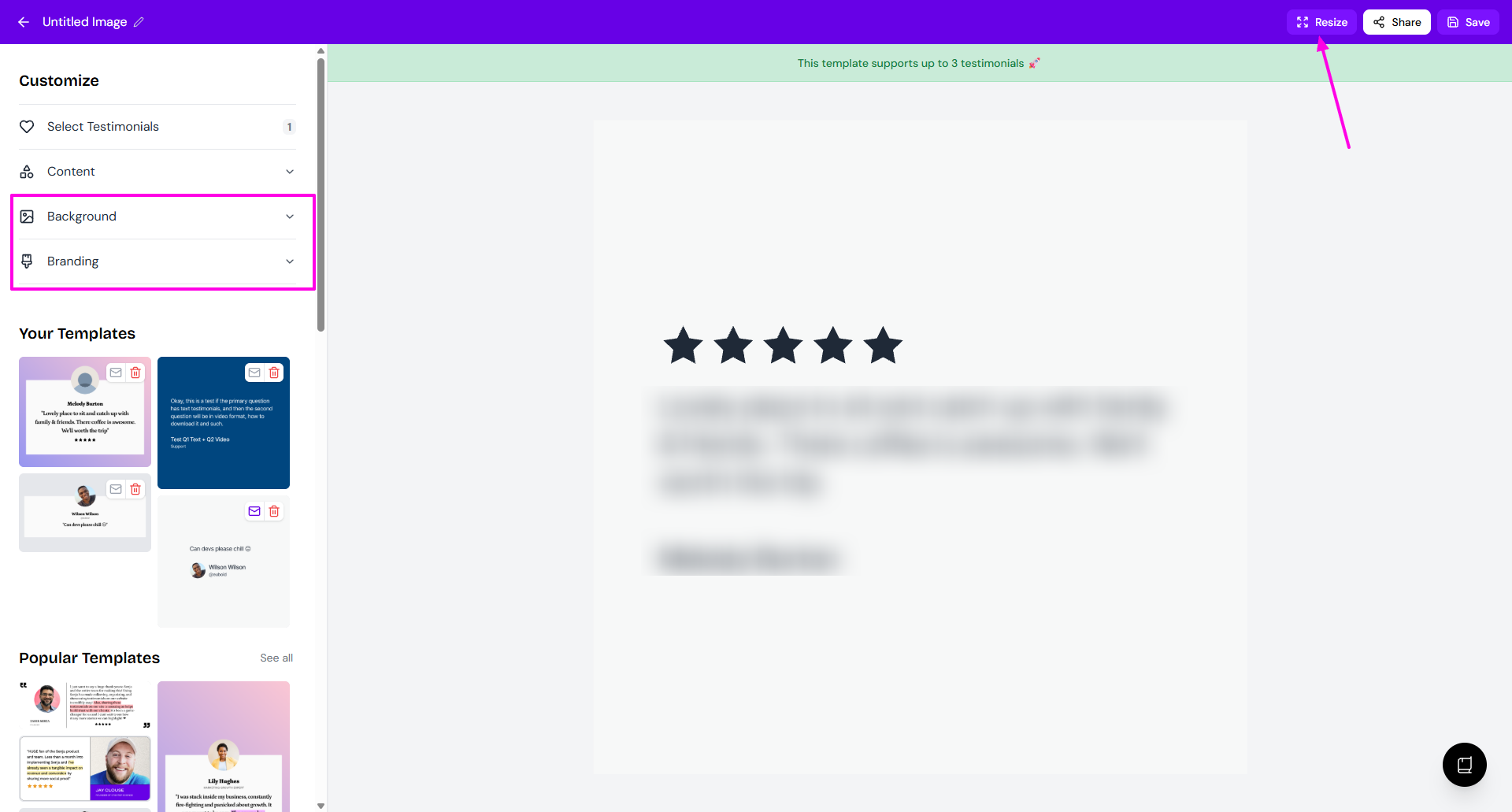
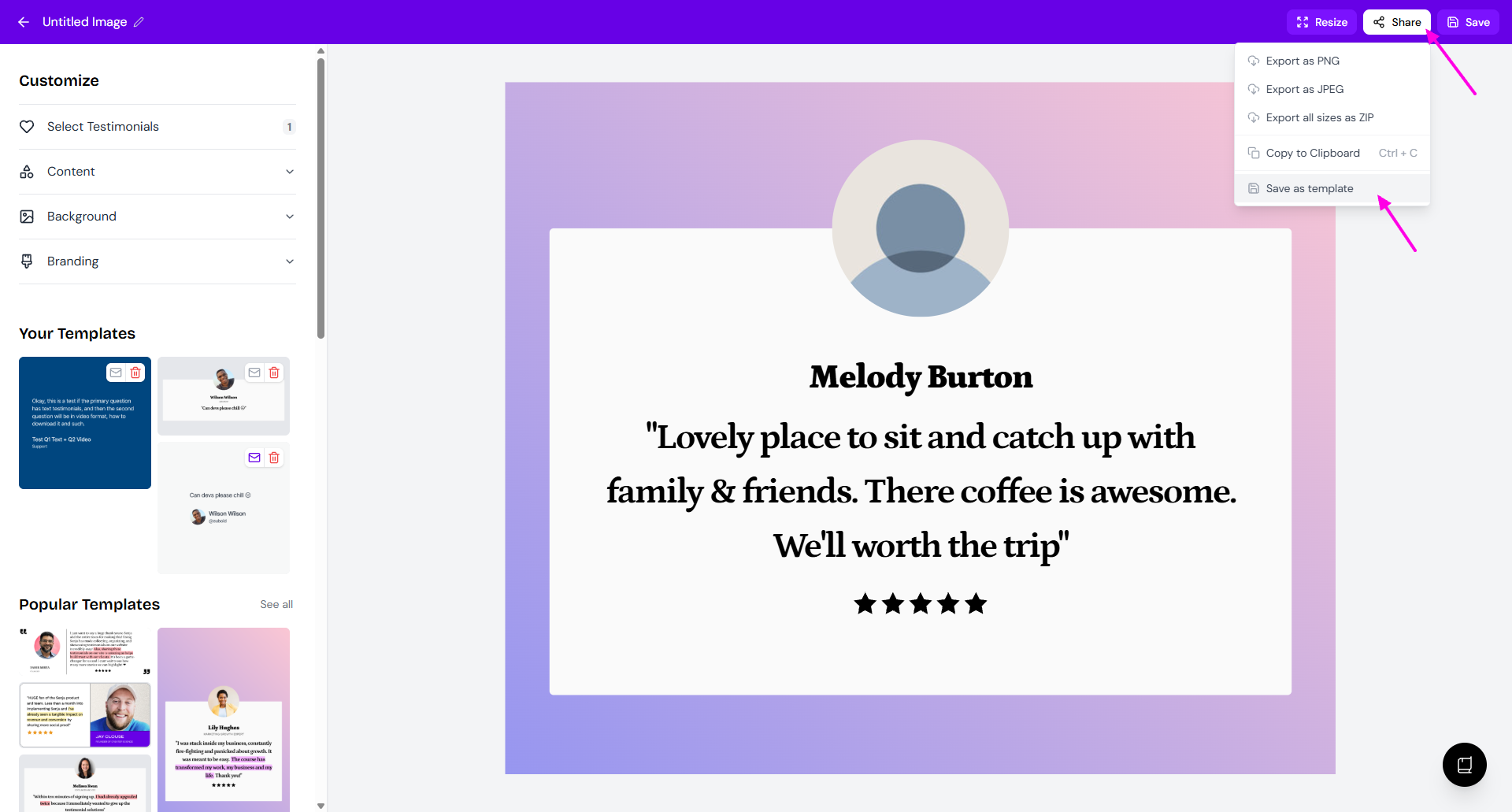
Click Share > Save as template
Creating image templates from Senja Studio
You can create an image template by updating the existing template in the Studio page, and save it as your own.
Go to Studio > Images: https://app.senja.io/studio#images
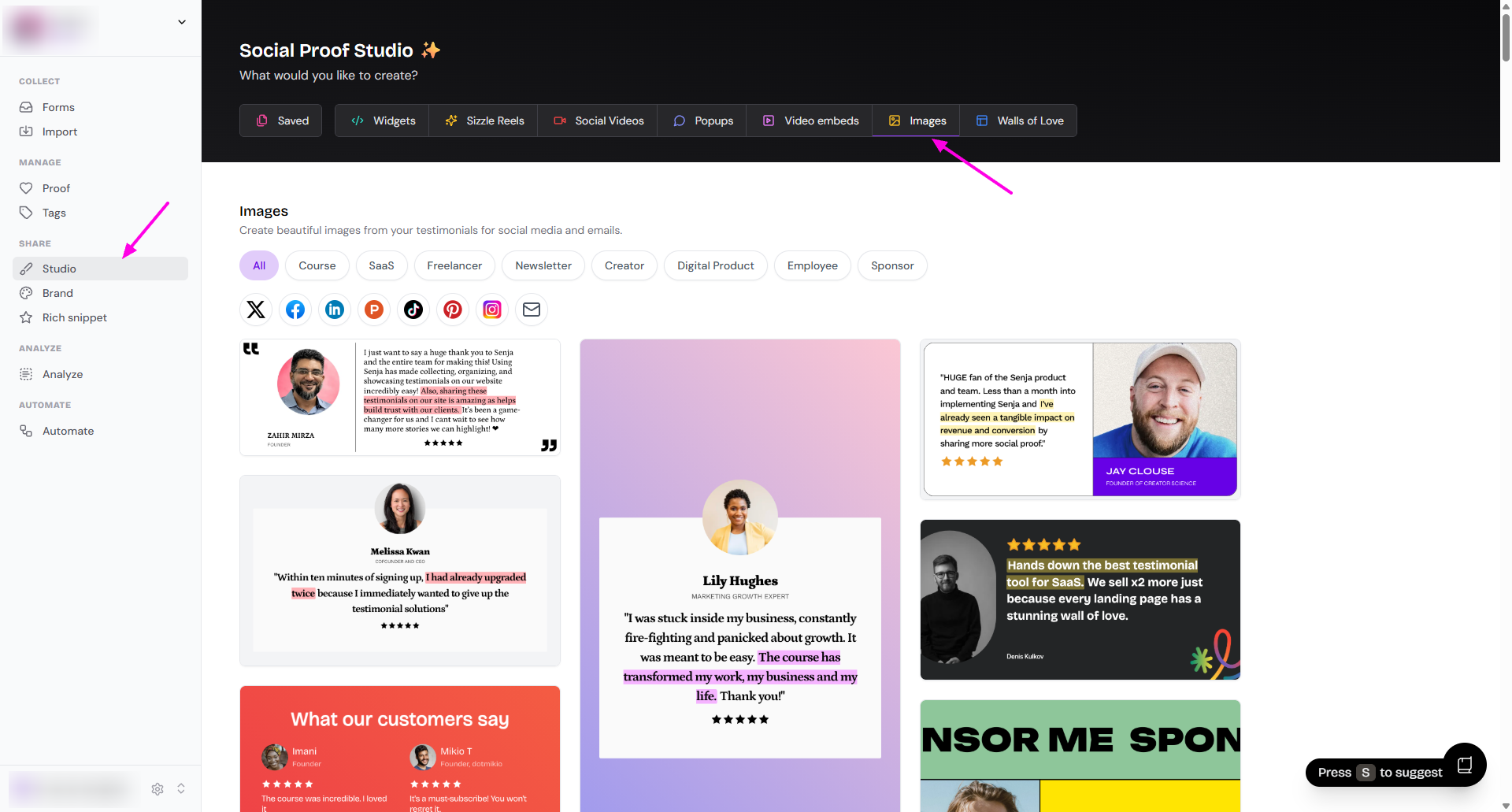
Choose the style that you want
Update the Background, Branding, and Resize
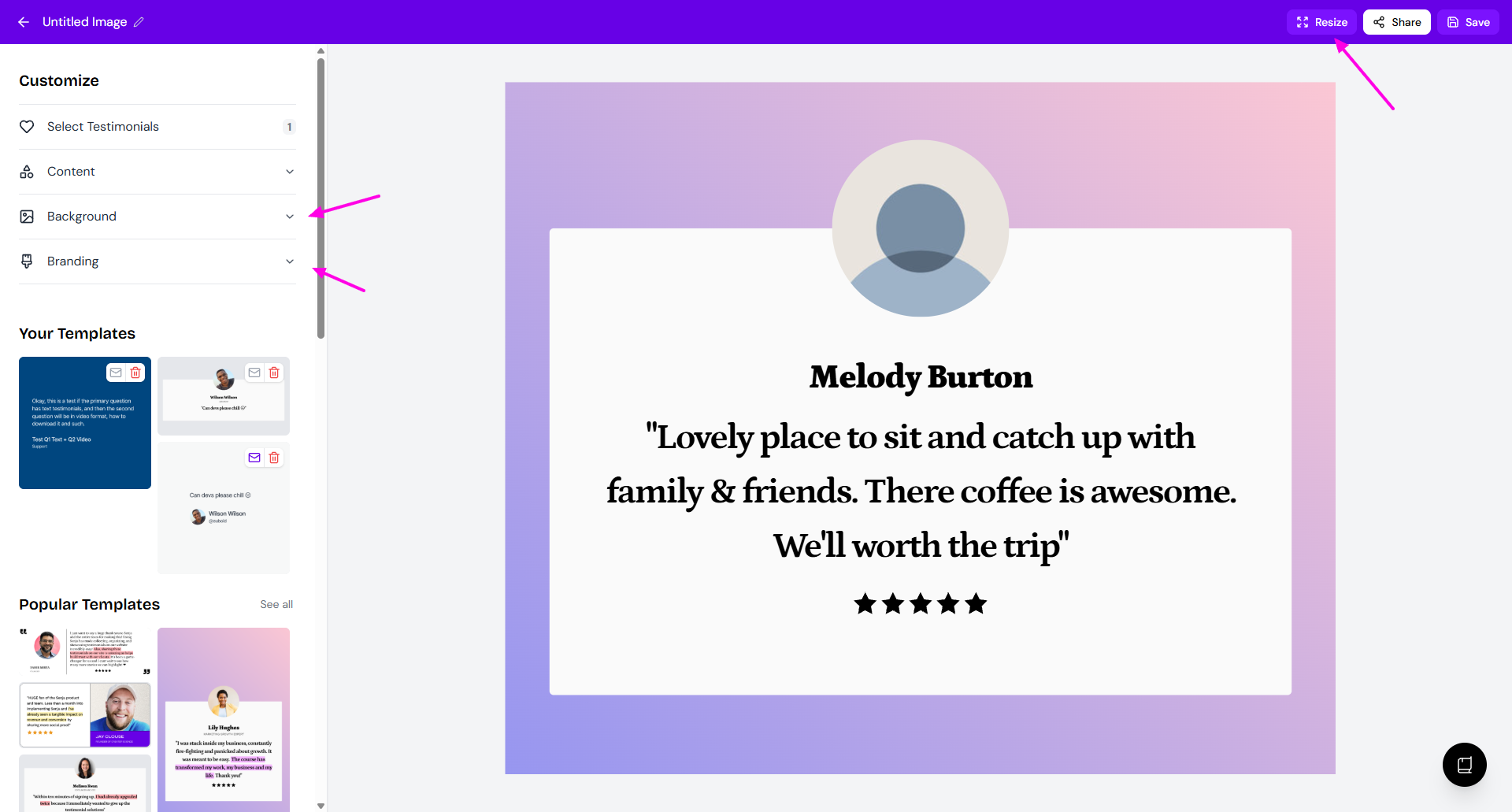
Click Share > Save as template
Now your template is available on Your Templates section
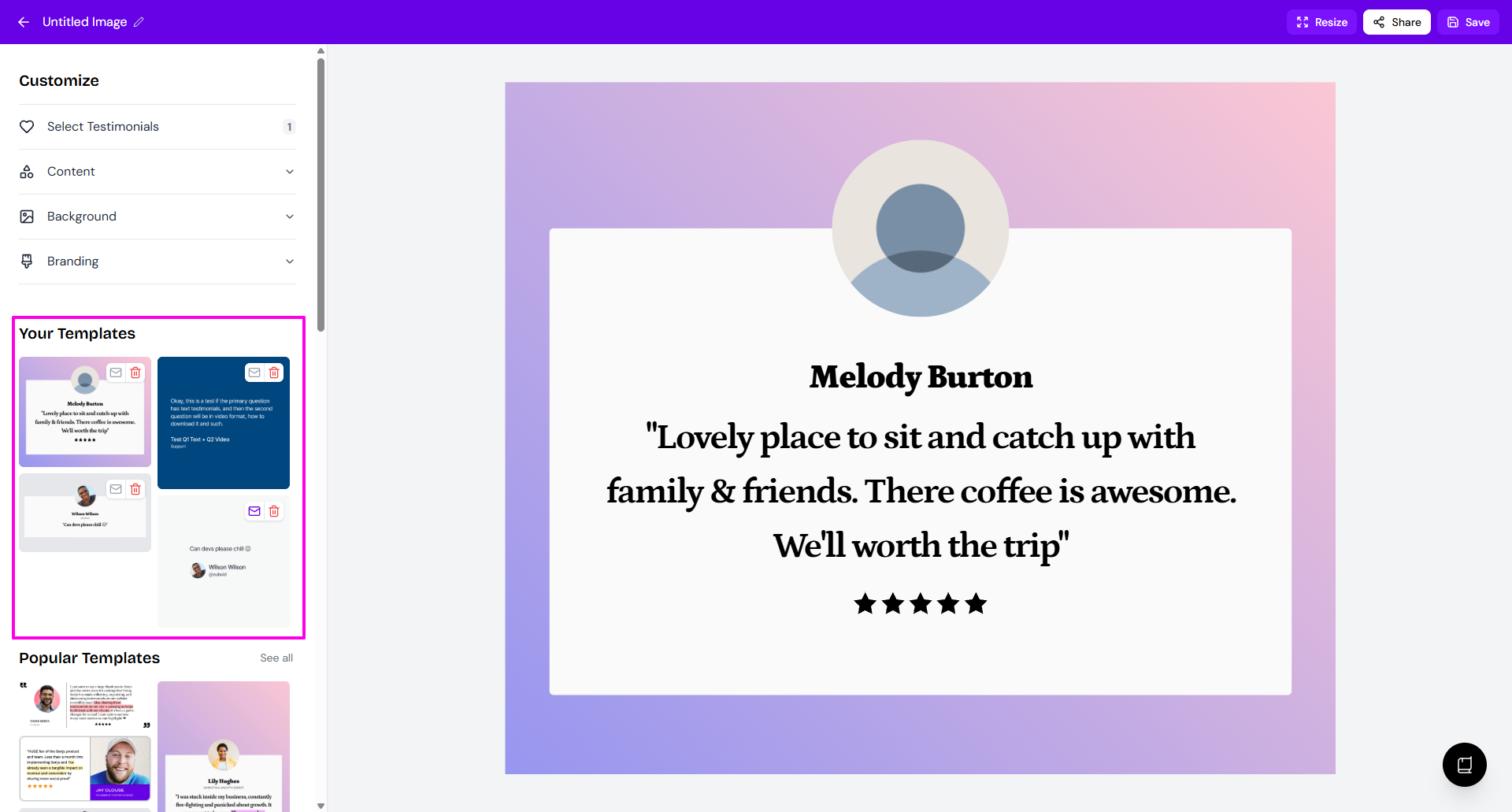
Customize your design
Use the Customize panel to adjust your template's appearance. You can modify:
Content — Text, ratings, and testimonial details
Background — Colors, gradients, or images
Branding — Your logo and brand elements
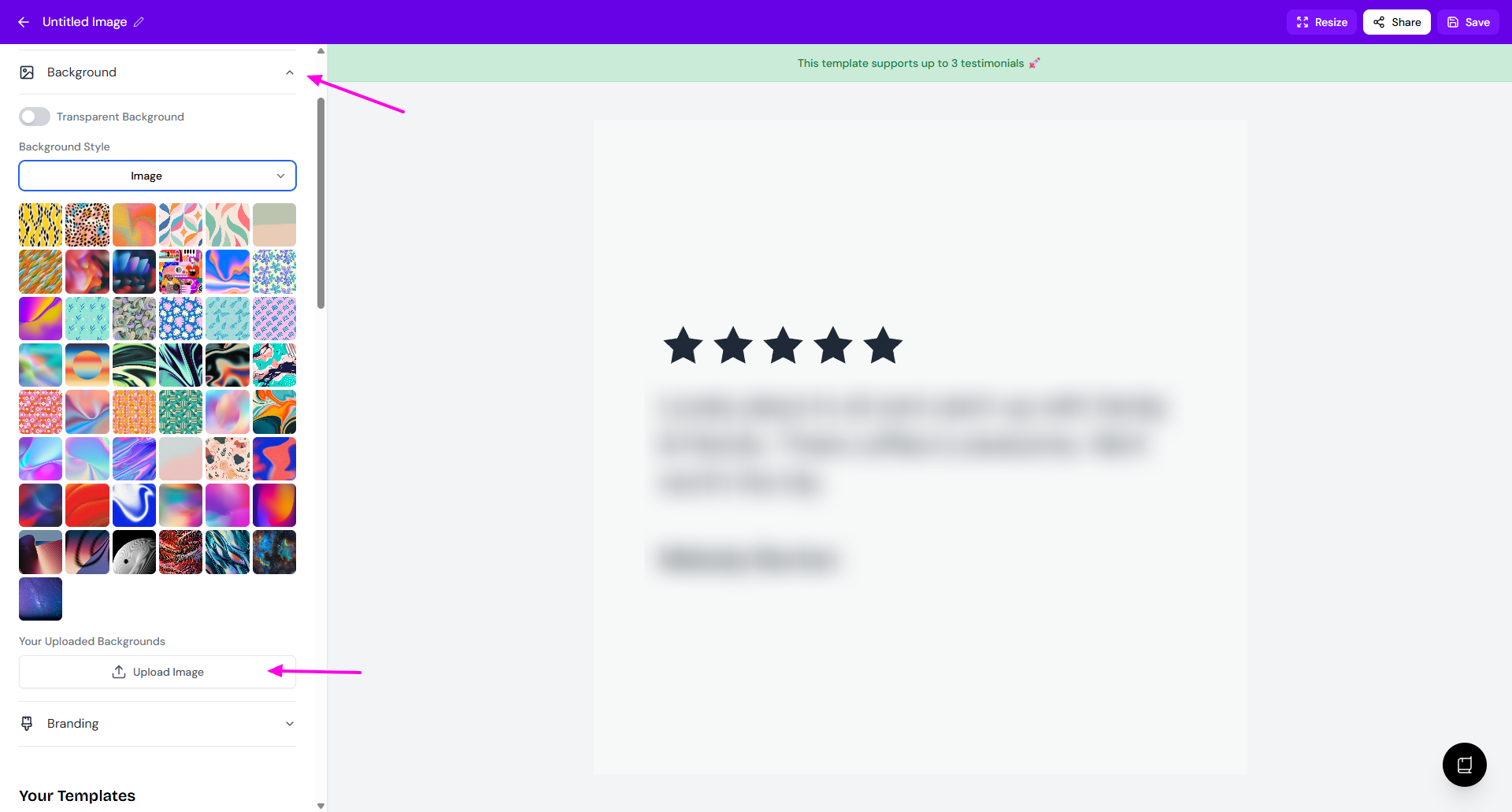
On the Background update, you can add your own image as background:
Choose Images as Background Style
Click Upload Image
To reuse a saved template, simply click on it from the Templates section and your design will be applied instantly.