
How to add testimonials to WordPress (WordPress.com, WordPress.org and Elementor)
Add your Senja testimonial widget to any WordPress website. The steps depend on how your site is set up: WordPress.com, self-hosted WordPress.org, or the Elementor page builder. You can also add testimonials as images.
This is available on all Senja plans: Free, Starter and Pro. On WordPress.com, you need a paid WordPress plan to embed a Senja widget.
Which WordPress do I have?
If… | Follow |
|---|---|
You log in at wordpress.com and WordPress hosts your site | |
Your site is hosted by a company like Bluehost, SiteGround, Hostinger or DreamHost, or you host it yourself | |
You edit your pages with Edit with Elementor, on either version |
Before you start
Create a widget in Senja, see How to create a testimonial widget
Open your widget, click Share and copy the embed code. See How to share or embed my widget
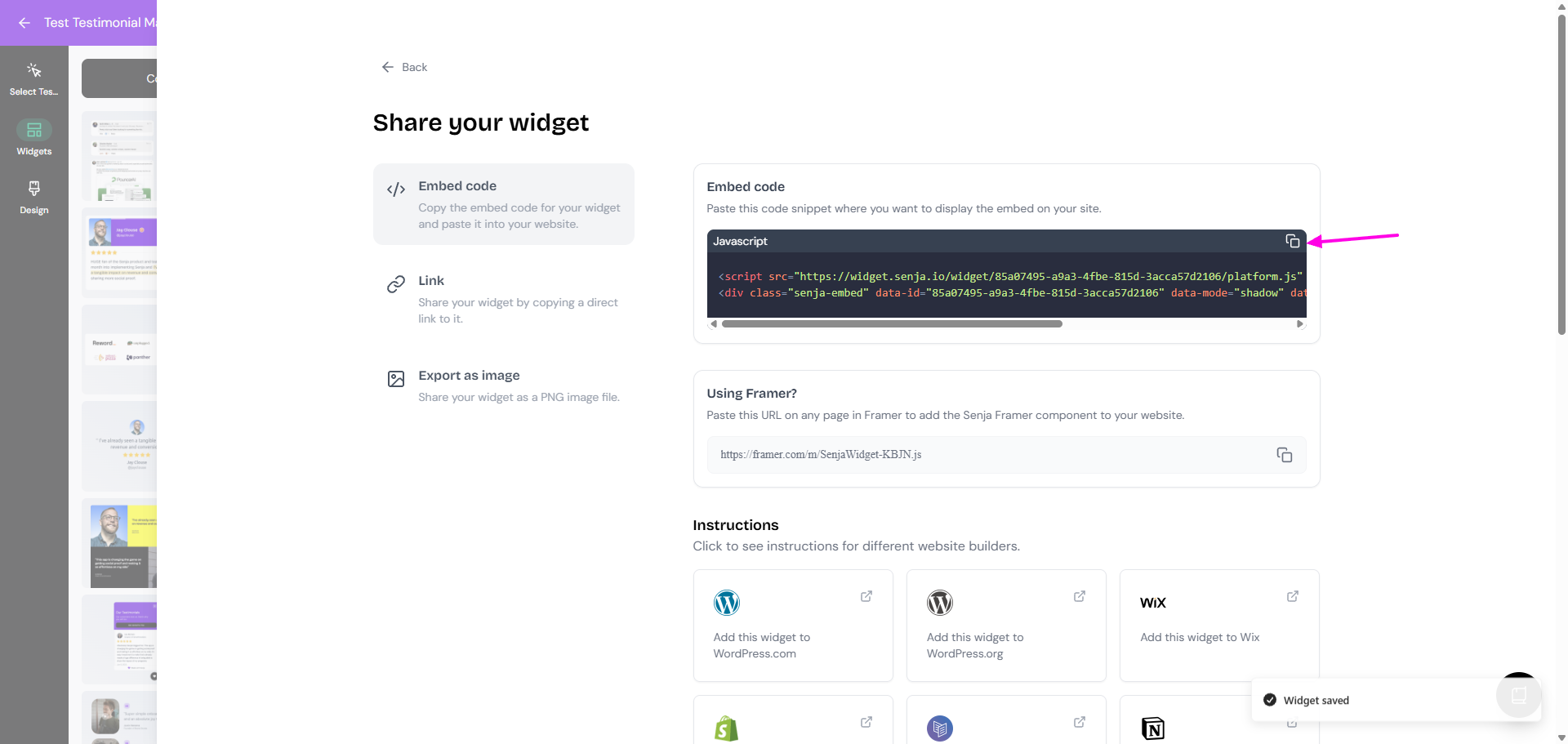
The free Senja Chrome extension lets you copy your widget code without leaving your WordPress dashboard.
WordPress.com
The standard Custom HTML block on WordPress.com doesn't run scripts, so you add a free plugin first.
In your WordPress dashboard, go to Plugins, search for Custom HTML Block Extension, then install and activate it

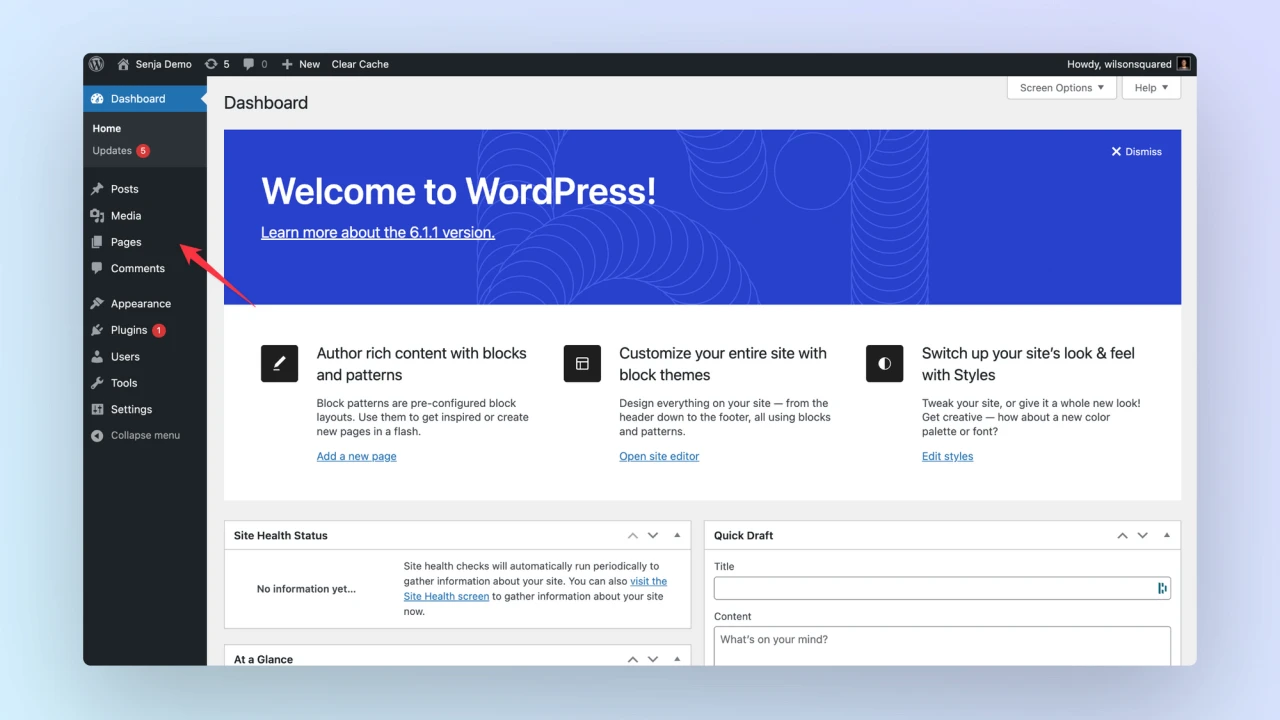
Click Pages

Open the page where you want your testimonials

Type / and choose Custom HTML. It now has a lightning icon

Paste your Senja embed code and click Publish

WordPress.org
Use these steps for self-hosted WordPress, or managed hosting like Bluehost, SiteGround, Hostinger or DreamHost, with the Gutenberg editor.
In your WordPress dashboard, click Pages
Open the page where you want your testimonials
Type / in the editor and choose the Custom HTML block
Paste your Senja embed code
Click Publish or Update
Elementor
In your WordPress dashboard, click Pages
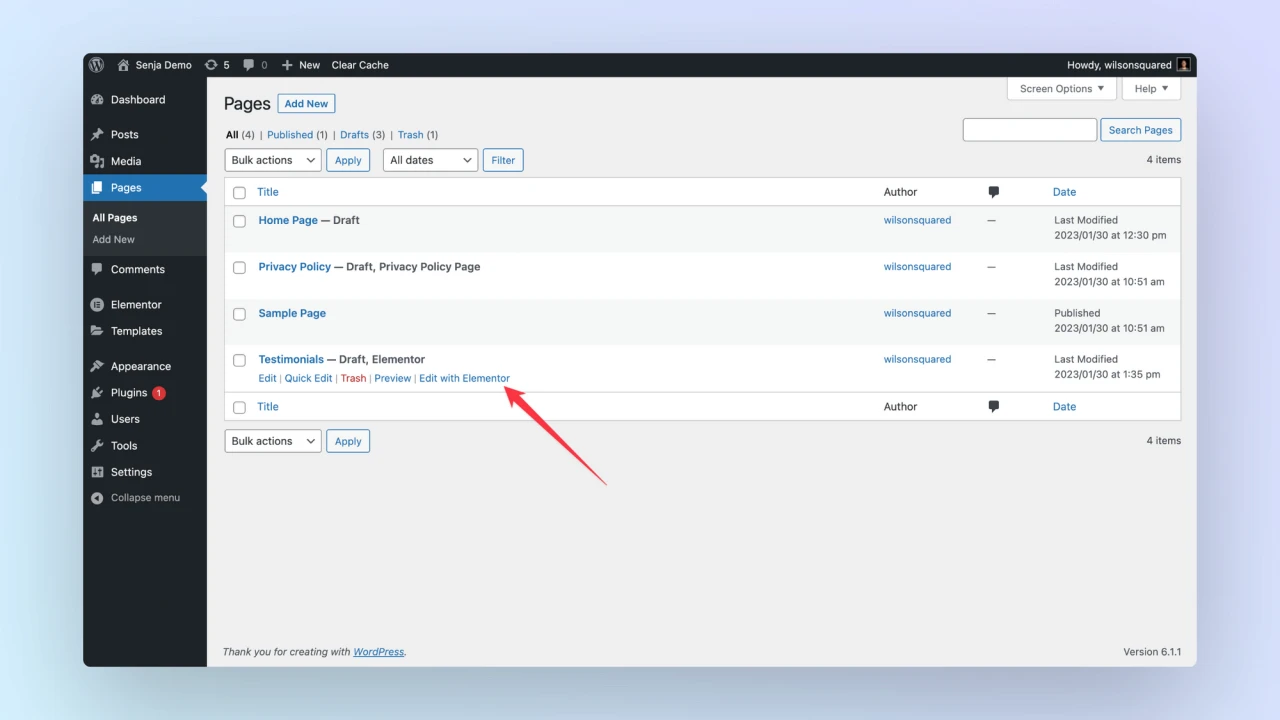
Find your page and click Edit with Elementor
In the elements panel, search for the HTML element
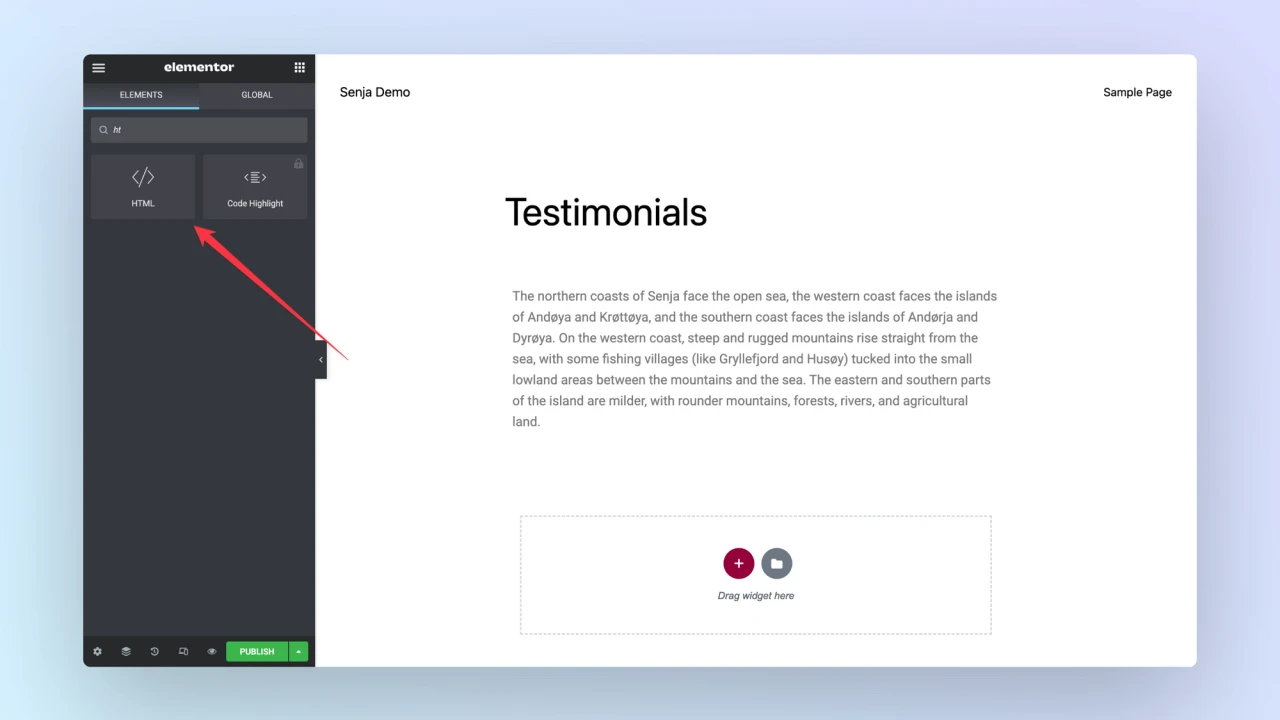
Drag the HTML element onto your page where you want your testimonials

Paste your Senja embed code
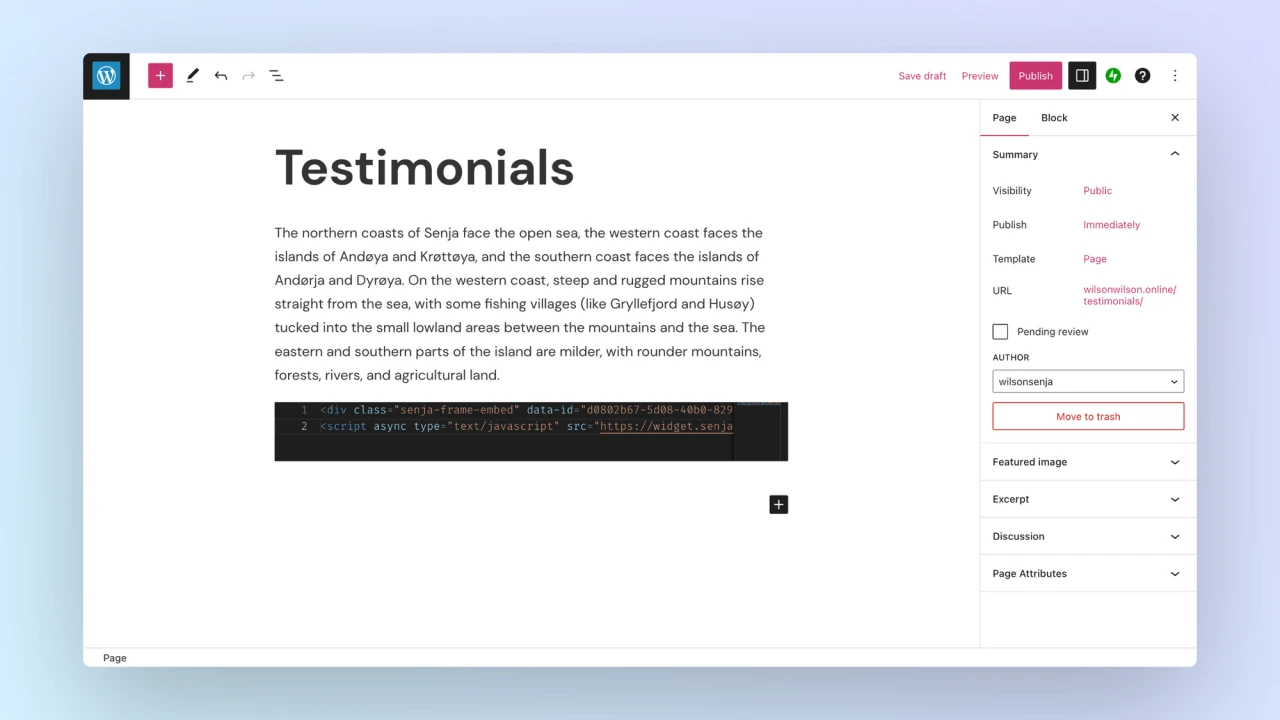
Click Publish

Add testimonials as an image instead
Works on WordPress.com, WordPress.org and Elementor.
Create a testimonial image, see How do I turn my testimonials into images?, or download your widget as an image from Share → Export as image
Open your page in the editor
Click + where you want the image and choose the Image block (in Elementor, the Image element)
Upload your testimonial image
Click Publish or Update
Images don't update on their own. Use a widget if you want new testimonials to show automatically.
Widget not showing or not updating?
Caching plugins, like LiteSpeed Cache or WP Rocket, can keep showing an old version of your page. Clear your cache, and exclude https://widget.senja.io/* from caching. See Troubleshooting testimonial widget, or contact Senja Support.