
How to add testimonials to your course platform (Kajabi, Teachable, Thinkific, Podia and more)
Add your Senja testimonial widget to your course platform's sales pages, website and lessons, so students see real results before they buy. This guide covers Kajabi, Teachable, Thinkific, Podia, LearnDash and Simplero.
This is available on all Senja plans: Free, Starter, and Pro.
What you can add to each platform
Platform | Widget | Testimonial image | Senja form in a lesson |
|---|---|---|---|
Kajabi | Yes, with a Custom Code section | Yes | Yes, see the Kajabi form guide |
Teachable | Yes, with a Custom Code section | Yes | Yes, see the Teachable form guide |
Thinkific | Yes, in a Text & media section | Yes | Yes, see the Thinkific form guide |
Podia | Yes, with /embed and your widget link | Yes | Yes, see the Podia form guide |
LearnDash | Yes, with a Custom HTML block | Yes | Yes, see the LearnDash form guide |
Simplero | Yes, in the code view of any content box | Yes | Yes, with the same steps as a widget |
Before you start
Create a widget in Senja, see How to create a testimonial widget
Copy its embed code, or its link for Podia, see How to share or embed my widget
Kajabi
Go to the Kajabi page where you want your widget
Click Sections in the sidebar and choose Custom Code
Click Edit and paste your Senja embed code
Save and preview your page
Teachable
In your Teachable admin, go to Site → Pages and open the page you want to edit, like your sales page
Click Add New Section and choose Custom Code (the name can vary with your theme)
Drag it to where you want your testimonials
Paste your Senja embed code and click Save
Check the Preview on desktop and mobile, then click Publish
Teachable may block some scripts. If your widget doesn't show, try the iframe option in How to share or embed my widget.
Thinkific
Add a new section with the type Text & media
Click the code view icon </>
Paste your Senja embed code
Click </> again to leave code view
Publish your website
Podia
Podia adds your widget with its embed tool, using your widget link instead of the embed code.
Open your Podia content and click into the text editor where you want your widget
Type /embed
Paste your Senja widget link and confirm
Publish your changes
The widget may not show in the preview straight away. Wait a few seconds, publish, then refresh the page.
Widget background turning black? Podia's embed follows each visitor's dark mode setting, and the widget's background is transparent. Add a white background with custom CSS (Starter or Pro), see How to customize my widget with CSS.
LearnDash
In your LearnDash lesson or page editor (Gutenberg), add a Custom HTML block
Paste your Senja embed code
Preview and save
Simplero
You can embed in most content boxes in Simplero, like course content, landing pages and site pages (Simplero's guide). The same steps work for your Senja form, see How to share my Senja form.
Open your page in the editor
Click the < > button in the top right of the toolbar

Paste your Senja embed code
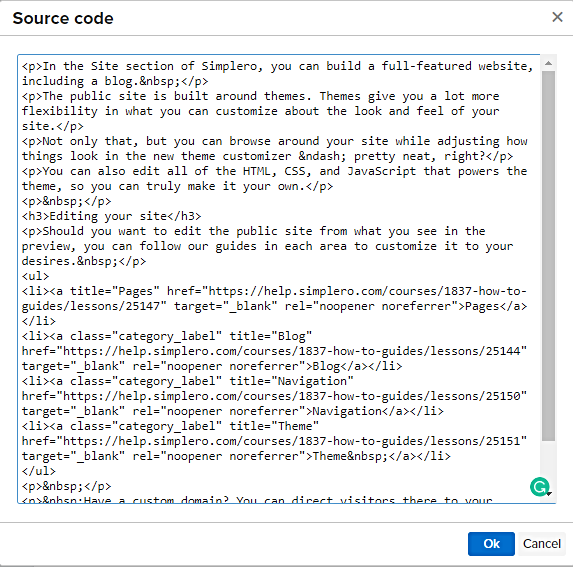
Click Ok to save
Add a testimonial image instead
Works on all 6 platforms, anywhere you can add an image.
Go to Studio → Create: https://app.senja.io/studio
Click Image, choose a template, and pick 1 to 3 testimonials
Change the design to match your brand
Click Share and download your image
Upload it to your course page or lesson
For every design option, see How do I turn my testimonials into images?
The free Senja Chrome extension lets you copy your widget code without leaving your course platform. Widget not showing? See Troubleshooting testimonial widget, or contact Senja Support.