
Troubleshooting team and project access
If you're running into permission limits, seeing content from the wrong project, or your website isn't showing in Senja, here's what's going on and how to fix it.
Team members are available on Senja paid plans (Starter and Pro). The project and website sections apply to all plans: Free, Starter, and Pro.
I can't add or remove team members
This is a role-permission limit, not a bug. Senja has four role tiers:
Owner: full access, including billing and team management
Admin: can add/remove team members and manage most settings
Editor: can manage testimonials and content, but cannot add or remove team members
Sharer: can only view and share assets (testimonials, widgets, etc.)
Only Owner and Admin can manage the team. If you're on Editor or Sharer, you cannot add or remove team members.
Ask your Owner or Admin to make the change following the guide How to manage team members in your Senja project
I see the wrong company's content when I log in
The most possible explanation is that you have multiple projects. You might just be viewing the wrong one, you're not losing any content.
When you signup personally to Senja, you will be prompted to provide a project name, slug, and website
If then you're invited as a team member, your next login might direct you by default to your personal project, not the invited project
Use the project switcher to see the full list of projects you have access to
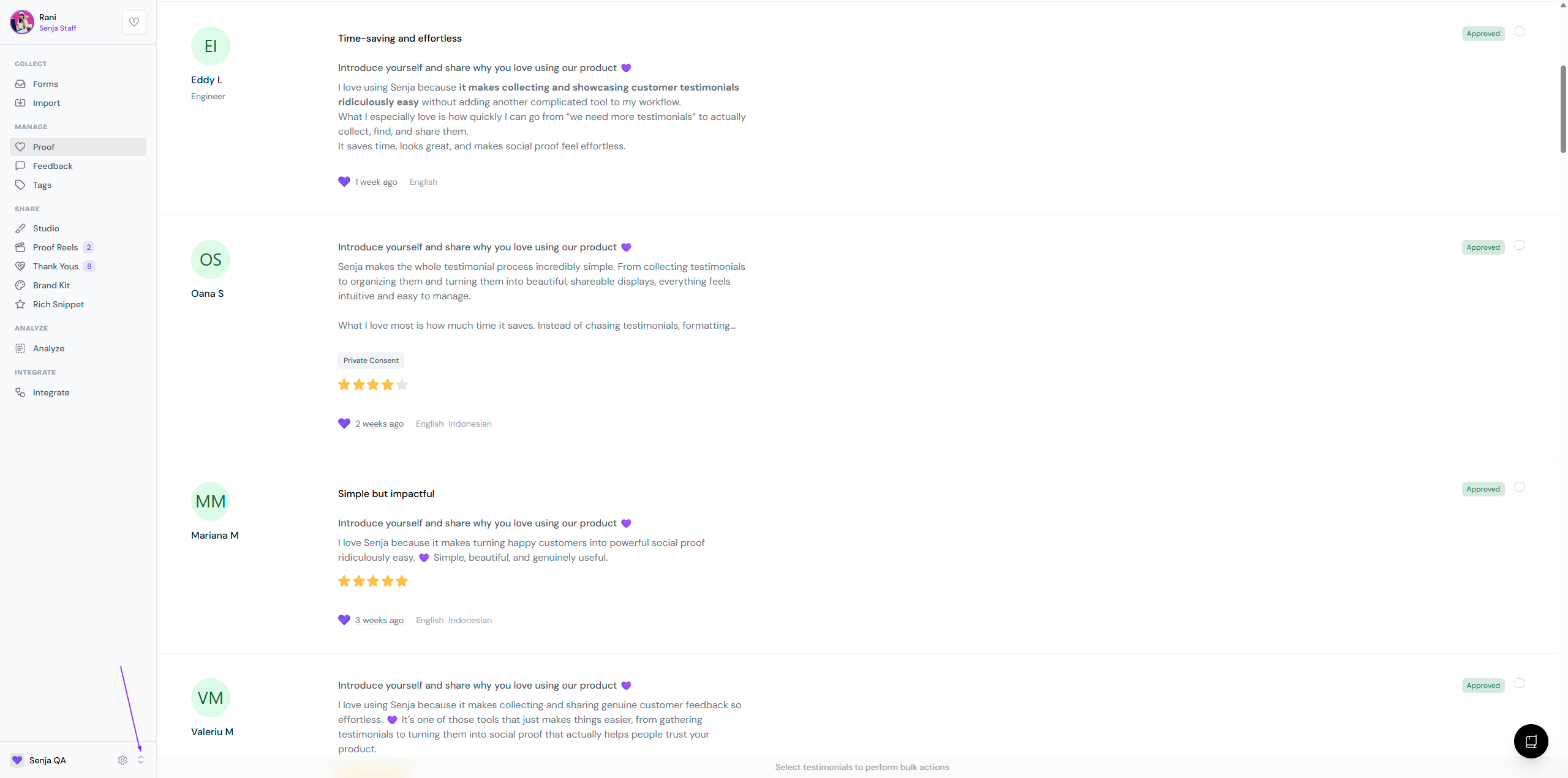
Rename your personal project to avoid confusing it with a client/company project, and make sure you're on the right project before logging off, so it loads correctly next time.
My website isn't appearing in Senja
If you've signed up and your website isn't showing in your project, the domain was most likely entered incorrectly or not recognized during onboarding.
Go to your Project Settings in Senja: https://app.senja.io/settings
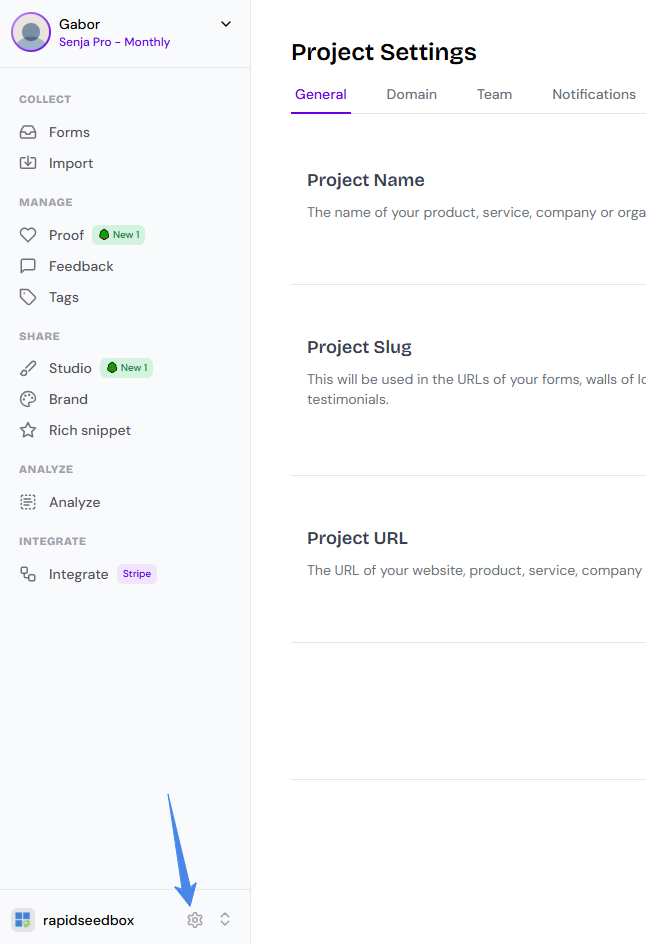
Check that your website's domain is entered correctly, with no typos or misspellings, and edit it there if needed
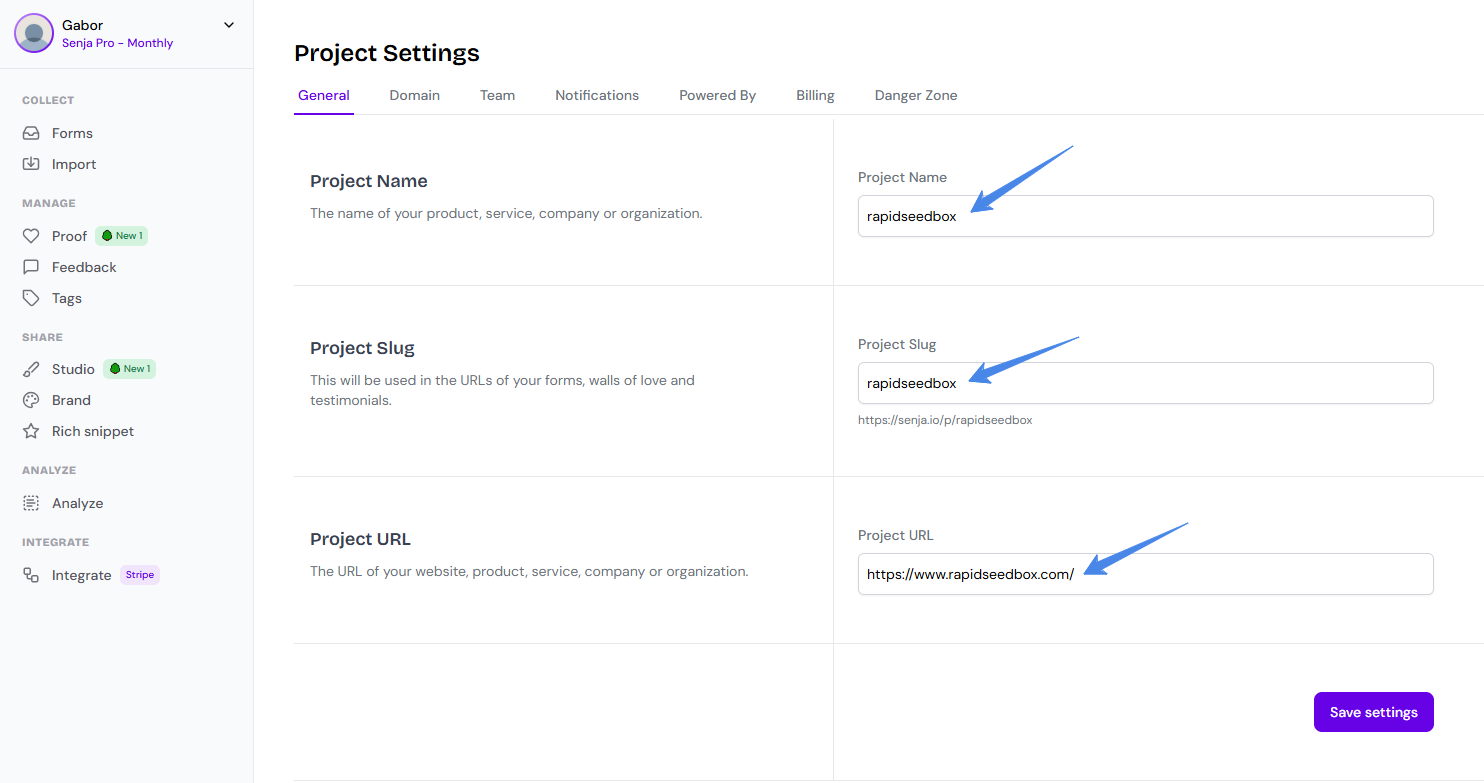
Make sure you're in the right project. If you have more than one, use the project switcher (see above)
Make sure you're logged in with the right email. If you have multiple email addresses, you may have signed up with a different one by mistake
Go back to your Senja dashboard after making changes. If you've just updated the domain, allow a few minutes for it to show.
Still need help?
If you continue to experience issues, please contact our support team with:
The email address you use for Senja
The project and, if relevant, the website domain you're having trouble with
A screenshot of what you're seeing