
How to add testimonials to Wix
Add your Senja testimonial widget to your Wix website with Wix's Embed HTML element.
This is available on all Senja plans: Free, Starter and Pro.
Can I…
Upload testimonials to Wix as images? | Yes |
Add widgets to Wix using the Senja code snippet? | Yes |
Add testimonials to Wix with an app integration? | No |
Before you start
Create your widget and copy its embed code, see How to create a testimonial widget and How to share or embed my widget
The free Senja Chrome extension lets you copy your widget code without leaving Wix.
In Wix
Go to the Wix page where you want to add your testimonial widget.
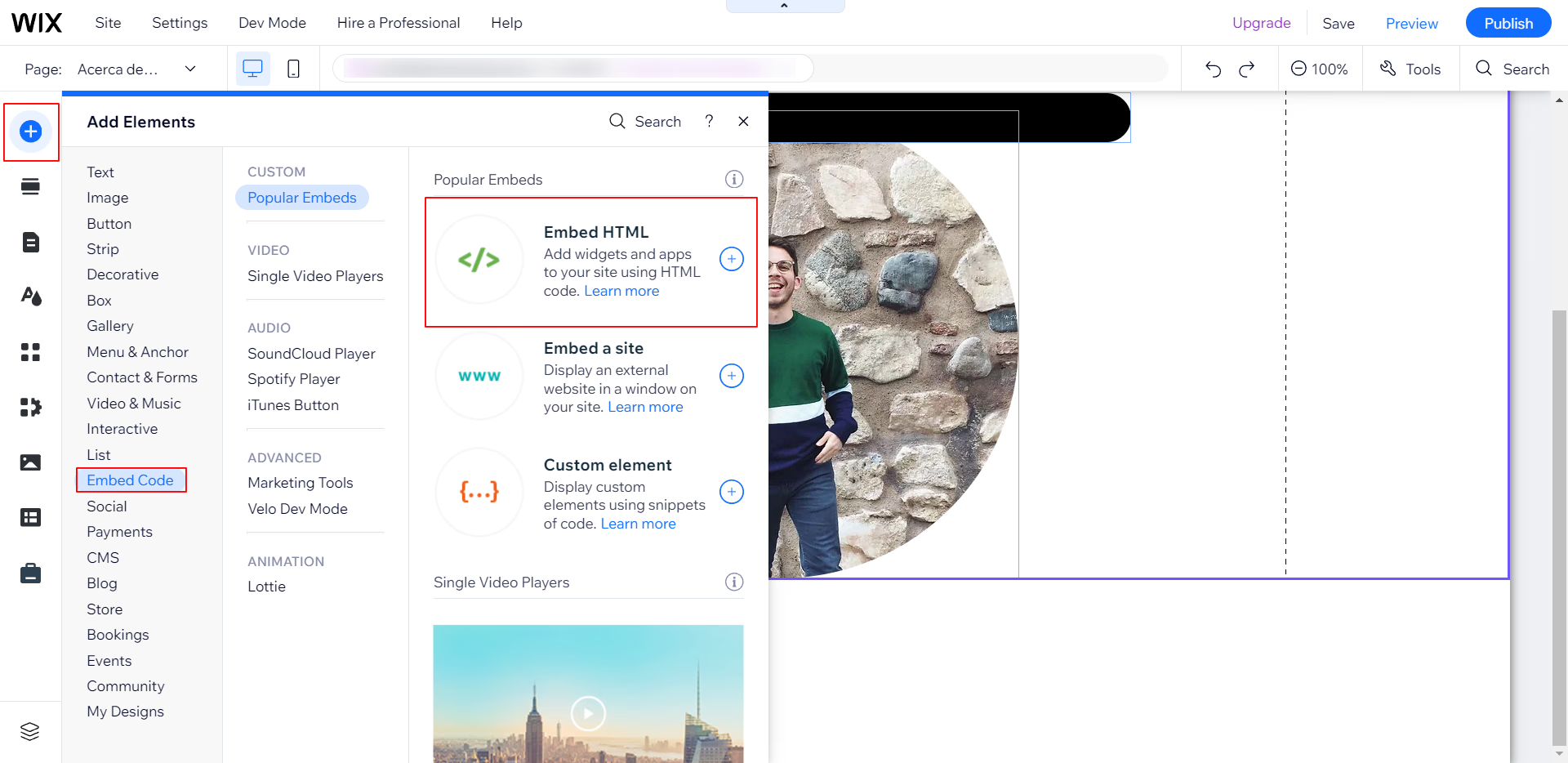
Click the Add Elements icon
Click on Embed Code
Then click on Embed HTML
Paste the widget code you copied
Click on Update
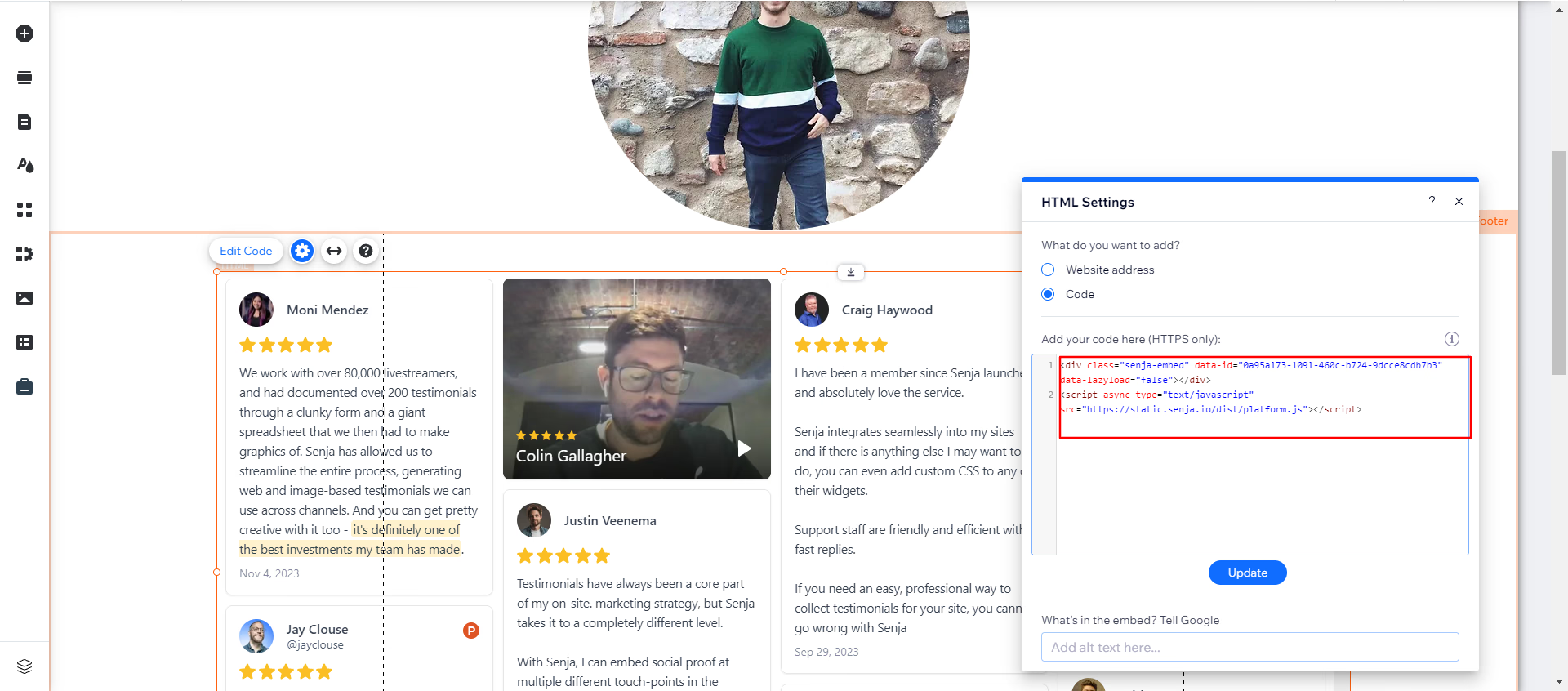
That's it. Your widget is live on your Wix website
Responsive display and custom CSS
Want to show different numbers of testimonials on mobile vs desktop? You can use custom CSS to create a responsive experience that works great on all devices.
Why limit testimonials on mobile?
Mobile screens have limited space. Showing too many testimonials can overwhelm users or cause performance issues. A common approach is to show 3 testimonials on mobile and 6 on desktop.
Quick example
Here's CSS code that shows 3 testimonials on mobile and 6 on desktop:
@media only screen and (max-width: 600px) {
  .sj-hero-quotes > *:nth-child(n+4) {
    display: none;
  }
}
You can add this CSS directly to your Senja widget or to your Wix site's custom CSS.
Learn more
For more examples, see How to customize my widget with CSS.
Not working? See Troubleshooting testimonial widget, or contact Senja Support. Using another platform? See How do I share my testimonials?