
How to add testimonials to Squarespace
You can add Senja testimonials to Squarespace by embedding widgets using custom HTML code. Squarespace doesn't have a native Senja app integration, but the HTML widget lets you embed any Senja widget style into your site.
This is applicable to any Senja plan: Free, Starter, and Pro.
Create and copy your widget code
Follow the guide How do I create widget?
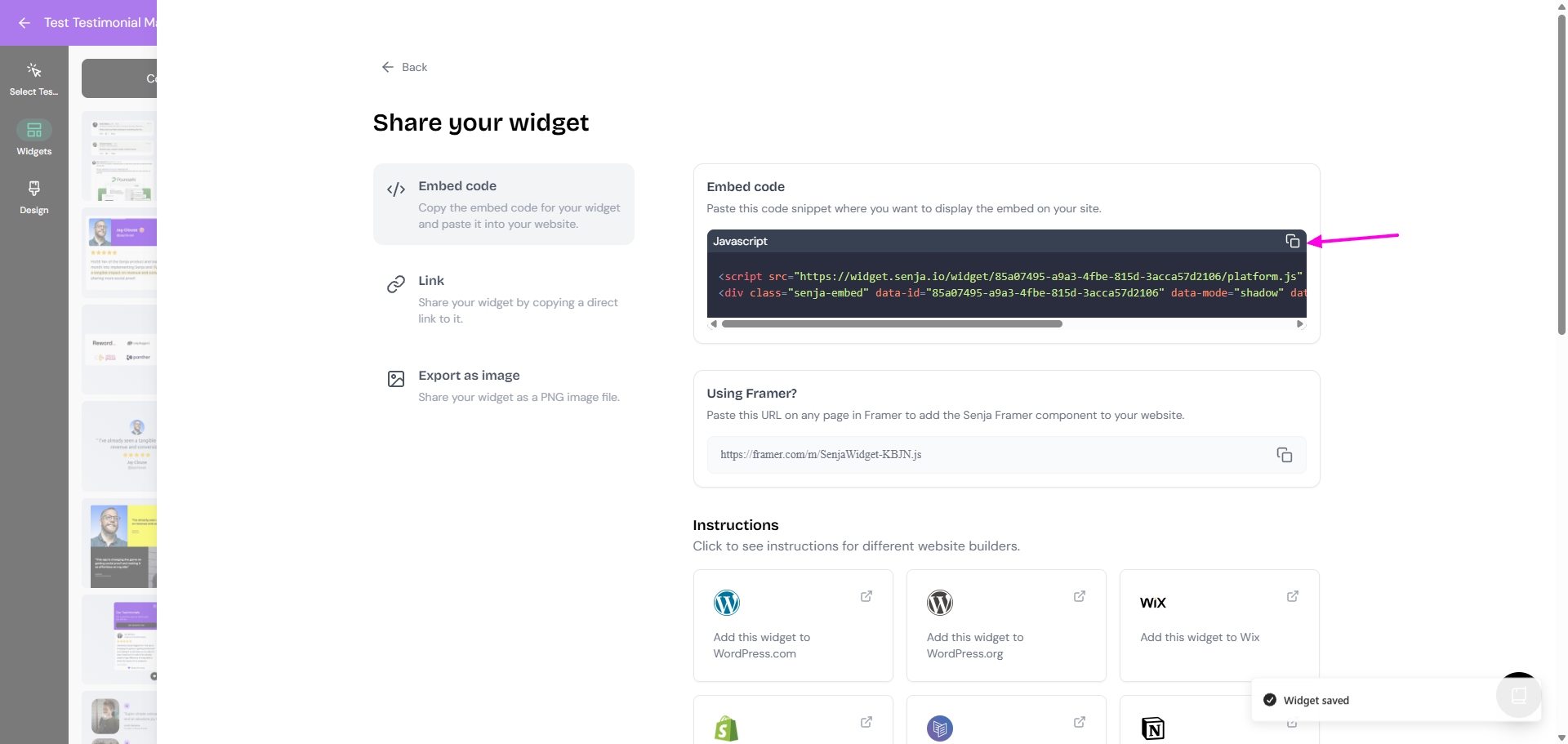
On your widget page, click Share
Copy the embed code
Senja's free Chrome Extension lets you copy widget codes and form URLs without leaving your current page. Download it here.
Add the widget to Squarespace
Visit the Squarespace dashboard and click on the site you want to add your testimonial widget to
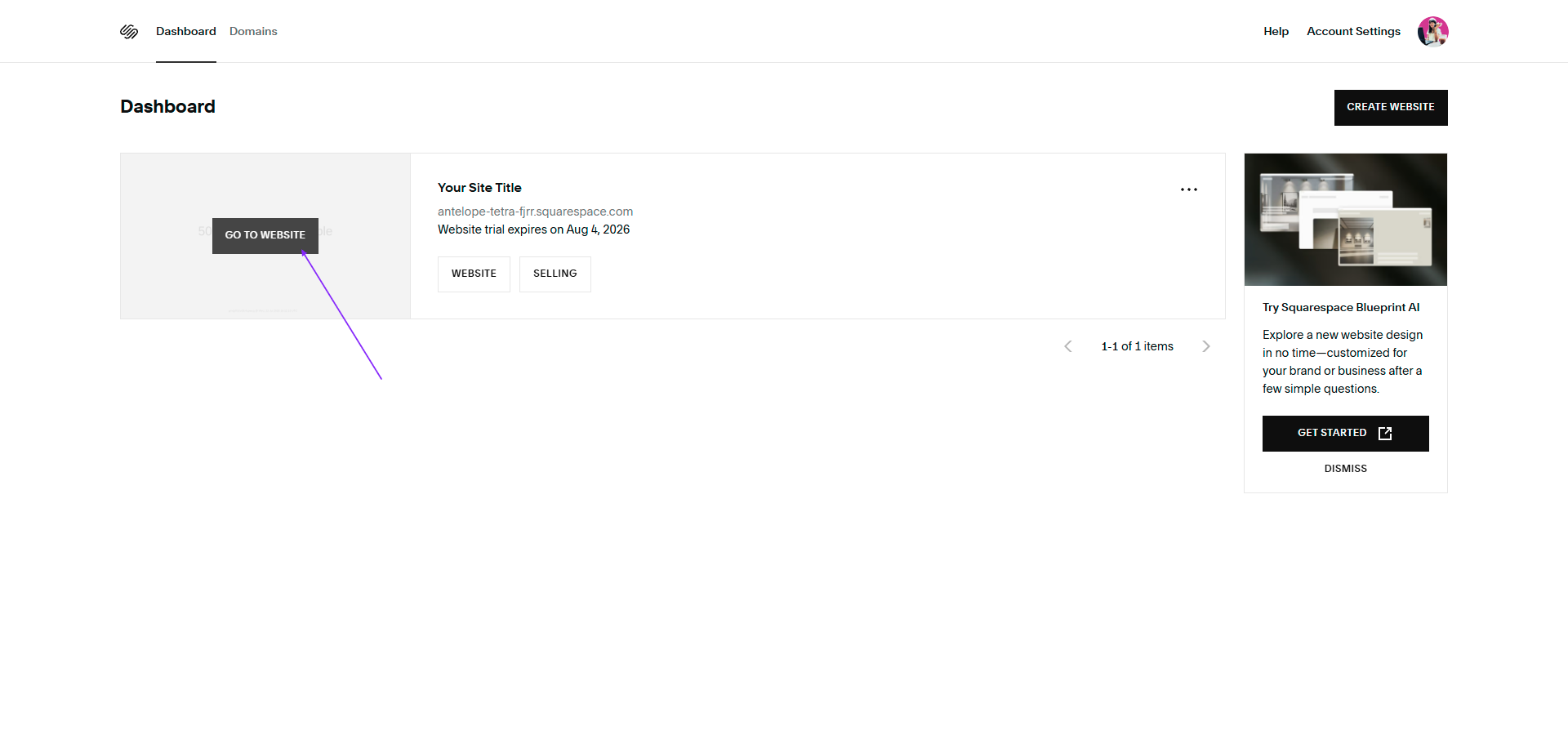
Click Edit Pages or Edit Site
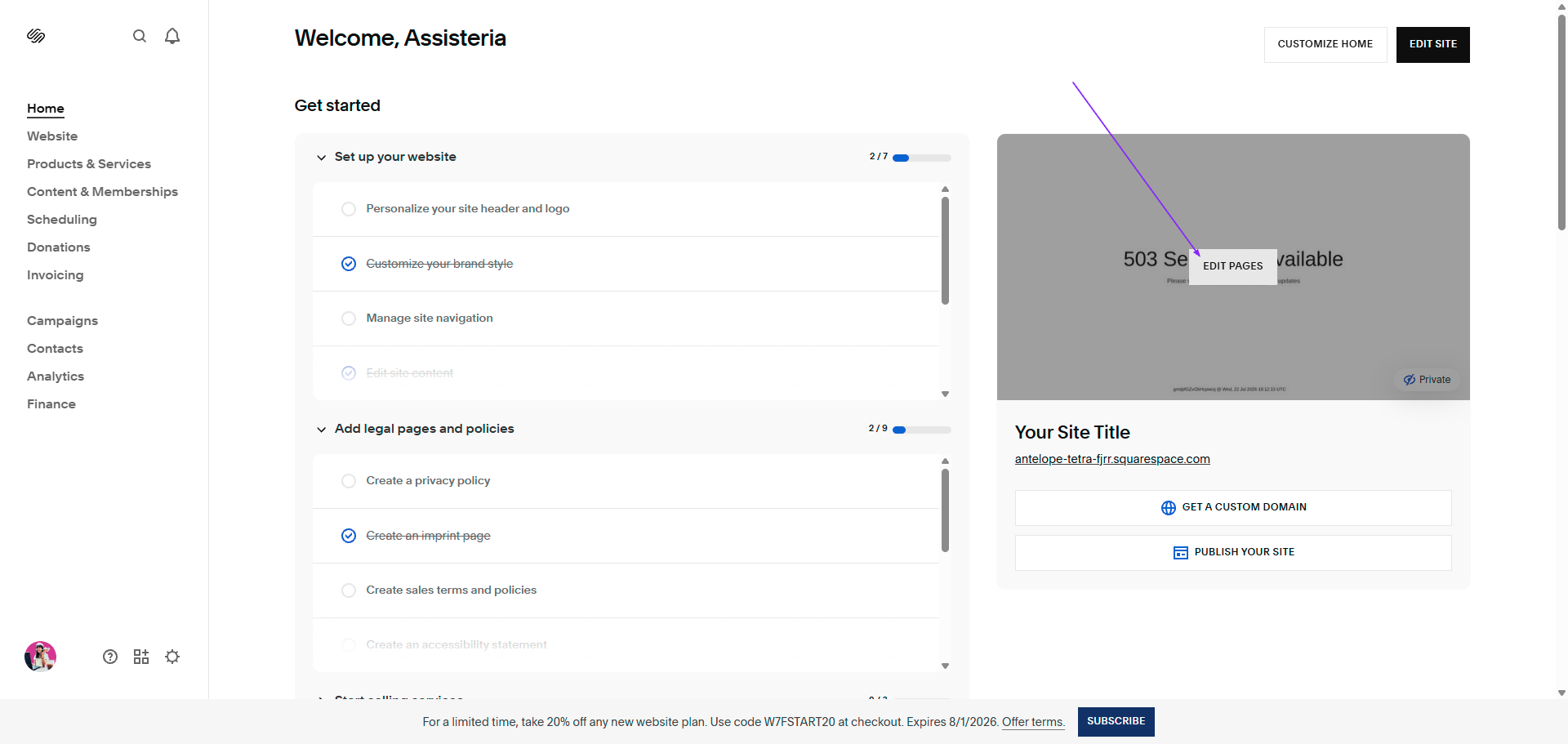
Choose the page you want, and then click Edit

Scroll to the section you want to add your Senja testimonials widget to
Click Add block button
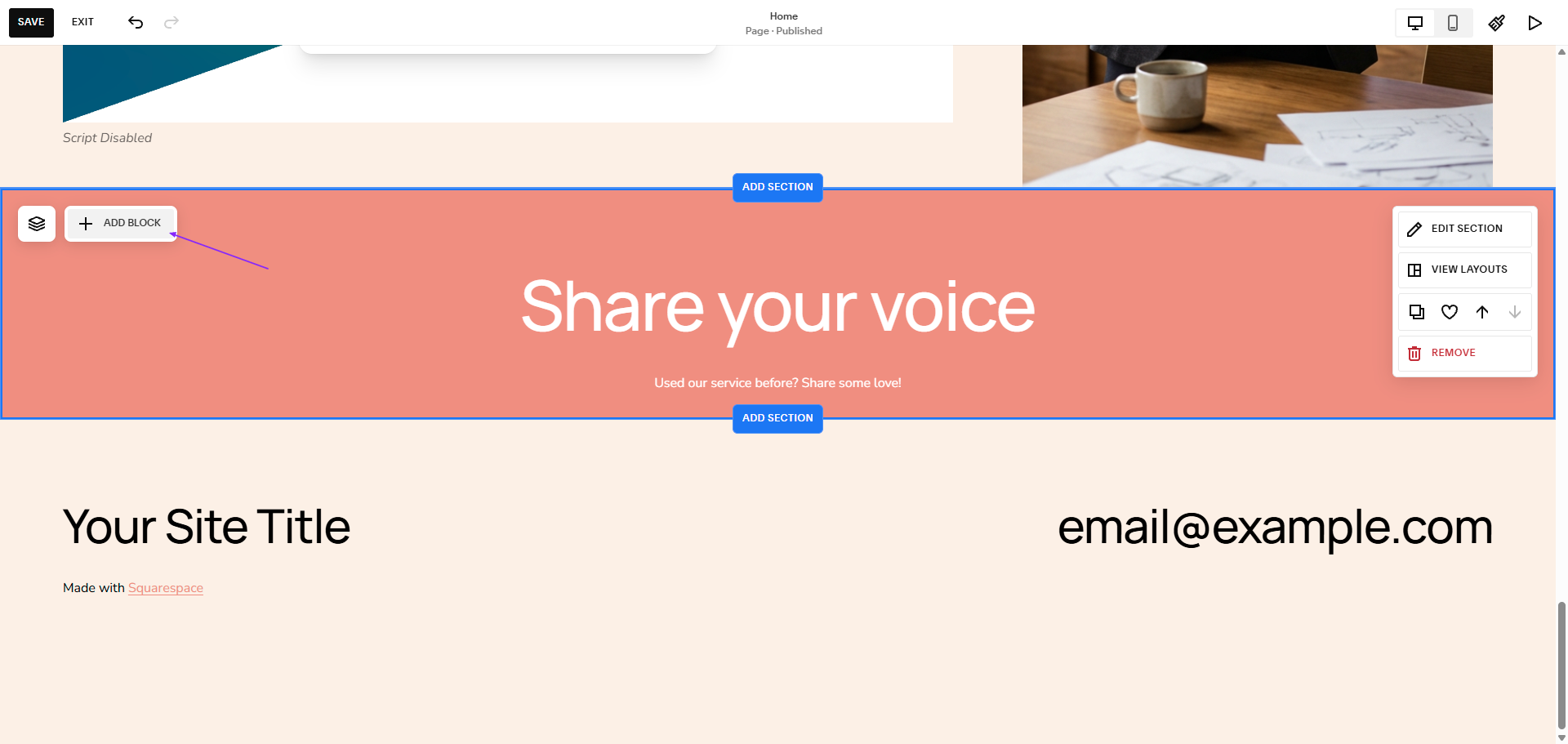
Choose Code
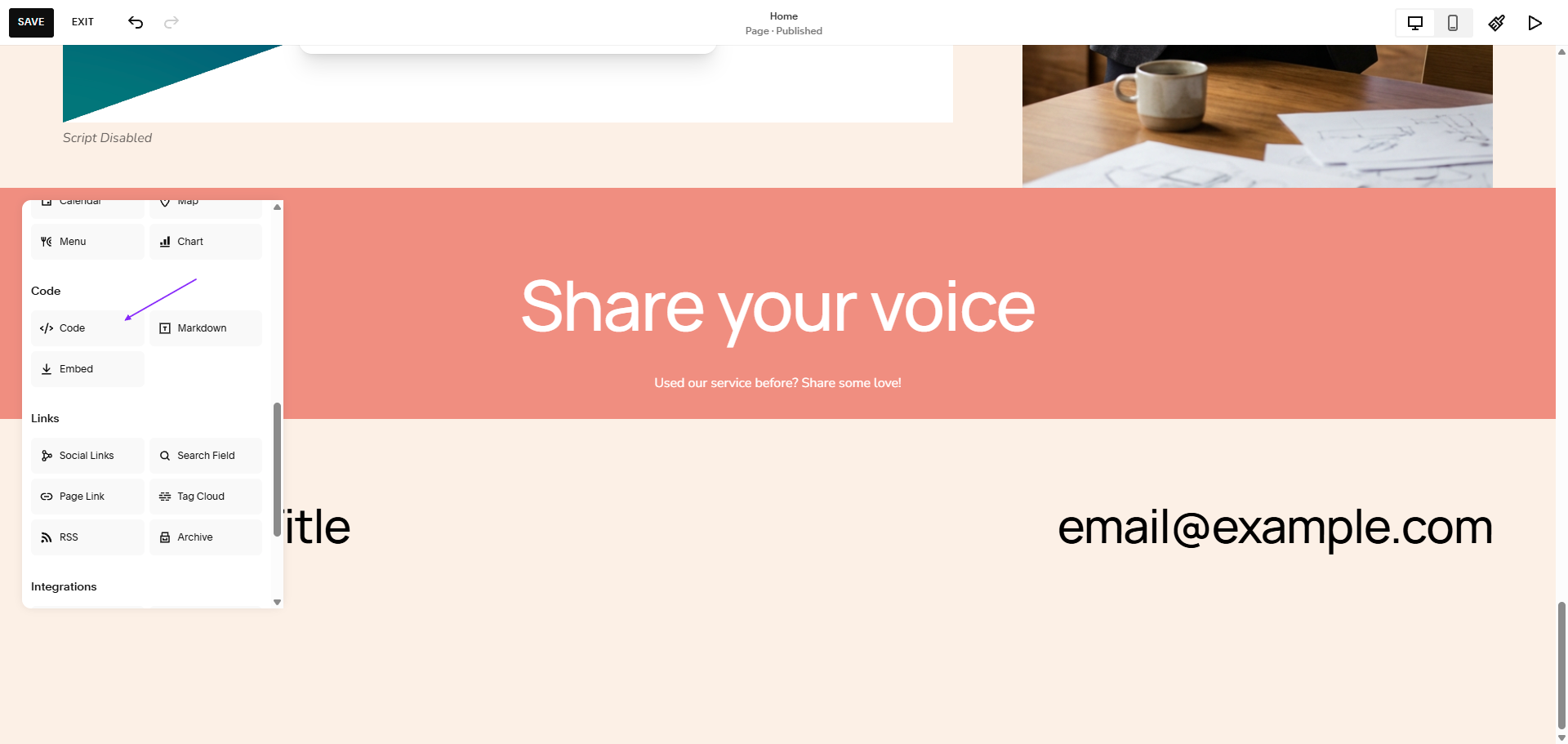
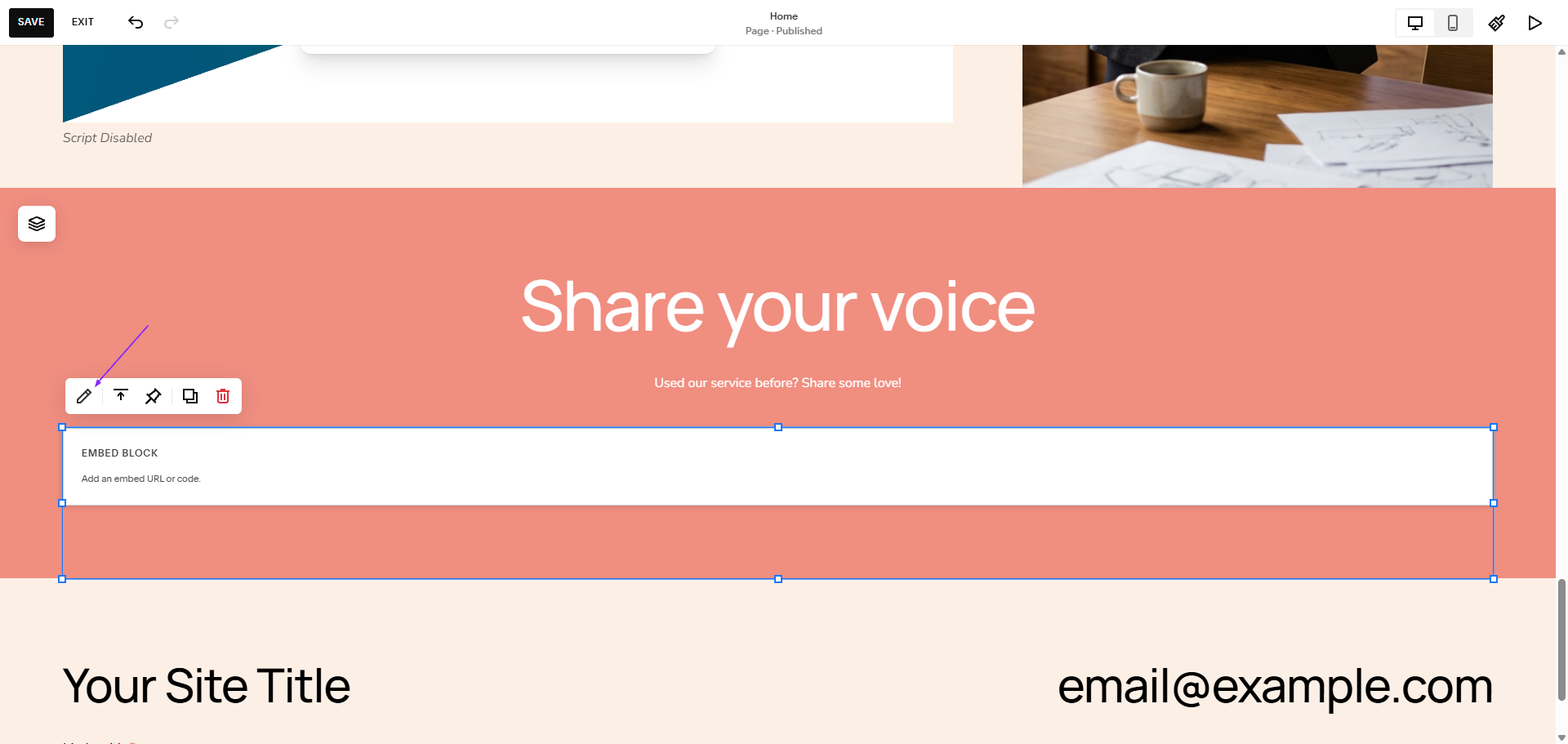
Double click on the pop-up box to get into the HTML editing mode
Paste the widget code you copied from the Studio
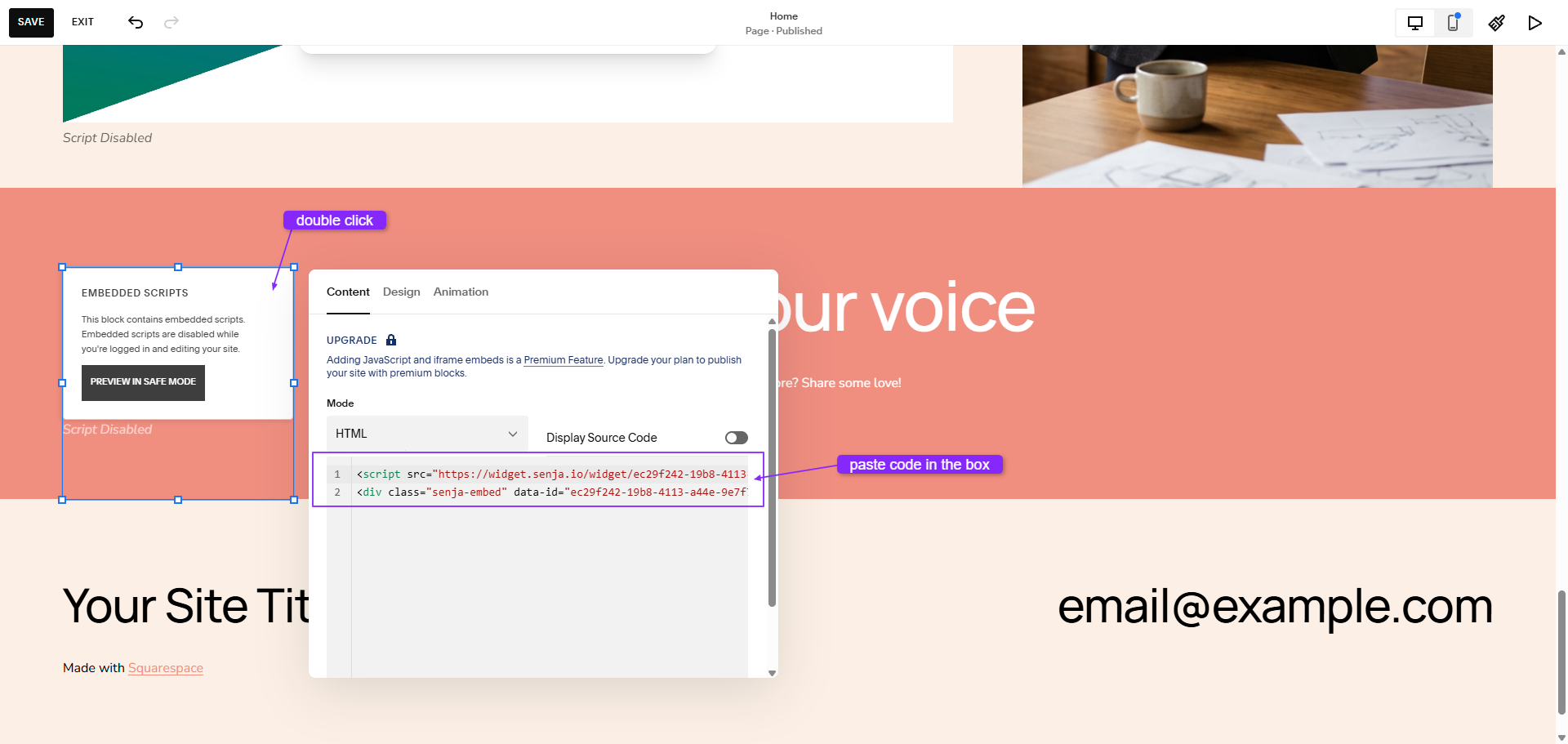
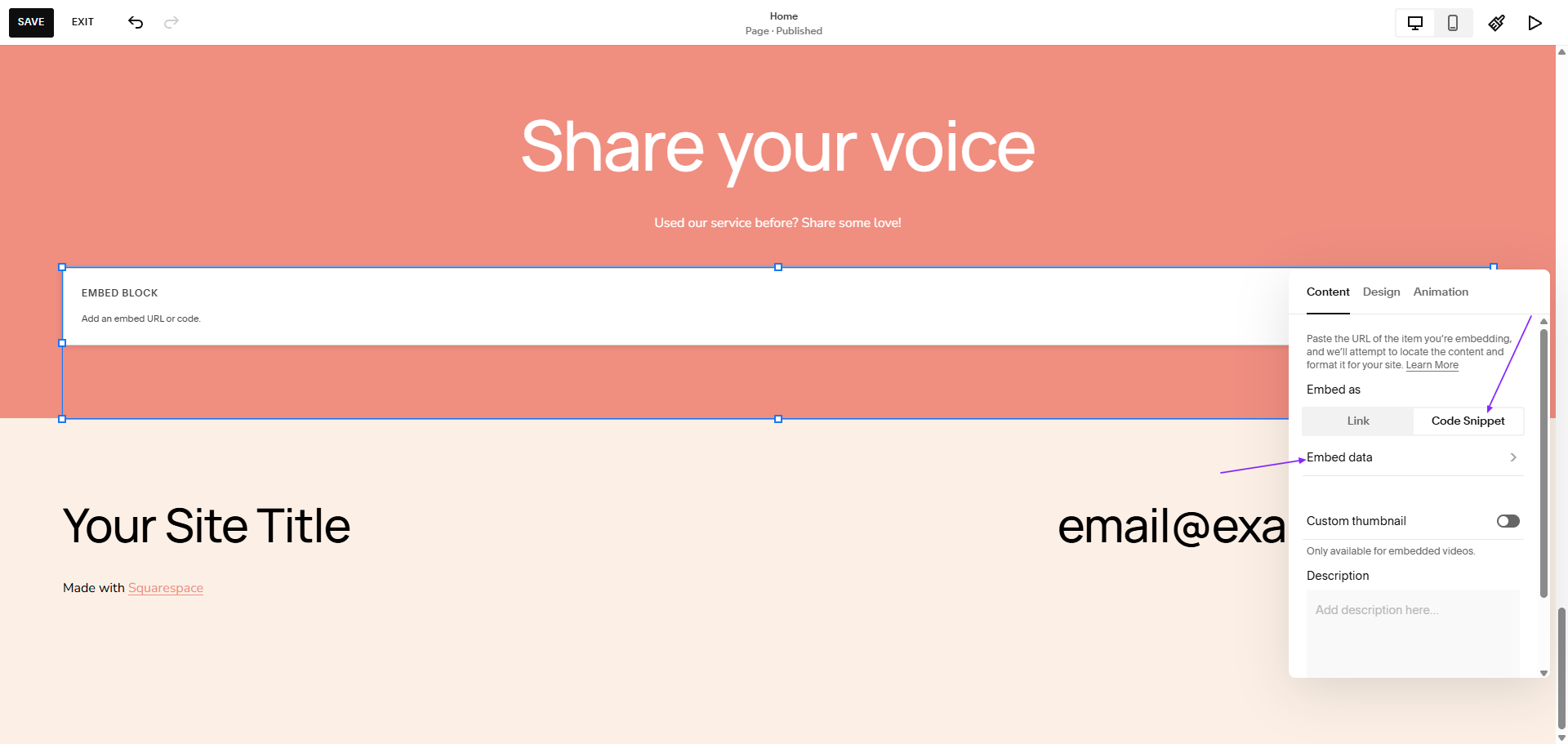
Another way is to choose Embed
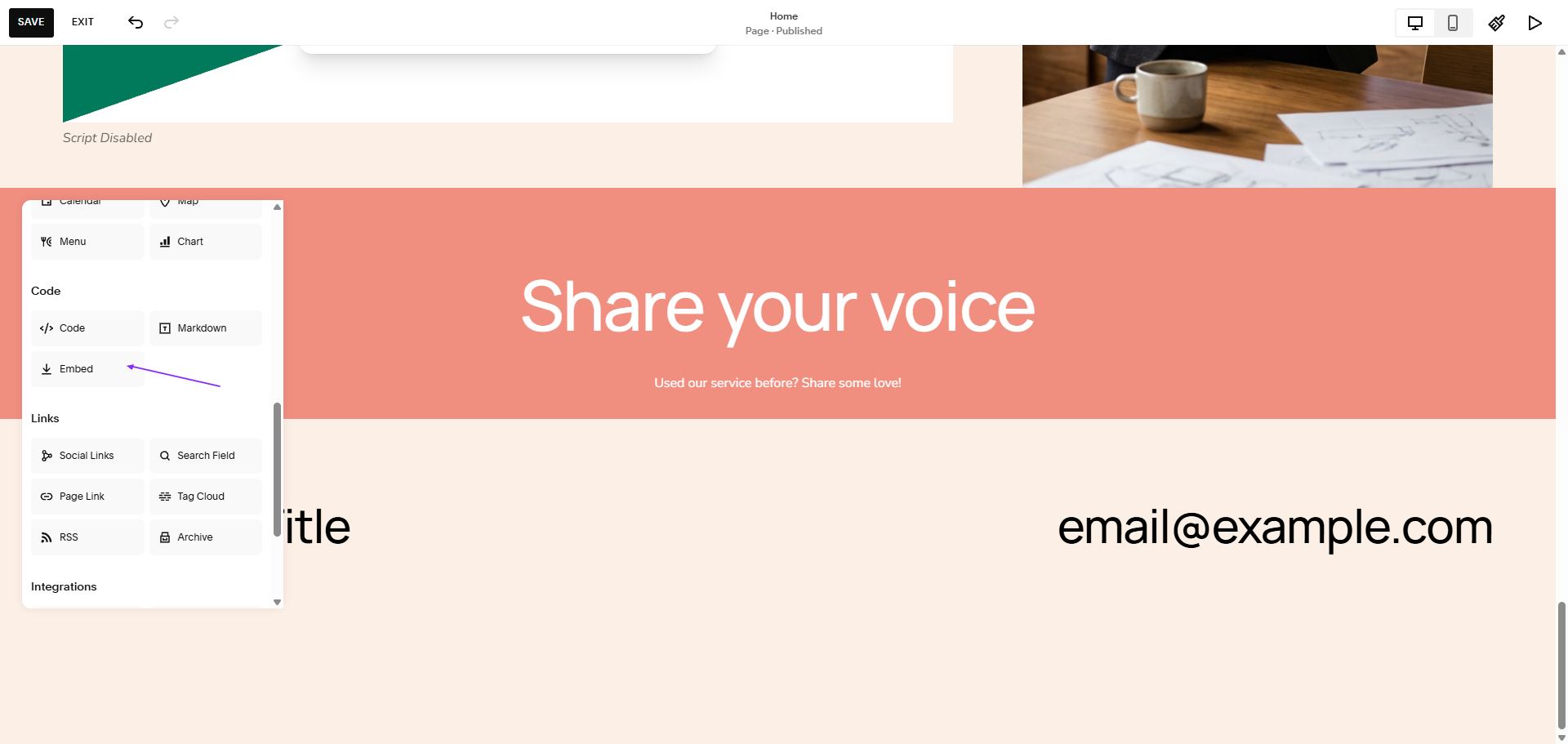
Double click on the pop-up box or click the ✏️ icon to get into the HTML editing mode
Choose Code Snippet → Embed data
Paste the widget code snippet in the box
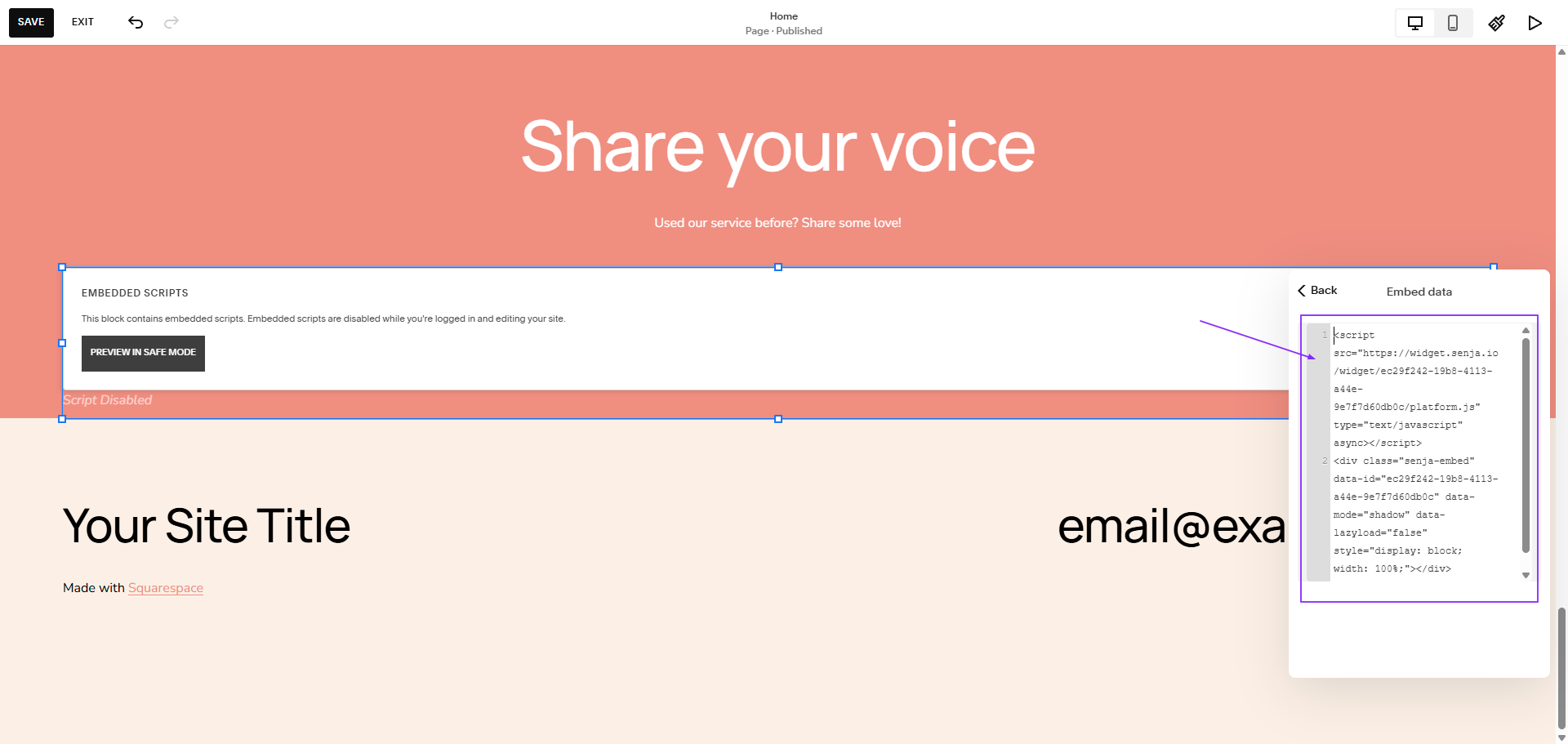
Drag the margins to position it properly in your page
Click Save and then Exit

You will see the widget embedded in your page

Publish the page to get the widget running in your Squarespace site
That’s it, your testimonial widget is now looking amazing in Squarespace 🥳 Not working? Contact Senja Support team and we’ll assist you.