
How to create a testimonial widget
A widget shows a group of your testimonials on your website, in a style that matches your brand. Pick from 20+ styles, like grids, carousels and badges, choose which testimonials it shows, then embed it or share it as a link or image.
Widgets are available on all Senja plans: Free, Starter and Pro. Some design options, like removing Senja branding and custom CSS, need a paid plan.
Create a widget
Go to Studio → Create and click Widget
Choose a style (you can change it later)
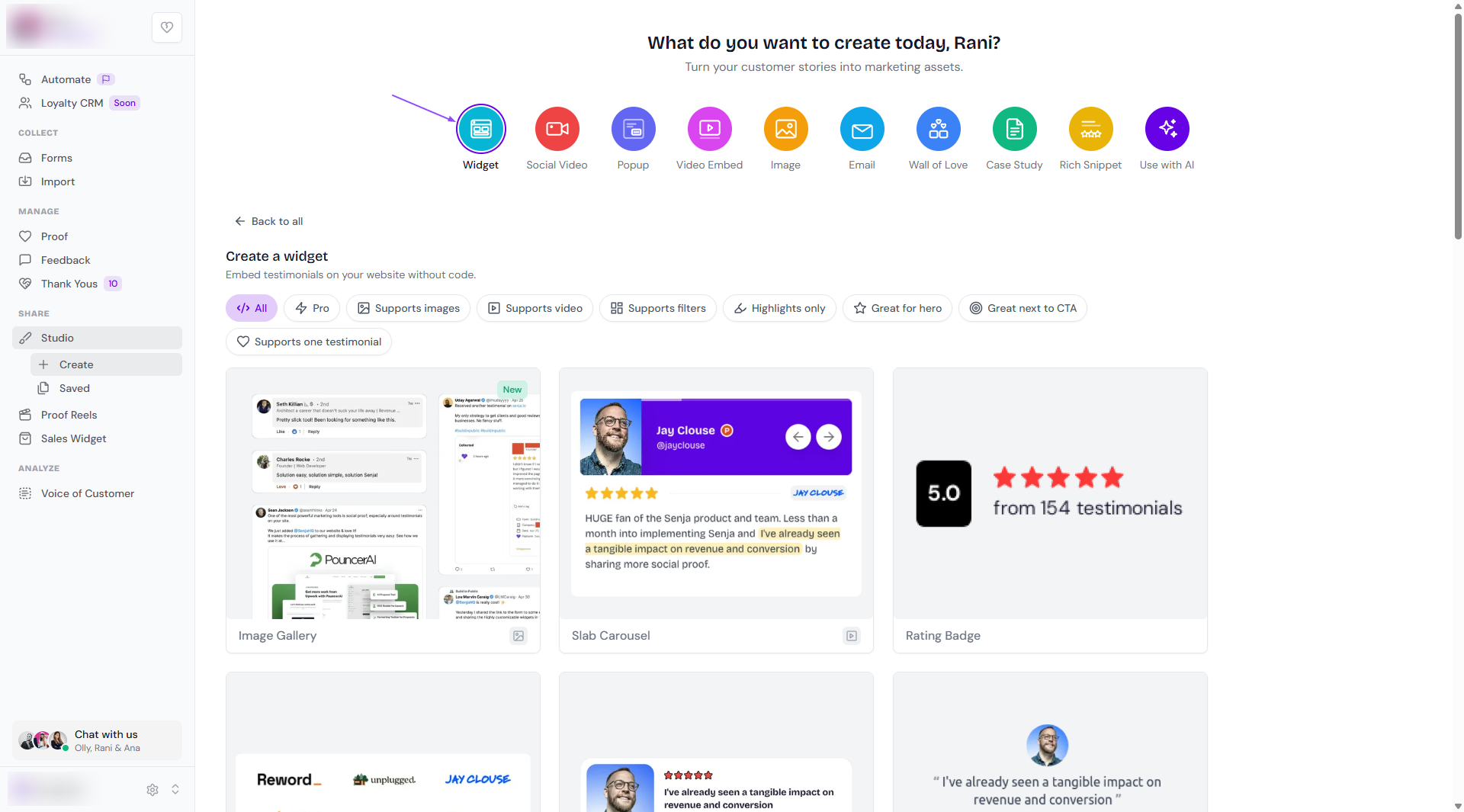
Name your widget, and choose where you'll embed it if you want. It shows as a label in Saved, so you can find it later
Click Create widget
Choose your testimonials
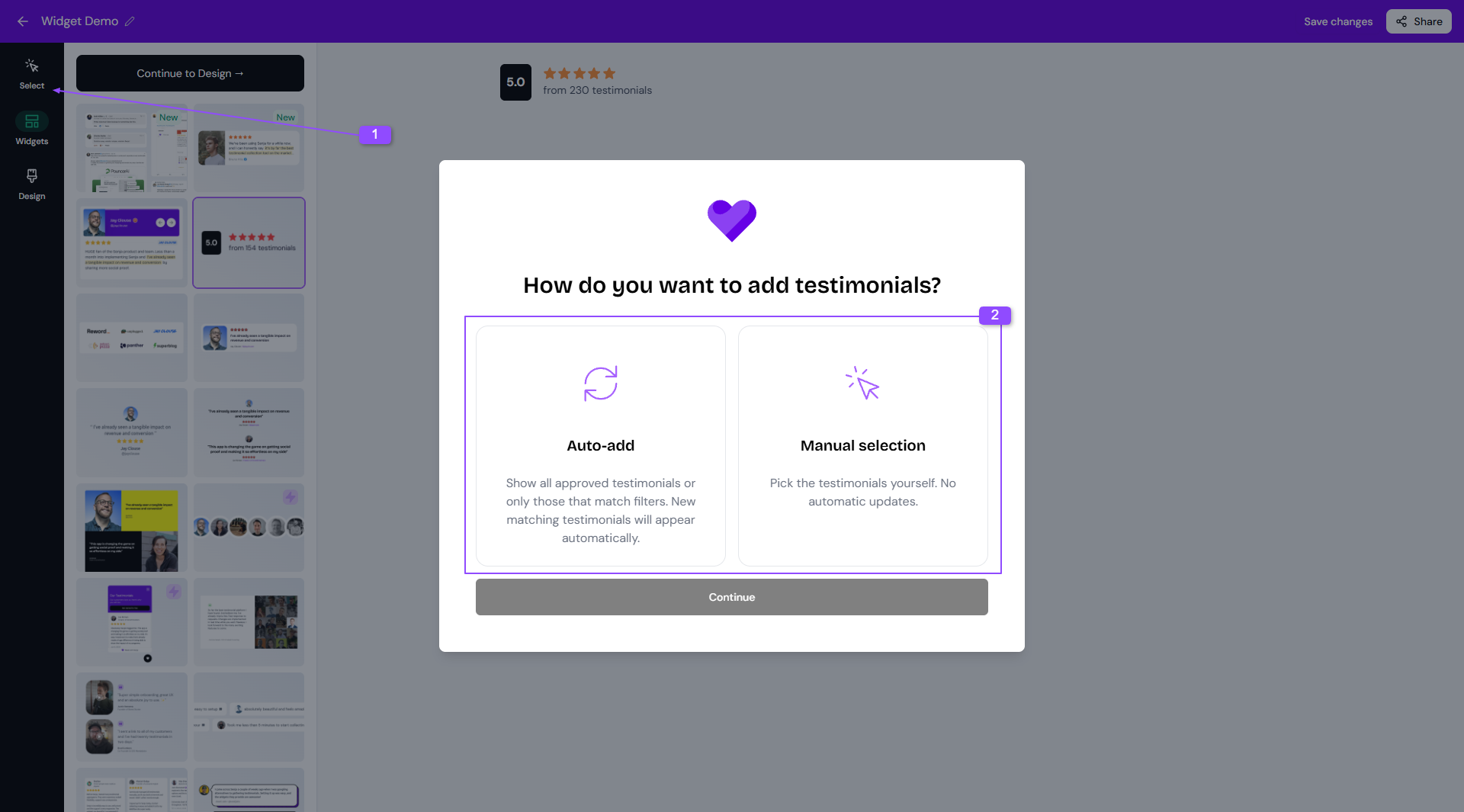
There are two ways to fill your widget:
Auto-add: set filters once, and new testimonials that match are added automatically
Manual selection: pick each testimonial yourself (new testimonials will not be added automatically later on)
Follow these steps to select the testimonials to add to your widget:
Click Select Testimonials, choose Auto-add or Manual selection, and click Continue
Use Filters to narrow down your testimonials, like by rating, tag or form
For Auto-add, click Save Filters. For Manual selection, tick the testimonials you want and click Save Selection
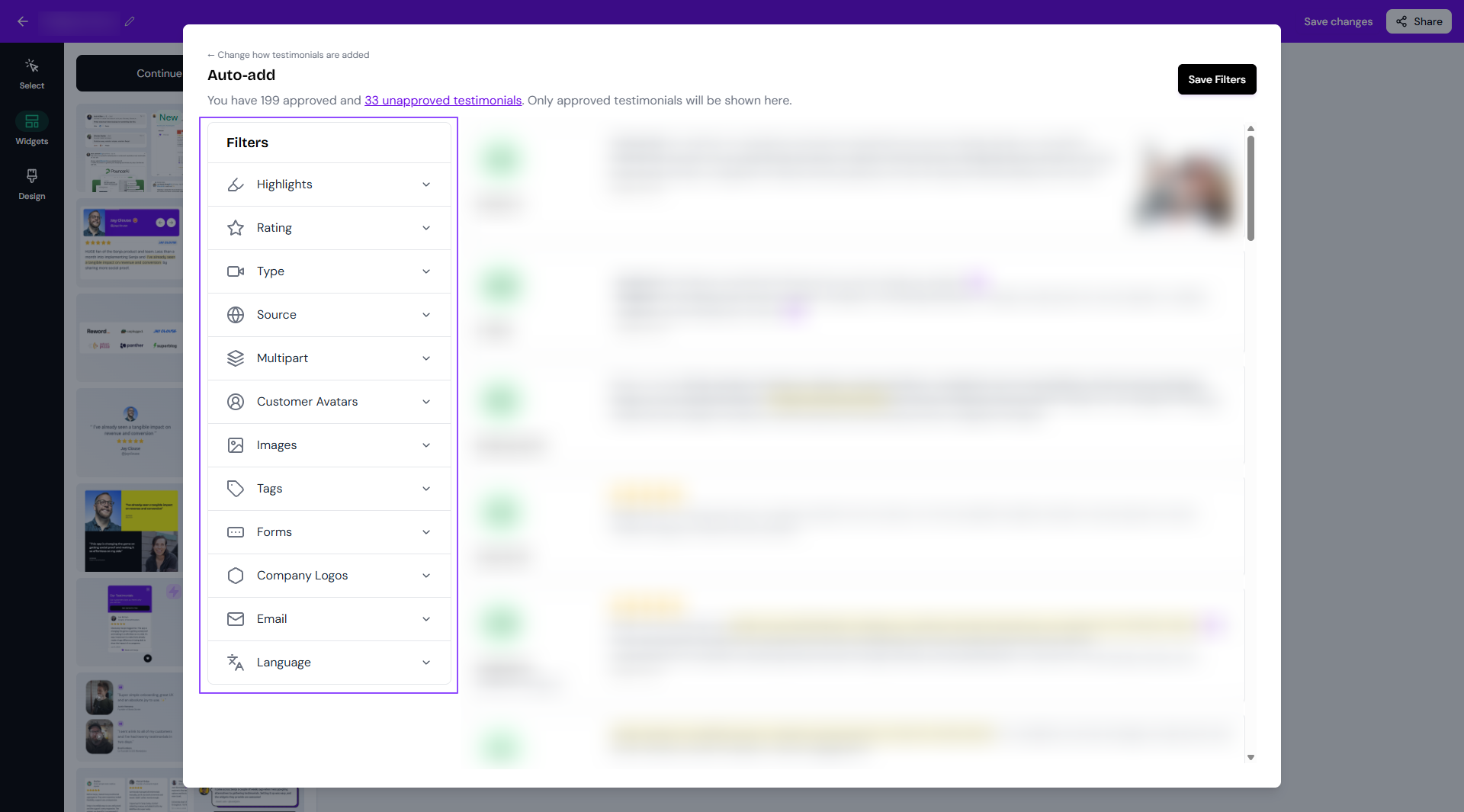
Only approved testimonials can go in a widget. If one is missing, check its status on your Proof page, see How to approve testimonials (and what it means). For every filter and how they work, see How do I select testimonials for my widget.
Change the widget style
Open your widget and go to the Widgets tab
Choose a new style from the preview on the left side bar
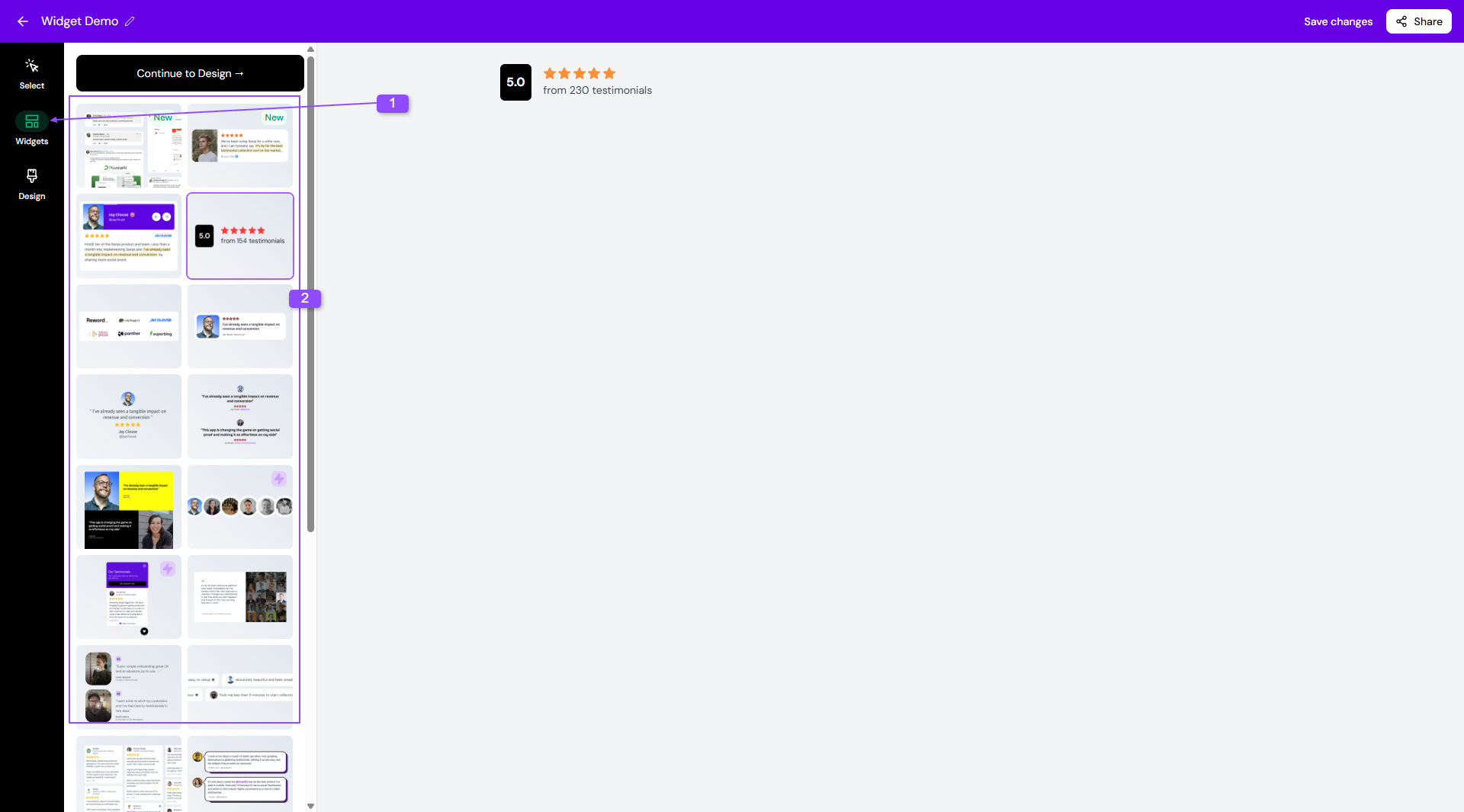
Click Save changes
Your selected testimonials stay the same when you switch styles
What's next
Match your brand: change colors, fonts, layout and more in the Design tab, see How do I edit the design of my widget?
Put your best testimonials first: see How to reorder testimonials in your widget
Add it to your website: see How to embed a testimonial widget in my website