
How to add testimonials to your emails and email signature
Add testimonials to your email campaigns, newsletters and email signature to build trust with every email you send. Email tools don't allow embedded code, so you add your testimonials as an image or a link instead.
This is available on all Senja plans: Free, Starter and Pro.
Using Kit? Senja has a Kit app that adds testimonials and forms right inside the Kit editor, see Add testimonials to your Kit emails.
You can't embed a Senja widget in an email. Email tools block the code that widgets need, so use an image or a link.
Add a testimonial image to your email
Images don't update on their own, so export a fresh one when you get new testimonials.
From your Proof page
Go to your Proof page: https://app.senja.io/
Click the testimonial you want to use
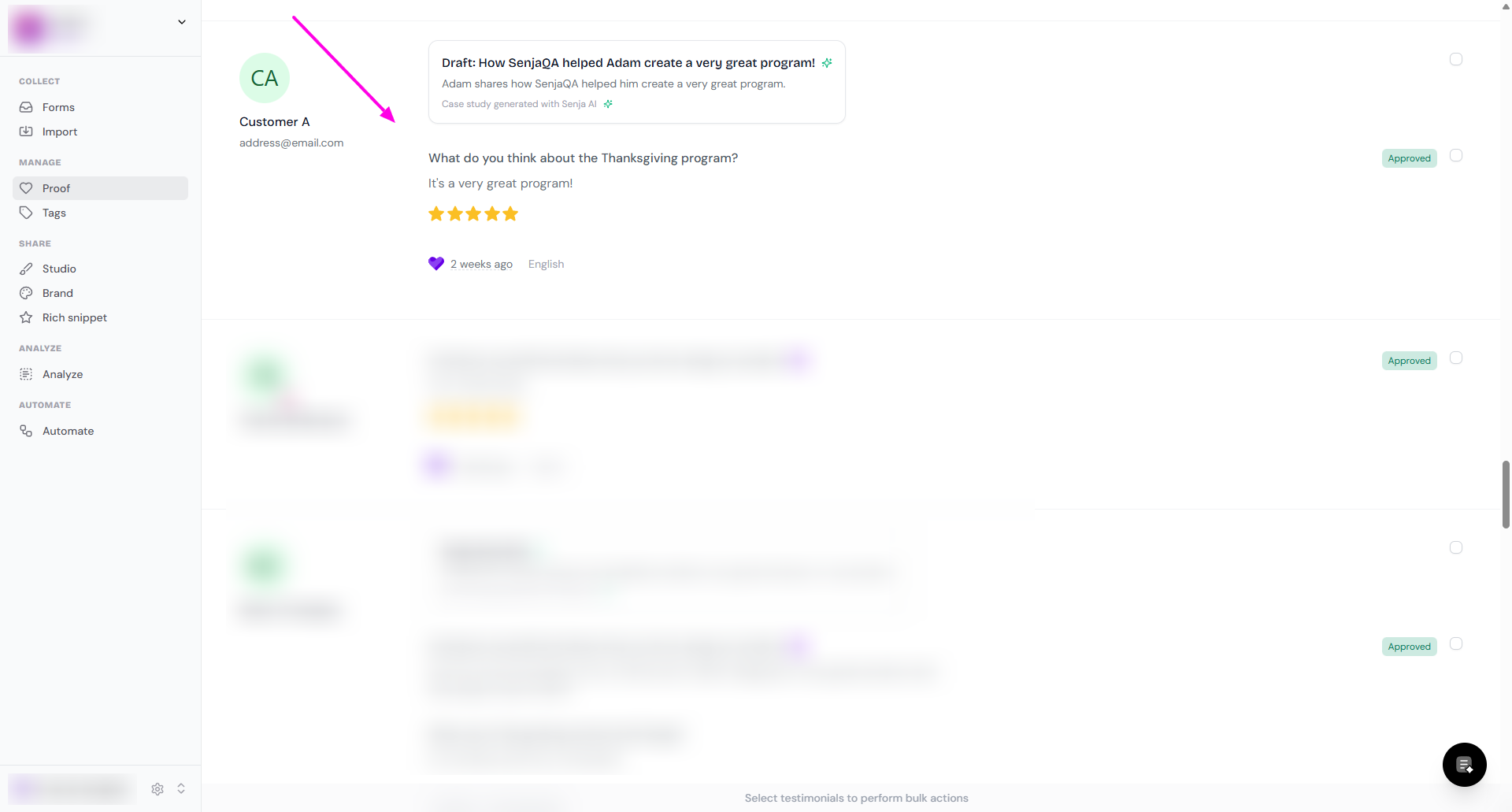
Click Share
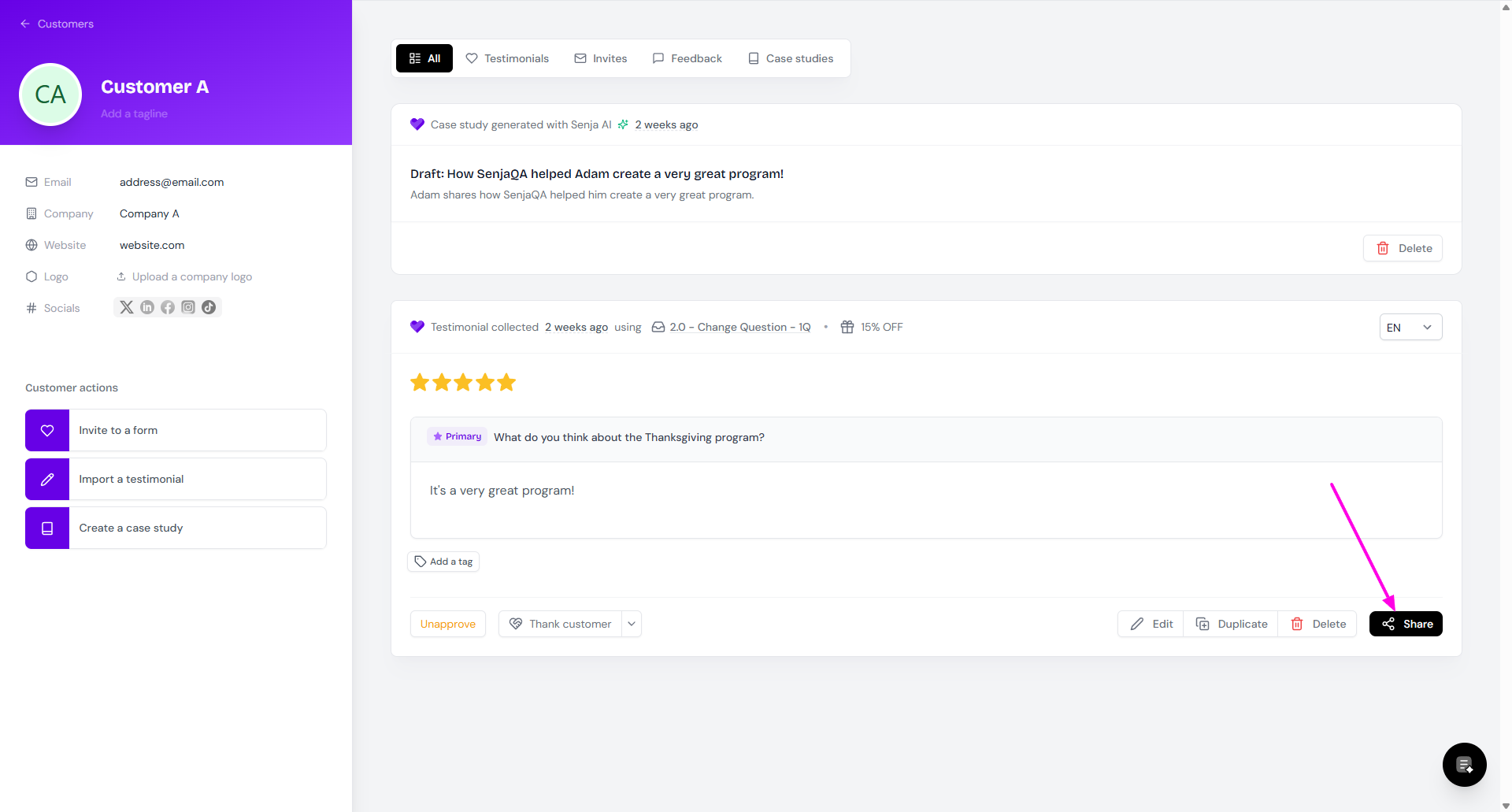
Click Create an image
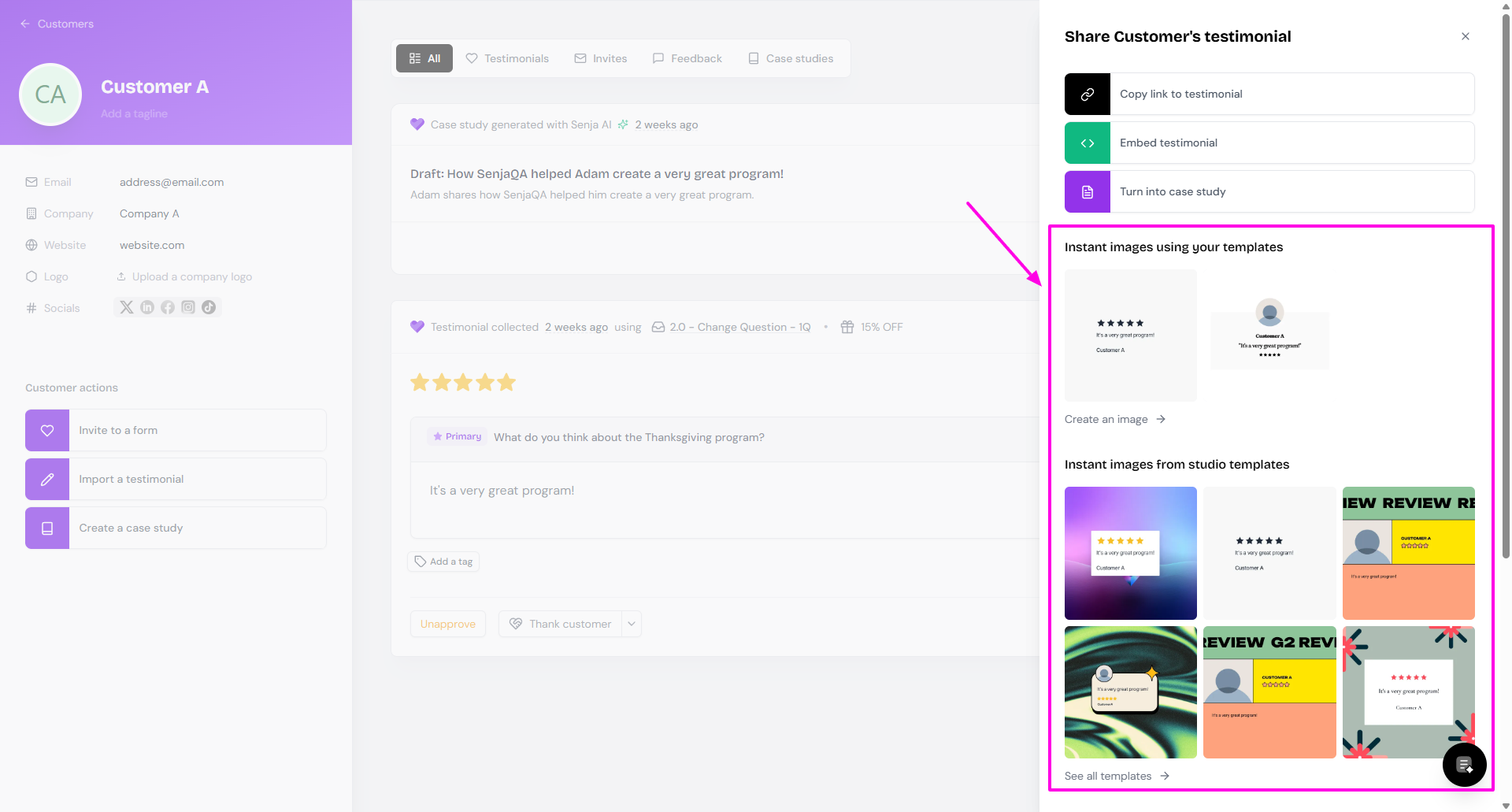
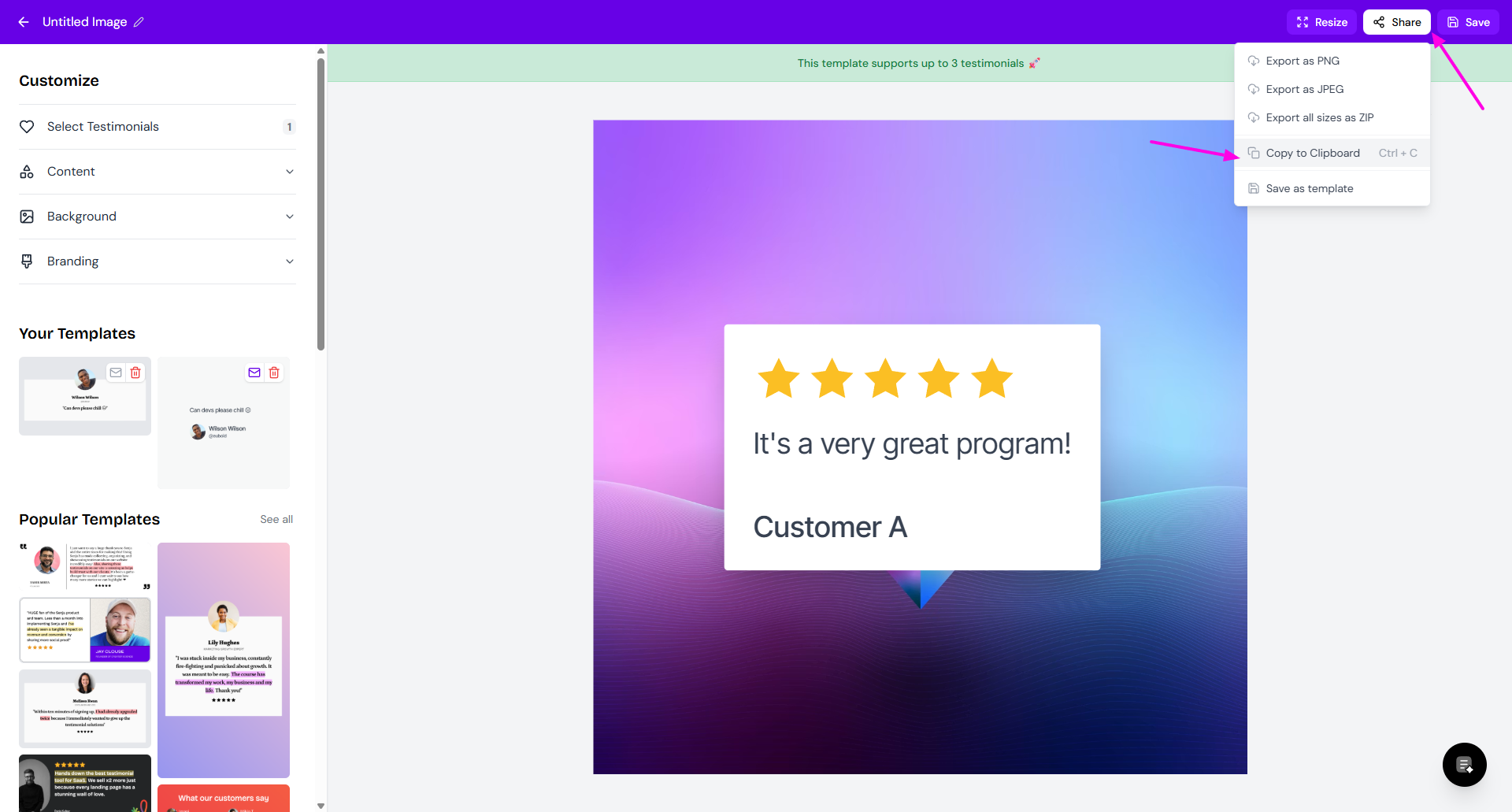
Change the design if you like, then click Share → Copy to Clipboard (or press CMD/CTRL+C)
Paste the image into your email
From Studio
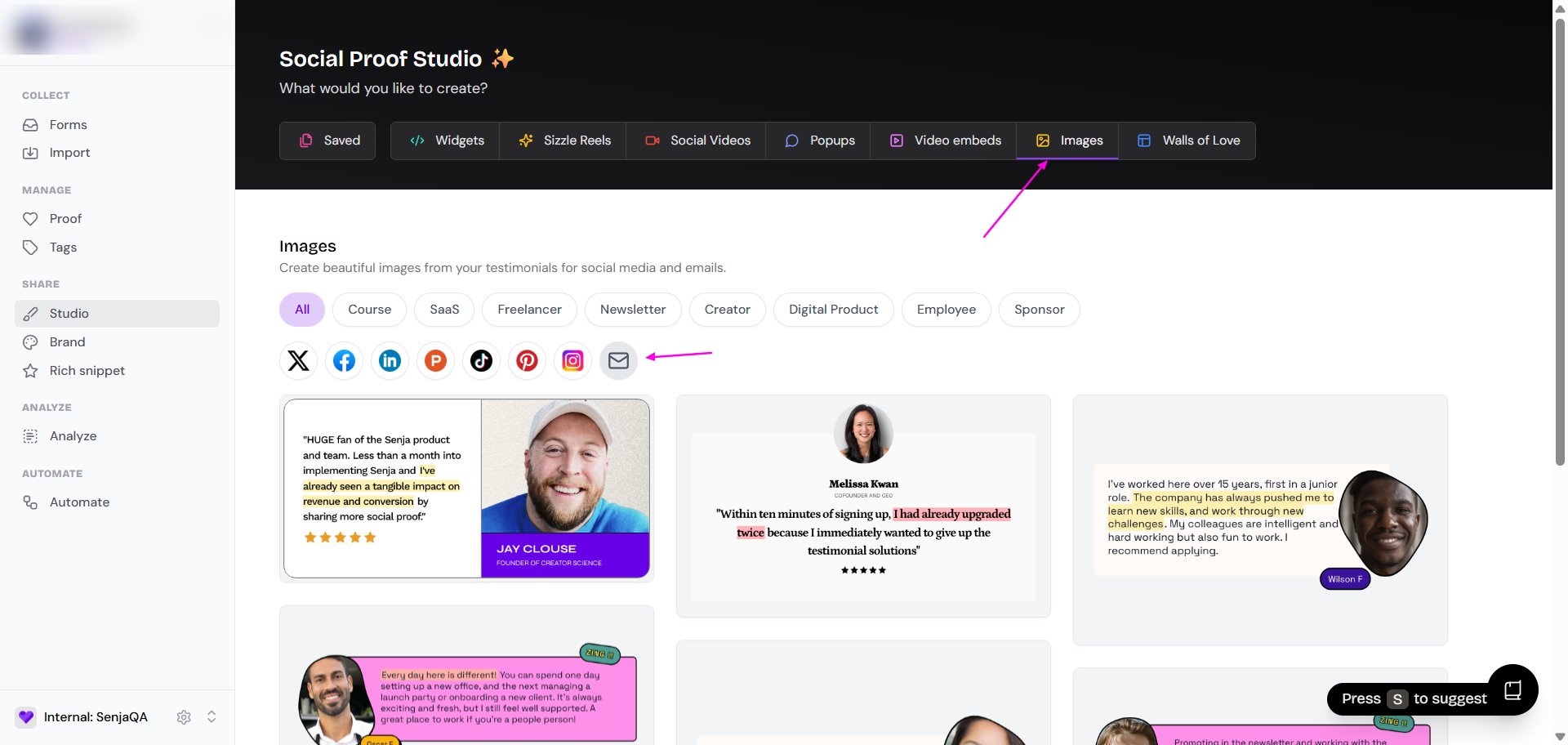
For more design options, or to show up to 3 testimonials in one image:
Go to Studio → Create and click Image or Email
Choose a template, pick your testimonials and change the design
Click Share and download or copy your image
Paste or upload it into your email
See How do I turn my testimonials into images? for every design option.
From the Chrome extension
Open the Senja Chrome extension and click Create image on a testimonial
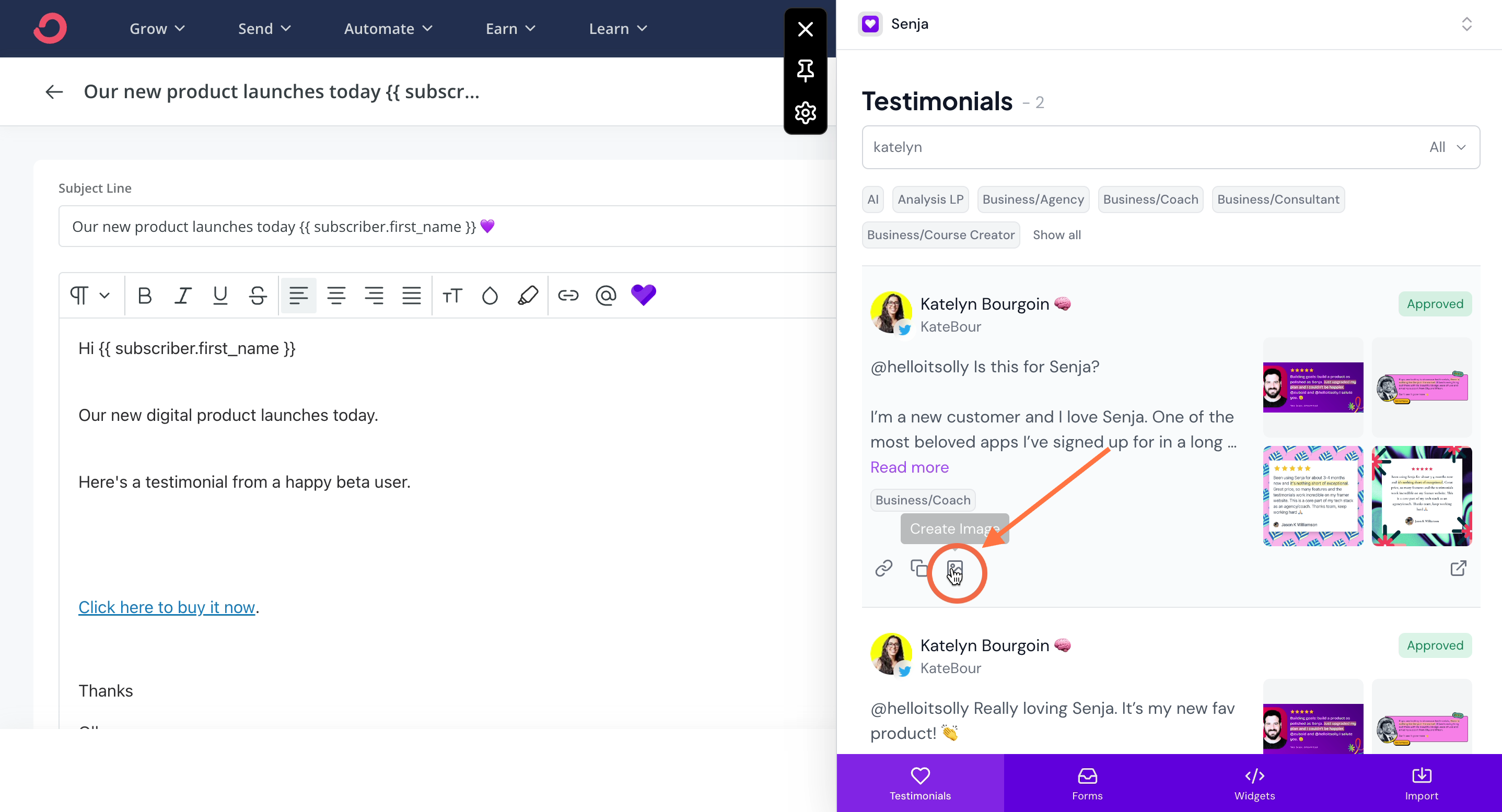
Choose a template. The image is copied for you

Paste it into your email
Some email tools let you open the Chrome extension right from the email editor, so you never leave your draft.
Use a whole widget as an image
Go to Studio → Saved and open your widget
Click Share
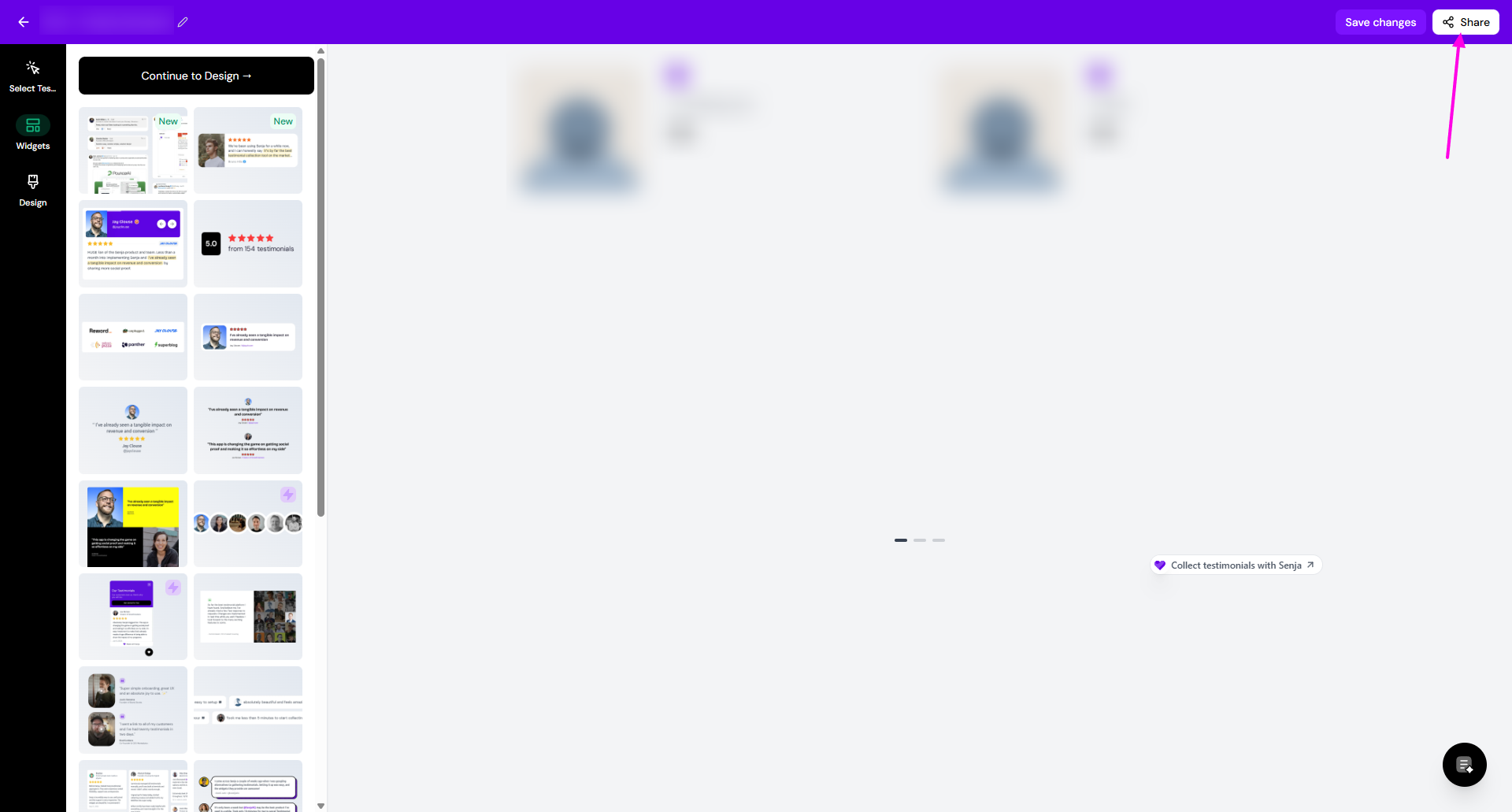
Go to Export as image and click Download
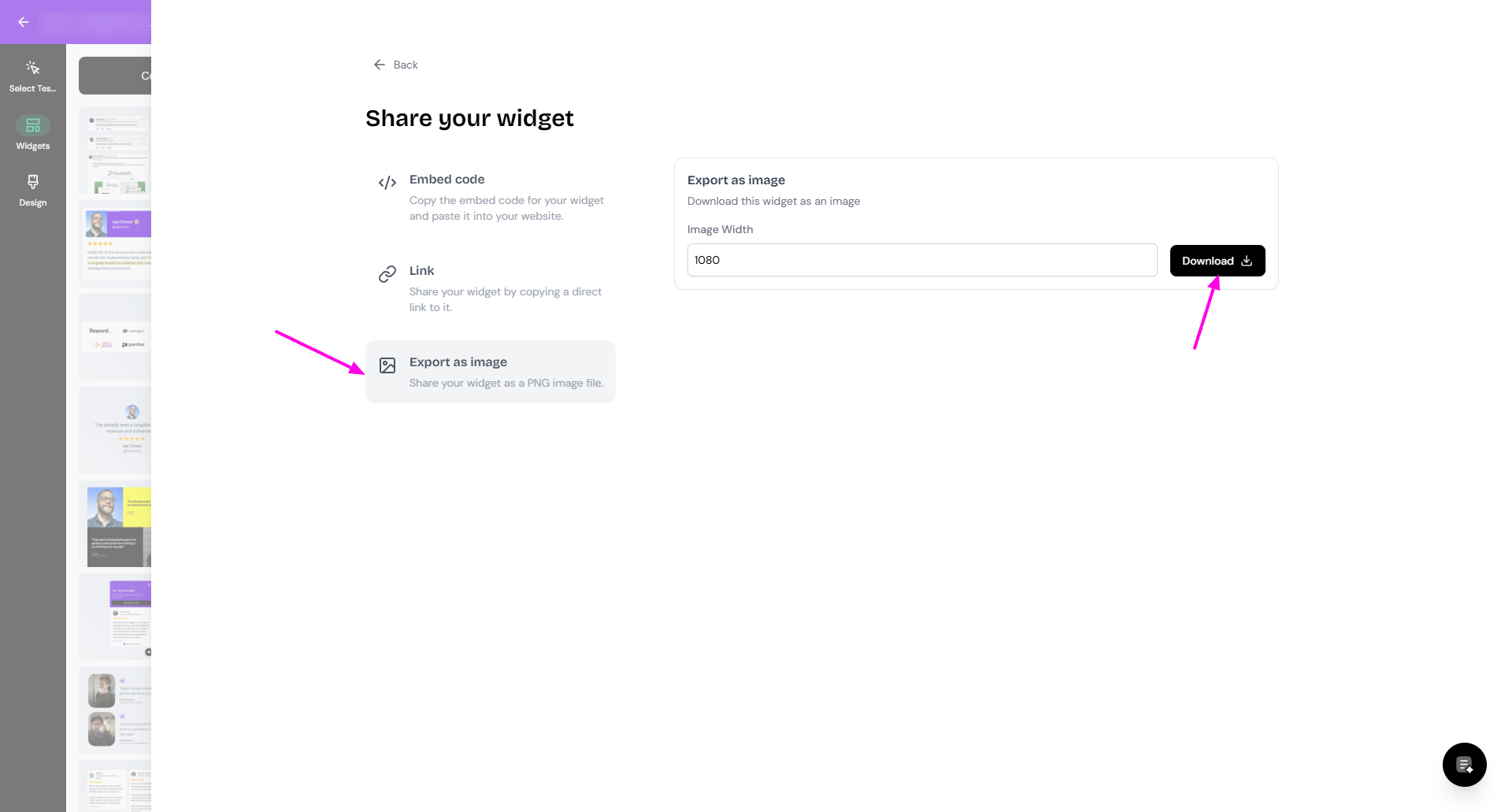
Upload the image into your email
Here's how a testimonial image looks in a Beehiiv newsletter:
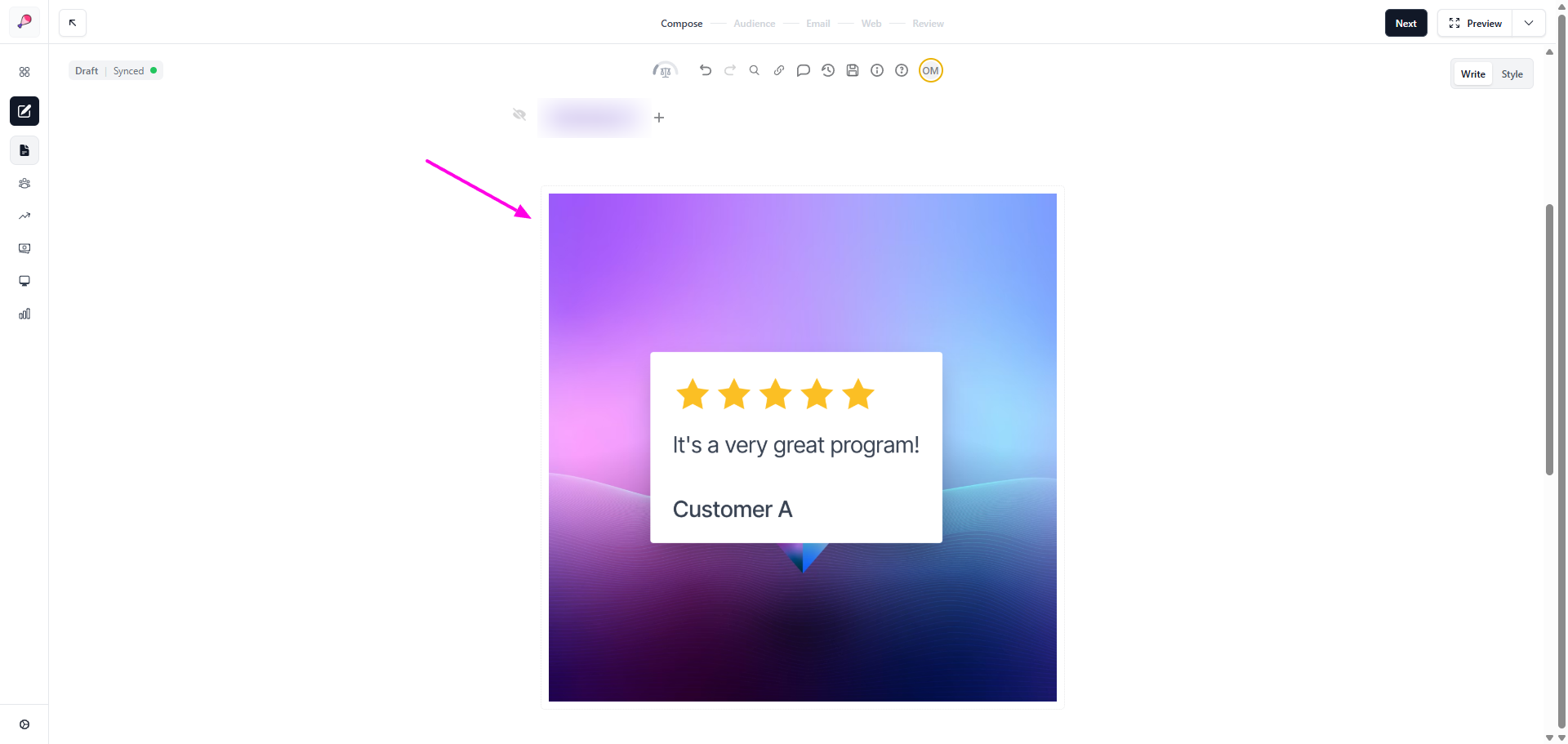
This works in most email tools, including Beehiiv, Mailchimp and Gmail.
Add testimonials to your email signature
You can add an image, a link, or both.
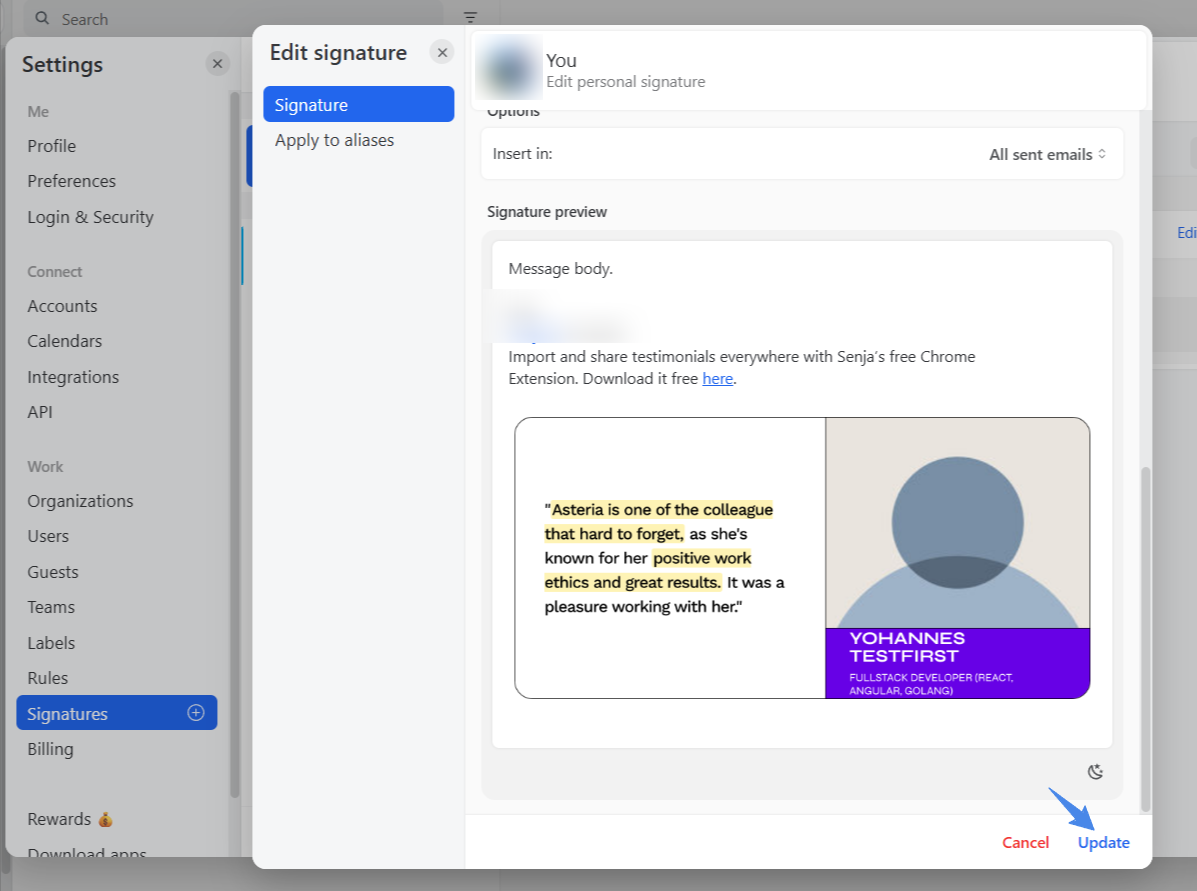
Add an image
Create a testimonial image with any method above. Small images work best in a signature, so pick an Email template or use Resize
Download the image
Upload it to your email signature settings
Add a link
Send people to all your testimonials with a link, like "See what our customers say".
Go to Studio → Saved and open your Wall of Love or widget
Click Share and copy its link, see How do I share a link to my testimonials?
Add the link to your email signature
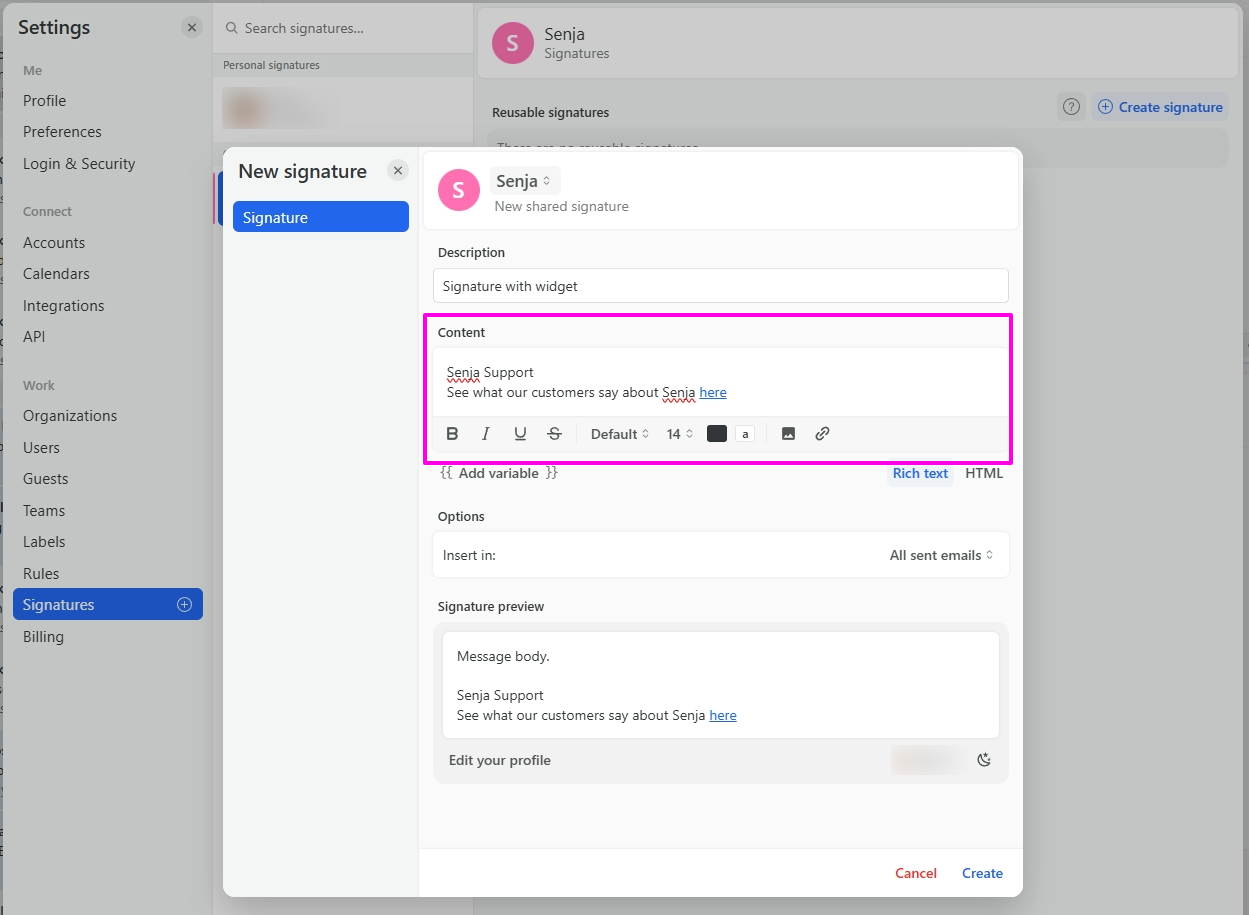
A Wall of Love works best for a signature link, since it's a full page of your testimonials.