
How to share or embed my widget
Once your widget is ready, add it to your website with an embed code, share it as a link, or download it as an image for places that don't support code.
This is available on all Senja plans: Free, Starter and Pro.
Open the Share window
Go to your Studio page and open your widget
Click Share at the top right
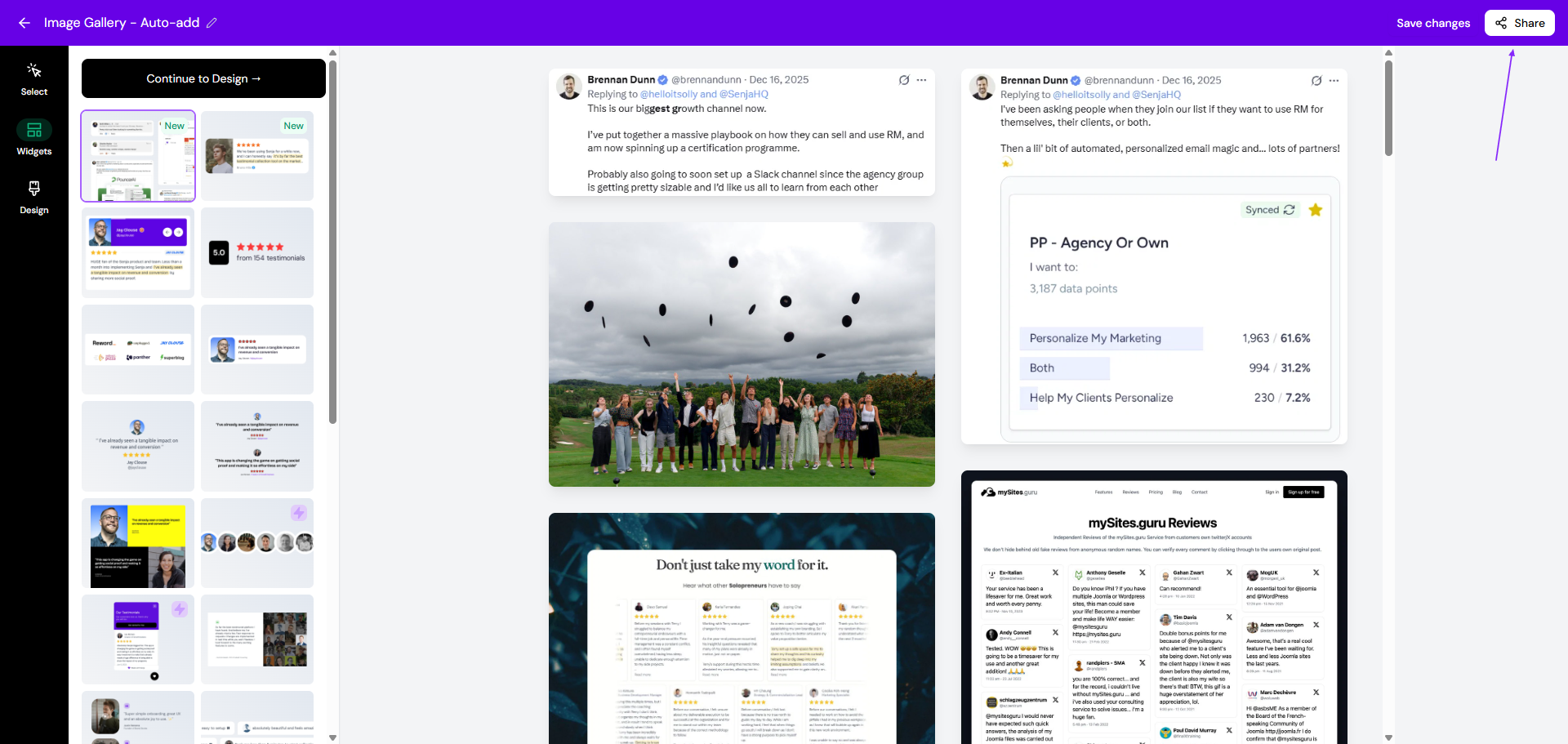
From here you can embed your widget, copy its link, or export it as an image.
Embed your widget on your website
In the Share window, click the copy button in the Embed code box
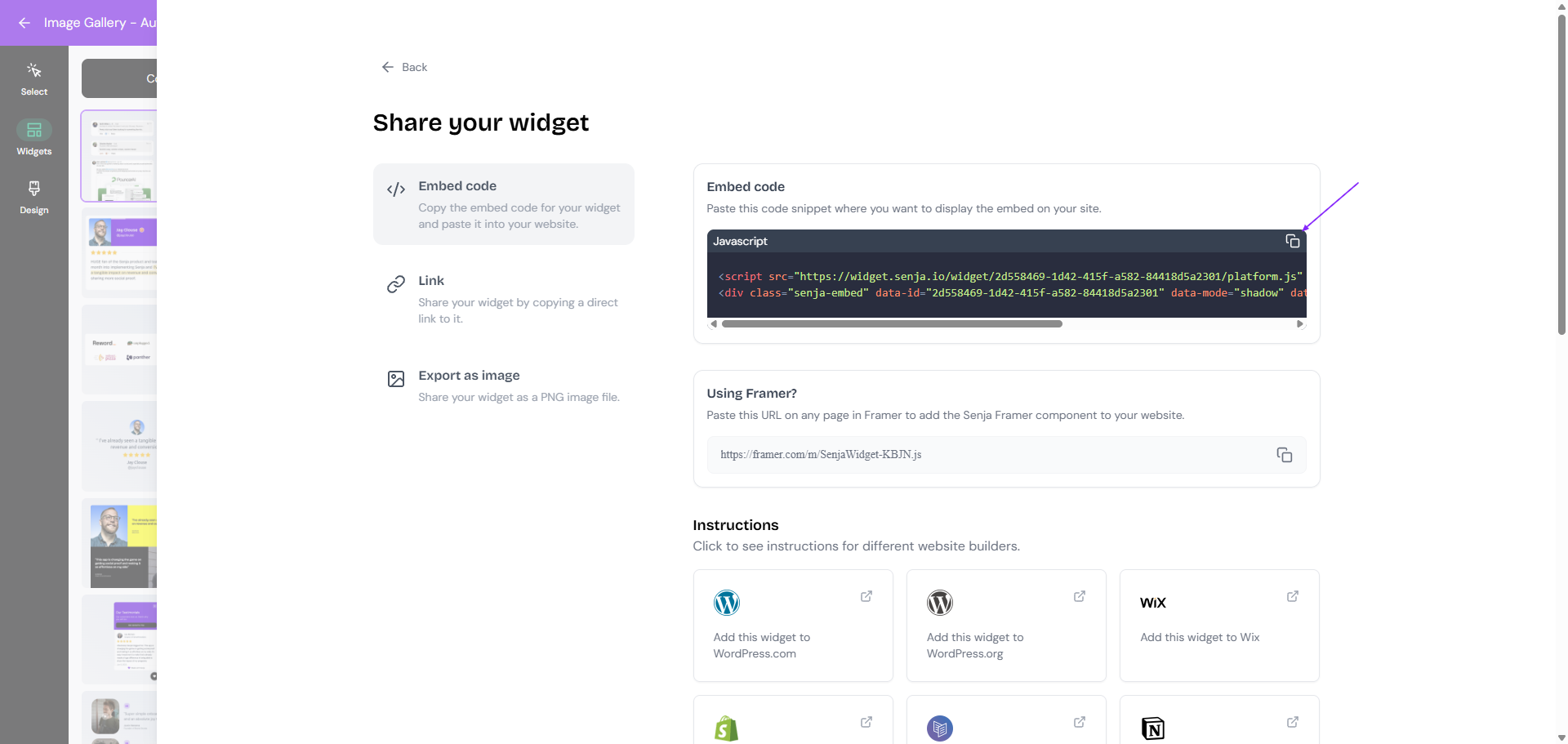
Paste the code into your website where you want the widget to show
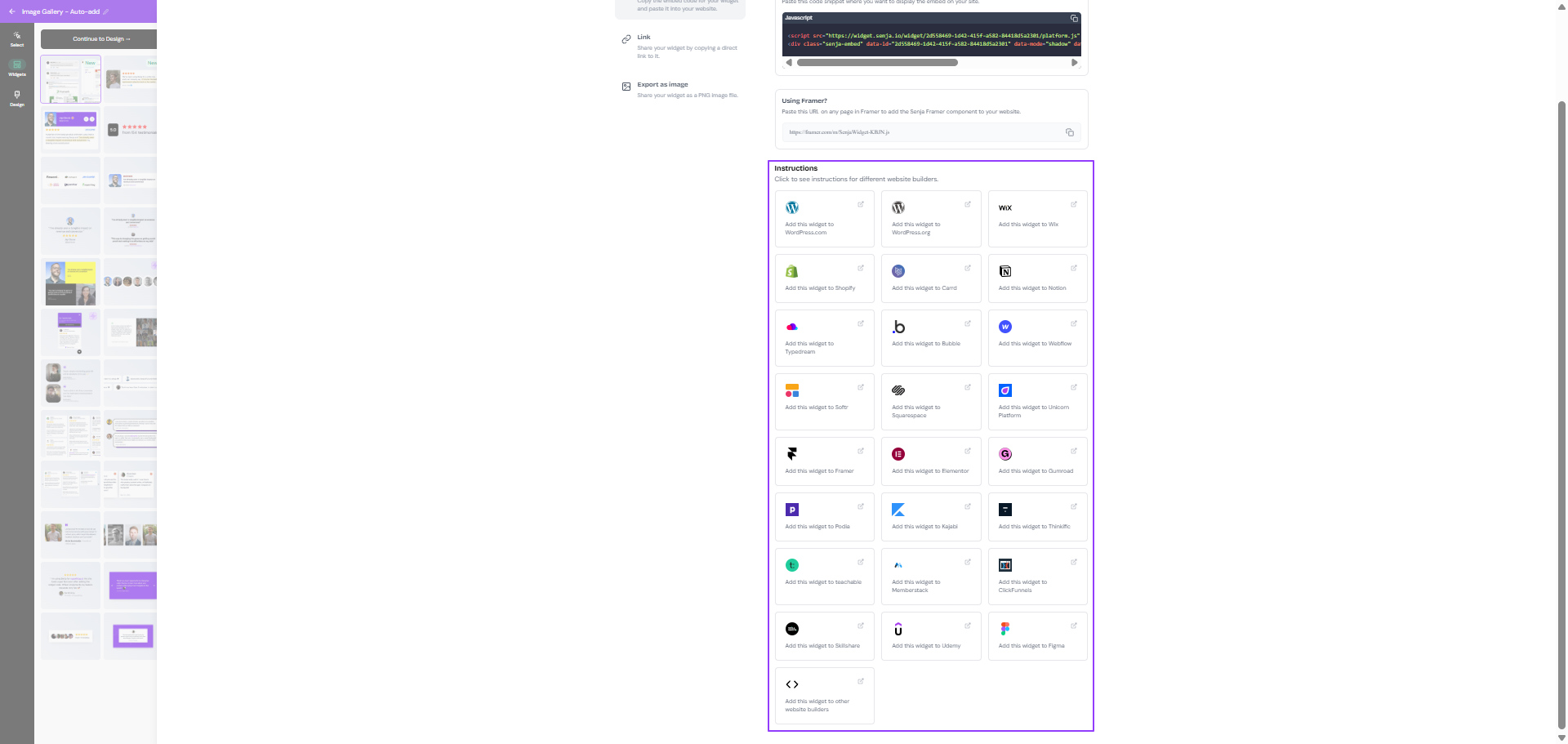
Your website builder needs to support custom code, like an HTML or embed block. The Instructions section in the Share window has steps for popular platforms, and there are more in Add testimonials to your website.
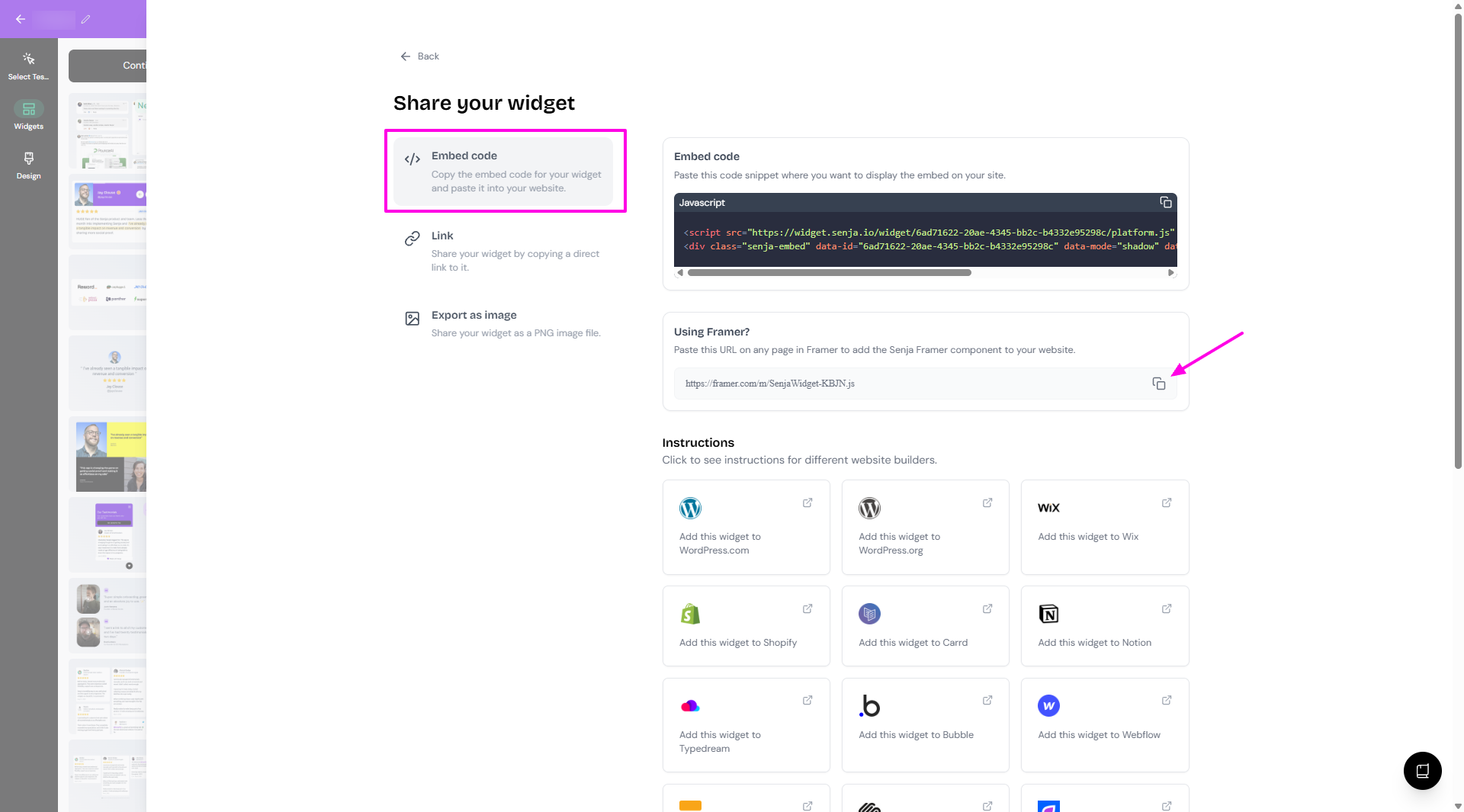
Using Framer? Copy the URL under Using Framer? instead of the embed code.
Other ways to copy your embed code
From Saved: go to Studio → Saved, click the three dots on your widget and click Copy Code
From the Chrome extension: open the Senja Chrome extension on the page you're editing, click Saved, then Copy Embed. See How to use the Senja Chrome extension
Your embedded widget updates on its own when you add testimonials or change its design. If it doesn't, see Why isn't my widget updating automatically?
Share your widget as a link
Every widget has its own page you can send to anyone, like in an email or a sales proposal.
In the Share window, go to the Link tab
Click the copy button under Your widget link
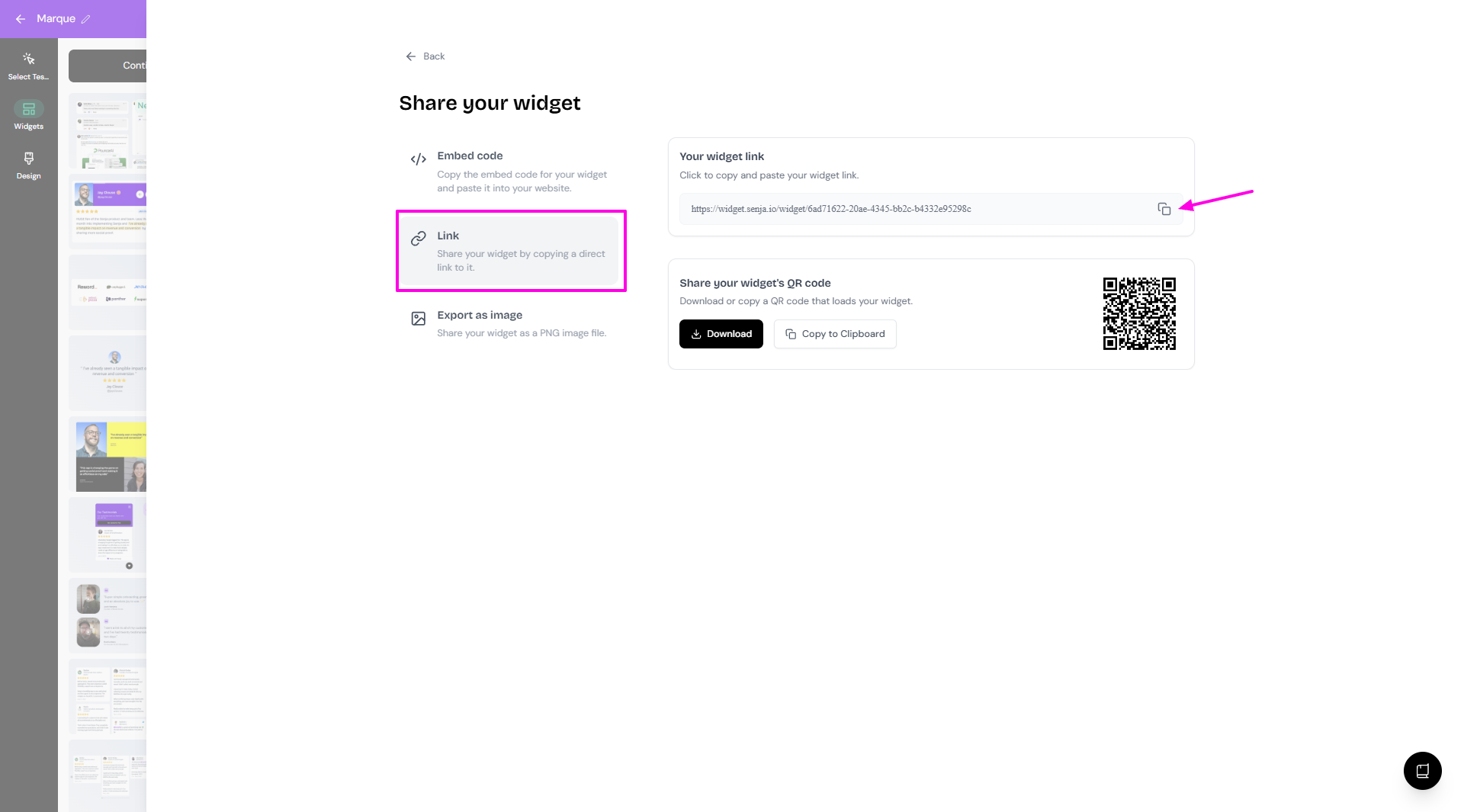
You can also get a QR code for the link with Download or Copy to clipboard, handy for printed materials and slides.
Download your widget as an image
Use this when you can't add code, like on some website builders, social posts or slides.
In the Share window, go to the Export as image tab
Set the Image Width
Click Download
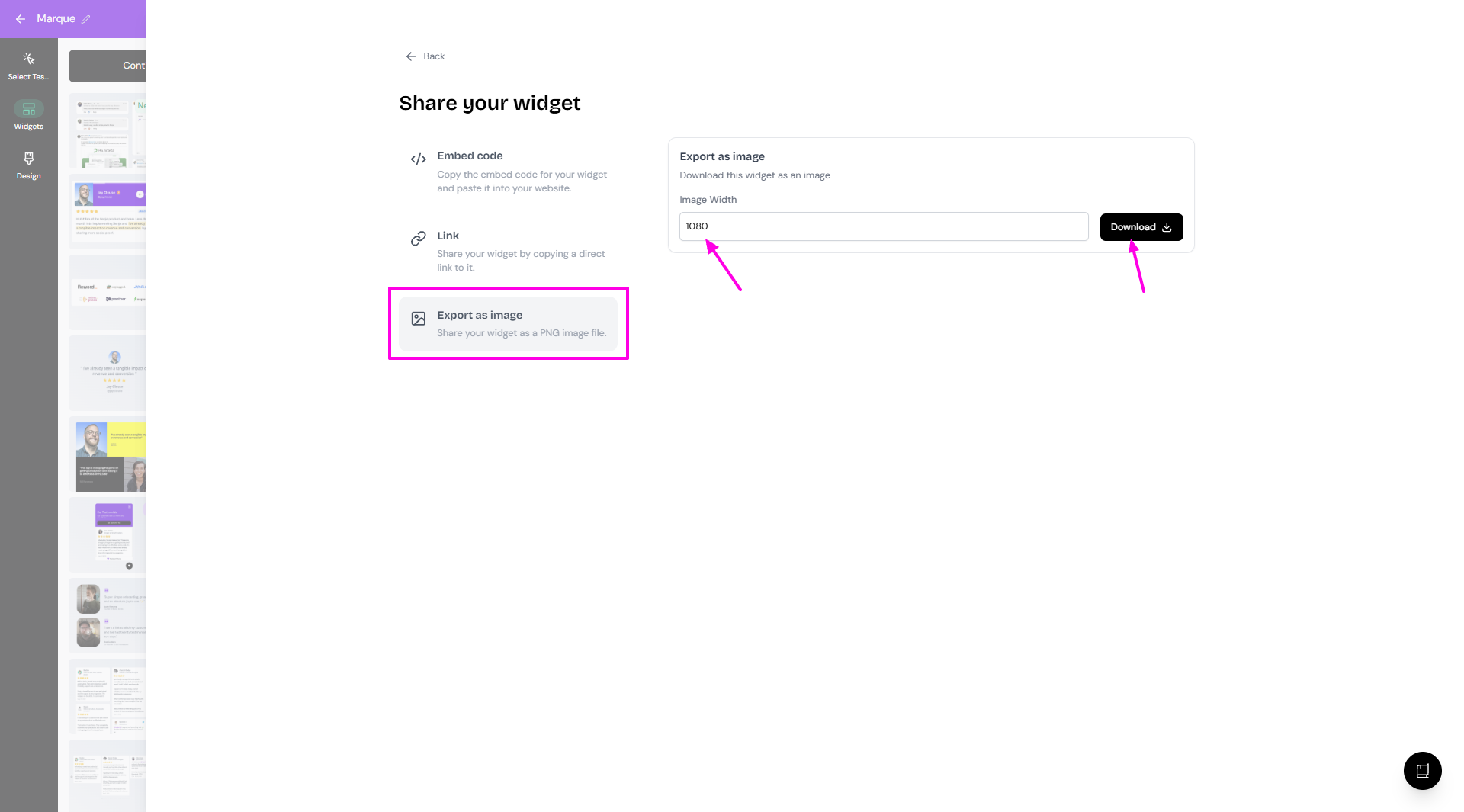
An image doesn't update when you get new testimonials, so export it again when you want a fresh one. To design an image from scratch instead, see How do I turn my testimonials into images?
Change your embed code
Keep your page fast
Senja widgets are built to load quickly. Check that your embed code has data-lazyload="true", so the widget only loads when visitors scroll to it and doesn't slow down the rest of your page. If it says data-lazyload="false", change it to "true".
Change the width
Widgets fill the full width of the space they're in. To make yours narrower, add a style to the first line of your embed code:
<div class="senja-embed" data-id="YOUR_ID" style="width: 600px; margin-left: auto; margin-right: auto;" data-lazyload="true"></div>
<script async type="text/javascript" src="https://static.senja.io/dist/platform.js"></script>
Replace
600pxwith the width you want. A percentage, like80%, keeps your widget responsive on all screen sizesKeep
YOUR_IDas your widget's own ID from your embed codemargin-left: auto; margin-right: auto;centers the widget
Embed with an iFrame
If your website doesn't allow scripts, embed your widget's link in an iFrame instead. It may load a little slower than the embed code.
Copy your widget link from the Link tab
Add this code to your page, replacing
SENJA_WIDGET_URLwith your link
<iframe
  id="senja-widget"
  src="SENJA_WIDGET_URL"
  title="Senja widget"
  frameborder="0"
  scrolling="no"
  style="width:100%; height: 100%;"
></iframe>
Still having trouble with speed or loading? Contact our Support team and we'll take a look.