
How do I send thank you notes from the Thank Yous page?
Thank Yous lets you send a genuine thank you to any customer, right from Senja, with text, video, photos, gifts and more. You can also see who's waiting for a thank you, track how your notes land, and thank customers automatically.
Thank Yous is available on all Senja plans. Free plan accounts can send up to 100 thank yous a month, to up to 100 recipients at a time.
Where to find it
Click Thank Yous in the left sidebar or go here: https://app.senja.io/thank-yous
The number next to it shows how many customers are waiting for a thank you
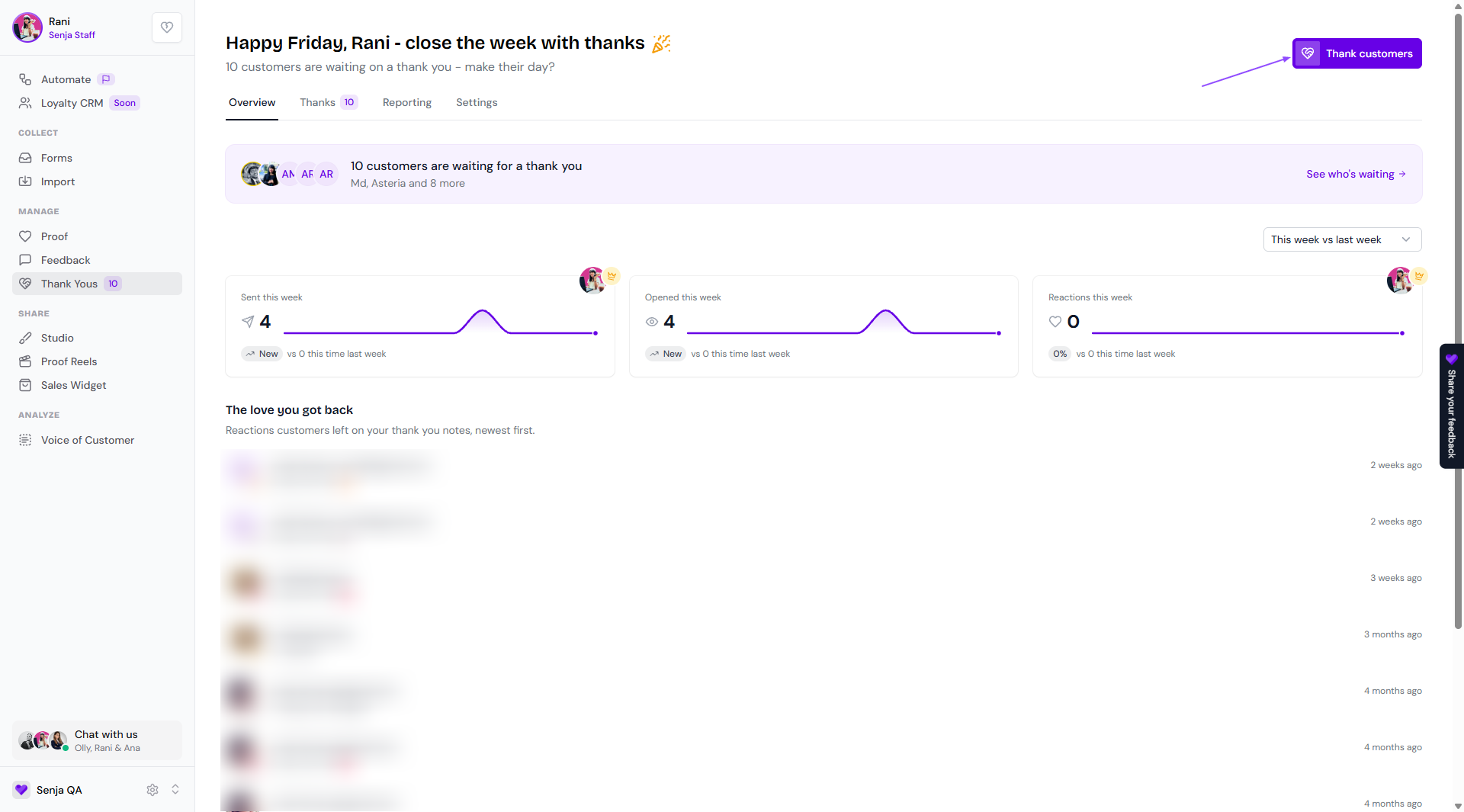
Click Thank customers (top right) from any tab to write a thank you
The page has four tabs: Overview, Thanks, Reporting, and Settings.
Overview tab
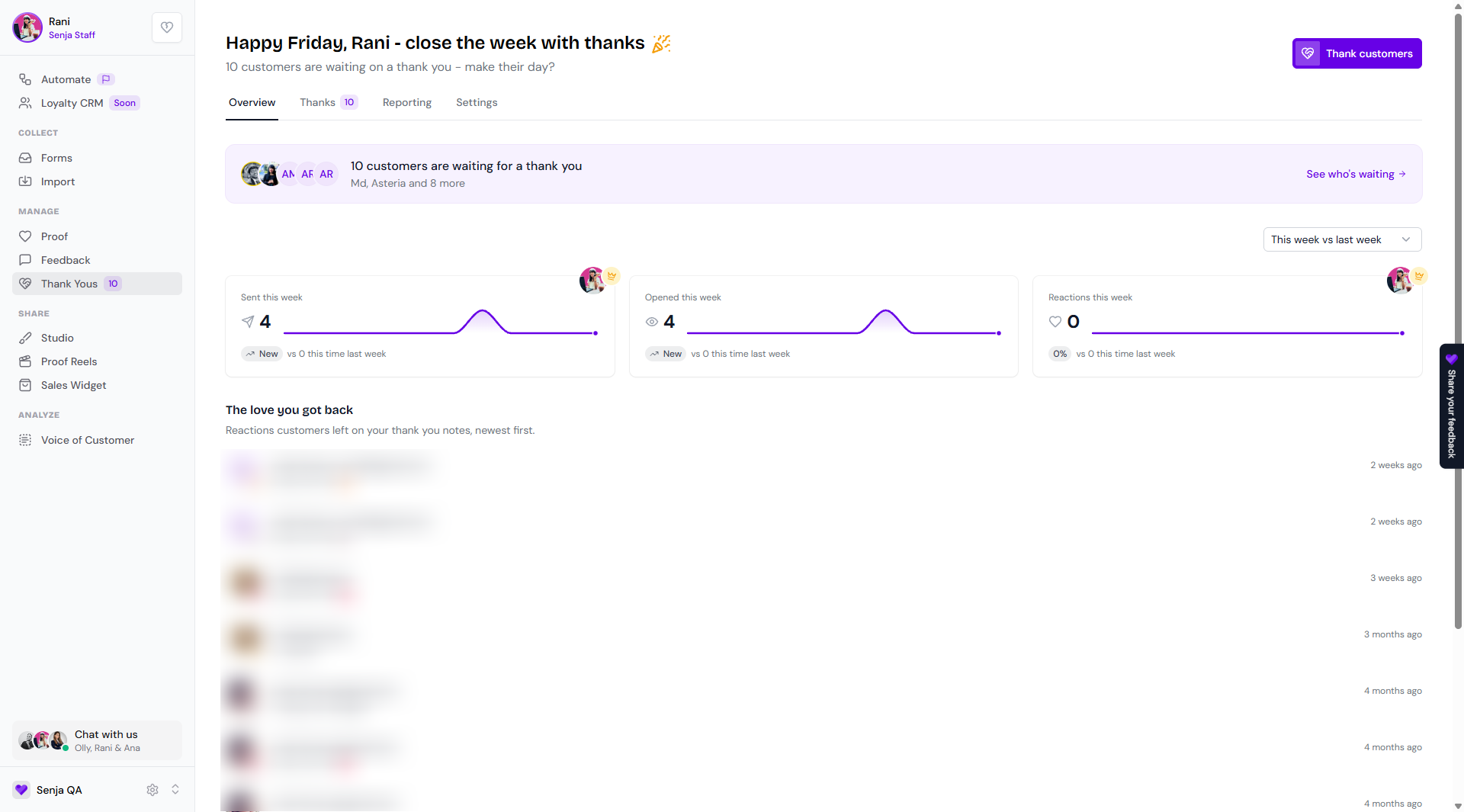
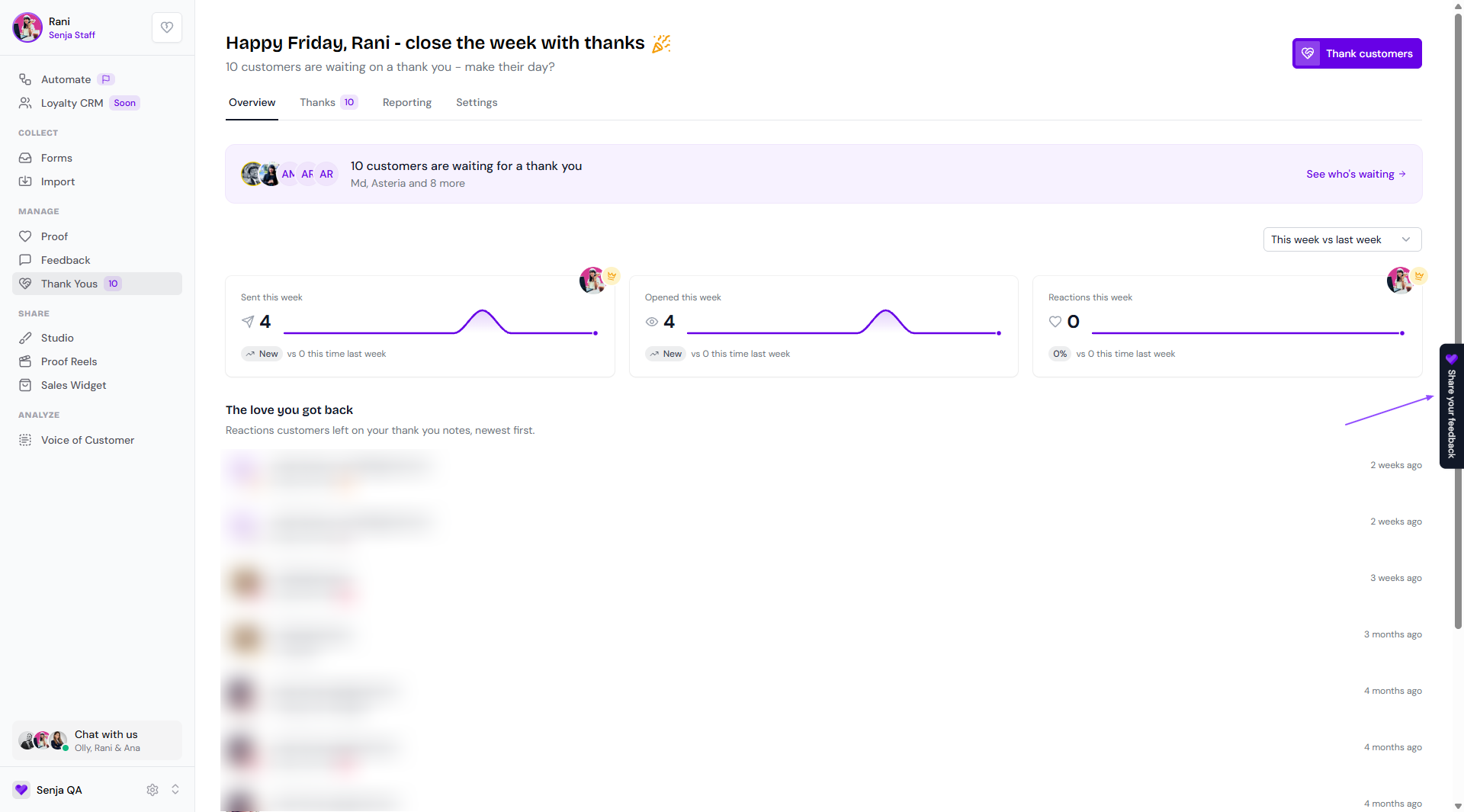
Who's waiting: how many customers are waiting for a thank you. Click See who's waiting to open the list
Your week at a glance: thank yous sent, opened, and reacted to, compared with last week. Use the dropdown to change the time period
The love you got back: reactions and replies customers left on your thank you notes, newest first
Thanks tab
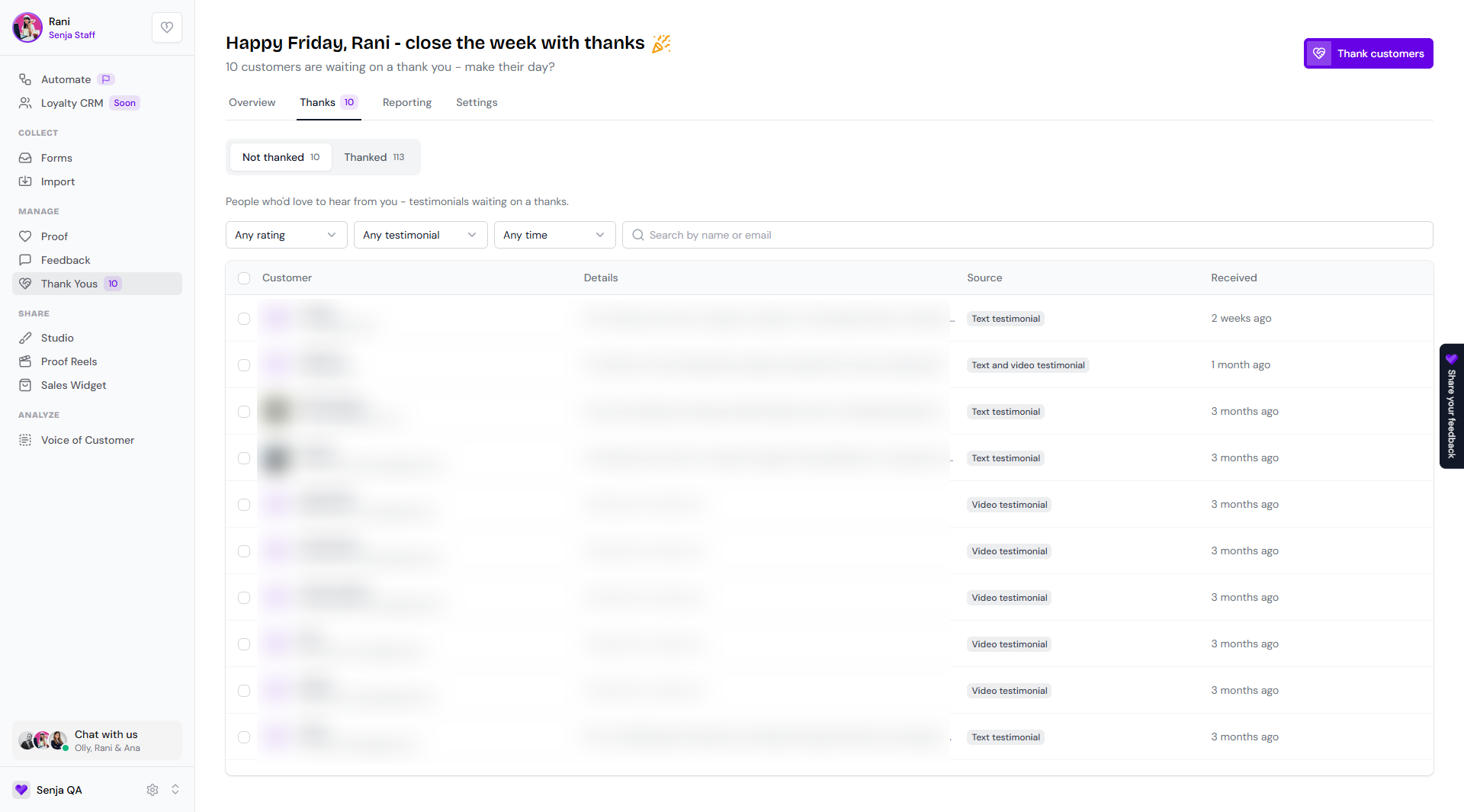
Not thanked
People who'd love to hear from you, like customers whose testimonials are still waiting for a thank you.
Filter by rating, testimonial type, and when it was received
Search by name or email
Each row shows the customer, a preview of their testimonial, the testimonial type, and when you received it
Thanked
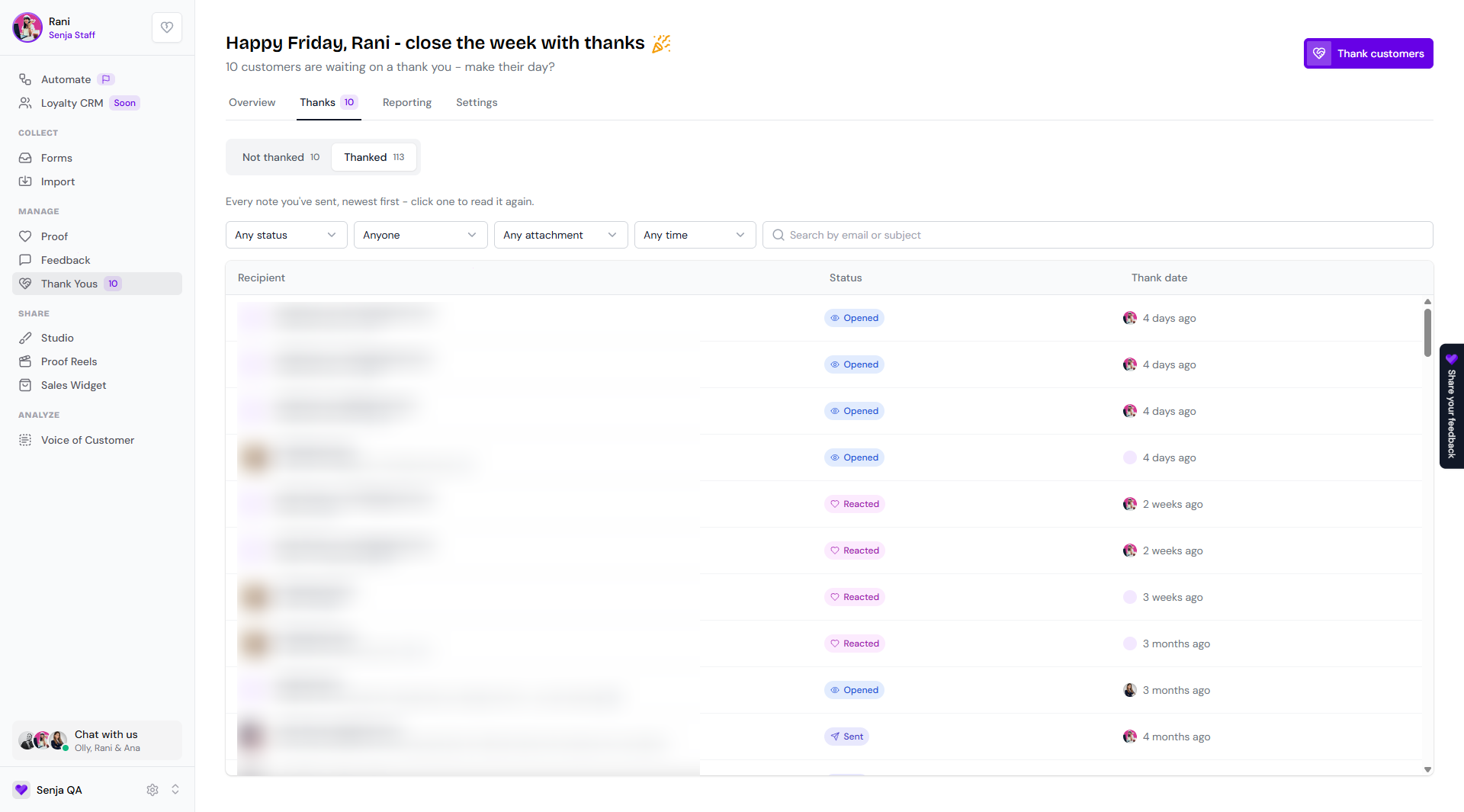
Every thank you you've sent, newest first. Click one to read it again.
Filter by status, who sent it, attachment type, and date
Search by email or subject
Each row shows the recipient, the subject, icons for anything attached, the status, and who sent it and when
Statuses
Sent: the thank you has been sent
Opened: the customer opened the email
Reacted: the customer reacted to it
Redeemed: the customer redeemed the attached coupon or gift
Undelivered: the email failed to reach the customer (for example, a bad address or server issue)
Unsubscribed: the customer unsubscribed from your emails
Reporting tab
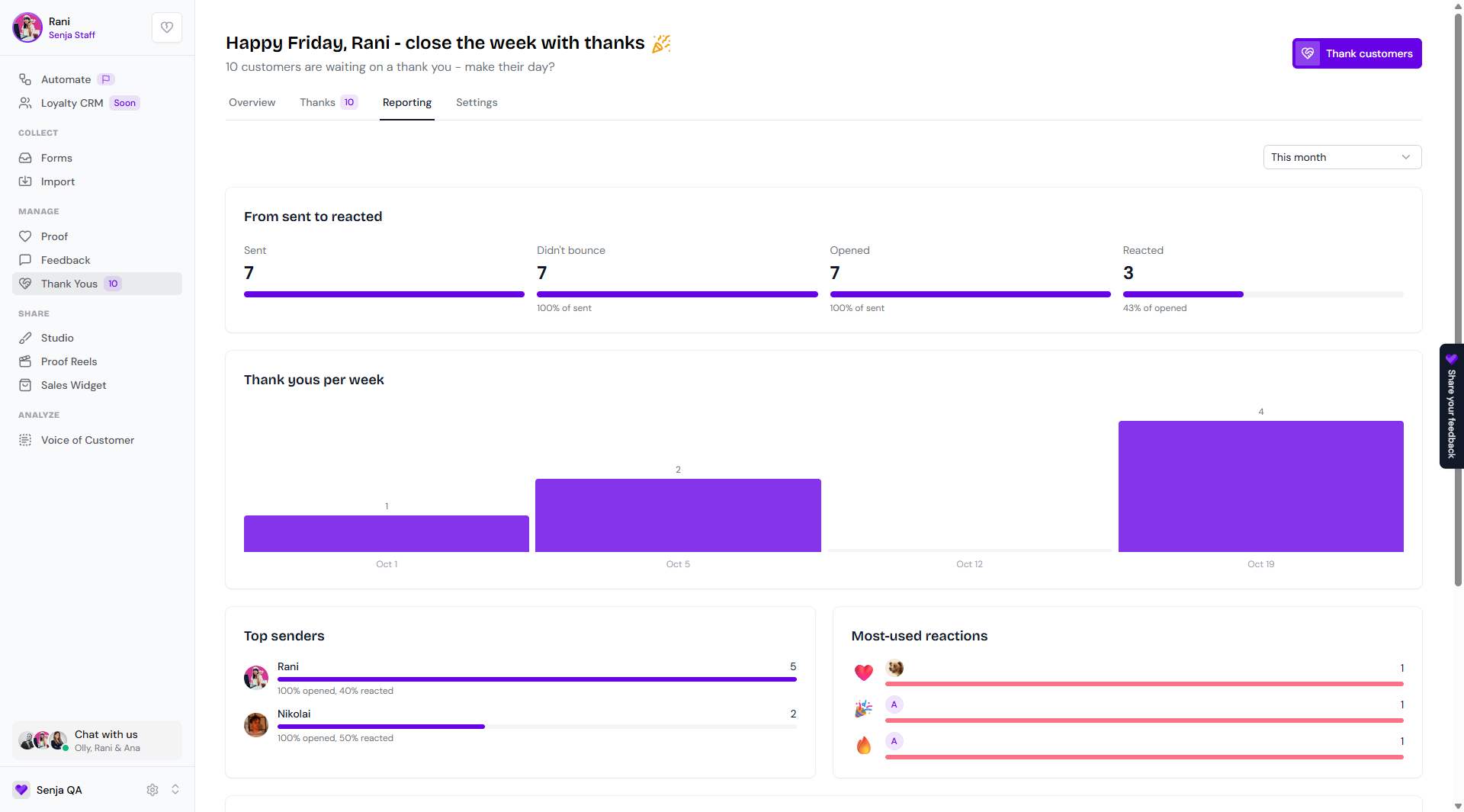
See how your thank yous are doing. Use the dropdown to change the time period.
From sent to reacted: how many thank yous were sent, didn't bounce, were opened, and got a reaction
Thank yous per week: how many you sent each week
Top senders: who on your team sent the most, with their open and reaction rates
Most-used reactions: the reactions customers use most
Settings tab
Sending
Sends from: the email address your thank yous come from
Replies go to: where customer replies land
Your own address: send from your own email address. Click Manage to set it up
Connections
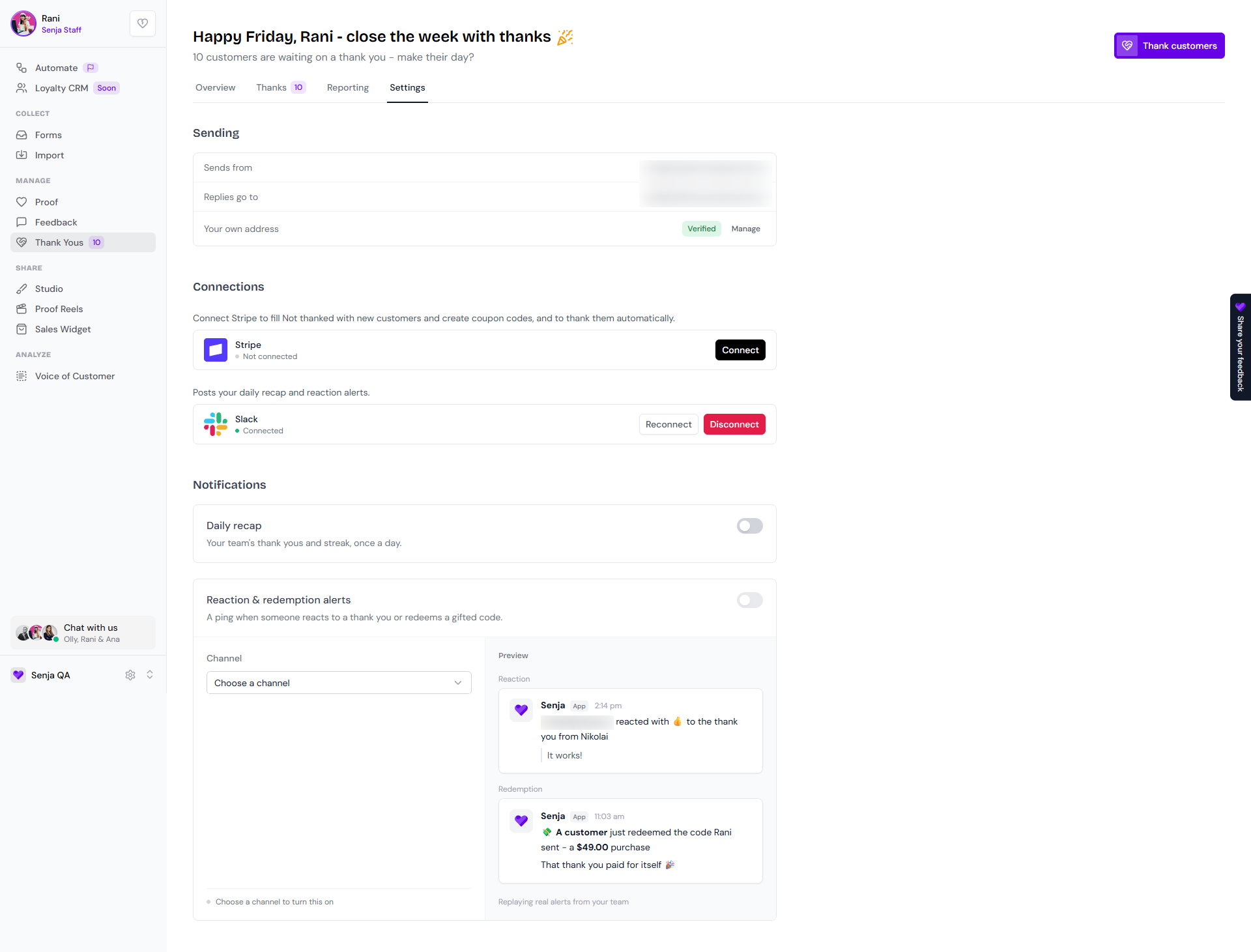
Stripe: connect Stripe to add new customers to Not thanked, create coupon codes, and thank customers automatically
Slack: connect Slack to get your daily recap and reaction alerts
Notifications
Turn these on after connecting Slack:
Daily recap: your team's thank yous and streak, once a day
Reaction & redemption alerts: a ping when someone reacts to a thank you or redeems a gifted code. Choose the Slack Channel to post to
Thank customers automatically
Go to Thank Yous → Settings
Under Connections, click Connect next to Stripe
Once Stripe is connected, new customers show up in Not thanked, and Senja can thank them automatically.
Sending a thank you
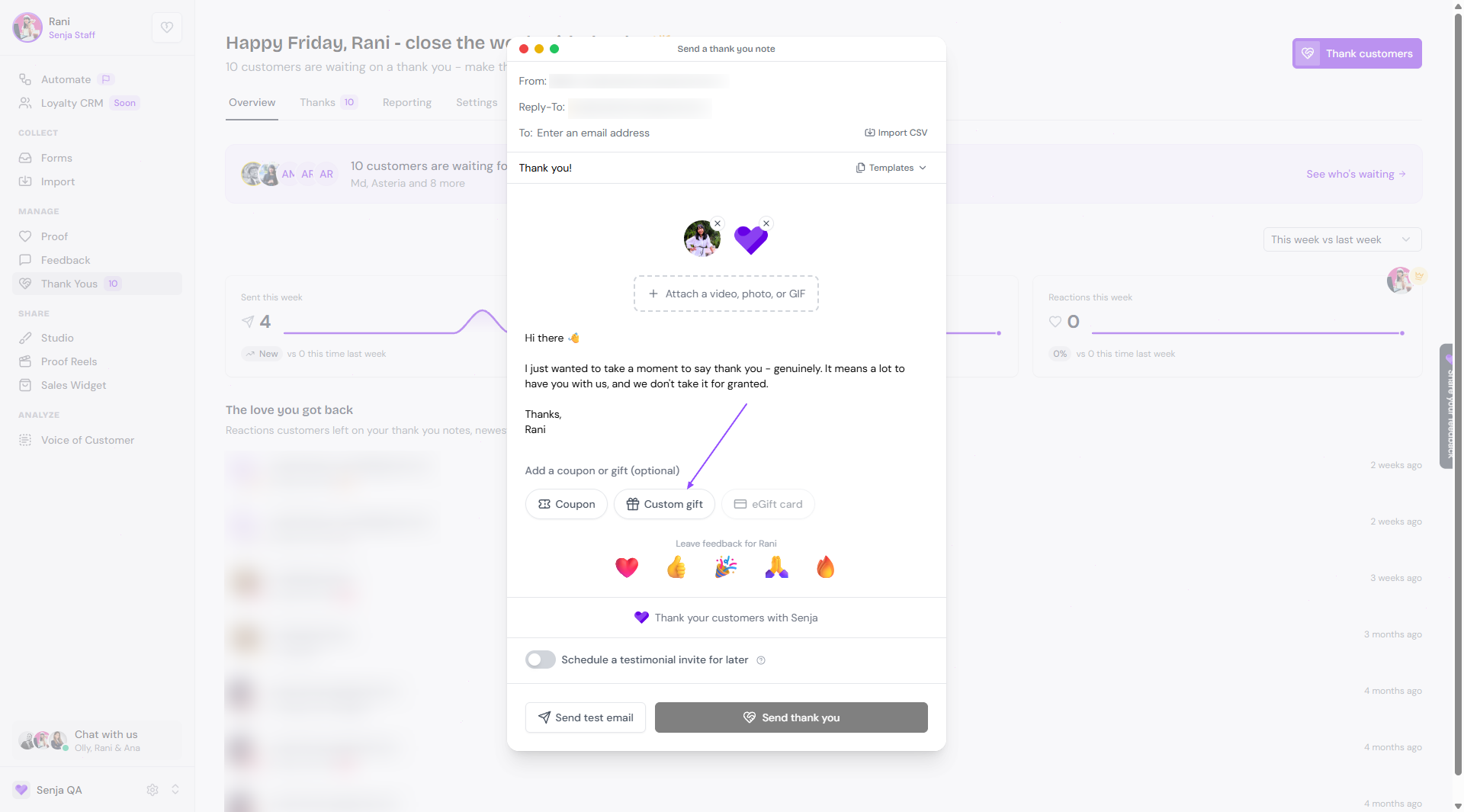
Click Thank customers (top right)
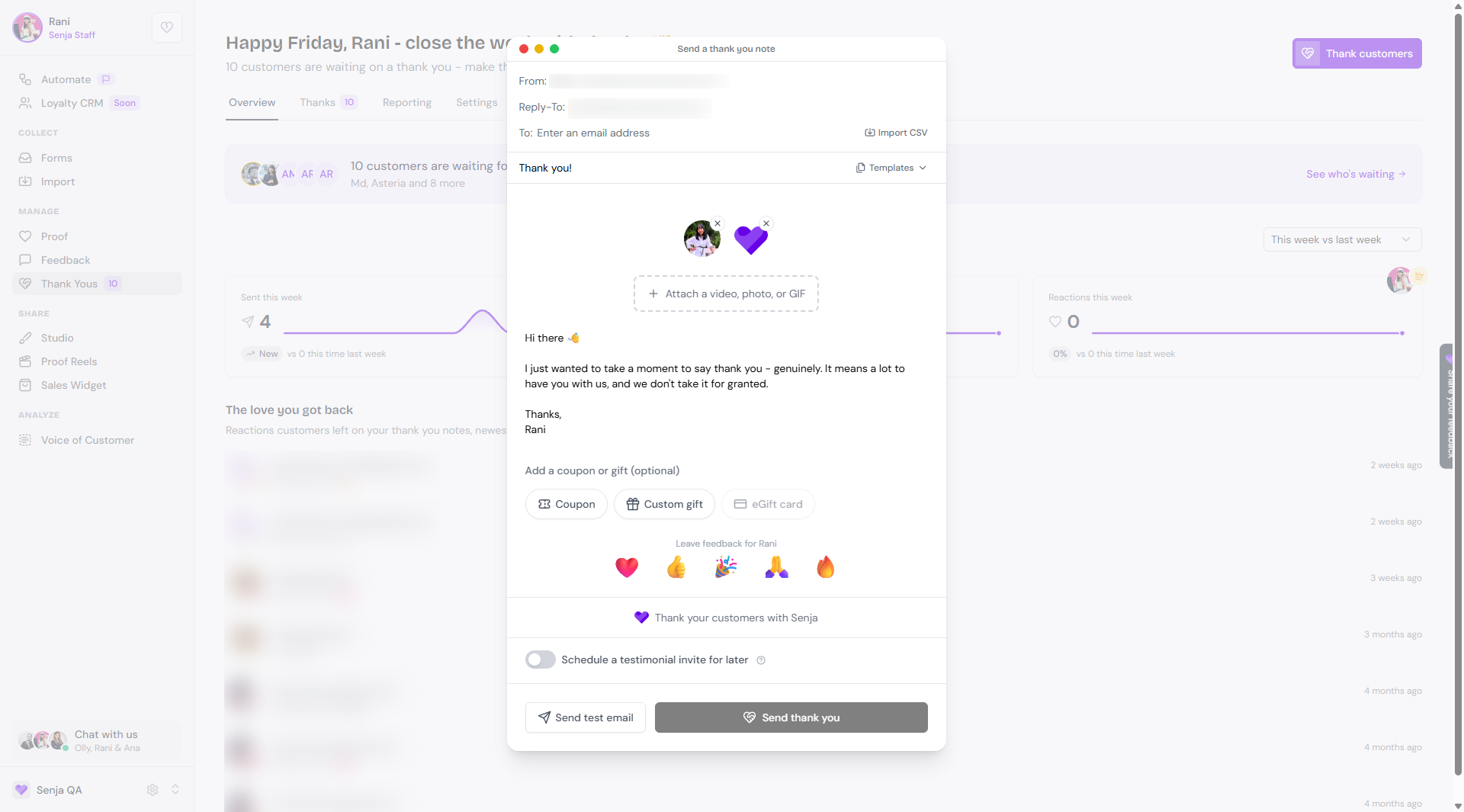
Add the recipient email address(es) manually or using Import CSV
Work on your thank you message
Update the email subject
Display/hide your avatar or your company logo
Optionally attach a:
Video (record on the spot or upload one)
Photo (capture on the spot or upload one)
GIF (pick from recent uploads or search from the library)
Write your message, or pick a saved template or one of the global templates (Upgrade, Coworker, Affiliate, Meeting, Webinar, Launch) to start faster
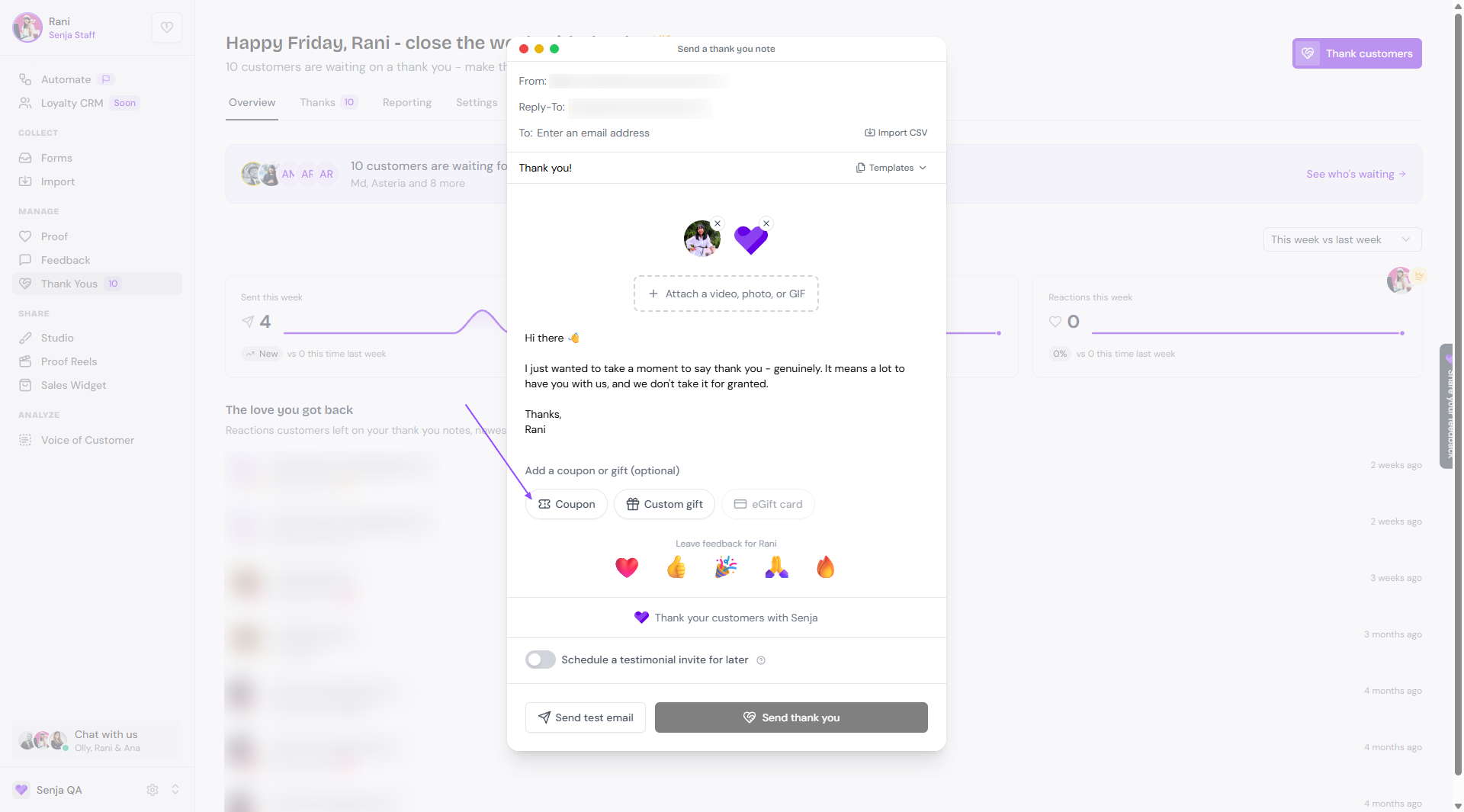
Add a coupon or custom gift (completely optional)
Turn Ask for a testimonial after sending on or off
Save the message as a Template to reuse in the future
Click Send thank you
You can only attach one reward per thank you. Once you add a coupon or a gift, the other option is hidden.
Adding a coupon
Click Coupon
Choose the coupon type (Stripe coupon or Manual coupon)
Complete the details
Enter your coupon Code (for example,
LOVESENJA)In What does it get them?, add a note explaining how to redeem it
Add the Redemption link where your customer will use the code
Check the preview, and click Attach coupon when you finish
Adding a gift
Click Custom gift
Complete the details
Enter your gift type in What did you give them?
Add a note explaining how to redeem it
Update the Button link and Button text
Check the preview, and click Add gift when you finish
Always check the email preview before sending to see exactly how the reward appears in the email.
Share your feedback
Got feedback on the Thank Yous page or ideas to improve it? Click the Share your feedback widget on the right side of the screen.
You can also thank a customer from the Proof page, see How do I thank a customer from the Proof page?