
How to add testimonials to presentations and sales pages (Canva, Keynote, Figma and more)
Add your testimonials to slide decks, designs and sales pages, so prospects see real proof while you pitch. This guide covers Canva, Keynote, Figma, Trumpet and Distribute.
This is available on all Senja plans: Free, Starter, and Pro.
What you can add to each tool
Tool | Testimonial or widget image | Live widget | How |
|---|---|---|---|
Canva | Yes | No | Upload an image |
Keynote | Yes | No | Upload an image |
Figma | Yes | No | Paste or upload an image |
Trumpet | Yes | Yes | Senja integration |
Distribute | Yes | Yes | /embed with your widget link |
The image steps also work in any other slide or design tool, like Google Slides or PowerPoint.
Create your image in Senja
Use a widget you already have, or make an image of 1 to 3 testimonials.
Export a widget as an image
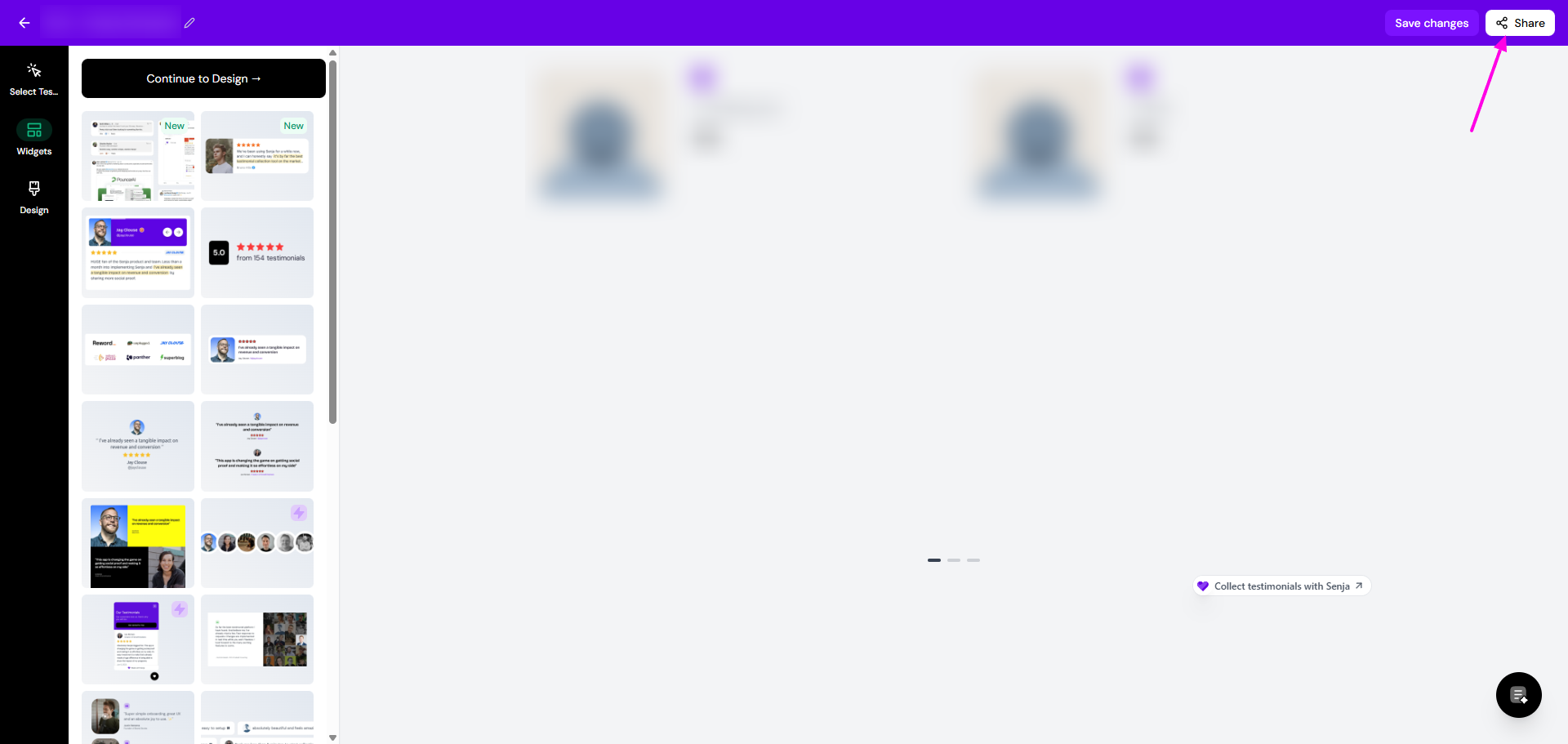
Go to Studio → Saved and open your widget
Click Share in the top right
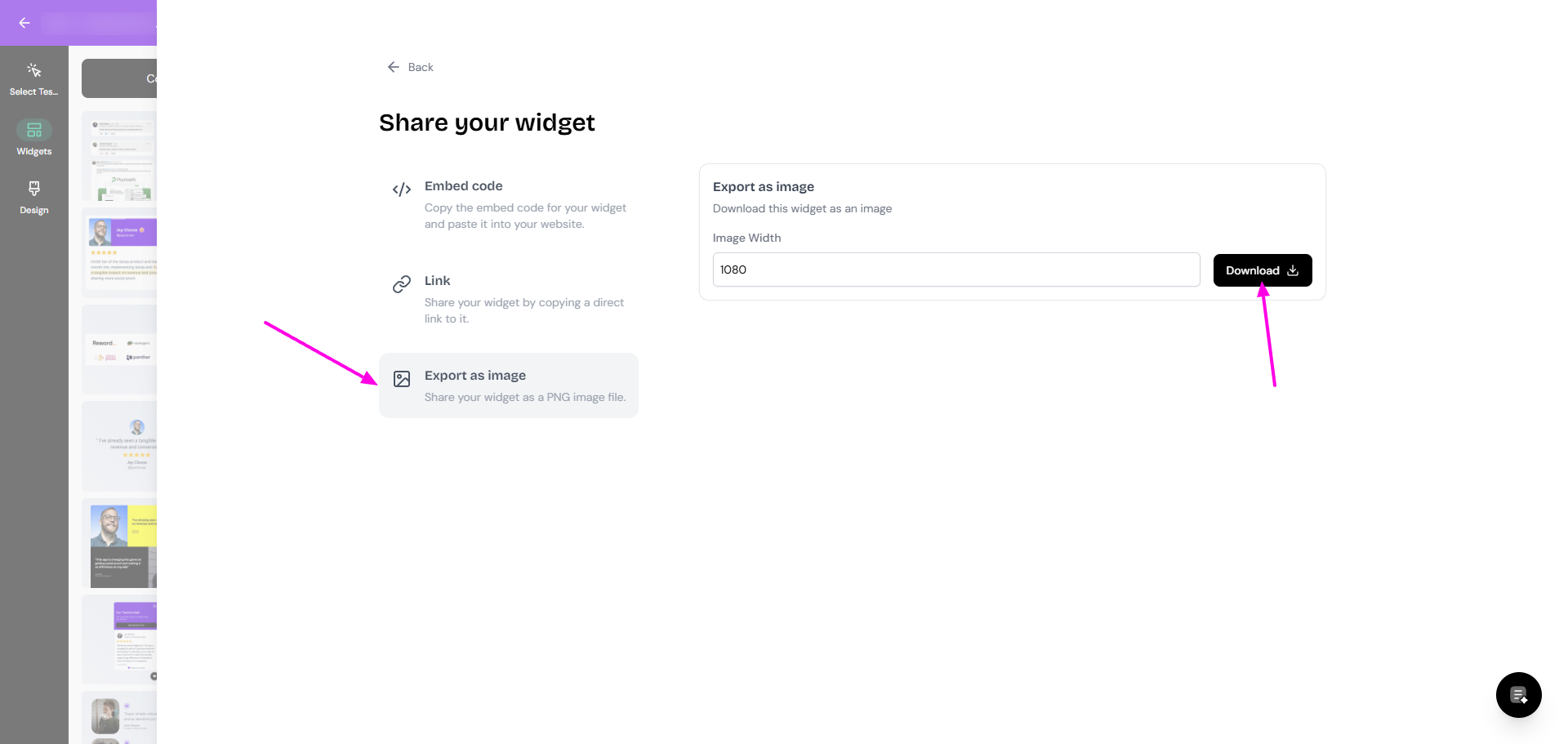
Go to the Export as image tab
Set the Image Width and click Download
Or make a testimonial image
Go to Studio → Create and click Image
Choose a template and pick 1 to 3 testimonials
Change the design to match your brand. Use Resize to fit a slide
Click Share and download it, or copy it to your clipboard
See How do I turn my testimonials into images? for every design option.
Add your image
Canva: open your presentation, go to Uploads in the left sidebar, and upload your image or drag it onto your slide
Keynote: open your presentation and drag your image onto your slide, then resize and position it
Figma: open your design file and drag your image onto the canvas, or paste it with CMD/CTRL+V if you copied it
Images don't update on their own, so export a fresh one when you get new testimonials.
Add a live widget to Trumpet
Senja has an integration with Trumpet, so you can add your widgets to your Trumpet Pods. Watch how it works:
Add a live widget to Distribute
Distribute adds your widget with its embed tool, using your widget link instead of the embed code.
In Senja, open your widget, click Share, and copy the link from the Link tab. See How to share or embed my widget
Open your Distribute page in the editor and click where you want your widget
Type /embed and choose Embed content
Paste your widget link and insert it
Publish your page
The widget may not show in the preview straight away. Wait a few seconds, publish, then refresh the page.
The free Senja Chrome extension lets you copy widget links and testimonial images without leaving the tool you're in. Not working? Contact Senja Support.