
How to add testimonials to your product and checkout pages (Gumroad, Lemon Squeezy, Whop)
Add testimonials to your product and checkout pages on Gumroad, Lemon Squeezy or Whop, so buyers see proof right where they decide. These platforms don't allow custom code, so you can't add a Senja widget. Instead, upload a testimonial image, or paste testimonial text into your product description.
This is available on all Senja plans: Free, Starter, and Pro.
What you can add to each platform
Platform | Testimonial image | Testimonial text | Widget |
|---|---|---|---|
Gumroad | Yes, with a Gumroad-sized template | Yes, in your product description | No |
Whop | Yes, with a Whop-sized template | Yes, in your product description | No |
Lemon Squeezy | Yes | Yes, in your product description, which shows on your checkout page | No |
None of these platforms have a Senja app integration. Selling on Shopify or WooCommerce instead? Those allow widgets, see How to add testimonials to Shopify and How to add testimonials to WooCommerce.
Add a testimonial image
Go to Studio → Create: https://app.senja.io/studio
Click Image and choose a template
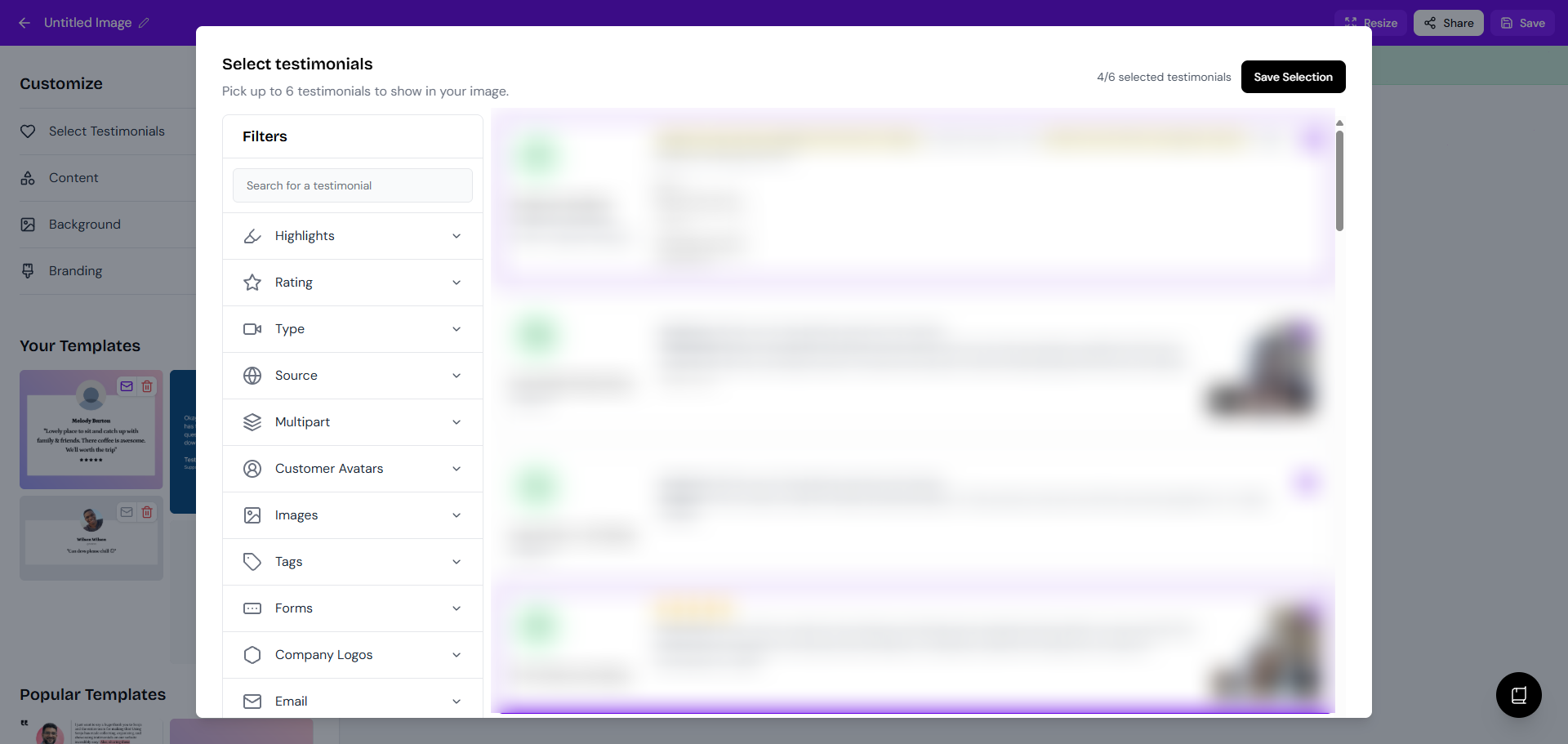
Select your testimonials (up to 6, depending on the template) and click Save Selection
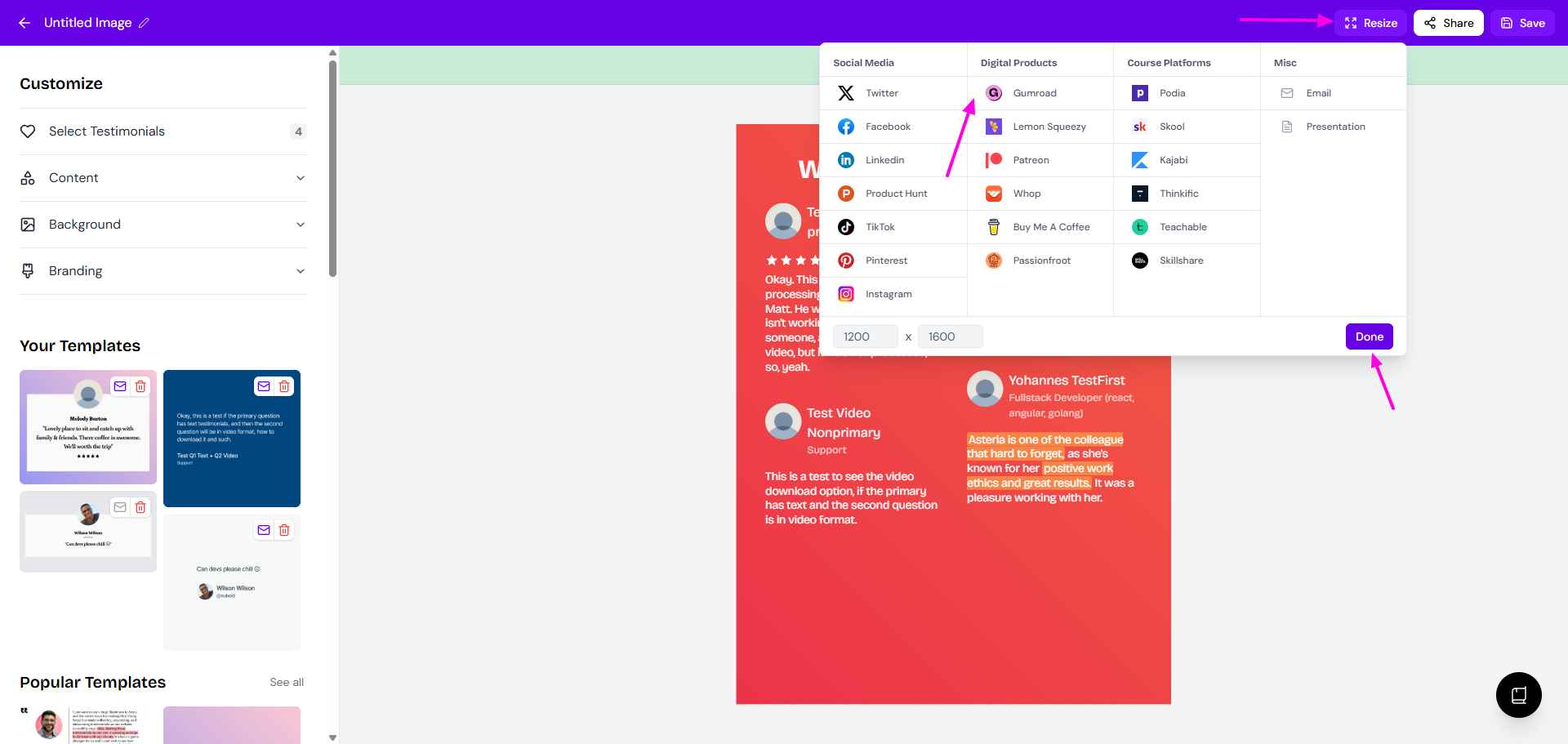
Click Resize in the top right, choose Gumroad or Whop, and click Done
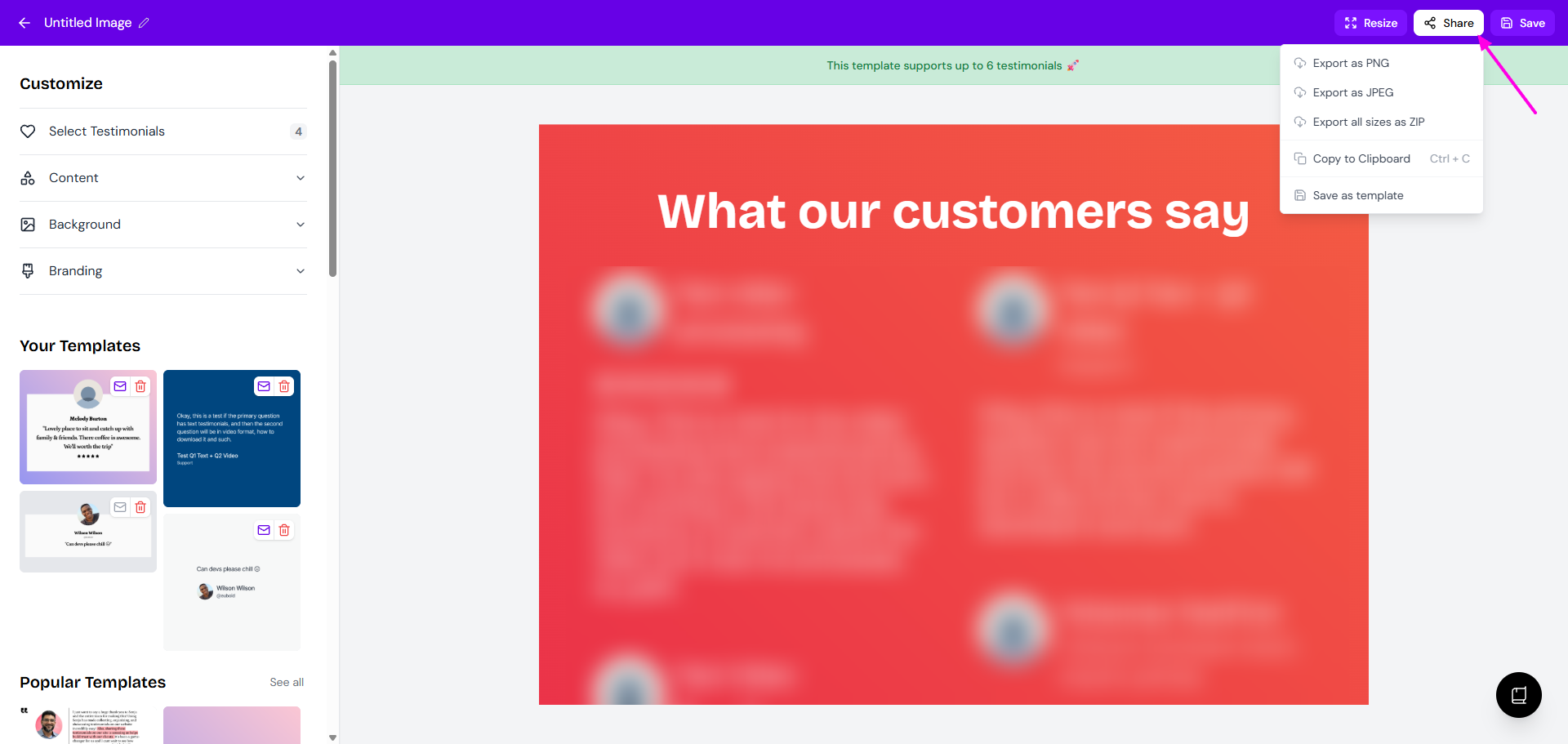
Click Share and download your image
Upload the image to your product page
Prefer a video? Here's the Gumroad walkthrough:
Add testimonial text to your Lemon Squeezy checkout
Text in your product description shows on your Lemon Squeezy checkout page. The Senja Chrome extension makes it quick.
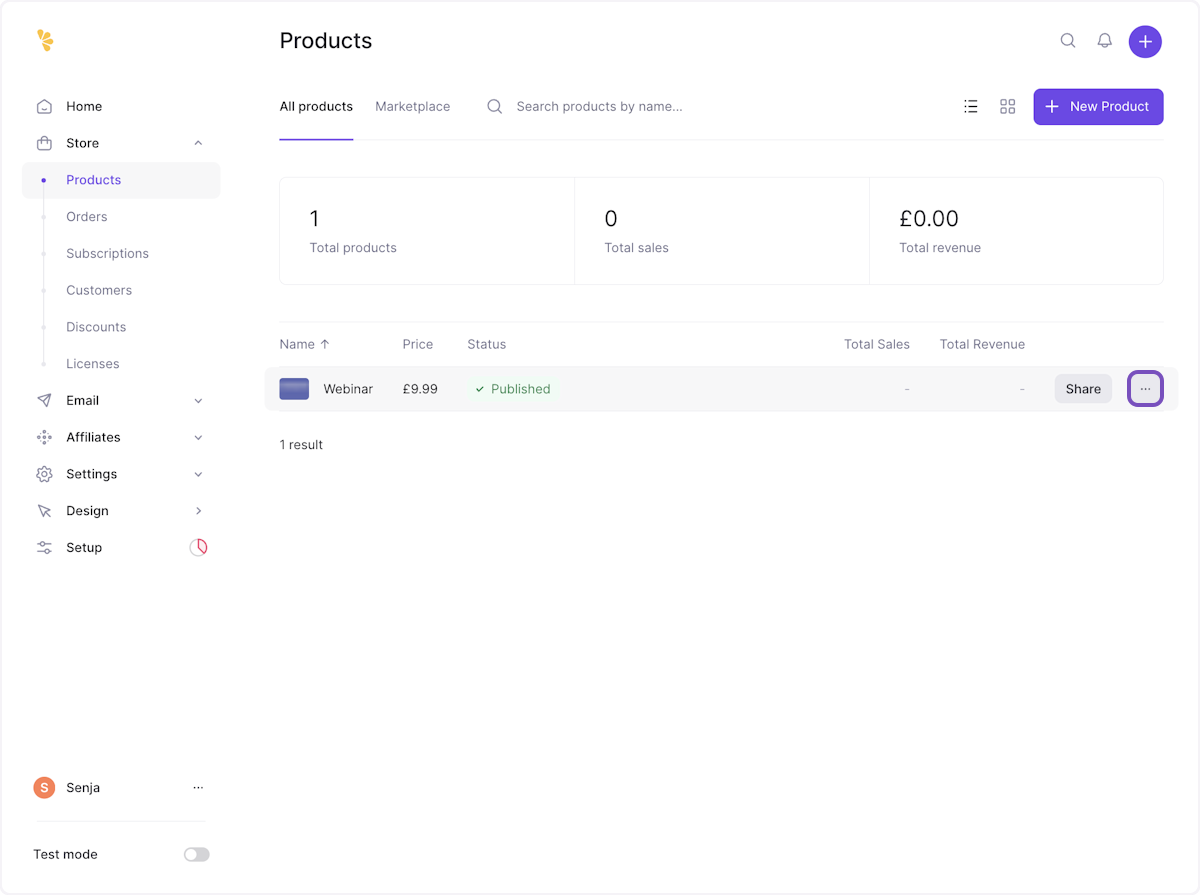
In Lemon Squeezy, click the three dots next to your product and click Edit
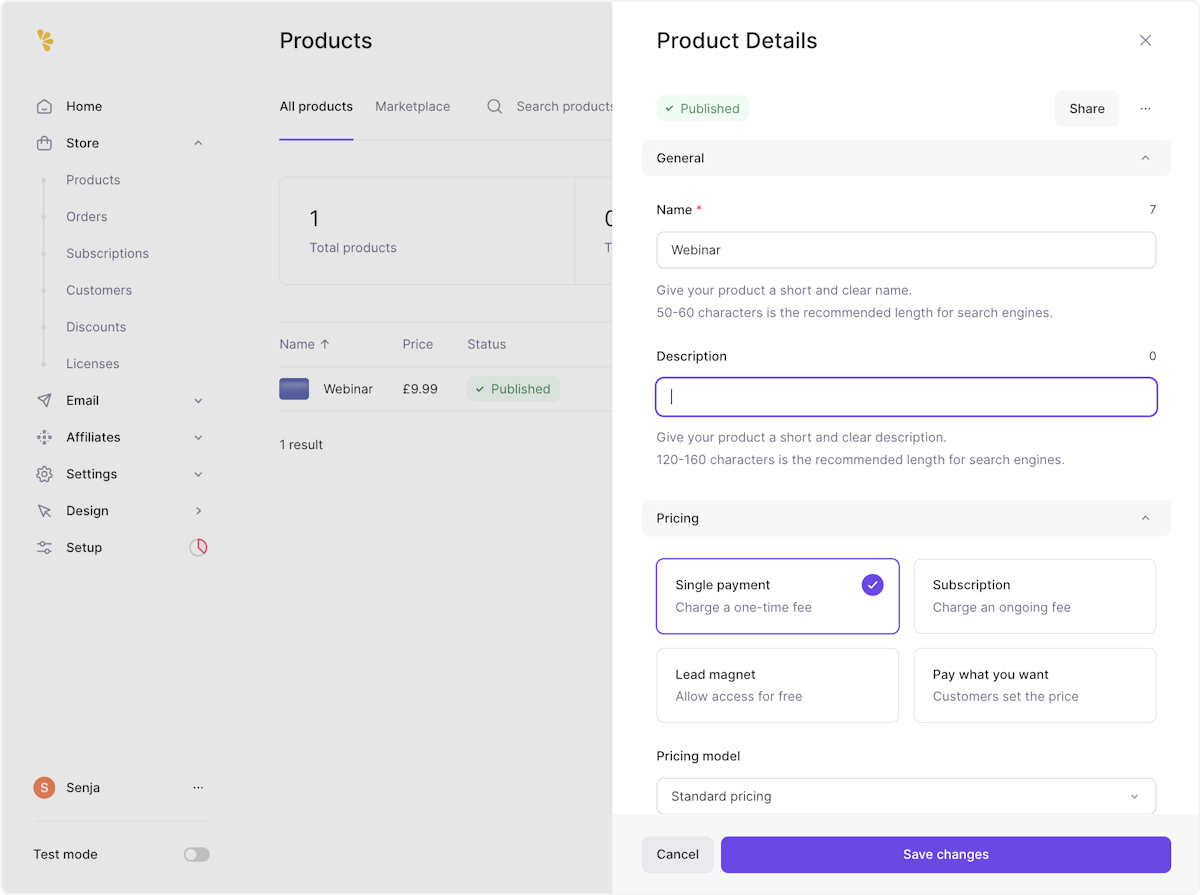
Click into the Description field
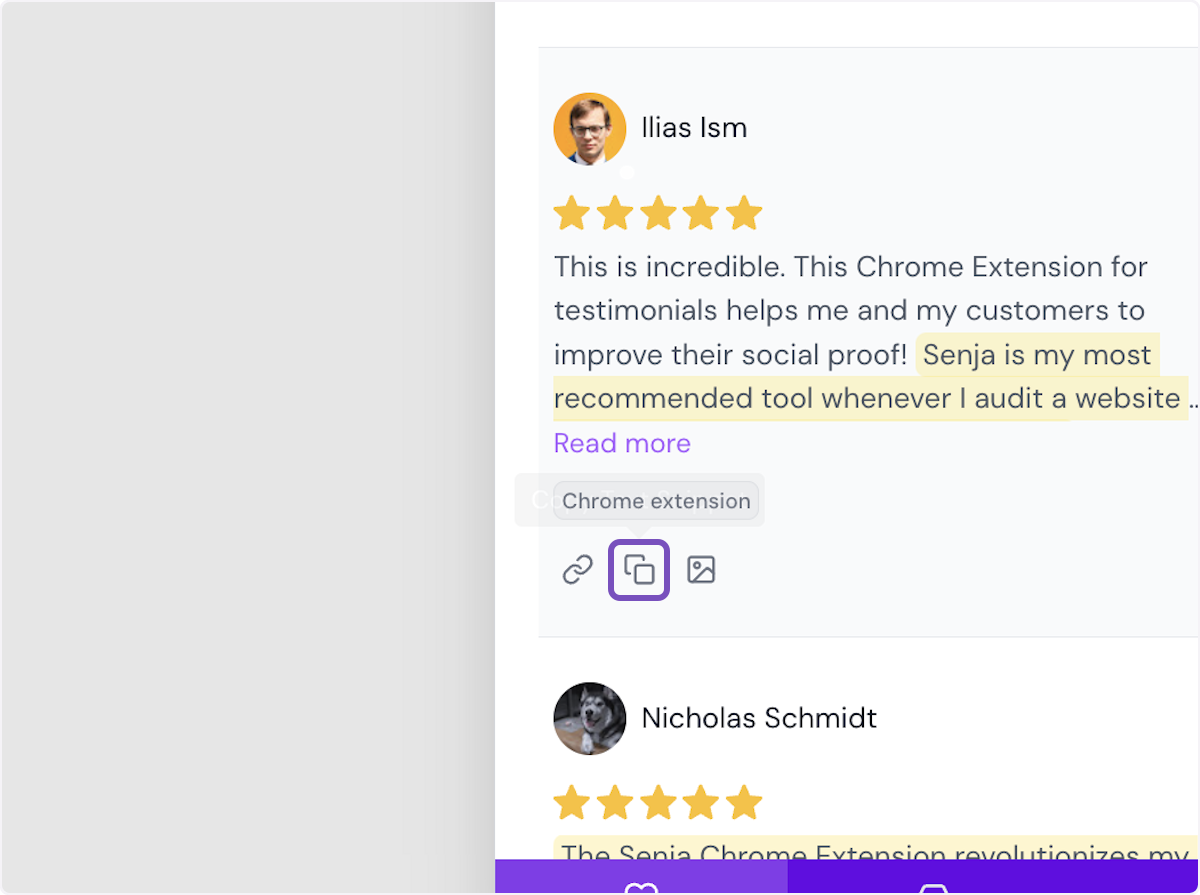
Open the Senja Chrome extension and click the copy icon on the testimonial you want
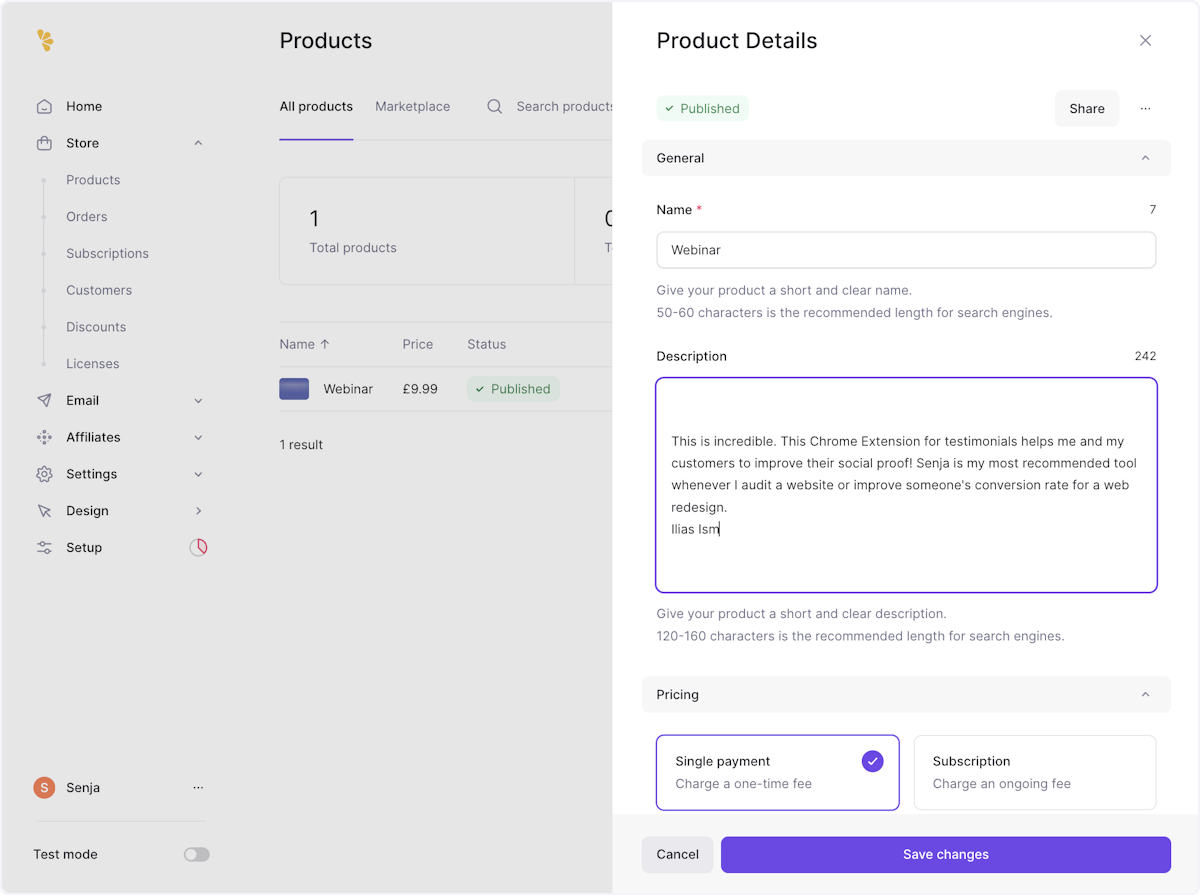
Close the extension and paste into the Description field. This adds the customer's name and testimonial
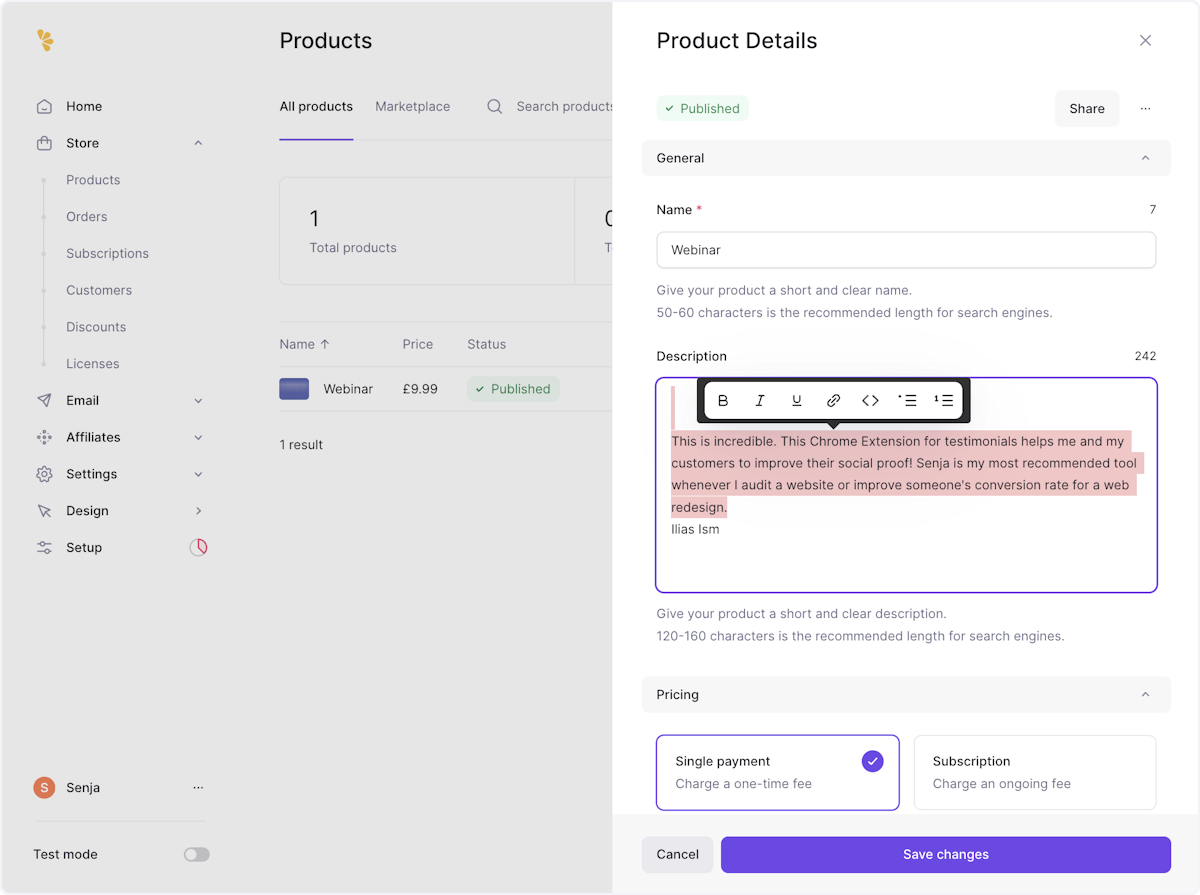
Highlight the testimonial text and make it italic, so it stands out
Click Save changes
Click the three dots again and click Preview to see it on your checkout page
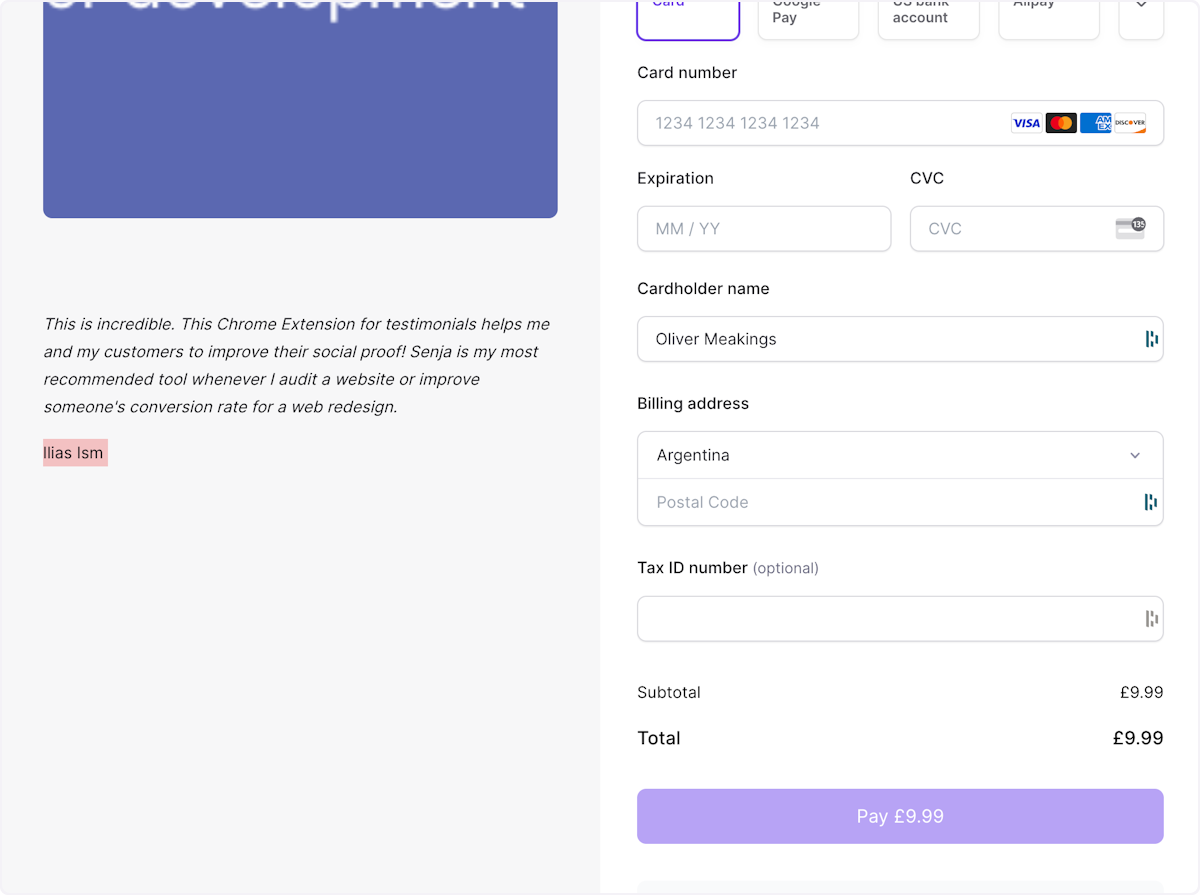
The same copy and paste steps work for the product description on Gumroad and Whop.
Don't have the extension yet? See How to use the Senja Chrome extension.
Images don't update on their own, so export a fresh one when you get new testimonials. Not working? Contact Senja Support.