
How to add testimonials to Dorik
You can upload testimonials to Dorik as images or embed Senja testimonial widget into your Dorik website. Here's how to add testimonials to Dorik using Senja's code snippet.
Create testimonial image or widget
Follow the guide here:
There are lots of design settings and they vary by widget. Make your design changes here until you are happy with the widget.
Add your image to Dorik
Login to your Dorik dashboard
Open your website, click Edit Site
In the left panel, click + Add Element
Drag the testimonial image into the section you want
Click on the image placeholder
Upload your image
Adjust the alignment, width/height, border radius, spacing
Embed testimonial widget to Dorik
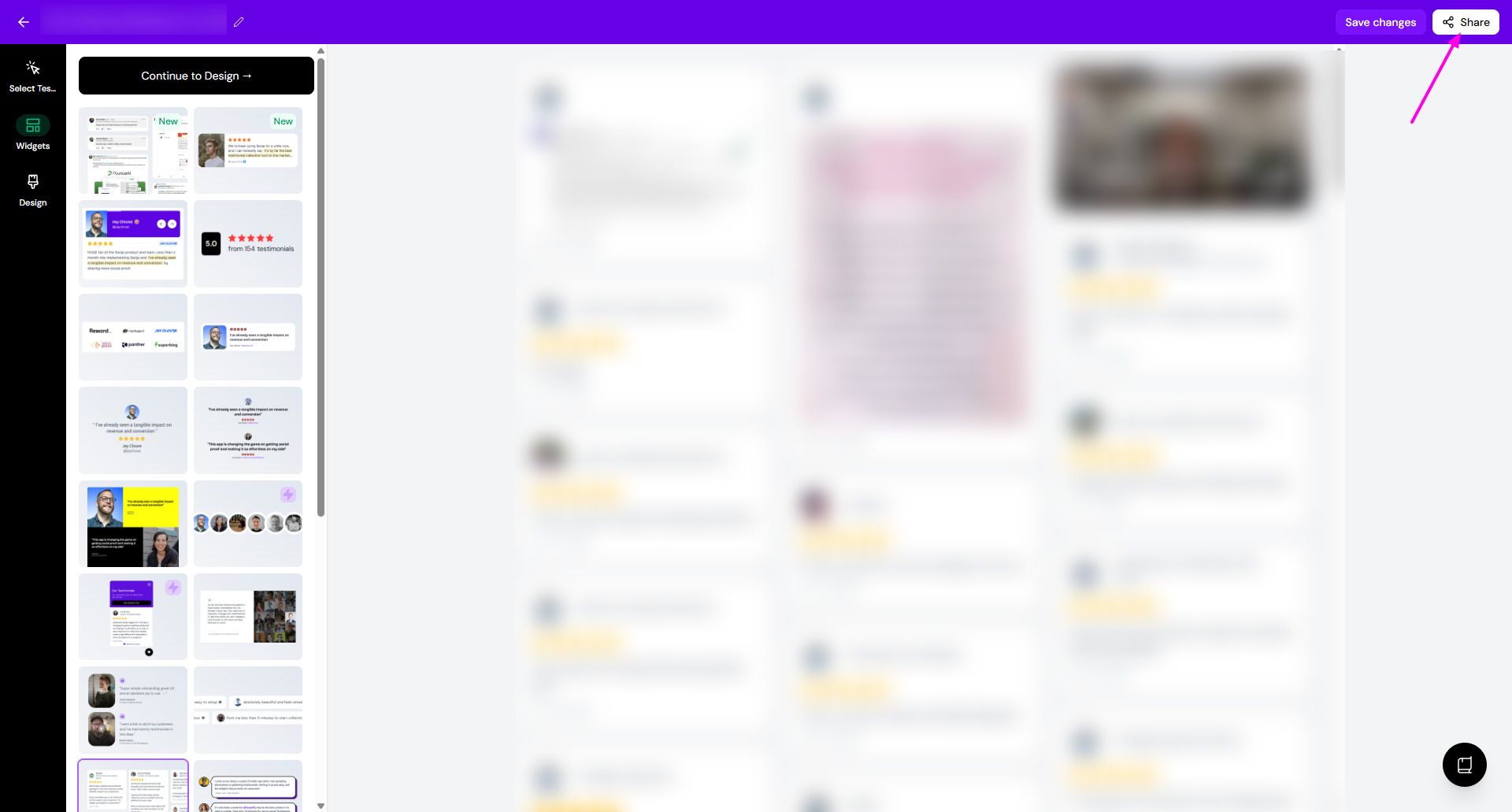
Open your widget in Senja Studio:
Click Share
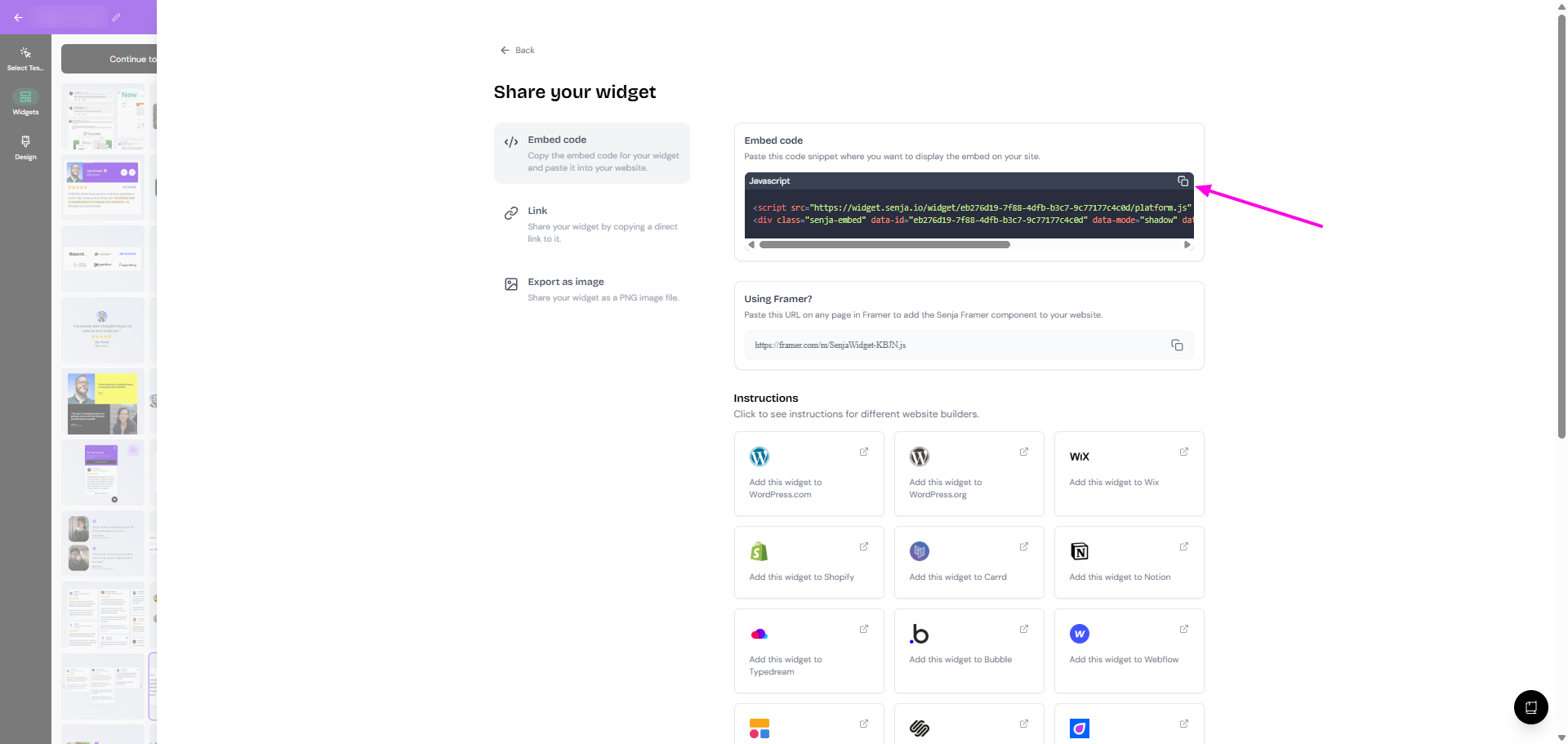
Click the copy icon on Embed code section
Want a faster way to copy your widget code? Use Senja's free Chrome Extension to copy widget code and form URLs without leaving the page you're on.
Go to your Dorik dashboard
Go to the page where you want to add your testimonial widget, click Edit Site
In the left panel, click + Add Element
Look for Custom Code element in the options
Select Custom Code (it allows you to add HTML and JavaScript to your Dorik page)
Paste the embed code you copied into the Custom Code element
Save and preview your page
You can also add the widget code to your Site Settings under Advanced > Header or Footer if you want it to appear on multiple pages.