
How to add testimonials to Framer
Embed your Senja testimonial widgets into your Framer site using Senja's Framer component.
This feature is available on any Senja plans: Free, Starter, and Pro.
Adding testimonial widget to Framer
Go to your Studio page: https://app.senja.io/studio
Open your existing widget or create a new widget, see How do I create widget?
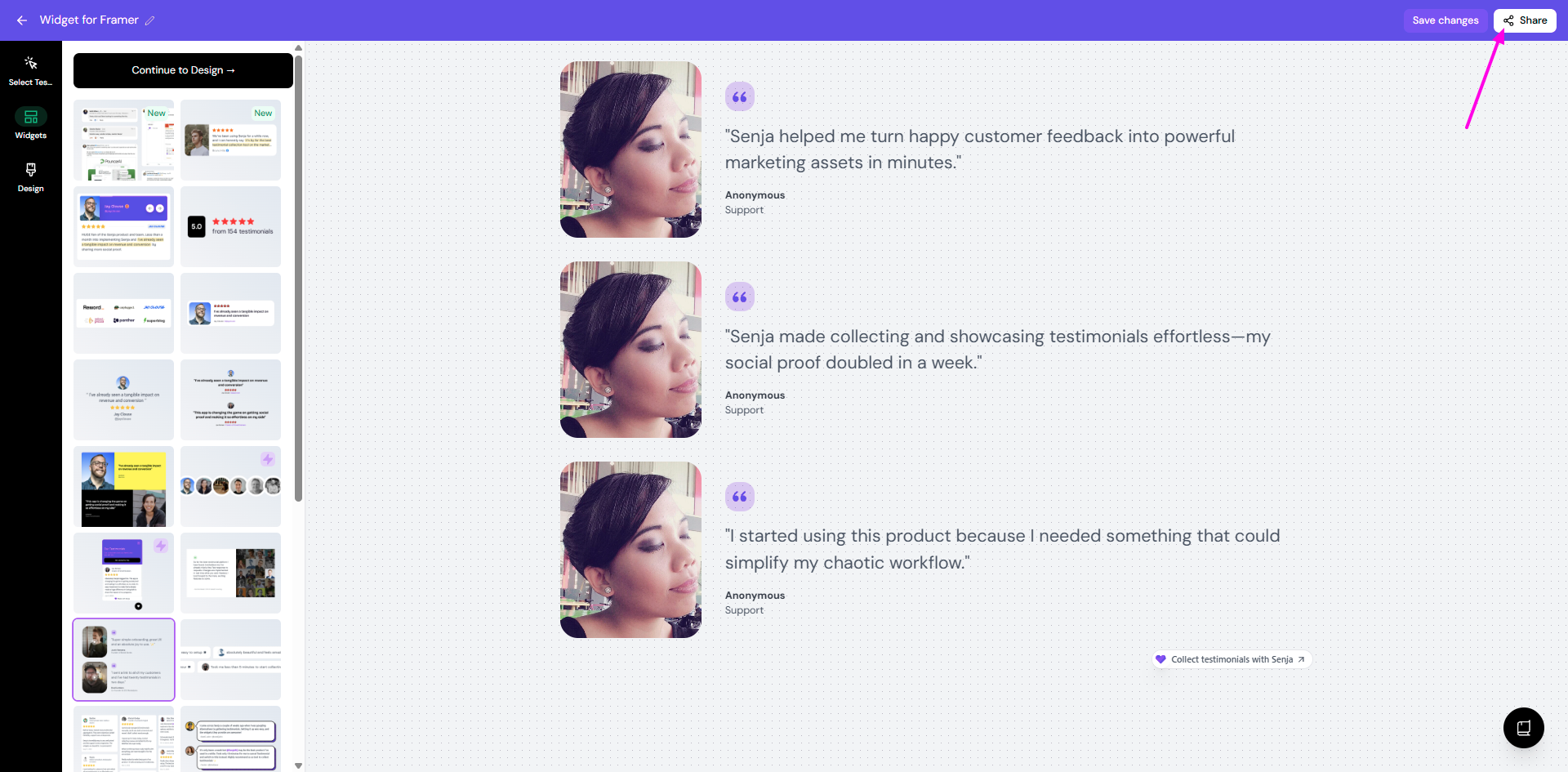
Click Share on the top right
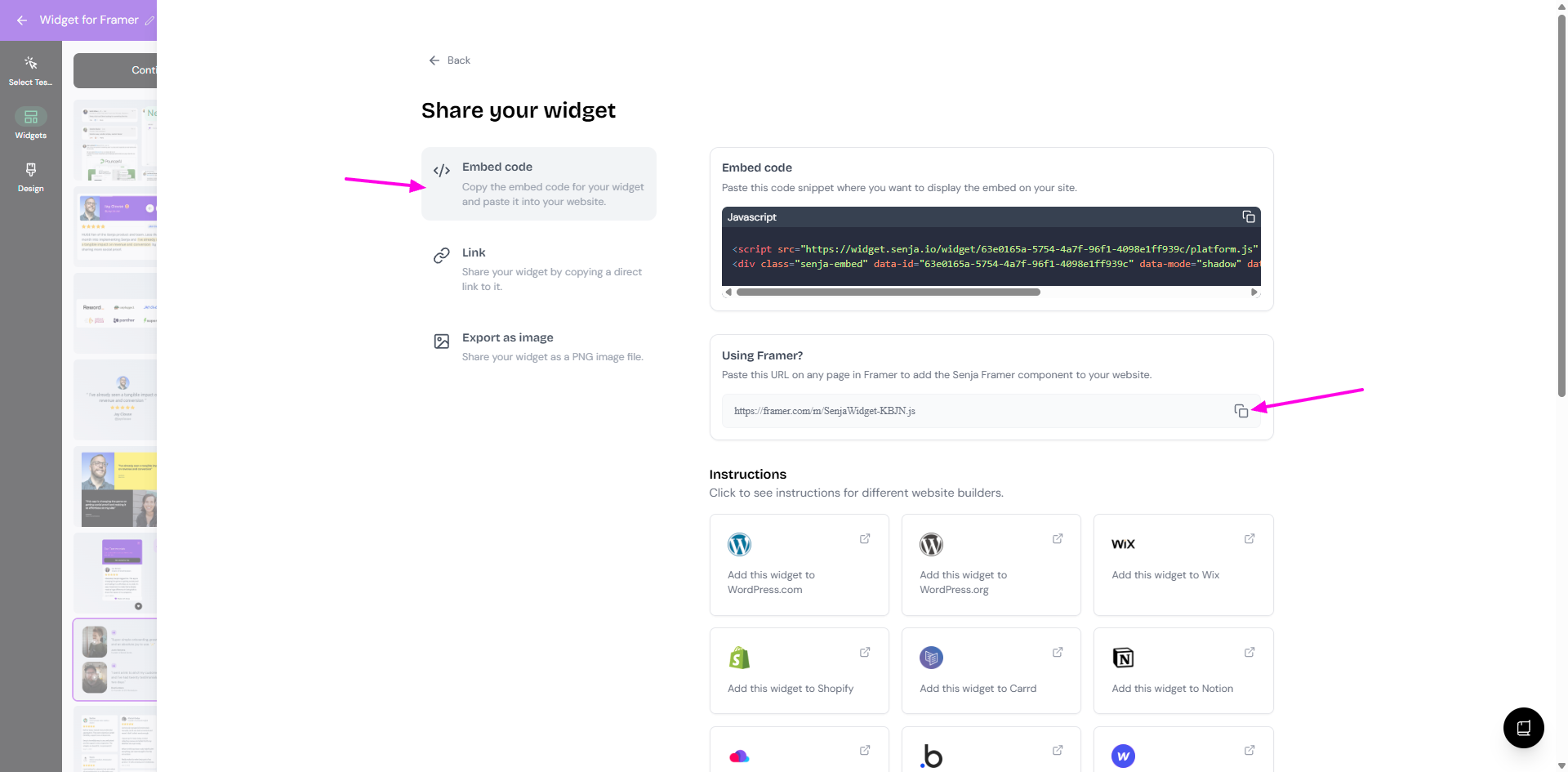
Choose Embed code → Using Framer? → click the copy icon to copy the Framer component URL
Go to your Framer dashboard
Go to the page that you want
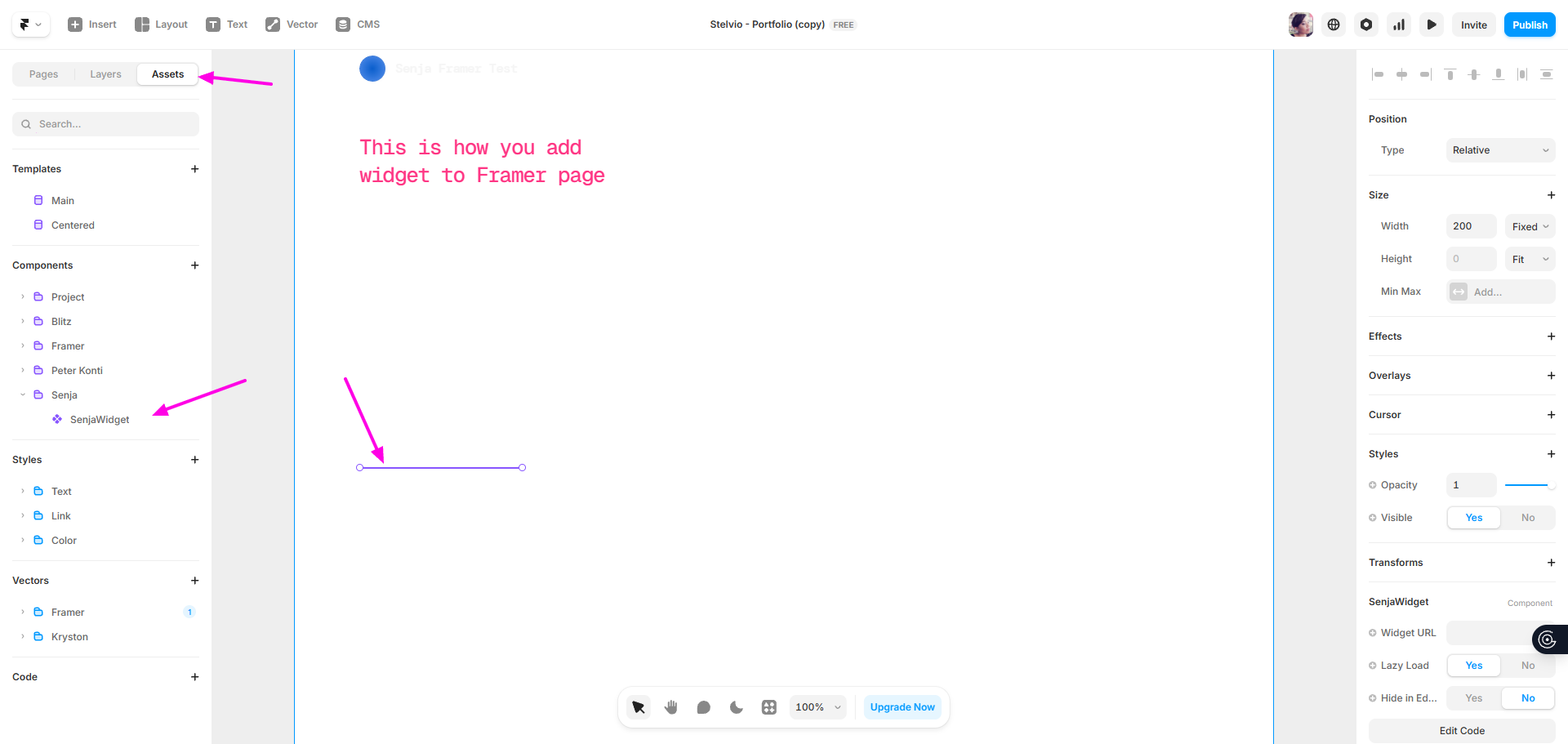
Paste the Framer component URL anywhere on the canvas (use
CMD + Von Mac orCTRL + Von Windows)Go to Assets tab and you will see that the SenjaWidget component is added
Go back to your Senja widget
Choose Link tab → Your widget link → click copy icon
Go back to your Framer page
Paste the widget link to the Widget URL field on the right sidebar
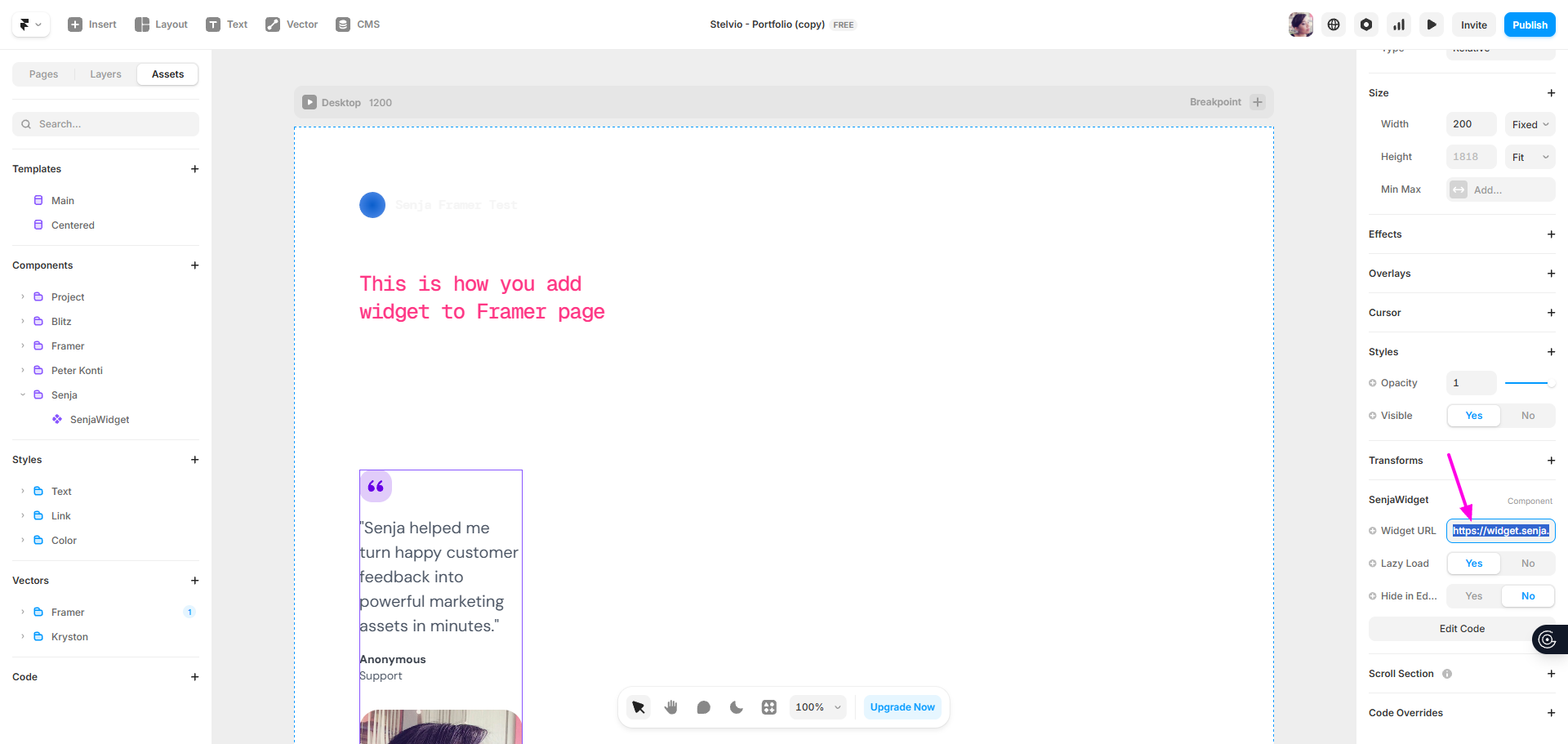
Click Enter of click anywhere in your canvas to have the widget displayed on the canvas
Setup the size manually by dragging the margin of the widget on the canvas, or choose Fill on the Size → Width
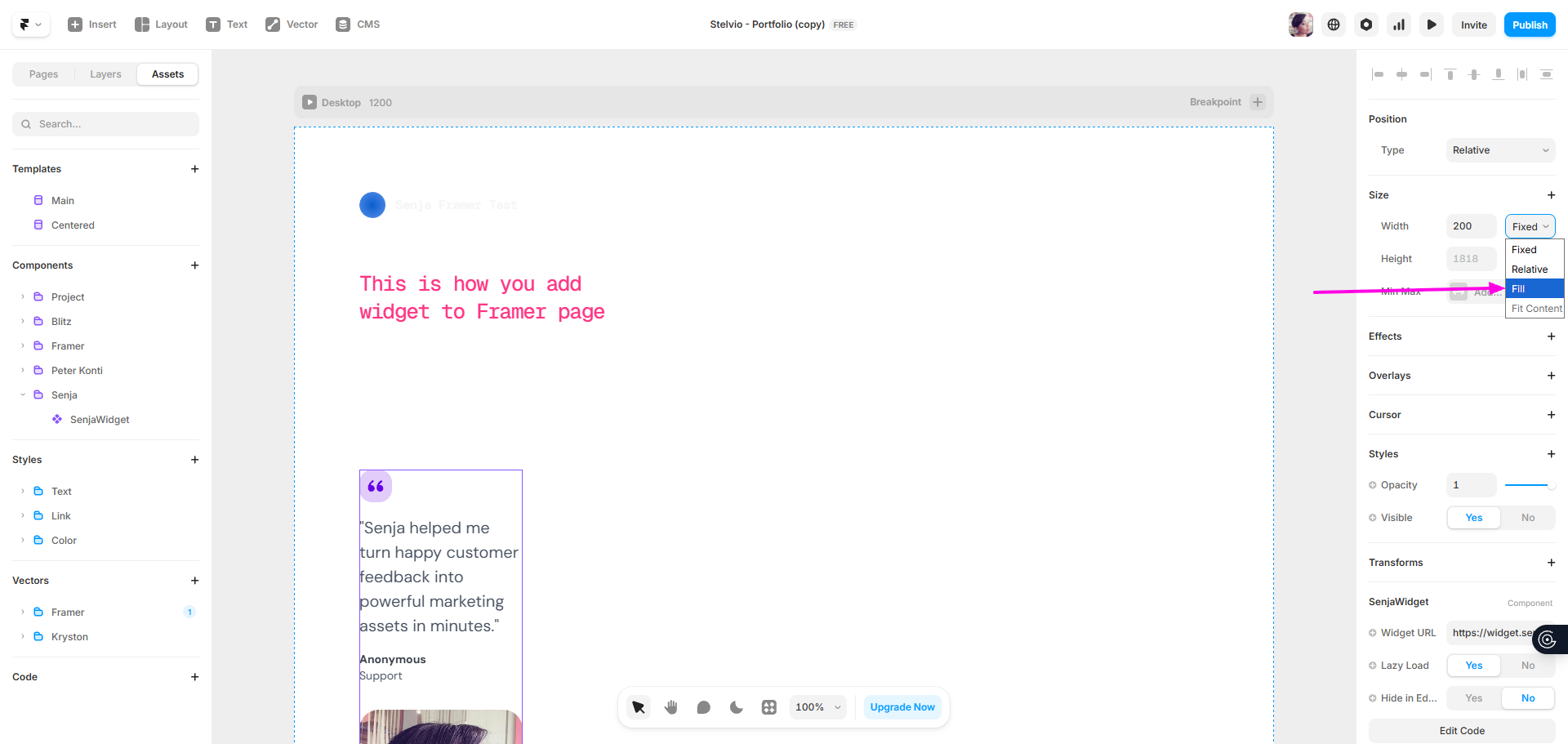
Your widget is now added to your Framer page!
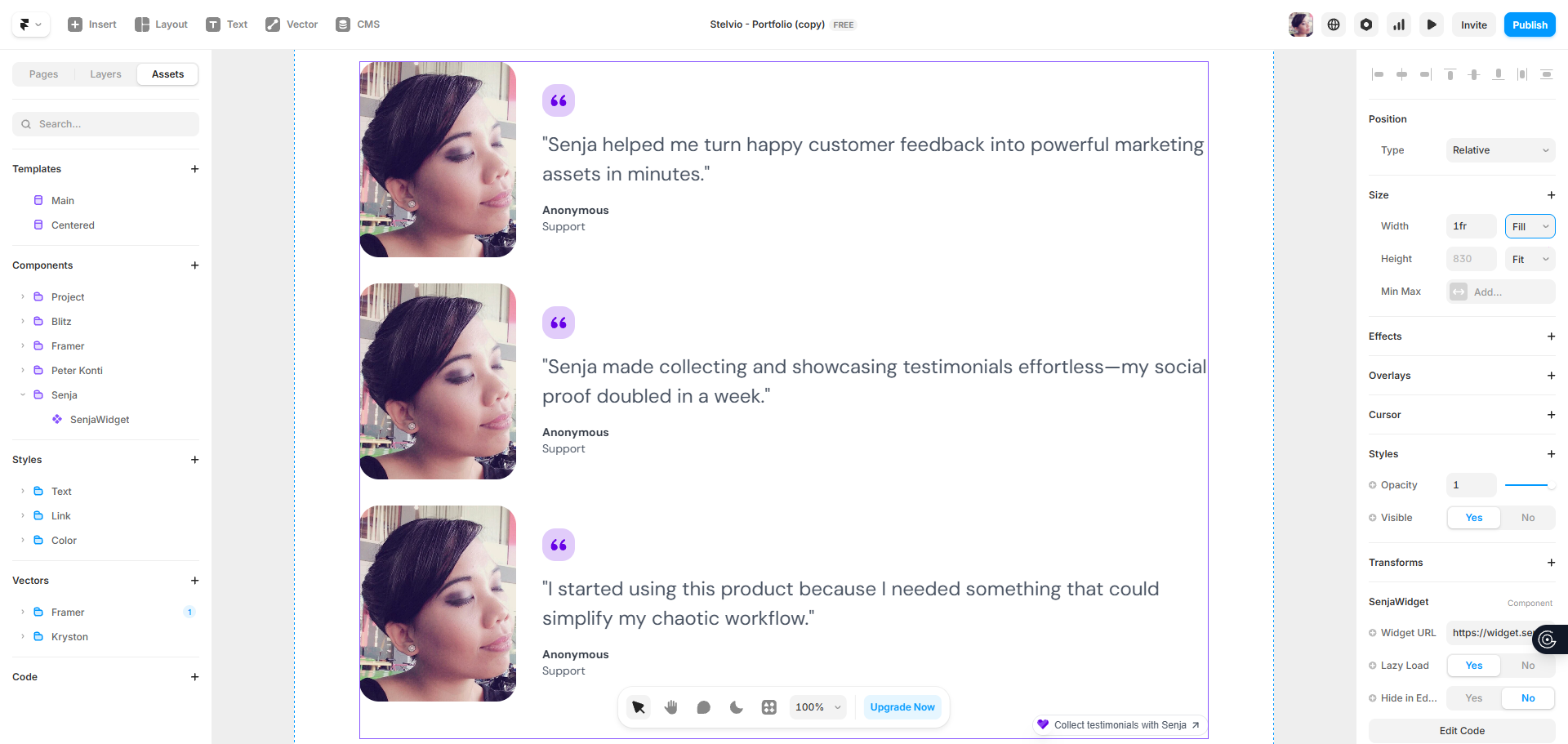
That's it! If it's not working, contact us and we'll help you troubleshoot.