
How to use the Senja Chrome extension
The Senja Chrome extension brings Senja into any page you're browsing. Import testimonials from anywhere on the web, grab your form links and embed codes, and find your widgets and Walls of Love, all without leaving the page.
The Chrome extension is free and works on all Senja plans: Free, Starter, and Pro.
Install and open the extension
Install the Senja testimonial extension from the Chrome Web Store
Click the Senja icon (purple heart 💜) in your Chrome toolbar to open the sidebar
Log in to Senja if you're asked
Using more than one project? Switch between them from the project name at the top of the sidebar
What's in the sidebar
The sidebar has four tabs at the bottom:
Tab | What it's for |
|---|---|
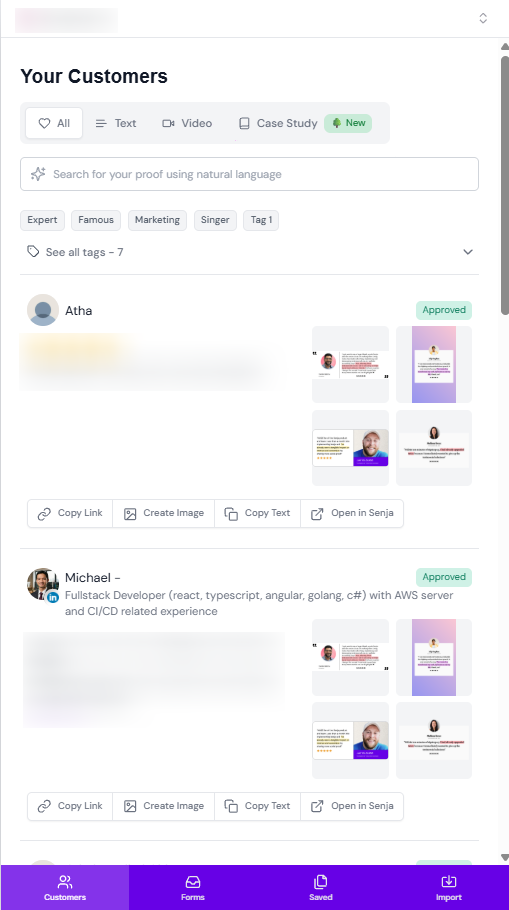
Customers | Show the list of testimonials you have, with an option to copy the link, create image, copy the text, or open it in Senja |
Forms | Show all the collection forms in your project, with a preview of each one, its name, and its link |
Saved | Copy your widget/Wall of Love links and embed codes, or open it in Senja |
Import | Bring in testimonials from the page you're on to Senja |
Customers: share your testimonials
Copy Link: paste the link directly to the page you're on
Create Image: create image widget from the testimonial and add it directly to the page you're on
Copy Text: copy the testimonial text and paste it directly to the page you're on
Open in Senja: open the selected testimonial in Senja
Forms: share your collection forms
Copy Link: paste your form link into an email, chat, DM, or post
Copy Embed: add the form to the page you're on, like your website or a course lesson
Open in Senja: jump to the form in Senja to edit it
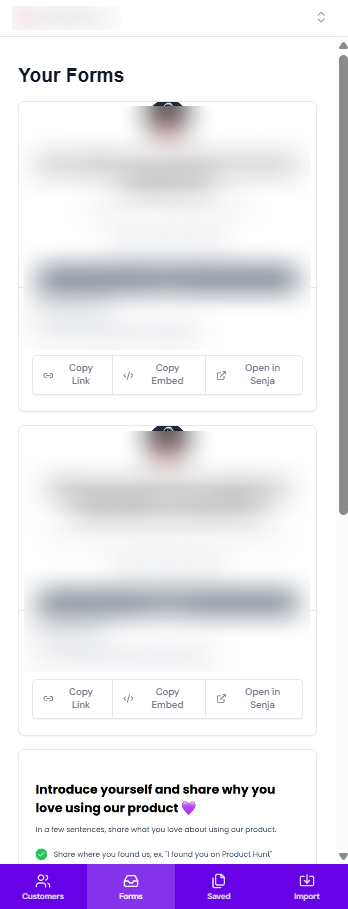
Chatting with a happy customer on social media or in your inbox? Open the Forms tab and send them your form link right there, while they're still excited.
Saved: find your widgets and Walls of Love
The Saved tab lists the widgets and Walls of Love you've created in Studio, so you can get to them from any page. Use the dropdown at the top to show All, only Widgets, or only Walls of Love.
Haven't made one yet? Click Share in the Studio to create your first one.
Import: bring in testimonials from any page
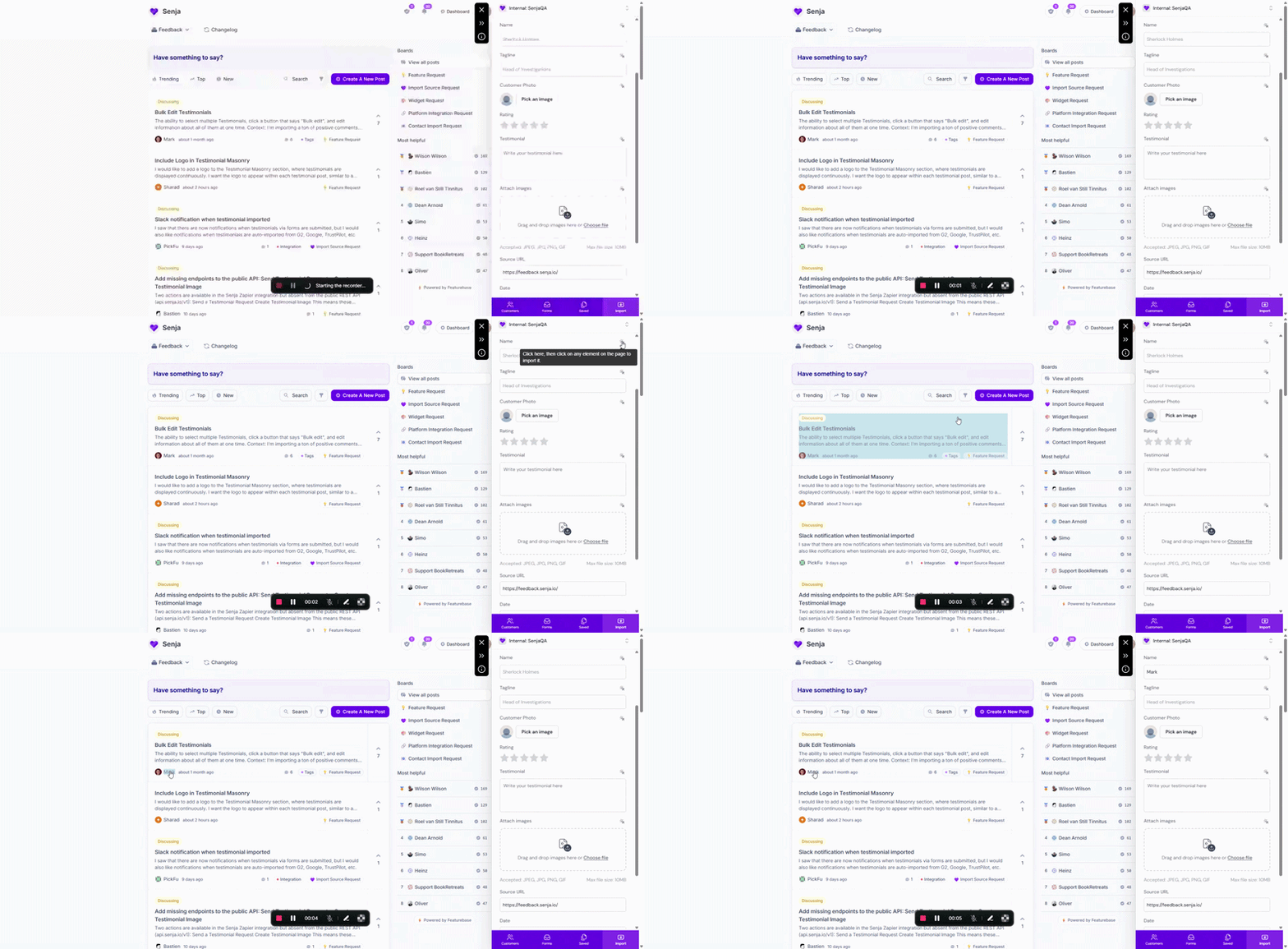
Open the page with the testimonial you want
In the sidebar, click the Import tab
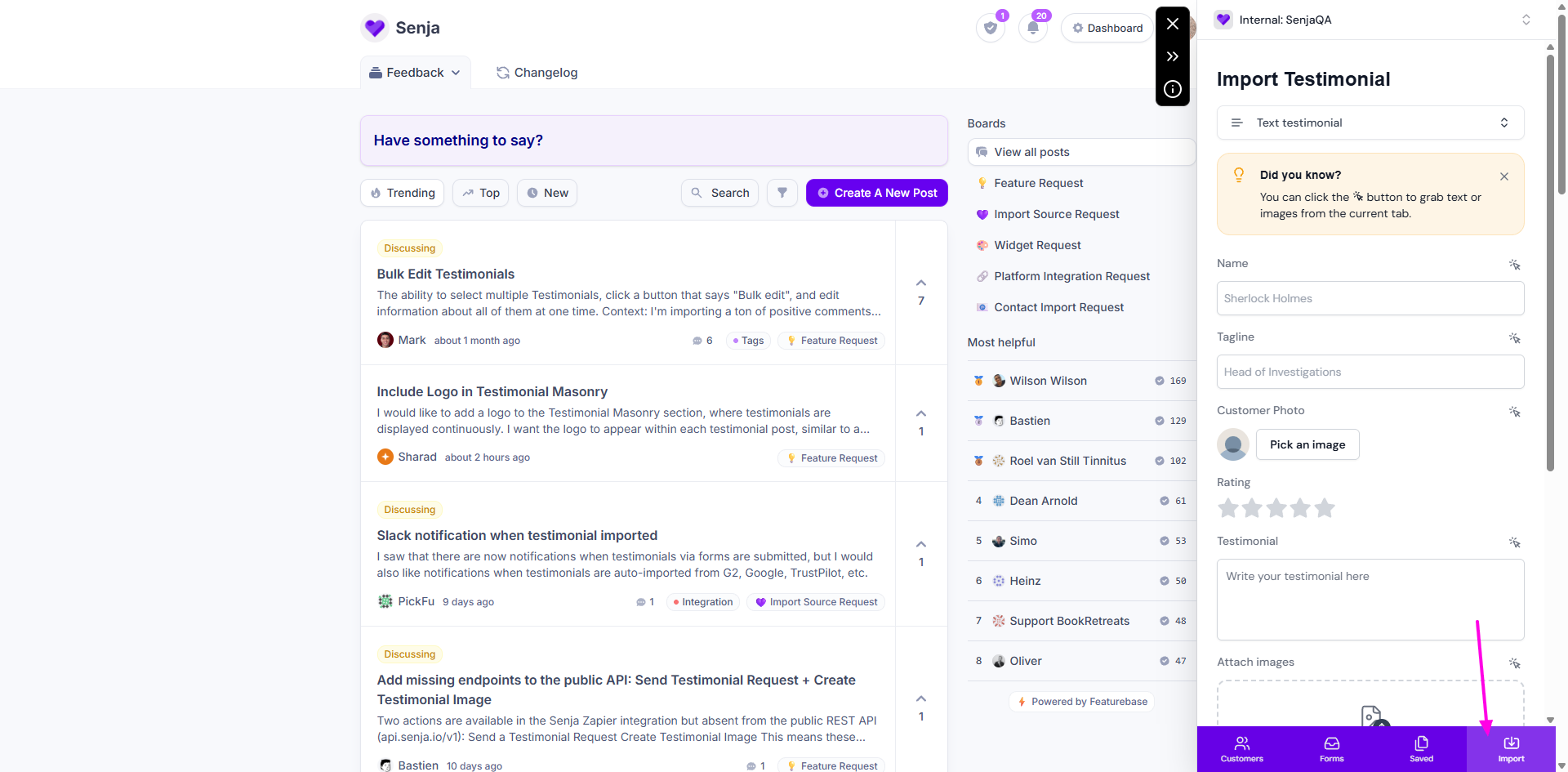
Choose the type of testimonial, like Text testimonial or Image testimonial, or the platform it's from. On some sites, the extension detects this for you
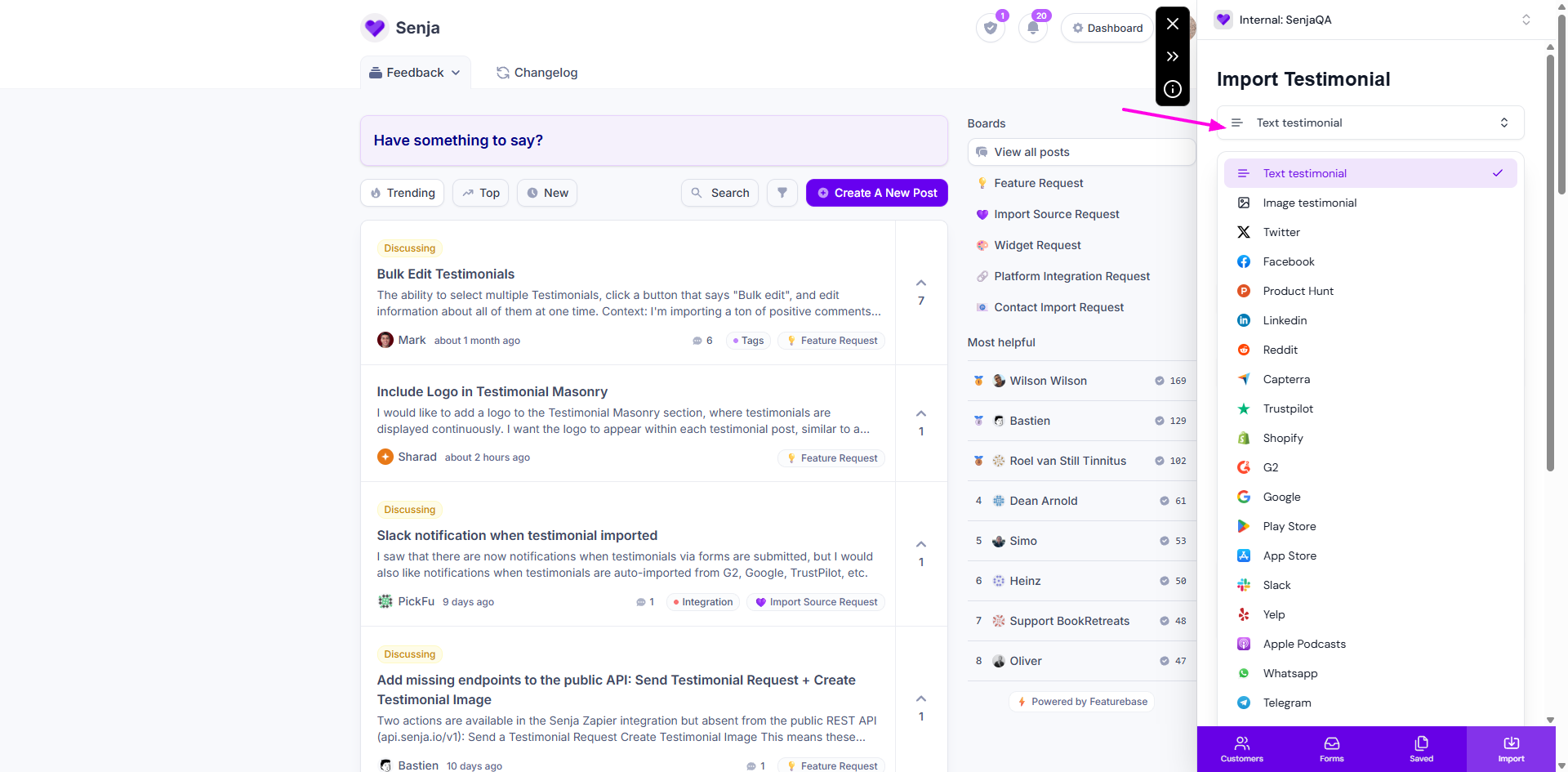
Click the grab button (the magic cursor) and hover over the text or image you want. When a highlight appears, click it to grab it
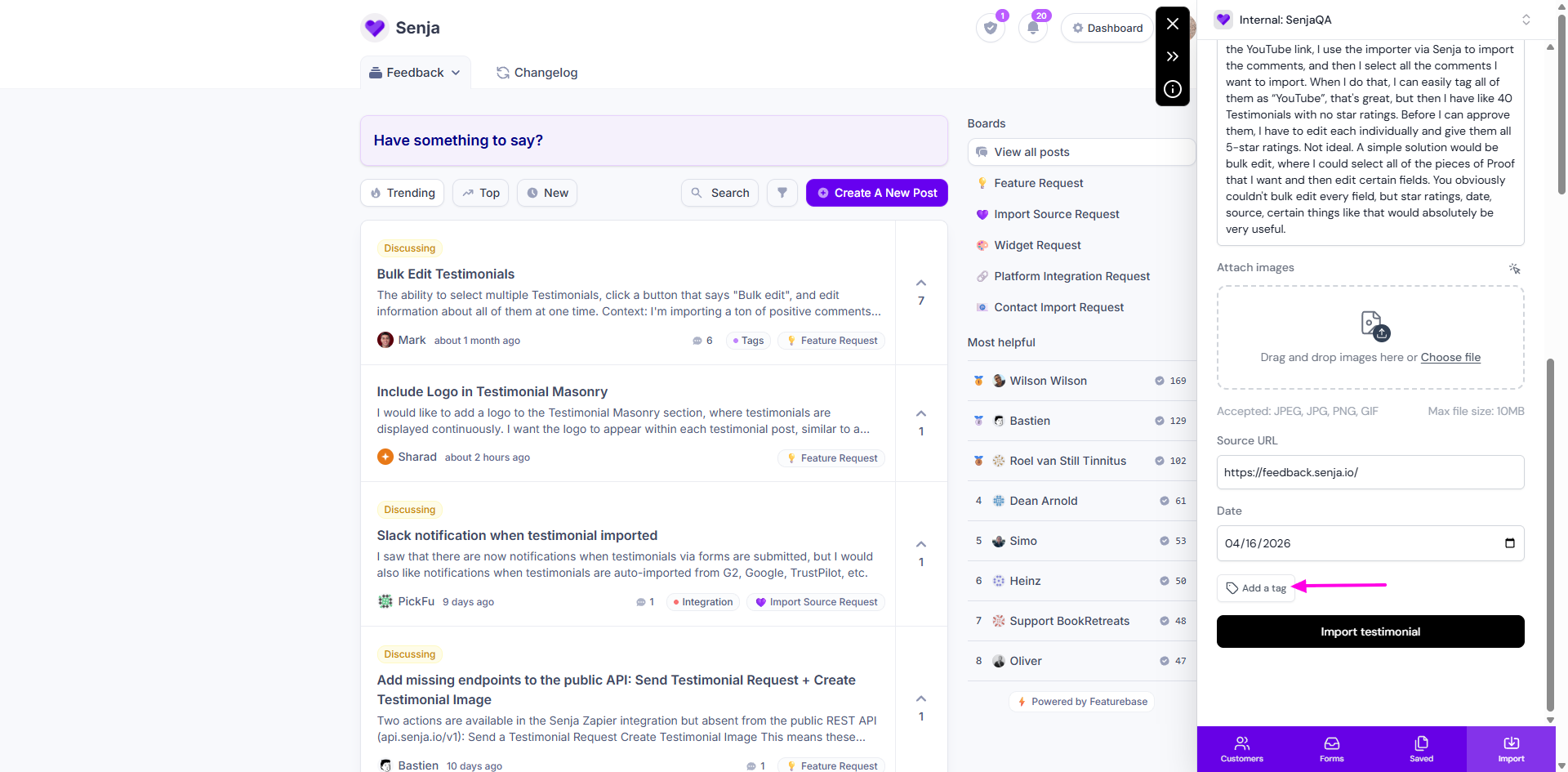
Click Add a tag if you want a label that makes it easier to find later
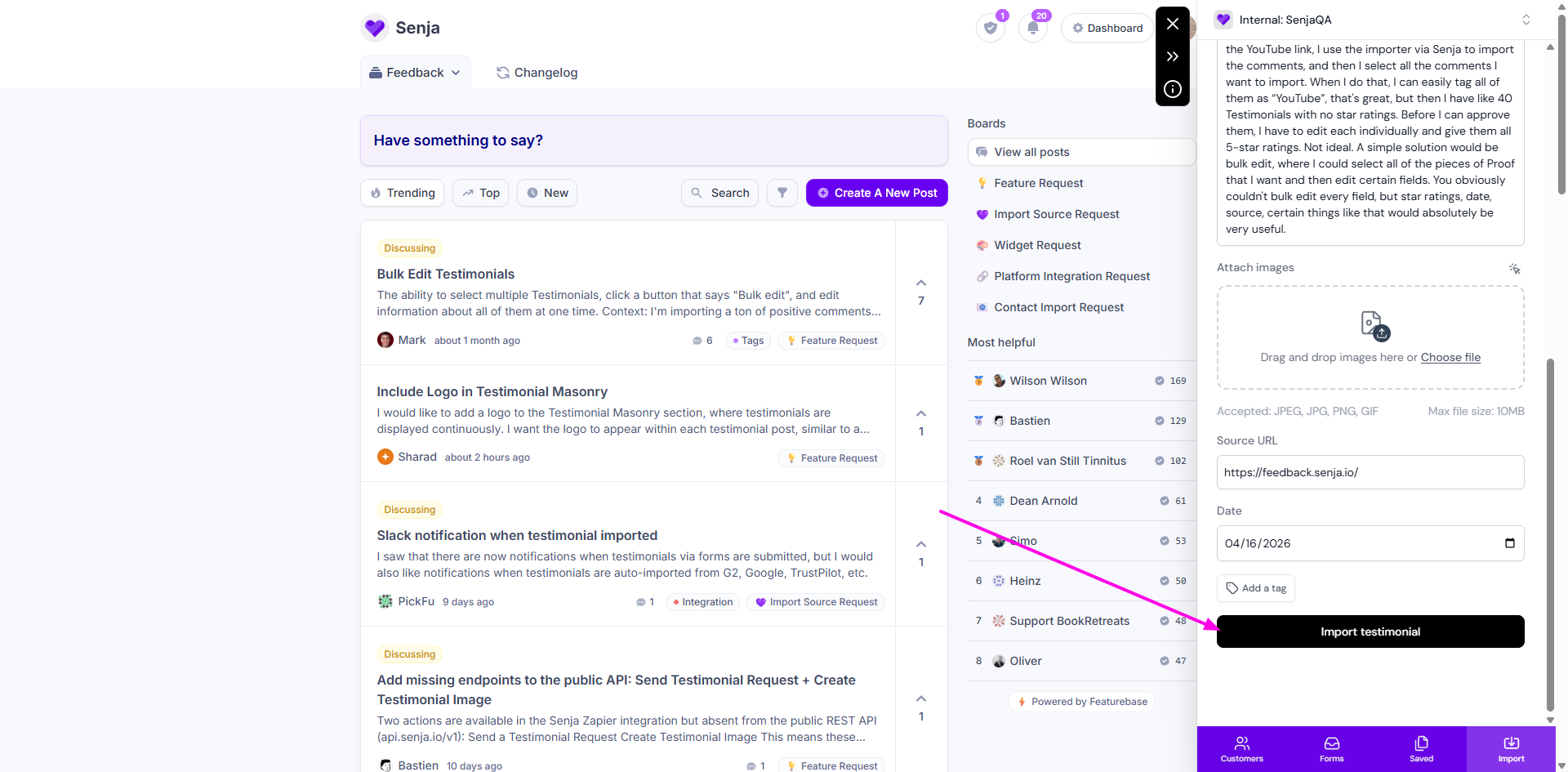
Click Import testimonial
Prefer to type it in? You can fill in the fields yourself instead of grabbing, but the grab button is faster and more accurate.
Import an image testimonial
Got a screenshot of a happy customer's message? Choose Image testimonial and either grab an image from the page or upload your own (JPEG, JPG, PNG, or GIF, up to 5MB). Senja transcribes the text in your image automatically, so you can search for it later.
Import straight from LinkedIn
A LinkedIn post
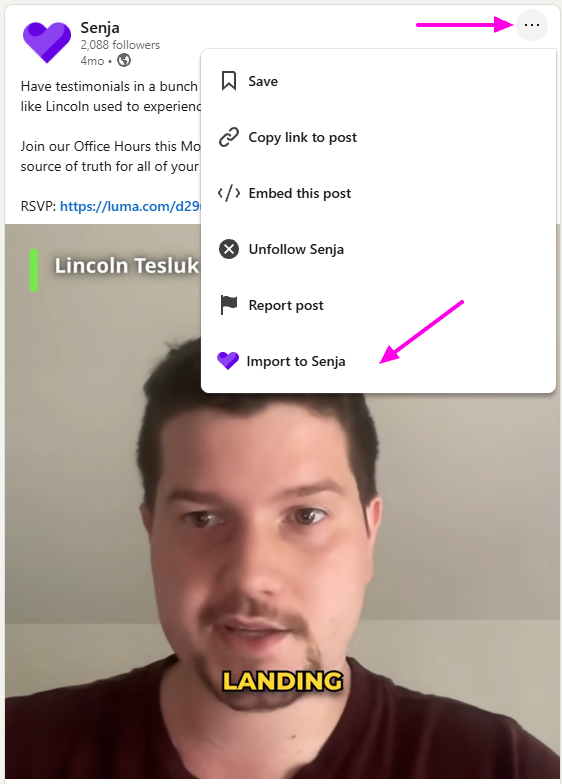
Open the post on LinkedIn
Click the three dots on the post
Click Import to Senja
Want the Verified mark? Import the post with its link from Import → Import from web instead. Senja then fetches the post from LinkedIn, so it can prove the words are unchanged. See Import testimonials from LinkedIn.
LinkedIn recommendations
Open the full profile page of the person with the recommendations, and scroll to Recommendations
In the sidebar, go to the Import tab and choose Text testimonial
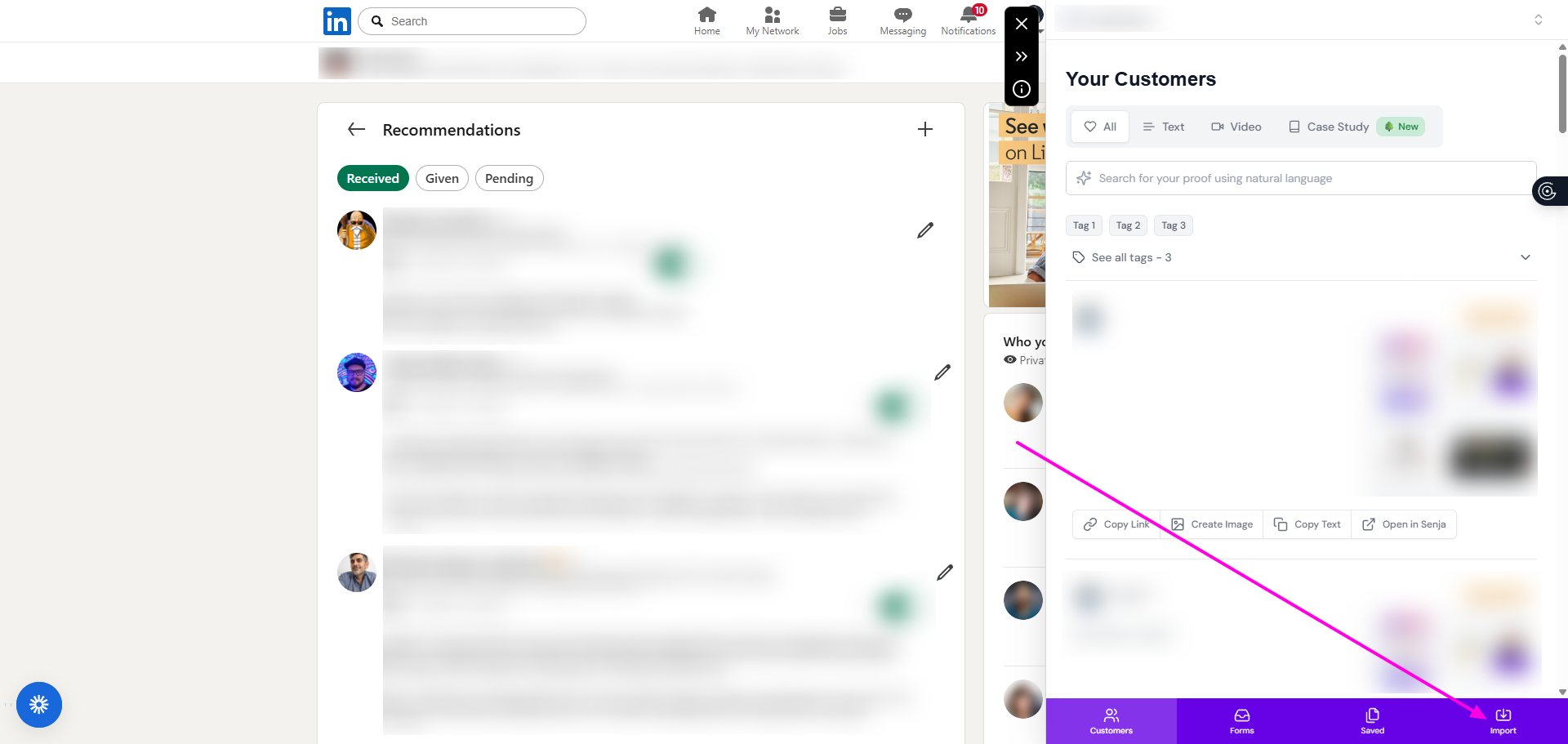
Grab each recommendation with the grab button, and choose LinkedIn as the source
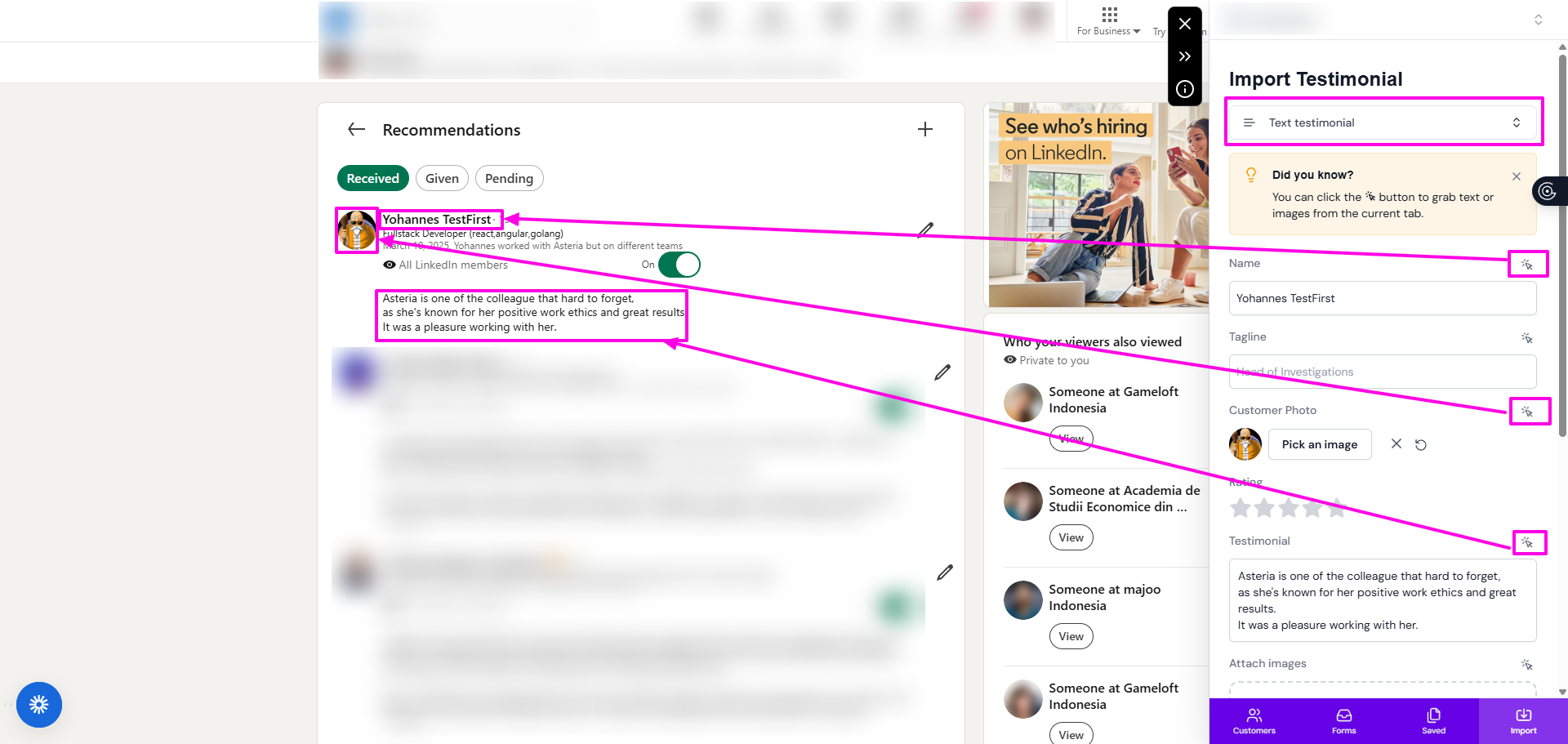
Click Import testimonial
Use the person's full profile page. Pages that show a single recommendation won't work.
After you import
Your testimonials appear on your Proof page: https://app.senja.io/
The Proof page sorts testimonials by the date they were written, not the date you imported them
Testimonials you import with the extension don’t get a Verified mark, because the extension lets you change the words before saving
Need help?
Something not working? See Troubleshooting common import errors, or contact Senja Support.