
How to add testimonials to Woocommerce
Add your Senja testimonial widget to your WooCommerce store by embedding it in a WordPress page.
Account type
All Senja accounts can upload testimonials as images or embed widgets using code snippets. Senja does not have a WooCommerce app integration.
Get your widget code in Senja
Follow the guide How do I create widget?
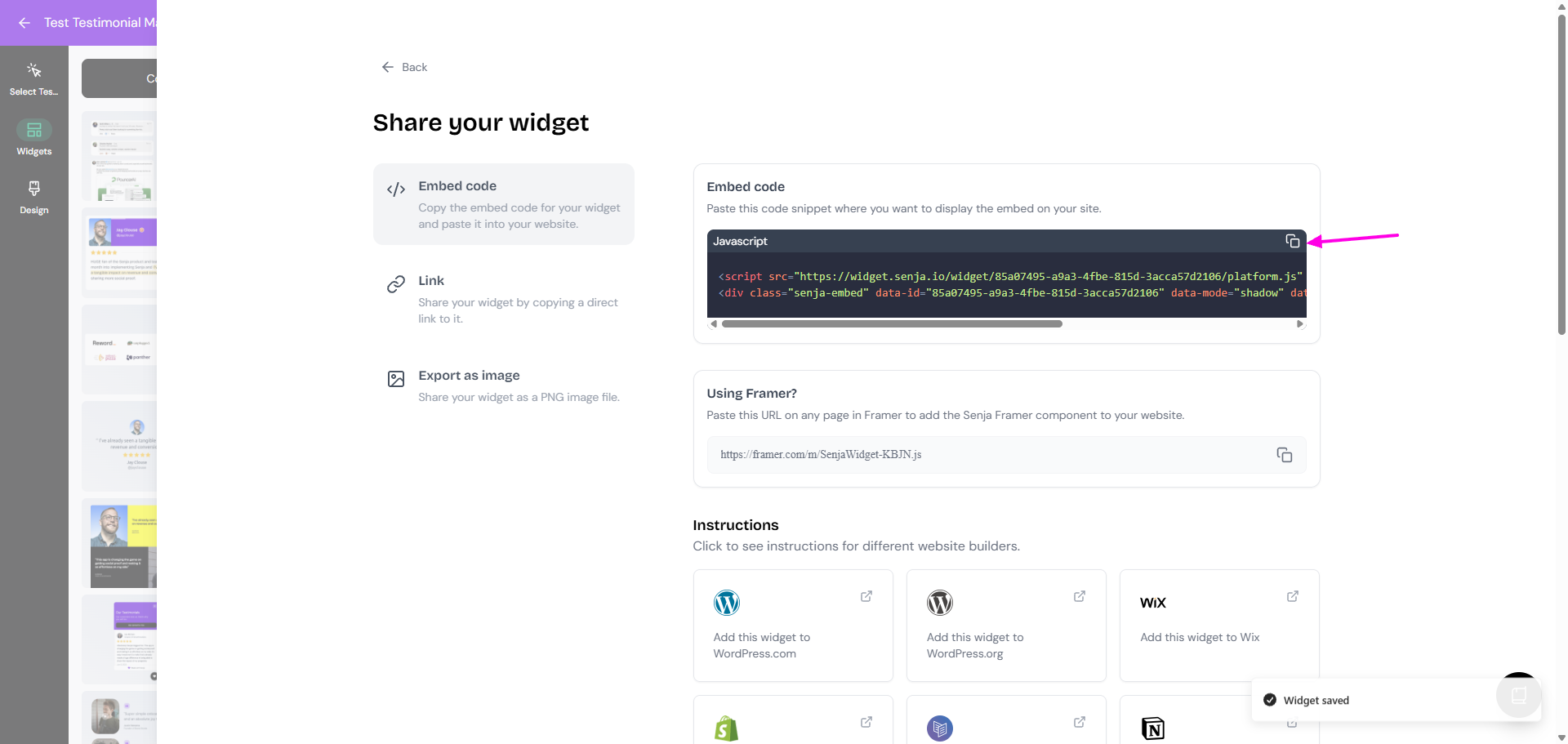
On your widget page, click Share
Copy the embed code
Use Senja's free Chrome Extension to quickly copy widget codes and form URLs without leaving your page
Add the widget in WordPress
WooCommerce runs on WordPress, so you will add the widget in the WordPress editor for the page you want to update.
In WordPress, go to Pages and open the page where you want to show testimonials
Type / and select Custom HTML
Paste your Senja embed code
Click Publish or Update
Your testimonial widget is now live on your WooCommerce store