
How to add testimonials to your booking page (Calendly, Cal.com and more)
Add social proof to your booking page so people feel confident before they book a call with you. Most booking tools don't allow custom code, so you add your testimonials as a link or as text. Lemcal is the exception, with its own Senja integration.
This is available on all Senja plans: Free, Starter, and Pro.
What you can add to each booking tool
Booking tool | Link to a widget or Wall of Love | Testimonial text | Widget on the page |
|---|---|---|---|
Calendly | Yes | Yes | No |
Cal.com | Yes | Yes | No |
Chili Piper | Yes | Yes | No |
YouCanBookMe | Yes | Yes | No |
Lemcal | Yes | Yes | Yes, with the Senja integration |
None of these tools let you upload testimonial images.
Add a link to your testimonials
Works with Calendly, Cal.com, Chili Piper, YouCanBookMe and Lemcal.
Create a widget or a Wall of Love (a Wall of Love works best here, since it's a full page of testimonials)
Copy its link, see How do I share a link to my testimonials?
Paste the link into your booking page, like in the event description
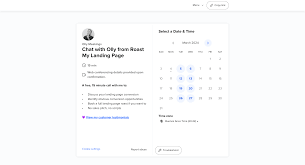
Add testimonial text
Works with Calendly, Cal.com, Chili Piper, YouCanBookMe and Lemcal.
Copy the text of a testimonial from your Proof page, or with Copy Text in the Senja Chrome extension
Paste it into your booking page, with the customer's name
Short quotes work best, so pick one or two lines that answer what people want to know before booking.
Add a widget to Lemcal
Lemcal has a Senja integration, so your widget shows right on your booking page.
Create a widget in Senja first
Go to your Lemcal dashboard and click Edit booking page
Click Add widget
Select the Testimonials button (quote icon)
Choose your Senja account
Choose your widget and click Select this widget
Your widget is now on your Lemcal booking page. Prefer a video walkthrough? Watch it on YouTube.
Want people to leave a testimonial after their call? Share your Senja form from your booking tool's confirmation email or follow-up, see Share my testimonial form with Calendly.
The free Senja Chrome extension lets you copy testimonial text and links without leaving your booking tool. For tips on getting more calls booked, see this Calendly conversion guide.