
How to add testimonials to LeadPages
Embed your Senja testimonial widgets into LeadPages using the HTML widget. This lets you display any widget style on your LeadPages landing pages.
Before you begin: You'll need a Senja widget created and ready to share. Create one in Studio if you haven't already.
Copy your widget code from Senja
Go to Studio in your Senja dashboard: https://app.senja.io/studio
Open the widget you want to embed (or create a new one)
Click Share
Copy the embed code using the copy icon
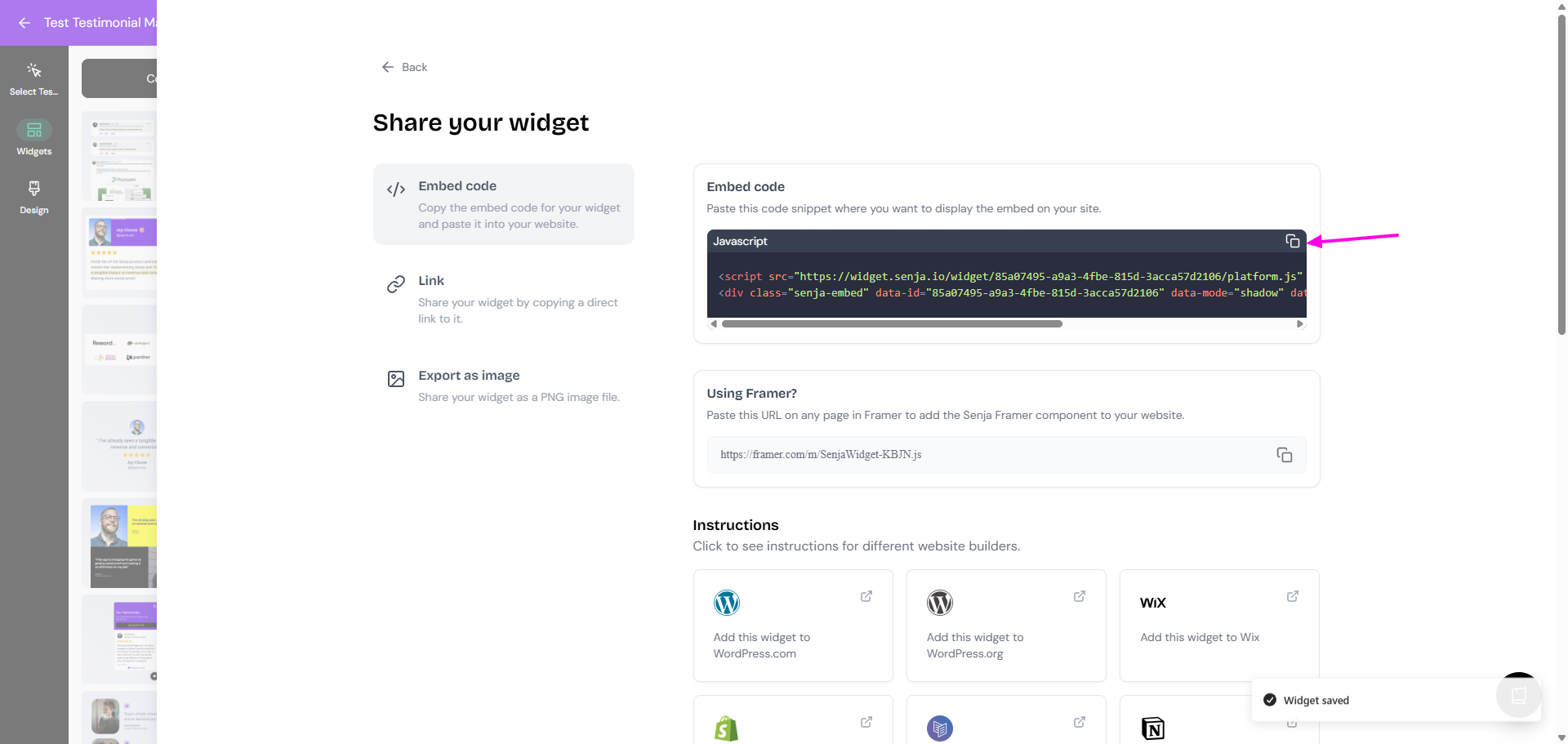
Use the Senja Chrome Extension to copy widget codes instantly without switching tabs.
Add the code to LeadPages
Log in to your LeadPages account and edit the page where you want to add testimonials
In the left sidebar, click Widgets
Click Show More to expand the widget list
Drag the HTML widget onto your page
Click the edit icon on the HTML widget
Paste your Senja embed code
Click Save inside the widget editor
Close the editor and preview or publish your page
Your widget will appear in preview and published mode, but won't render inside the LeadPages editor.
Your testimonials are now live on your LeadPages landing page. To update which testimonials appear, edit the widget in Senja Studio—changes sync automatically.
Widget displaying perfectly? You're all set! Having issues? Contact us and we'll help troubleshoot.