
How to add testimonials to Brizy
Embed your Senja testimonial widgets into Brizy using the HTML embed element. This works for all widget types—carousels, grids, walls of love, and more.
Brizy supports custom HTML/JavaScript embeds on all plans. You'll need a Senja widget created and ready to share.
Create and copy your widget code in Senja
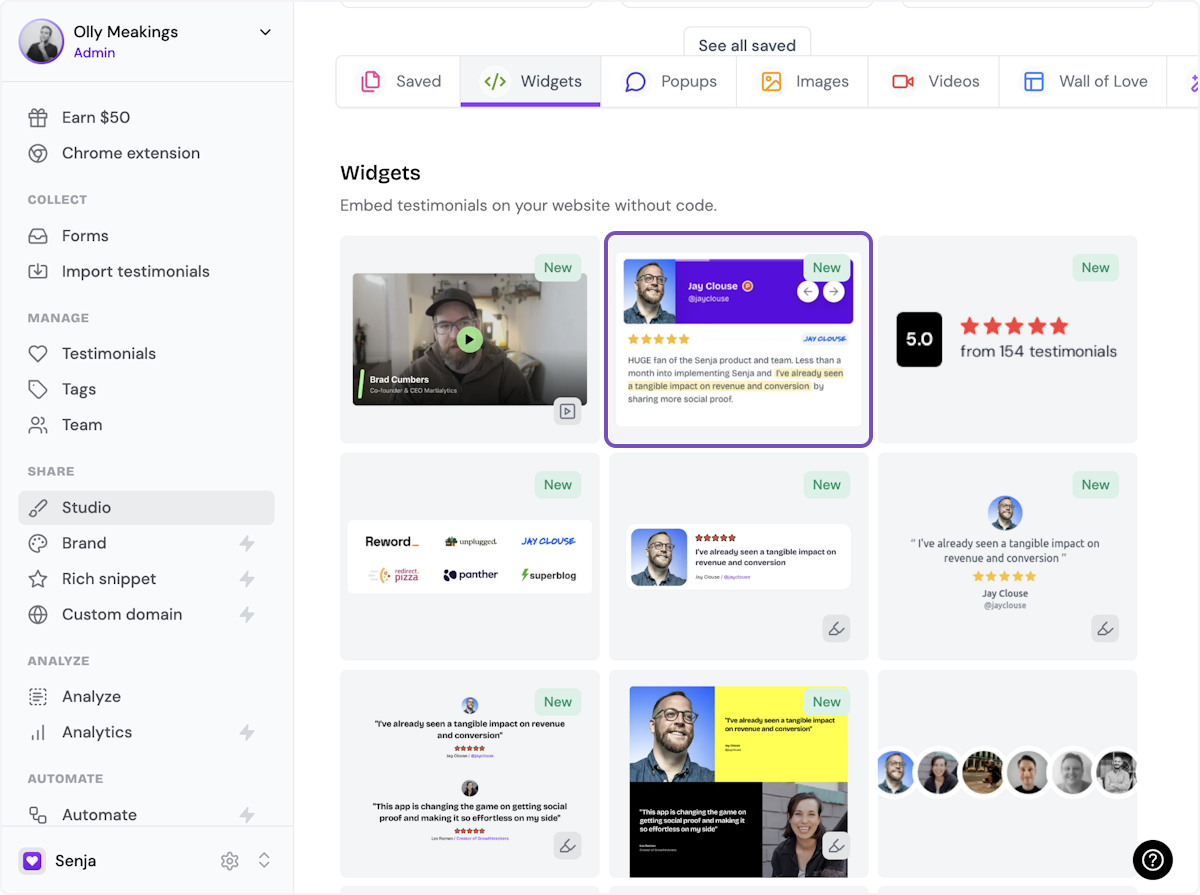
1. Click on Studio

2. Select a widget style under Widgets
Pick the testimonial widget style you want to create. You can always change it later.
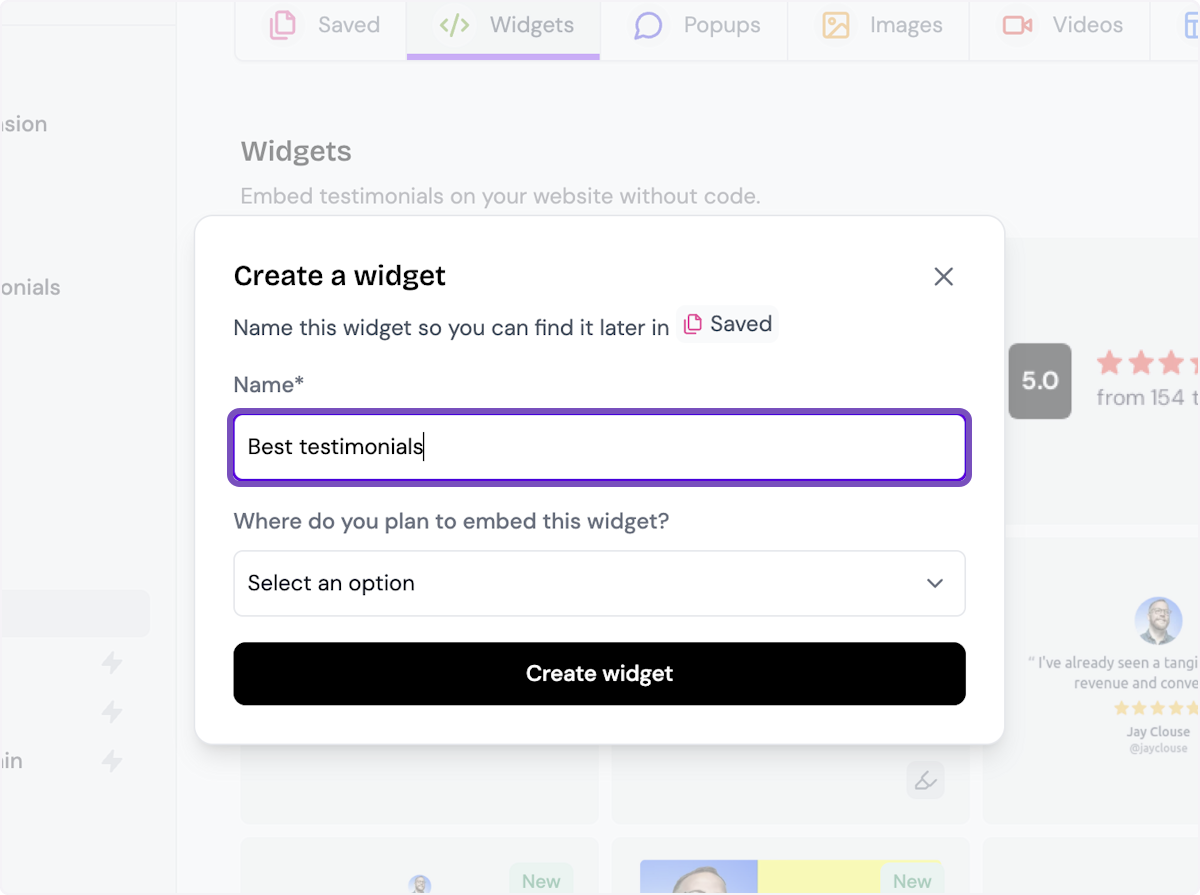
3. Name your widget
Here we've called it Best testimonials
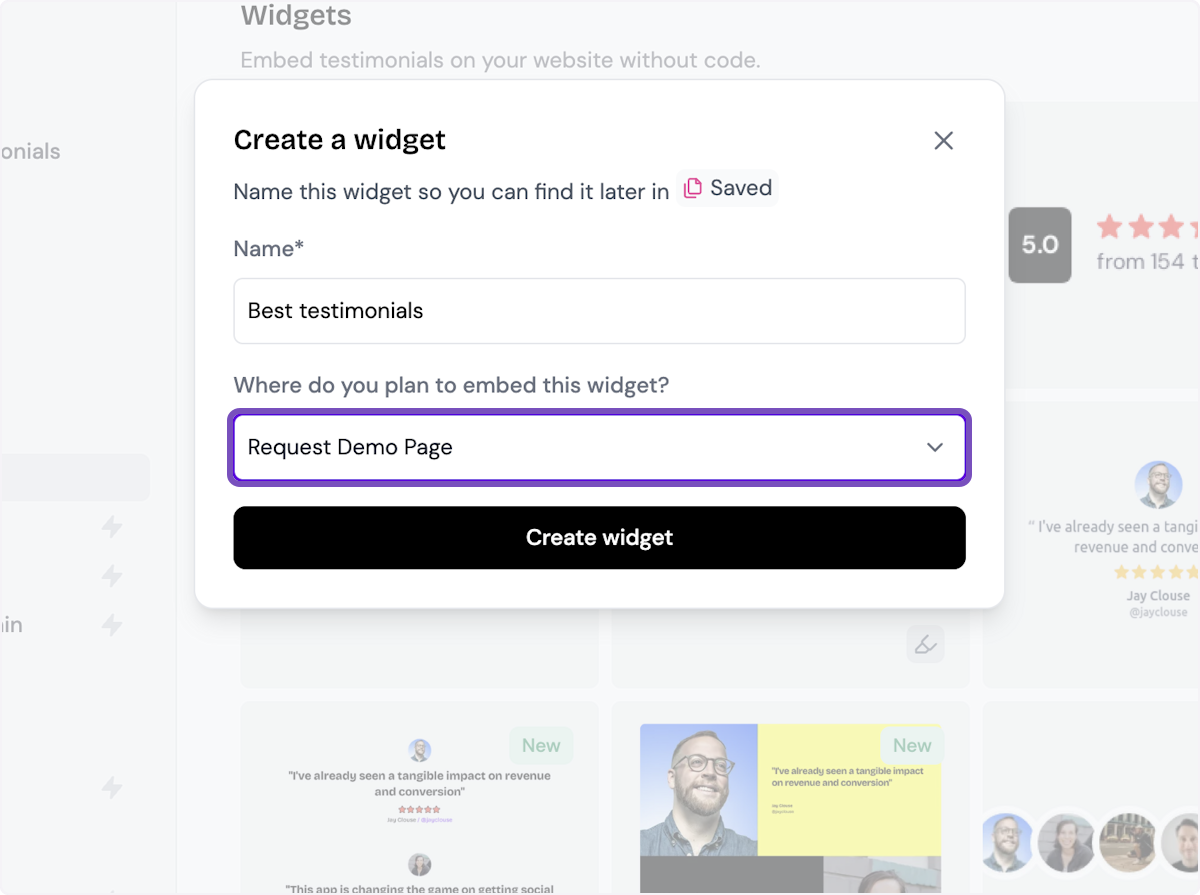
4. Select where you want to embed the widget
This will help you find it later
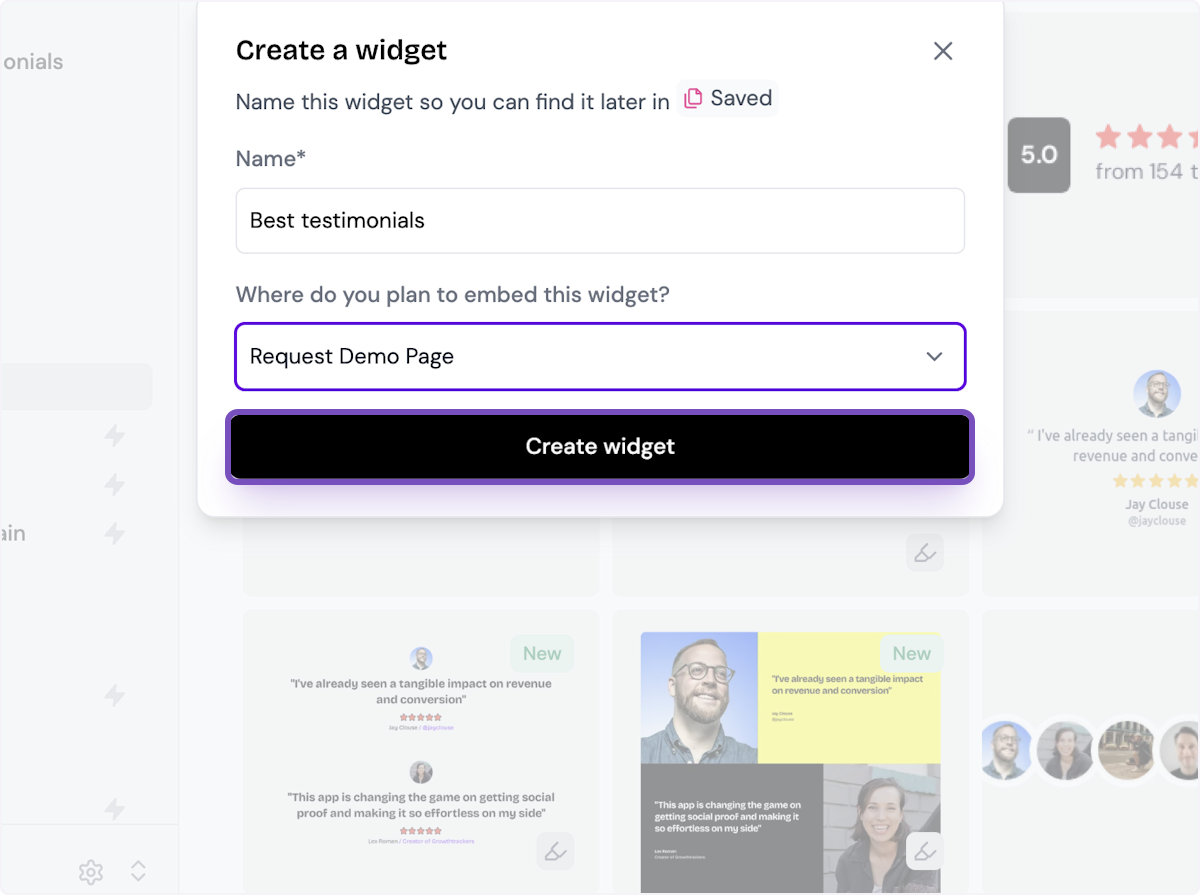
5. Click on Create widget
Let's start creating the widget
6. Decide what testimonials you want to add
You can set rules so that any new approved testimonials are automatically added to the widget, or curate. Here, we selected curate as we will manually select the testimonials to add to the widget.

7. Click on Continue

8. Start selecting your testimonials
Here's the first one. Select as many as you want to display.

9. Click on Save Selection
Once you're happy with the selection, click on Save Selection

10. Click on Design
Here's your widget. Let's update its design
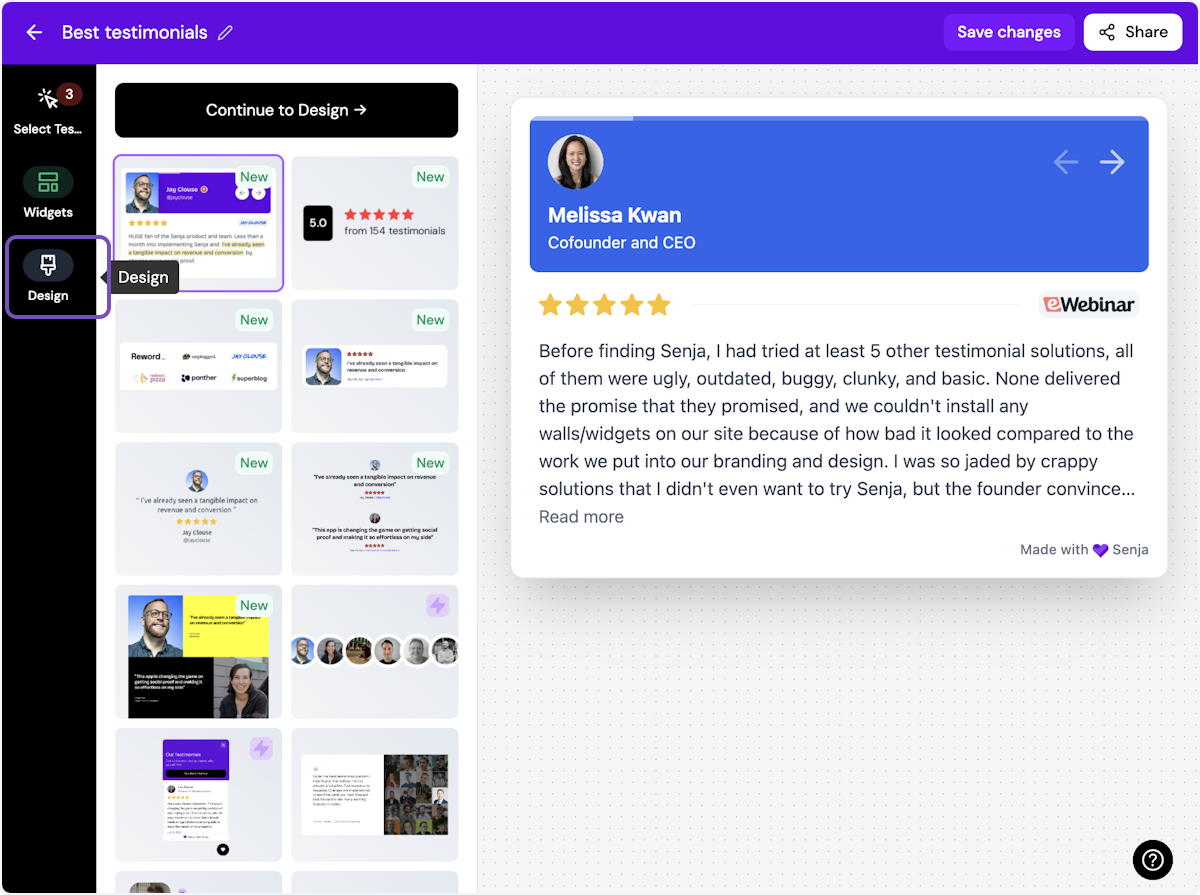
There are lots of design settings and they vary by widget. Make your design changes here until you are happy with the widget.
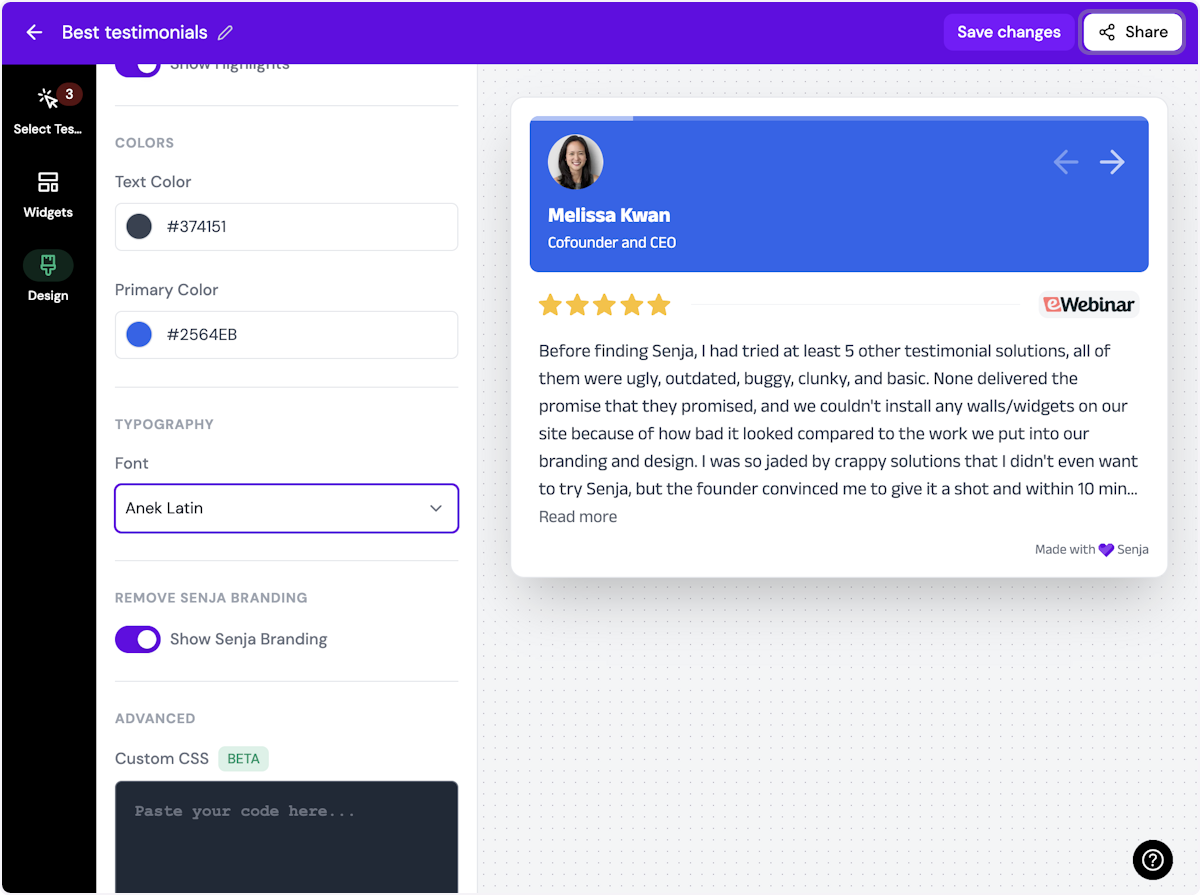
11. Click on Share
I'm happy with the design changes, so now it's time to share the widget. Click on Share.
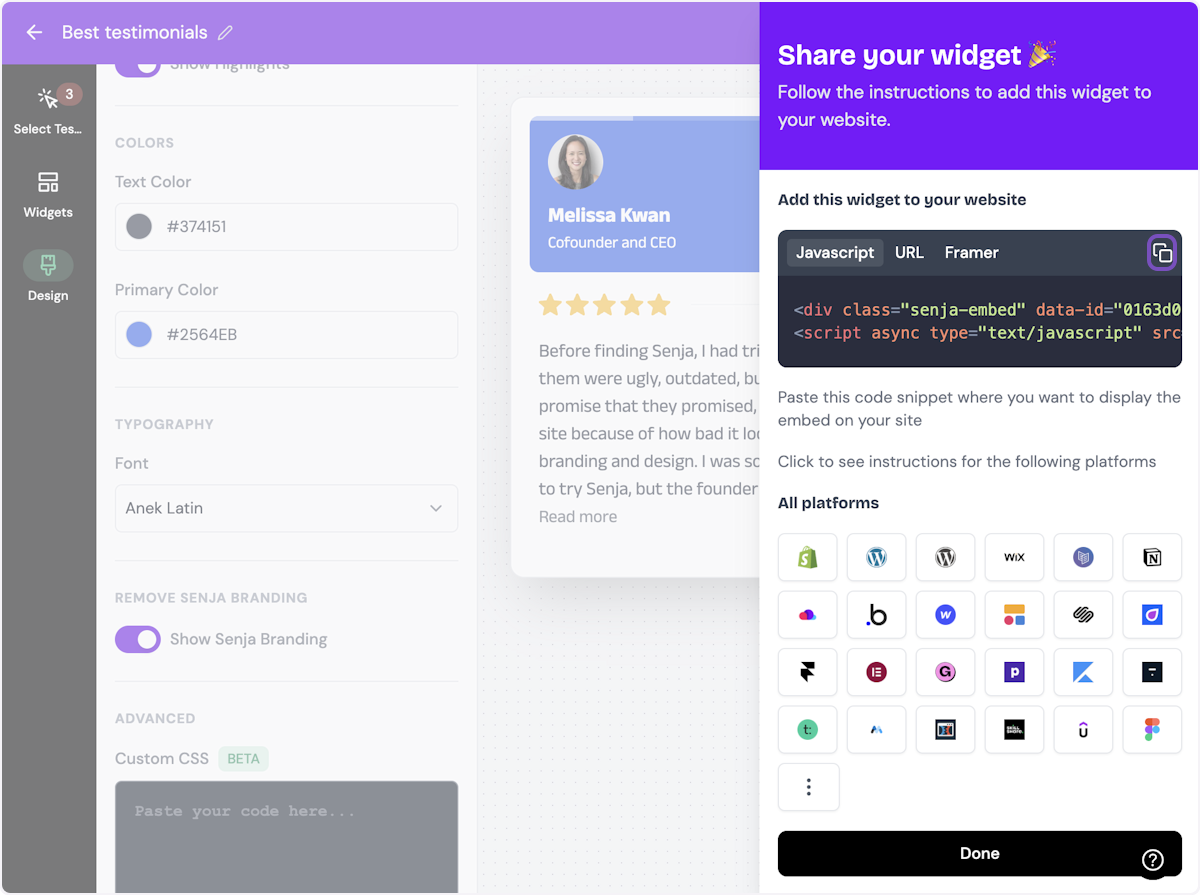
12. Click on the copy icon
This will copy the widget code for use on any landing page tool
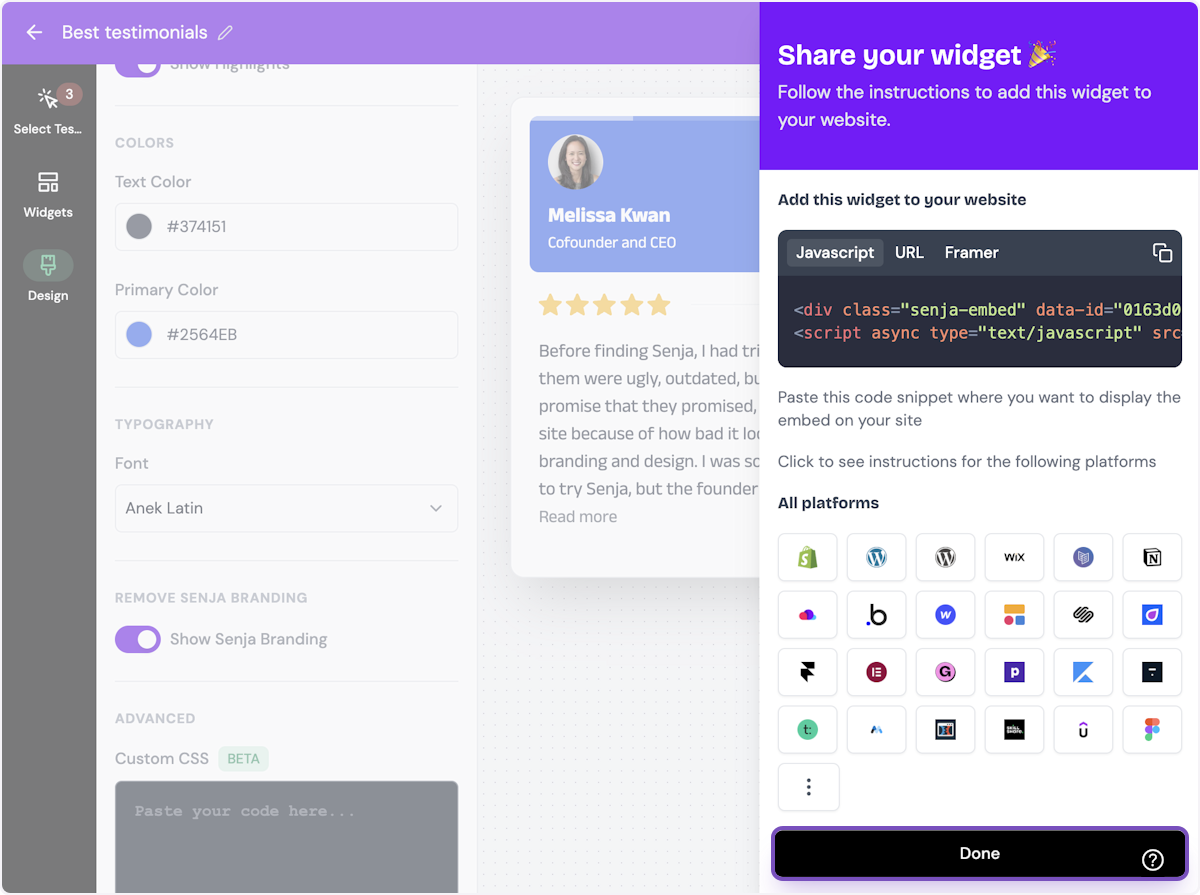
13. Click on Done
The code is copied and you're ready to navigate to your landing page tool
Use the free Senja Chrome Extension to copy widget codes without opening your dashboard.
Add the widget to Brizy
In Brizy, open the page where you want to add testimonials
Click the Add Elements icon (+)
Find and drag the Embed HTML, HTML, or Code element to your page
Paste the code you copied from Senja
Click Update or Apply
Your testimonials will appear on the page. Preview the page to see the widget in action.
Your testimonial widget is now live on Brizy! Not displaying correctly? Contact us and we'll help troubleshoot.