
How to share my Senja form
Once your form is ready, it's time to get it in front of your customers. Every sharing option lives in one place: the Share window of your form. This article walks through each one, and helps you pick where to start.
This is applicable for all Senja plans: Free, Starter, and Pro.
Open the Share window
Go to your Forms page: https://app.senja.io/forms
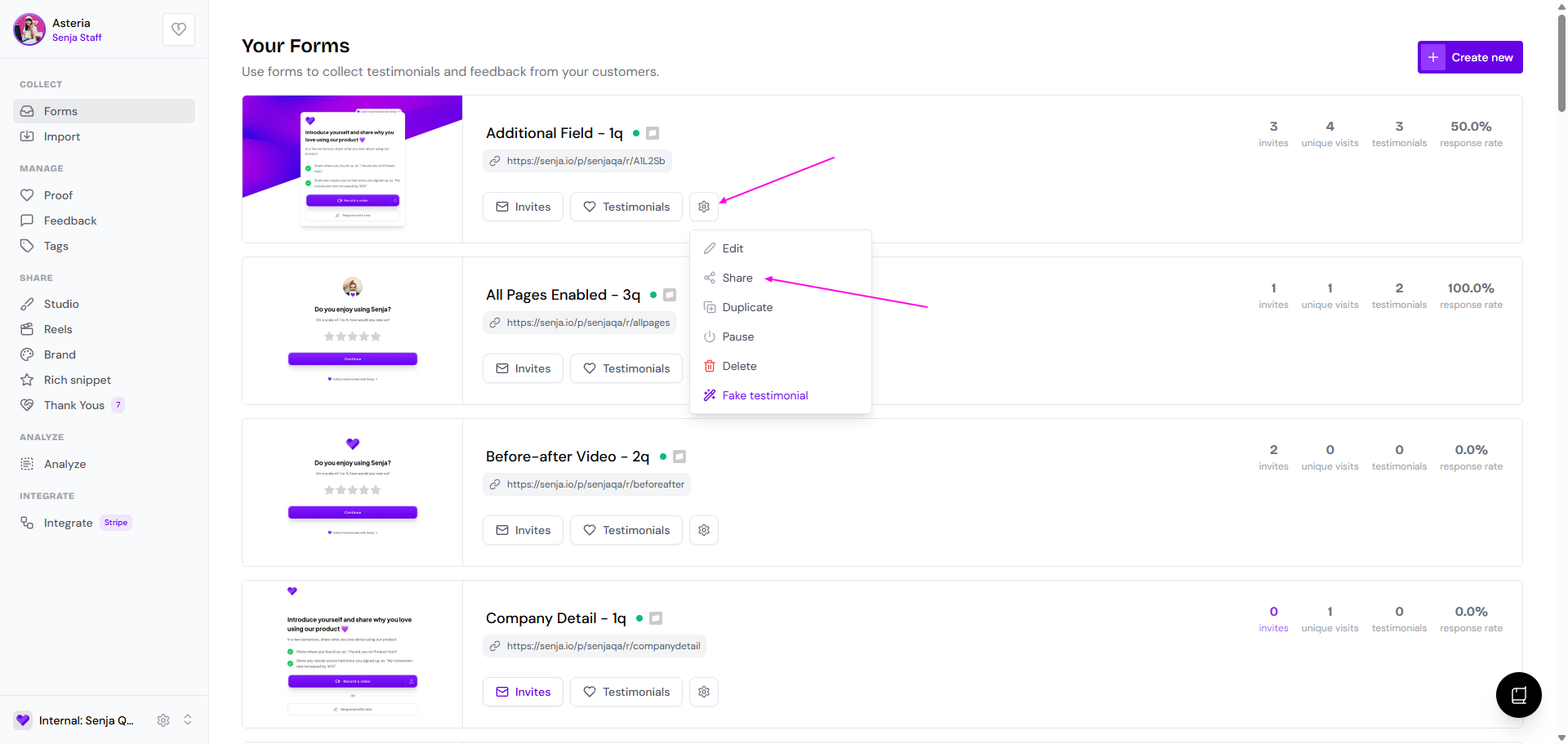
Click the ⚙️ icon on your form and choose Share
Copy your form link
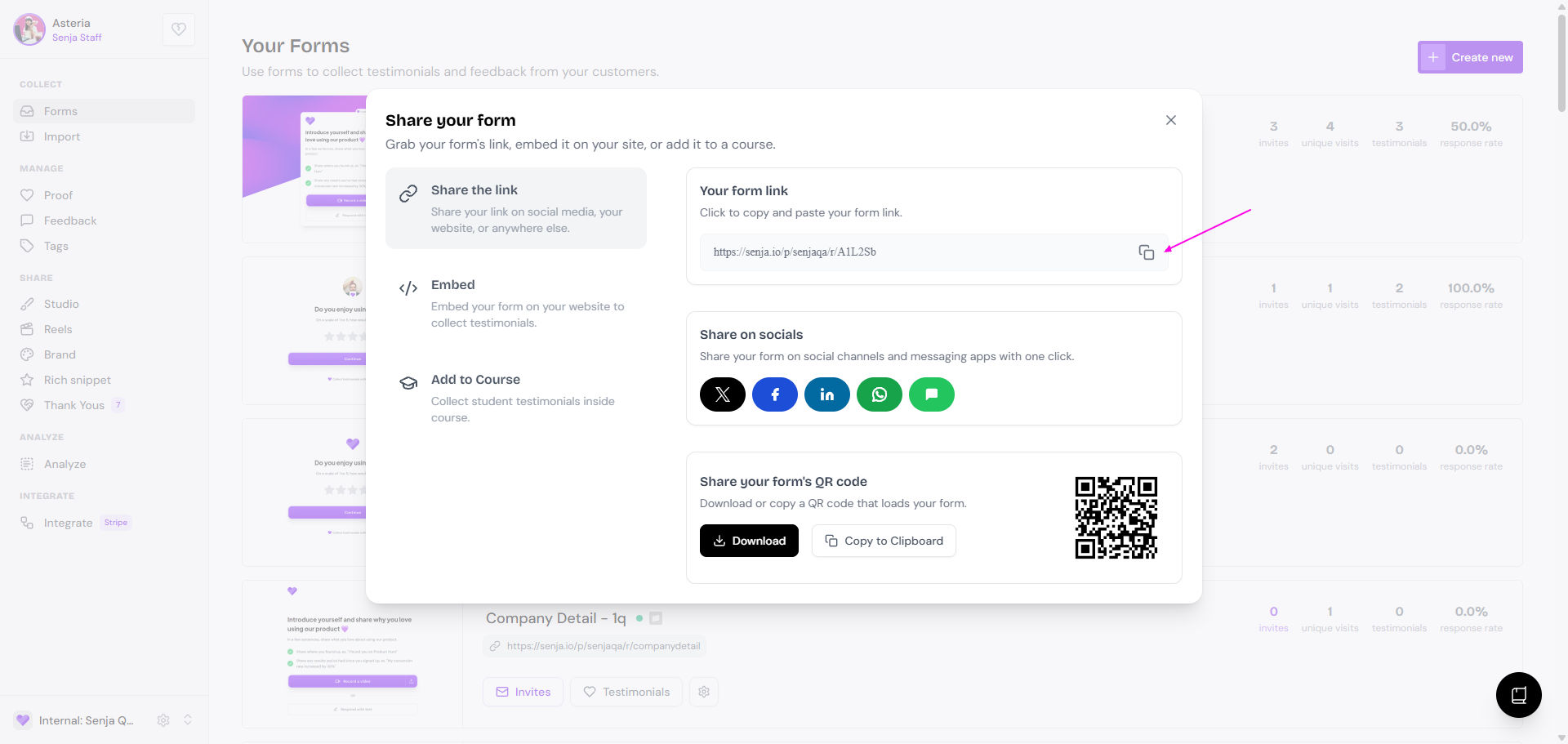
In the Share window, copy the form link.
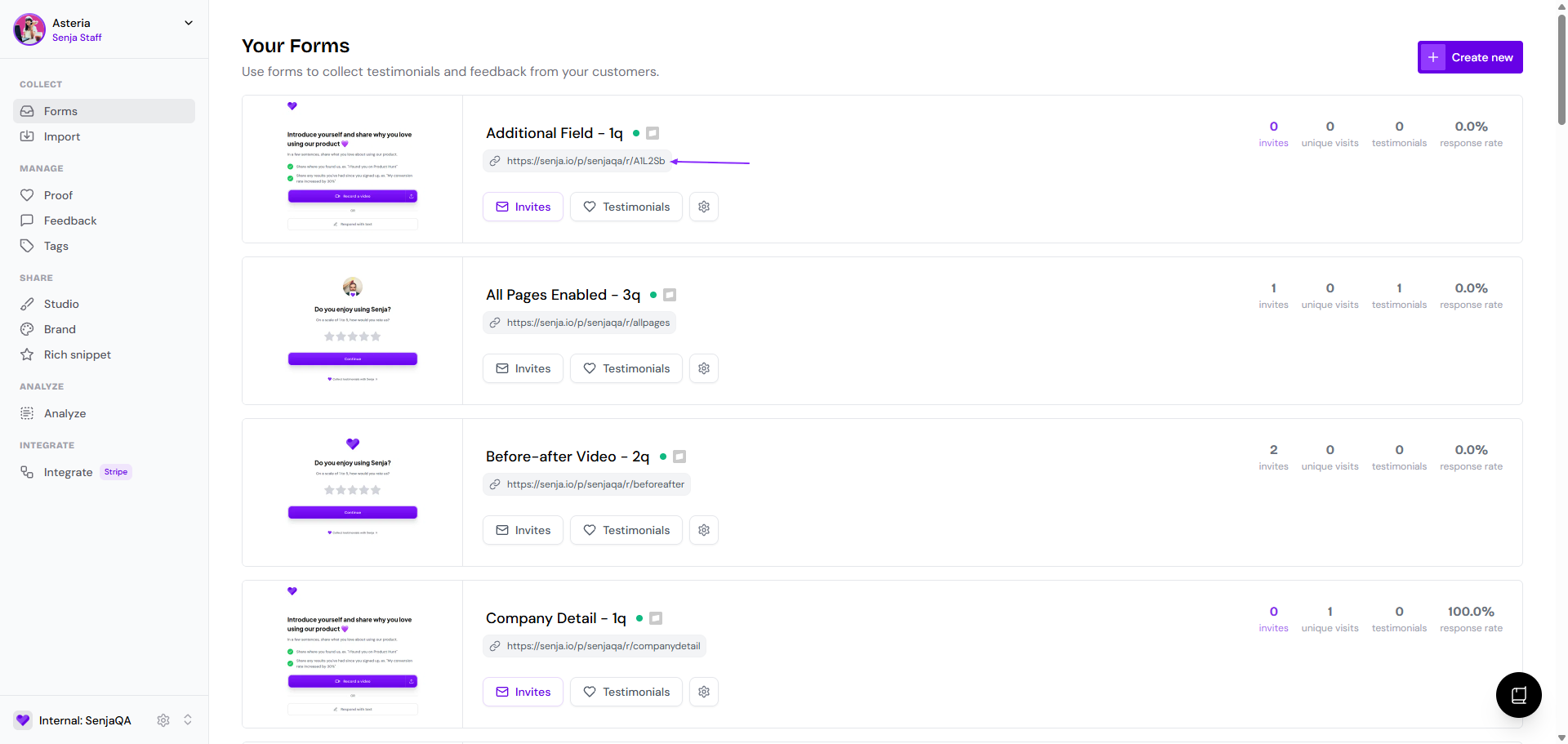
You can also copy it straight from your Forms page:
List view: click the 🔗 icon
Expanded view: click the link under the form's name
Paste your link anywhere your customers are:
Newsletters and marketing emails
Slack or community channels
Your email signature
Direct messages to customers
Want a cleaner link? Change the end of it in your form's Settings tab, see How to set up the form settings.
Share on social media or messaging apps
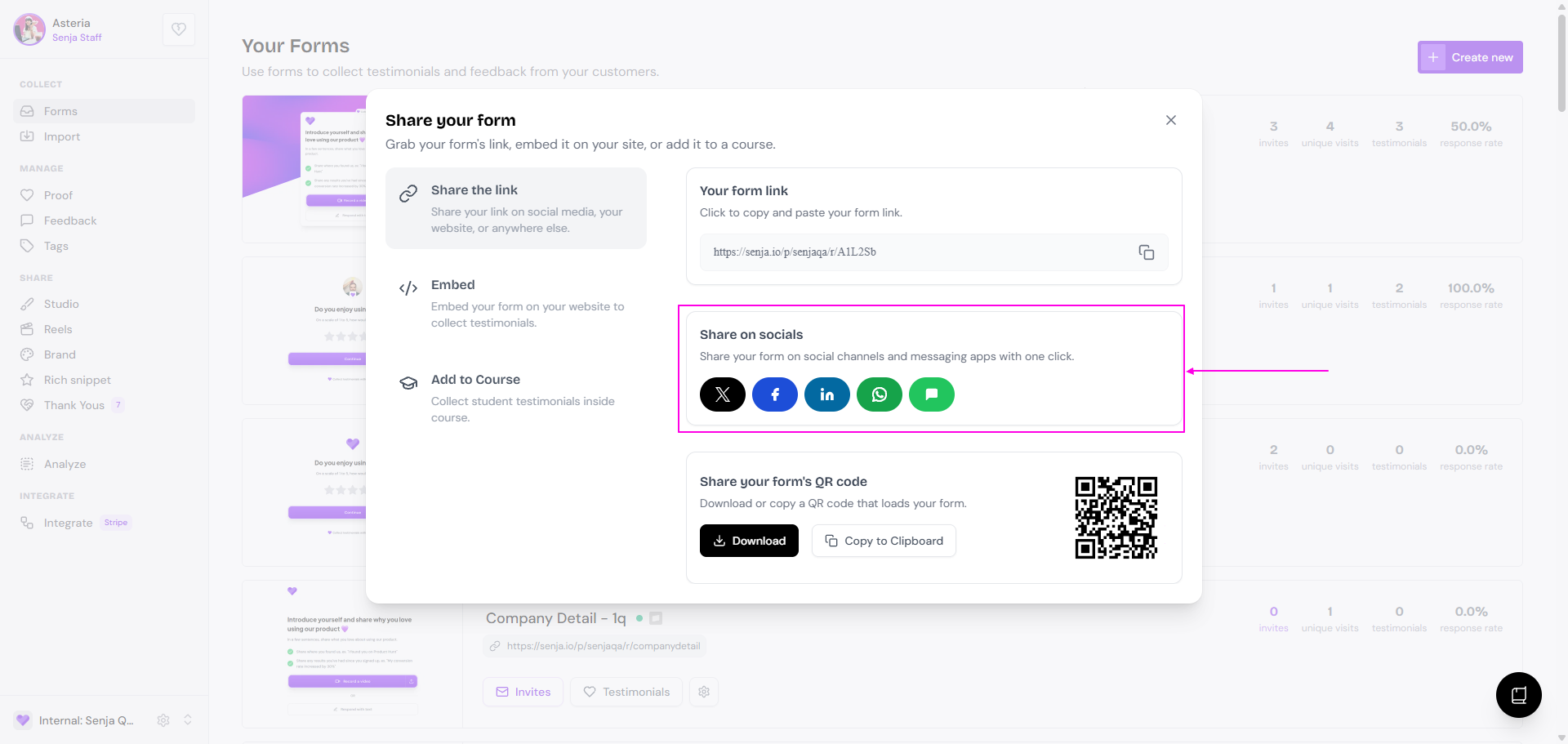
Post your form on X, Facebook, LinkedIn, WhatsApp, and more.
In the Share window, choose the channel you want
Edit the post if you like, then publish it
Using a channel that isn't listed? Copy your form link and paste it into your post or message.
Download a QR code
Meeting customers in person, at a conference, over coffee, or at an event? A QR code is the quickest way to share your form.
In the Share window, click Download under Share your form's QR code
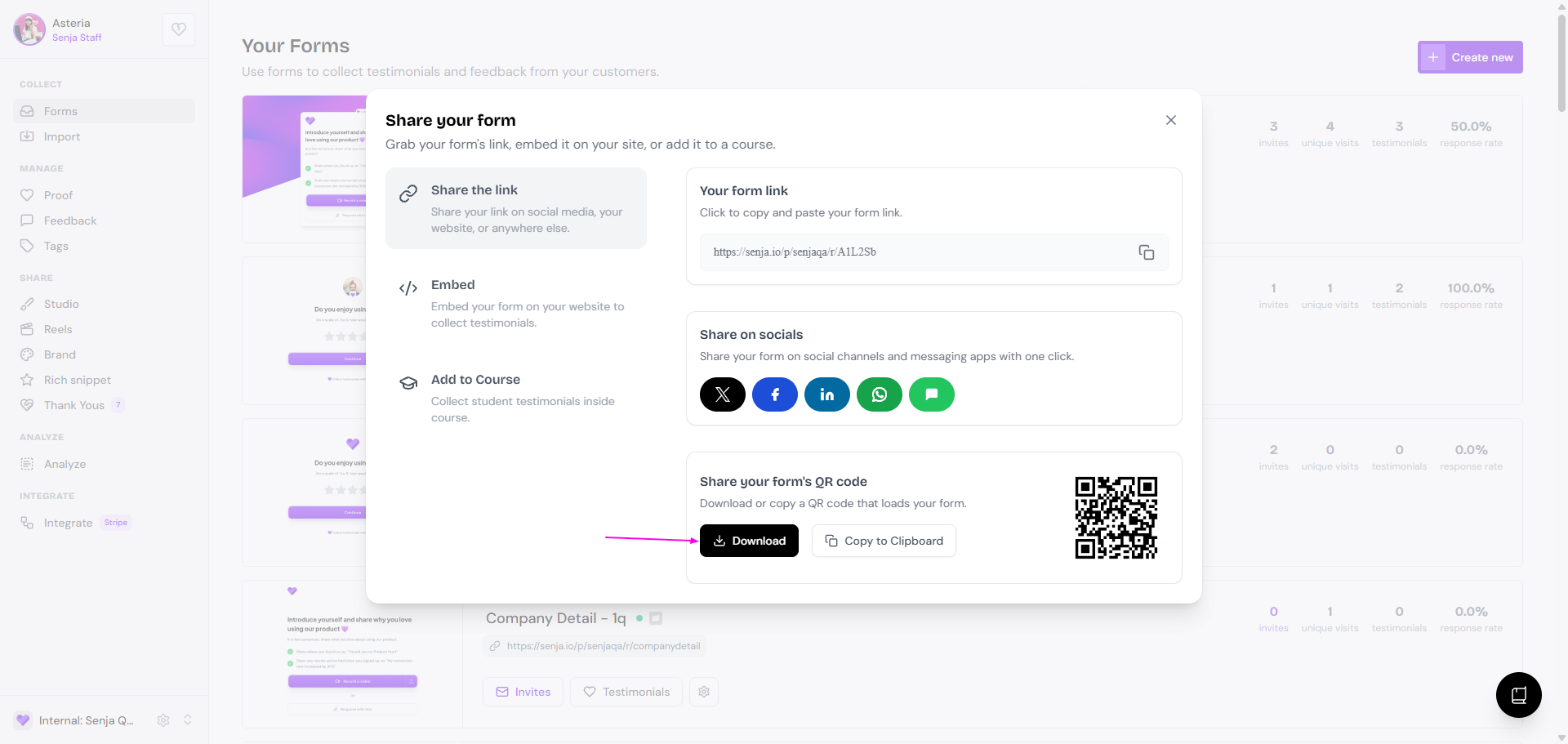
Print it, add it to your slides, or show it on your phone
Embed on your website
Put your form right on your website so visitors can leave a testimonial without leaving the page. Each form has its own embed code.
In the Share window, click the Embed tab
Copy the code under Your Code Snippet
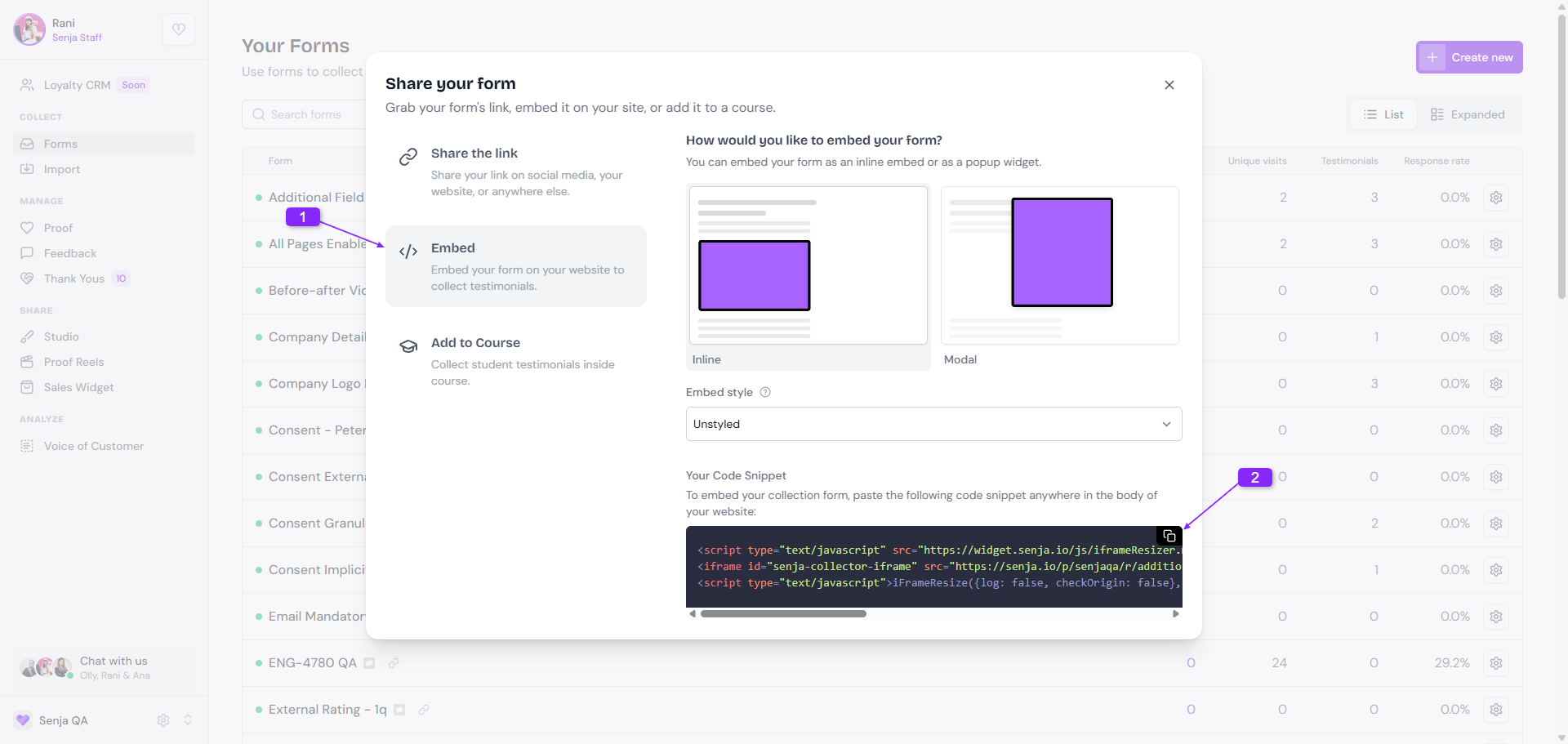
Paste it into an HTML or embed element on your website
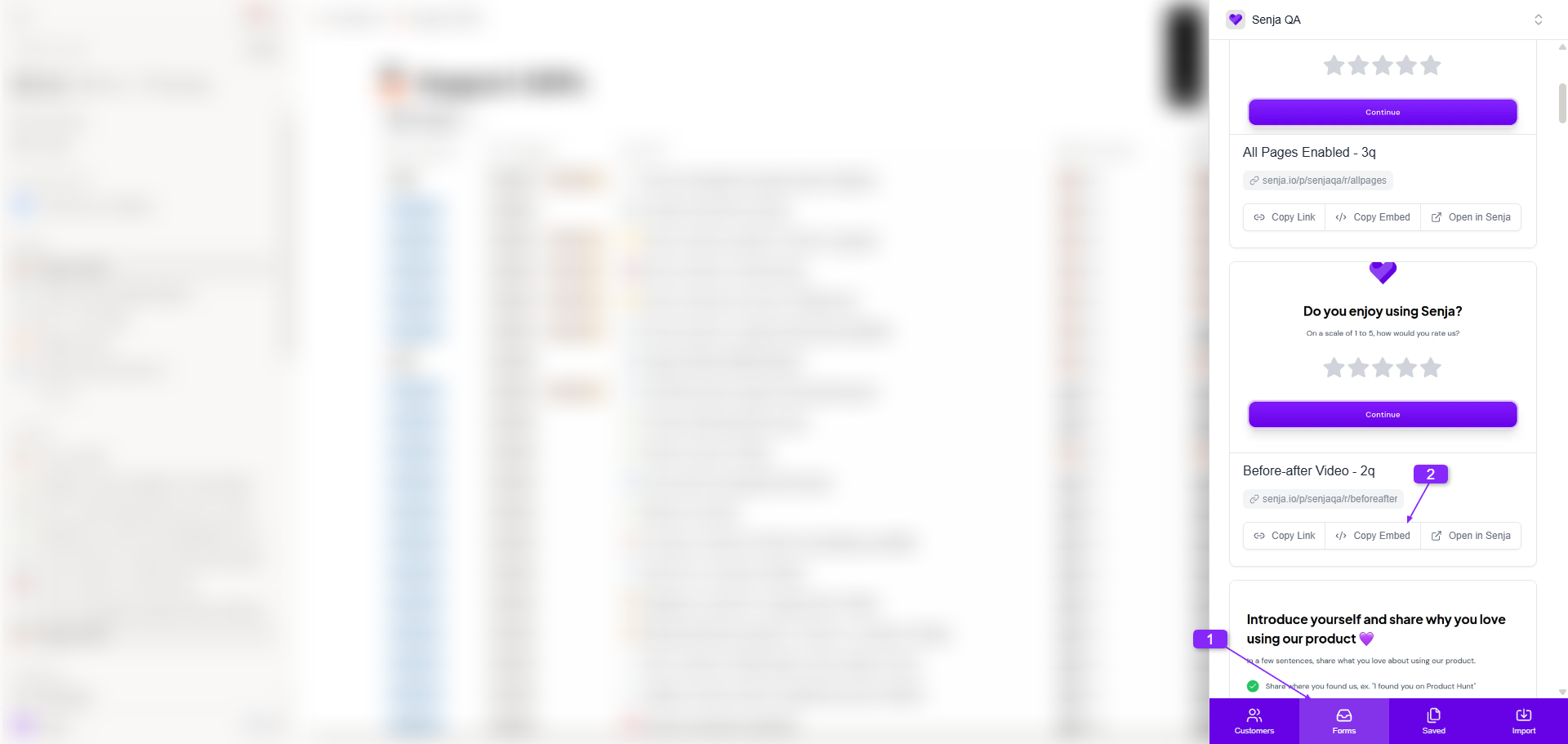
From the Chrome extension
With Senja's free Chrome extension, you can grab the embed code without opening Senja.
Open the page where you want to embed the form
Click the 💜 Senja icon in your extension toolbar and choose Forms
Find your form and click Copy Embed
Add to your course
Ask students for a testimonial right inside a lesson. Adding it partway through the course, not only at the end, usually gets you more testimonials.
In the Share window, click the Add to Course tab
Copy the code under Your Code Snippet
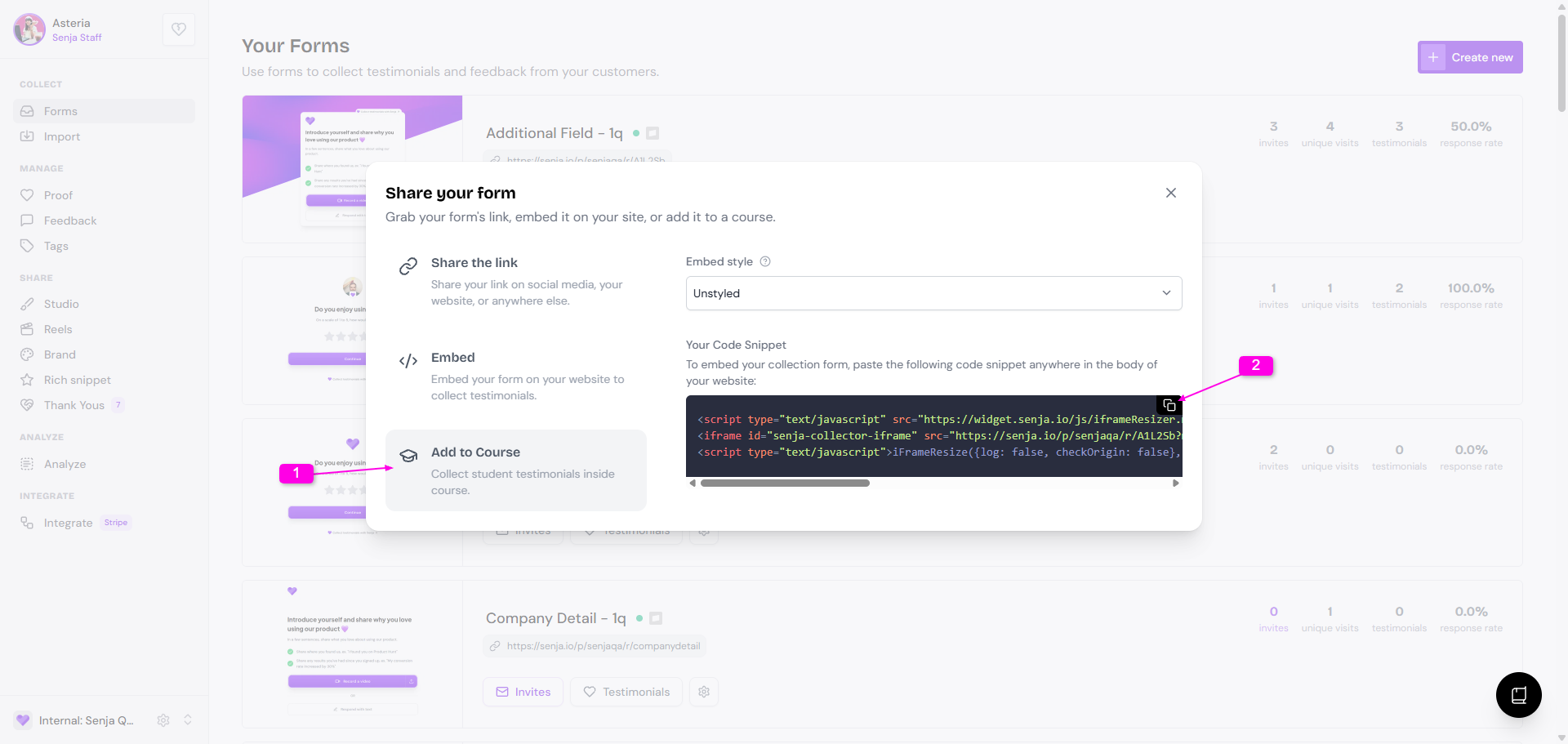
Paste it into a lesson on your course platform
Step-by-step guides for Kajabi, Teachable, Thinkific, Podia, Circle, LearnDash, LearnWorlds, and Skool are in Collect testimonials in your course.
Send it by email from Senja
You don't have to share your link yourself. Senja can email your customers for you:
Form invites: send a personal request to one customer or a whole list, and track who opened, clicked, and submitted. See How do I use form invites?
Auto-collect: send requests automatically when a customer buys, finishes a course, or gets tagged in your tools (paid plans only). See How to collect testimonials automatically with form
Which method should you start with?
It depends on your business:
Course platforms: add your form to a lesson, or automate a request when a student finishes the course
E-commerce: automate a request after each purchase
Service businesses: send a form invite when you wrap up a project
SaaS: automate requests when customers reach a usage milestone
Events and in-person work: use your QR code
Start with one method, then add more as you build momentum. For timing ideas, see When to ask for testimonials.