
What can I do in my Proof page?
Your Proof page is where every testimonial you collect or import ends up. From here you can find testimonials, approve them, edit them, thank your customers, and turn testimonials into images, case studies, and more.
The Proof page is available on all Senja plans: Free, Starter, and Pro. Translations need a Pro plan. Video downloads are SD on Free and HD on Starter and Pro.
Where your testimonials come from
Go to your Proof page: https://app.senja.io/
Testimonials from forms, auto-import, import from web, spreadsheet upload, and manual import all land here
Form submissions show up in the Proof page, not in the Forms page
If you haven't added any testimonials yet, you'll see a prompt to import them
Find testimonials
Testimonials are sorted by date, newest first
The date is when your customer gave the testimonial, not when you imported it
You can't change the sort order
Type in the search bar using everyday language, like "unapproved testimonials praising our pricing"
Use the status filters at the top: All, Approved, Unapproved, Thanked, and Not thanked
Click Filter to filter by source, rating, tags, forms, language, type, highlights, company logos, avatars, images, email, or word count (see How do I search or filter testimonials?)
Tag filters use OR by default, switch to AND to show testimonials that have all selected tags (see How to search by tags with AND)
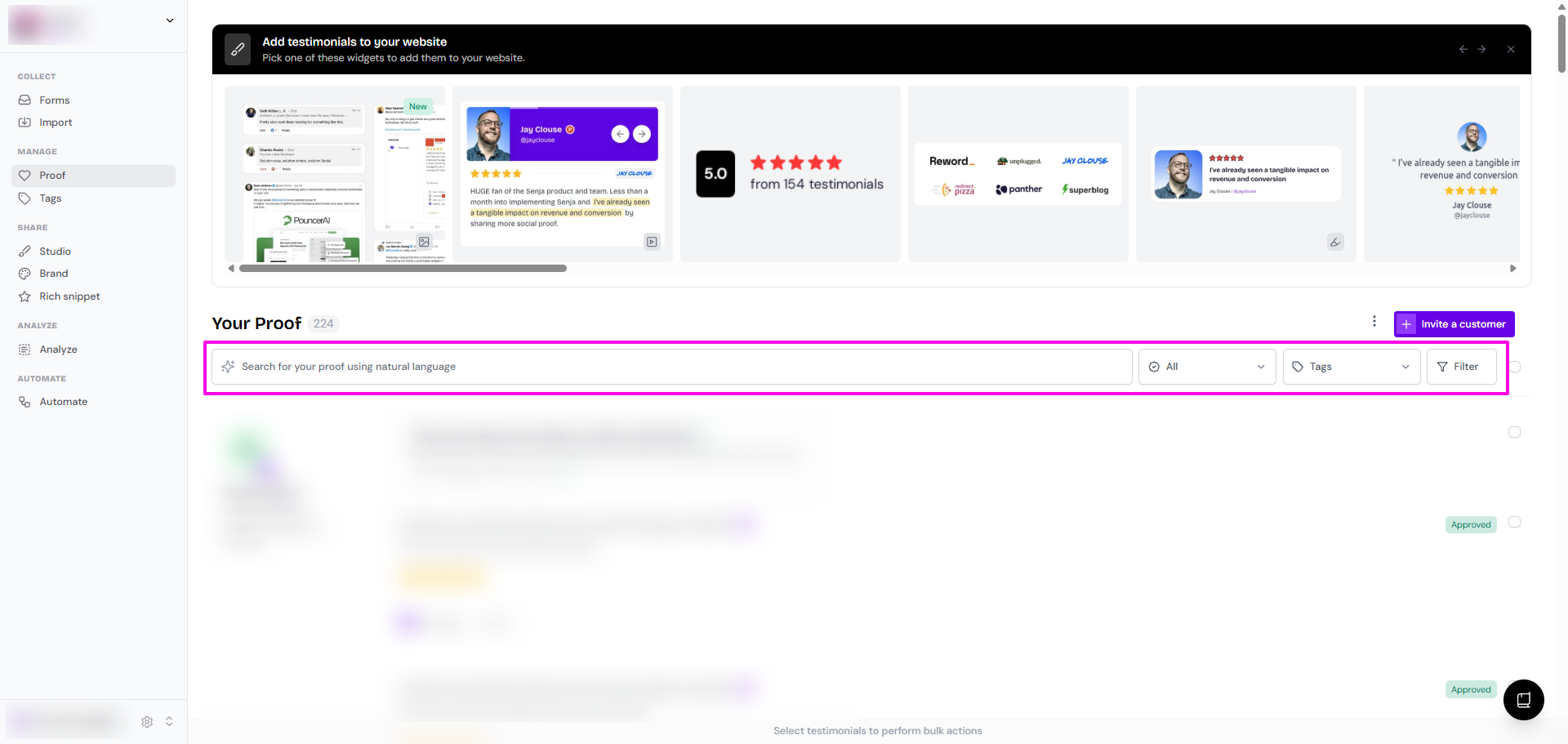
You can't filter by consent. Add tags like Public or Private instead, see How do I find testimonials with public or private consent?
Approve testimonials
Every testimonial is either Approved or Unapproved
Only approved testimonials can be used in Studio (widgets, Walls of Love) and Proof Reels
Forms and auto-import can be set to approve automatically
Testimonials from import from web, spreadsheet upload, and manual import are approved by default
Approve or unapprove from the customer page, or select several testimonials and do it in bulk
See What do approved and unapproved mean?
The customer page
Click any testimonial to open the customer page. Customer details are on the left, and the testimonial and its actions are on the right.
Customer details
Add or update the customer's photo, name, tagline, email, job title, company, website, and company logo (see Where can I see my customer's company details?)
If your form has a consent page, the customer's consent shows under the testimonial
To protect a customer's privacy, change their name to initials or "Anonymous", remove their photo, or delete their email (see Can I display only the initials of my customer? and How do I remove customer email address?)
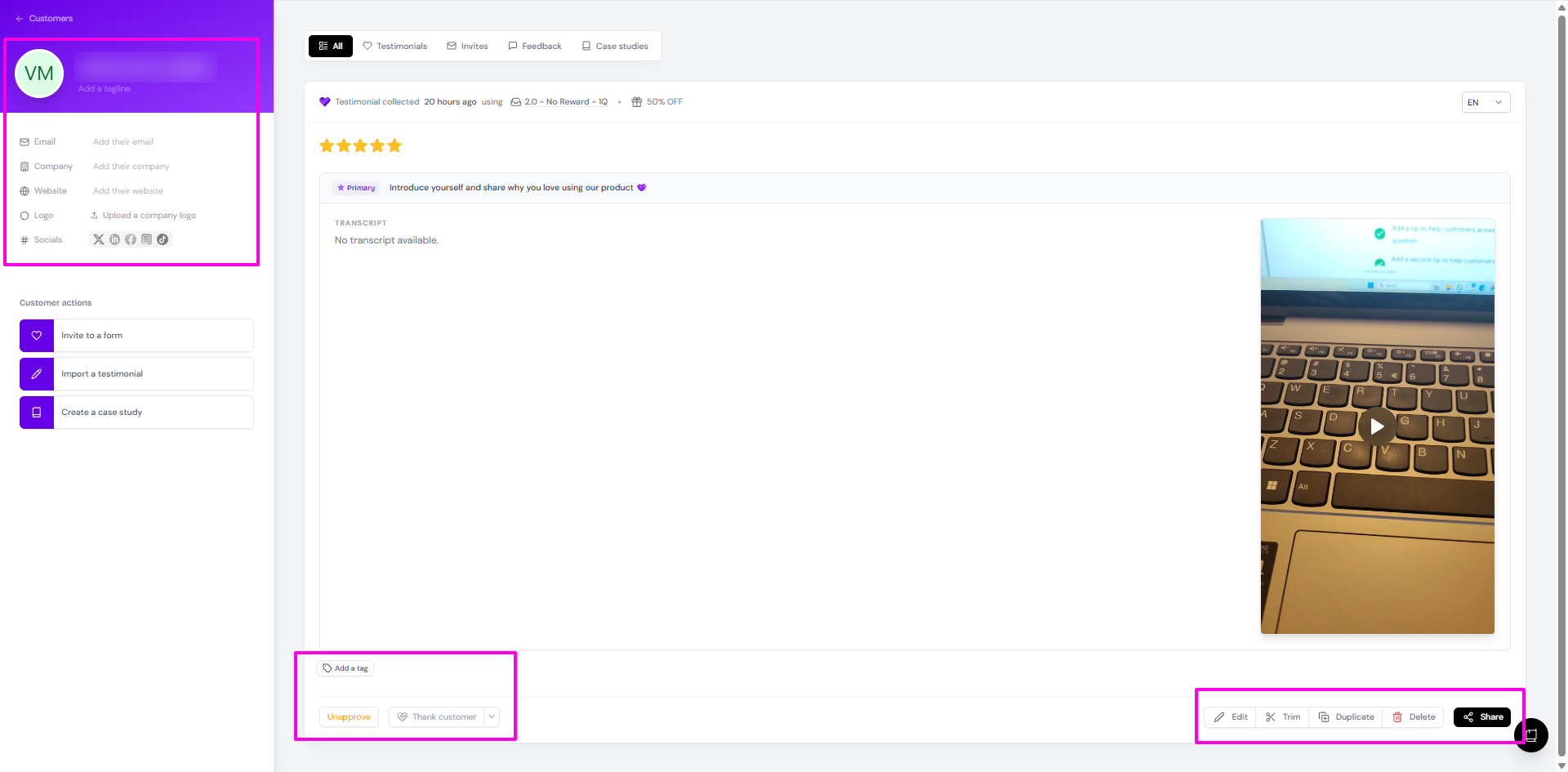
Changes to customer details overwrite the old ones. Duplicate the testimonial first if you want to keep a record of the original.
Edit the testimonial
Click Edit to change the title, rating, text, images, language, source, source URL, and date (see How do I edit a testimonial?)
Text editing only works on the answer to the primary question
Select text to highlight the best part (see What are testimonial highlights?)
On Pro, click Add translation to create other language versions (see How do I translate my testimonials?)
Want a shorter version for a landing page? Duplicate the testimonial and edit the copy, so the original stays intact (see How to show only part of a long testimonial)
There's no undo once you save. See What happens if I edited testimonials by mistake
Video testimonials
Videos are transcribed automatically
Click Edit → Edit transcript to fix mistakes
Add an Excerpt to show the best bit next to the video (see What is video excerpt?)
Add a thumbnail, replace the video, or click Trim to cut the start or end (see How do I edit my video testimonial?)
When a form has several questions, Senja stitches the answers into a multiclip
You can share it as a link and show it in widgets, but you can't download it
See What can I do with the multiclip videos in my Proof page?
Video edits can't be undone. Contact Support right away if something goes wrong.
Tags, duplicates, and merges
Add a tag to group testimonials by topic, consent, campaign, or anything else you want to filter by later
Duplicate makes a copy you can edit without touching the original
Merge testimonials from the same customer into one customer page
Testimonials coming from the same email address are merged automatically
Merging doesn't combine the text, and it can't be undone
Thank your customers
Click Thank customer to send a personal thank-you email
You can attach a video, photo, or GIF
Already thanked them outside Senja? Click the arrow next to Thank customer and choose Or mark as thanked
This only works if the customer has an email address and hasn't been thanked yet
See How do I send a thank you note from Proof page?. To include a coupon or gift, use the Thank Yous page.
Share and reuse testimonials
Click Share on the customer page to:
Copy link to testimonial for a public testimonial page
Embed testimonial/video on your website
Download videos (See How do I download my testimonials?)
Turn into case study, then share it as a link or export it as a PDF (see How to generate case studies from testimonials)
Create an image from a studio template and save your design as a template (see How to create image template)
Create an animated video from the testimonial
Bulk actions
Tick the checkbox next to each testimonial, or filter first and tick the checkbox next to Filter to select everything shown. A toolbar appears at the bottom with these options:
Approve or Unapprove
Add tags. See How to add tags to multiple testimonials at once
Export to CSV
Merge
Delete
Select all only picks up the testimonials loaded on screen. Scroll down to load more, then select those too.
To export everything, click the 3-dots next to Invite a customer → Export all to CSV
You can't edit testimonial text in bulk, and the Senja API can't update existing testimonials
To move testimonials to another project, export them to CSV, switch projects, and upload the CSV. See How do I duplicate testimonials across projects?
Delete testimonials
Delete one testimonial from the customer page, or several at once from the bottom toolbar
You need to be an Owner, Admin, or Editor to delete
Deletion is permanent
There's no trash or restore
On the Free plan, deleting testimonials doesn't free up your 15-testimonial limit
See How do I delete a testimonial?
Troubleshooting
Can't find a testimonial?
Clear your filters and search bar. If it's still missing, it may not have imported correctly, so try importing it again.
Can't add more testimonials?
The Free plan allows 15 testimonials. Upgrade to Starter or Pro for unlimited testimonials.