How to turn testimonials into case studies
Turn any testimonial into a story-driven case study in a couple of clicks. Senja's AI writes it from your customer's own words, and you can edit it, share it as a link, or export it as a PDF.
This is available on all Senja plans: Free, Starter, and Pro.
Create a case study
Go to your Proof page: https://app.senja.io/
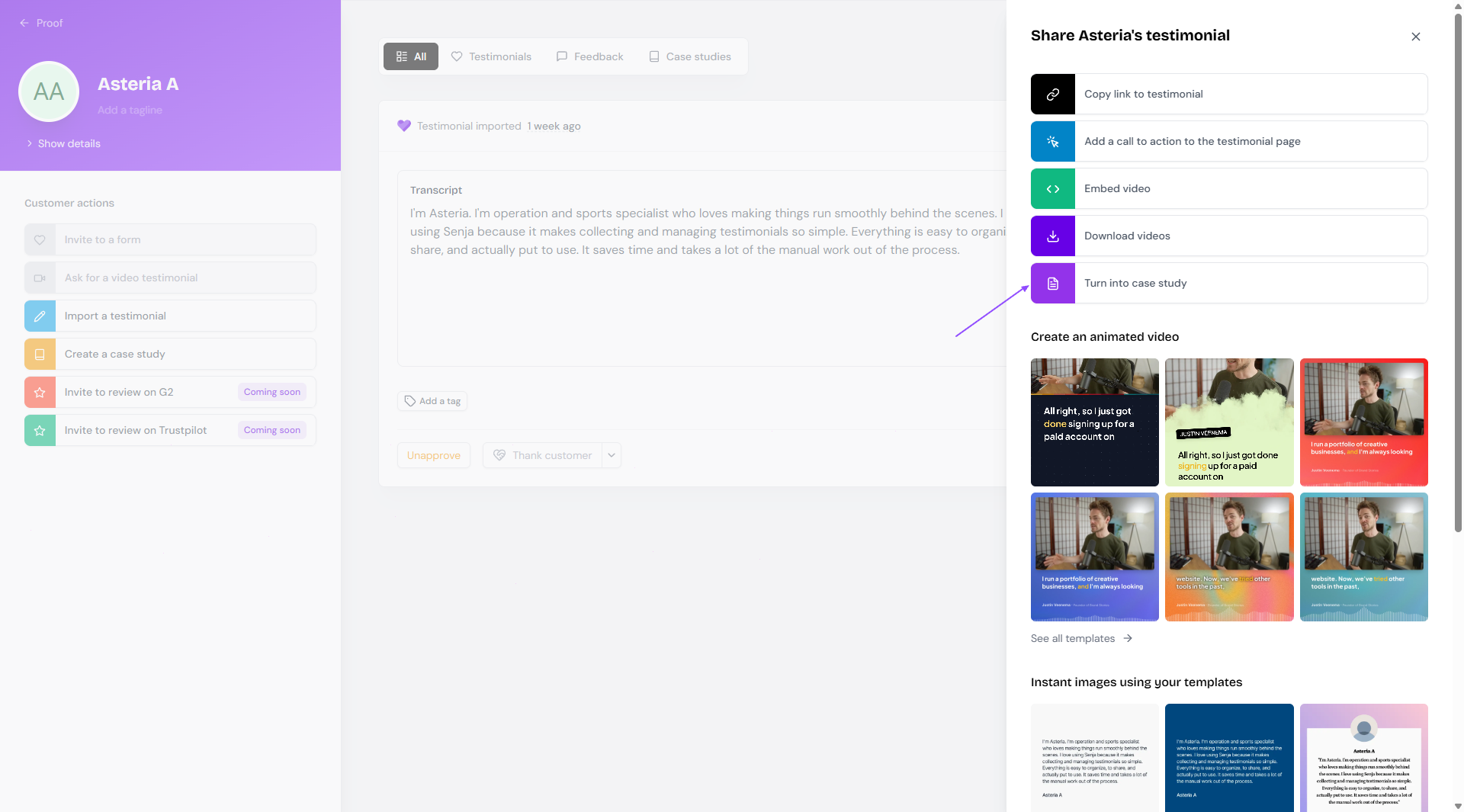
Open the testimonial you want to turn into a case study
Click Share → Turn into case study
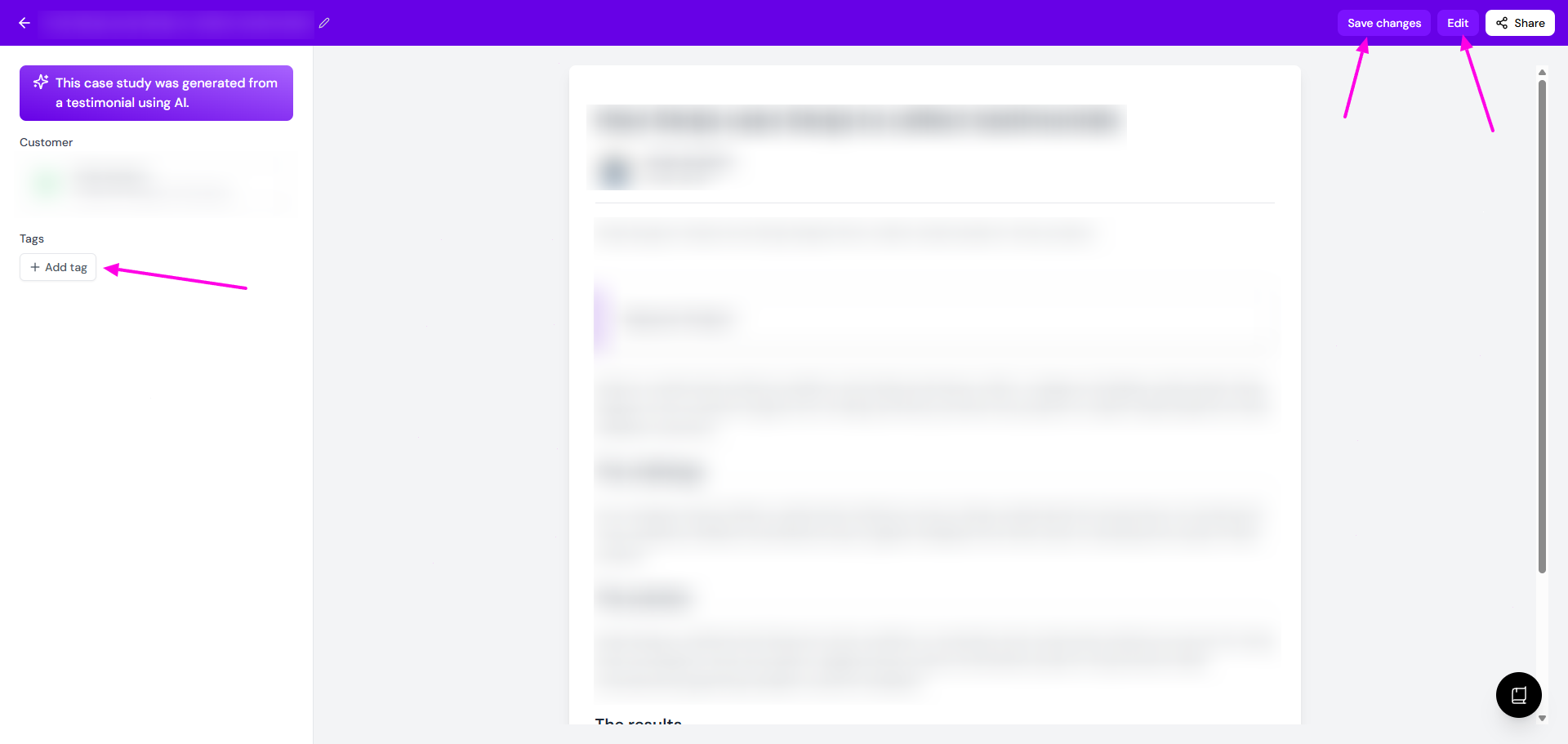
The case study opens in the editor
Senja may have already drafted it for you, see Automatic case studies
Edit the text, Add tag if you want, then click Save changes
Another way of doing it:
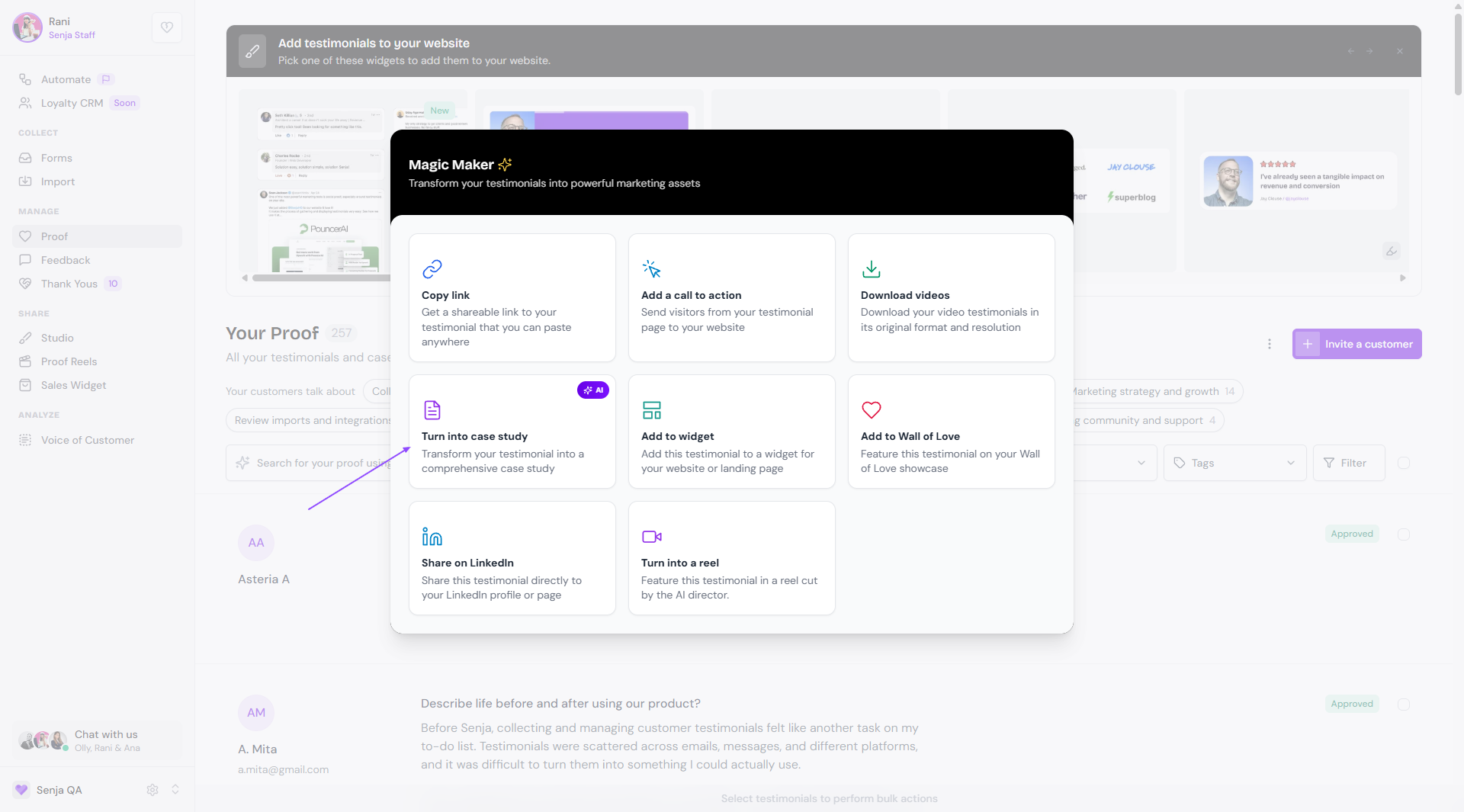
Hover over your testimonial until you see Magic maker button, click on it
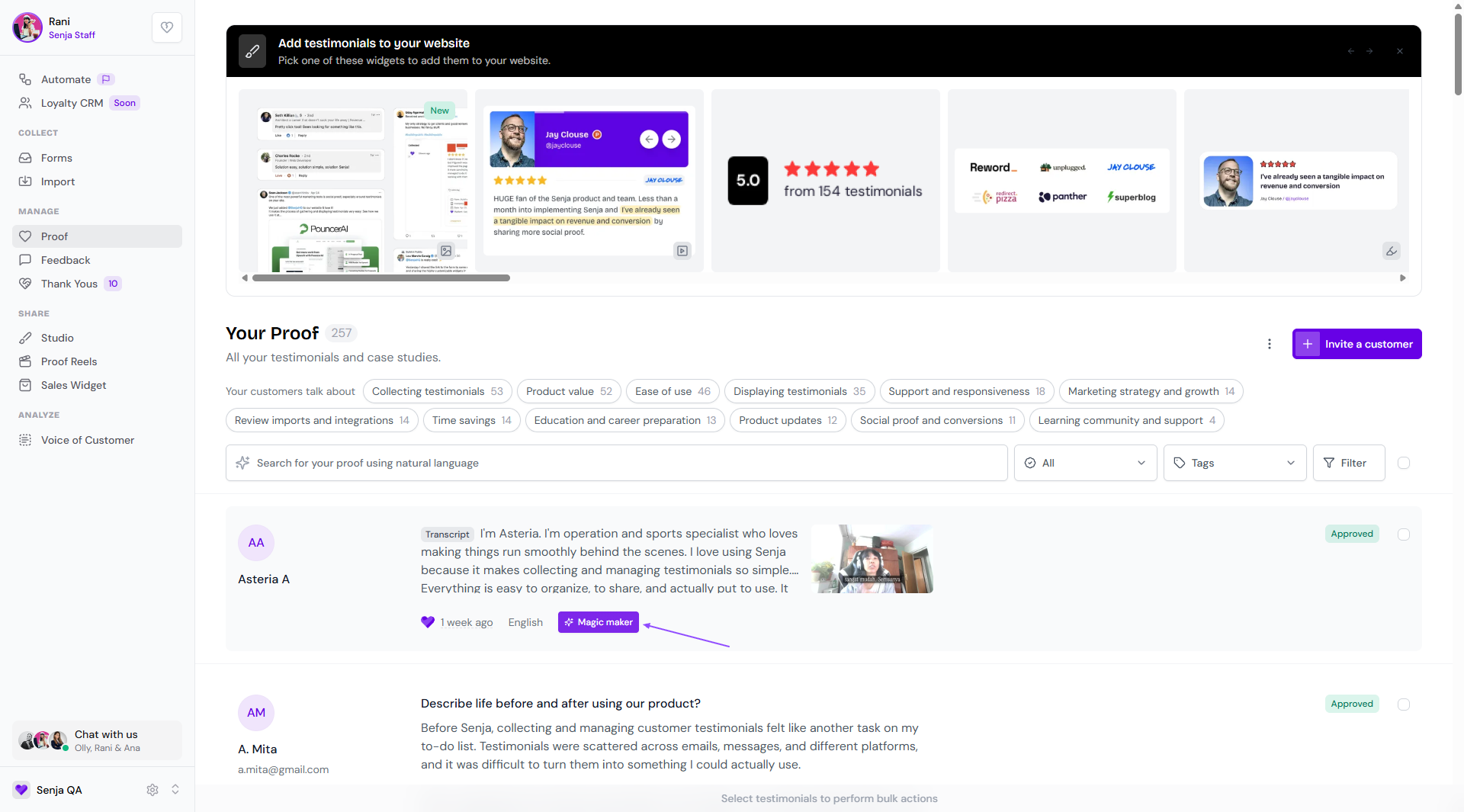
Choose Turn into case study
Share or export it
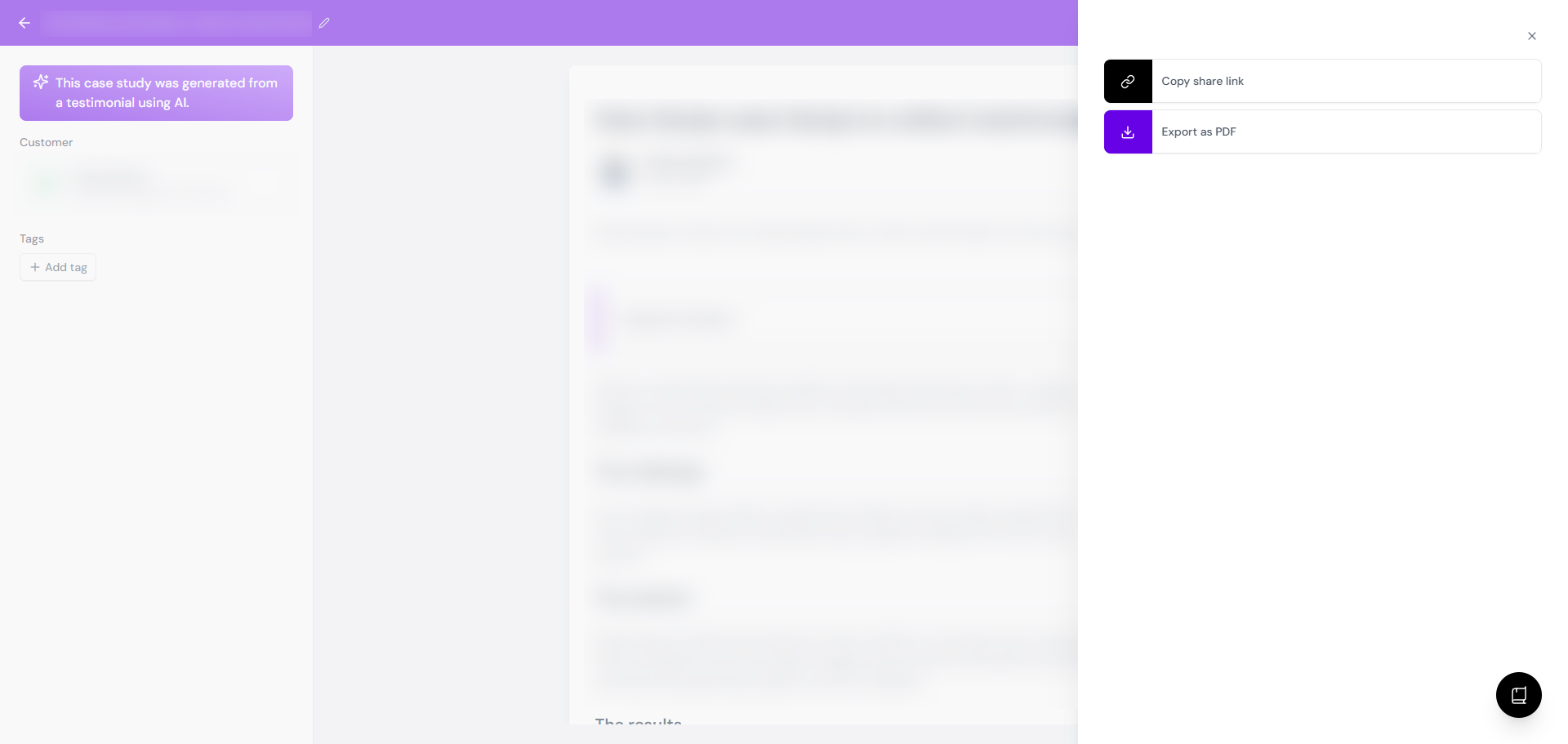
In the case study, click Share
Choose Copy share link to send it as a link, or Export as PDF to download it
Edit an exported PDF
The exported PDF is image-based, so you can't edit the text in it directly.
Easiest: make your changes in Senja first, then export the PDF again
Already have the PDF? Use a free online OCR (text recognition) tool to pull the text out, then edit it in your own editor
Automatic case studies
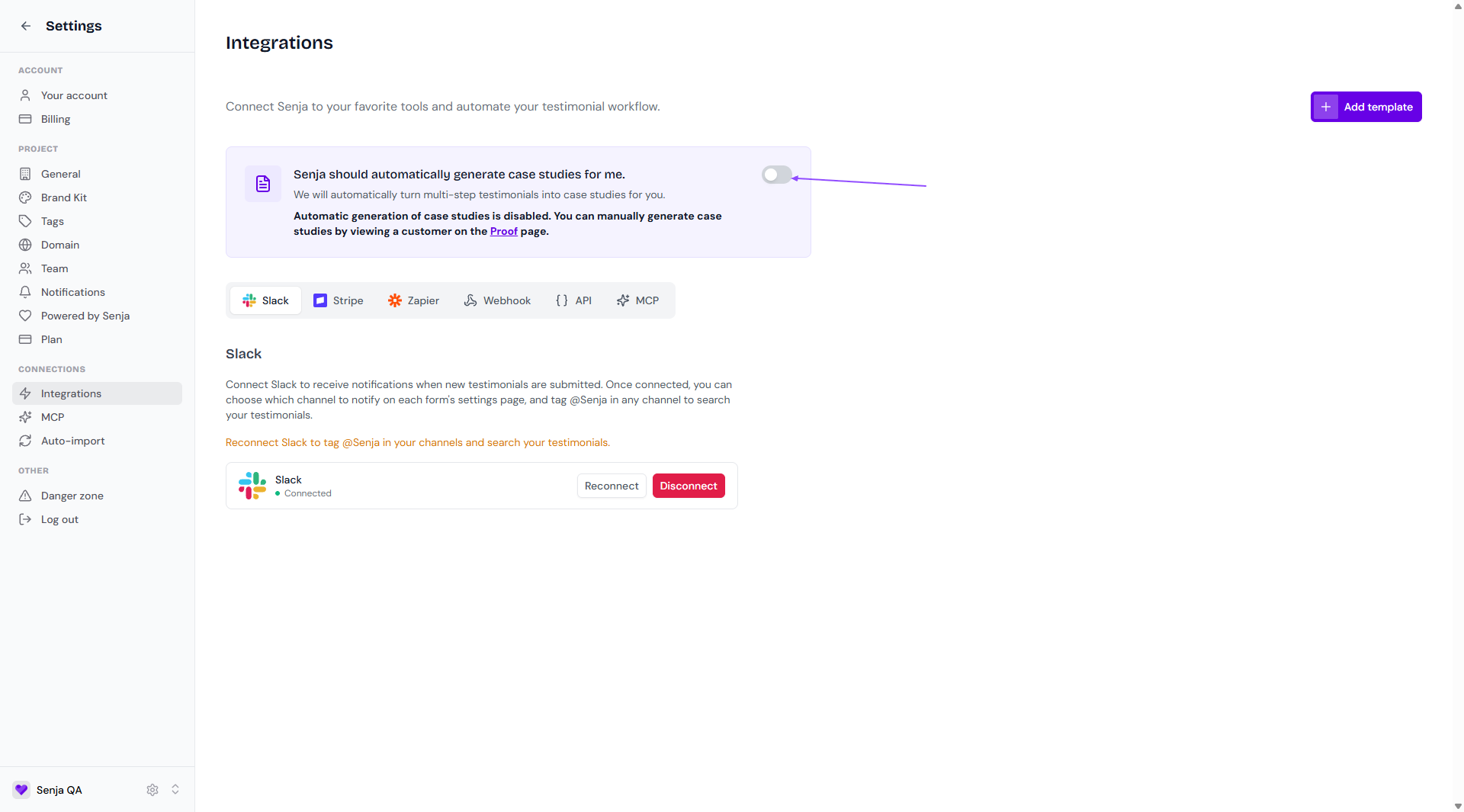
Senja automatically drafts a case study from your testimonials, so one is often ready before you open it. To turn this off:
Go to Integrations: https://app.senja.io/settings/integrate
Turn off Senja should automatically generate case studies for me