
How to search, filter, and sort testimonials
Got a long list of testimonials and need to find one customer, one topic, or every 5-star video? Use search and filters on your Proof page. This guide also explains how testimonials are sorted.
Search, filters, and sorting are available on all Senja plans: Free, Starter, and Pro.
Search in plain language
The search bar understands everyday phrases, so you don't need keywords or special syntax. It uses AI to read your query and apply the matching filters for you.
Go to your Proof page: https://app.senja.io/
Click the search bar and type what you're looking for
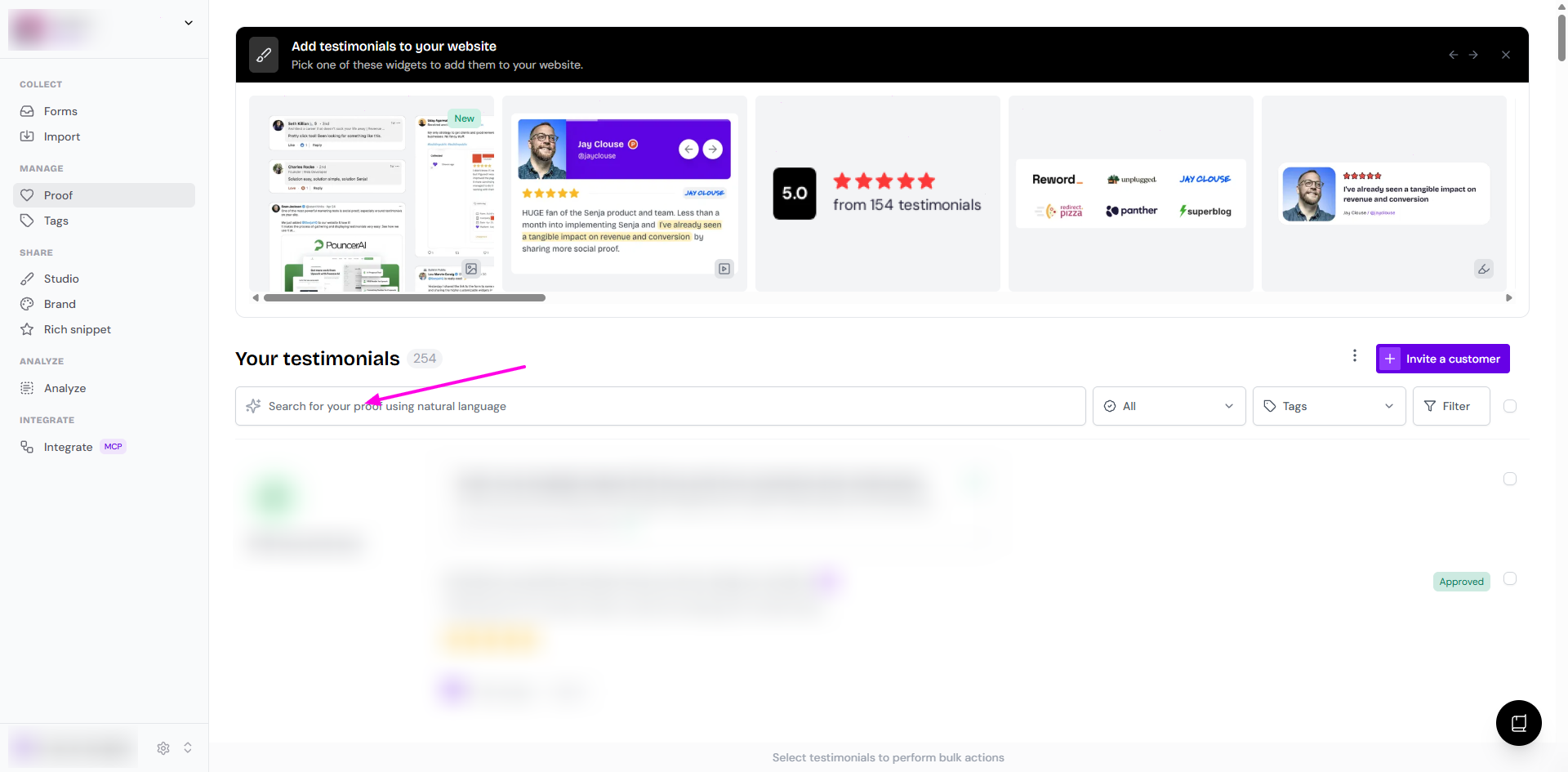
Results show up as you type or after you hit Enter, and they update when you change your search
Example searches
"Show me 5-star reviews mentioning speed"
"Find happy customer stories about our support team"
"Unapproved testimonials praising our pricing"
"Video testimonials from customers tagged well known"
"Recent testimonials from enterprise customers"
What you can search for
Content: words, phrases, and topics in the testimonial text
Type: video, text, or social shoutout
Themes: topics like pricing, usability, or support (based on your tags)
Dates: time periods like "last quarter" or "from 2024"
Tags: any tag you've created
Status: approved, unapproved, thanked, and not thanked
Search works best when your testimonials are tagged. See What are tags? How do I add a tag?
Filter testimonials
Use filters when you want exact control over what's shown.
Go to your Proof page: https://app.senja.io/
Use the status filters at the top for a quick view: All, Approved, Unapproved, Thanked, and Not thanked
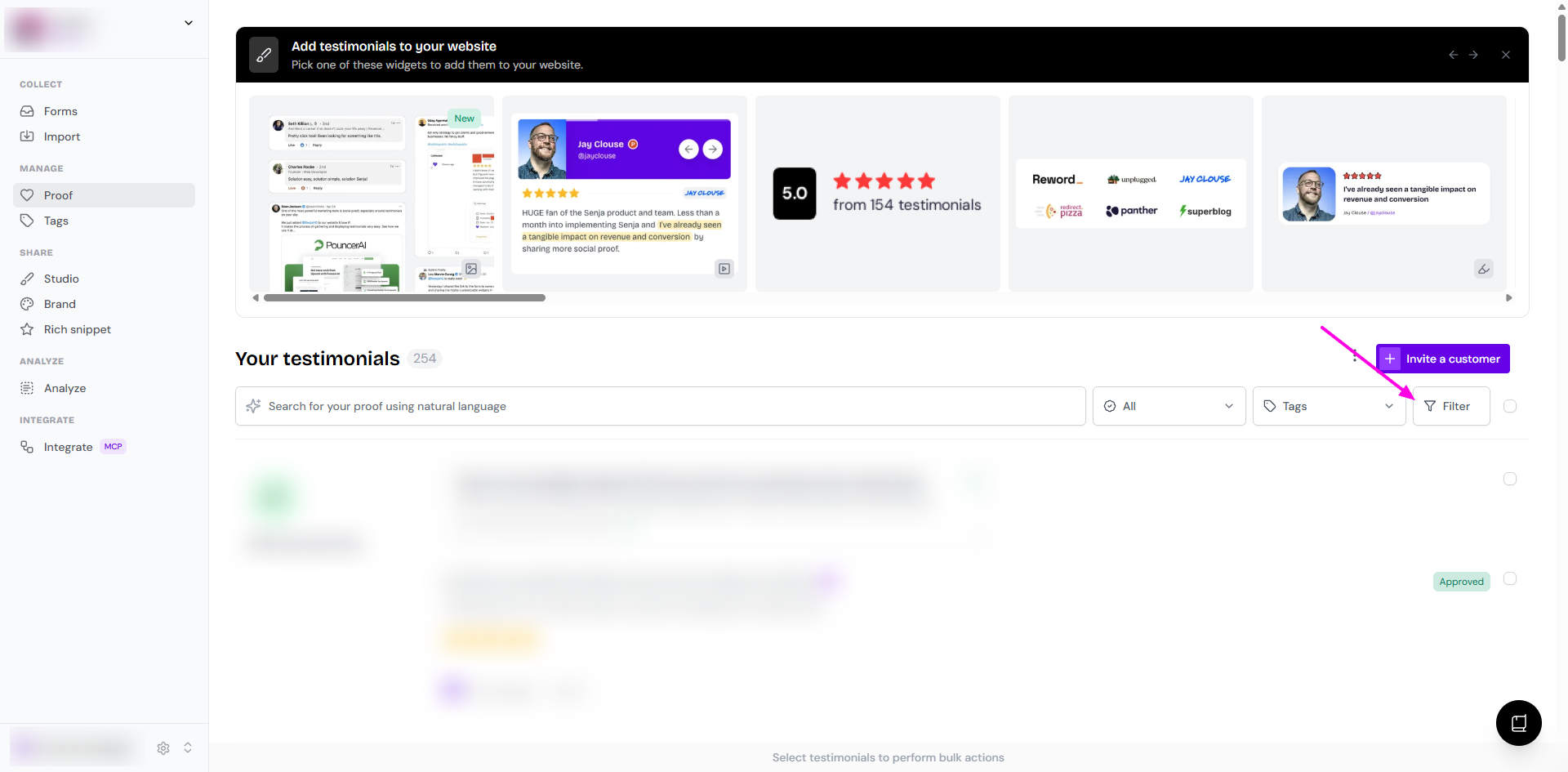
Click Filter to open the Search and Filter sidebar
Choose the filters you want
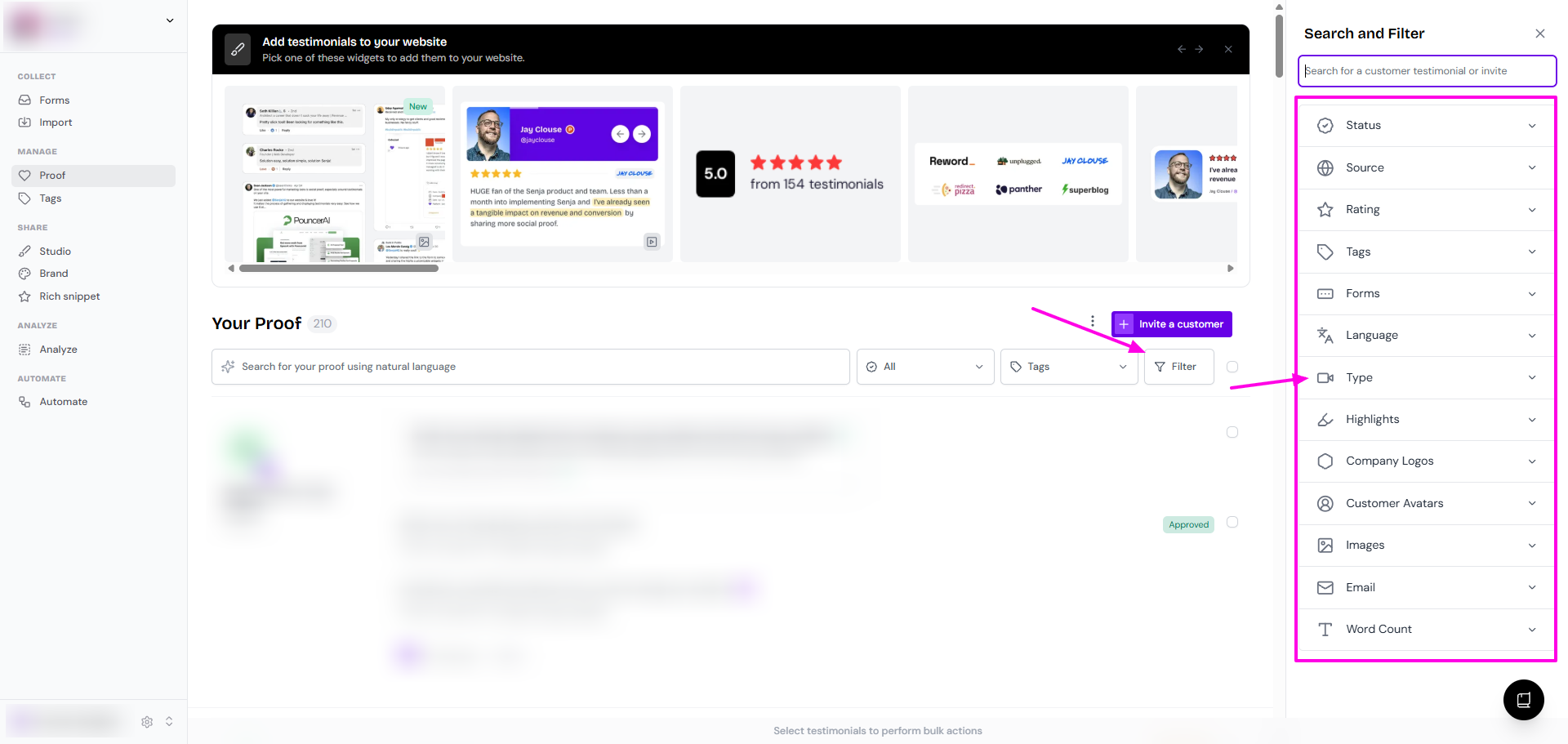
Available filters
Filter | Options |
|---|---|
Status | All, Approved, Unapproved, Thanked, Not thanked |
Source | Senja, Twitter, Product Hunt, and more |
Rating | 1 to 5 stars |
Tags | Pick one or more tags |
Forms | Pick one or more forms |
Language | English, German, French, and more |
Type | All, Text, Video |
Highlights | Only with highlights, Only without highlights |
Company Logos | Only with company logo, Only without company logo |
Customer Avatars | Only with avatar, Only without avatar |
Images | Only with images, Only without images |
Only with email, Only without email | |
Word Count | Min, Max, No limit |
Once your list is filtered, tick the checkbox next to Filter to select everything shown. Then you can approve, tag, export, merge, or delete them in one go.
Filter by several tags at once
By default, the tag filter uses OR, so you see testimonials that have any of the selected tags. Switch to AND to see only testimonials that have all of them.
Click Filter
Click Tags and set the toggle to AND
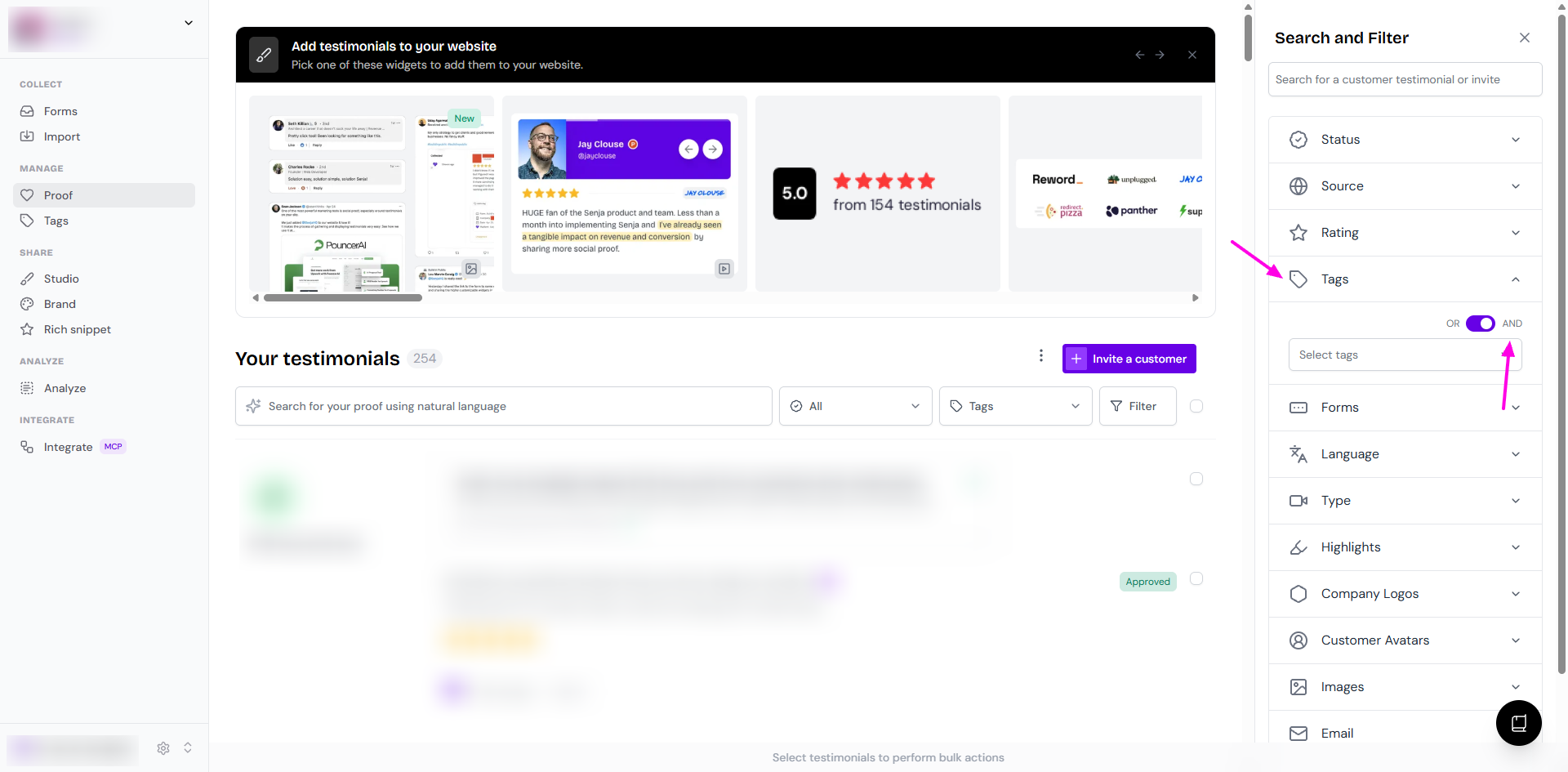
Select your tags from the dropdown
The list updates to show only testimonials with every selected tag
You can use the same AND filter when picking testimonials for a widget or Wall of Love. See Using tag filters in studios widgets.
Filter by consent
You can't filter testimonials by consent, either on the Proof page or in Studio.
Add a tag like Public, Private, or Granular to each testimonial instead, then filter by that tag.
See How do I find testimonials with public or private consent?
How testimonials are sorted
Testimonials are sorted by date, newest first. The date is when your customer gave the testimonial, not when you joined Senja or ran the import.
Where the testimonial came from | Date used |
|---|---|
Senja form | Submission date |
Auto-import | Date the customer posted it on the source platform |
Import from web | Date the customer posted it on the source platform |
Upload spreadsheet | Date in the CSV |
Manual import | Date you entered when importing |
You can't sort by name, platform, or rating, or switch to oldest first. Use filters to narrow the list instead.