
Customer details and privacy
Every testimonial has a customer page, and the customer's details sit on the left side of it: name, photo, email, company, consent, and more. This guide covers how to collect those details, edit them, keep customers private, and check what they agreed to.
This is available on all Senja plans: Free, Starter, and Pro.
Changes to customer details overwrite the old ones, and there's no history. If you might need the original details later, see Keep a record of the real name before you edit.
Where to find customer details
Go to your Proof page: https://app.senja.io/
Click a testimonial to open the customer page
The customer's details are on the left
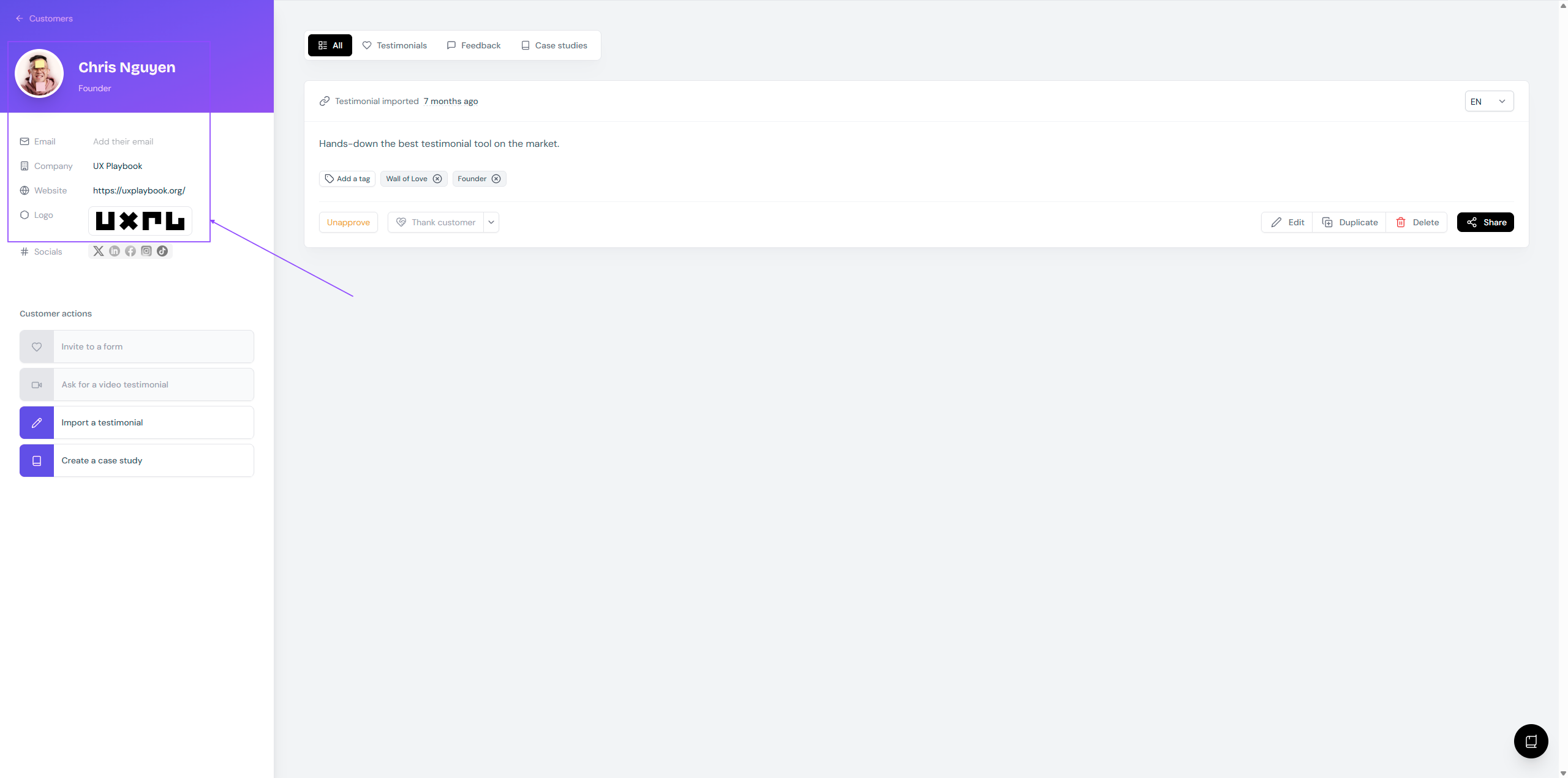
Everything customers submit through your form lands here, not on the Forms page.
Collect details with your form
Choose what customers fill in when you set up your form.
Go to your Forms page: https://app.senja.io/forms
Open your form or create a new one
Go to the Form tab
About you page: customer name, email, and other personal details. Turn Customer email on or off here.
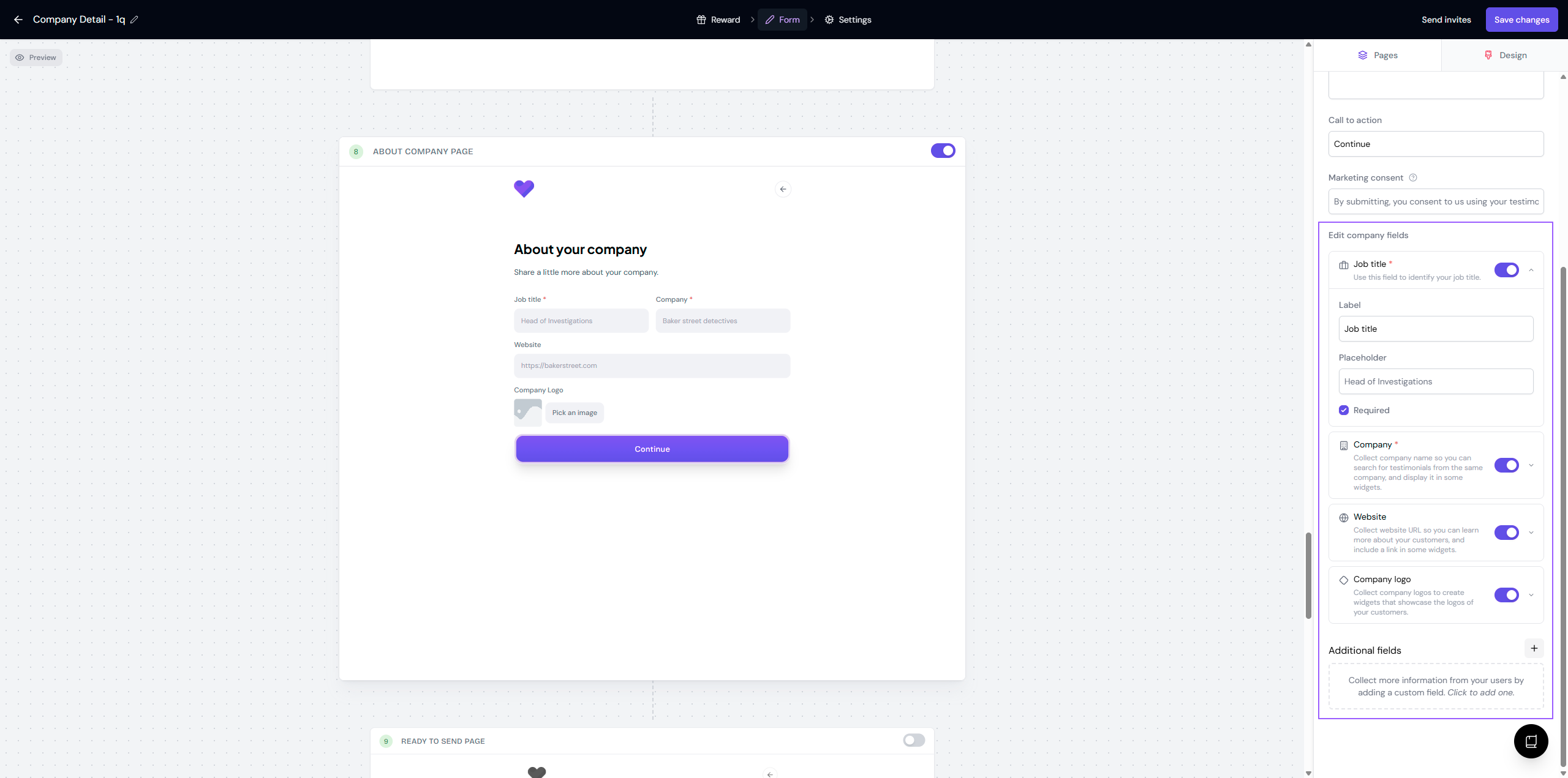
About company page:
Set the About company page toggle on
Pick the fields you want from the right sidebar: Job title, Company, Website, and Company logo
Add Additional fields if you need more
Toggle off any field you don't want
Tick Required to make a field mandatory
Click Save changes
Add or edit details yourself
Open the customer page from your Proof page
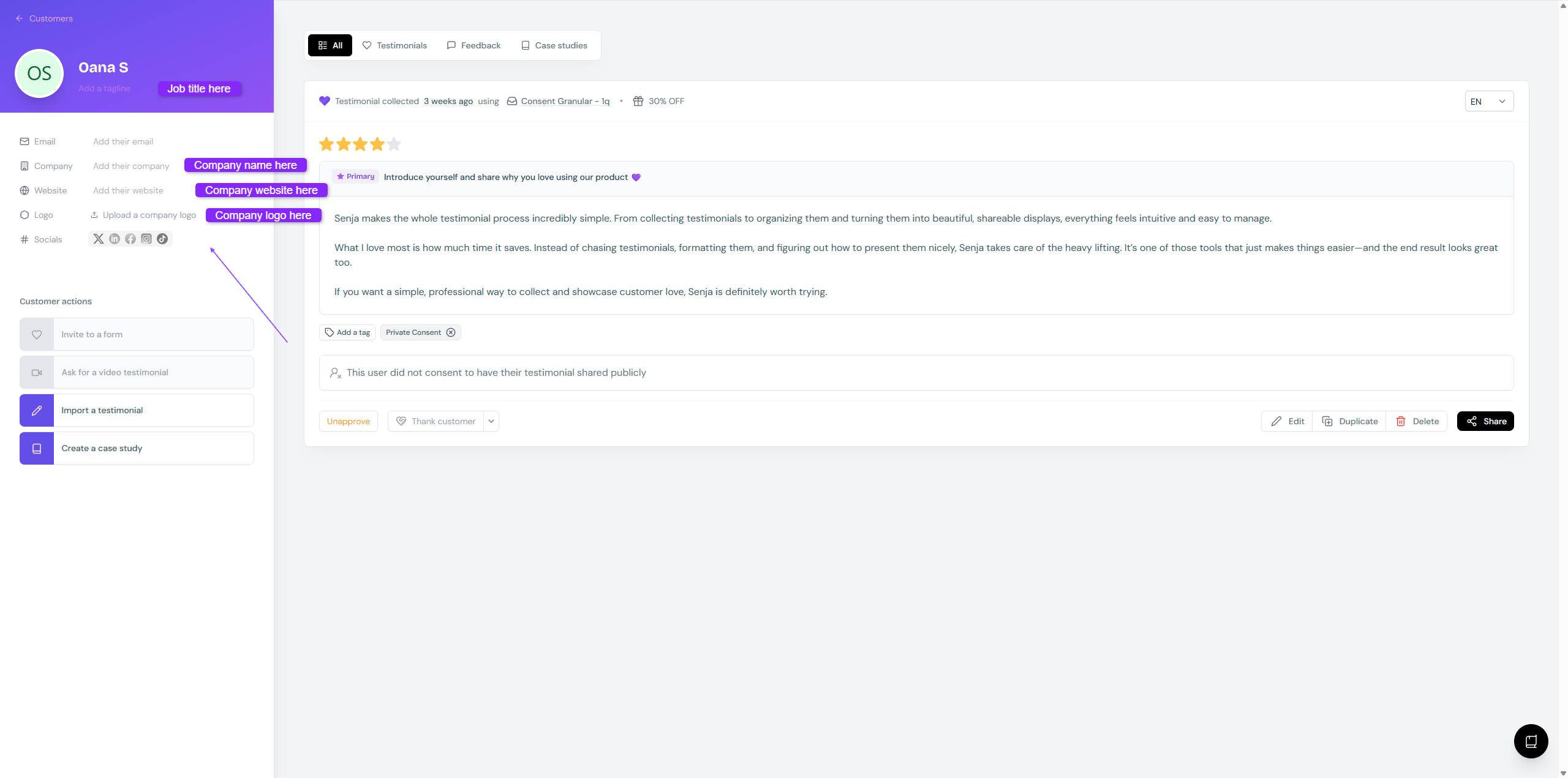
Add or update the details on the left: photo, name, tagline, email, job title, company, website, and company logo
Show company details publicly
Widgets can show the job title and company logo. Walls of Love can show the job title, company name, and company logo.
See Can I show company logo and name in Senja widgets?
Keep customers private
Some businesses need to protect their customers' identity. Here's how to show initials, go fully anonymous, or remove an email address.
Set up your form for privacy
The easiest way is to plan for privacy before testimonials come in, so you don't have to fix each one later.
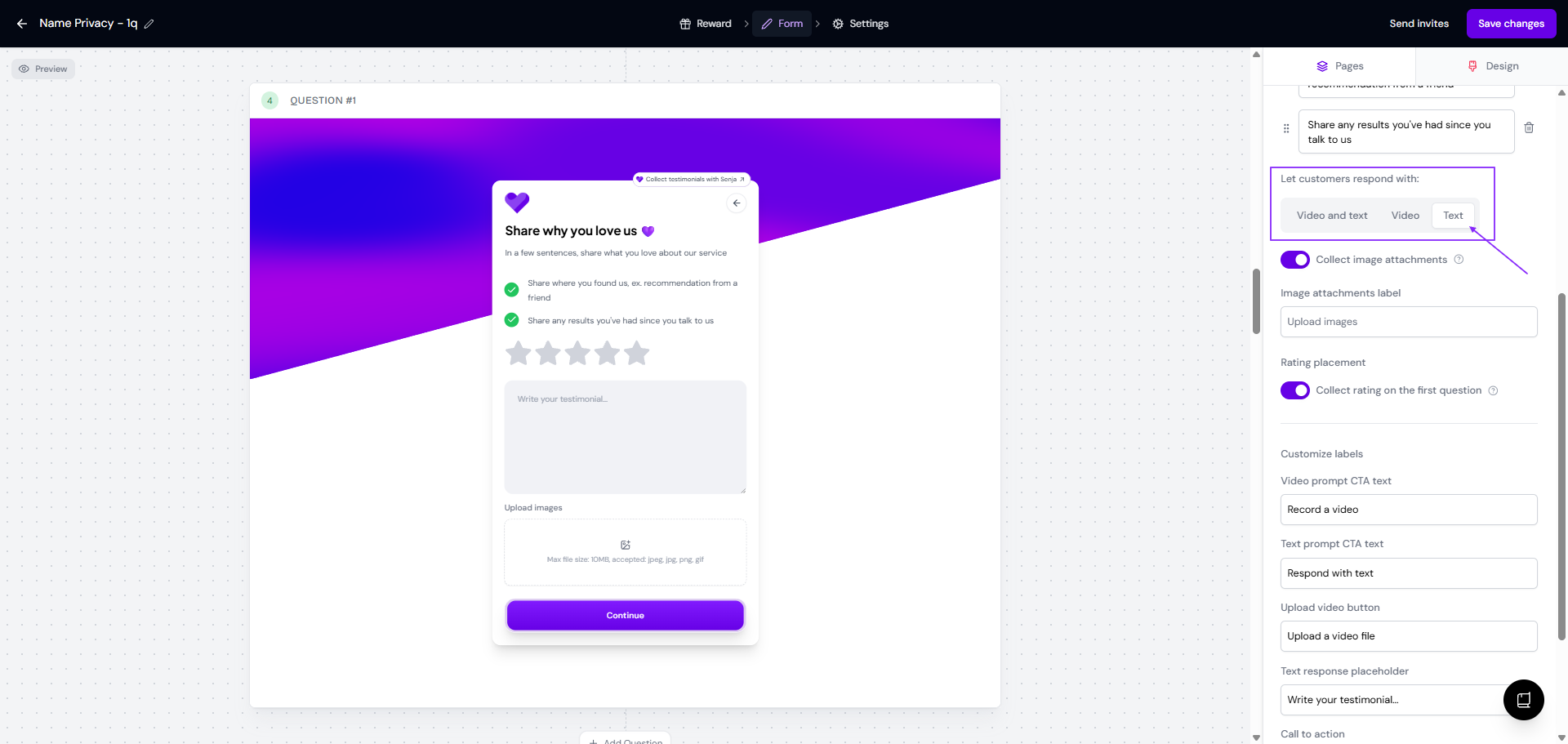
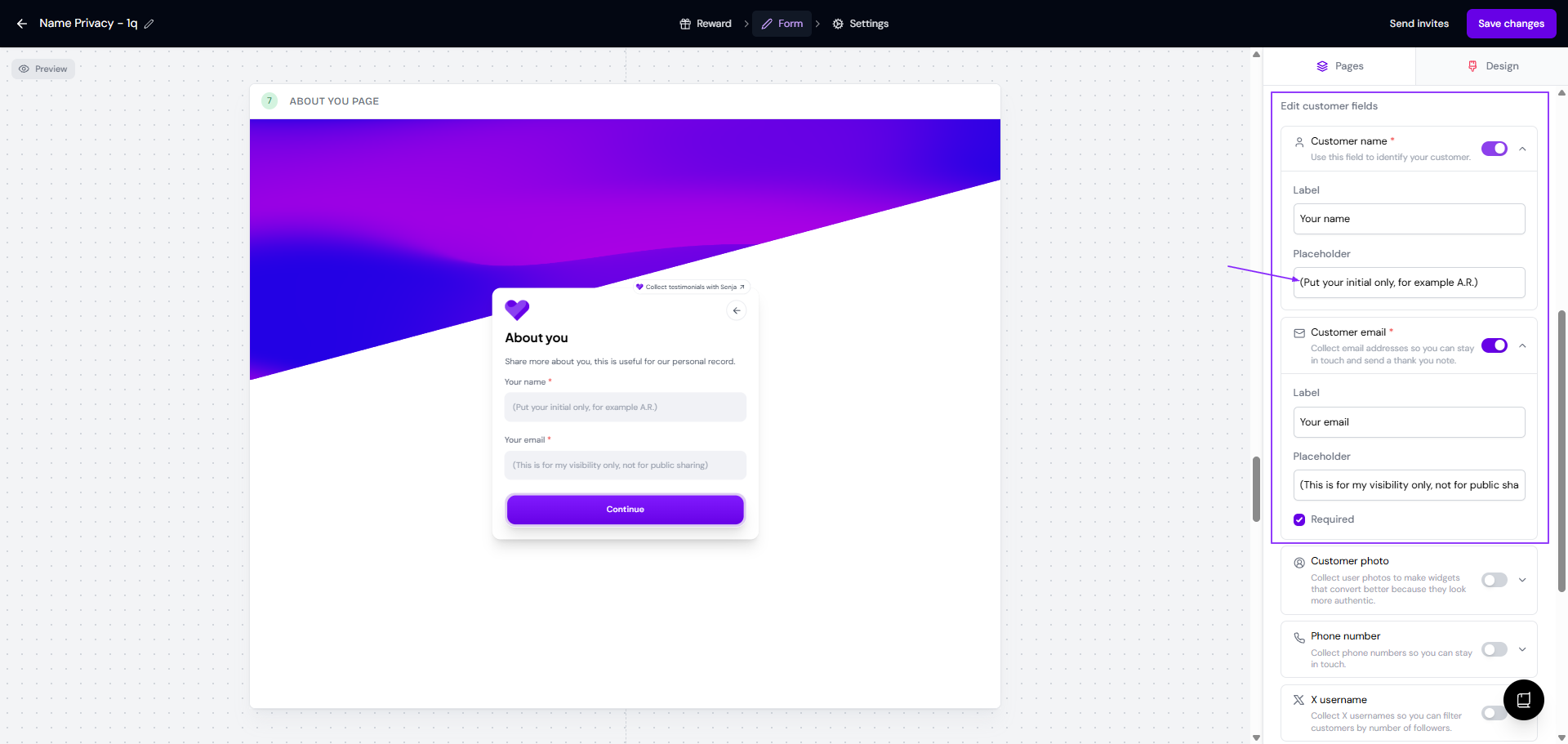
On the Question page, turn on only Text under Let customers respond with
On the About you page, tell customers how to write their name in the Customer name field (for example, initials only)
Make Customer email required, so you still know who submitted each testimonial
Change a name to initials or "Anonymous"
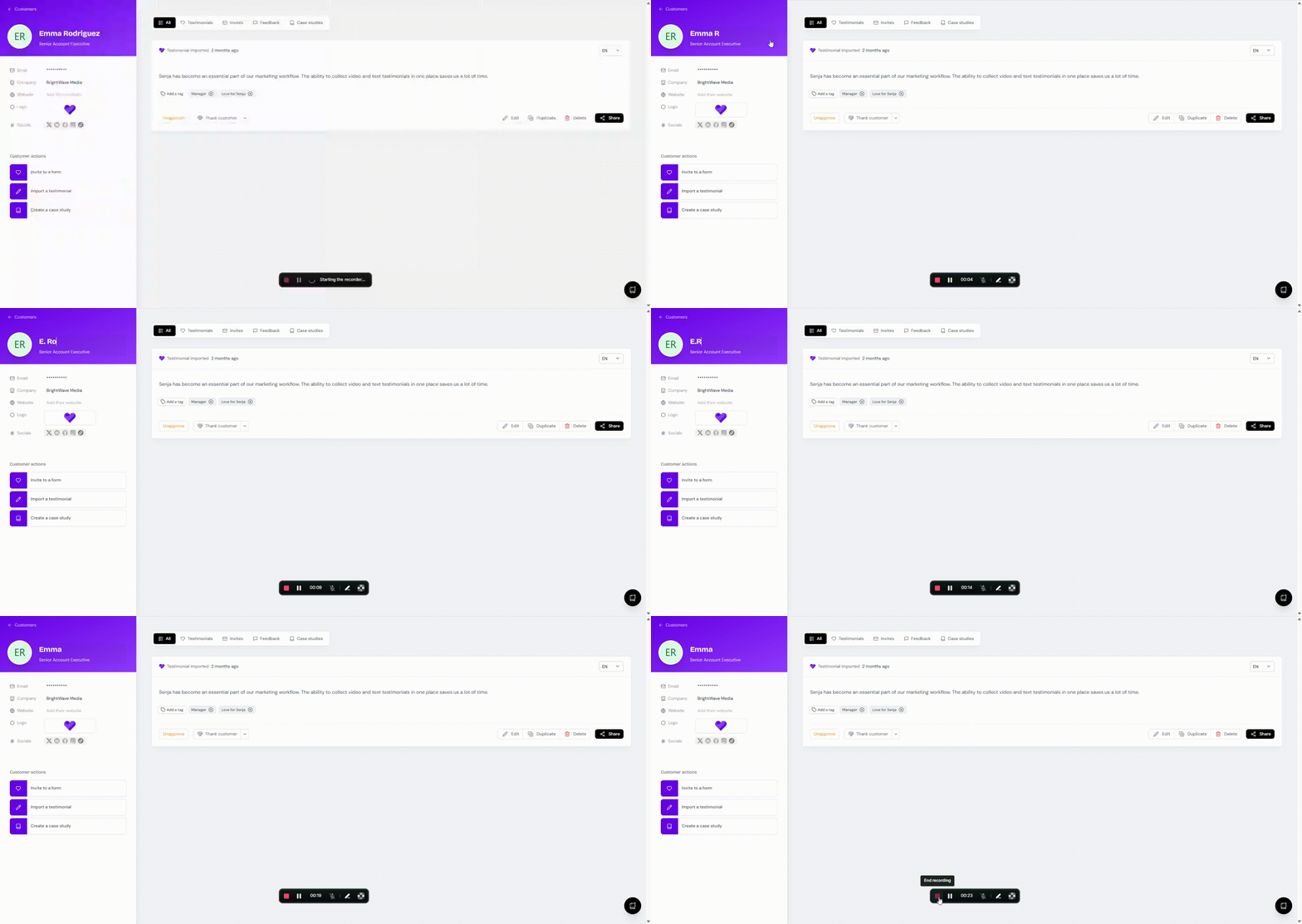
Open the customer page
Change the name to initials, or to Anonymous
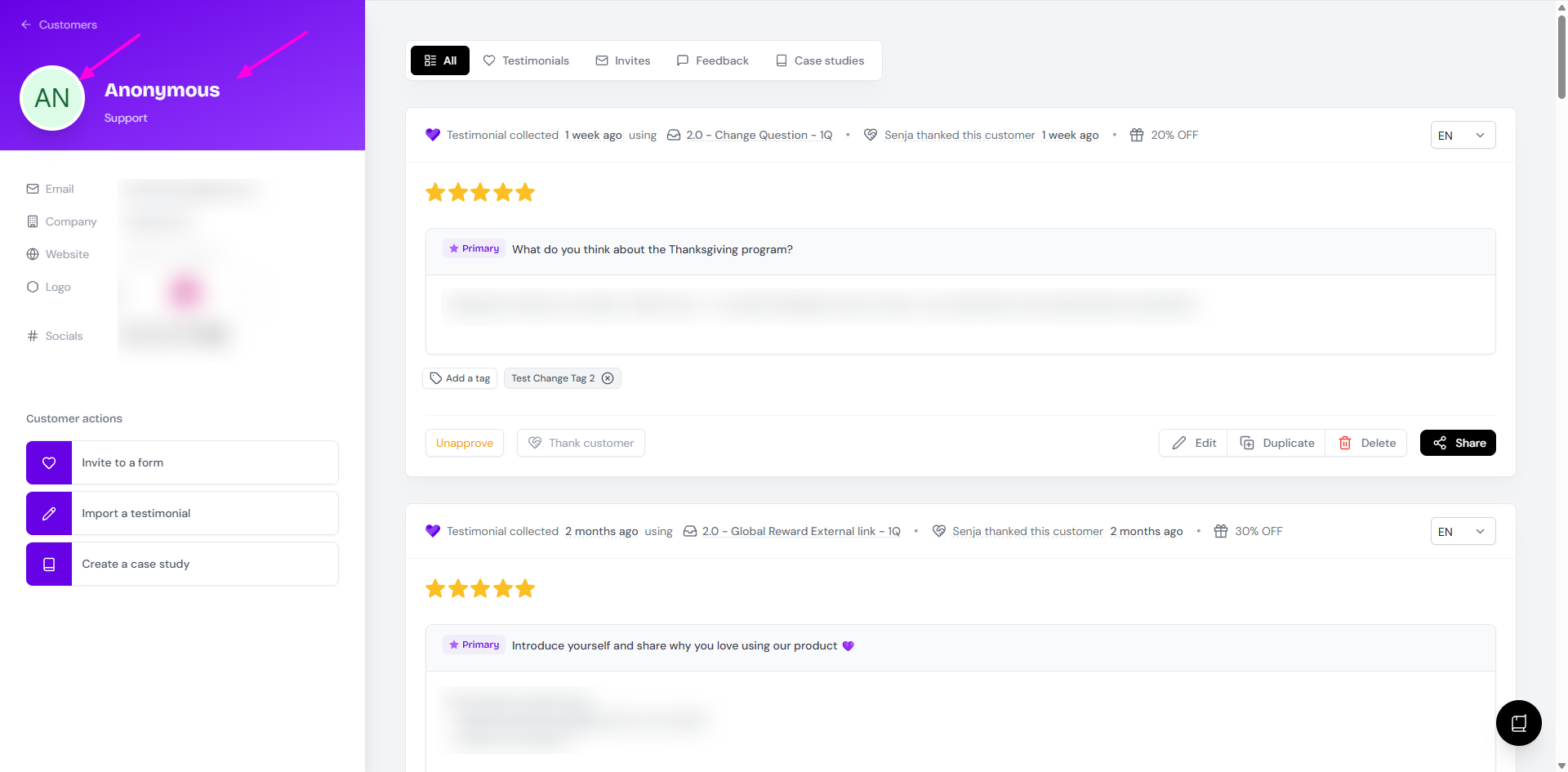
For full anonymity, remove the customer's photo too
Change many names at once
Names have to be changed one at a time in the app. If you have a lot of them, re-importing is faster:
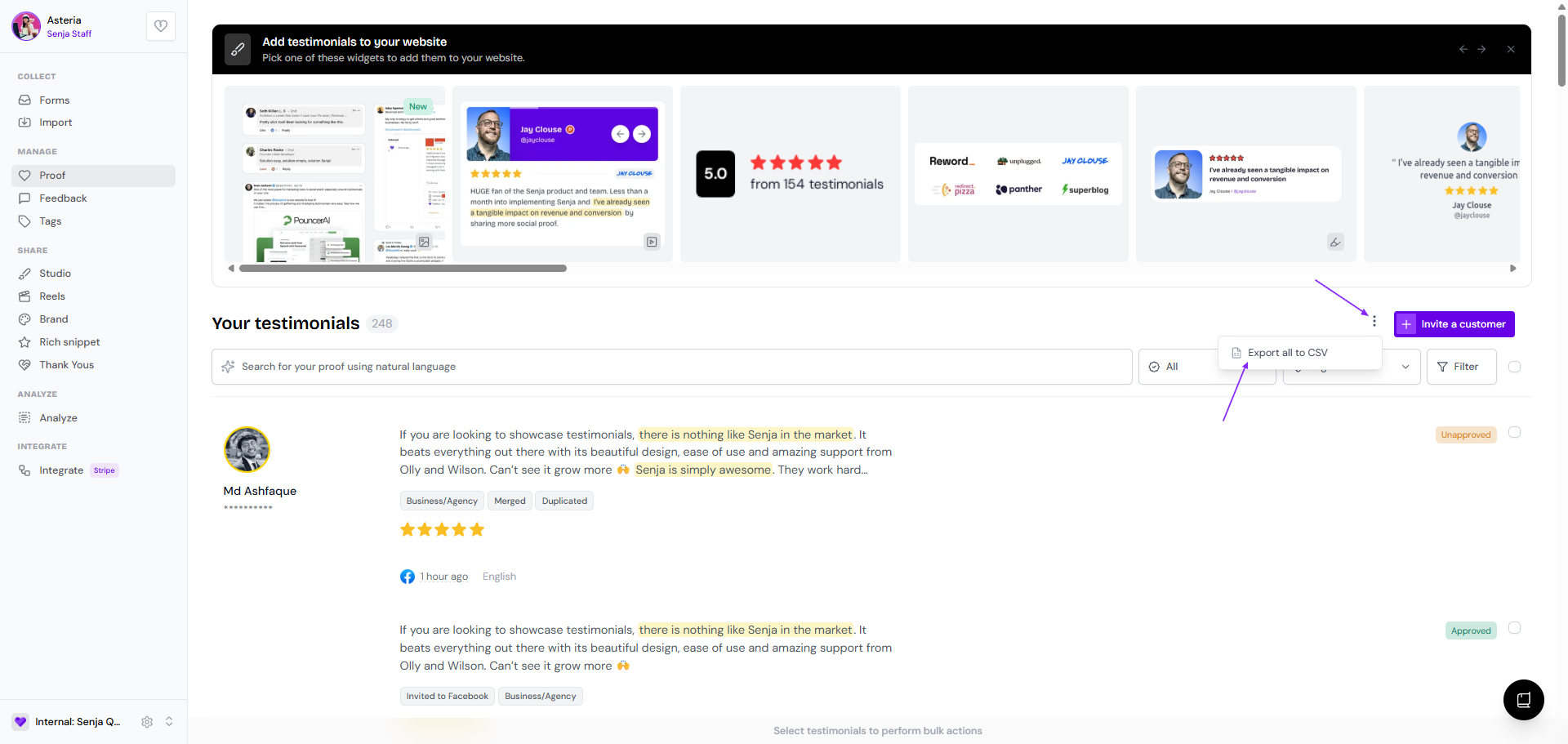
On your Proof page, click the 3-dots next to Invite a customer → Export all to CSV
In the CSV, change the names in the Customer_name column
Delete the original testimonials from your Proof page, so you don't end up with duplicates
Import the updated CSV, see Can I import testimonials in bulk?
Deleting is permanent, so check the CSV before you delete anything. Multiclip videos aren't included in the CSV, so they won't come back after re-importing.
Keep a record of the real name
Once you change a name, the original is gone. To keep a record:
Open the customer page and click Duplicate
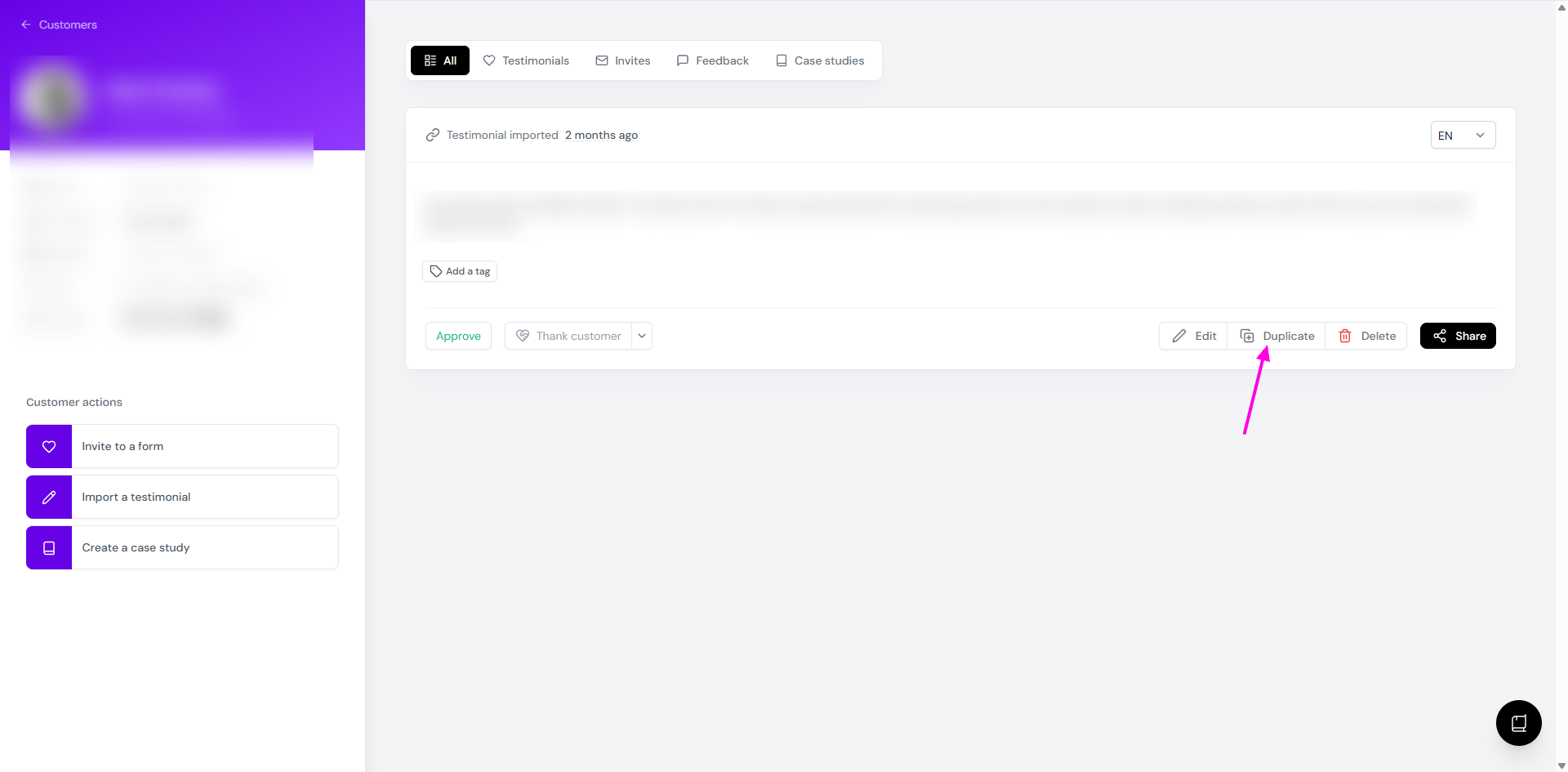
Add a tag to the copy, like Internal record
Click Edit on the copy and add the customer's real name to the testimonial text
Don't add the copy to any widget or Wall of Love, since it has the real name in it. Leave it Unapproved so it can't be used in Studio.
Remove a customer's email
Open the customer page
Delete the email address from the details on the left
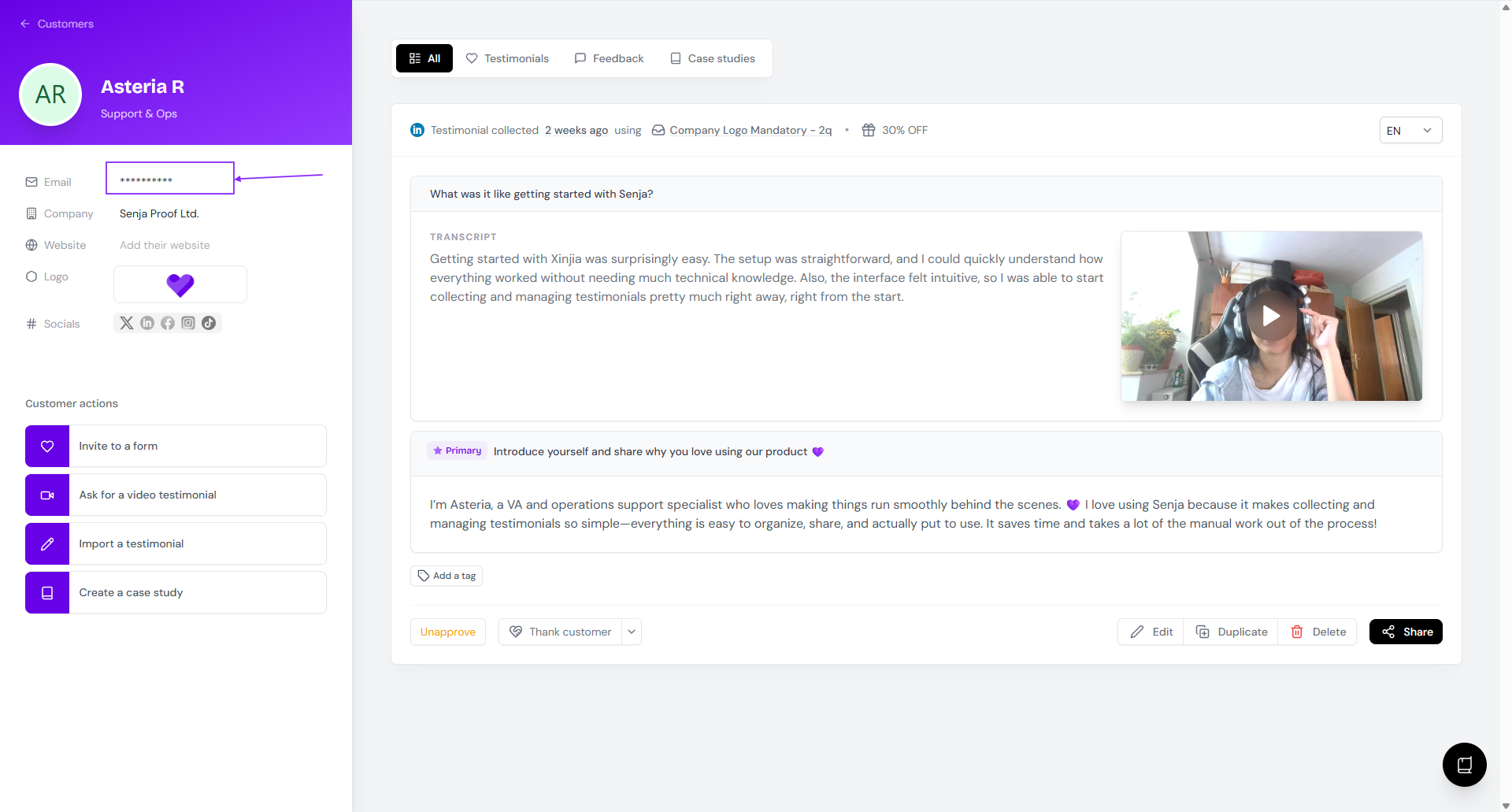
You can only remove an email from the customer page. Form submissions are stored on the Proof page, so there's nothing to delete on the Forms page.
To stop collecting emails:
Open your form from the Forms page
Go to the Form tab → About you page
Turn Customer email off
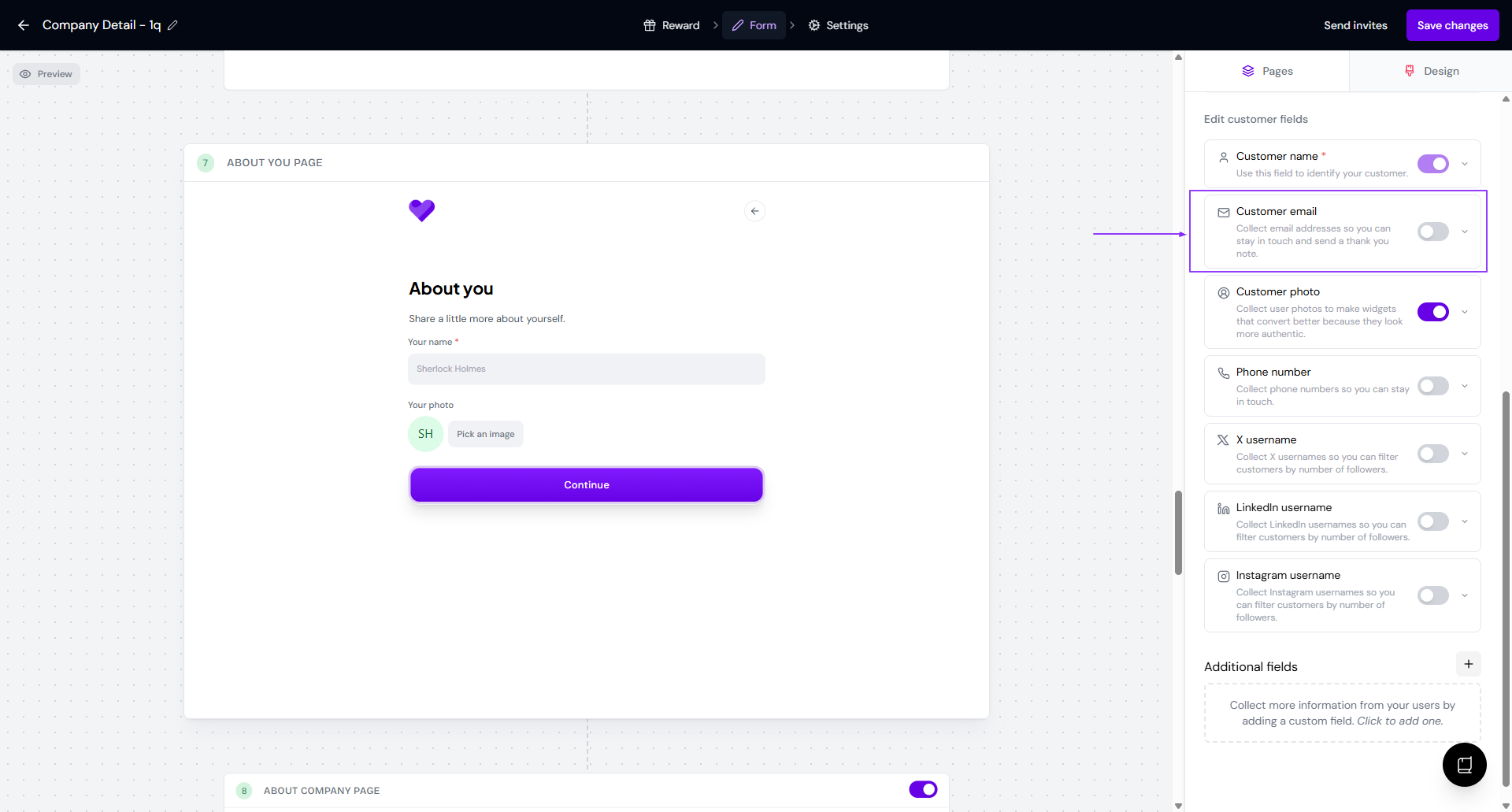
Without an email address, you can't use Thank customer to send a thank-you note. See How do I send a thank you note from Proof page?
Check customer consent
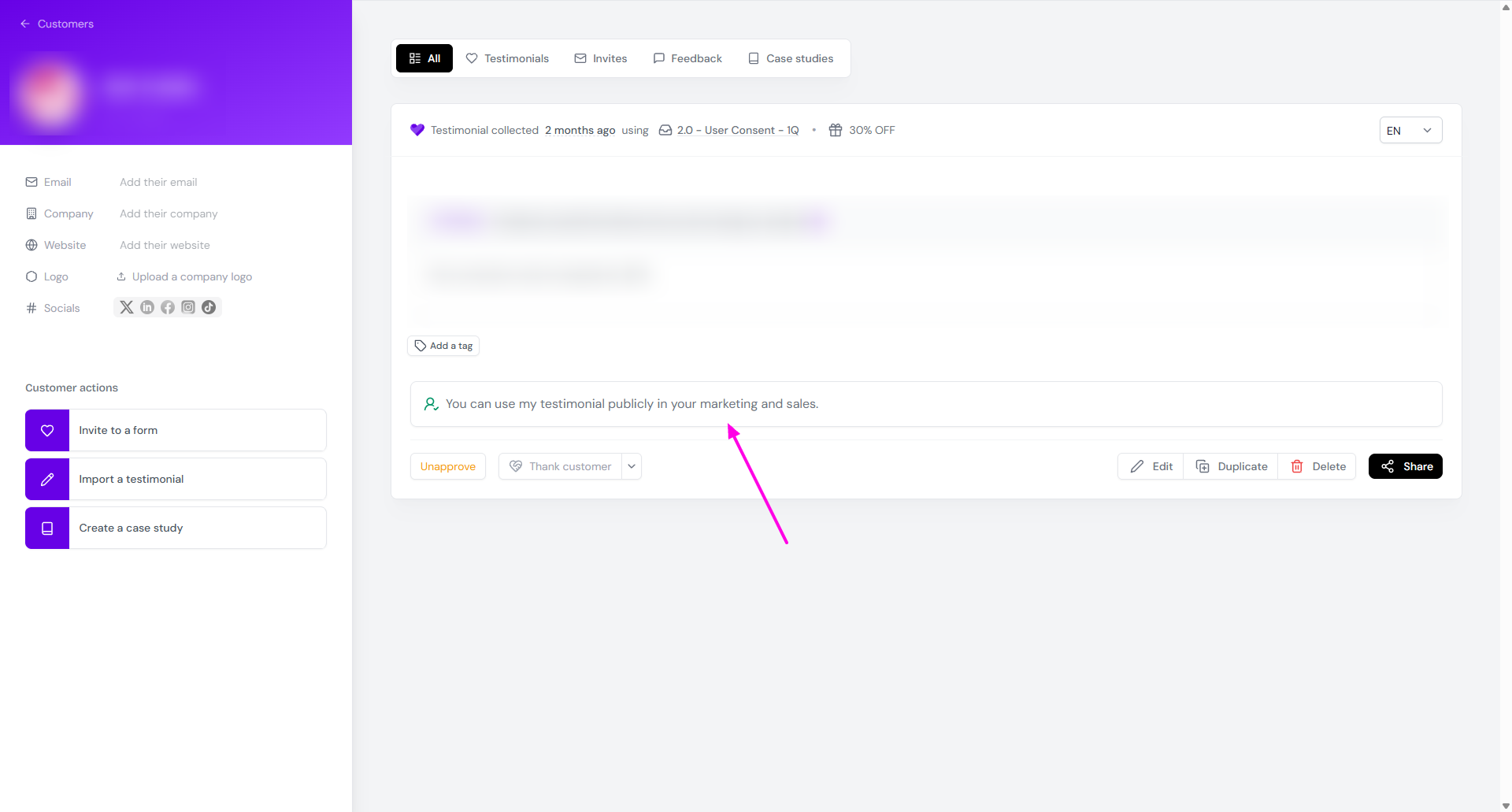
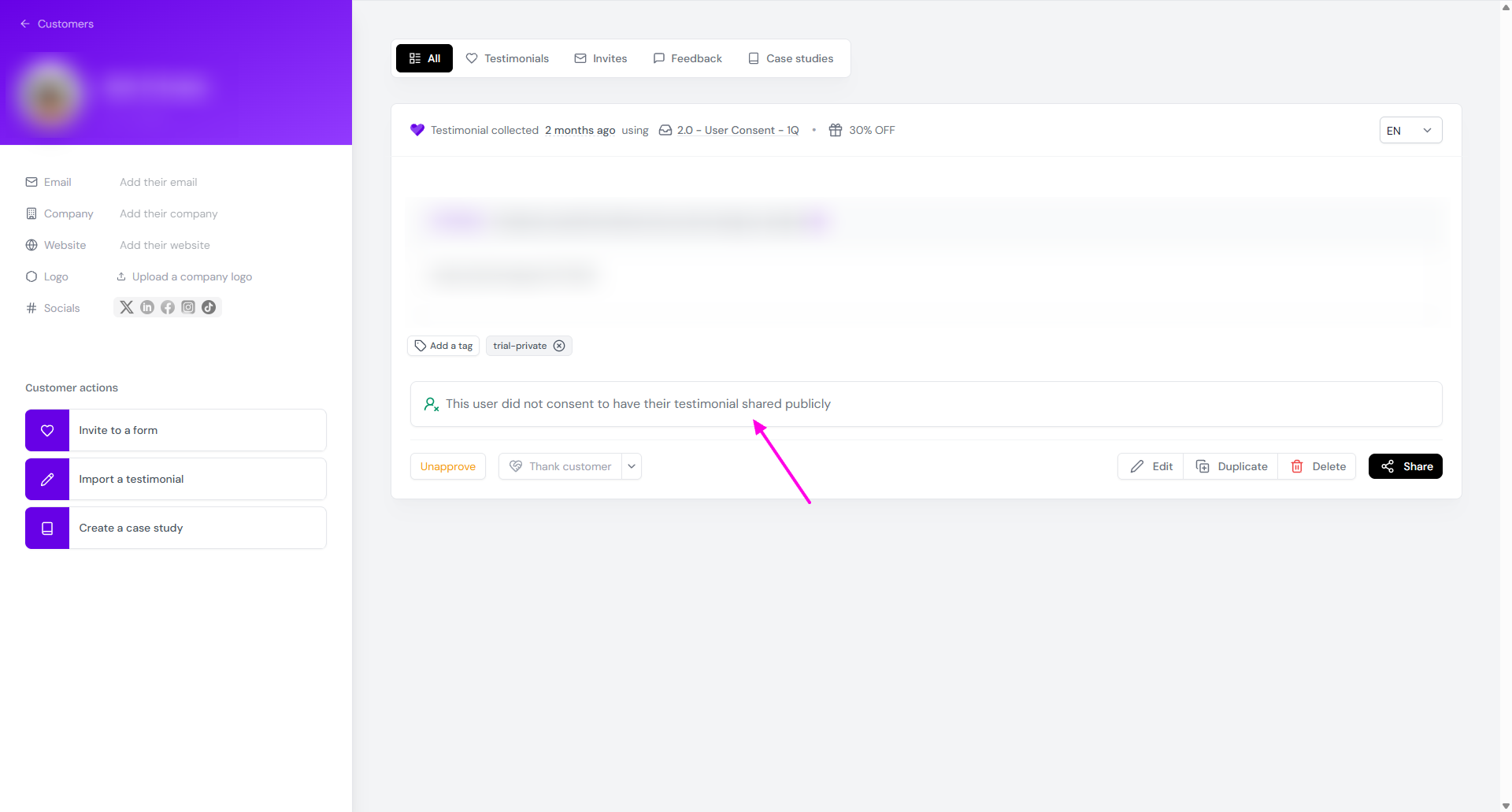
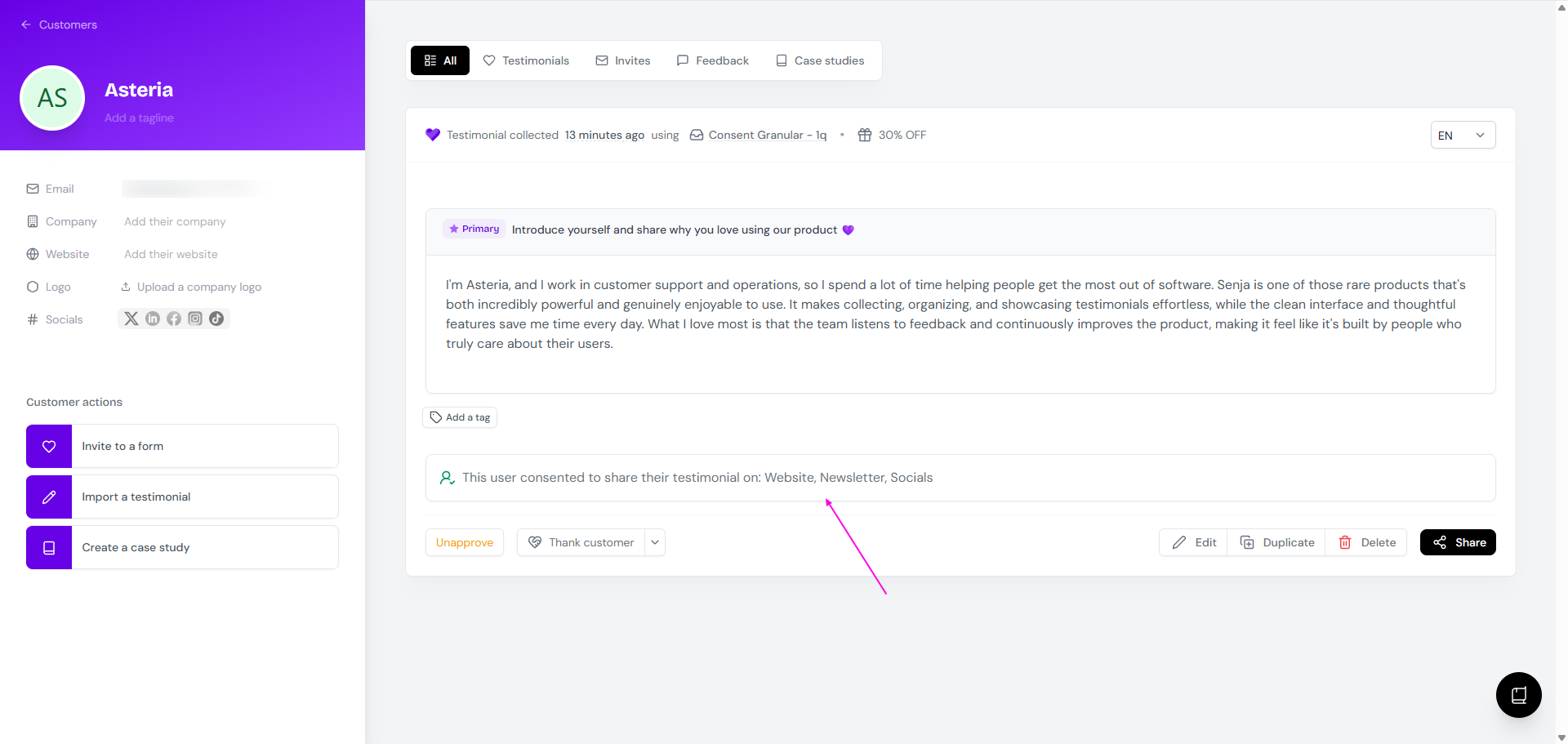
If your form has a Consent page, the customer's answer shows under their testimonial:
Consent | What you'll see |
|---|---|
Public | You can use my testimonial publicly in your marketing and sales |
Private | This user did not consent to have their testimonial shared publicly |
Granular | This user consented to share their testimonial on: ... |
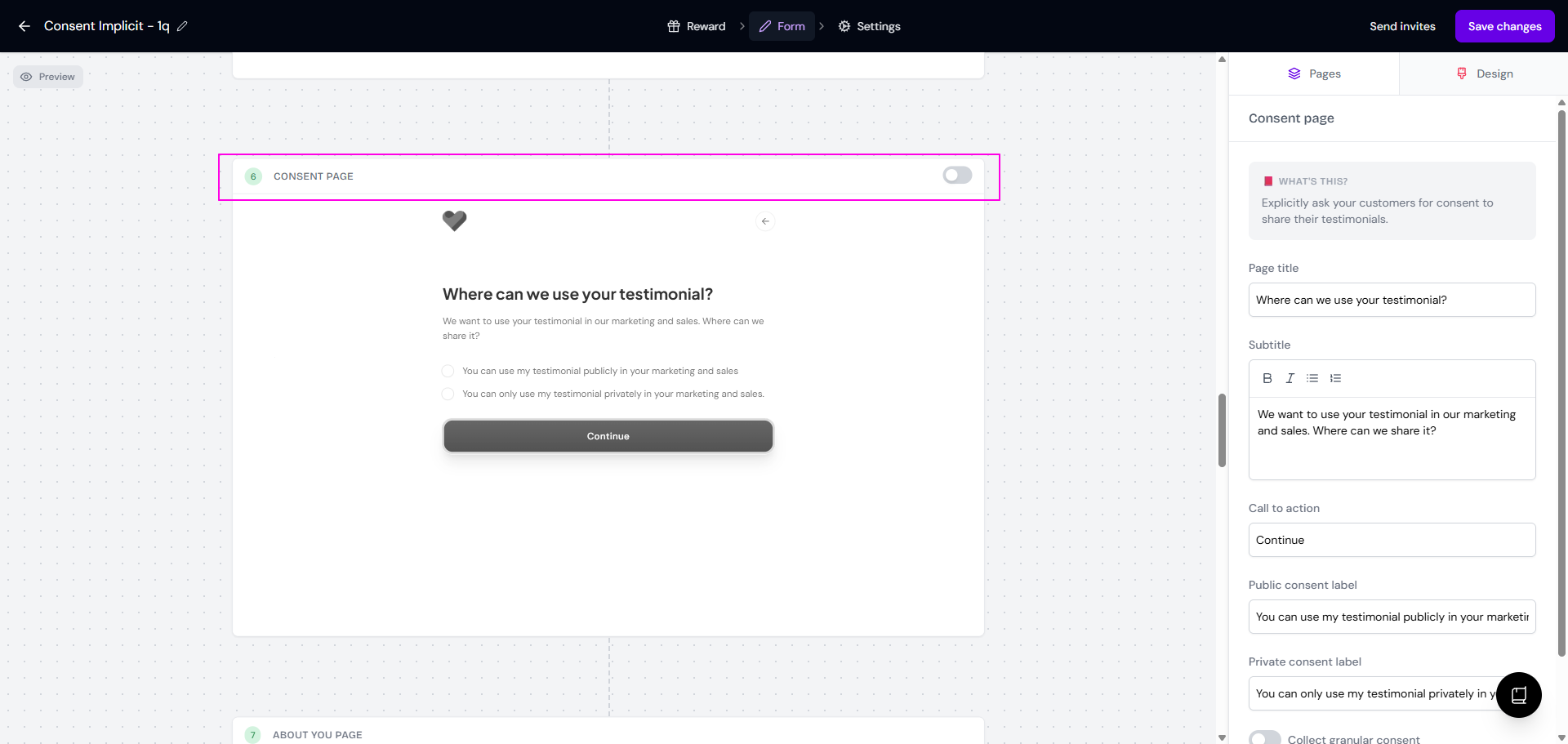
With the consent page on
In your form
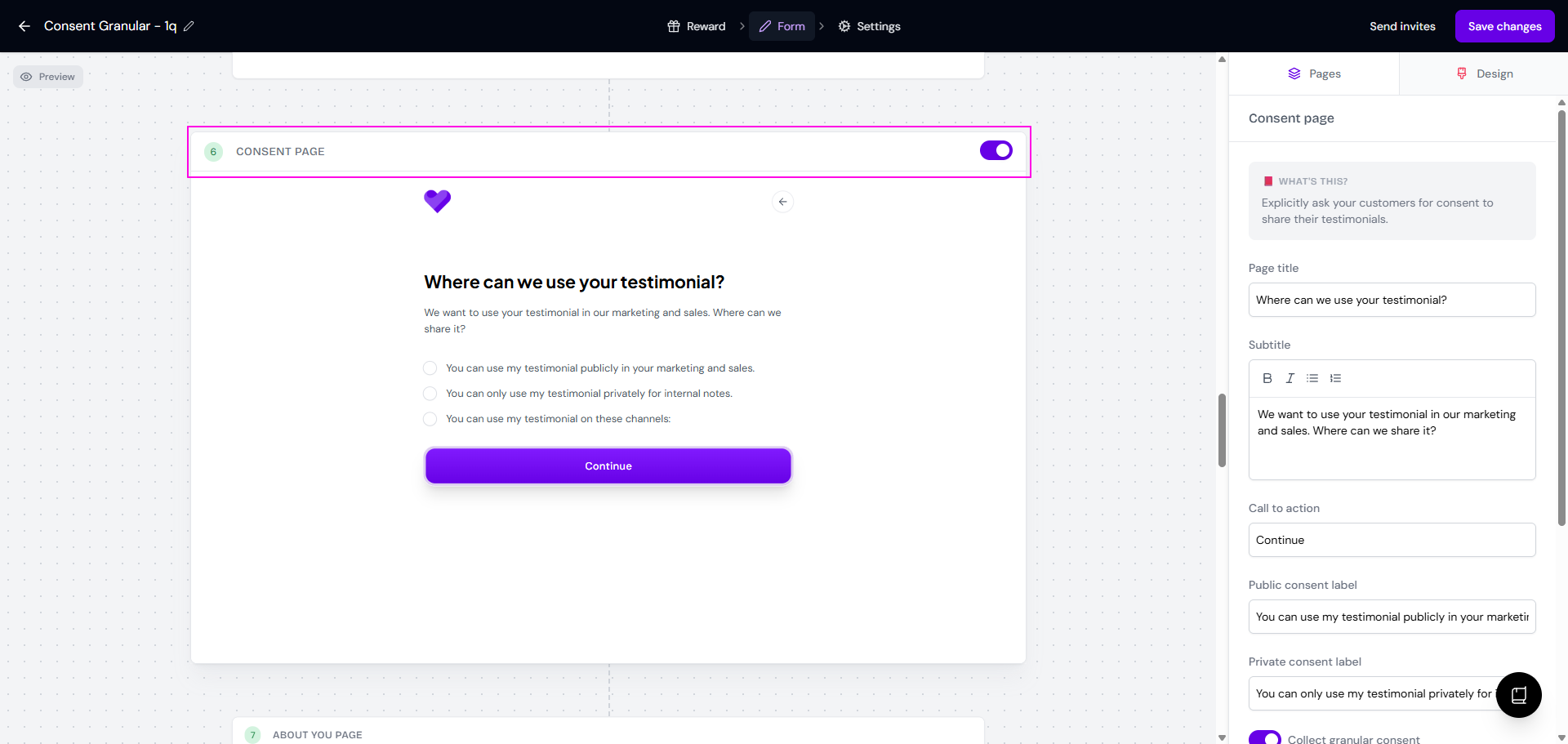
On the customer page, public consent
Private consent
Granular consent
With the consent page off
In your form
On the customer page
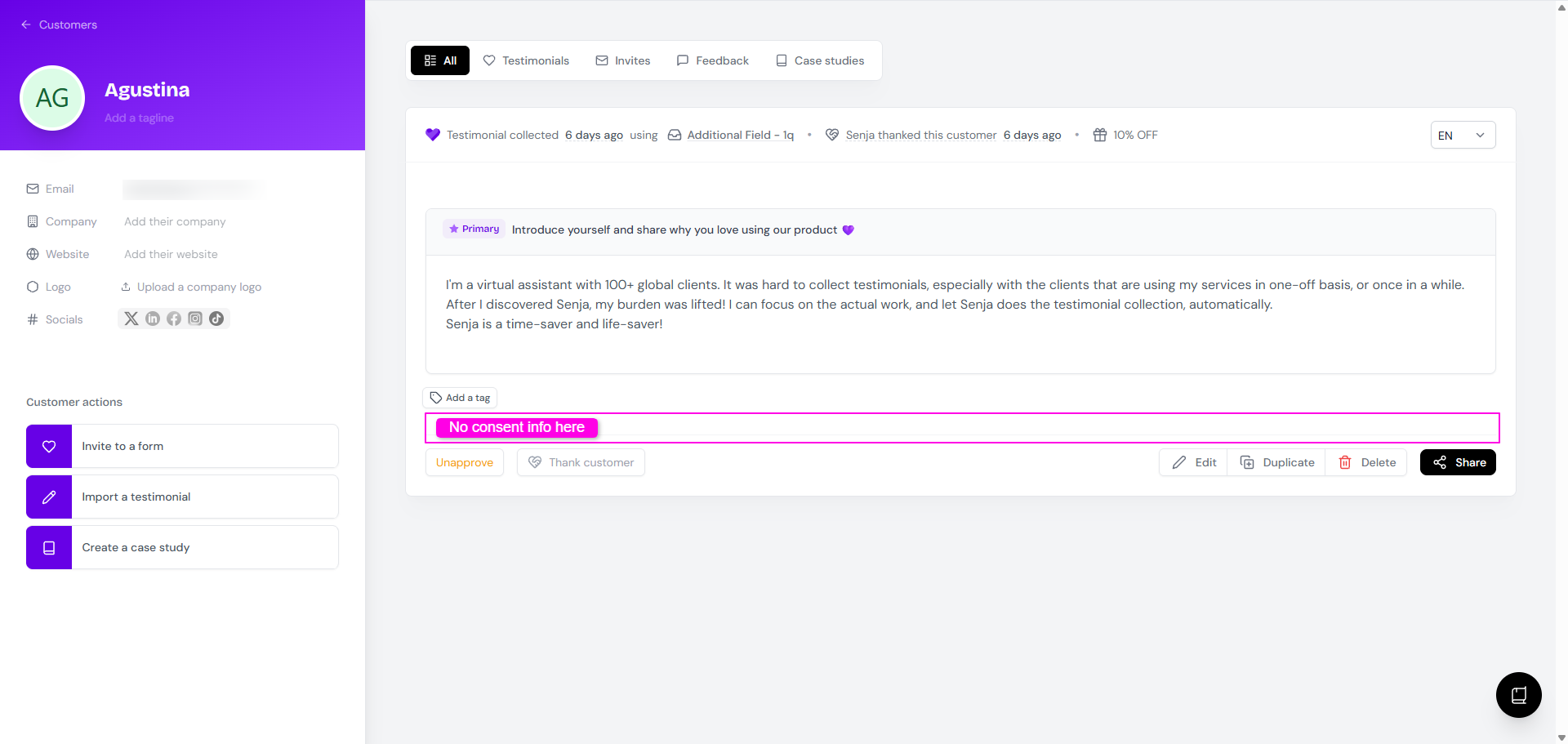
Find testimonials by consent
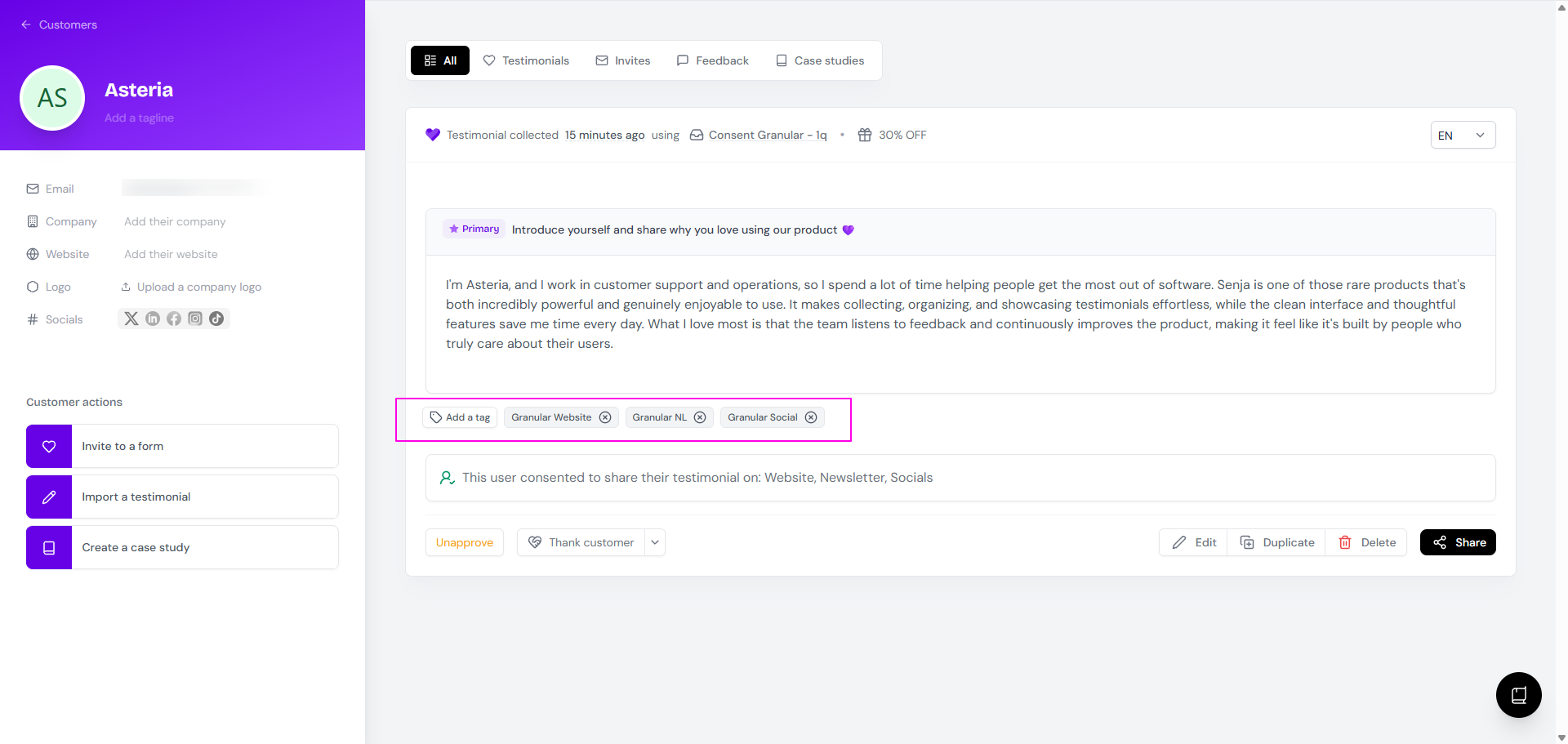
You can't filter by consent on the Proof page or in Studio. Tag testimonials instead:
Open the customer page
Add a tag like Public, Private, or Granular
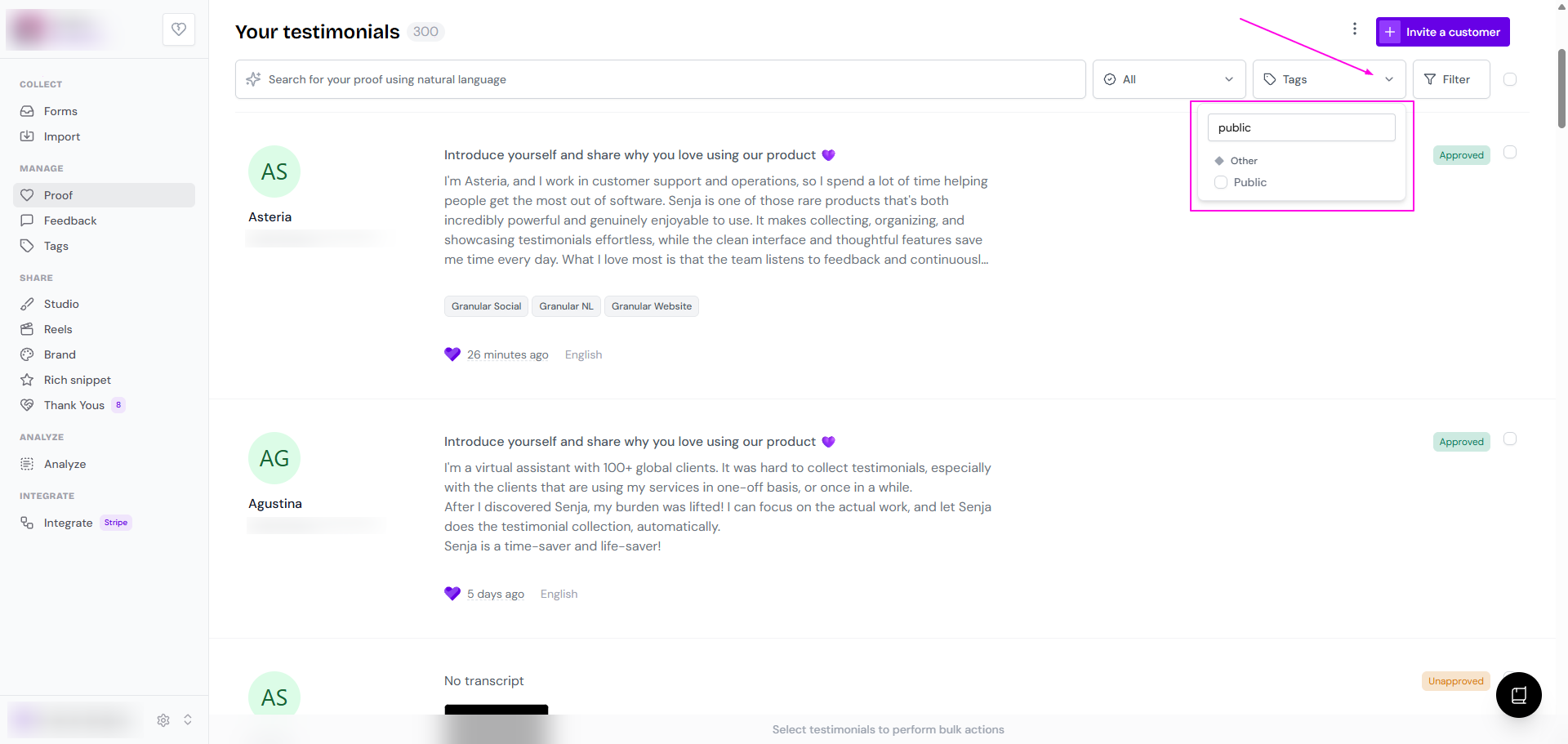
Filter by that tag on your Proof page
Tag several testimonials at once, see How to add tags to multiple testimonials at once