
How to connect Stripe to Senja
Connect Stripe so Senja can ask your paying customers for a testimonial automatically, right after they buy. Once it’s connected, you can also send personal coupon codes with your Thank Yous, and see new customers waiting to be thanked.
This is applicable to Senja paid plans (Starter and Pro).
What Stripe does in Senja
Sends testimonial invites when a customer pays, subscribes or renews, based on rules you set for each form
Skips customers who leave: if a customer gets a refund, opens a dispute or cancels their subscription, Senja stops their follow-up reminders
Creates thank you coupons: attach a personal promo code to a thank you, and see when the customer uses it
Shows new customers in Thank Yous → Not thanked, so you can thank them by hand or automatically
Connect your Stripe account
Senja connects with a restricted key, so it only gets the permissions it needs.
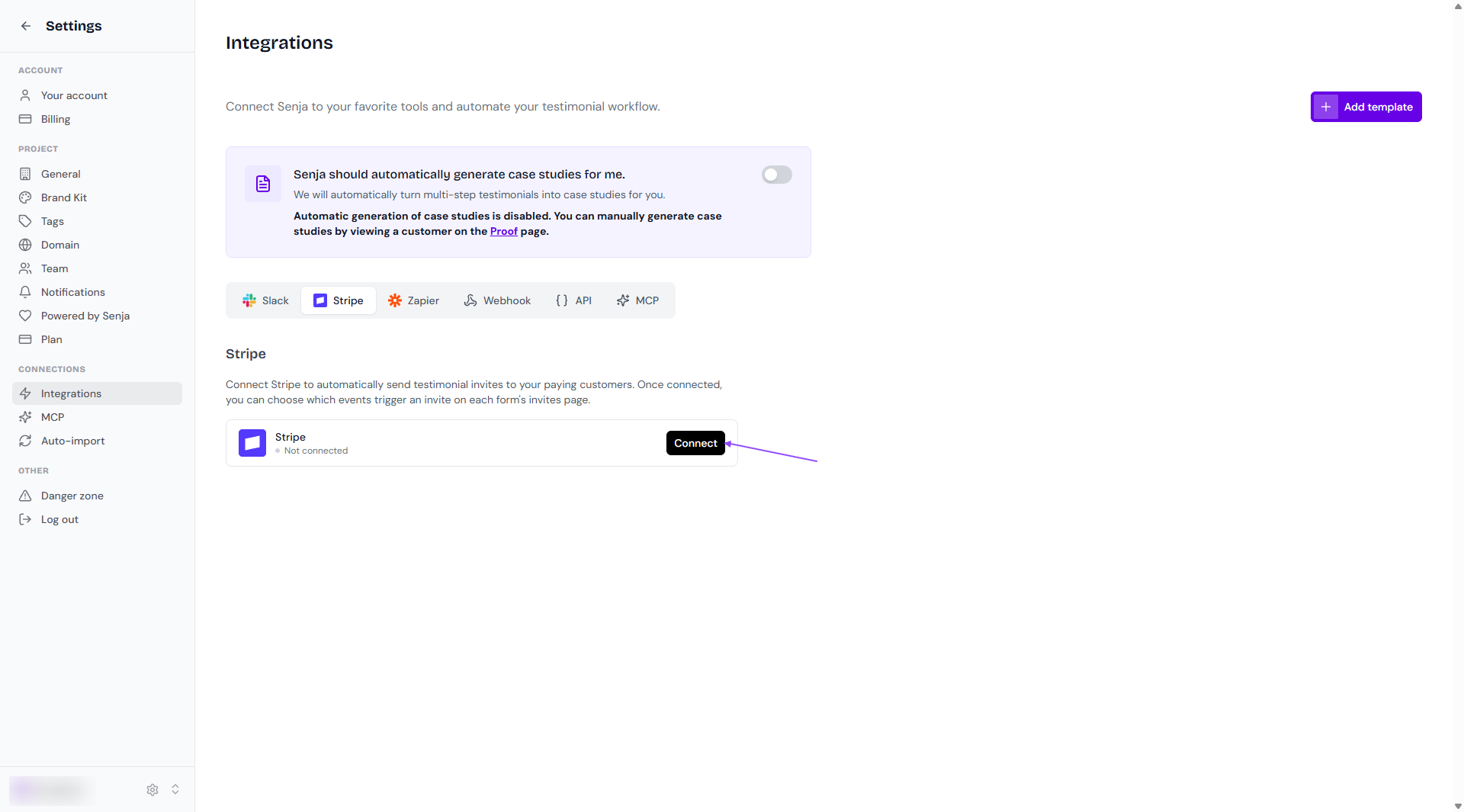
Go to Settings → Integrations and click the Stripe tab
Click Connect
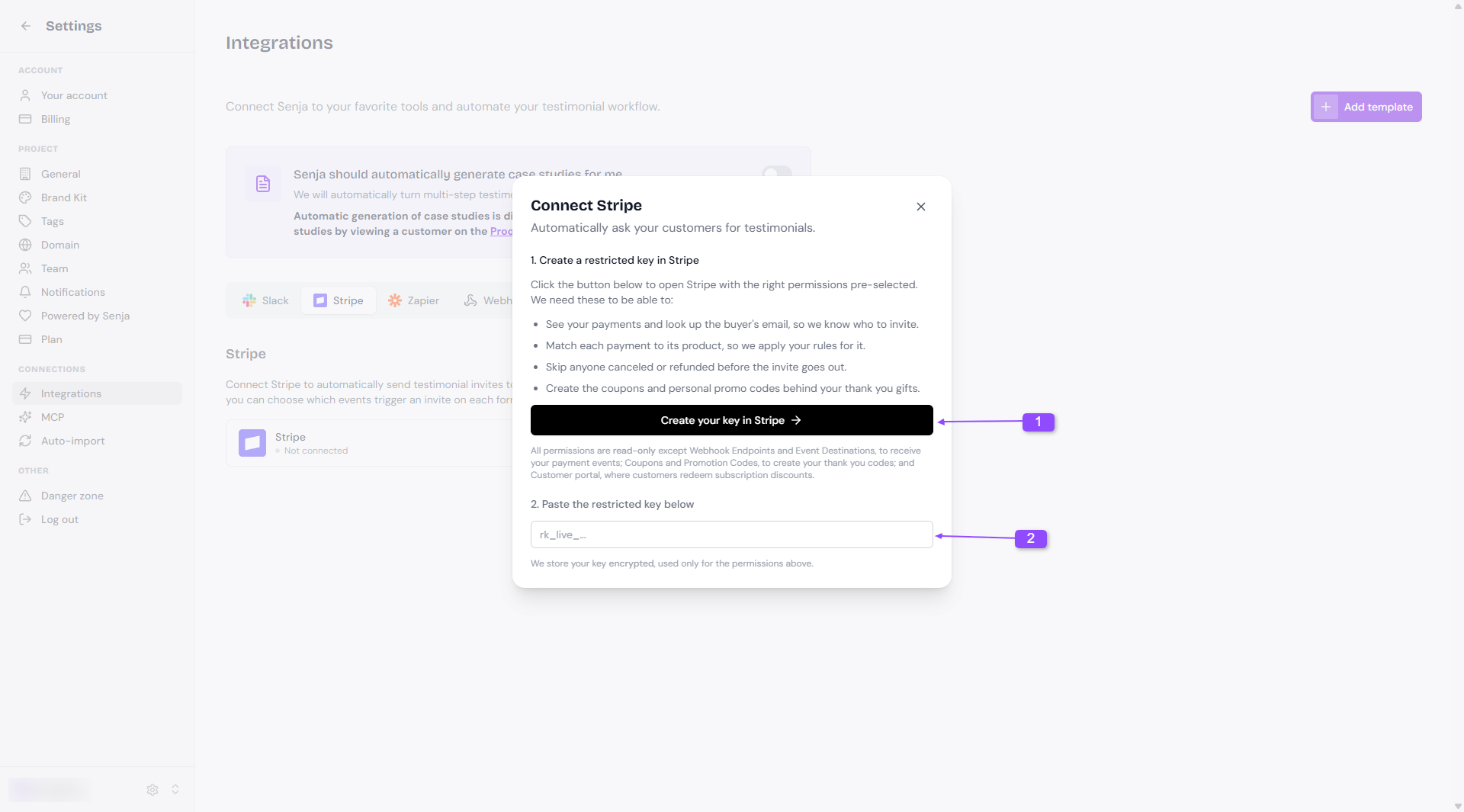
Click Create your key in Stripe. Stripe opens with the right permissions already selected
Create the key in Stripe and copy it - it starts with
rk_live_Back in Senja, paste the key under Paste the restricted key below
What Senja can access
The key lets Senja:
See your payments and the buyer’s email, so it knows who to invite
Match each payment to its product, so it applies the right rules
Skip anyone who cancelled or got a refund before the invite goes out
Create the coupons and promo codes behind your thank you gifts
Everything is read-only, except three permissions:
Webhook Endpoints and Event Destinations, so Senja receives your payment events
Coupons and Promotion Codes, so it can create your thank you codes
Customer portal, where customers redeem subscription discounts
Your key is stored encrypted and only used for these permissions.
Send testimonial invites automatically
After you connect Stripe, choose which payments trigger an invite for each form.
Go to your Forms page, choose your form and click Invites
Set up Stripe from the main Invites tab
Choose the events that send an invite:
A one-time payment succeeds
An invoice is paid
A new subscription starts
A subscription renews
Choose when the invite goes out: straight away, or a few hours after the payment
The invite uses the same email and follow-up reminders you set up in the Email sequence tab. See How do I use form invites?
Each customer only gets one invite per form at a time. If they already have an invite waiting from that form, Senja won’t send another.
Stripe rules work with products set up in Stripe. If Stripe only processes your payments and your products live in another tool, like Chargebee or Outseta, product rules can’t match those payments yet.
When a customer cancels or gets a refund
If a customer gets a refund, opens a dispute or cancels their subscription:
Their follow-up reminders stop
If their invite hasn’t gone out yet because of your delay, it’s cancelled
Test payments in Stripe’s test mode don’t trigger invites.
Send coupons with your thank yous
With Stripe connected, you can attach a Stripe coupon to a thank you from the Thank Yous page.
The promo code is personal, based on your customer’s name, and created when you send the thank you
Each code can only be used once
When your customer uses it, the thank you shows as Redeemed
Connect Slack in Thank Yous → Settings to get an alert when a code is redeemed