How to send Senja emails from my own email address
Send your form invites, thank yous and confirmation emails from your own address, like [email protected], instead of Senja’s. Your customers see your name and email, replies come straight to you, and your emails are less likely to land in spam.
This is applicable to Senja paid plans (Starter and Pro).
Before you start
Prepare these:
An email address on a domain you own: Use a real inbox, so your profile photo can show next to your emails
Access to the DNS settings for that domain, wherever you manage it, like GoDaddy, Cloudflare or Namecheap
Set up your sending address
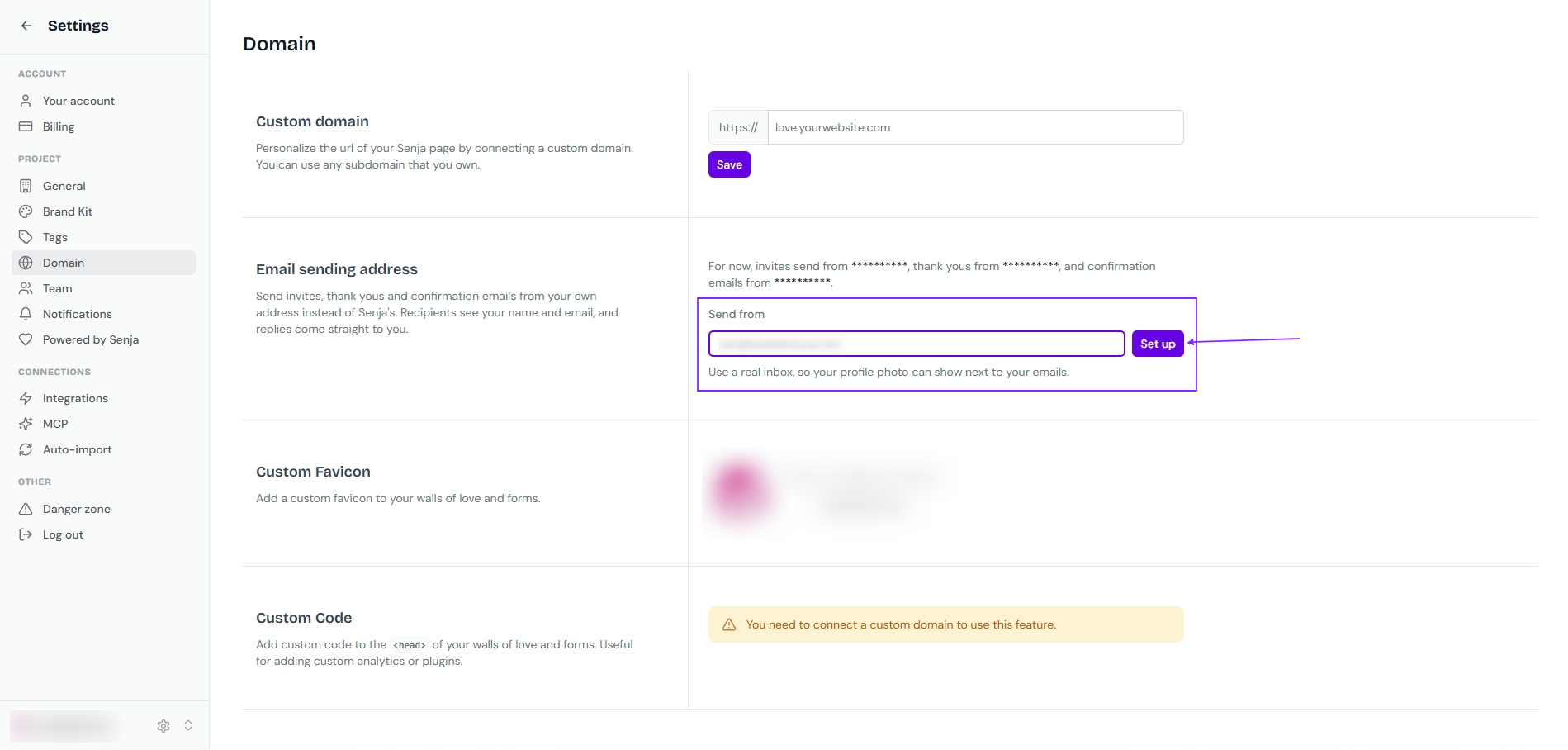
Go to Project Settings → Domain
In Email sending address, enter your email in the Send from field
Click Set up
Add the DNS records
Senja gives you two records to add to your domain: a TXT record and a CNAME record.
Copy the Host and Value of the TXT record with the copy icons
In your domain provider’s DNS settings, add a new TXT record and paste them in
Do the same for the CNAME record
Back in Senja, click Check records
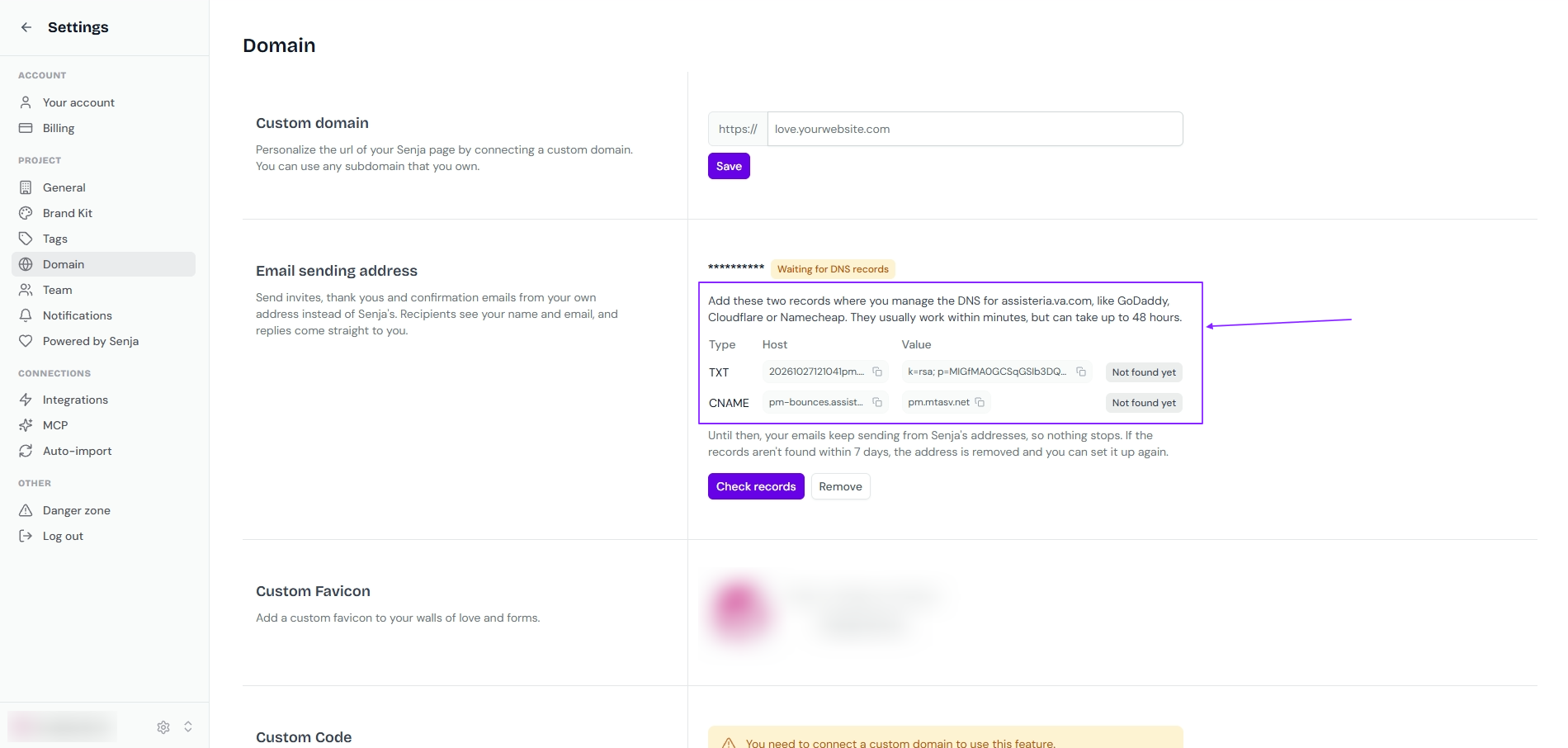
Records usually start working within an hour, but can take up to 48 hours. Until Senja finds a record, it shows Not found yet, so click Check records again later if they don’t show up straight away.
While you wait
Your emails keep sending from Senja’s addresses until both records are found, so your invites and thank yous never stop.
If the records aren’t found within 7 days, the address is removed and you can set it up again. Typed the wrong address? Click Remove and start over.
Once your records are found
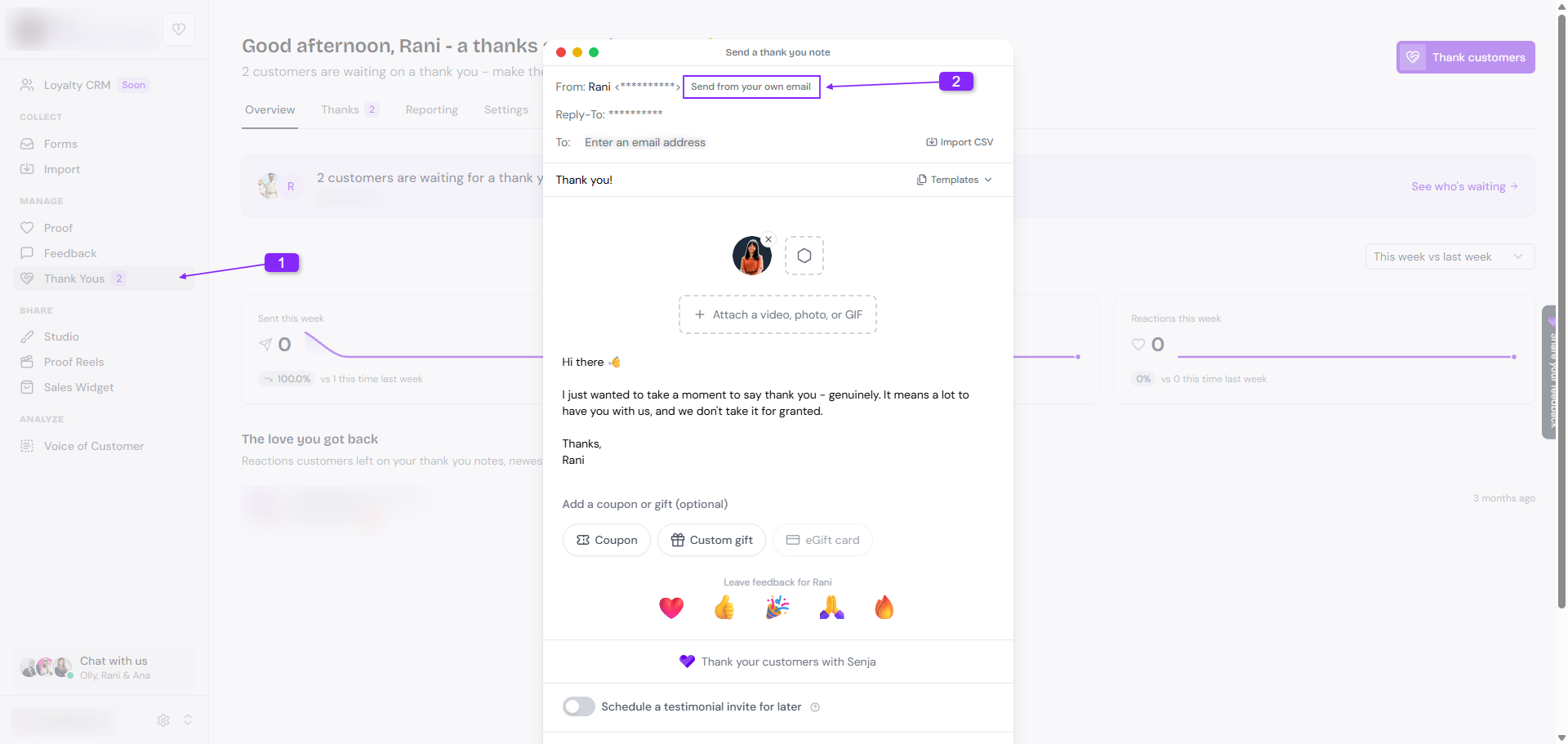
Your invites, Thank Yous and confirmation emails now come from your own address, and replies go straight to your inbox.
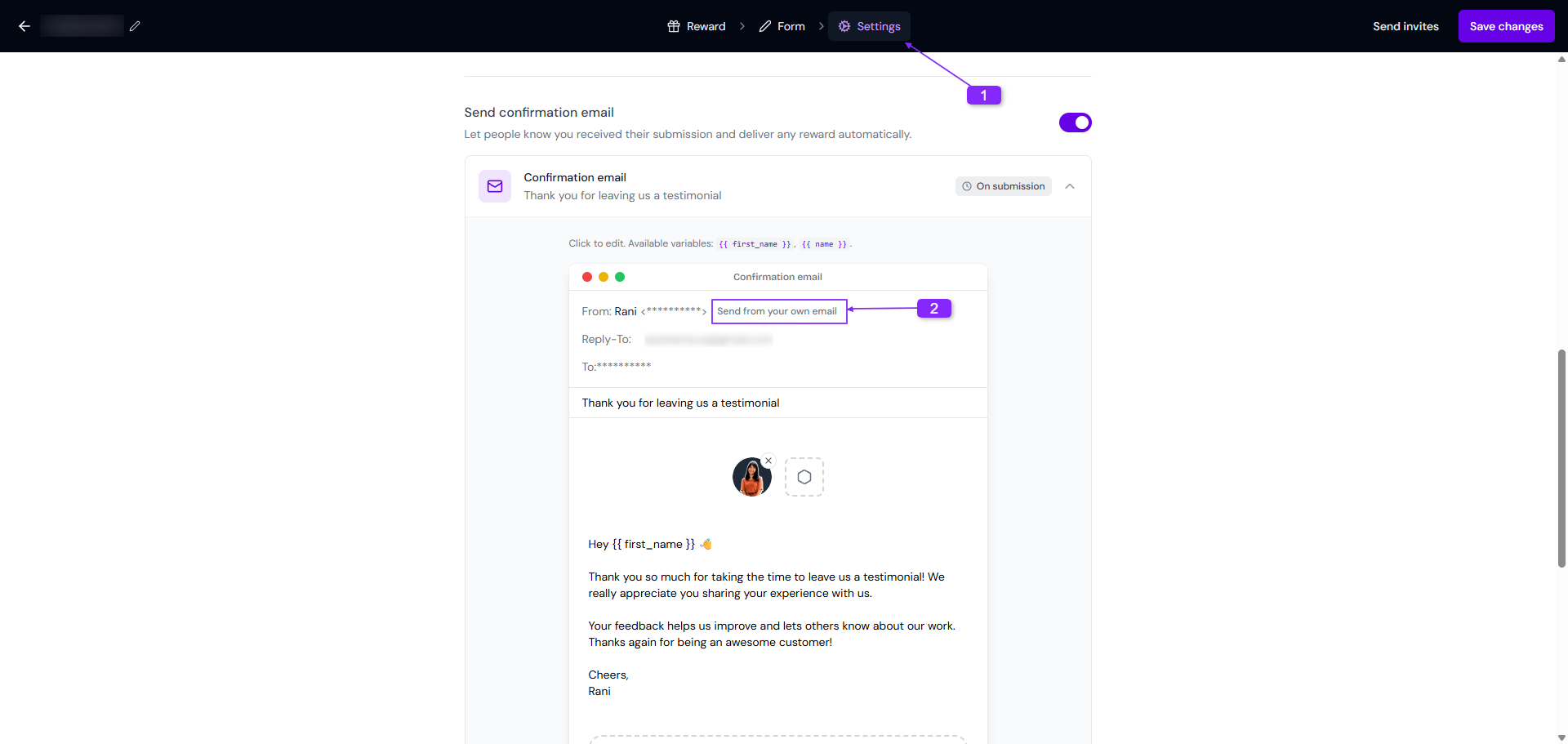
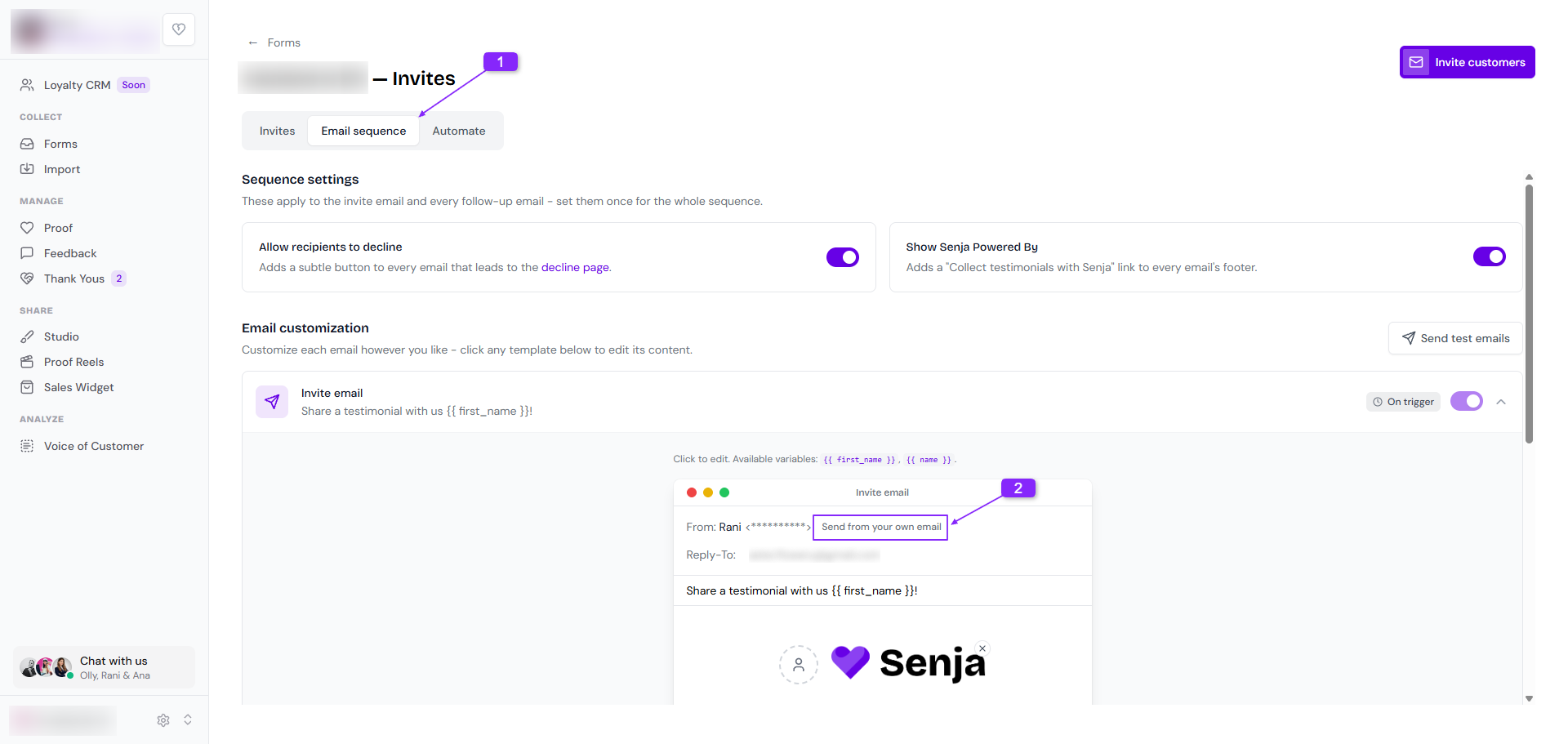
You can also go to the dedicated page for setting up the email sending address:
Form invites: How do I use form invites?
Thank Yous: https://app.senja.io/thank-yous
Confirmation email: How to set up the form settings