How to automate testimonials with Zapier
Connect Senja to Zapier to automate the work around your testimonials: get alerts in your team's chat, draft social posts when you approve a testimonial, and send testimonial invites from the tools you already use.
Zapier automations are available on paid plans: Starter and Pro.
Connect Zapier to Senja
Start from a ready-made template, and Zapier walks you through connecting your Senja account.
Go to Settings → Integrations and click the Zapier tab
Find the template you want and click Connect
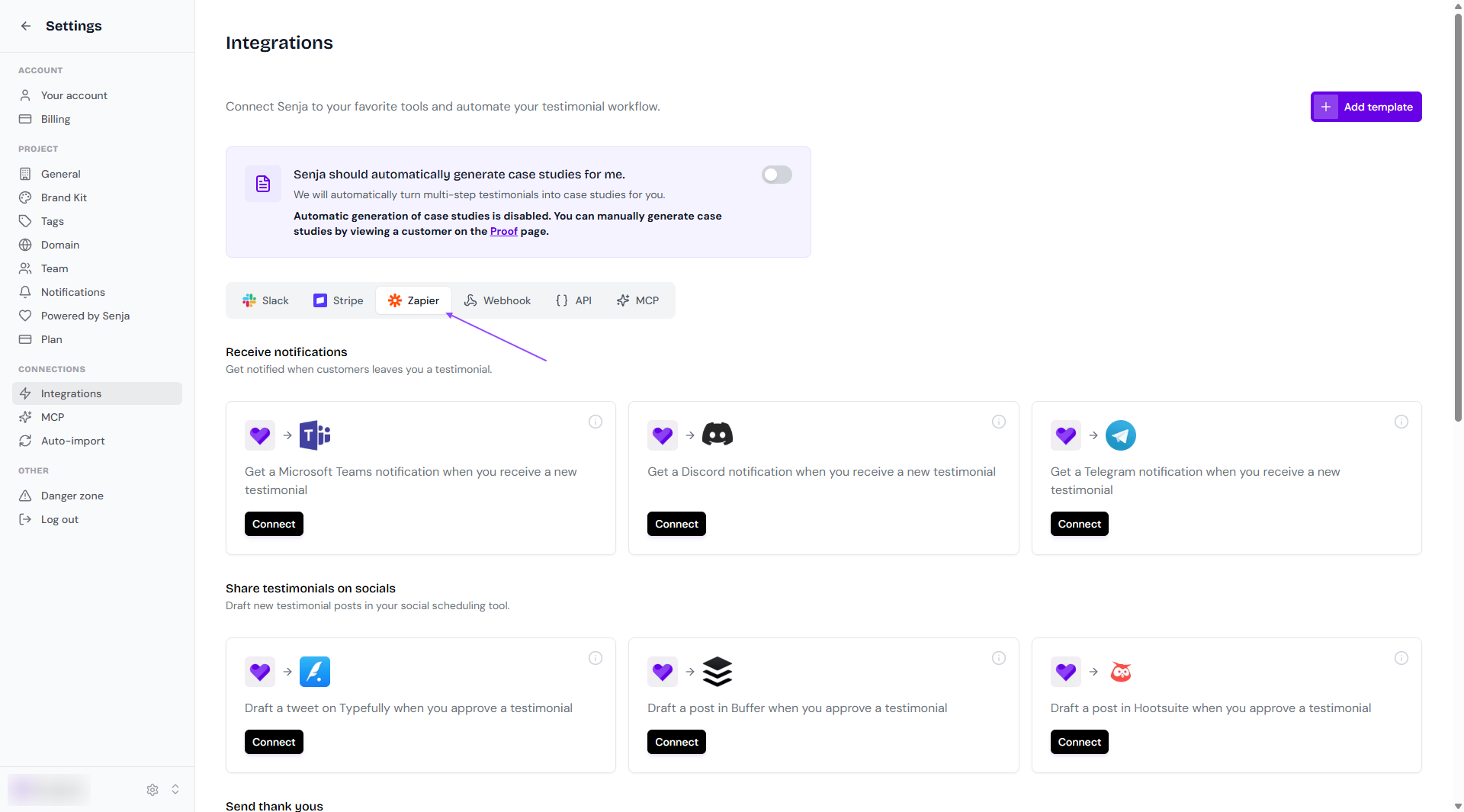
Sign in to Zapier and connect your Senja account when Zapier asks
Follow the steps in Zapier to finish your Zap and turn it on
Ready-made templates
What you want to do | Templates |
|---|---|
Receive notifications when a customer leaves you a testimonial | Microsoft Teams, Discord, Telegram |
Share testimonials on socials by drafting a post when you approve a testimonial | Typefully, Buffer, Hootsuite |
Send thank yous | [templates to confirm] |
Using Slack? Connect it directly instead, no Zapier needed. See How to set up Slack notifications for new testimonials.
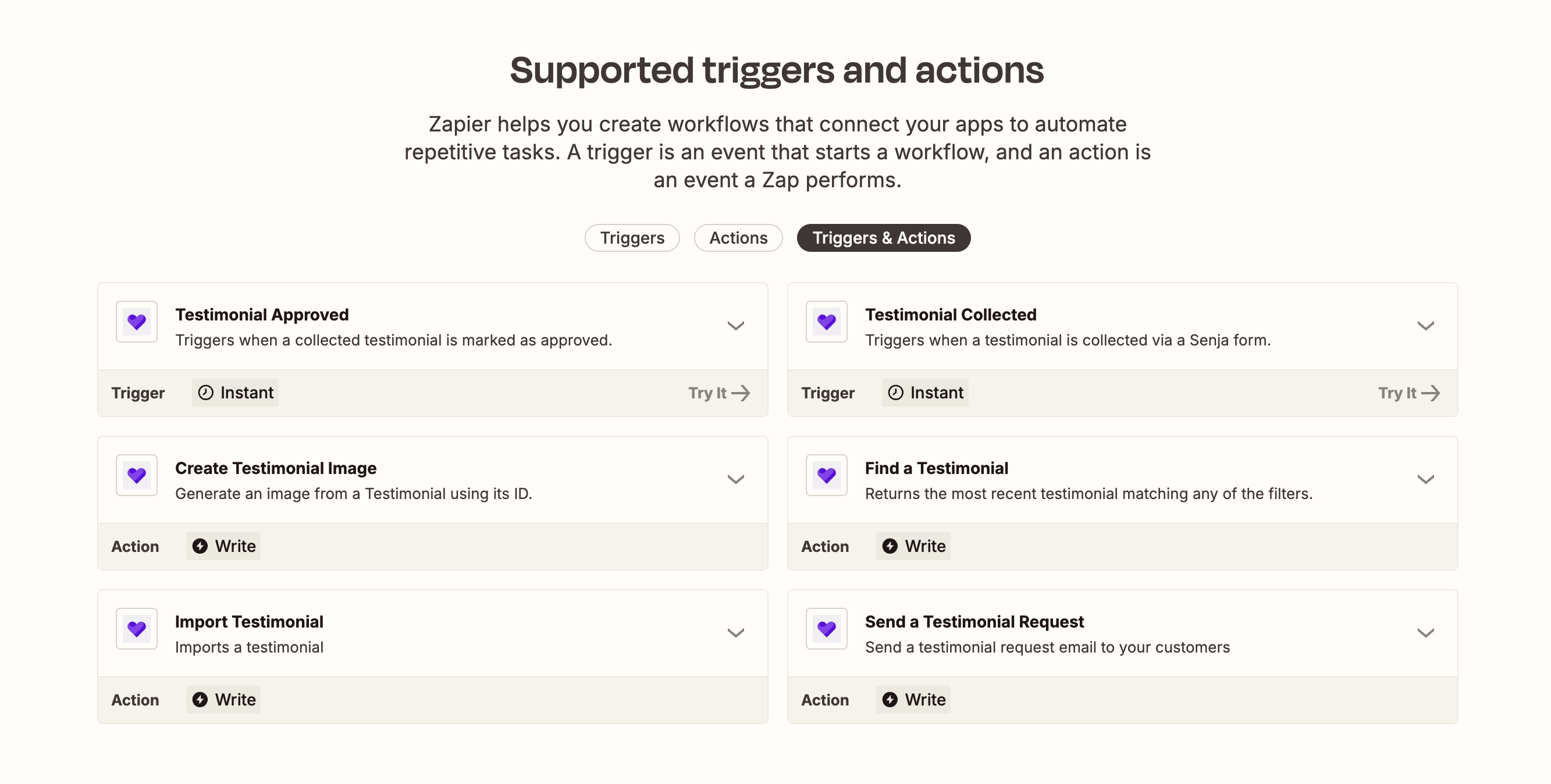
Don't see the tool you need? Build your own Zap with Senja's triggers and actions in Zapier.
Send testimonial invites automatically
Zapier can also send a testimonial invite when something happens in another tool, like a new sale or a tagged contact. Invites are set up one form at a time.
Go to your Forms page, choose your form and click Invites
Go to the Automate tab
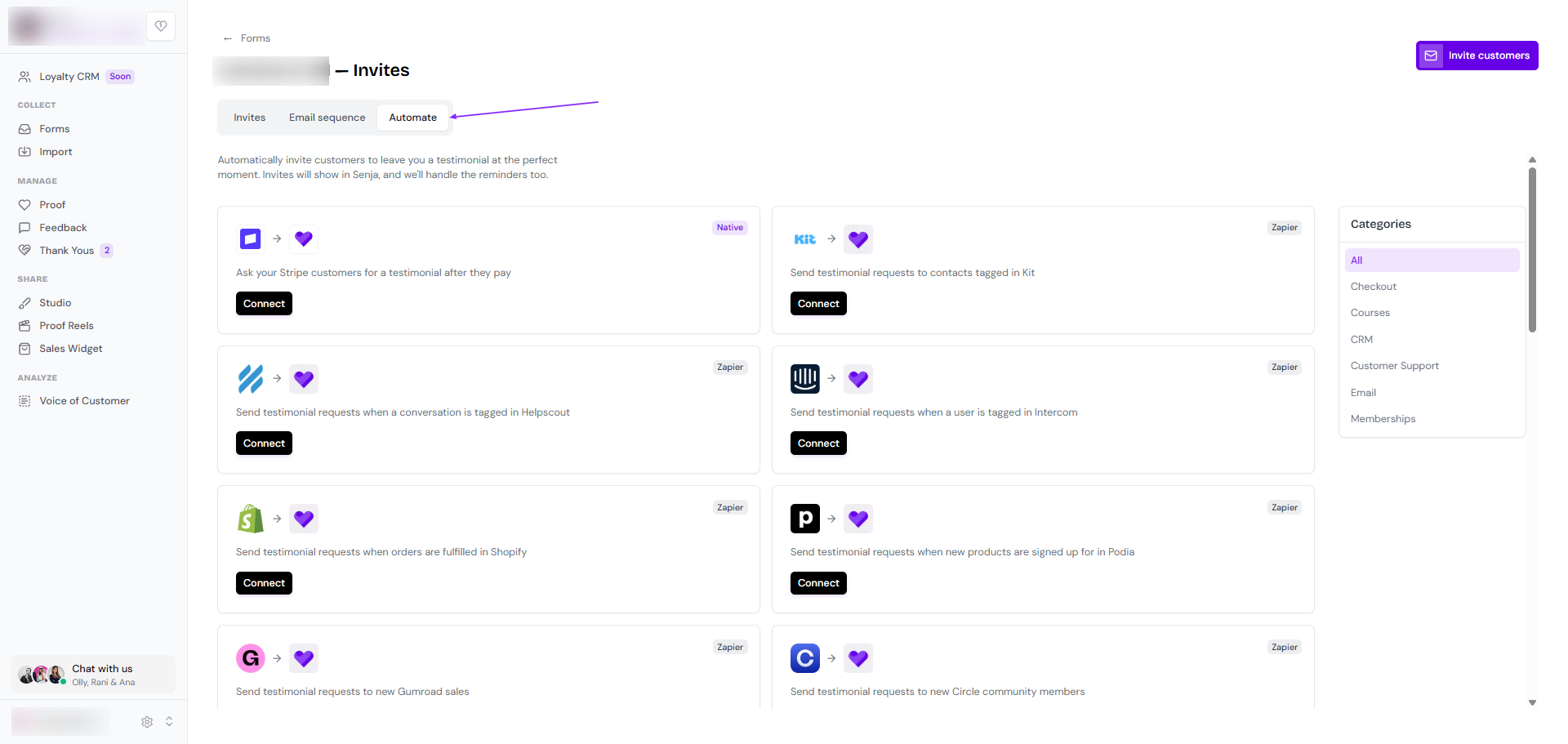
Choose the platform and click Connect
Follow the steps in Zapier
In the last step in Zapier, you can switch to a different form in the same project. To automate a form in another project, switch to that project in Senja and start again.
Invites from Zapier show up in your form's Invites tab and use your form's follow-up reminders. Once a customer submits a testimonial, their reminders stop. See How to send testimonial requests automatically.
Senja triggers and actions in Zapier
These are the triggers and actions you can use when you build your own Zap: