
How do I add or remove team members in my project?
Manage who can access your Senja project by adding team members with different permission levels or removing them when needed.
Team member access is available on all Senja plans. Free accounts include 1 seat, Starter includes 2 seats, and Pro includes 5 seats (with additional seats at $5/month each).
Team member roles and permissions
Role | Permissions |
|---|---|
Admin | ✅ Can invite new team members and update billing |
Editor | ✅ Can create and edit content in the account |
Sharer | ✅ Can view and share approved testimonials, forms, widgets, Walls of Love, images and social videos |
All roles can update billing (change plan) and delete account, but it impacts their personal account only. For example
I am an Admin of a project with a Pro plan
I subscribe to Starter plan
The project where I'm invited as Admin will stay in Pro plan
But my account will be on Starter plan, so I can have 3 forms and unlimited testimonials on my personal project
How to add a team member
Go to Settings > Team: https://app.senja.io/settings/members
Enter your team member's email address on the Invite Teammates section
Select their role (Admin, Editor, or Sharer)
Click Send invite
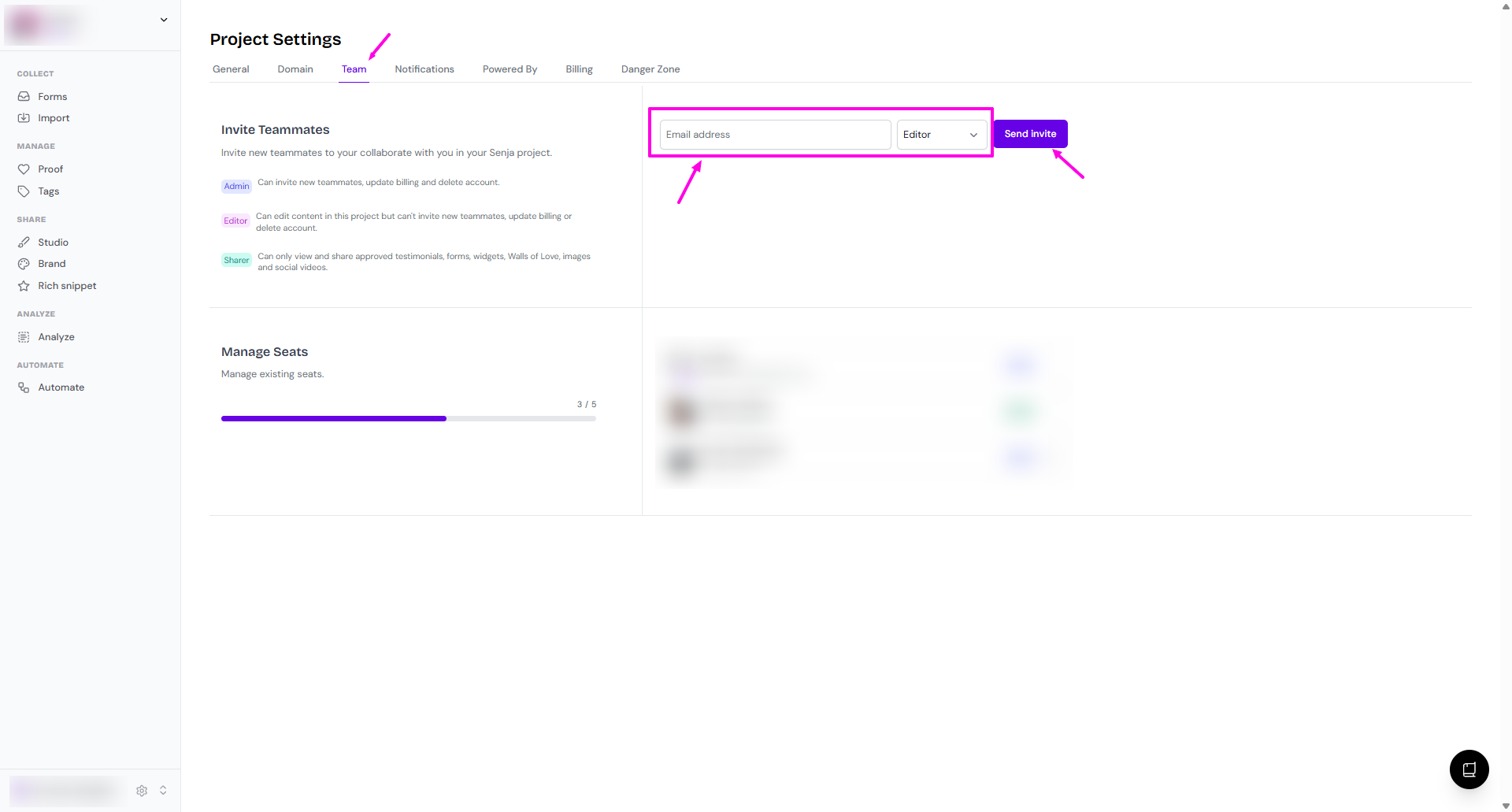
Your team member will receive an email invitation to join your project
The invite will appear under Pending invites until they accept
If you've reached your seat limit, you'll be prompted to purchase additional seats at $5/month each.
How to remove a team member
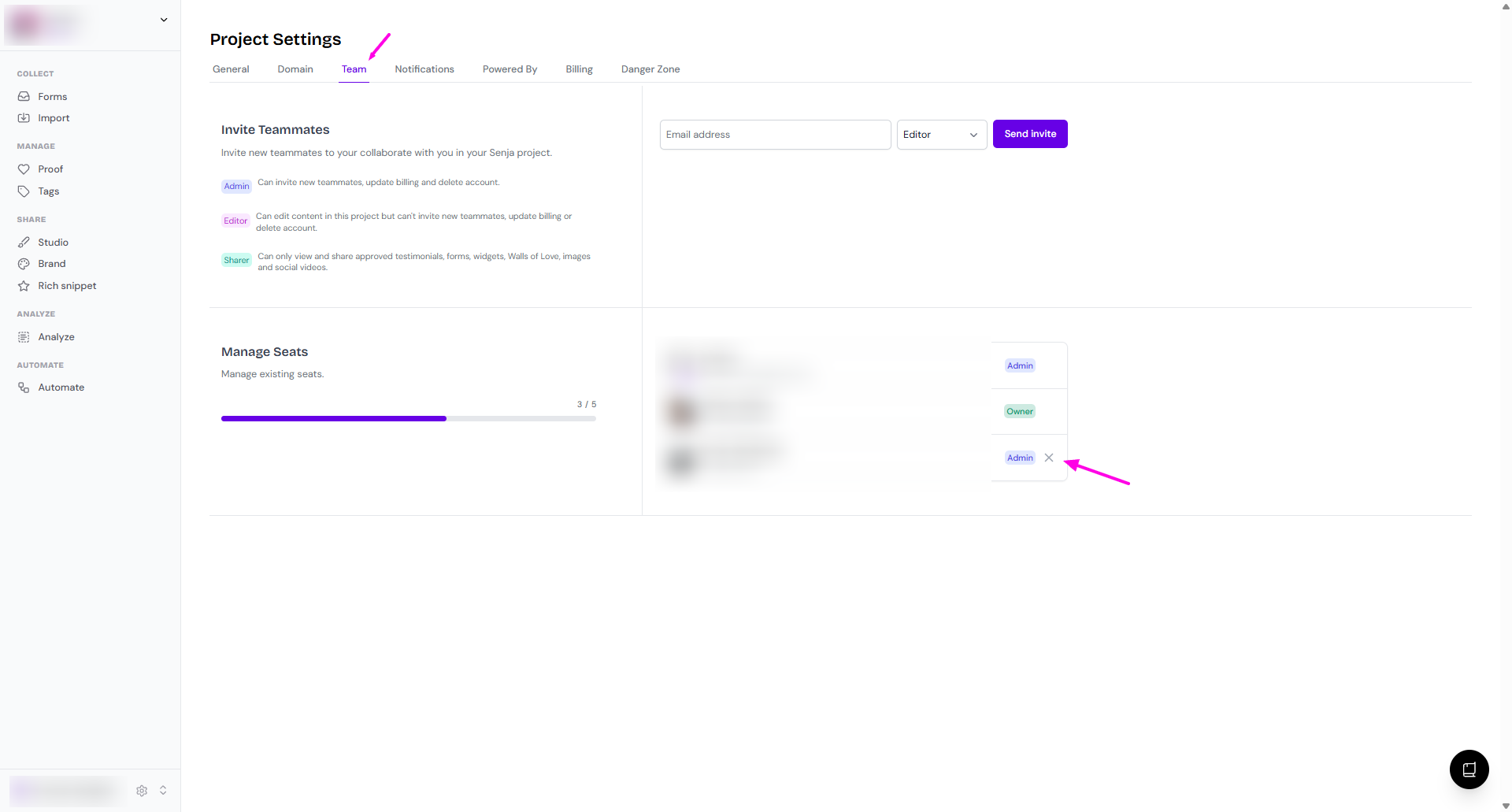
Go to Settings > Team: https://app.senja.io/settings/members
In the Manage Seats section, click the ✖️ next to the team member or pending invite you want to remove
Confirm the removal when prompted
You cannot remove yourself or the project owner
How to change team member's role
Go to Settings > Team: https://app.senja.io/settings/members
Remove the team member from the list
Re-invite your team member with the new role
The re-added team member has to accept the invitation coming to their email address