
How can I share my widget?
Once your widget is set up, sharing it is the easy part.
This article walks you through the different ways to get your widget in front of the right people, whether that's embedding it on your website, dropping it into a blog post, or sharing a direct link.
This feature is available for any Senja plans: Free, Starter, and Pro.
Before you start
Make sure that you have created a widget, or creating one now.
See How do I create widget? for detailed guides.
Share the widget
Go to your Studio page: https://app.senja.io/studio
Open the widget you want to share
Click Share
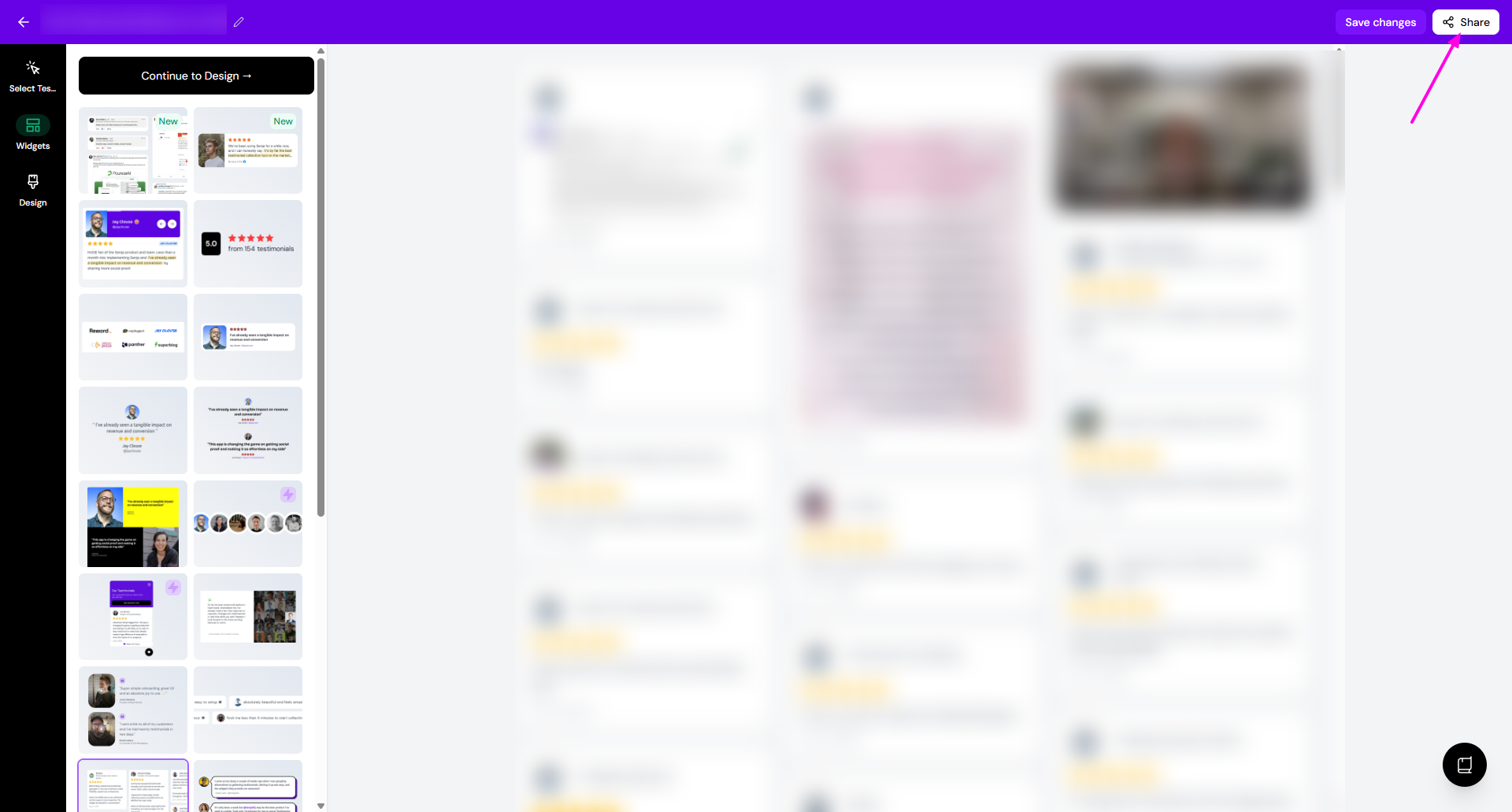
You have options on how to share it
Embed to your website
Copy the link and share to your customers
Download as image
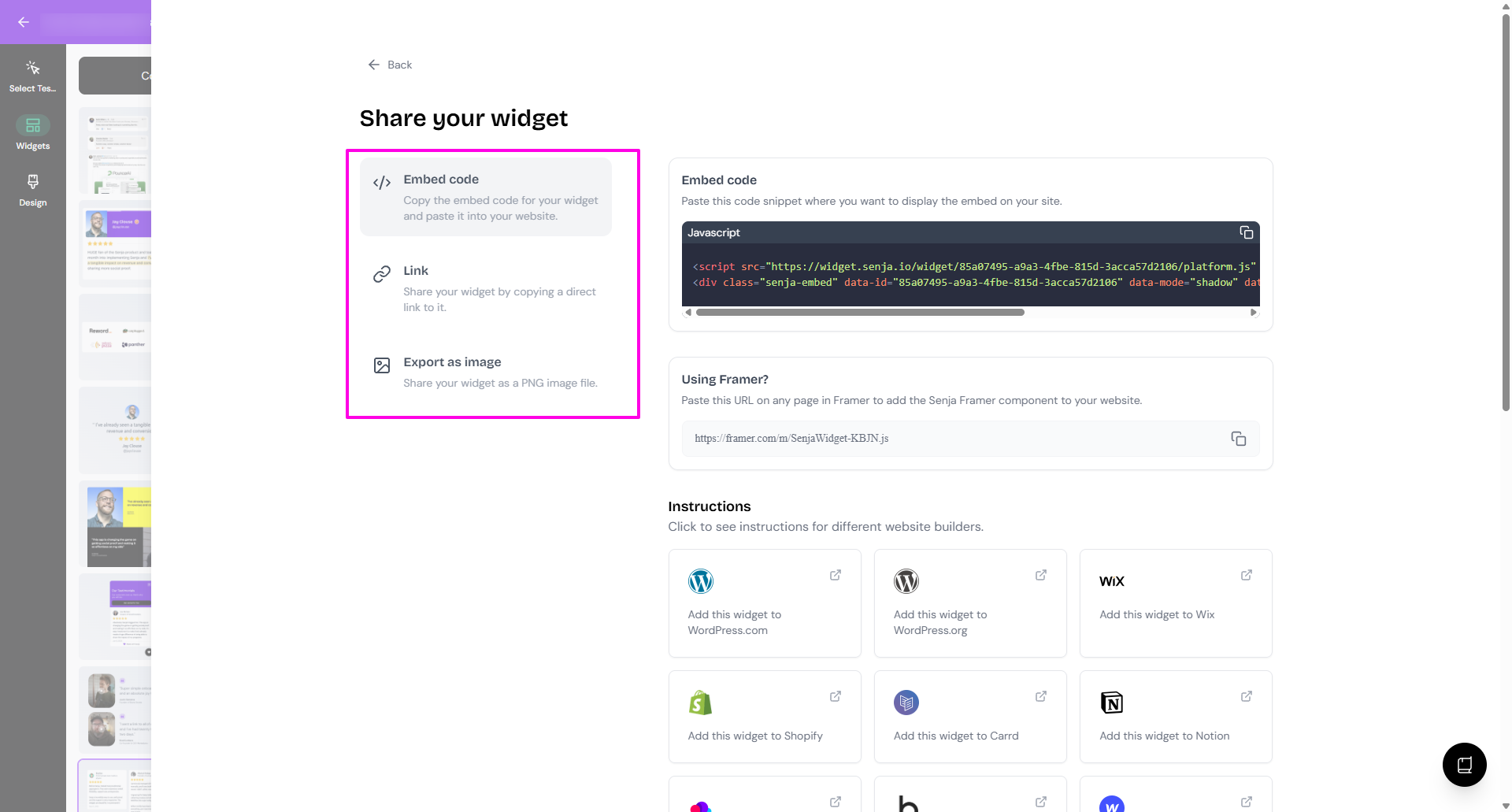
Sharing widget with embed code
Click the copy icon under Embed code to directly grab the script and paste it to your site
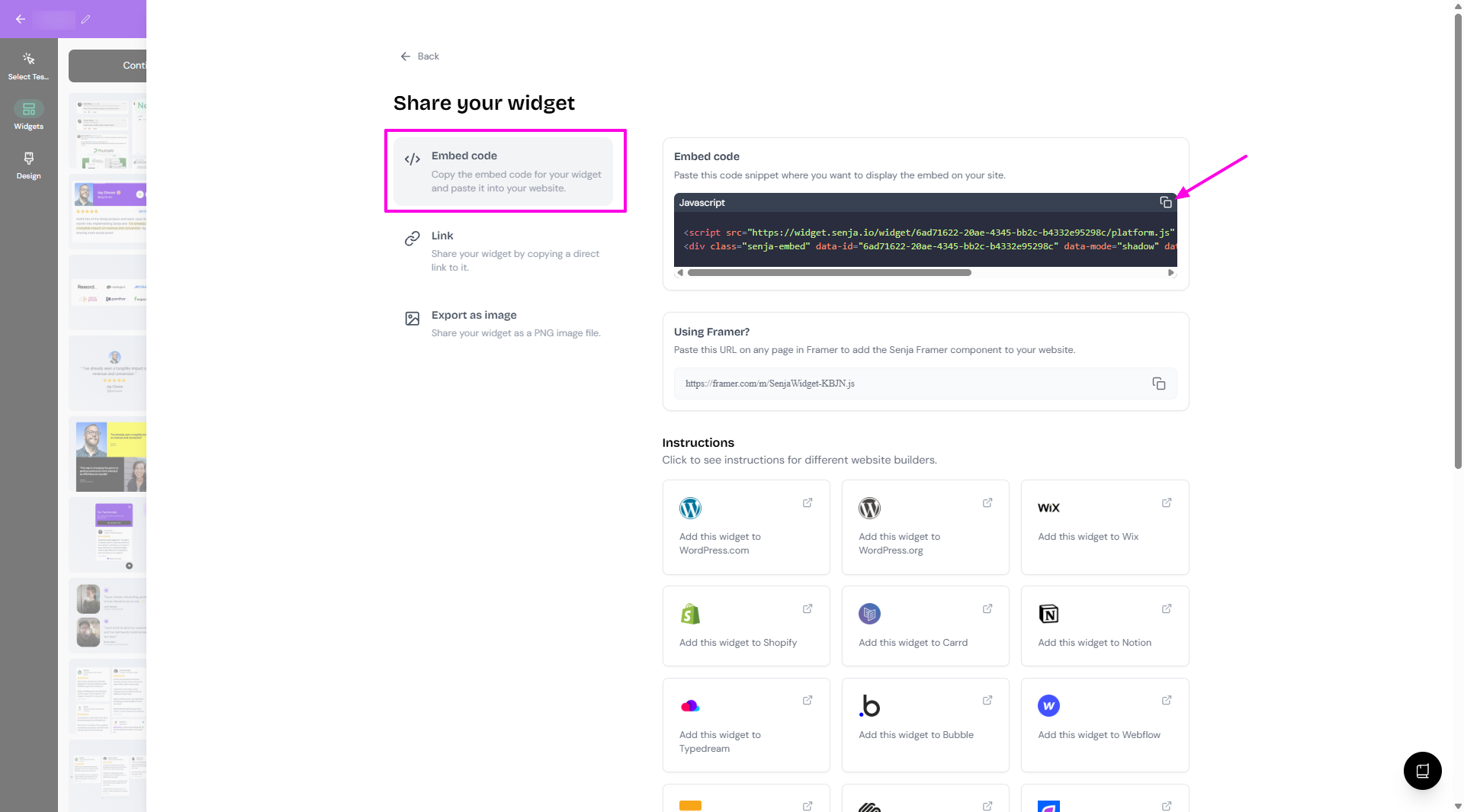
Make sure that the target site support direct embed code
If your site is using Framer, copy the URL under Using Framer? section instead
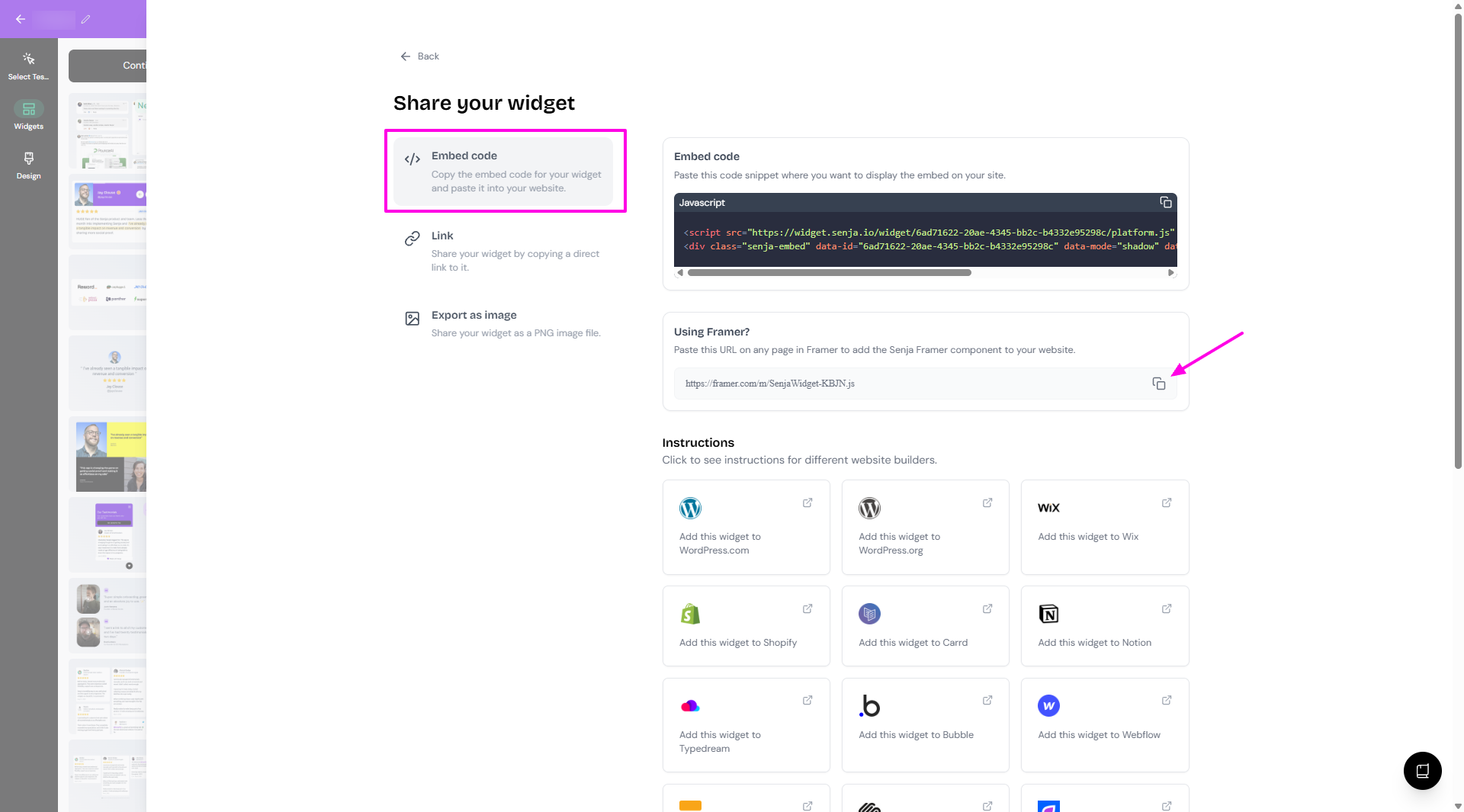
You can check the Instructions section to read the specific guide for each platform
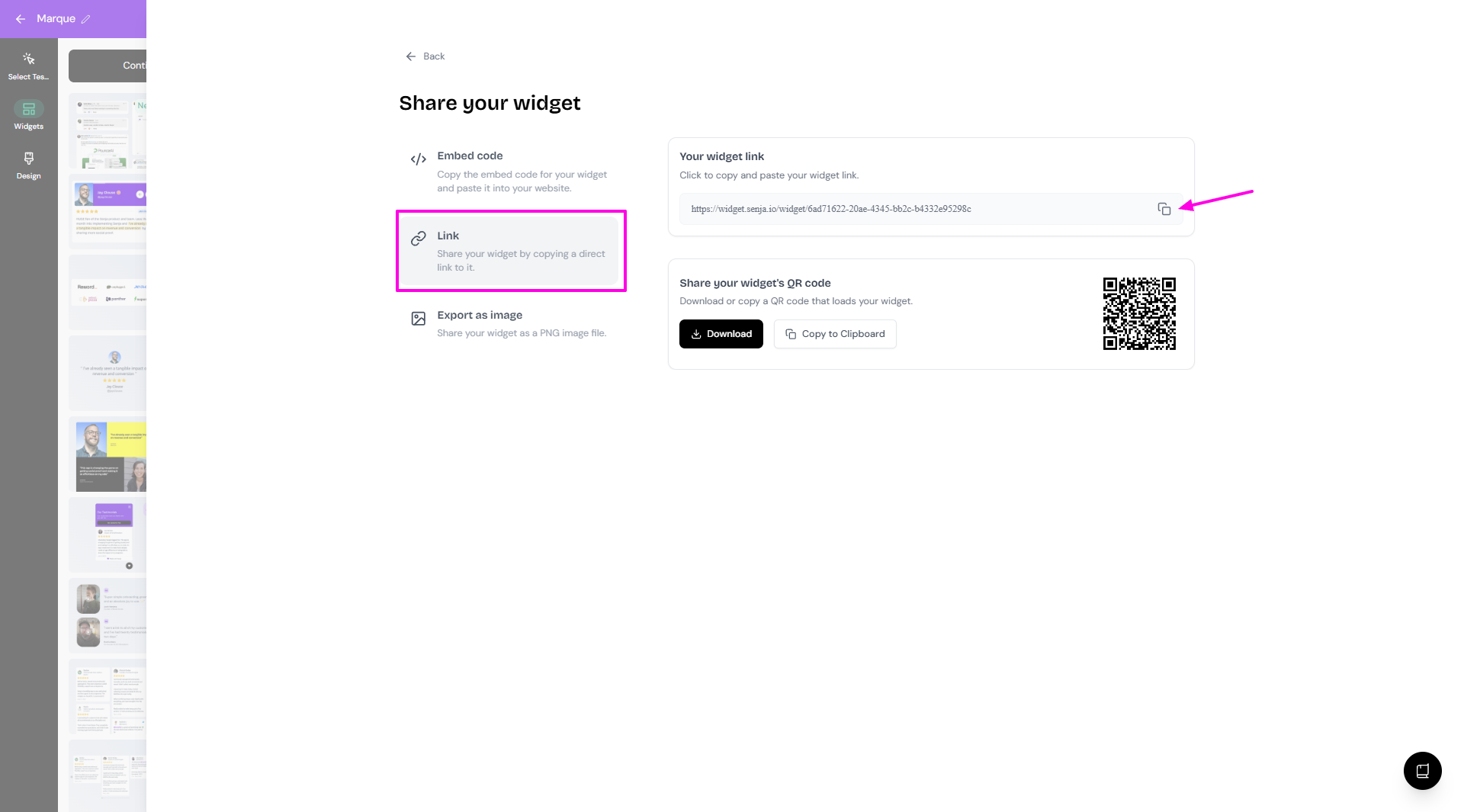
Sharing widget as link
Choose the Link tab
Click the copy icon under Your widget link section
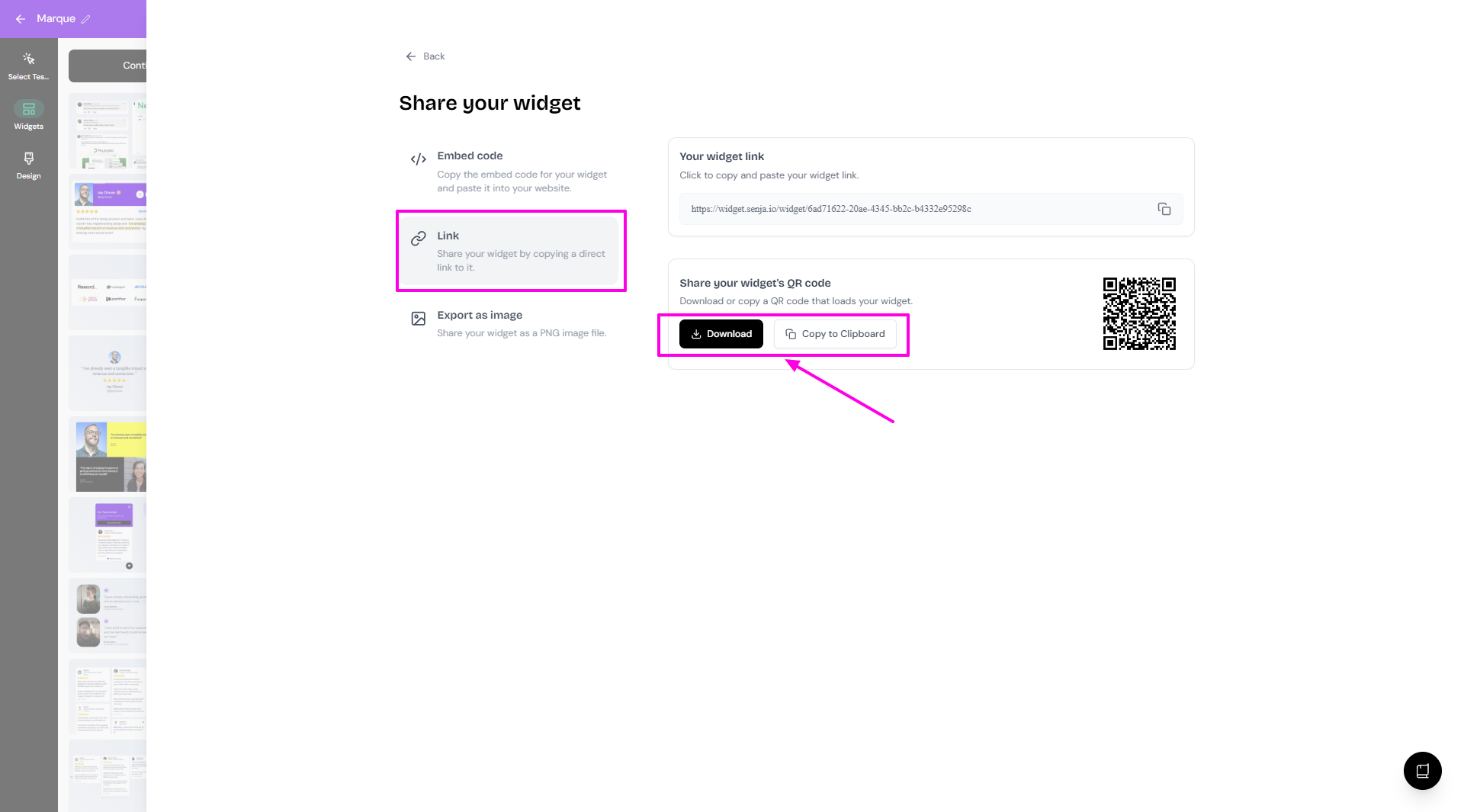
You can also grab the QR code, by clicking Download or Copy to clipboard
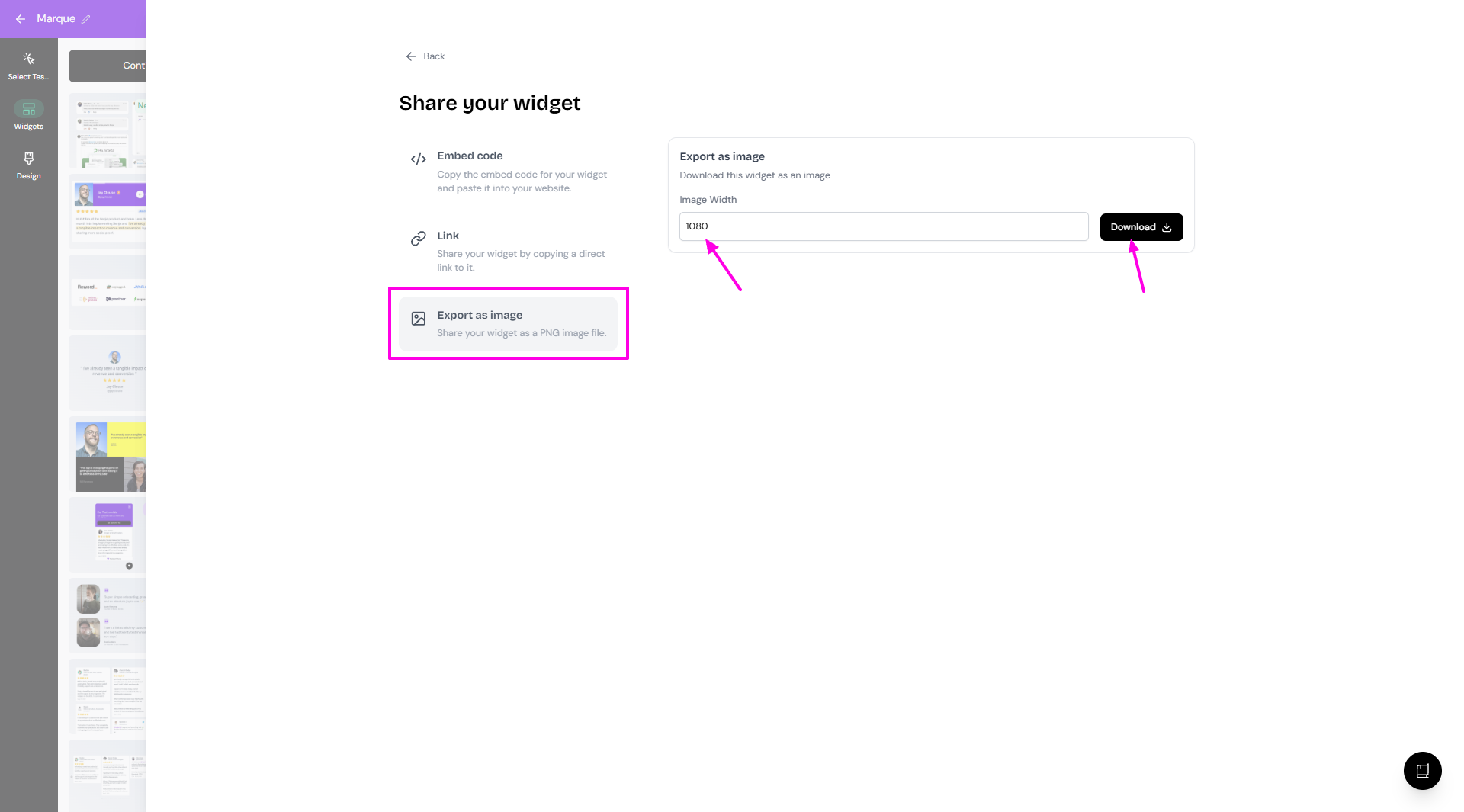
Sharing widget as image
Choose the Export as image tab
Set the Image Width
Click Download
Use the free Senja Chrome Extension to quickly copy widget codes and form URLs without opening the dashboard. Read Share and download testimonials with Senja’s Chrome extension.