
Using tag filters in studio widgets
Tag filters let you control which testimonials appear in your widget. You can use OR logic to show testimonials with any selected tag, or AND logic to show only testimonials that have all selected tags.
This feature is applicable for any Senja plans: Free, Starter, and Pro.
Using OR and AND tag filters
To set up tag filters for your widget:
Open your widget in Studio page: https://app.senja.io/studio
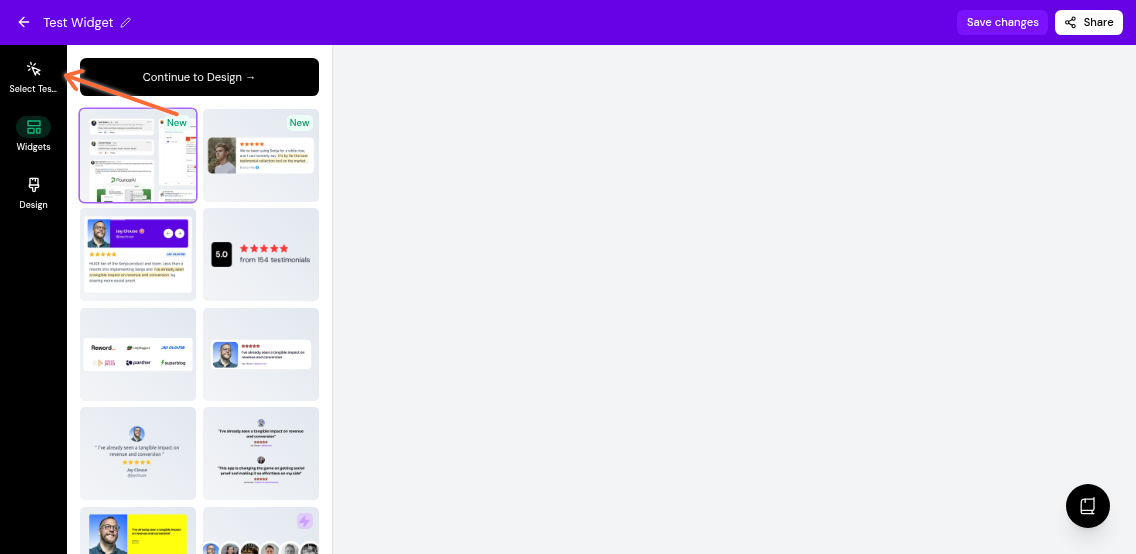
Go to the Design tab
Click Select Testimonials in the left sidebar
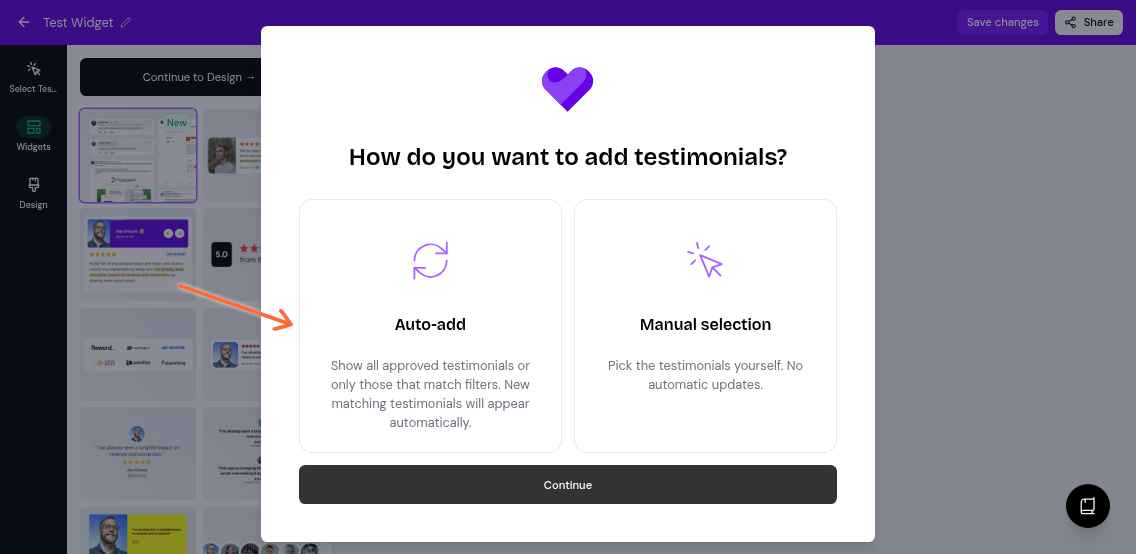
Choose Auto-add mode and click Continue
Expand the Tags section and select the tags you want to filter by
Use the toggle to choose your filter logic:
OR (default): Shows testimonials with any of the selected tags
AND: Shows only testimonials with all selected tags
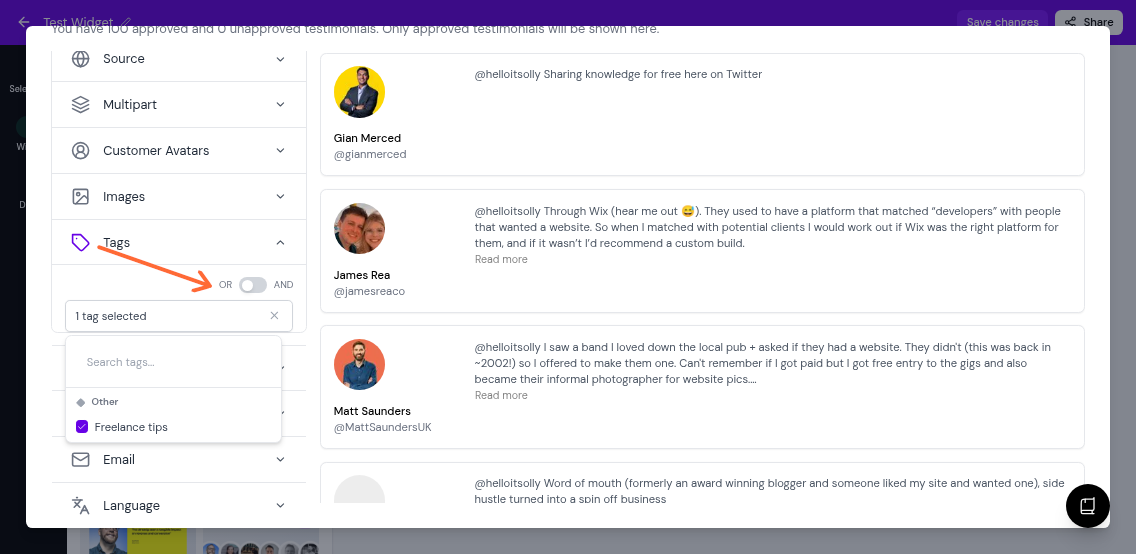
Use OR when you want broad coverage (e.g., "Product" OR "Service" shows all testimonials tagged with either). Use AND when you need precise matches (e.g., "5-star" AND "Video" shows only video testimonials that are also tagged 5-star).
How manual selection affects auto-add
If you choose Manual selection instead of Auto-add, you can still use tag filters to find testimonials, but your widget will not automatically update when new testimonials arrive.
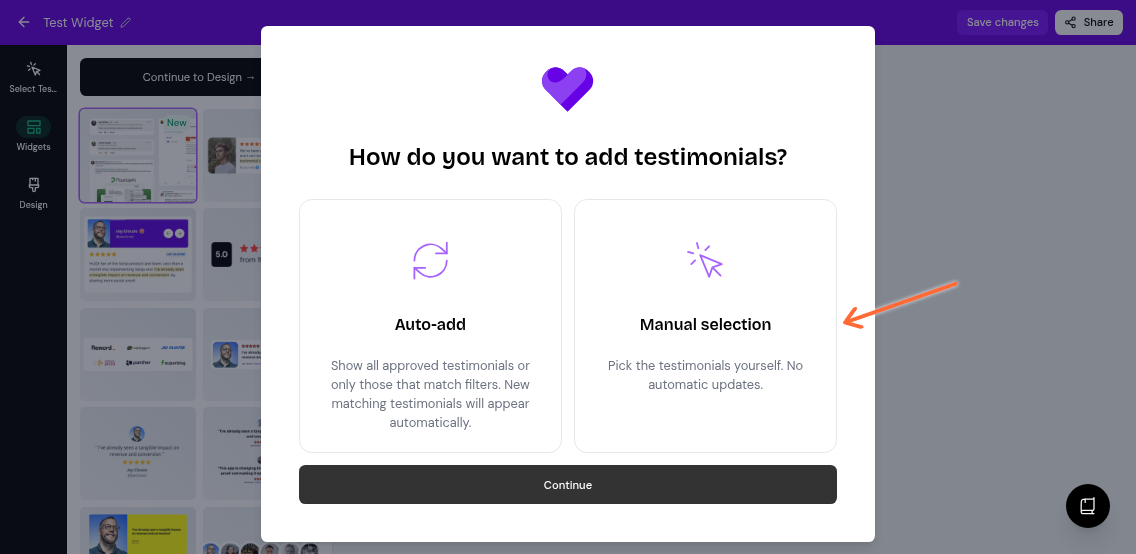
Once you manually select specific testimonials, your widget switches to a fixed list. To re-enable automatic updates, click Select Testimonials again and choose Auto-add mode.