
How to select testimonials for my widget
Choose which testimonials appear in your widget, so each page shows the ones that fit it best. Let Senja add matching testimonials automatically, or pick them yourself.
This is available on all Senja plans: Free, Starter and Pro.
Auto-add or manual selection
Auto-add: set filters once, and new testimonials that match are added to your widget automatically
Manual selection: pick each testimonial yourself. Your widget doesn't change when new testimonials come in
Only approved testimonials can go in a widget, see How to approve testimonials (and what it means).
Select your testimonials
Go to your Studio page and open your widget
Click Select Testimonials
Choose Auto-add or Manual selection and click Continue
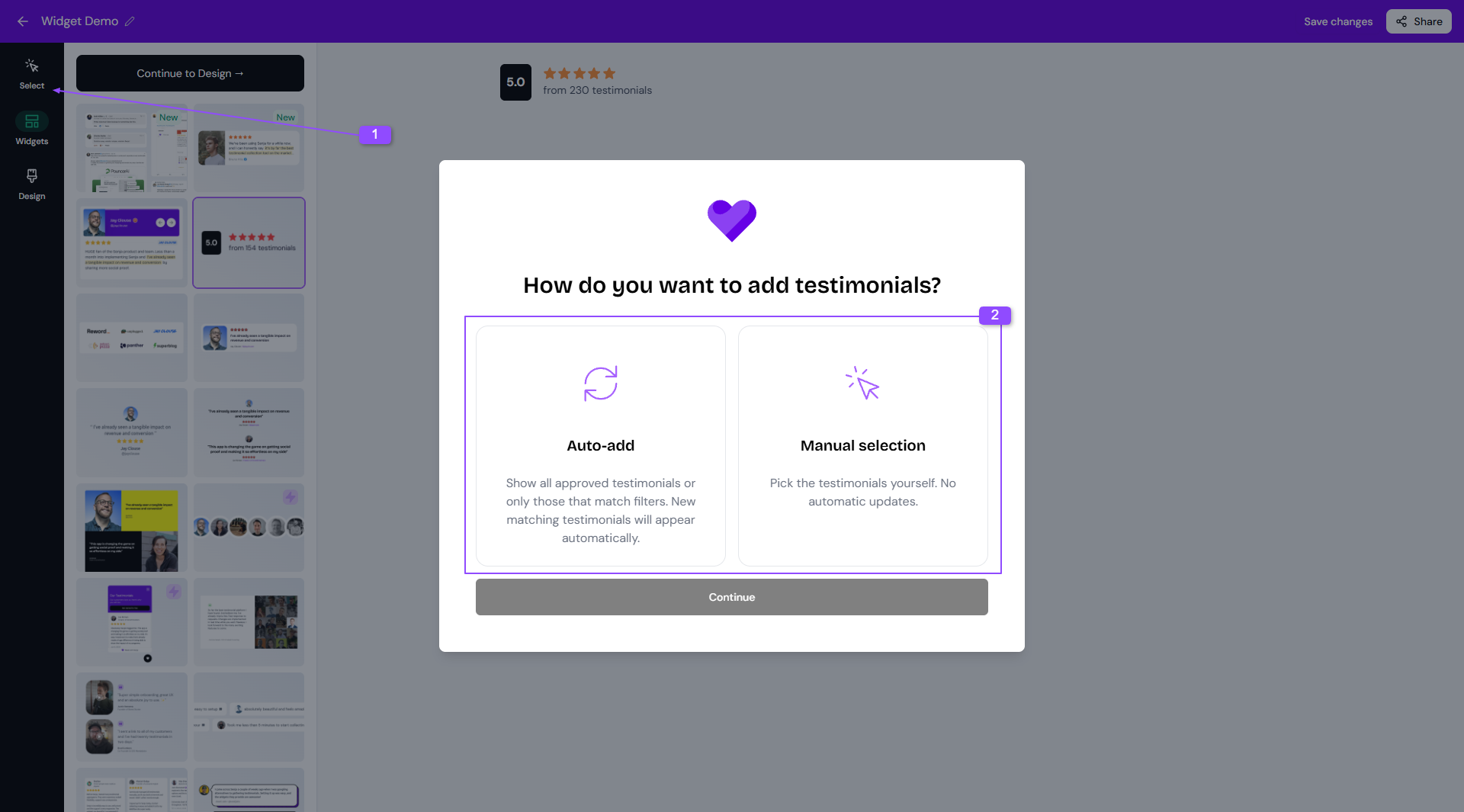
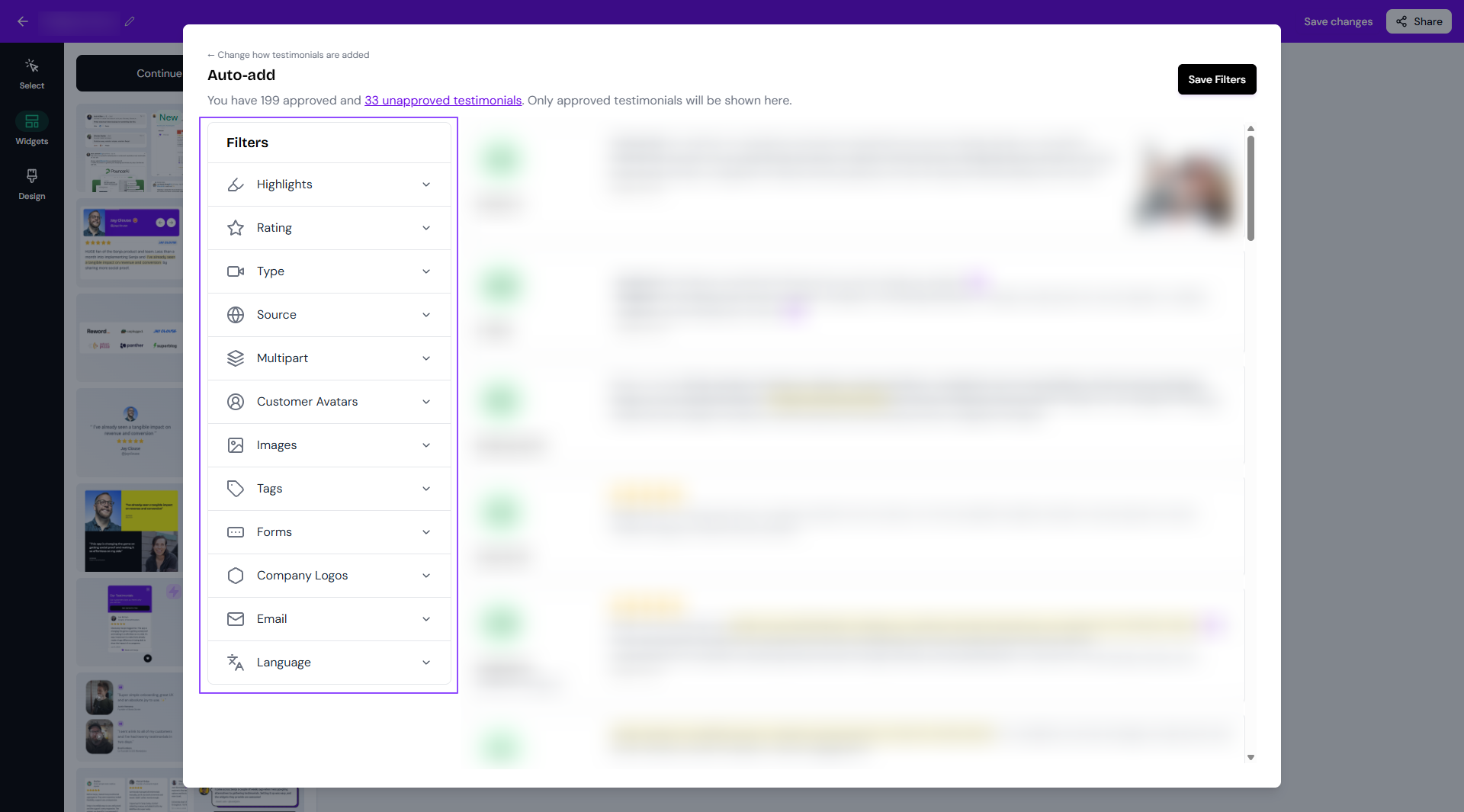
Use the Filters sidebar to narrow down your testimonials. The preview updates as you go
For Auto-add, click Save Filters. For Manual selection, tick the testimonials you want, or use the search bar to find them, and click Save Selection
Click Save changes on your widget
To switch between modes later, click Change how testimonials are added.
Filters you can use
Filter | Options |
|---|---|
Highlights | All, only with highlights, only without highlights |
Rating | One star rating at a time, from 1 to 5 |
Type | All, only text, only video |
Source | One source at a time, like Senja, Google or Product Hunt |
Multipart | Show primary response only, show all responses, use Multiclip (more below) |
Customers Avatar | All, only with avatar, only without avatar |
Images | All, only with images, only without images |
Tags | One or more tags, see Using tag filters in studio widgets |
Forms | One or more forms |
Company Logos | All, only with company logo, only without company logo |
All, only with email, only without email | |
Language | One language at a time, see How to choose testimonials with specific language in my widget |
Show only star-rated testimonials
The Rating Badge and Testimonial Avatars widget styles count all your testimonials, including ones without a star rating. Filter them so the count only includes rated testimonials.
When you choose a rating, the rule implements rating-from-x
For example: setting up 4-star rating filter will select testimonials from 4-stars up (⭐⭐⭐⭐ and ⭐⭐⭐⭐⭐)
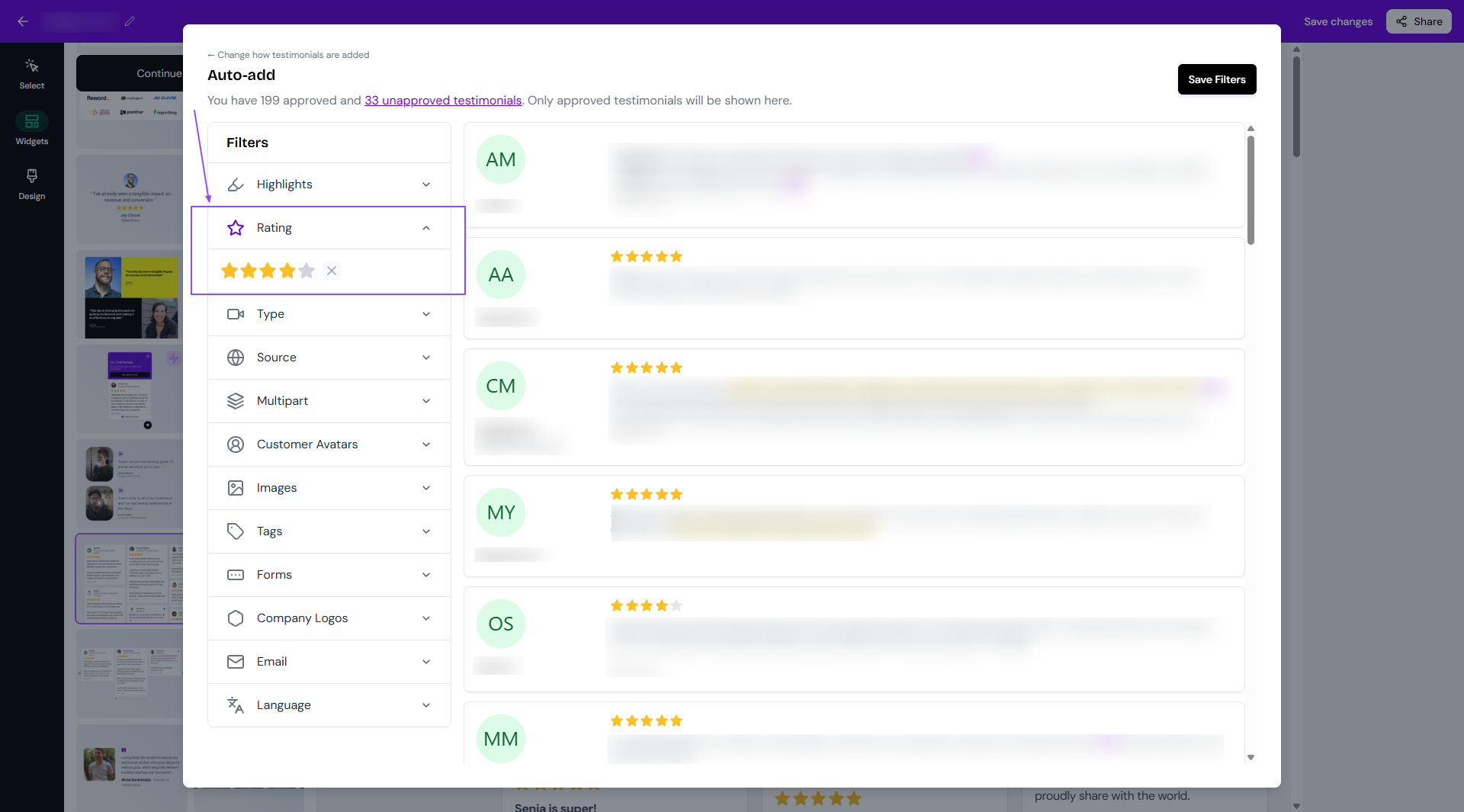
If you need a specific rating only (only 3-stars or only 4-stars), use Tags to mark the testimonials with specific star rating (see How to create, apply and manage tags).
Choose answers from multi-question forms
When your form asks more than one question, each answer is saved as a separate response. By default, your widget only shows the answer to the primary question.
The Multipart filter has three options:
Show primary response only: only the answer to the primary question (default)
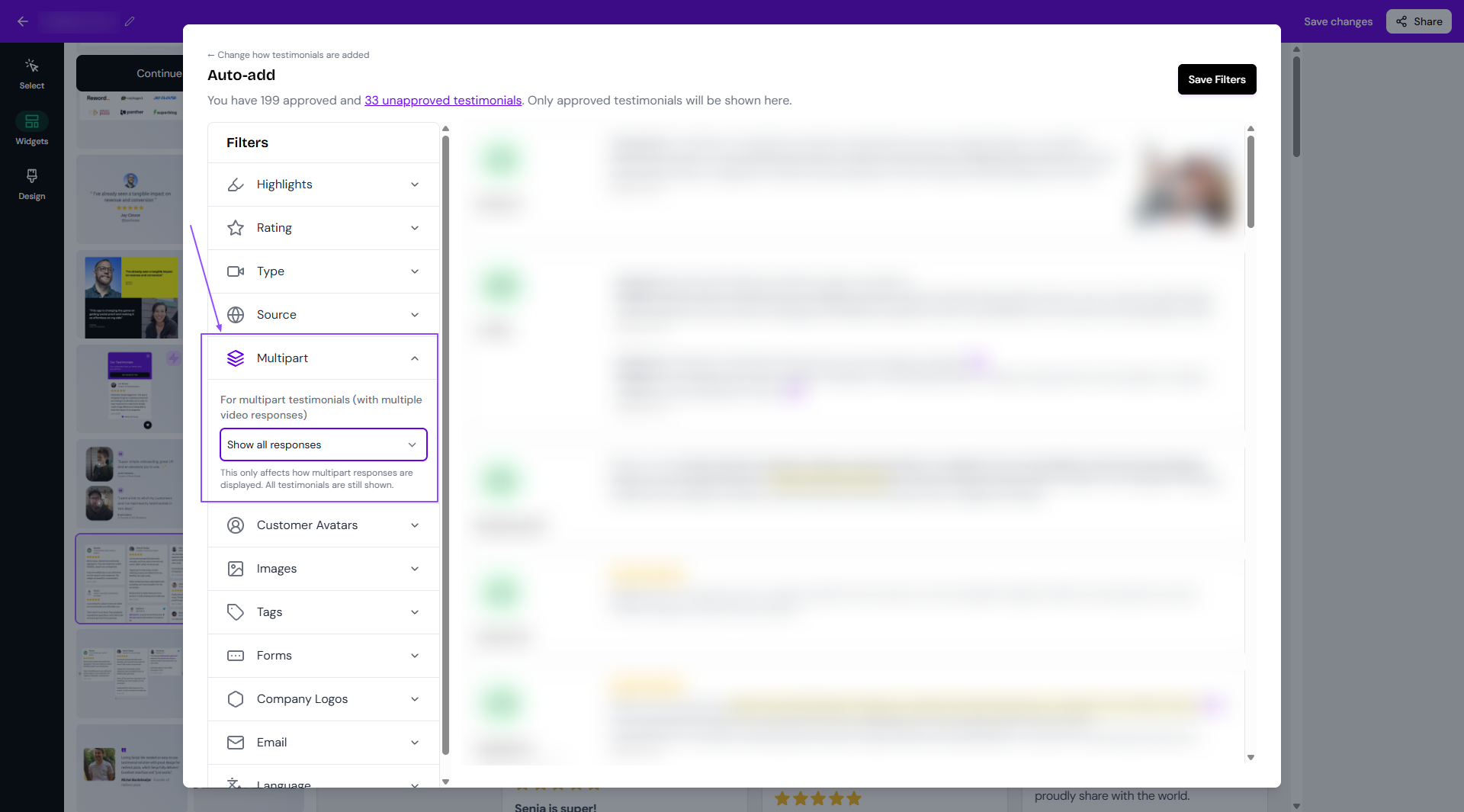
Show all responses: every answer, each one selectable on its own
Use Multiclip (video responses only): combines a customer's video answers into one video. This resets your current selection
In Auto-add mode, Show all responses only changes what you see in the preview, not what's added to your widget. Use Multiclip still works in Auto-add.
To show the other answers:
Click Select Testimonials
Click Multipart in the Filters sidebar and choose Show all responses
If you choose Manual selection mode, tick the checkbox next to the testimonials you want
You can pick only the second answer, only the primary, or any mix
Click Save Filters or Save Selection
Each answer shows as its own testimonial in your widget, so a customer who answered three questions can appear three times.
Fill a widget with top reviews from other platforms
Combine auto-import with Auto-add to keep a widget full of your best reviews from Google, Trustpilot, Facebook and more, with no manual work. Auto-import needs a paid plan: Starter or Pro.
Go to Import → Auto-import and connect your platform, see How to auto-import testimonials from other platforms
In its settings, set a Minimum rating, like 4 stars, and add a tag with Auto-tag imported testimonials
Make sure that you set auto-approval so you don't need to approve the incoming testimonials every single day
In your widget, click Select Testimonials, choose Auto-add and filter by that tag, or by Source
Click Save Filters
New reviews that meet your minimum rating now land in your widget automatically.
Want to change the testimonials shown on different pages using one widget? See How to filter your testimonial widget by URL.