
How to create popups
Popups show your testimonials one at a time in a small floating box on your website, so you add social proof without taking up space on the page. You can create one in under a minute.
Popups are available on all Senja plans: Free, Starter, and Pro.
Want to show recent purchases too? Use the Sales Widget instead. It shows purchases from your connected Stripe account alongside your testimonials, see How do I share my testimonials?
Create a popup
Go to Studio → Create → Popup: https://app.senja.io/studio?tab=popups
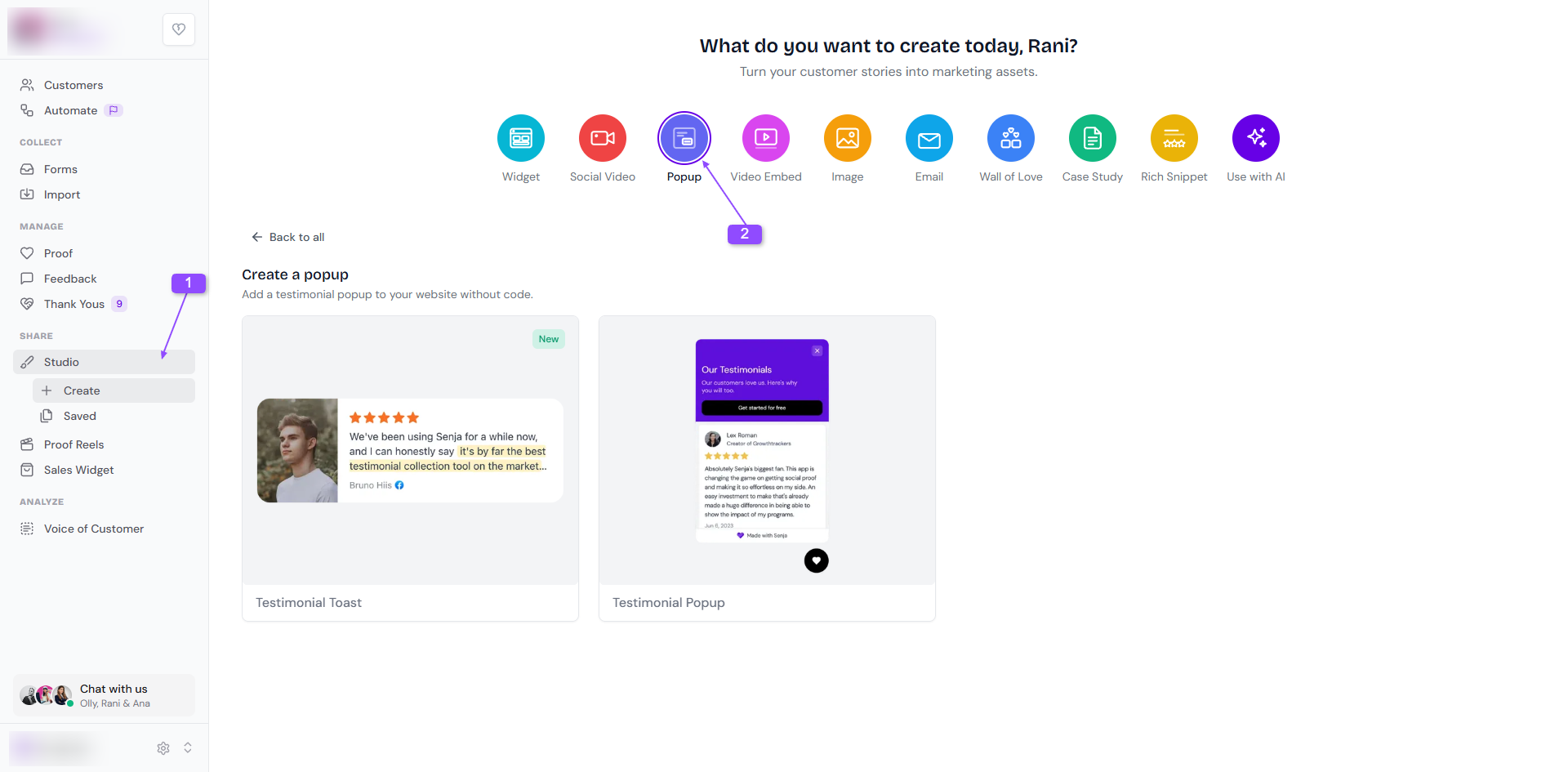
Choose a template
Name your popup, like Homepage popup, and add where you'll use it if you like. It shows as a label in Saved, so you can find it later
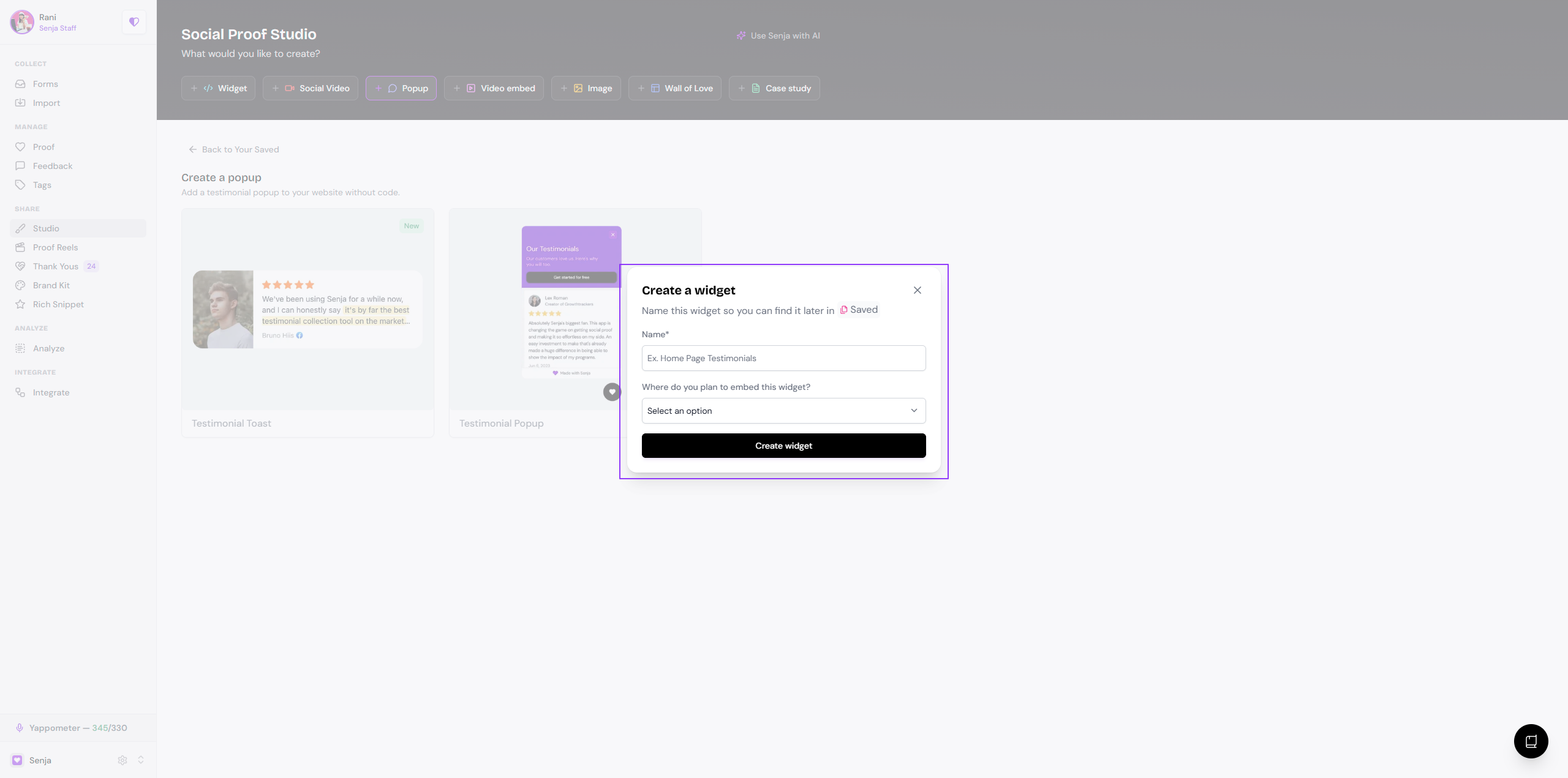
Click Create widget
Customize your popup
After you create your popup, the editor opens. Here you can change the design, switch templates, and choose which testimonials appear.
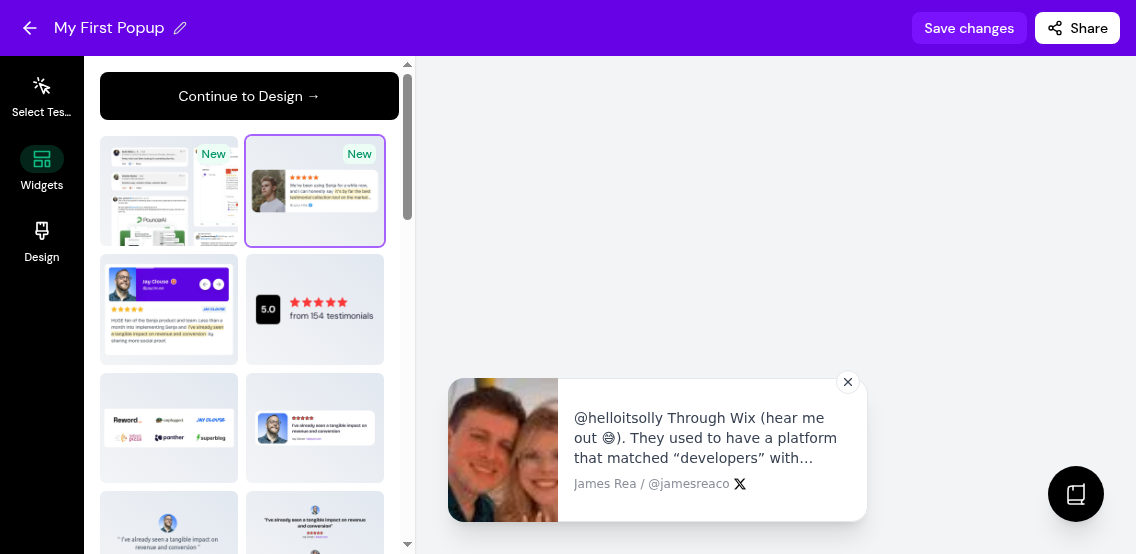
To choose testimonials, click Select Testimonials. The filters work the same as for widgets, see How to select testimonials for my widget
Click Save changes when you're done
Your popups are saved in Studio → Saved.
Show or hide on mobile
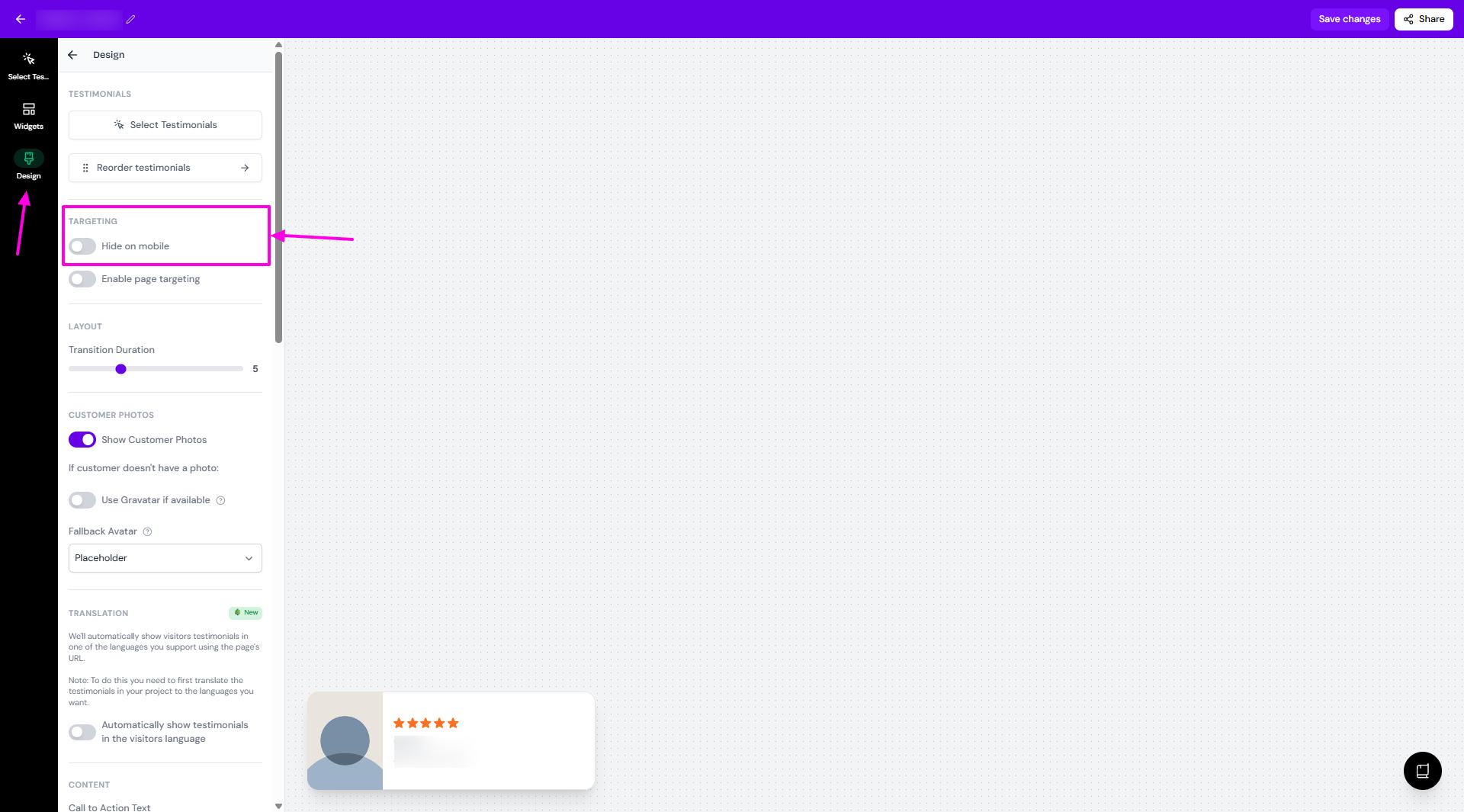
If your popup isn't showing on phones, Hide on mobile is probably turned on.
Open your popup and go to the Design tab
Scroll to Targeting → Hide on mobile
Turn it off to show your popup on mobile, or on to hide it
Click Save changes
Add your popup to your website
A popup floats over your page, so you add its code once for your whole site, not inside a page section.
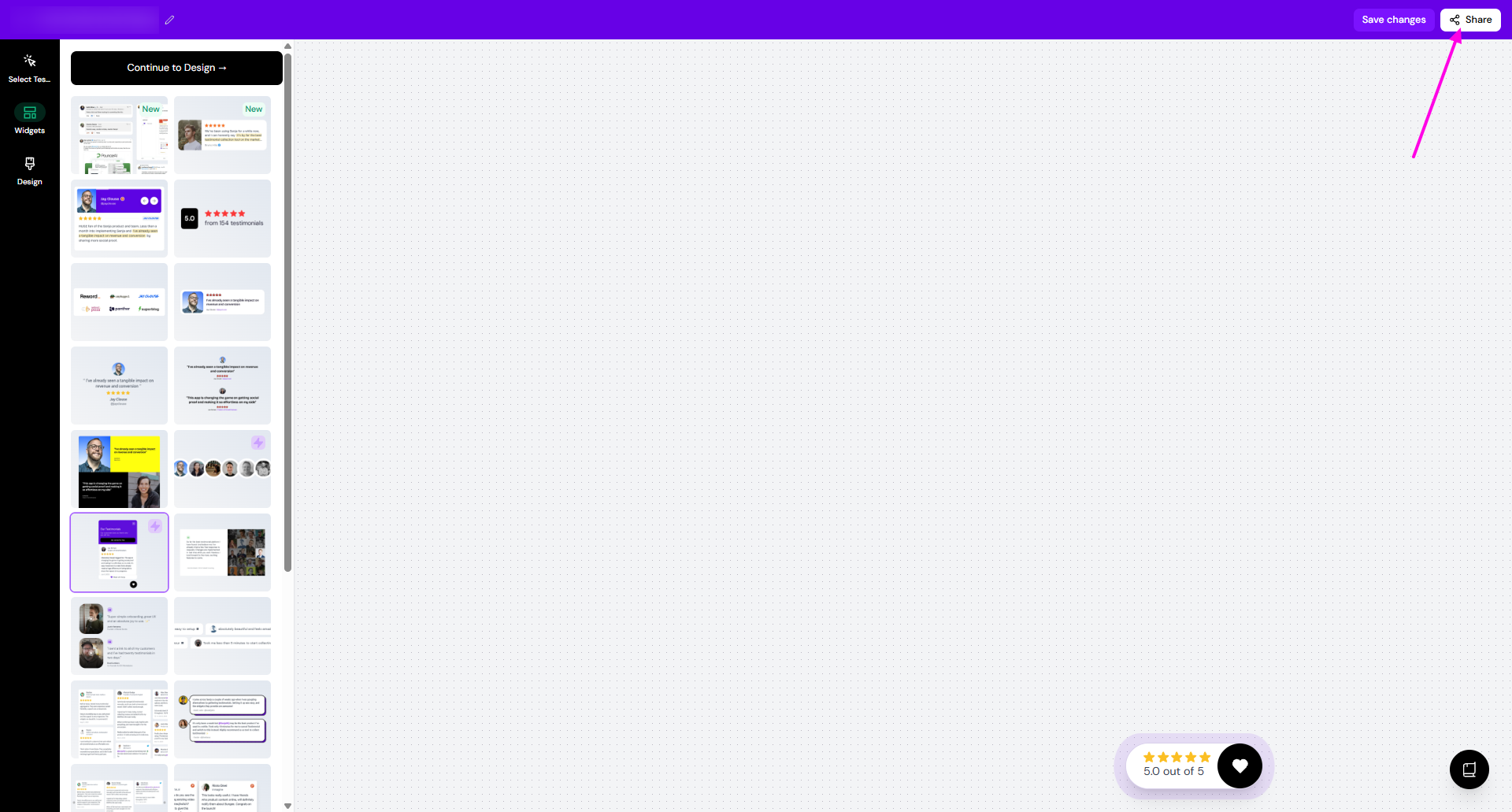
Open your popup and click Share in the top right
Click the copy icon in the Embed code box
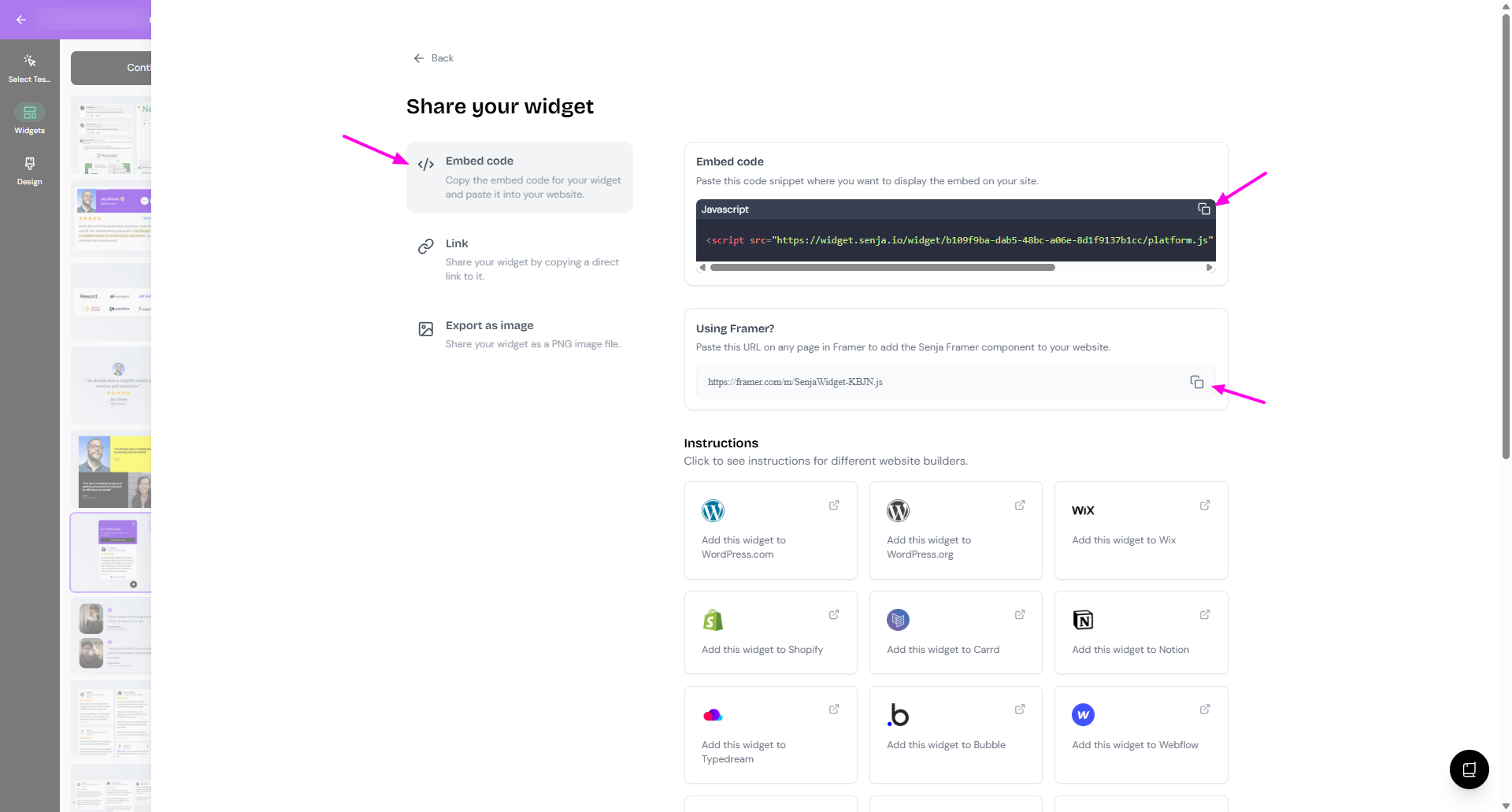
Paste the code in your website's settings where you add custom code to every page. Most website builders have this in their site settings, often called Custom code, Header code or Code injection
Save and publish your website
The Instructions section in the Share window has steps for popular platforms.
Using Framer?
In the Share window, click the copy icon in the Using Framer? section
Paste the URL on any page in Framer to add the Senja Framer component to your website
Go to Site Settings → General
Paste the embed code in the End of <body> tag box
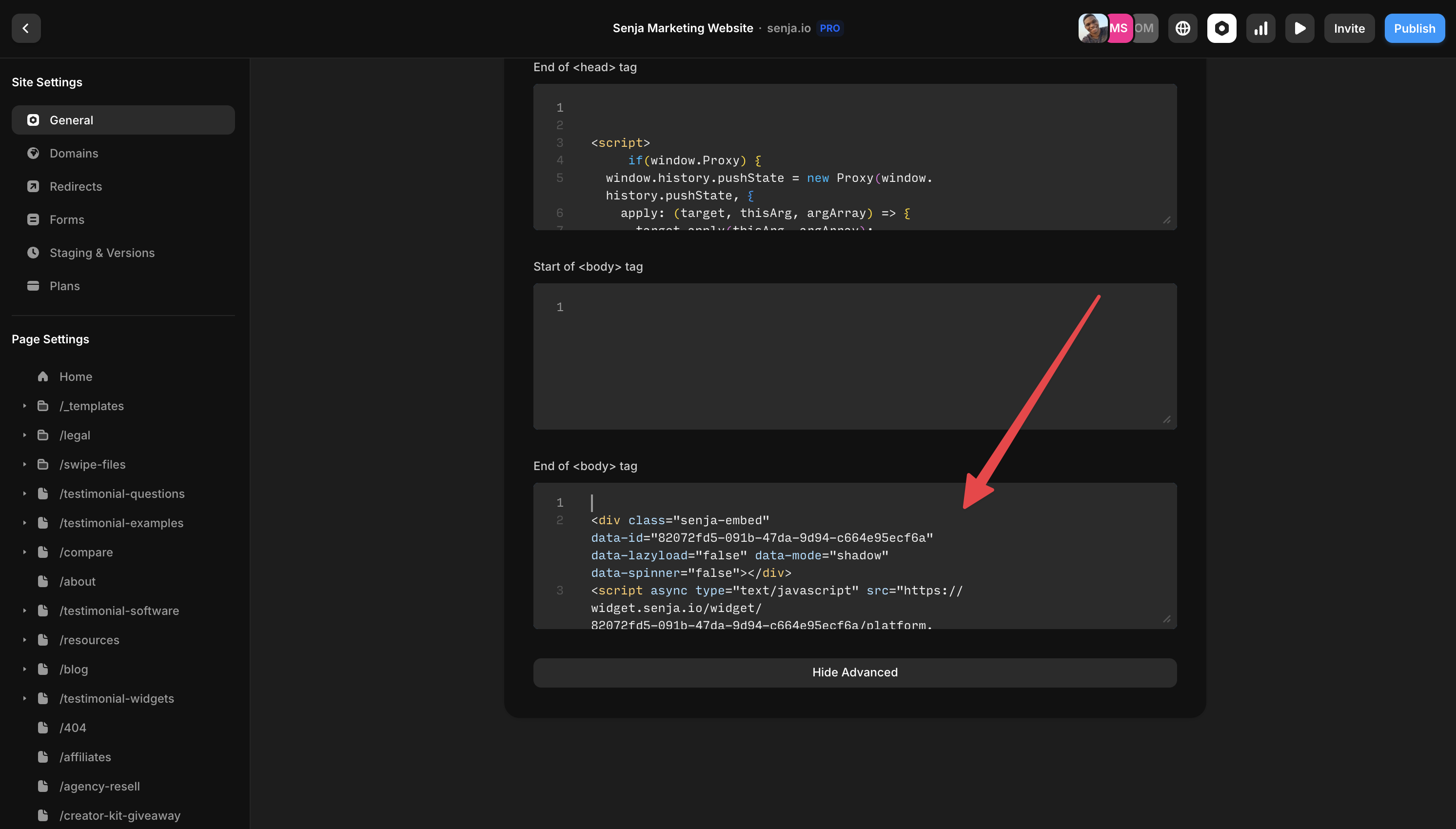
Click Save, then Publish
Share as a link or image
The Share window also has a Link tab, with a QR code, and an Export as image tab. They work the same as for widgets, see How to share or embed my widget.
Popup not showing up at all? Work through Troubleshooting testimonial widget, or contact Senja Support.
Want to see popups in action? Check out the popup demo on the Senja website.