
How to customize your Wall of Love design
Make your Wall of Love match your brand. Change its style, colors and fonts, choose what each testimonial shows, and add custom CSS for anything else.
Design settings are available on all Senja plans: Free, Starter and Pro. Custom CSS needs a paid plan: Starter or Pro.
Open the design settings
Go to Studio → Saved and open your Wall of Love
Click Design
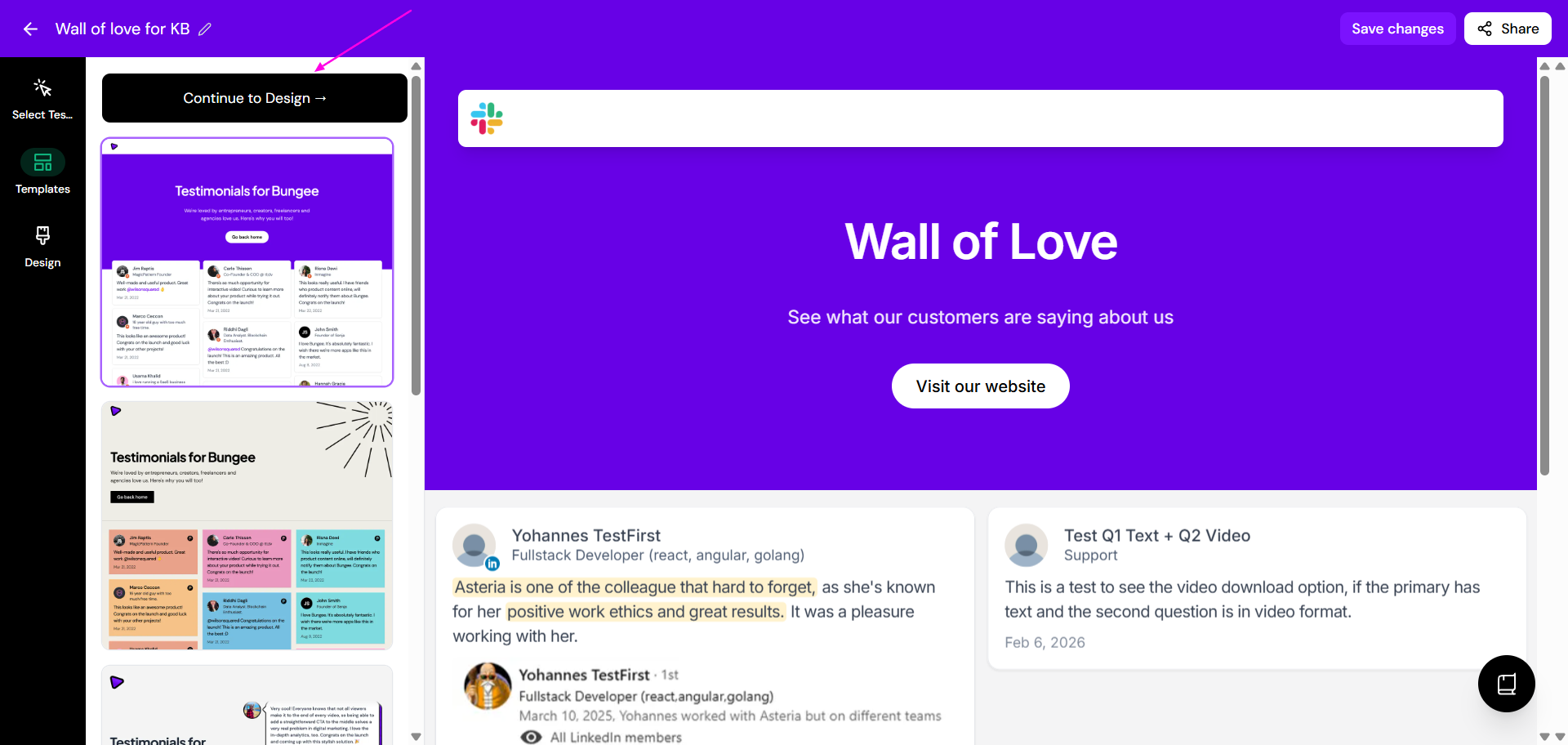
Make your changes. The preview updates as you go
Click Save changes
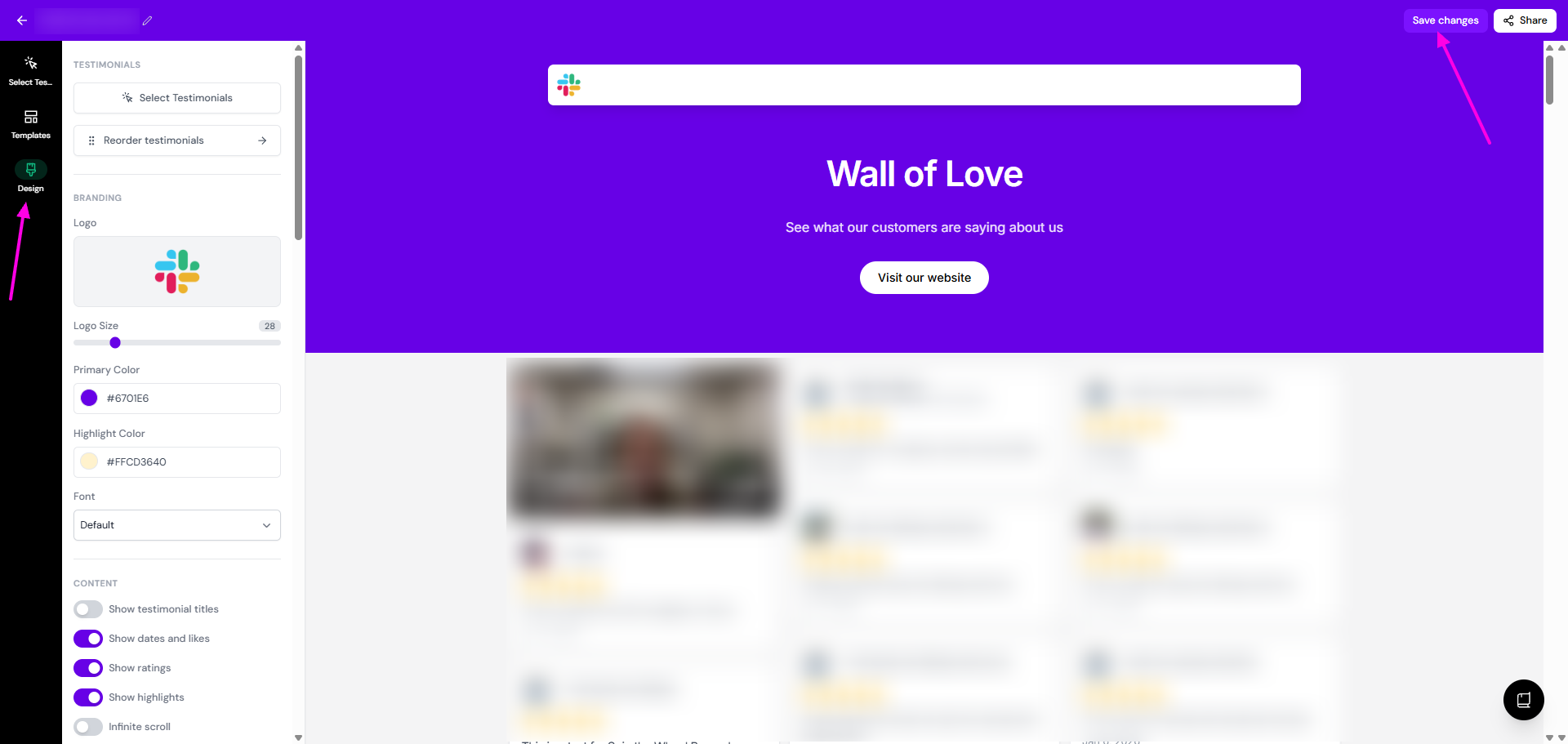
Change the style
Open your Wall of Love and go to the Templates tab
Choose a new style
Click Save changes
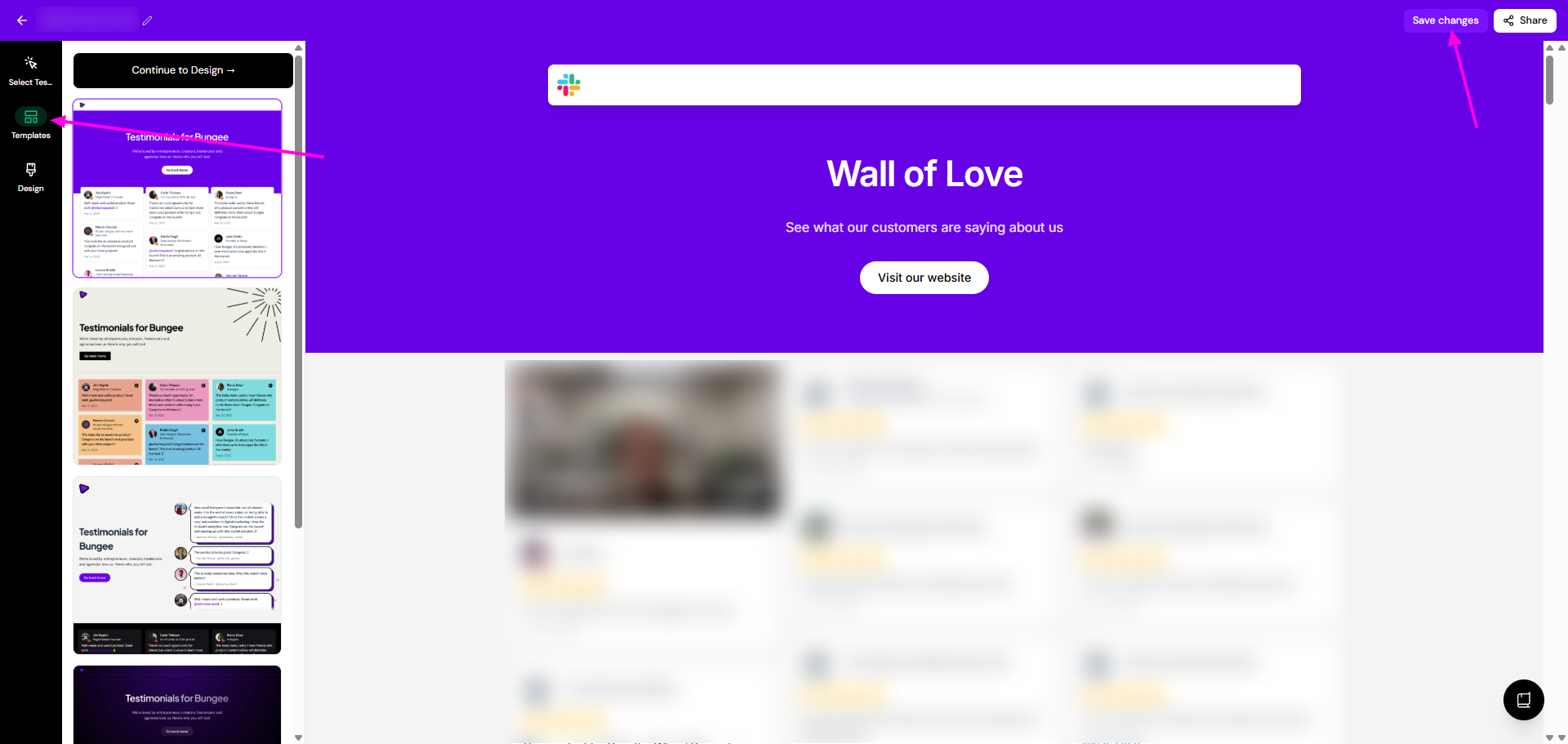
Your testimonials stay the same when you switch styles. Design options vary a little between styles.
Colors
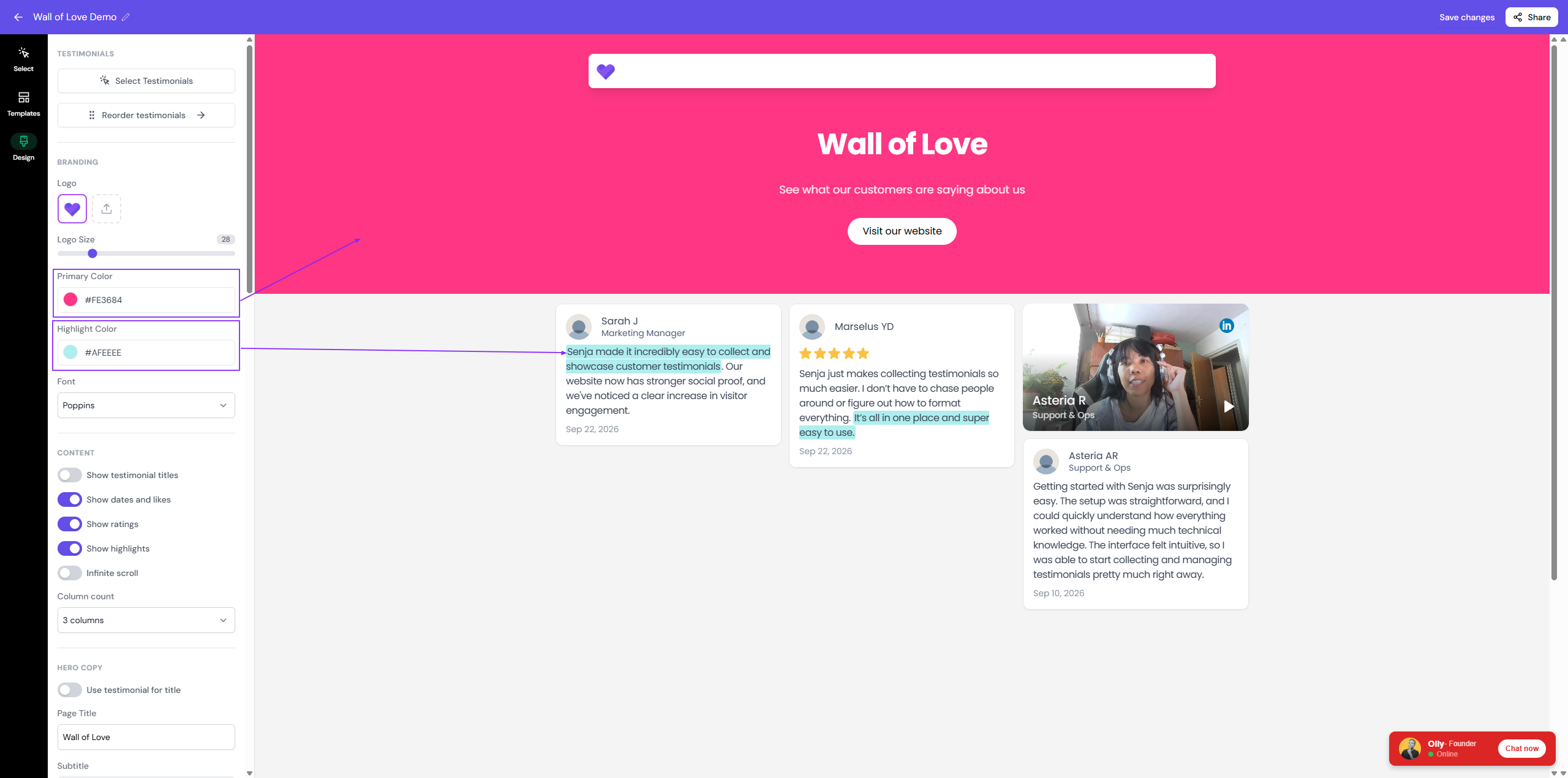
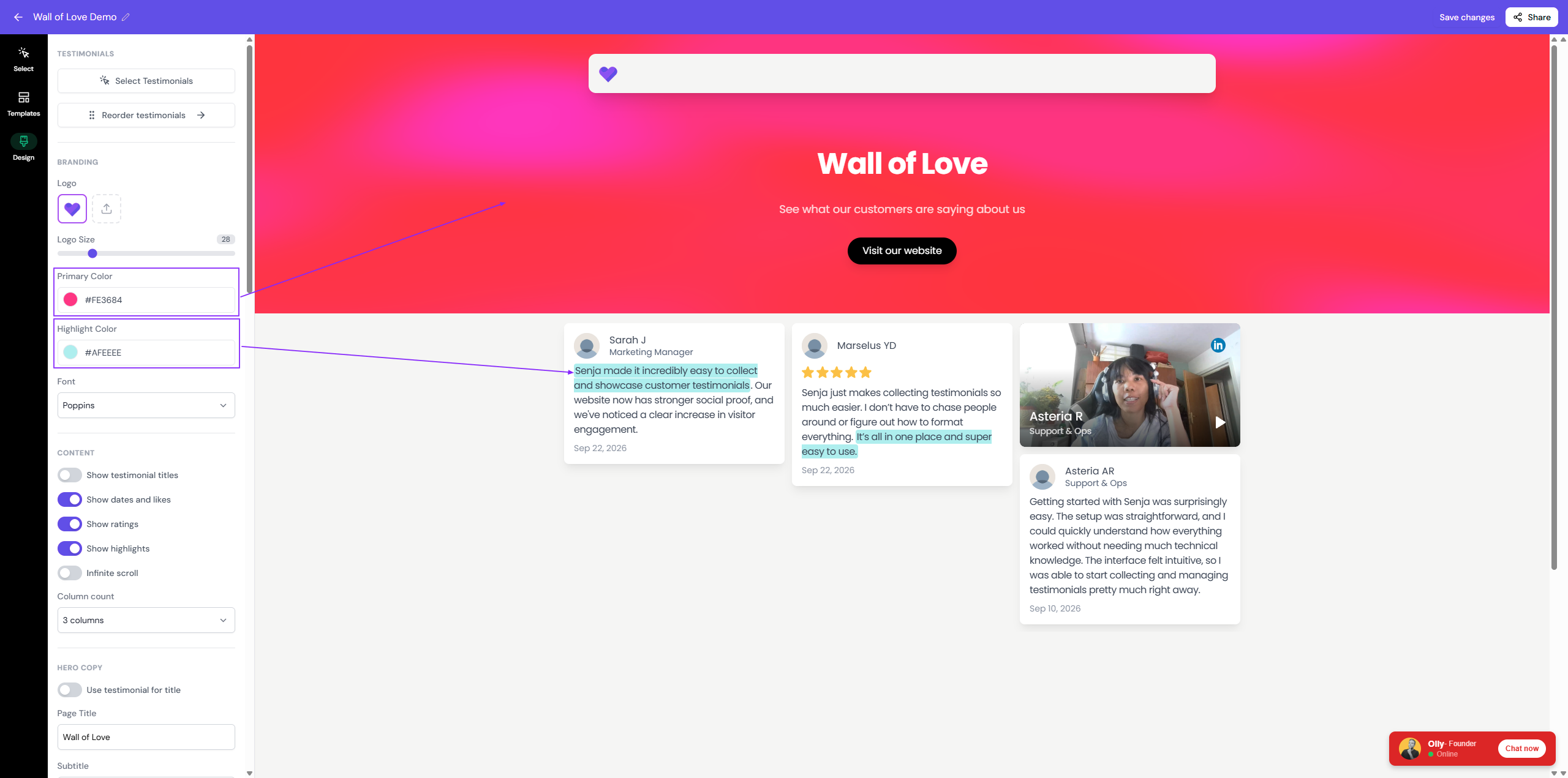
In Design, you can change the Primary Color and the Highlight Color. What each one changes depends on your style.
Default
Primary color: the solid background of the header
Highlight color: the highlighted parts of your testimonials
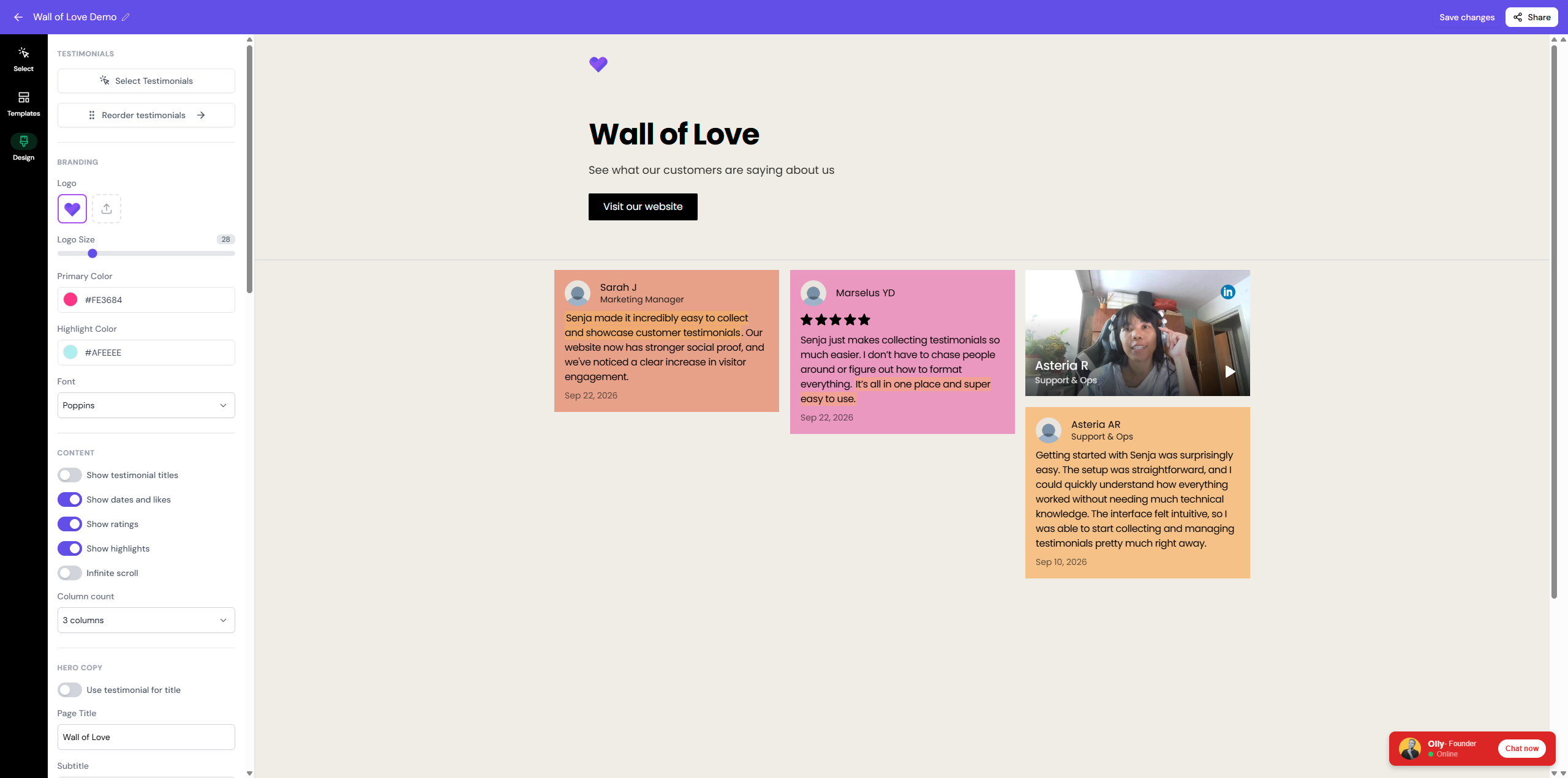
Playful
Primary color: a lighter shade on the header, and the CTA button
Highlight color: the highlighted parts of your testimonials
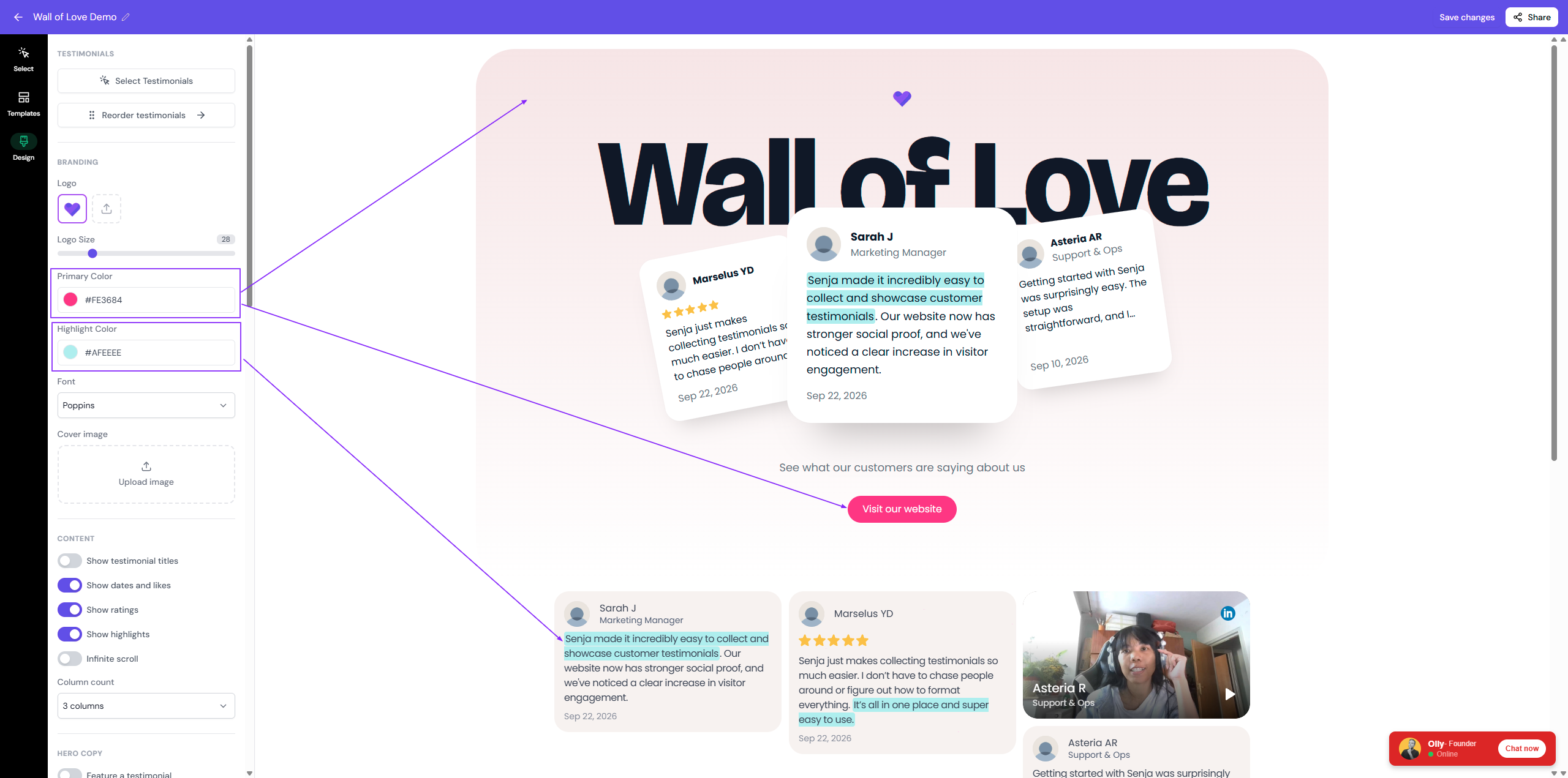
Hong Kong
Primary color: no change
Highlight color: no change. The colors are set so they don't clash with the colorful design
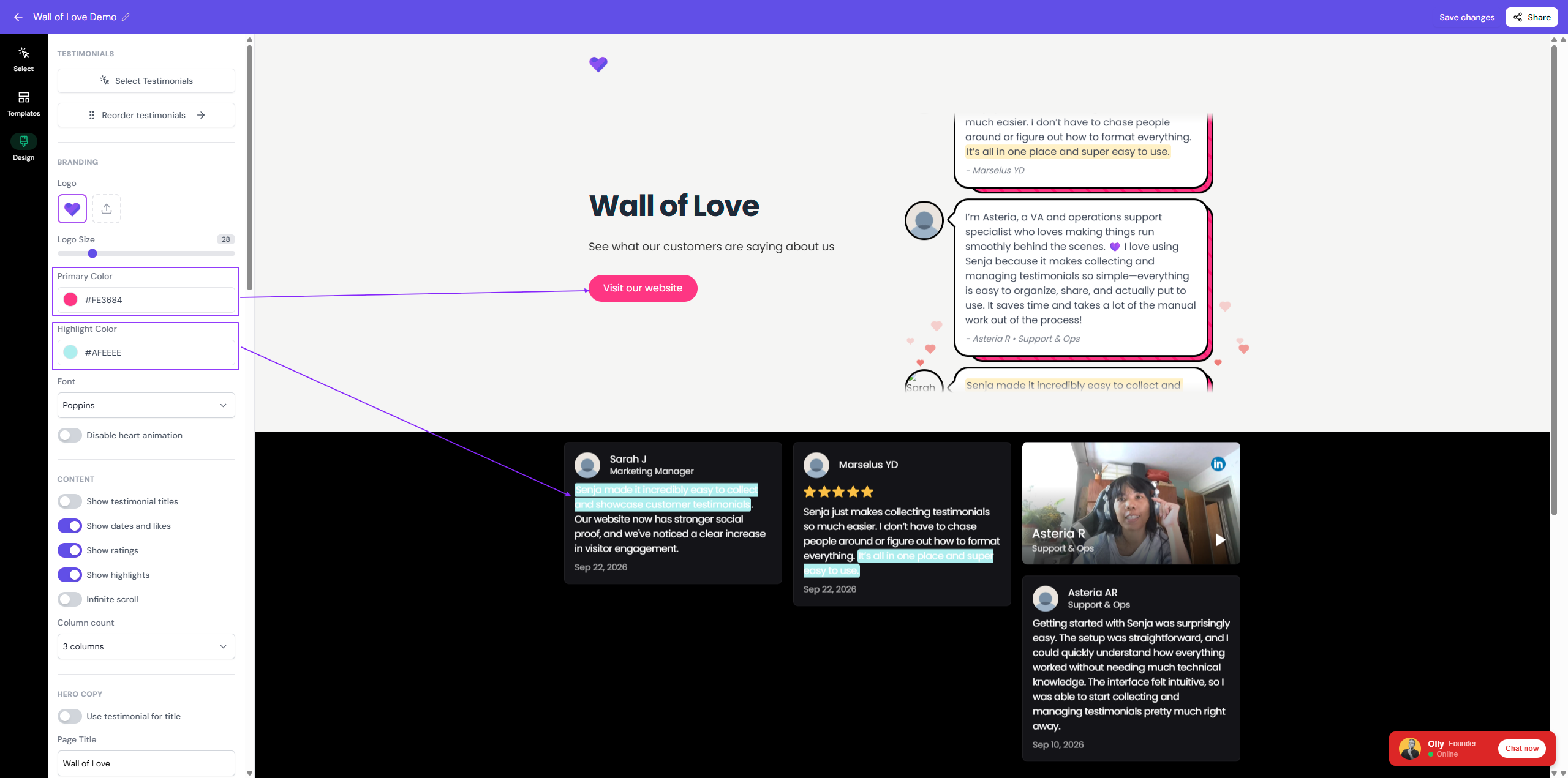
Whimsical
Primary color: the CTA button
Highlight color: the highlighted parts of your testimonials, but not in the header
Noire
Primary color: the burst of color in the header, and the outline of the CTA button
Highlight color: the highlighted parts of your testimonials
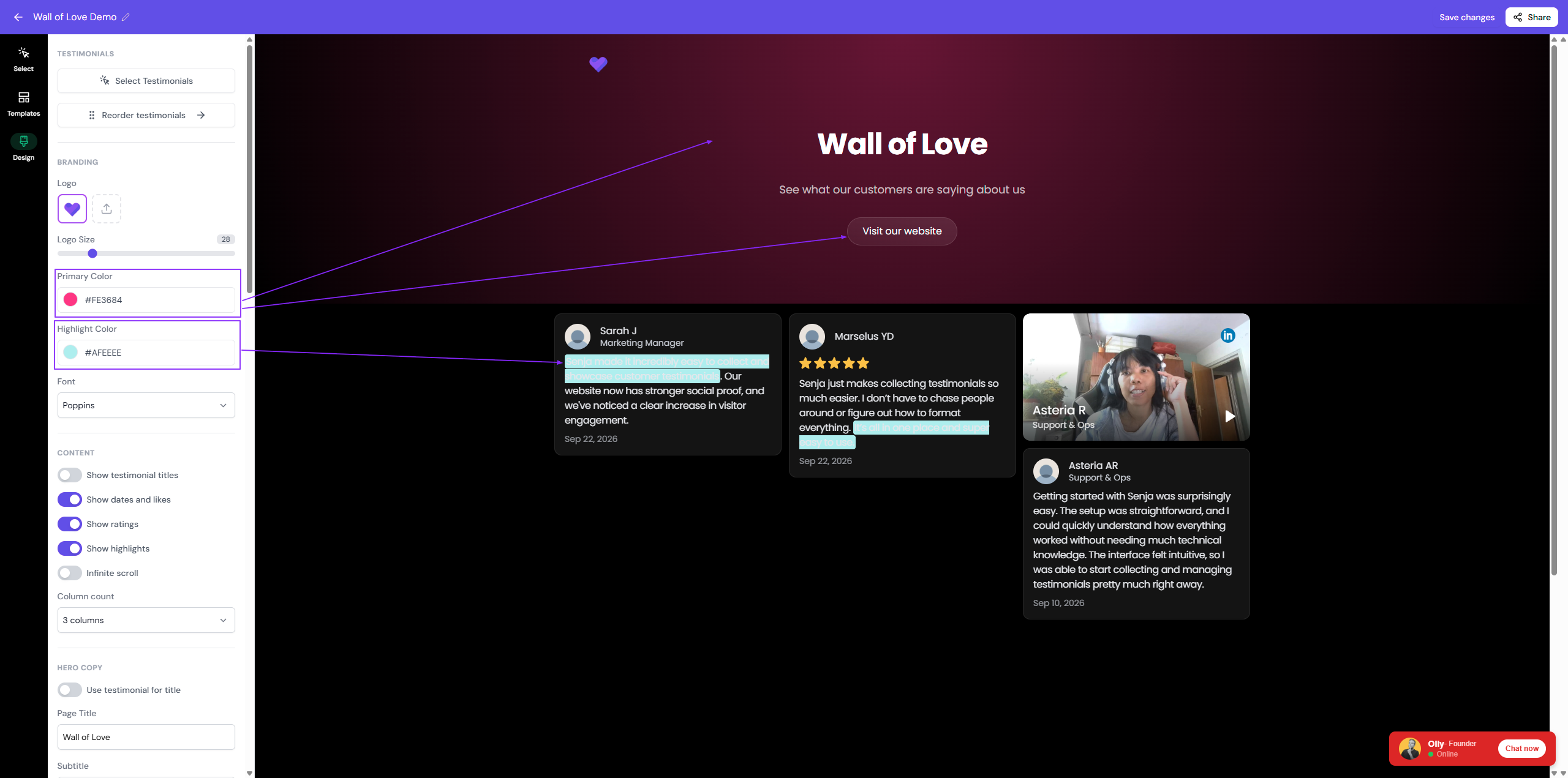
Whimsical and Noire have white testimonial text on a dark background, so pick a darker highlight color for them.
Pastel
Primary color: the background shade of the header
Highlight color: the highlighted parts of your testimonials, but not in the header
Font
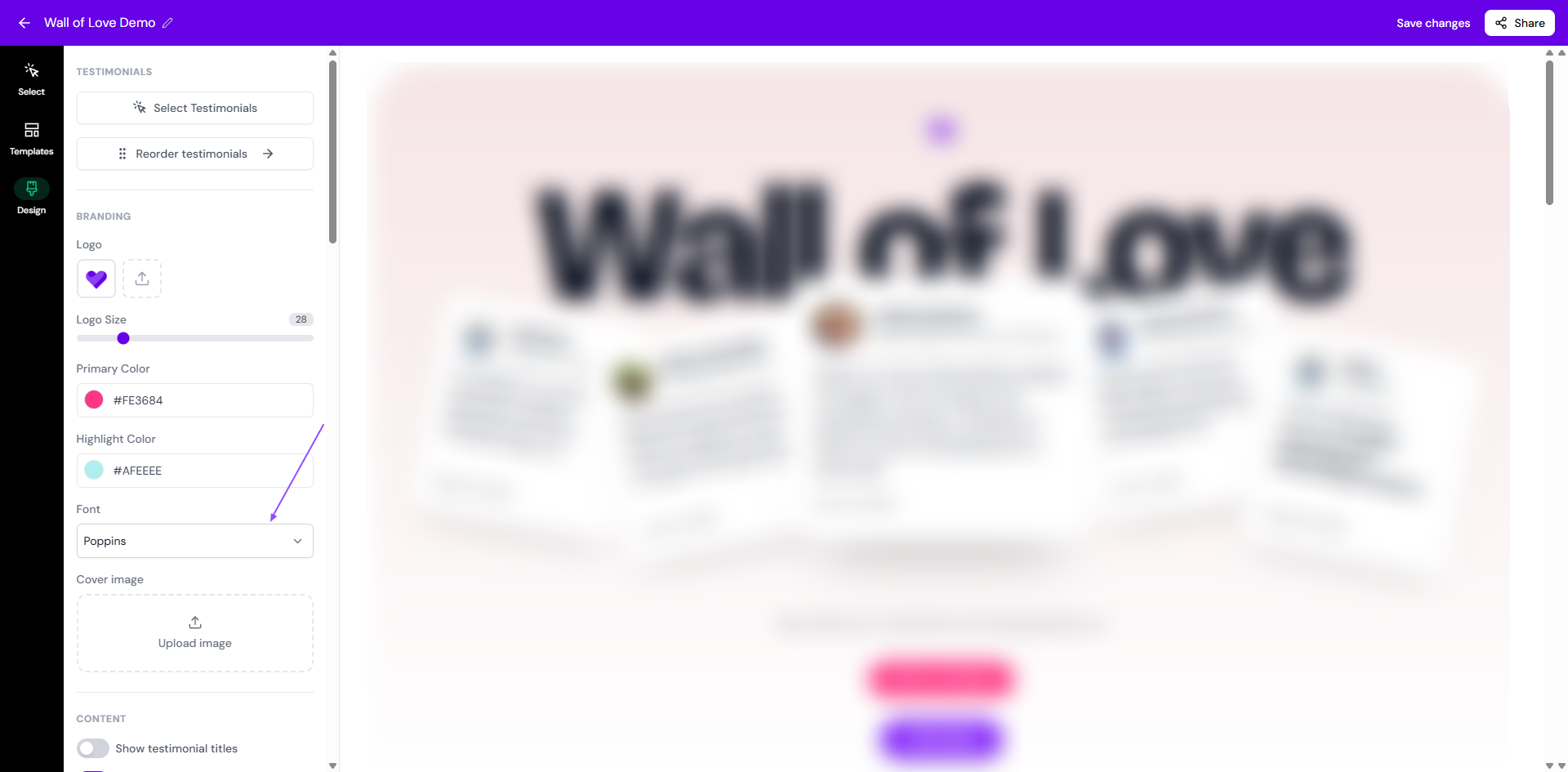
In Design, go to Branding → Font
Choose a font from the list (your brand kit fonts show at the top, see How to set up and use your brand kit)
Click Save changes
Can I show company logos and names?
Yes. Walls of Love don't show them by default, but you can turn them on.
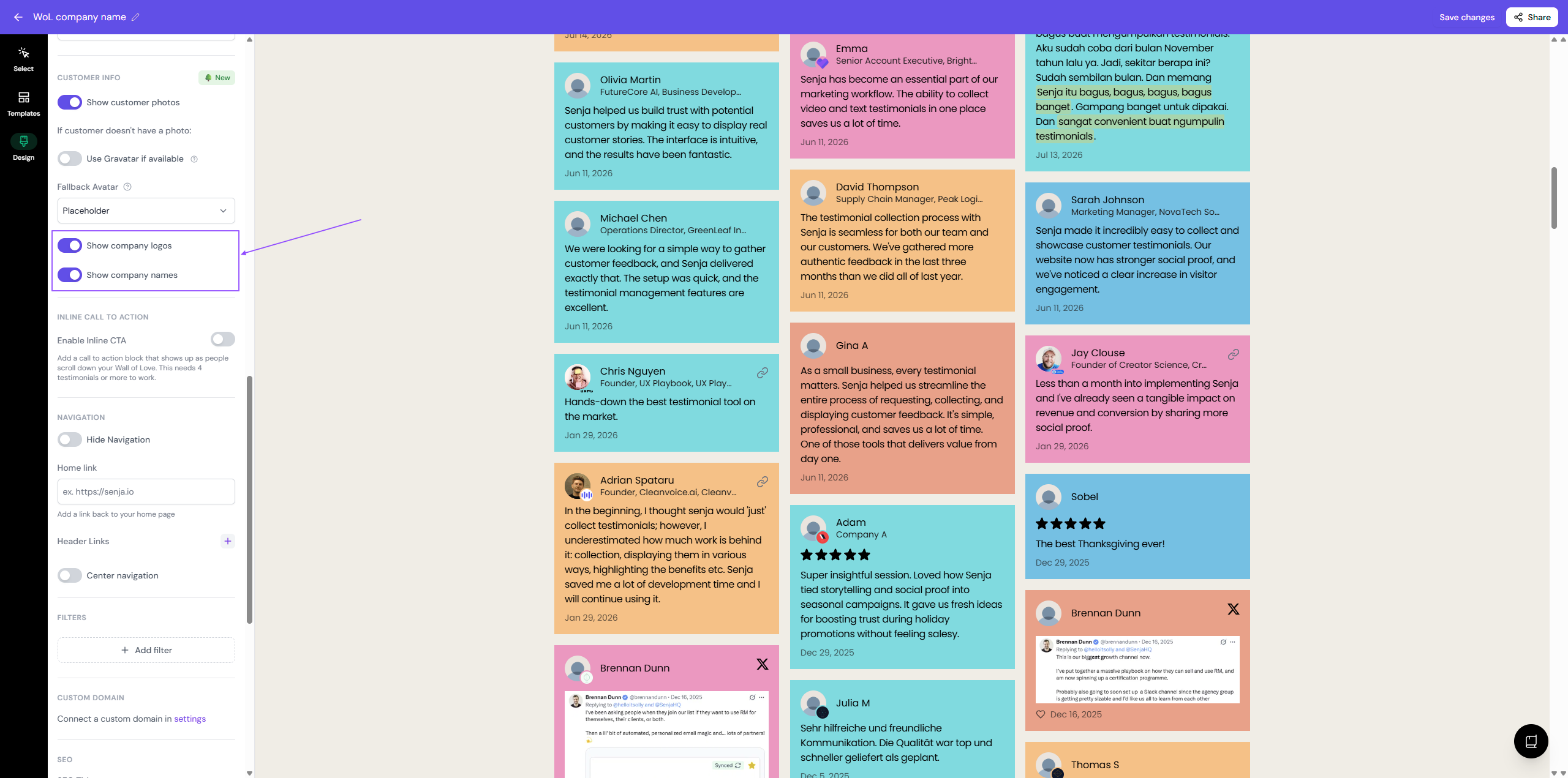
In Design, scroll down to Customer info
Turn on Show company logo, Show company names, or both
Click Save changes
On your Wall of Love:
Company logo shows in the bottom-right corner of the customer's photo
Company name shows on the second line, next to their job title
Using a widget instead? See How to edit the design of my widget.
Hide dates and likes
For a cleaner, timeless look:
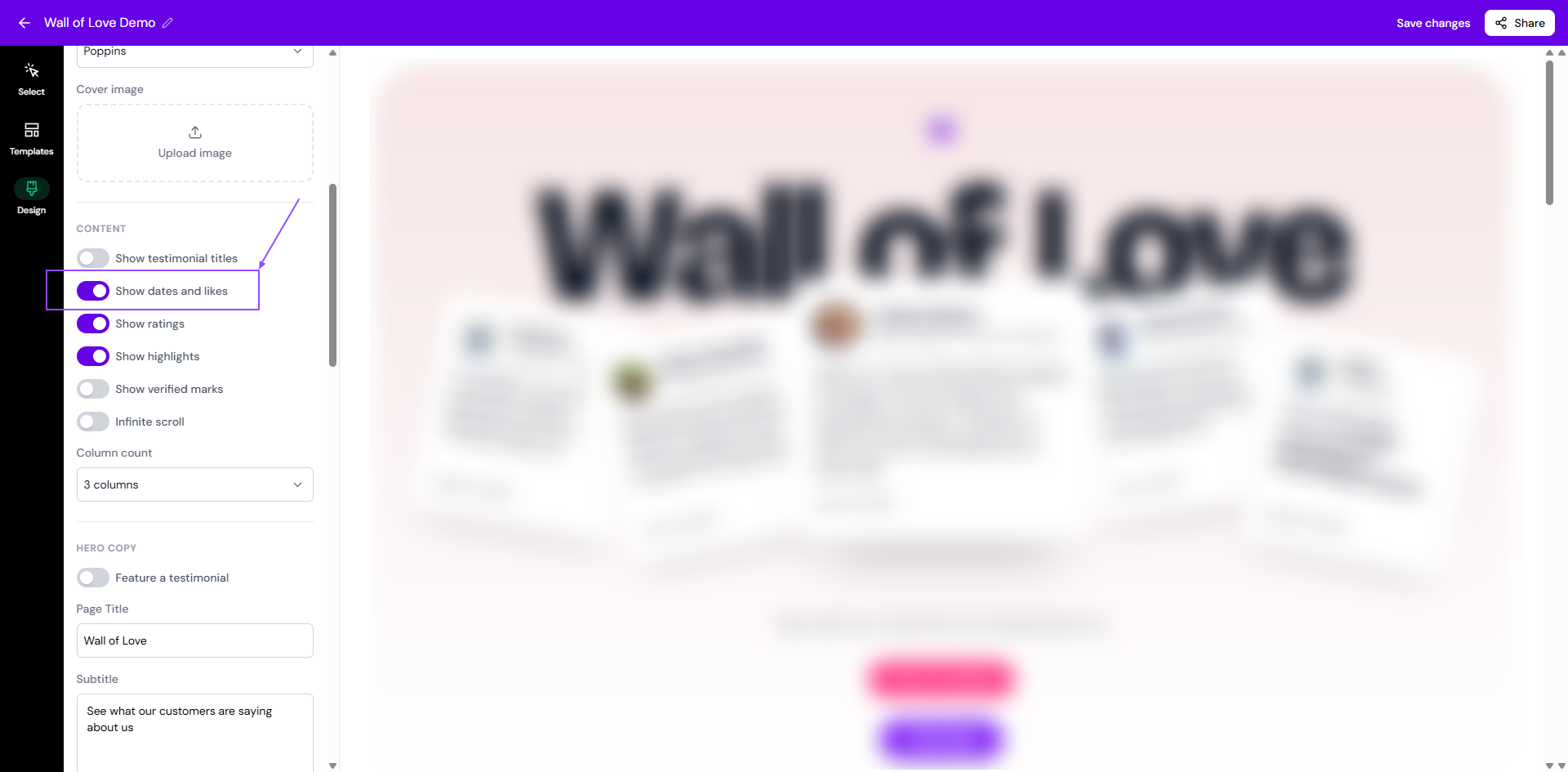
In Design, go to the Content section
Turn off Show dates and likes
Click Save changes
The setting applies to one Wall of Love at a time, so turn it off on each one.
Verified marks
New Walls of Love show a Verified mark on testimonials Senja can verify. To hide the marks, turn off Show verified marks in Design and click Save changes. See What are verified testimonials?
Custom CSS
Custom CSS needs a paid plan: Starter or Pro.
Use custom CSS for anything the design settings don't cover, like hiding an element or changing the text size.
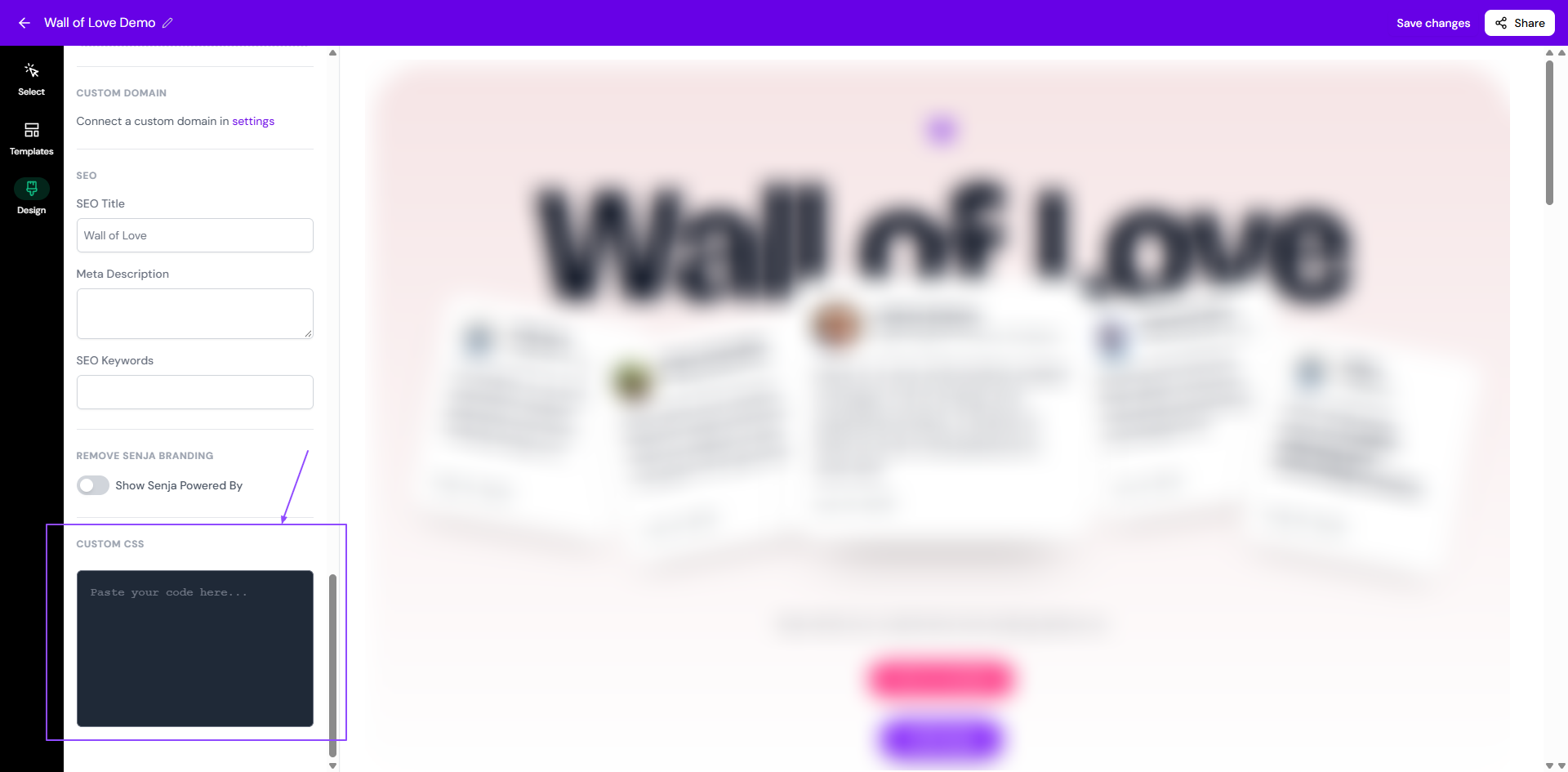
In Design, scroll down to Custom CSS
Paste your CSS in the box
Click Save changes
Hide an element
<style>
.element-class {
  display: none !important;
}
</style>
Change the text size
<style>
.testimonial-text {
  font-size: 16px;
}
</style>
Not sure which class to use? Right-click the element on your live Wall of Love and choose Inspect to find it
Custom CSS only shows on your published Wall of Love, so check the live page after saving
If something breaks, clear the box and save to go back to the default design