
What are verified testimonials?
Senja can show a Verified mark on testimonials we can prove are real. Either the person really paid you, or we imported their review unchanged from the original post. Visitors can click the mark to see how we checked it.
This is available on all Senja plans: Free, Starter and Pro.
When a testimonial is verified
A testimonial gets the Verified mark when one of these is true:
It’s matched to a Stripe payment: the person who wrote it paid you, and Senja matched them to a payment in your connected Stripe account
It’s imported unchanged from the original post: you imported it from a platform like Google, X, Facebook or LinkedIn, and it still links back to the original
Each Verified mark links to a page that explains how we checked that testimonial.
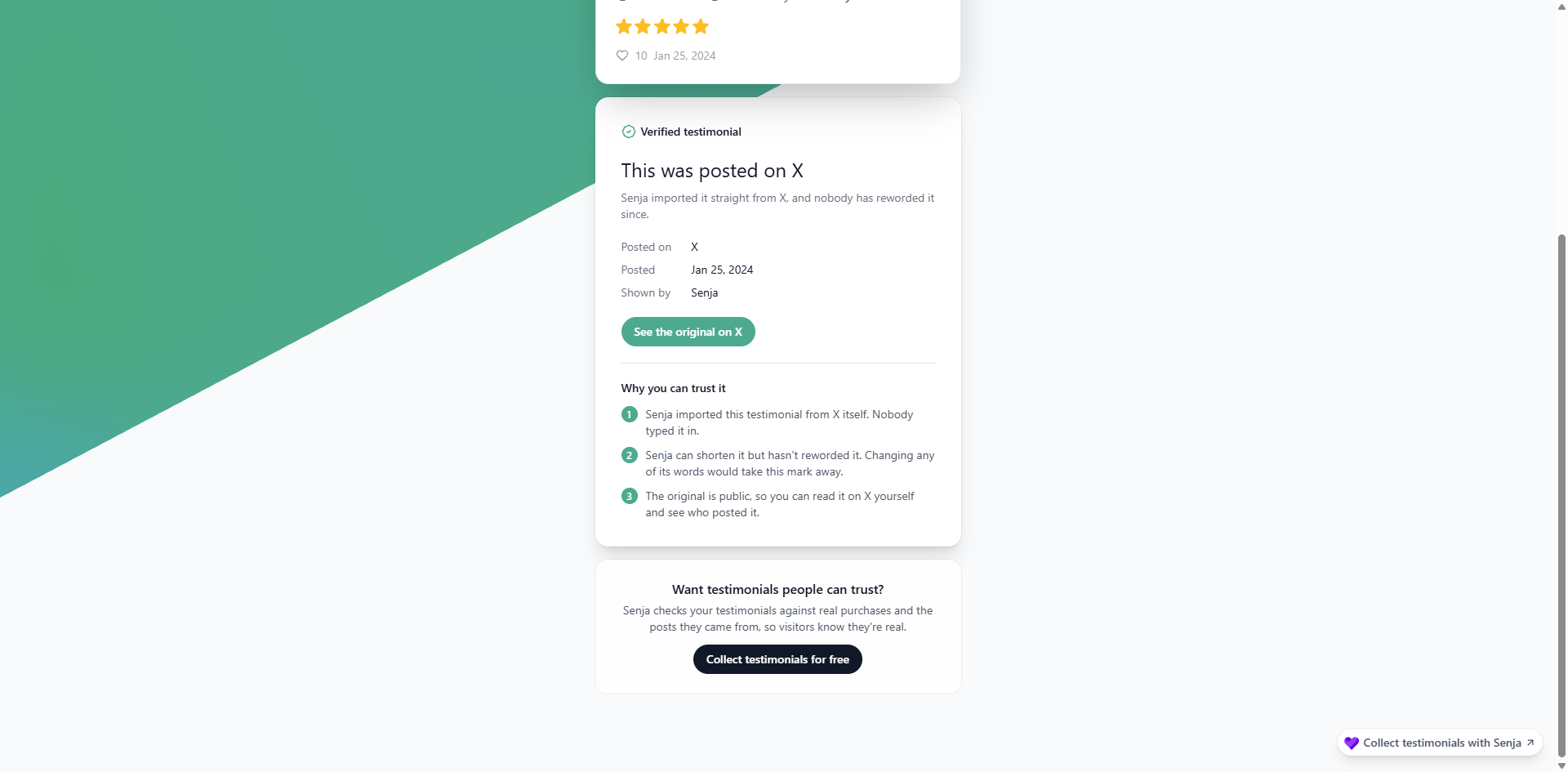
Shortening a testimonial is fine. Cutting words from the start or end keeps the mark. Changing or adding words removes it.
When a testimonial isn’t verified
You created it by hand or uploaded it from a CSV/XLS file
You edited its text, star rating, source or link after importing it
You saved it with the Chrome extension, which lets you edit the words before saving, so we can’t prove they’re unchanged
The platform doesn’t give us a link to a single review, like Product Hunt, App Store, Google Play, Chrome Web Store, Apple Podcasts, Airbnb, Zillow, Fiverr or Udemy
Show verified marks on your Wall of Love
New Walls of Love show verified marks by default. Walls of Love made before this feature is launched (November 2026) have them turned off, so nothing changes on your page without you knowing.
Go to your Studio page and open your Wall of Love
Click Design
Turn on Show verified marks
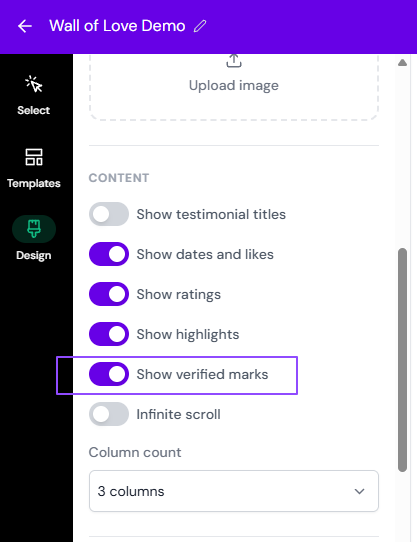
Click Save changes
When you connect your customers, Senja also asks whether you want to turn on verified marks for your existing Walls of Love.
Find verified testimonials in your Proof page
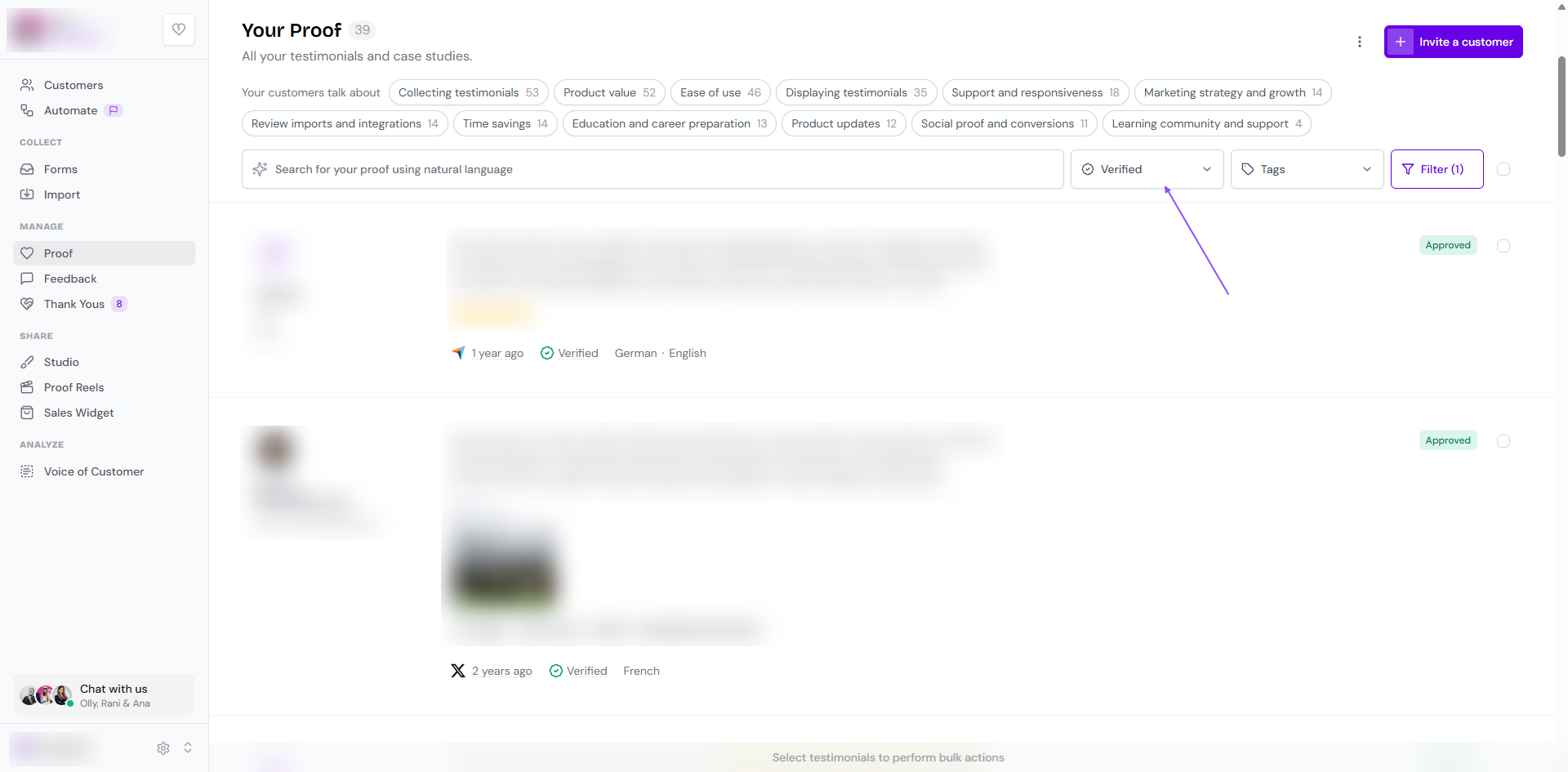
Your Proof page shows the same Verified marks
Use the Verified filter to see only verified testimonials
Verified testimonials in AI assistants
If you’ve connected an AI assistant to Senja through MCP, it gets each testimonial’s verification link along with the testimonial.
Get an email when a paying customer churns
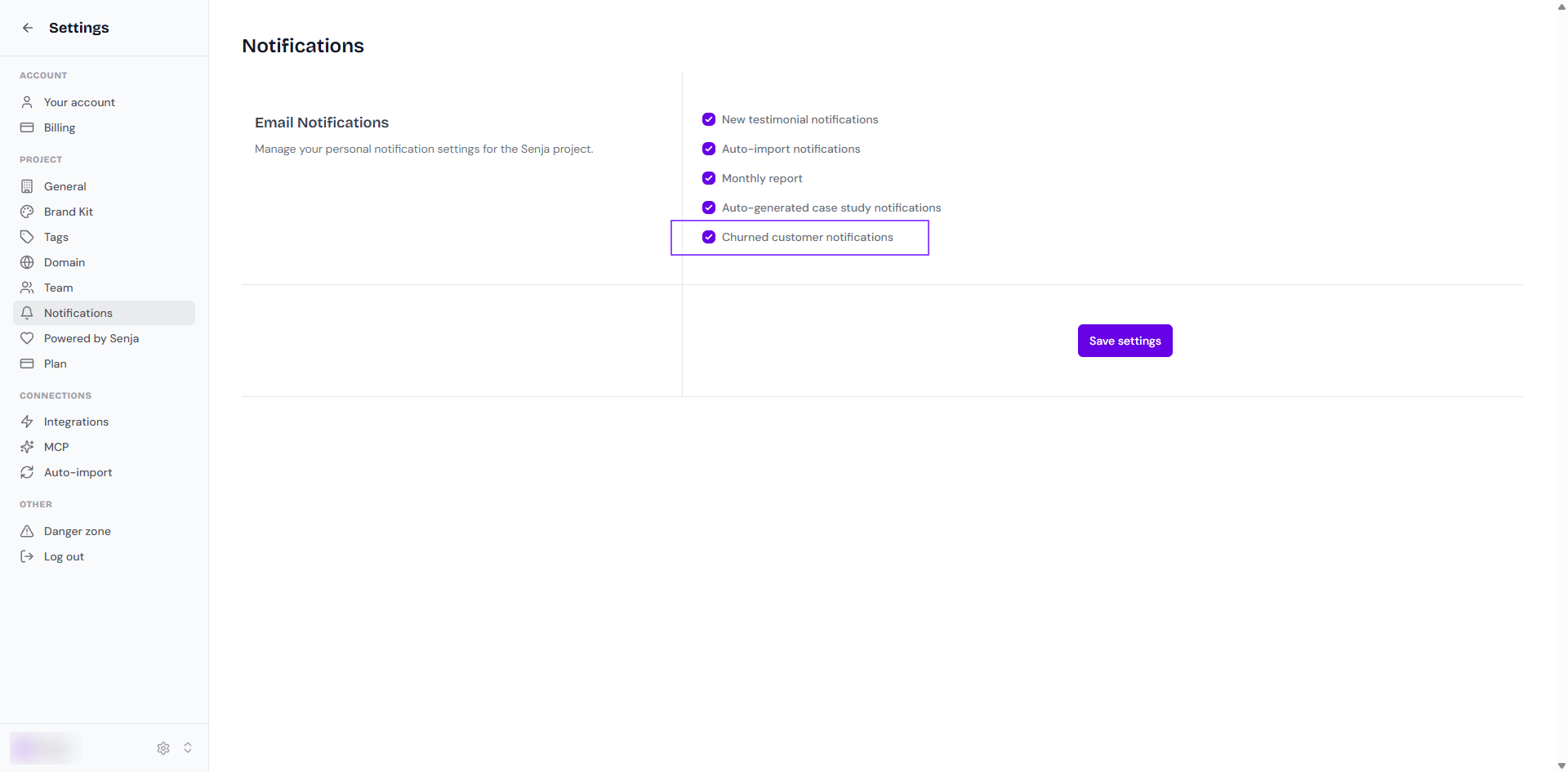
With Stripe connected, Senja emails everyone on your project when a paying customer with approved testimonials stops paying. The email links to their testimonials, so you can reach out to them or decide whether to keep showing their proof.
It’s on by default
To turn it off
Go to Notifications: https://app.senja.io/settings/notifications
Turn off Churned customer notifications
This setting only shows once Stripe is connected
If you unapprove a testimonial, it disappears from every widget and Wall of Love, including widgets where you picked it by hand. See How to approve testimonials (and what it means).