
How to manually import testimonials
Got testimonials by email, in a chat, or anywhere else Senja can't import from directly? Add them yourself with Manual import. You can add text testimonials, video testimonials, screengrabs, and case studies.
This is applicable for any Senja plans: Free, Starter, and Pro.
Open Manual import
Go to Import → Manual import: https://app.senja.io/import/manual
Choose what you're adding: Text testimonial, Video testimonial, Screengrabs, or Case Study
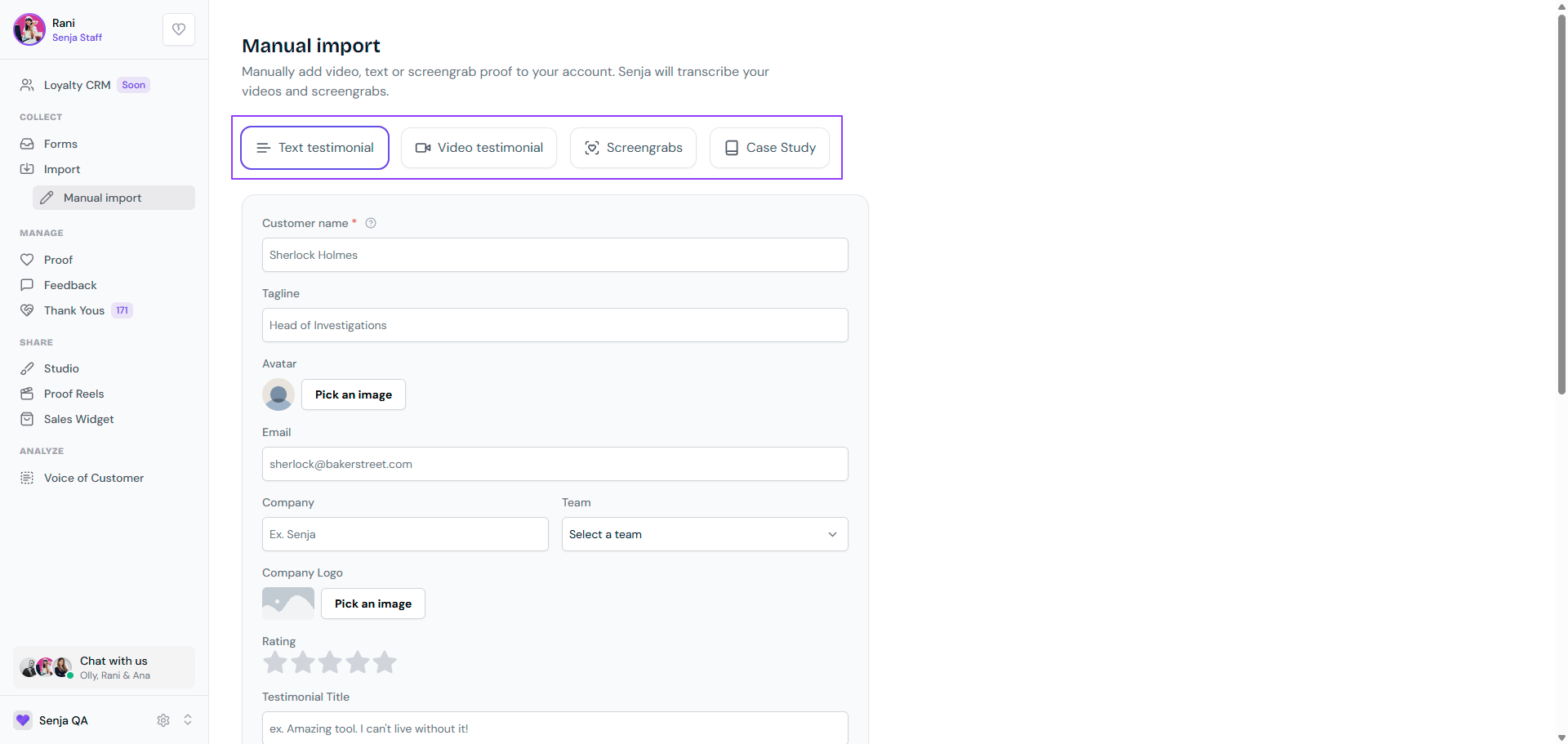
Customer details
Text testimonials, video testimonials, and case studies all start with the same customer details. Only Customer name is required.
Customer name (required)
Tagline: like your customer's job title
Avatar
Email
Company and Company Logo
Team
Rating (text and video only)
Add a text testimonial
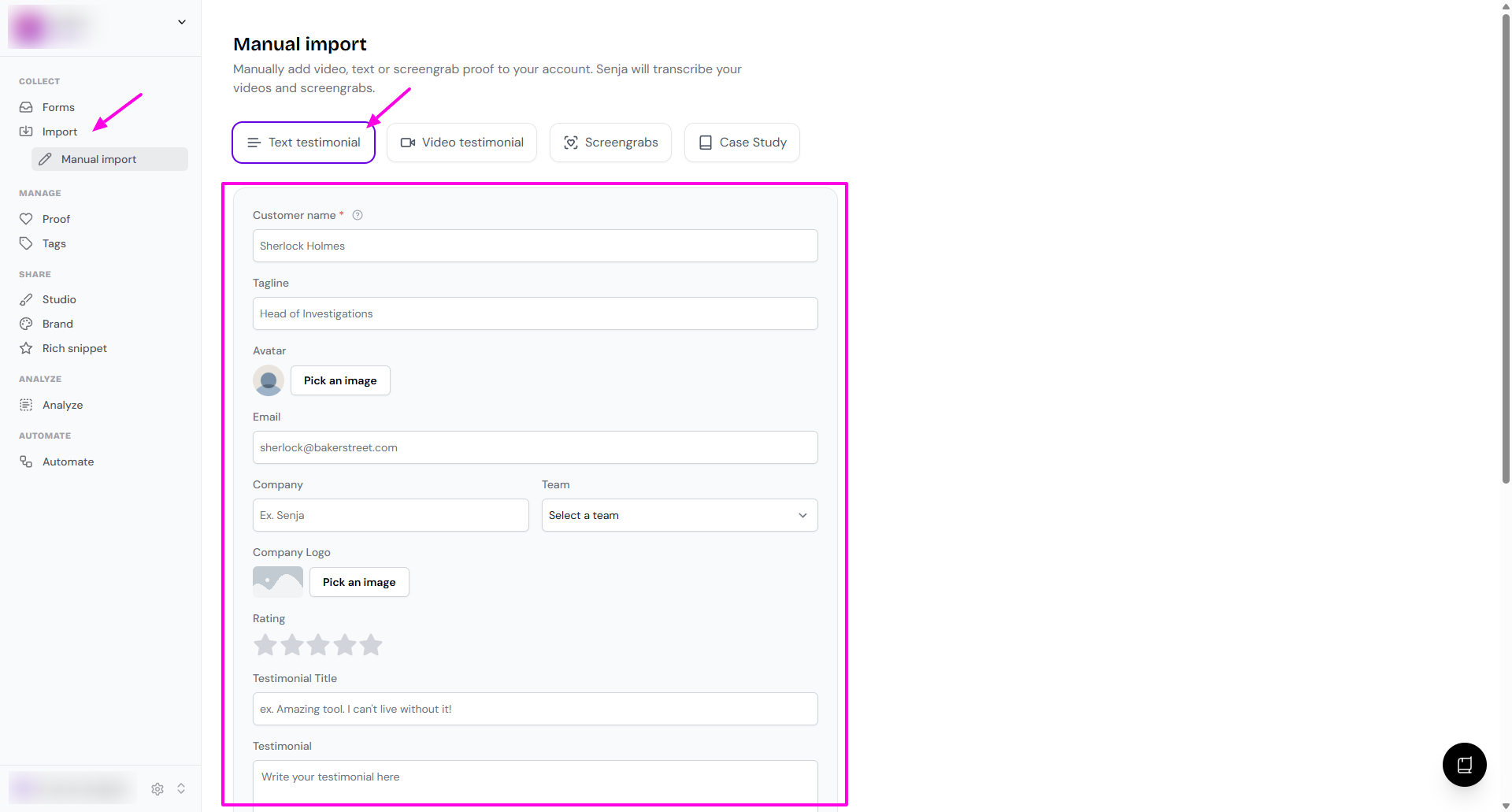
Choose Text testimonial and fill in the customer details
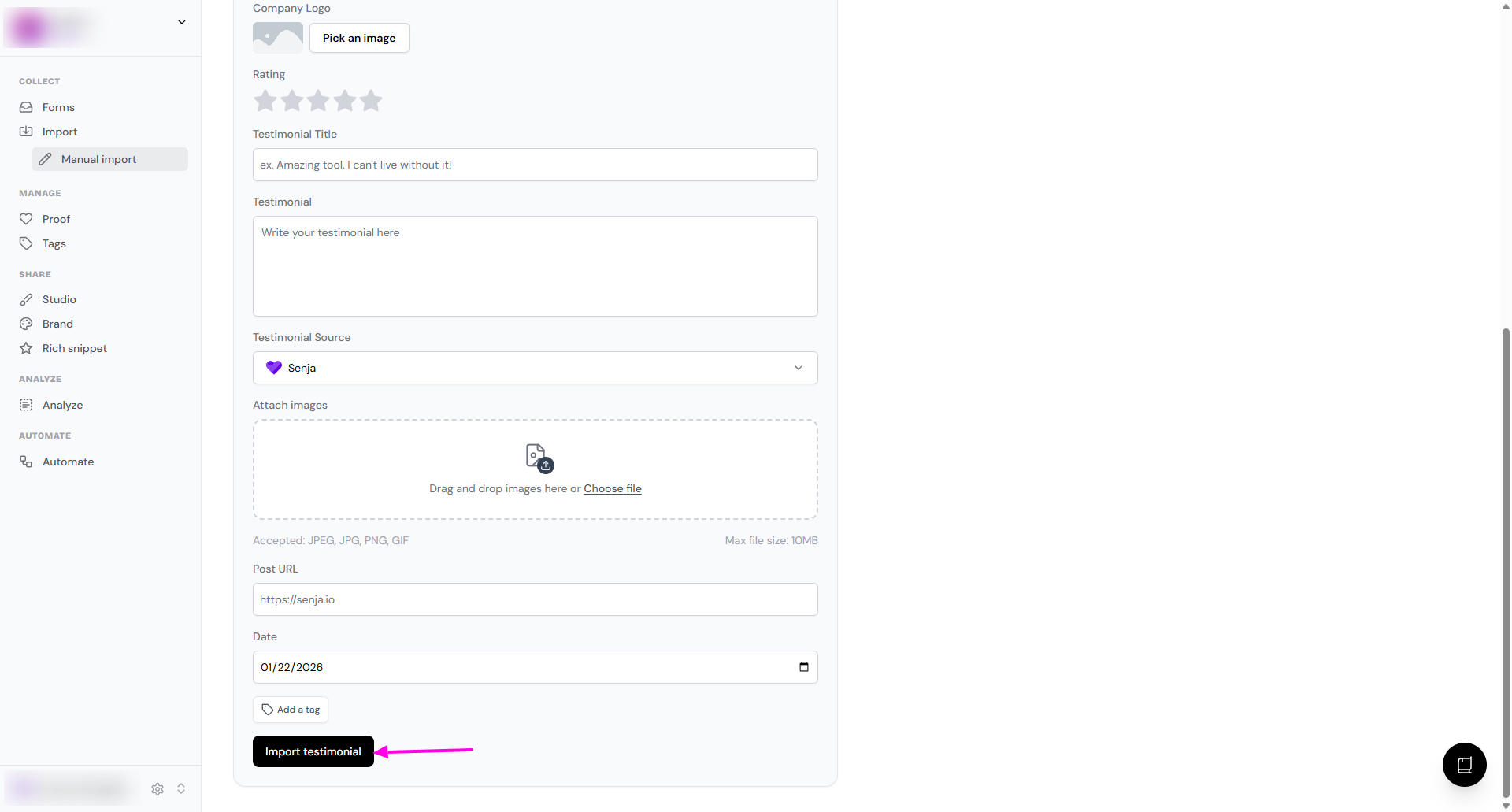
Add the testimonial itself, plus any of these:
Testimonial Title
Testimonial: the text of the testimonial
Testimonial Source: where it came from, like Slack or Google
Attach images
Post URL: a link to the original
Date: when you first received it
Add a tag
Click Import testimonial
Testimonials you add manually don’t get a Verified mark, even with a Testimonial Source and Post URL. If the testimonial is on a platform Senja imports from, like Google, X or LinkedIn, use Import from web instead to get the mark. See What are verified testimonials?
Add a video testimonial
Choose Video testimonial and upload the video
Fill in the customer details, plus any of these:
Excerpt: a highlight or quick summary of the video
Date: when you first received it
Add a tag
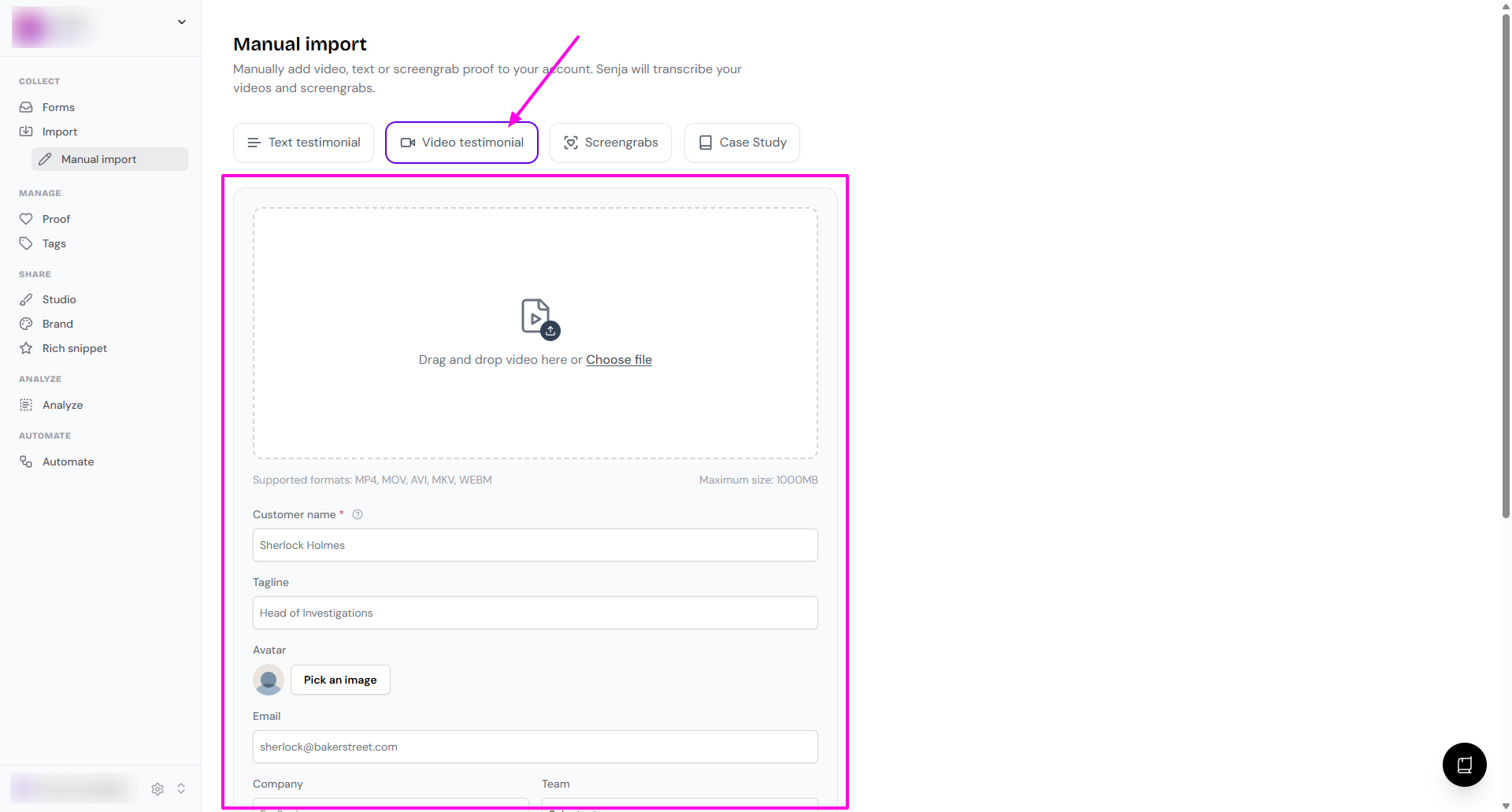
Click Import testimonial
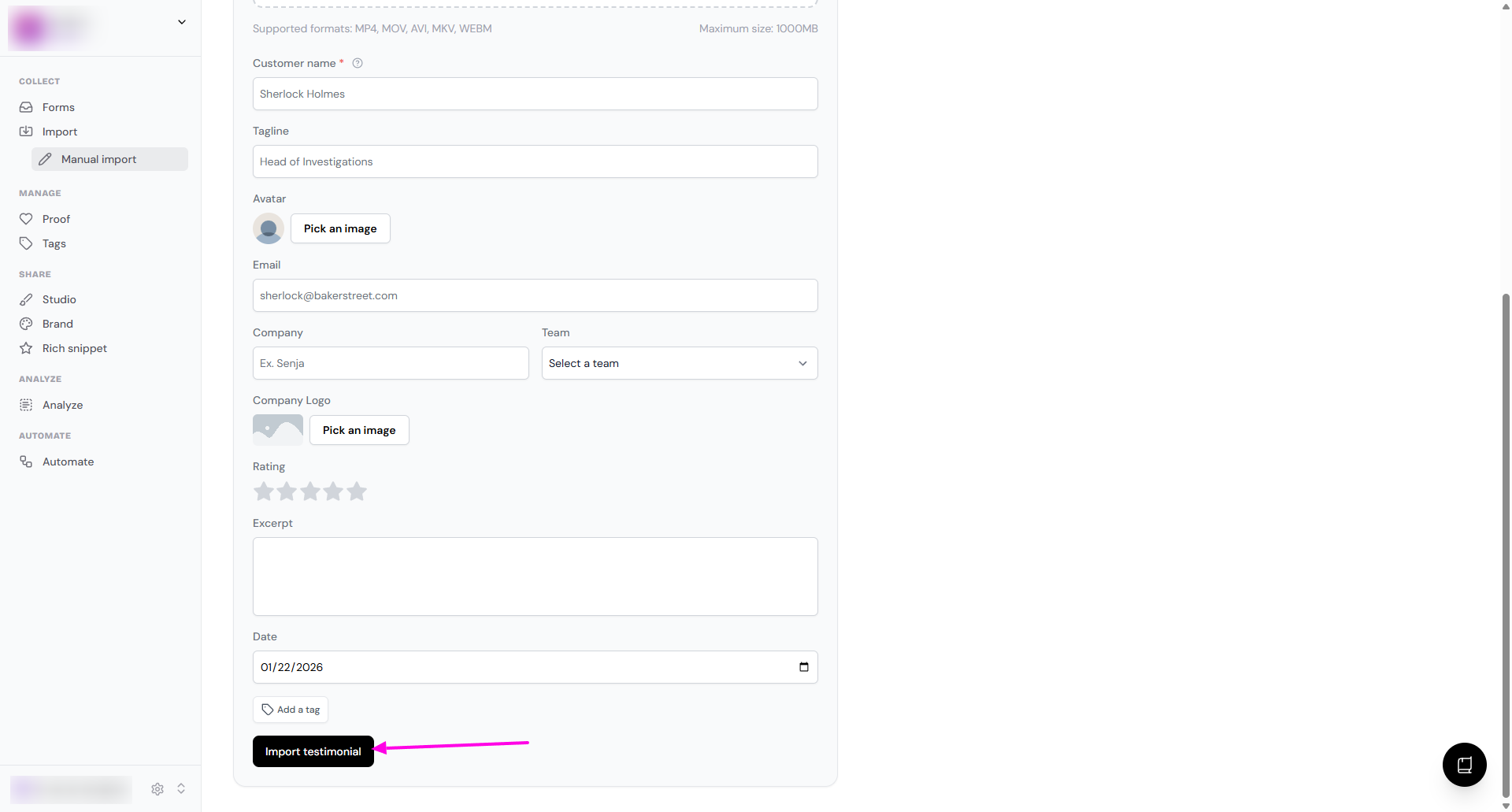
Senja transcribes the video, so it's ready to search, remix, and share
There's no limit on file size or video length, so you can upload videos over 60 minutes long.
Use portrait videos where you can. They display correctly in widgets without any parts getting cut off.
Add a screengrab
Have a screenshot of a happy customer's message or post? Import it as an image, and Senja reads the text for you, so you can always find it later.
Choose Screengrabs and upload your image
Turn Auto-highlight text in screenshots on or off
Click Import testimonial
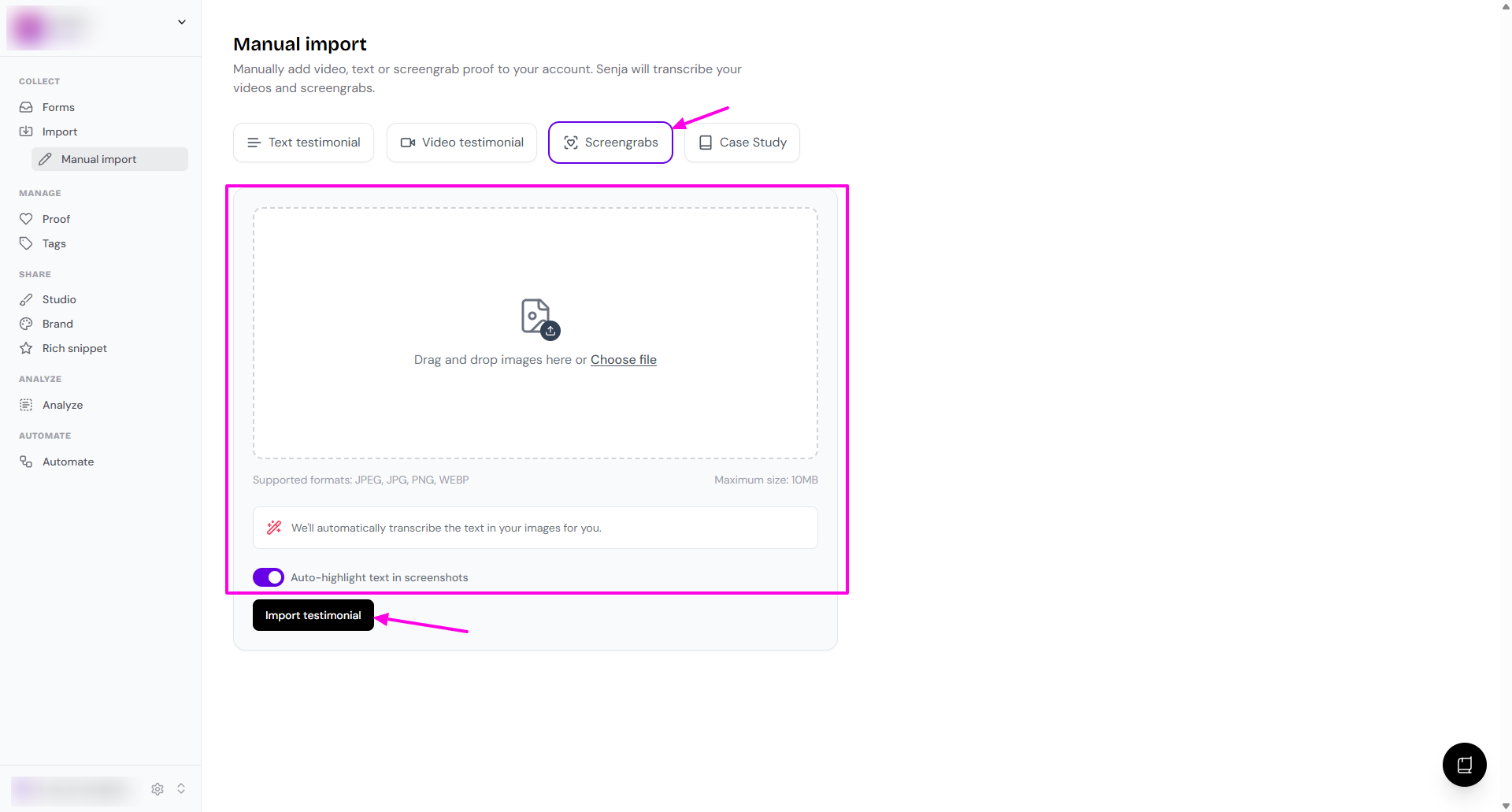
The image appears on your Proof page with its text transcribed
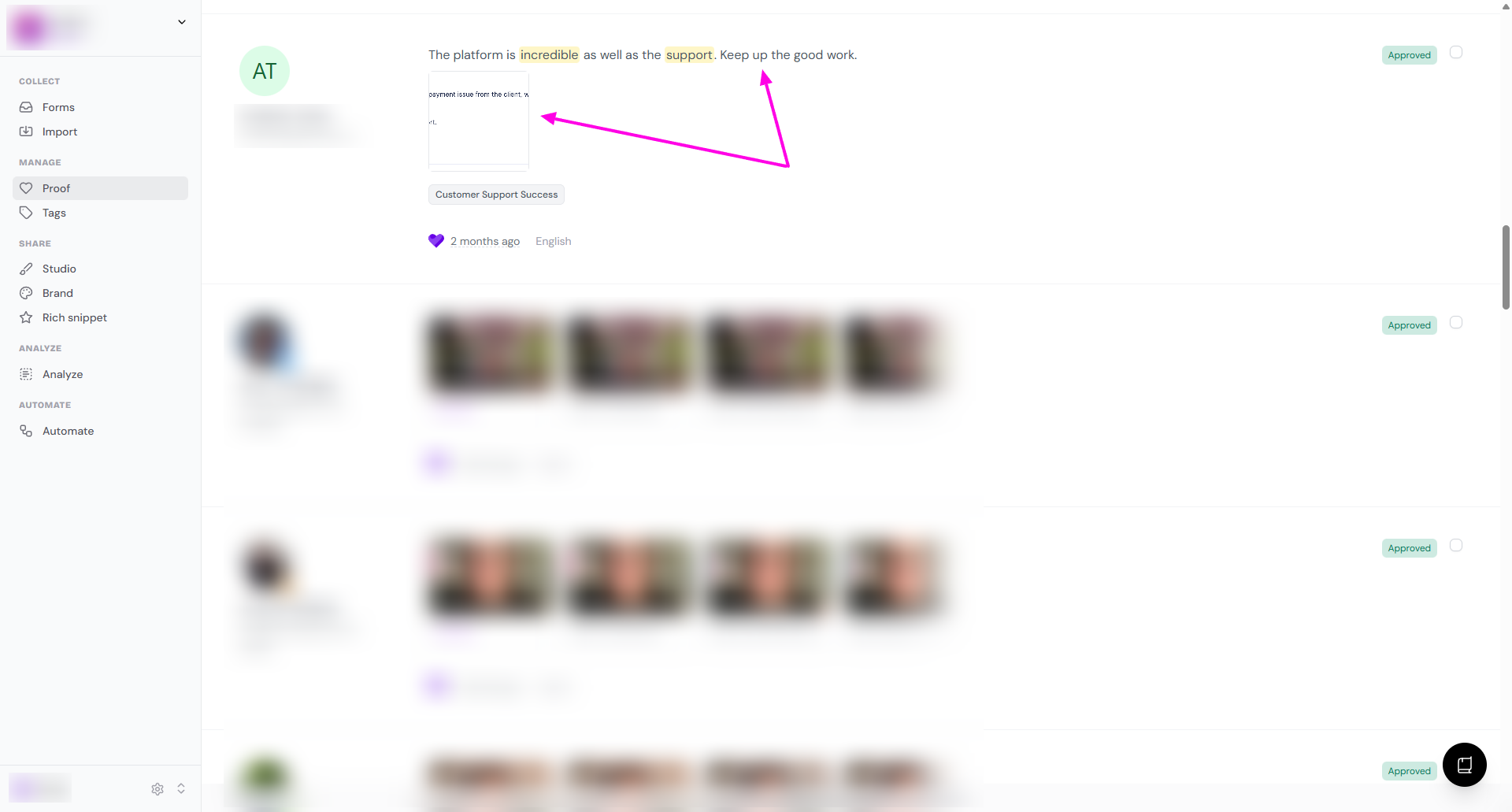
If the screengrab comes from a well-known platform, like LinkedIn or Instagram, Senja detects the source automatically.
You can also take a screenshot of a testimonial and import it straight from the Senja Chrome extension.
Add a case study
Case studies are added as links, so you can share them from Senja and the Chrome extension.
Choose Case Study and fill in the customer details
Add the Case study URL (required)
Click Import case study
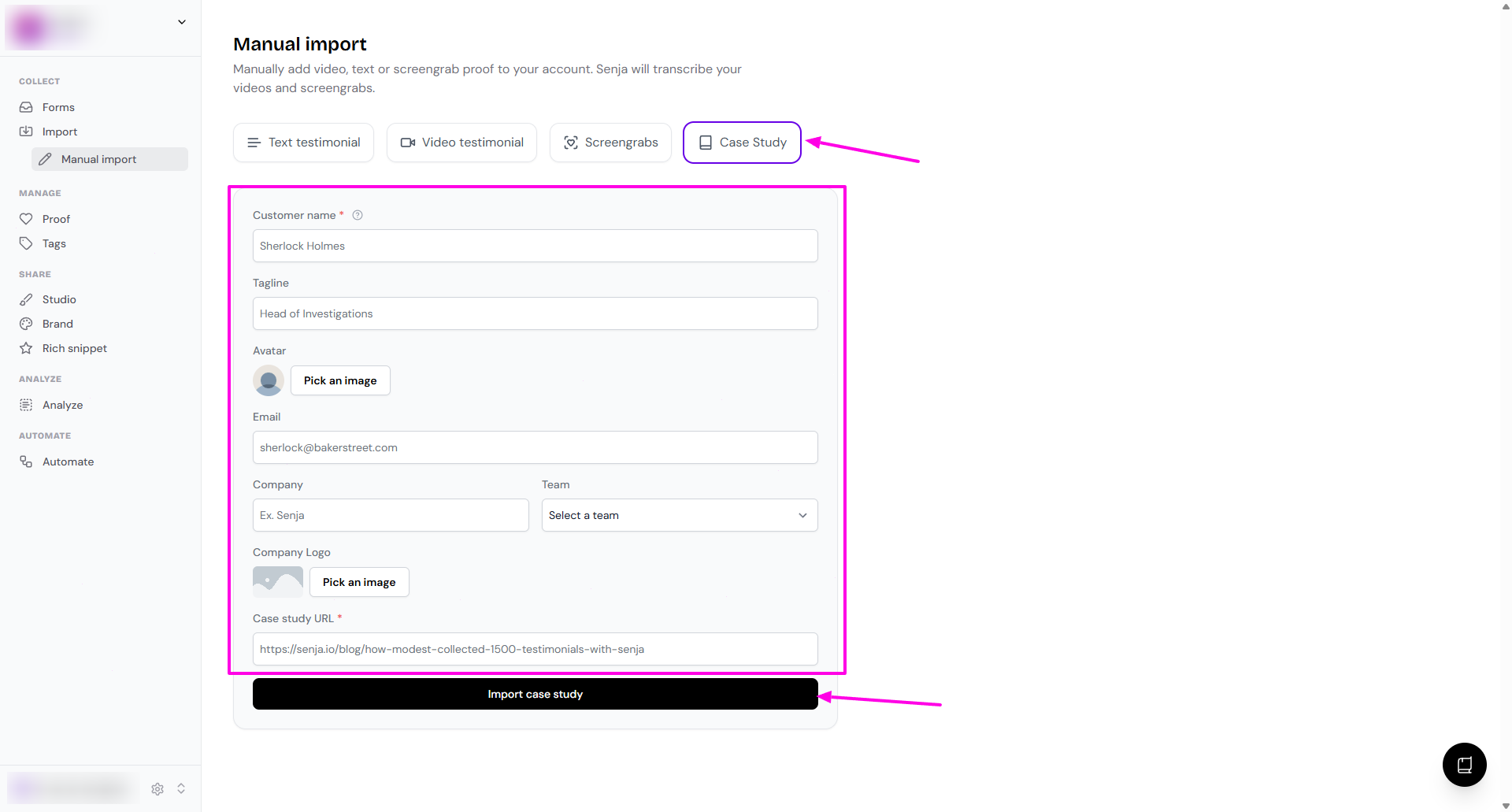
The case study appears on your Proof page
Adding a lot at once?
If you have many testimonials in a spreadsheet, upload them all together instead. See How to import testimonials in bulk from a spreadsheet.
On the Free plan, testimonials you add count toward your 15-testimonial limit. Once you reach it, you'll need to upgrade before a manual import runs. See What happens after I collect more than 15 testimonials?