
How do I create widget?
Turn your testimonials into embeddable widgets using the Senja Studio. Choose from 20+ widget styles and customize them to match your brand.
This feature is available for any Senja plans: Free, Starter, and Pro. Some design customization option is limited to paid plan only.
What is testimonial widget?
Testimonial widget is an asset you create in Senja studio to:
Grab more than 1 testimonial into 1 collection
Turn your testimonials to visual attraction, adaptable to your brand identity
Share your testimonials as link, embedded page, or image
Once you’ve picked a widget, you can curate the testimonials it shows, style it, and share it everywhere.
Create a widget
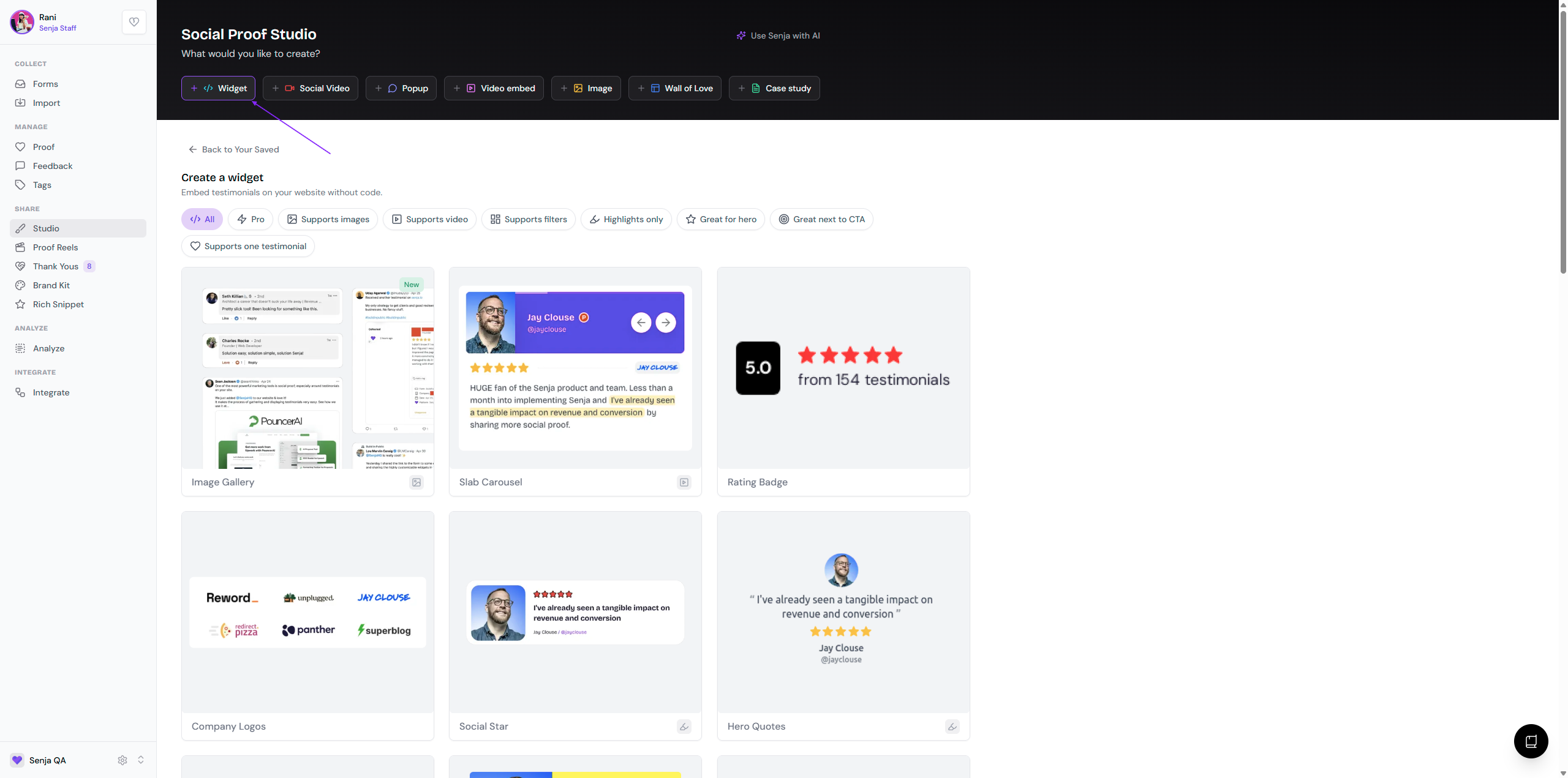
Go to your Studio page: https://app.senja.io/studio
Create a widget by choosing the template that you want
You can change this later
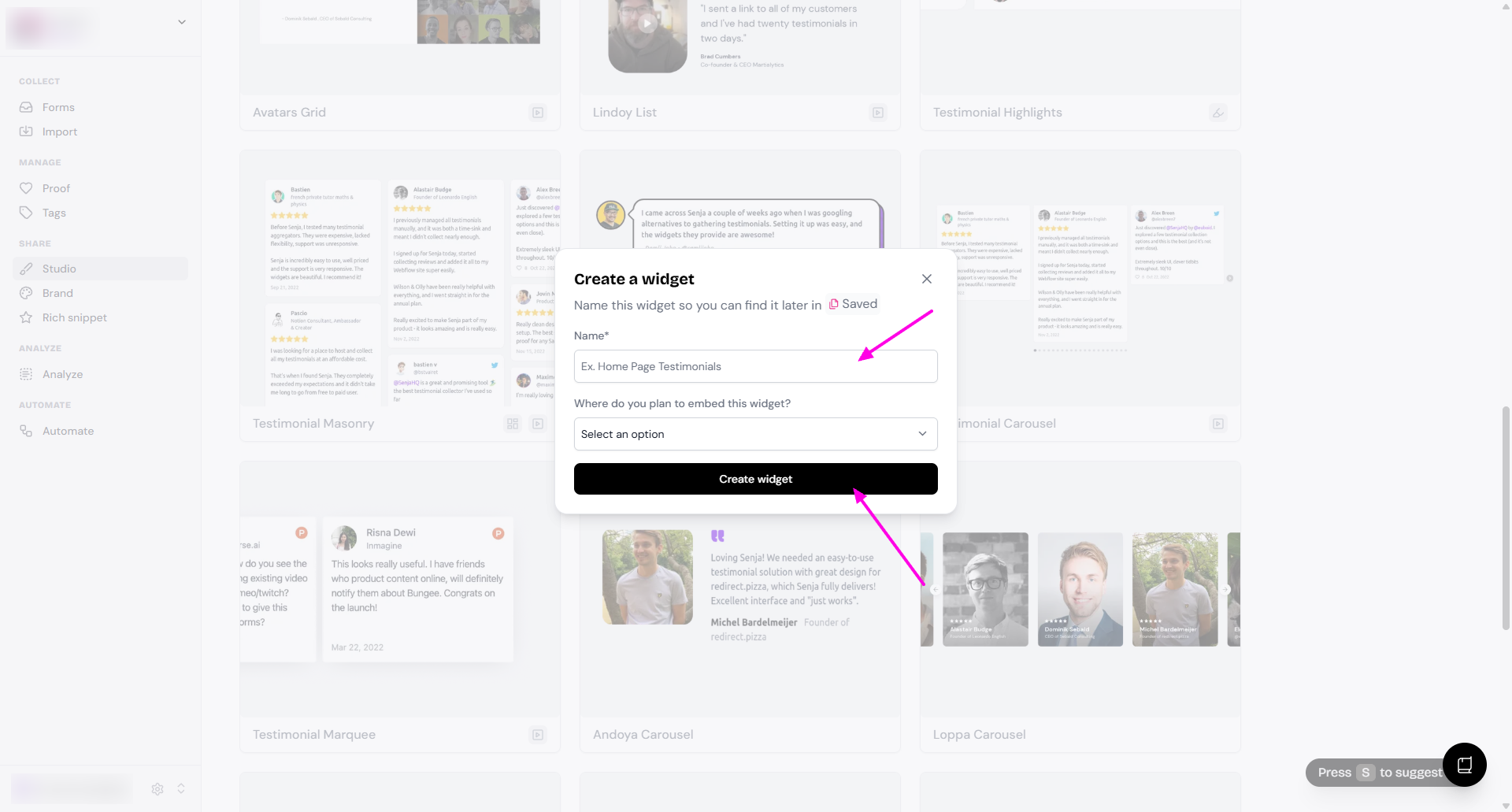
Name your widget and then click Create widget
You can change this later
You can also select the embed location, to help you organize your widget (it will appear as label in your Saved widget)
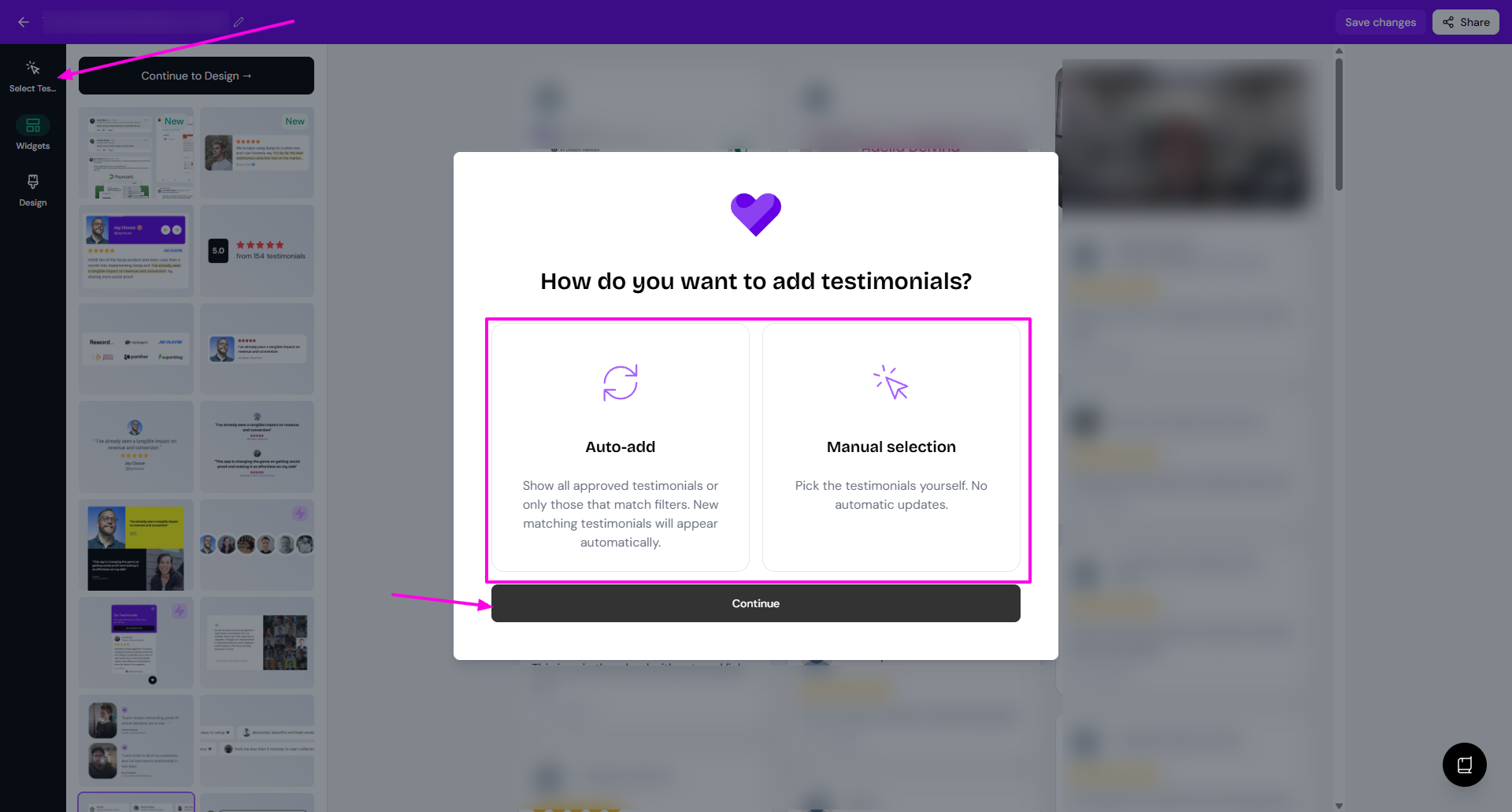
Click Select Testimonials to choose how to add testimonials
Auto-add means that all testimonials matching the criteria set will be added automatically
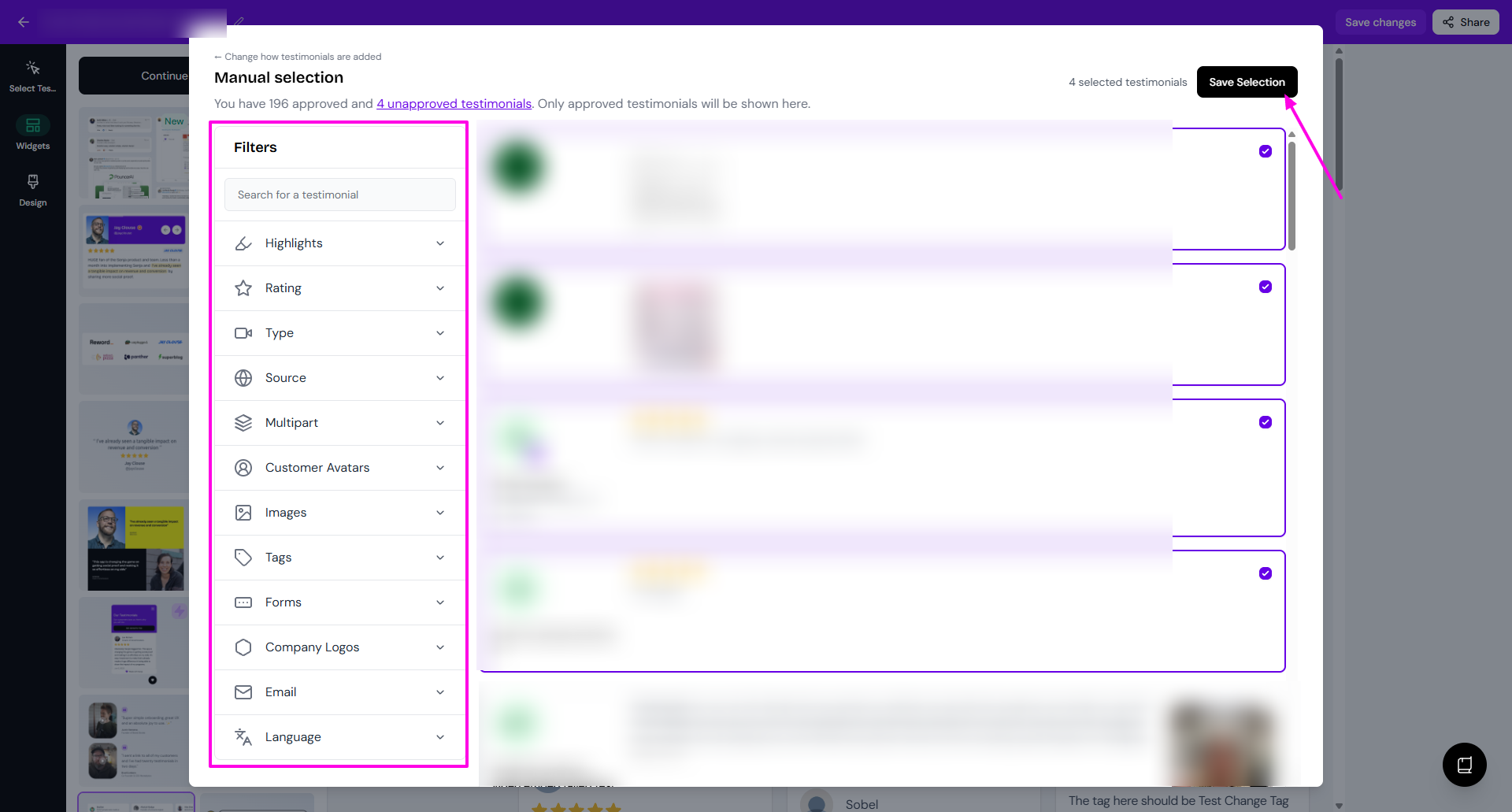
Manual selection means that you can cherry-pick the testimonials
Click Continue
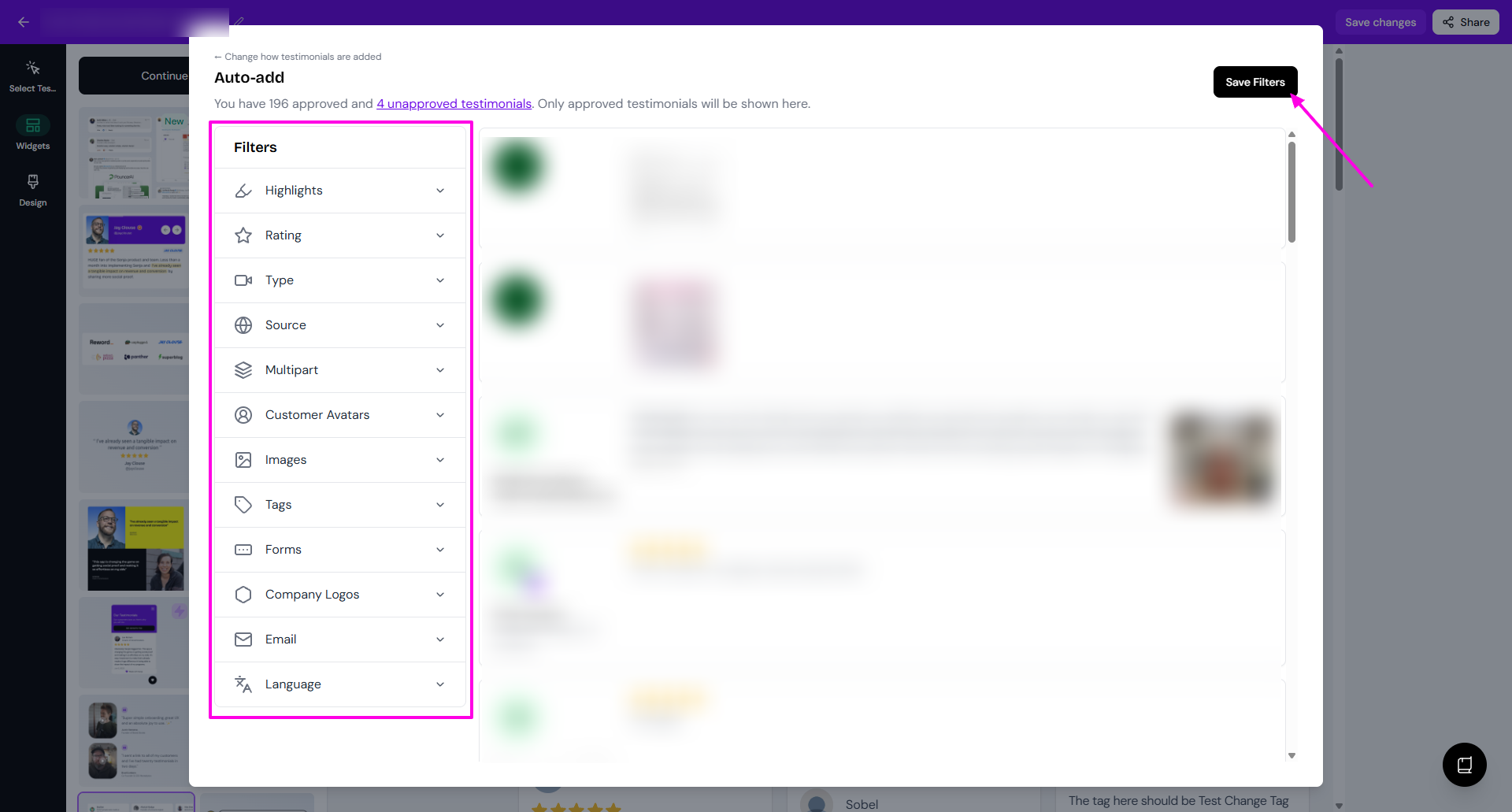
You can set the Filters if you want a specific type of testimonials
Finish the selection
Auto-add: click Save Filters
Manual selection: put the check mark on the testimonials that you want, and then click Save Selection
Change the widget style
If you change your mind on the style of widget you want to use:
Open the widget
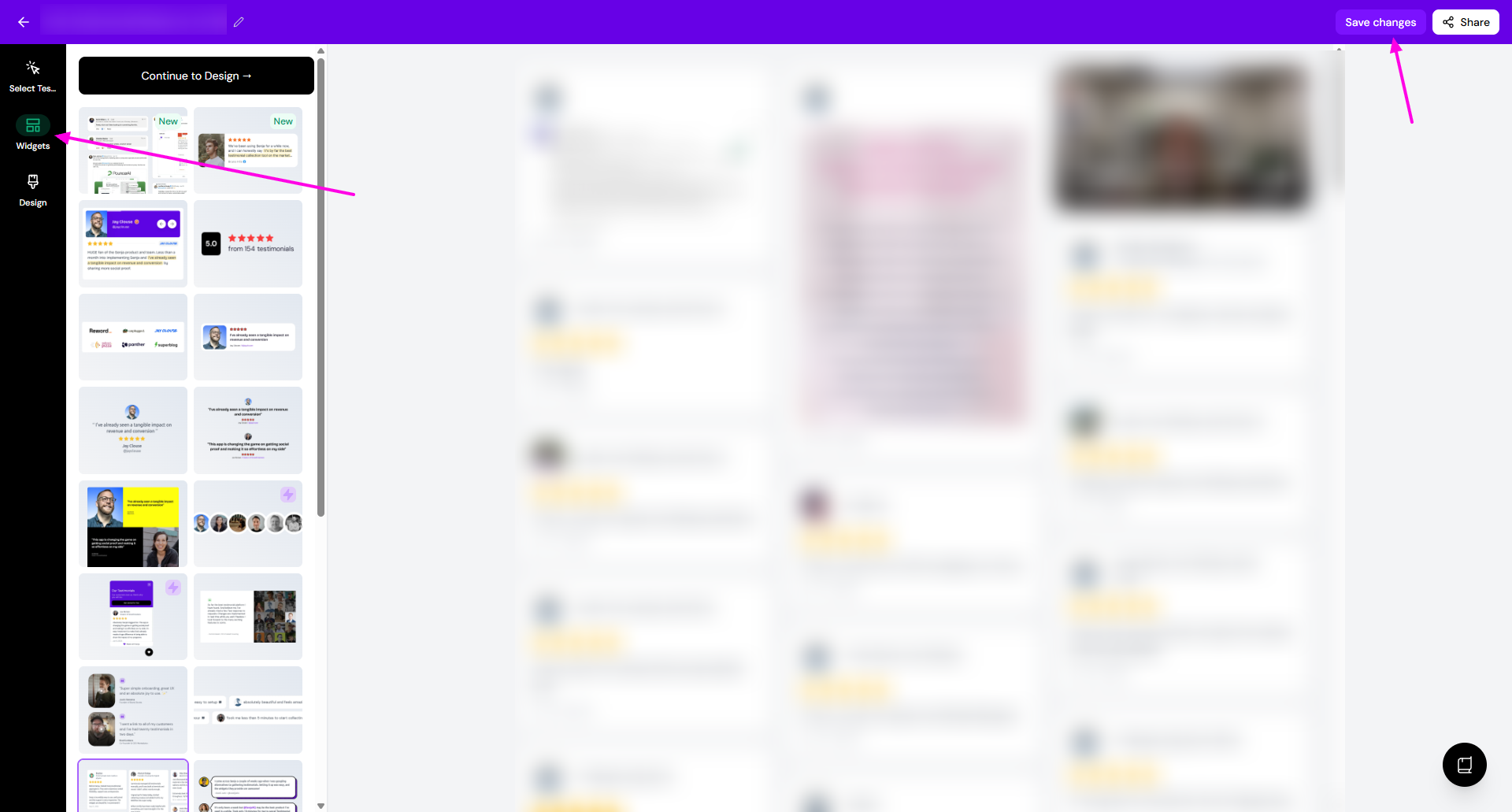
Choose the new style from the Widgets tab
Click Save changes
Update the widget's design elements
You can also update other elements (colors, fonts...) like so:
Open the widget page, click Design
Adjust colors, fonts, spacing, and layout until you're happy with the result
Click Save changes when done
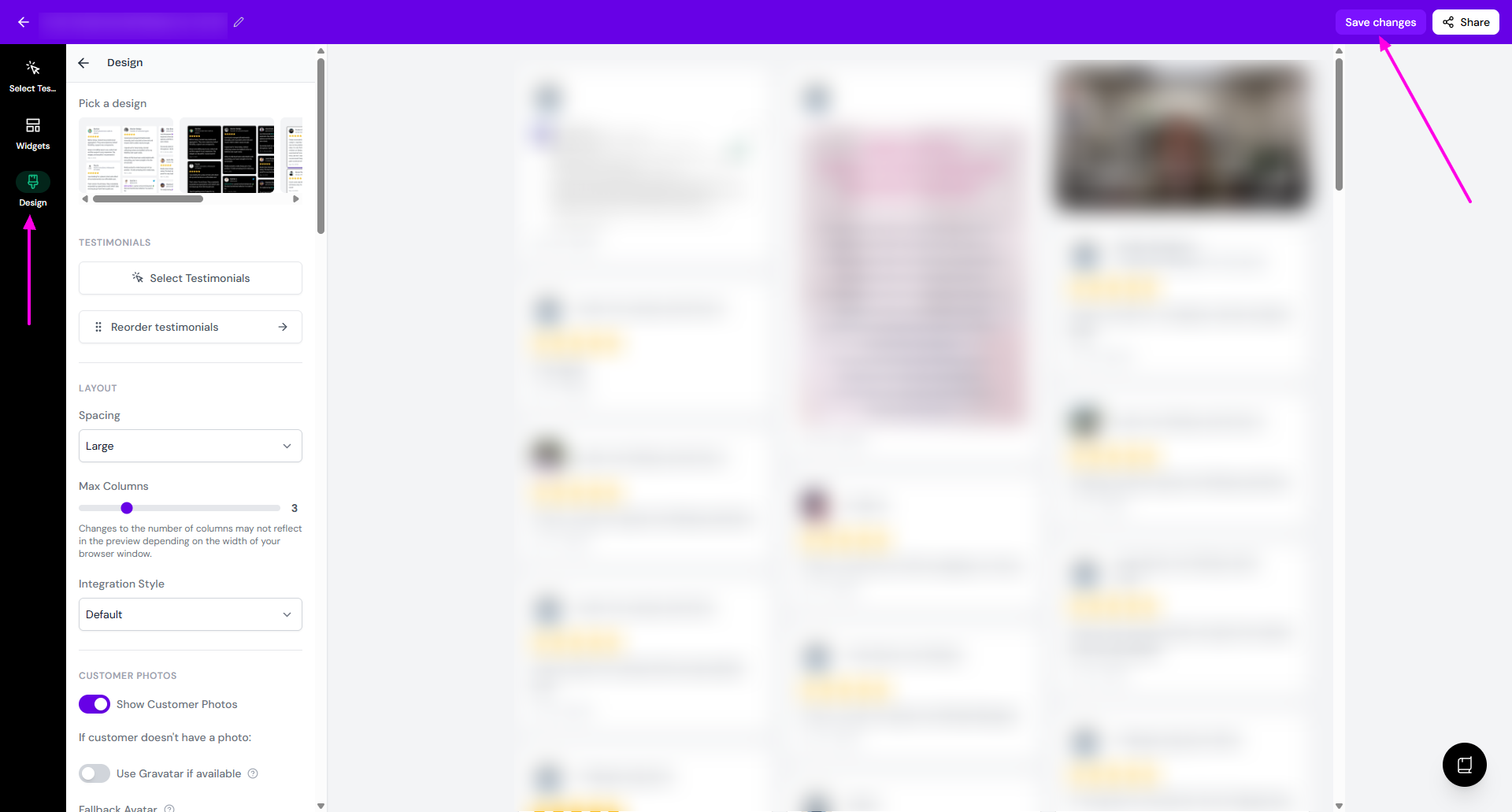
Design options vary by widget style. Explore the settings to match your brand. Read How do I edit the design of my widget?
What's next?
Once you're set, you can share your widget following the guide How can I share my widget?