
How to setup your brand kit in Senja
Brand Kit is where you save your brand assets — logos, colours, fonts, and more. Anything you add here can be used as a default across your forms, widgets, and Wall of Love, so you're not setting things up from scratch every time.
This feature is available on Senja paid plans: Starter and Pro.
What's in brand kit
Logos — used as defaults in forms and Walls of Love
Spokespeople — avatars used as defaults in your forms
Your Templates — image templates for testimonial notifications and Zaps
Welcome Videos — shown on your form welcome page
Thank You Videos — used in manual or automated emails and on your form thank you page
Colors — set a primary color, text color, rating color, and share page color
Fonts — used as defaults in forms and Walls of Love
How to set up your brand kit
Go to your Brand page: https://app.senja.io/studio/brand
Click Add new under the section you want to set up
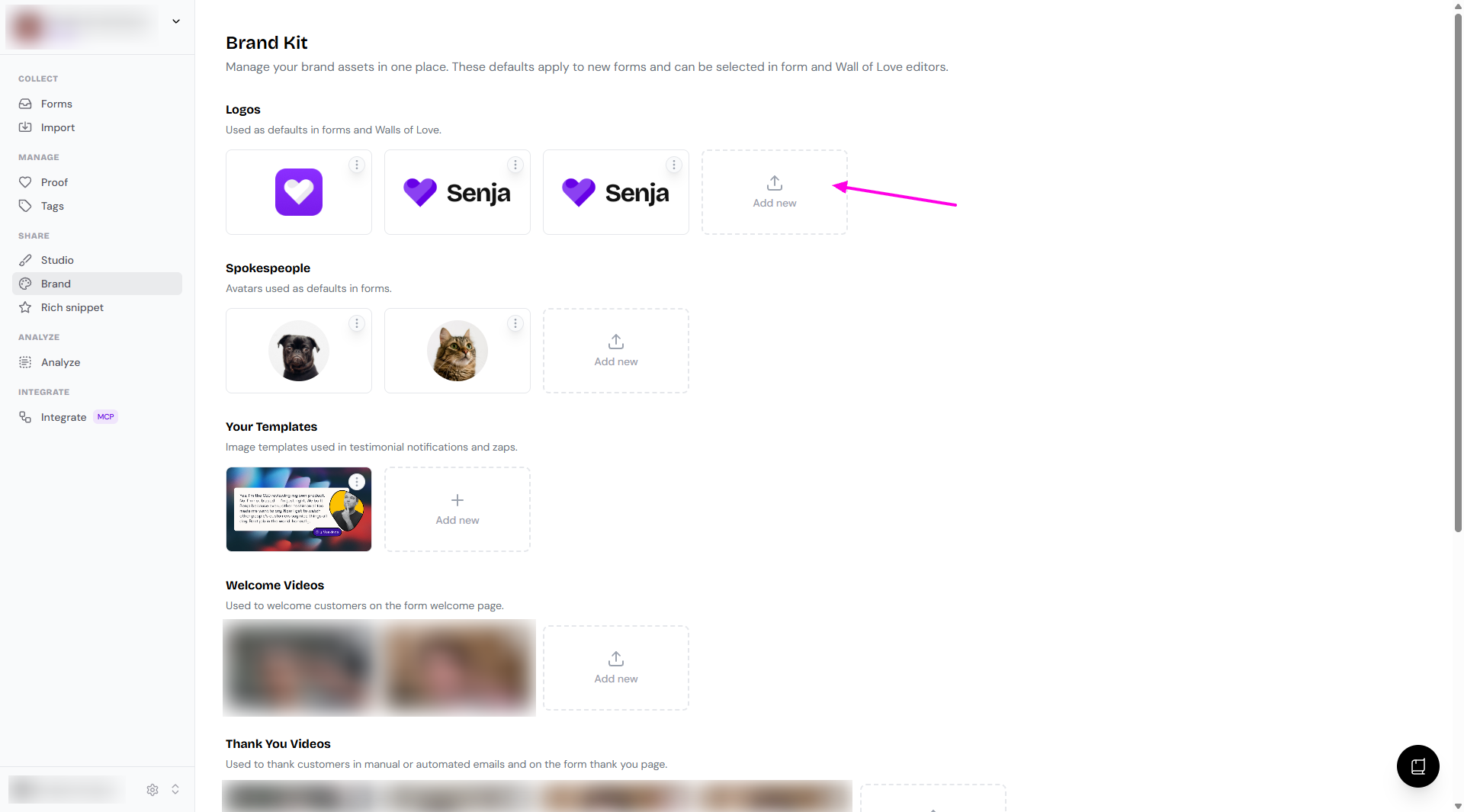
Upload your asset or enter your details
Click Save (for some elements, there will be no Save button)
How to remove an asset from your brand kit
Go to your Brand page: https://app.senja.io/studio/brand
Click the 3-dots on the top-right of your asset box
Click Delete
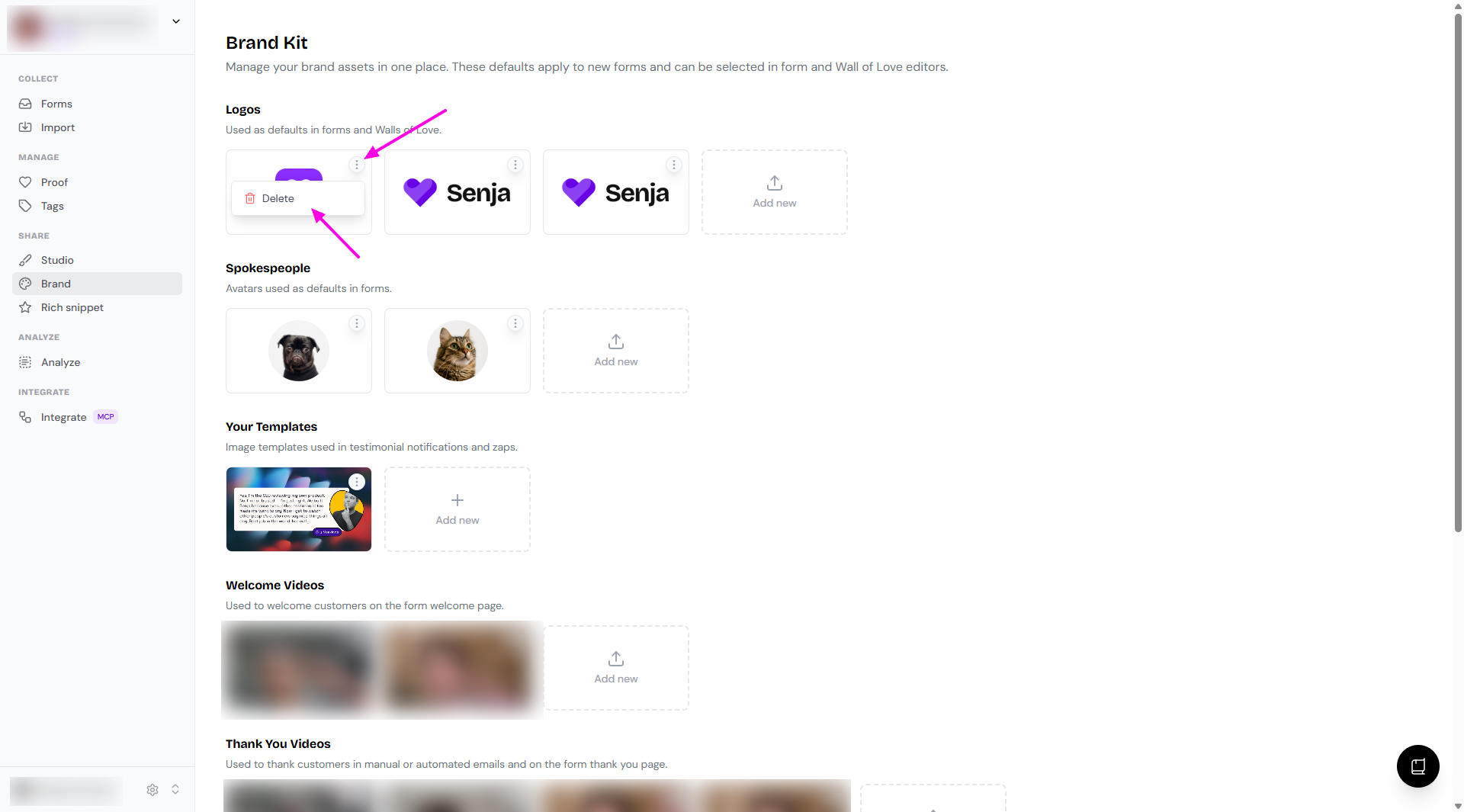
On the popup prompt, click Delete to confirm the removal
More on logo and spokespeople
When you add a logo or spokesperson avatar to your Brand page, you will see the option to use it in your form's questions
Open your form and see the Form tab
Choose Design subtab to choose the Spokesperson avatar and Logo to display in the questions
To remove the spokesperson avatar and/or logo, click on the currently chosen image - it will deselect the avatar/logo
How it looks without spokesperson avatar
How it looks without logo
How it looks without both
It will be available also on the Emails setup in your form's editing modal
Open your form and go to Emails tab
Click Email settings subtab
The same way, you can choose your spokesperson avatar and logo or remove them all the way
If you disable the thank you email on your form, you can send a thank you message from your Proof page and it will show the spokesperson avatar and logo
Choose the testimonial from your Proof page: https://app.senja.io/
Click Thank customer
Review the email before clicking Send thank you
You can remove the spokesperson avatar and the logo by clicking the ✖️ sign on the top right side of the thumbnails
More on welcome videos
Welcome video is available in your form, under Form tab.
Scroll down to Welcome page
Record or upload a video, and the video will be added automatically to the Brand page
If you want to use another welcome video:
Click Change welcome video
You'll have the option to record a new video, Upload a video, or select from the welcome videos saved in your Brand page
If you want to remove the welcome video:
Click Remove welcome video
If you have recorded any welcome videos, it will stay in the Brand page for future use
You can add the welcome videos from Forms and it will be saved in your Brand page. Vice versa, you can add the video from your Brand page, to use it later in your Forms.
More on thank you videos
Thank you video is available in your form, under Emails tab.
Click Thank you email subtab
Record or upload a video, and the video will be added automatically to the Brand page
If you want to use another thank you video:
Click Change thank you video
You'll have the option to record a new video, Upload a video, or select from the thank you videos saved in your Brand page
If you want to remove the thank you video:
Click Remove thank you video
If you have recorded any thank you videos, it will stay in the Brand page for future use
You can add the thank you videos from Forms and it will be saved in your Brand page. Vice versa, you can add the video from your Brand page, to use it later in your Forms.
More on colors
You can add a new color using the HEX code
Set the purpose (None, Primary, Text, Rating, Share page)
Click Save
To use the colors in your form:
Open your form and open the Form tab > Design subtab
Click on the color thumbnail
You can choose from the brand colors saved in Brand page
You can use a completely different color
You can add more brand colors from this modal, and it will be automatically saved in your Brand page
More on fonts
You can choose a font from the Google Font list
Set the Font type (None, Heading, or Body)
Click Save
To use the fonts in your form:
Open your form and open the Form tab > Design subtab
Click on the font dropdown
Your brand fonts will be on the top of the list
You can use a completely different font that is not on your brand fonts