How does spokespeople avatar work in brand kit?
Your Brand page is the central place to manage your spokespeople avatar across Senja. Once you upload it here, you can apply it across your forms and thank you messages without uploading it again each time.
This feature is available on Senja paid plans: Starter and Pro.
In your form's questions page
You will see the option to use it in your form's questions
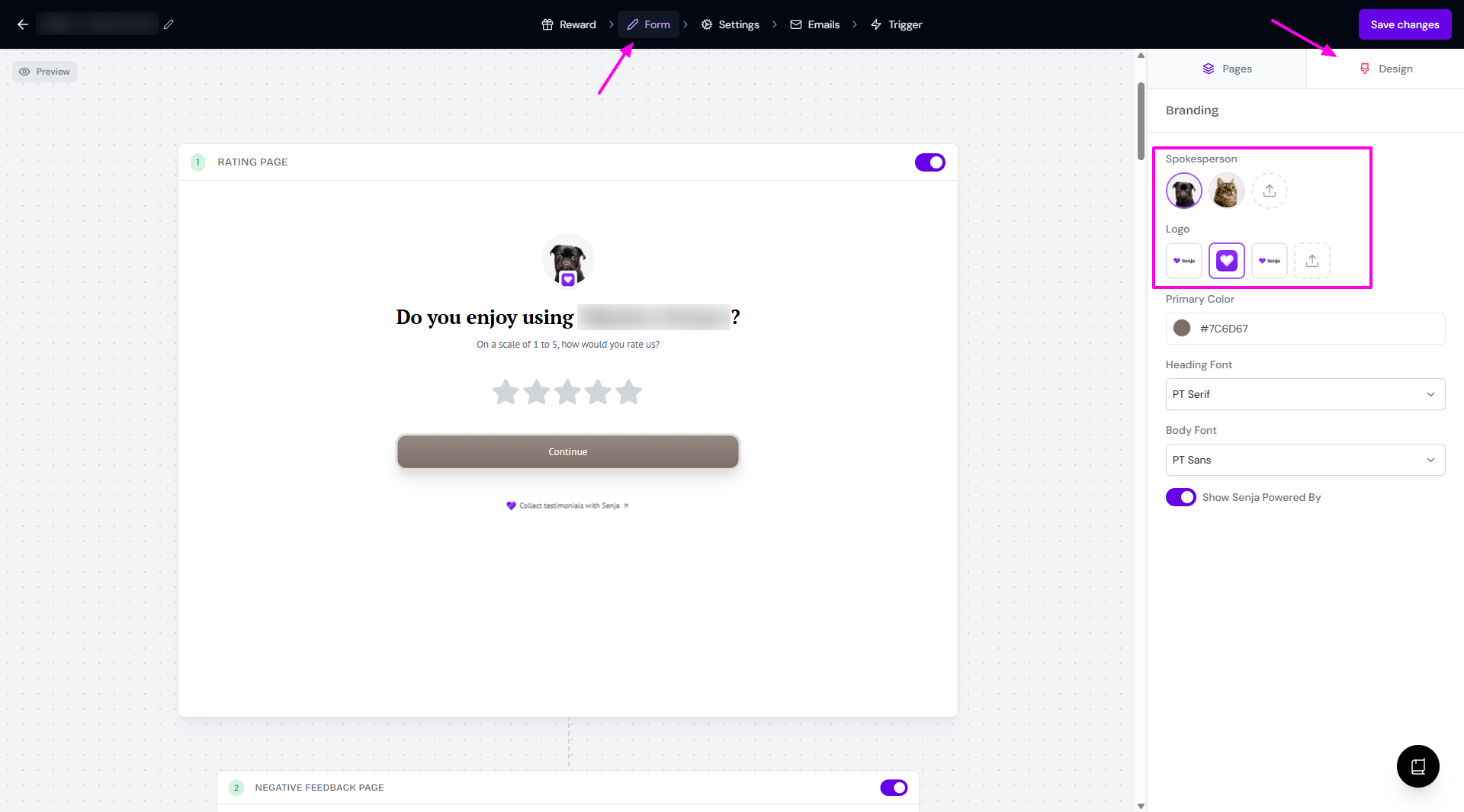
Open your form and see the Form tab
Choose Design subtab to choose the Spokesperson avatar to display in the questions
You can also add new Spokesperson avatar from this page (minimum 640px x 640px, ideal 1080px x 1080px)
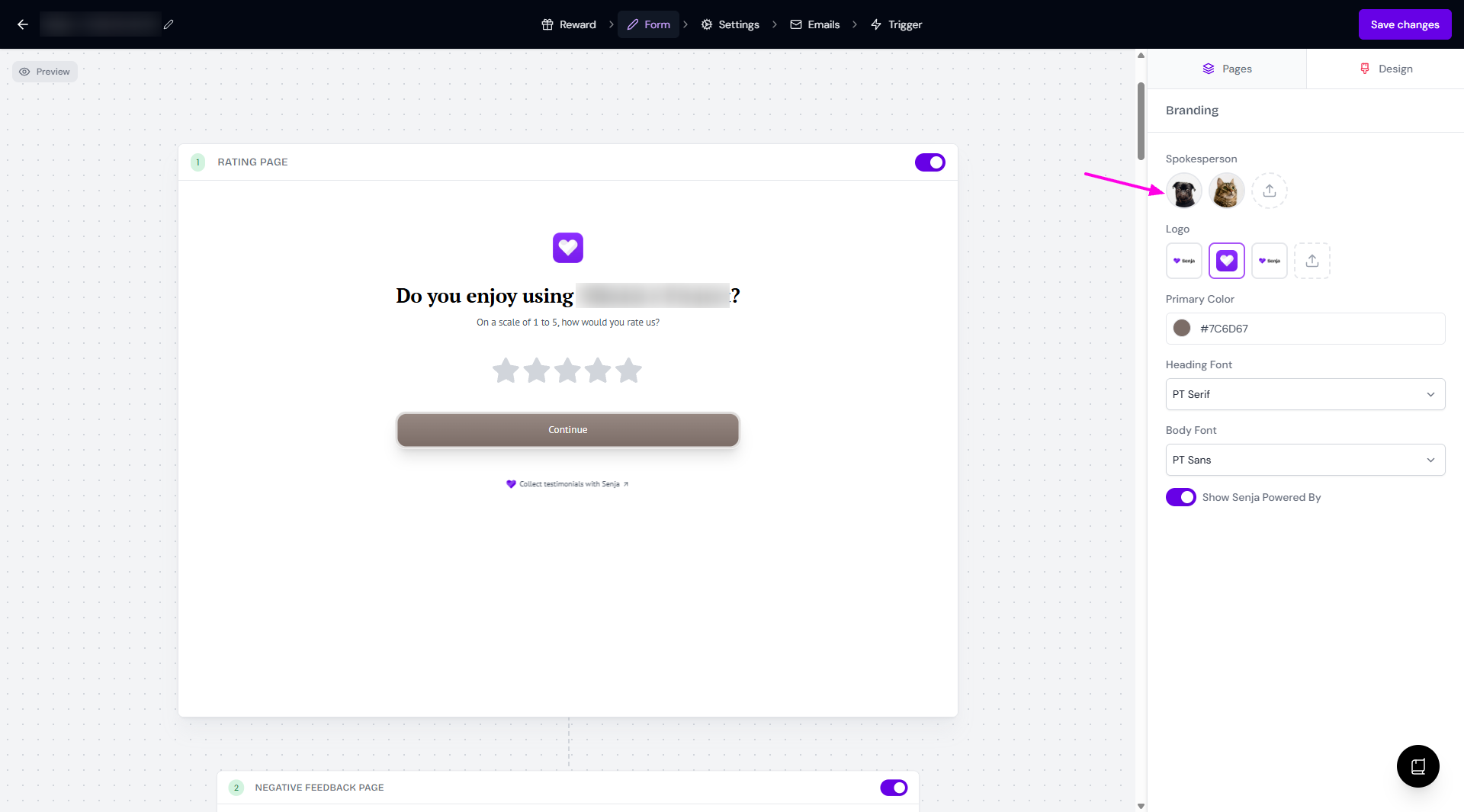
To remove spokesperson avatar, click on the currently chosen image - it will deselect the image
How it looks without spokesperson avatar
When you add the spokesperson avatar from your Form, it will also added to the Brand page.
In your form's settings page
Open your form and go to Settings tab
Scroll down to Confirmation email, click on it to expand the email body
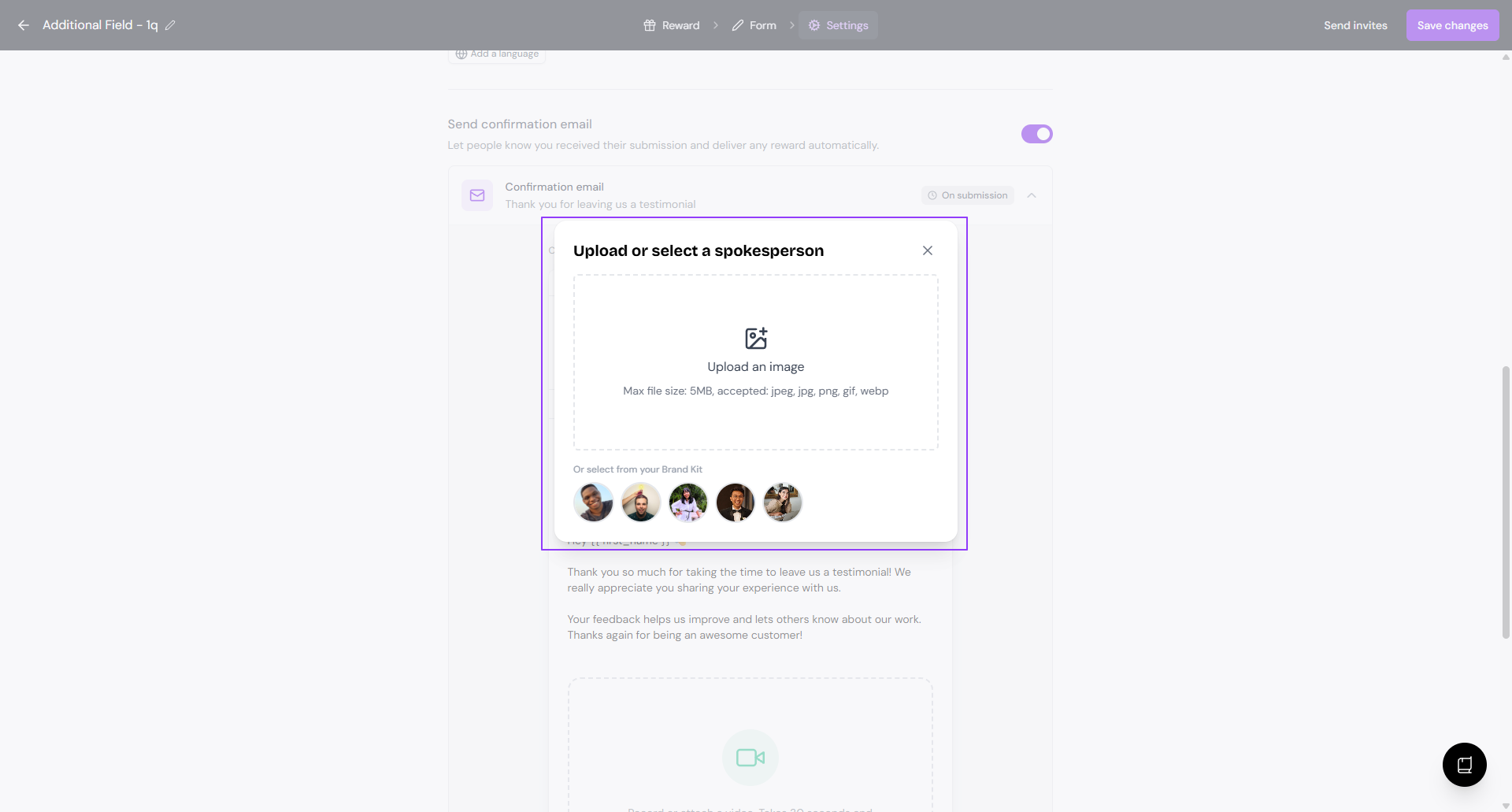
Click on the avatar placeholder to add a Spokesperson avatar
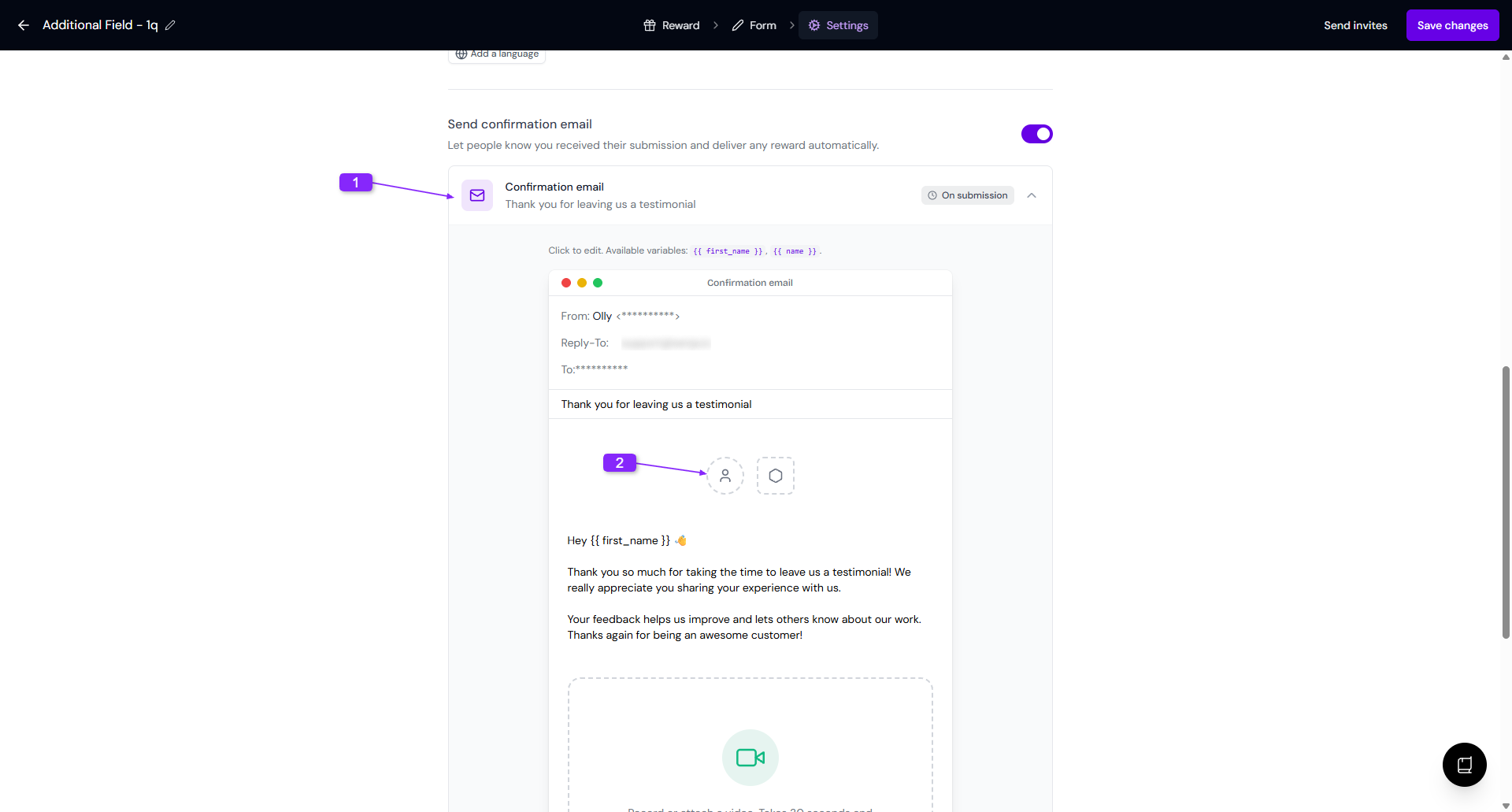
The same way, you can choose from the exiting avatars or upload a new one
In thank you message of Proof page
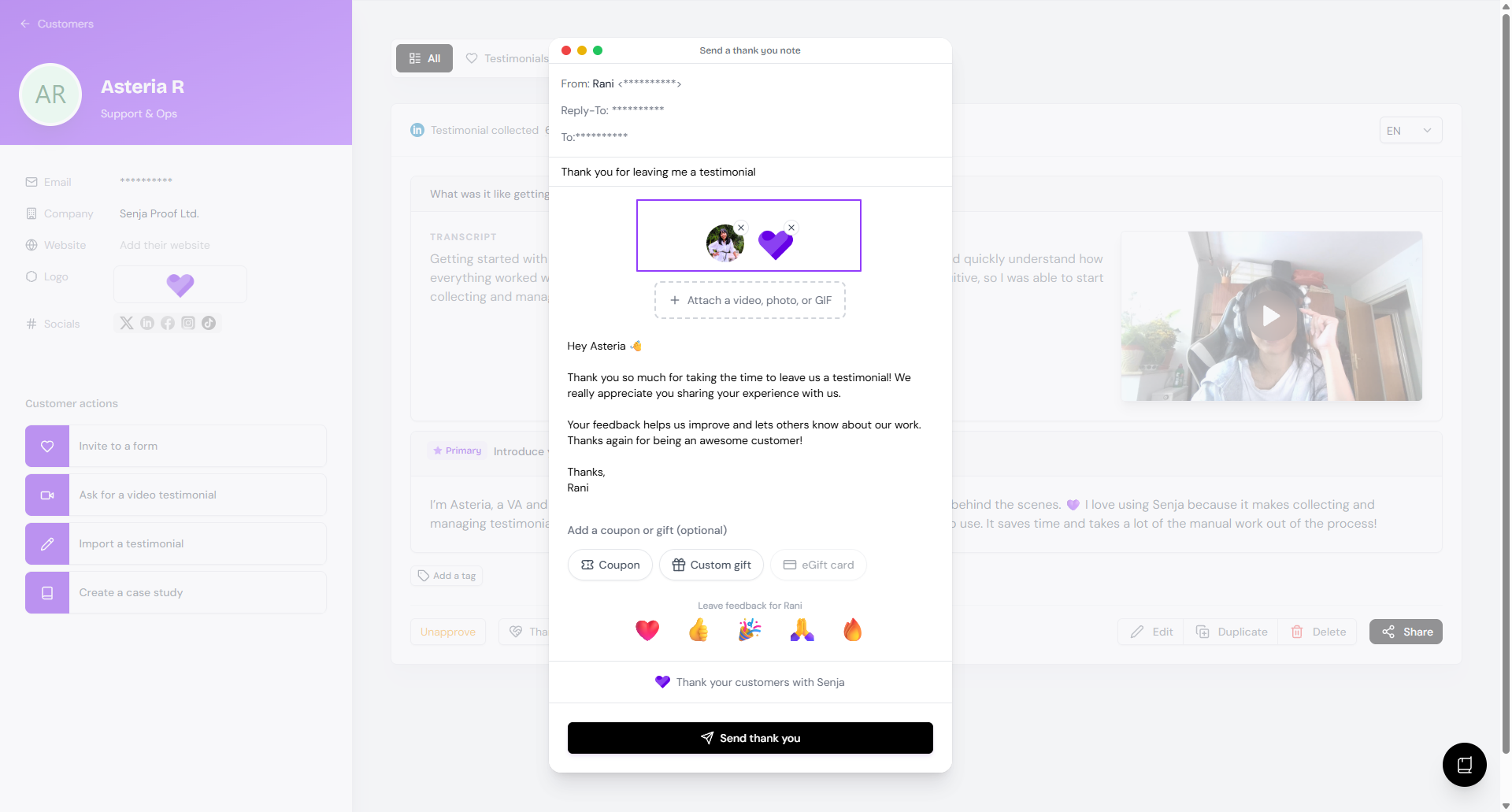
If you disable the thank you email on your form, you can send a thank you message from your Proof page and it will show the spokesperson avatar and logo.
Choose the testimonial from your Proof page: https://app.senja.io/
Click Thank customer
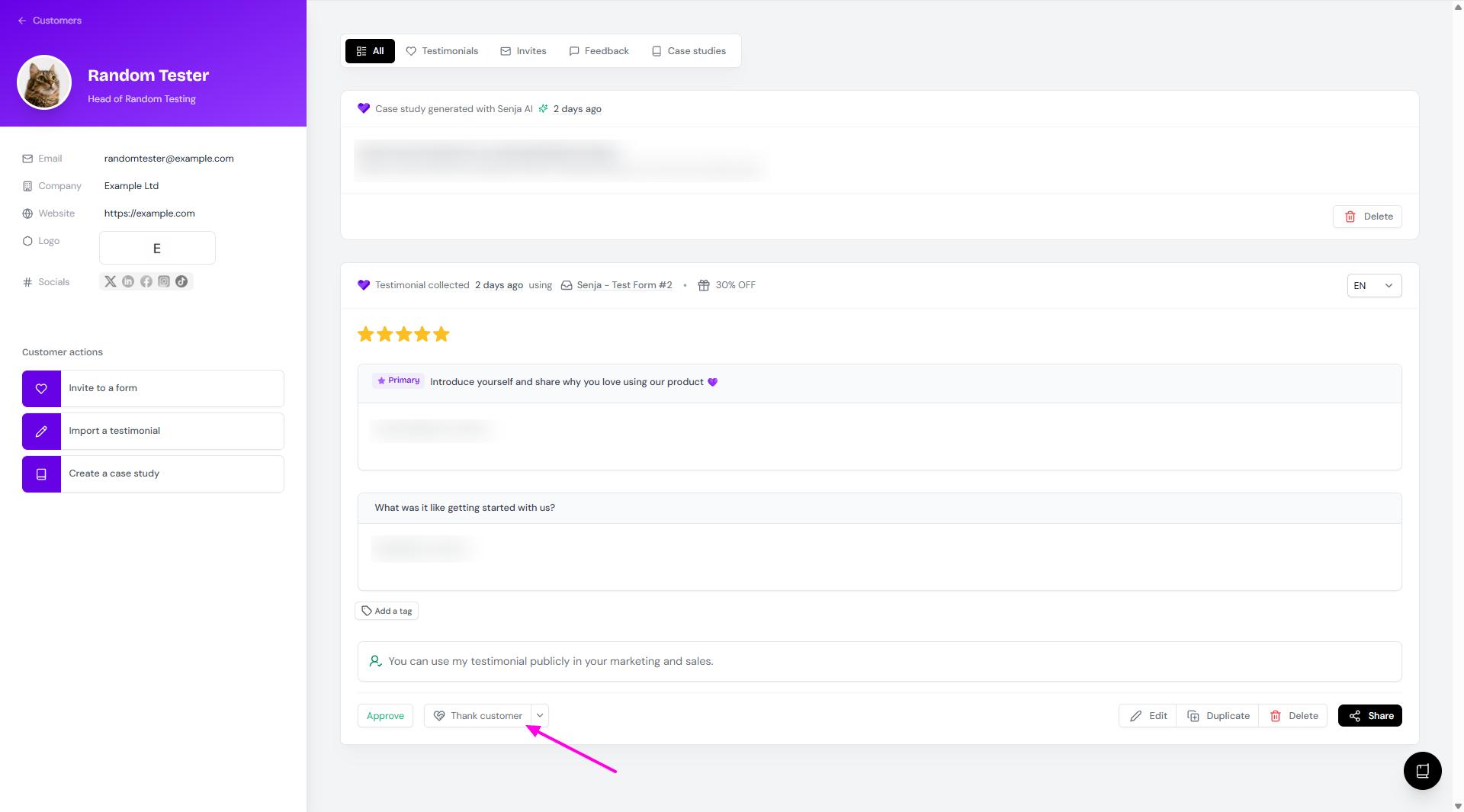
Review the email before clicking Send thank you
You can remove the spokesperson avatar by clicking the ✖️ sign on the top right side of the thumbnails