How to create reels in Senja
Senja reels creator (Proof Reels) uses AI to automatically transform your video testimonials into compelling, ready-to-share reels.
This feature is available on all Senja plan (Free, Starter, and Pro) with 3 reel credits at sign up for Free plan and 5 reel credits monthly for paid plans. In paid plans, you will see theme/topic recommendations above your saved reels.
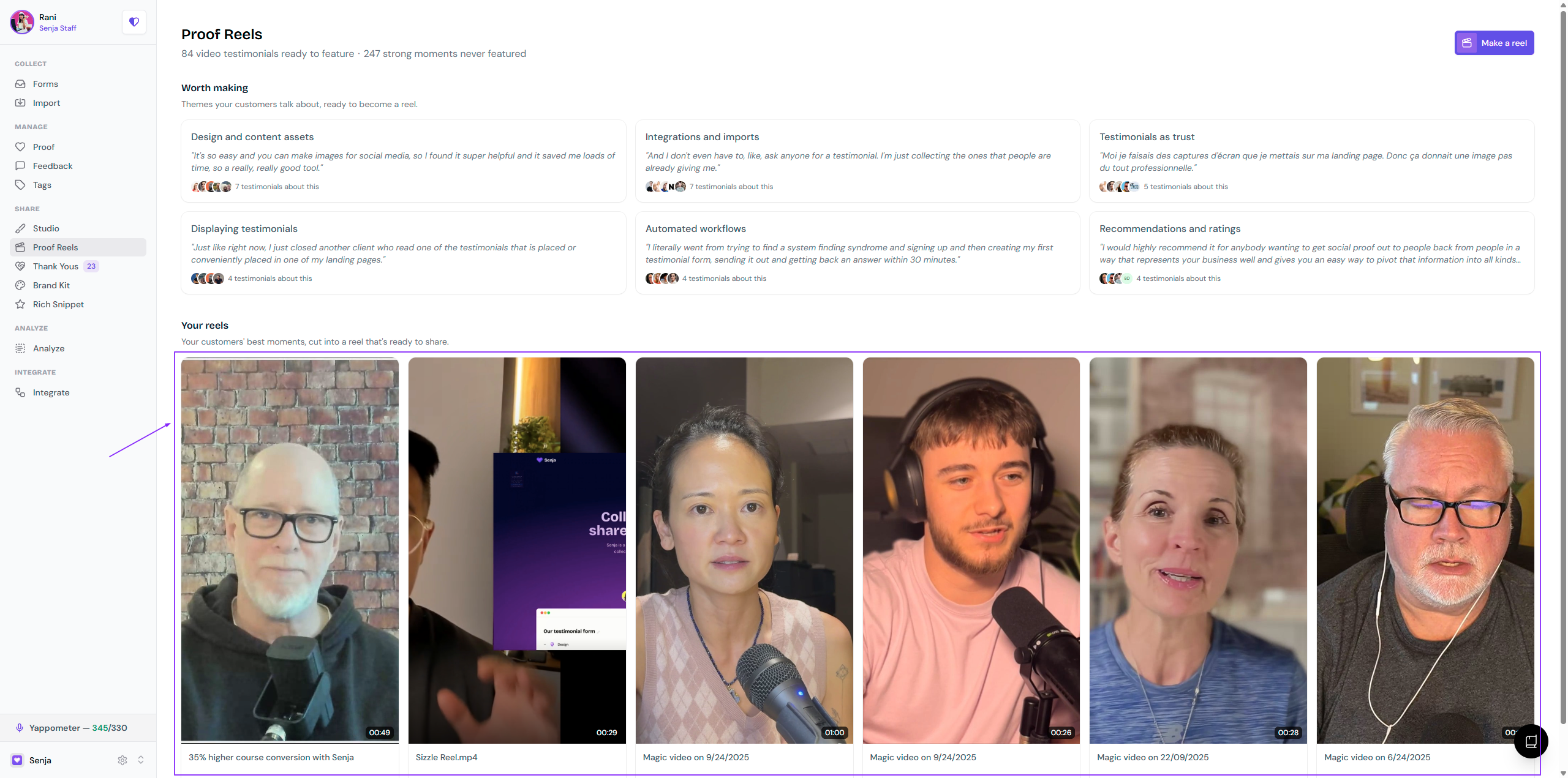
Where do you find reels creator?
From September 2026, sizzle reels are moving out from Studio and now staying in a dedicated location: Proof Reels. All past reels you have created are automatically moved here.
Creating reels
Go to your Proof Reels page: https://app.senja.io/proof-reels
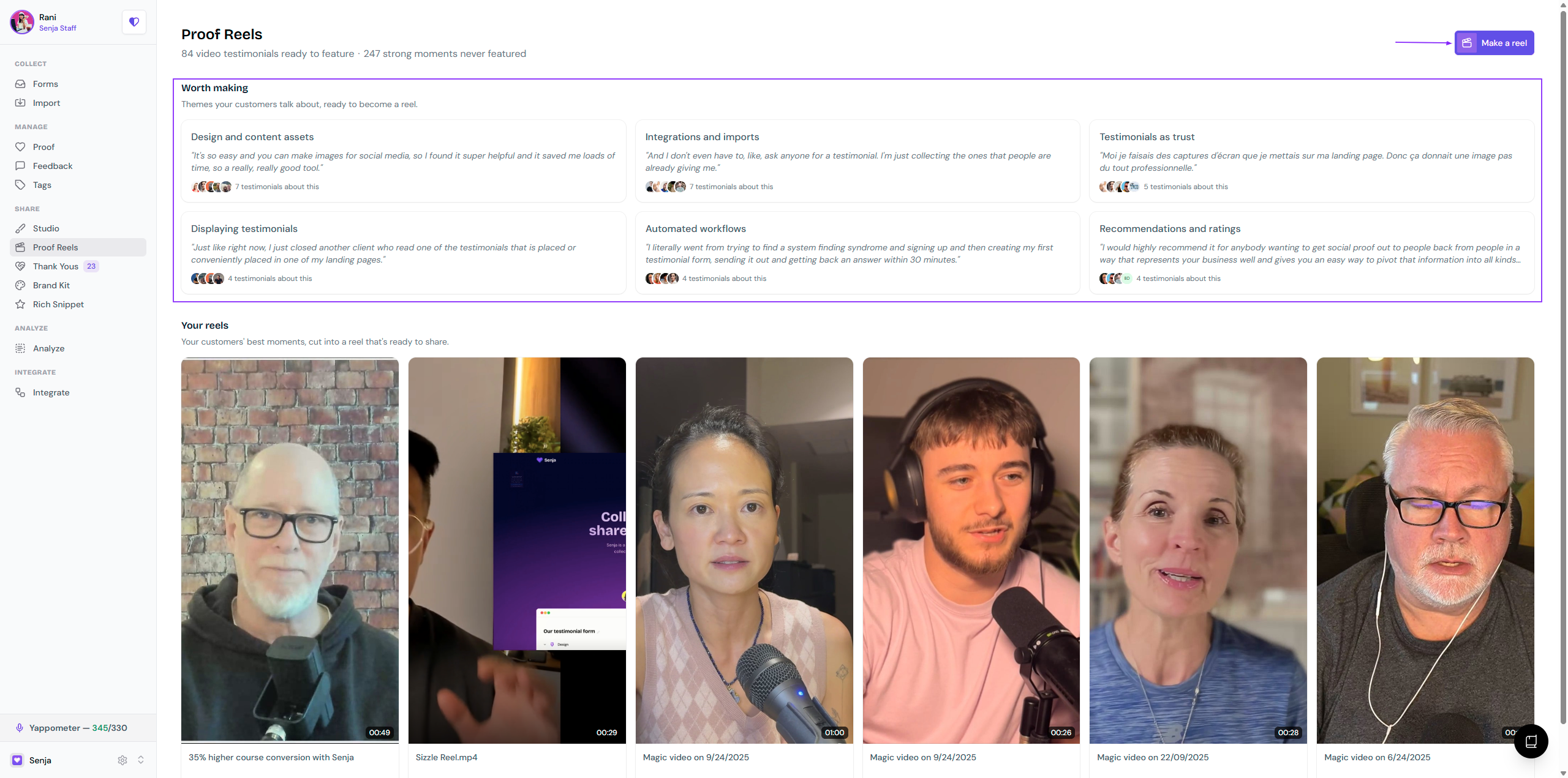
Click Make a reel (top right) or the suggested theme under Worth making section (only visible in paid plans)
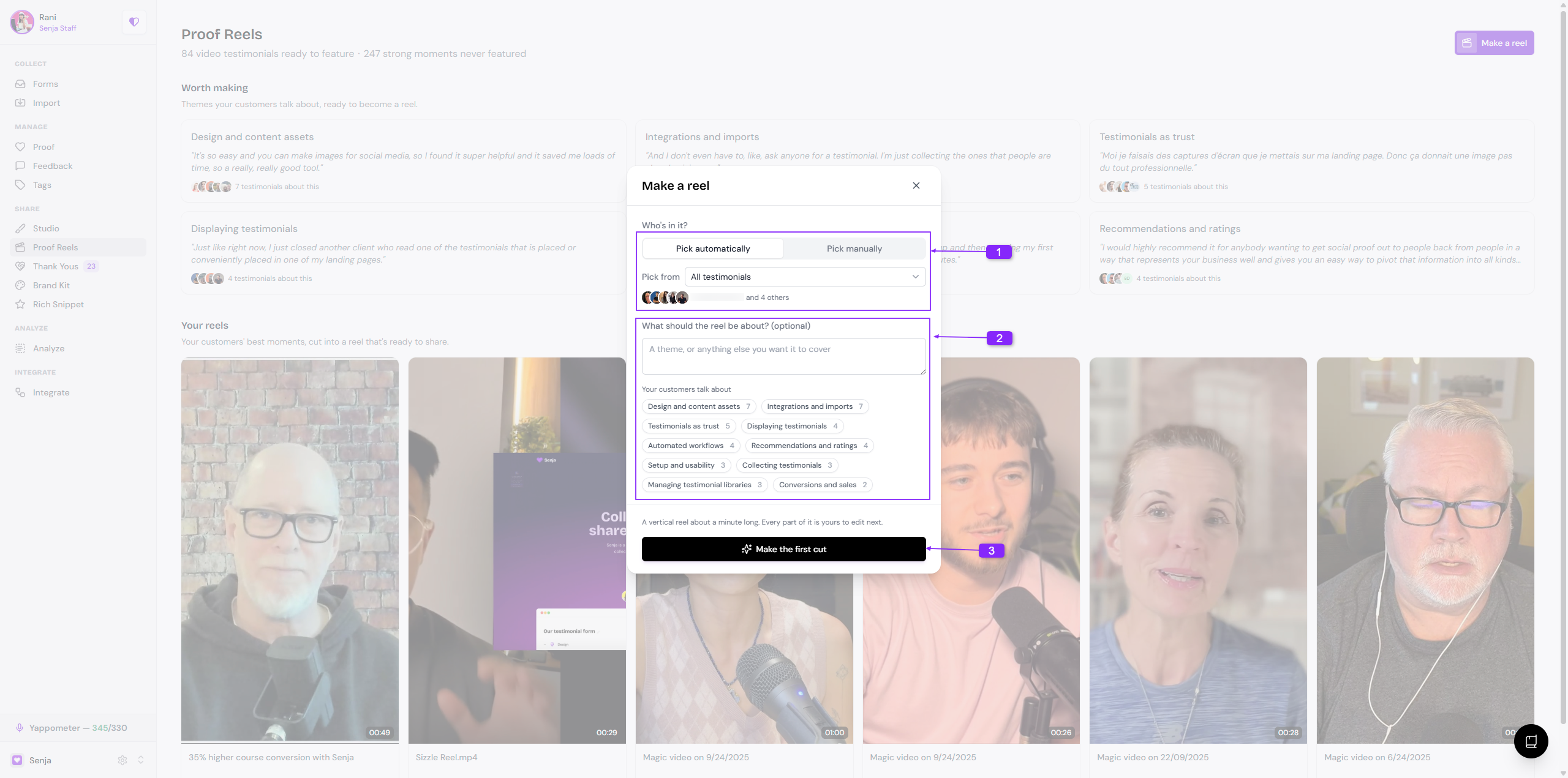
You can either Pick automatically or Pick manually
Also define the theme or choose from the given topics (the theme generator only works on paid plans)
Click Make the first cut
Workflow overview
For 1-2 minutes (depends on the length), Senja will create the first cut of the reel
When it's ready, you will see the video editing screen
Get started with the editing
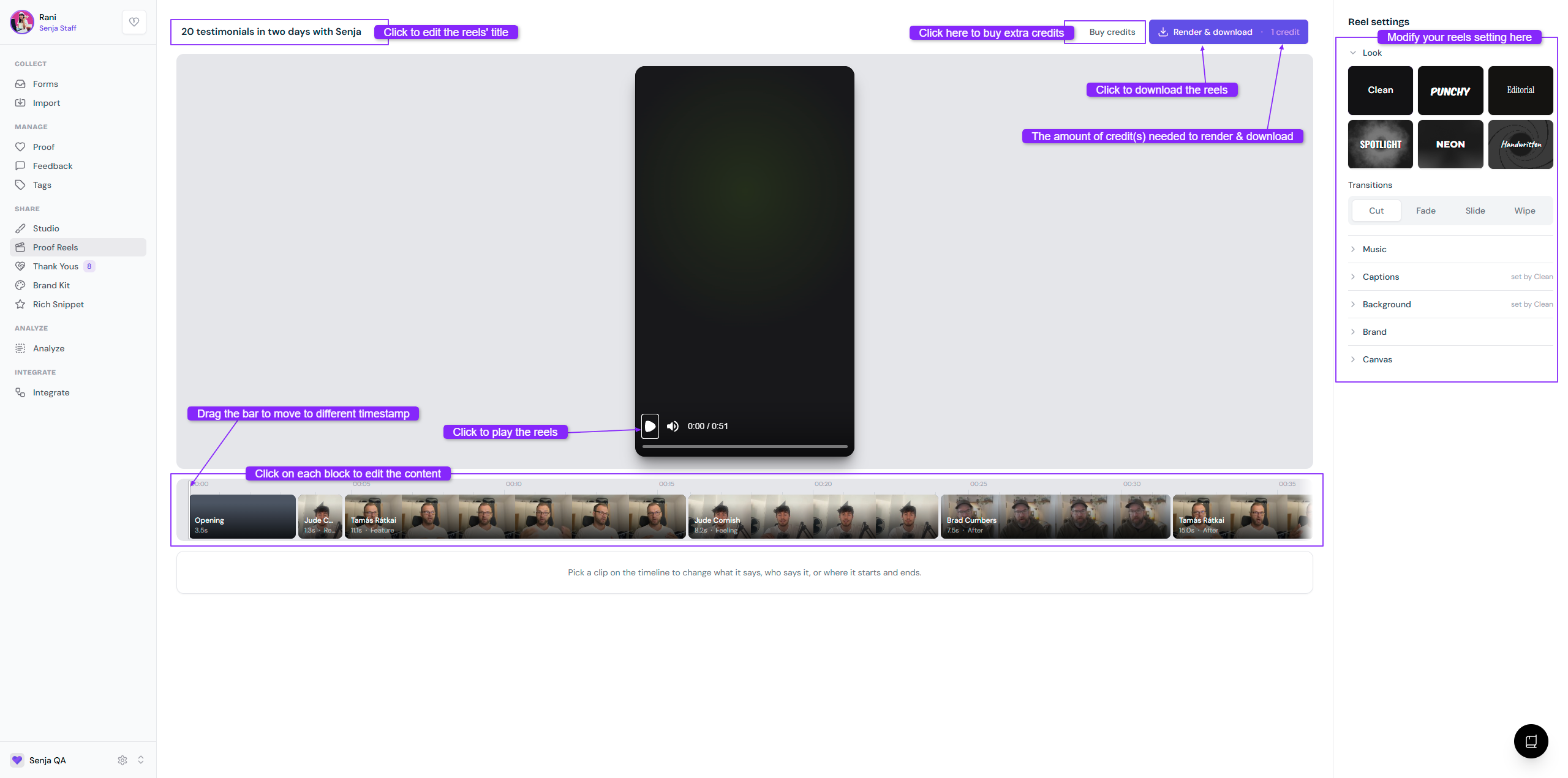
Once you finish, click Render & download
0 - 1 minute video: 1 credit
1 - 2 minutes video: 2 credits
2 - 3 minutes video: 3 credits
> 3 minutes: not possible, 3 minutes duration is the maximum
After downloading your reel, you can download it again for free (no credits charged)
You can buy more credits with $10 per 10 reel credits, click Buy credits and you will be directed to the payment page.
Reels settings
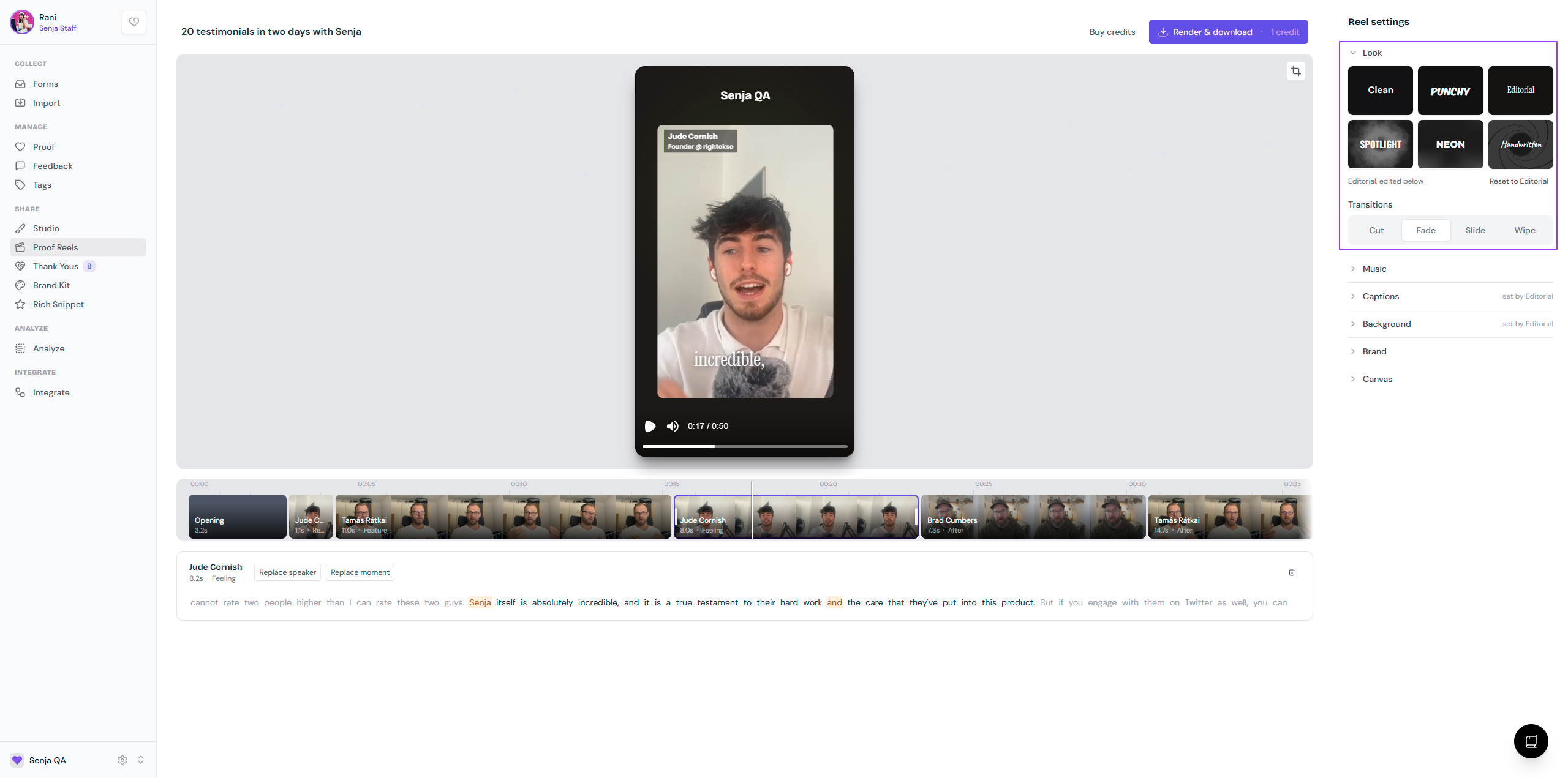
Look
It serves as a template you can directly choose from: Clean, Punchy, Editorial, Spotlight, Neon, or Handwritten
Set up the video transition: Cut, Fade, Slide, or Wipe
Music
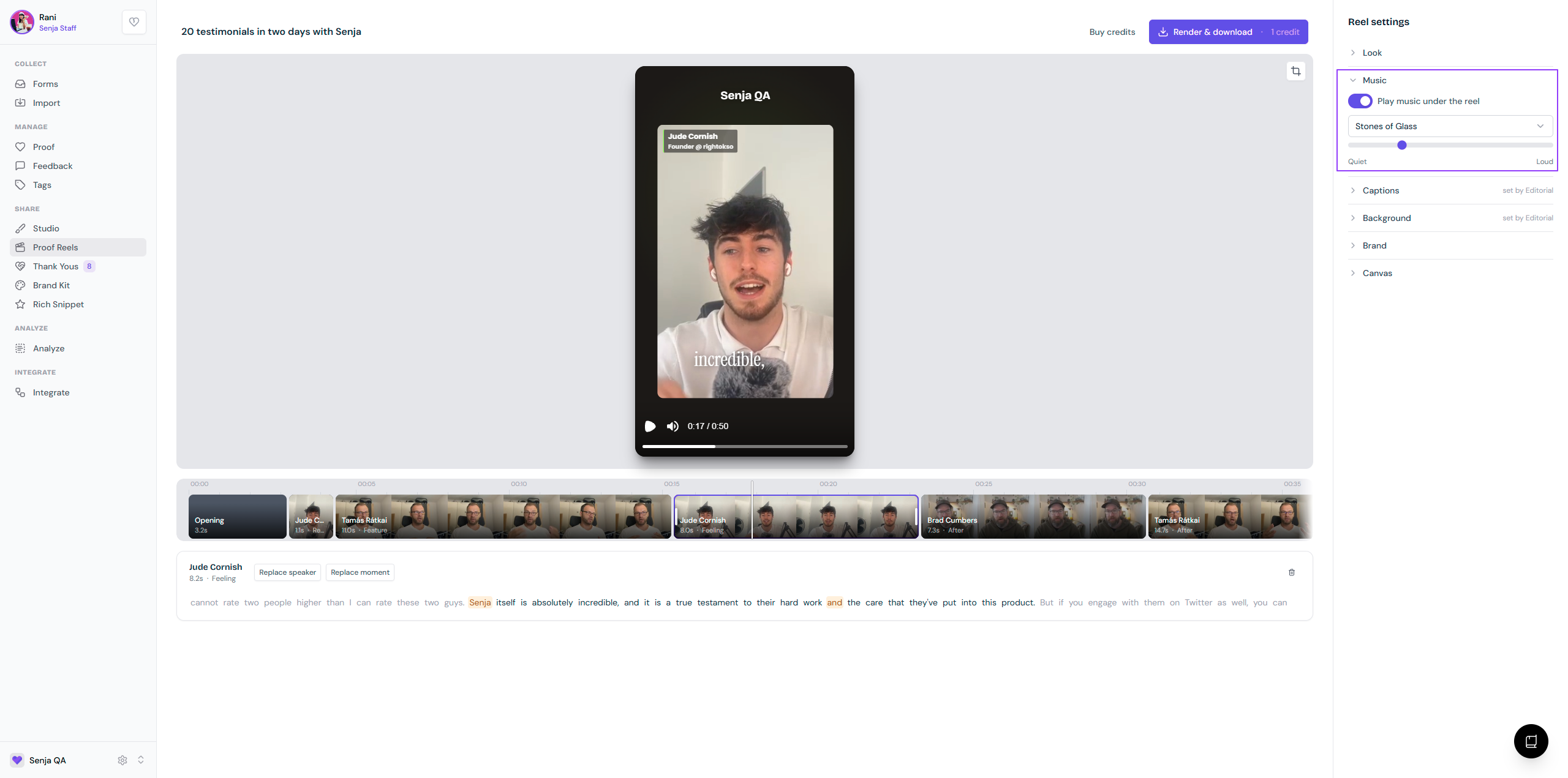
You can choose to turn the background music on/off
Choose the music from the list
Setup the volume that fits your customers' speaking volume
Captions
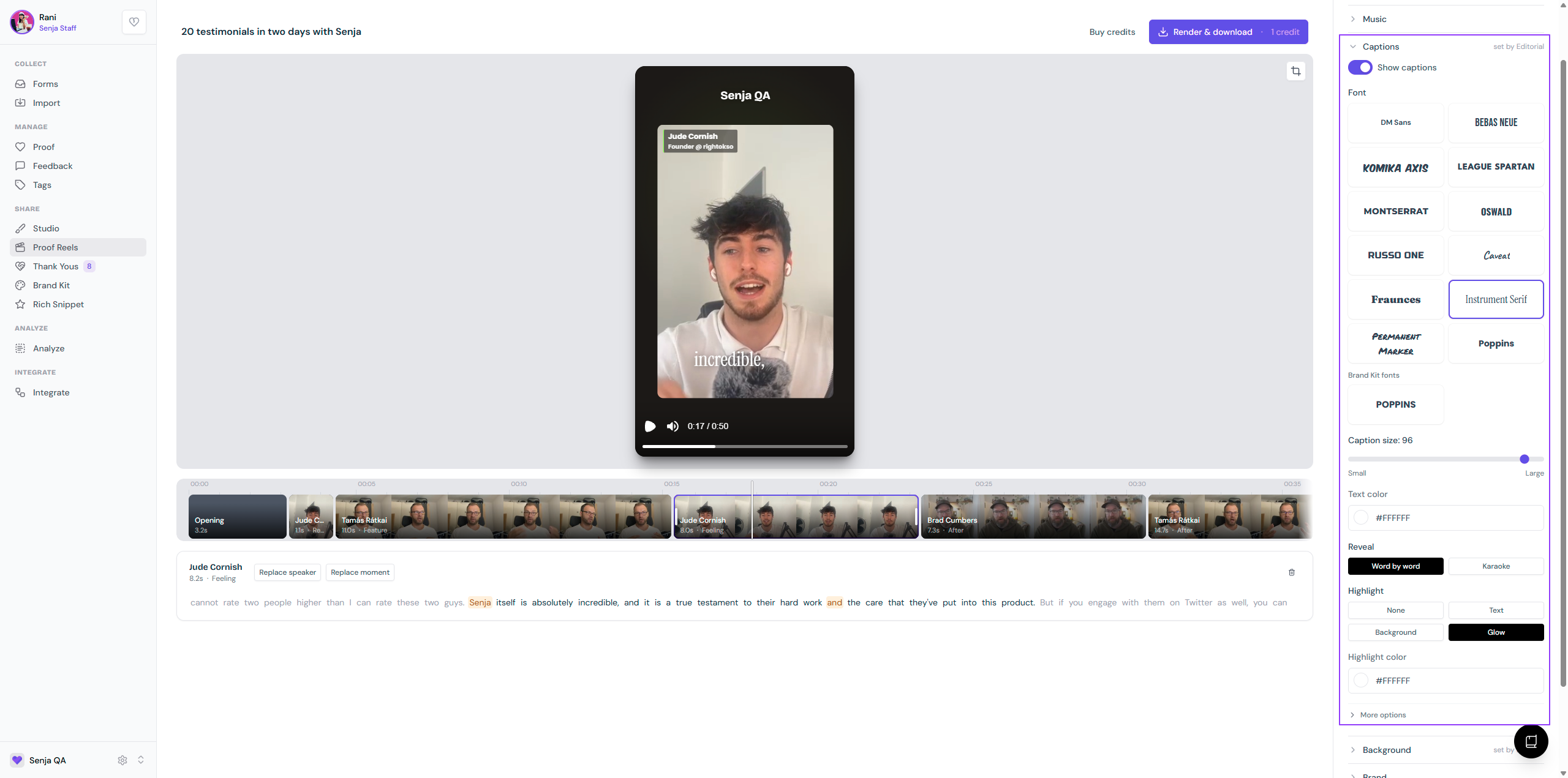
The overall style will follow the Look that you've chosen, but you can modify the text element here.
Decide if you want to Show captions (subtitle) or not
Choose your Font style, Caption size, and Text color
There are 2 Reveal options: Word by word (each word will be displayed when it's spoken) or Karaoke (short sentences will show, the spoken word will be emphasized)
Choose the text Highlight style: None, Text, Background, or Glow
Setup the Highlight color (using HEX code or color picker)
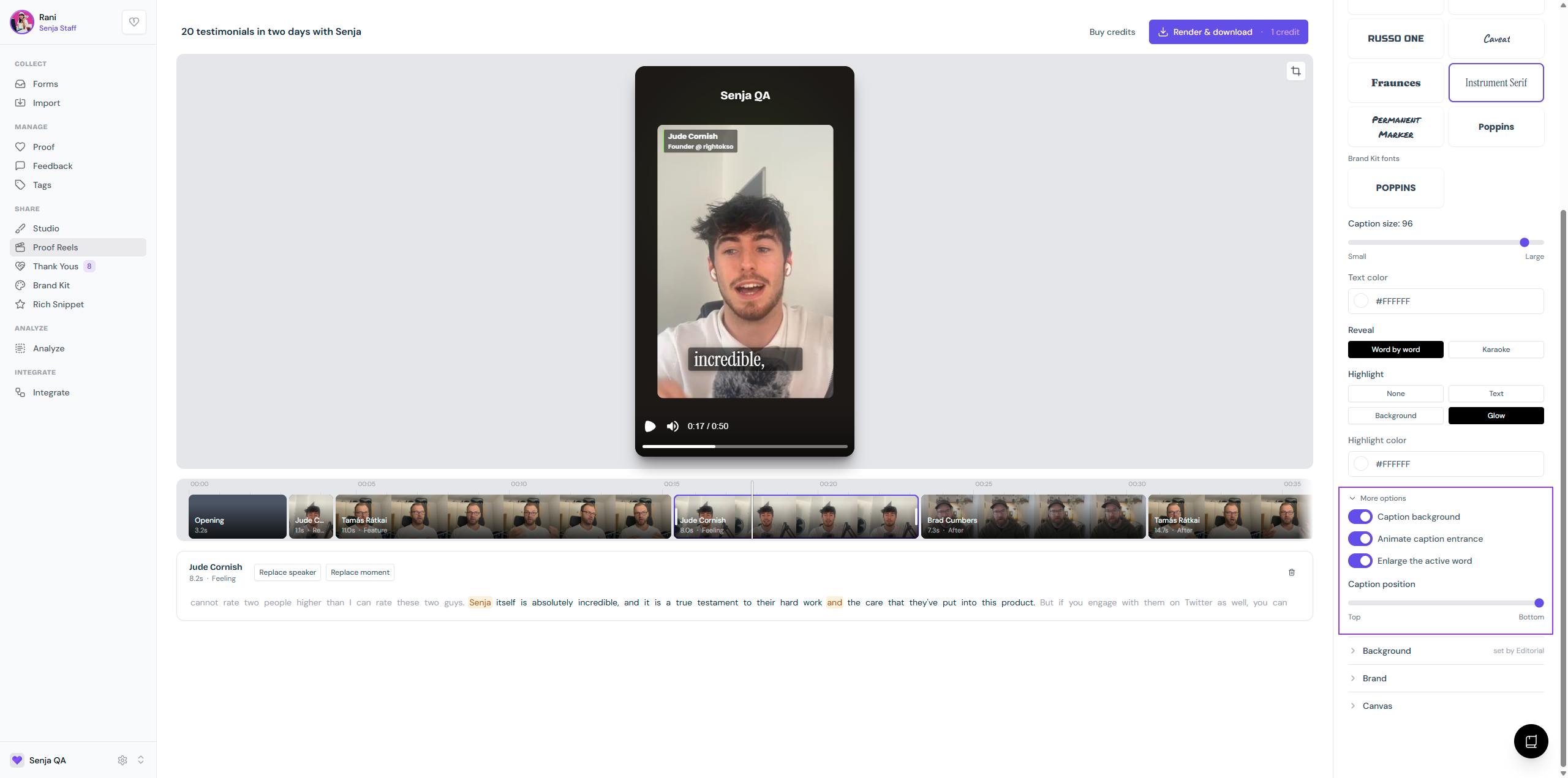
Click More options for extra setup:
Caption background: add a background color to the text for more visibility
Animate caption entrance: subtle nudge animation on the text when it appears
Enlarge the active word: the spoken word will appear larger than the rest
Caption position: change the vertical position of the text
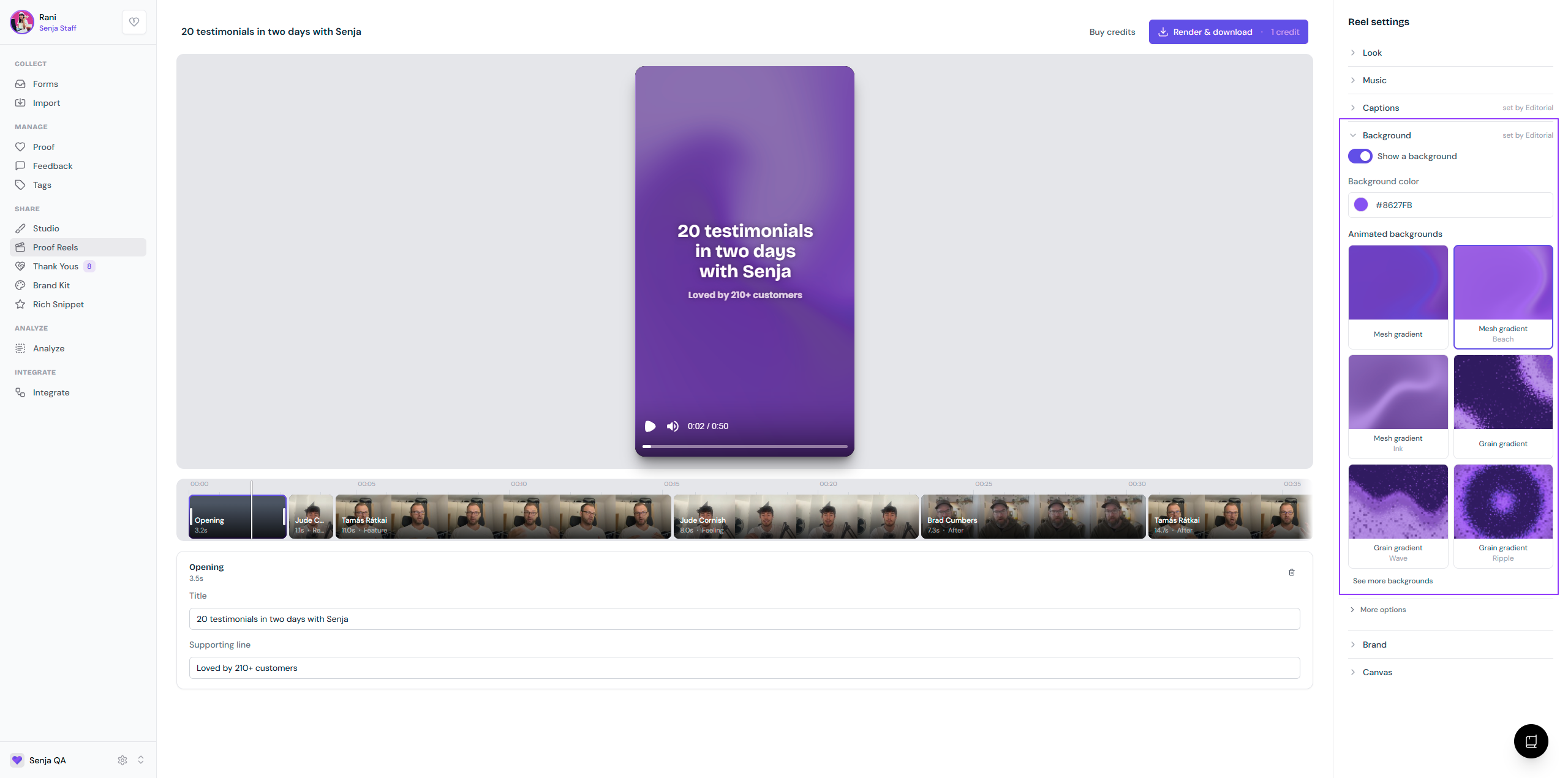
Background
The overall style will follow the Look that you've chosen, but you can modify the visual element here.
Decide if you want to Show a background or not
Setup your Background color (using HEX code or color picker)
Click See more backgrounds to see more options
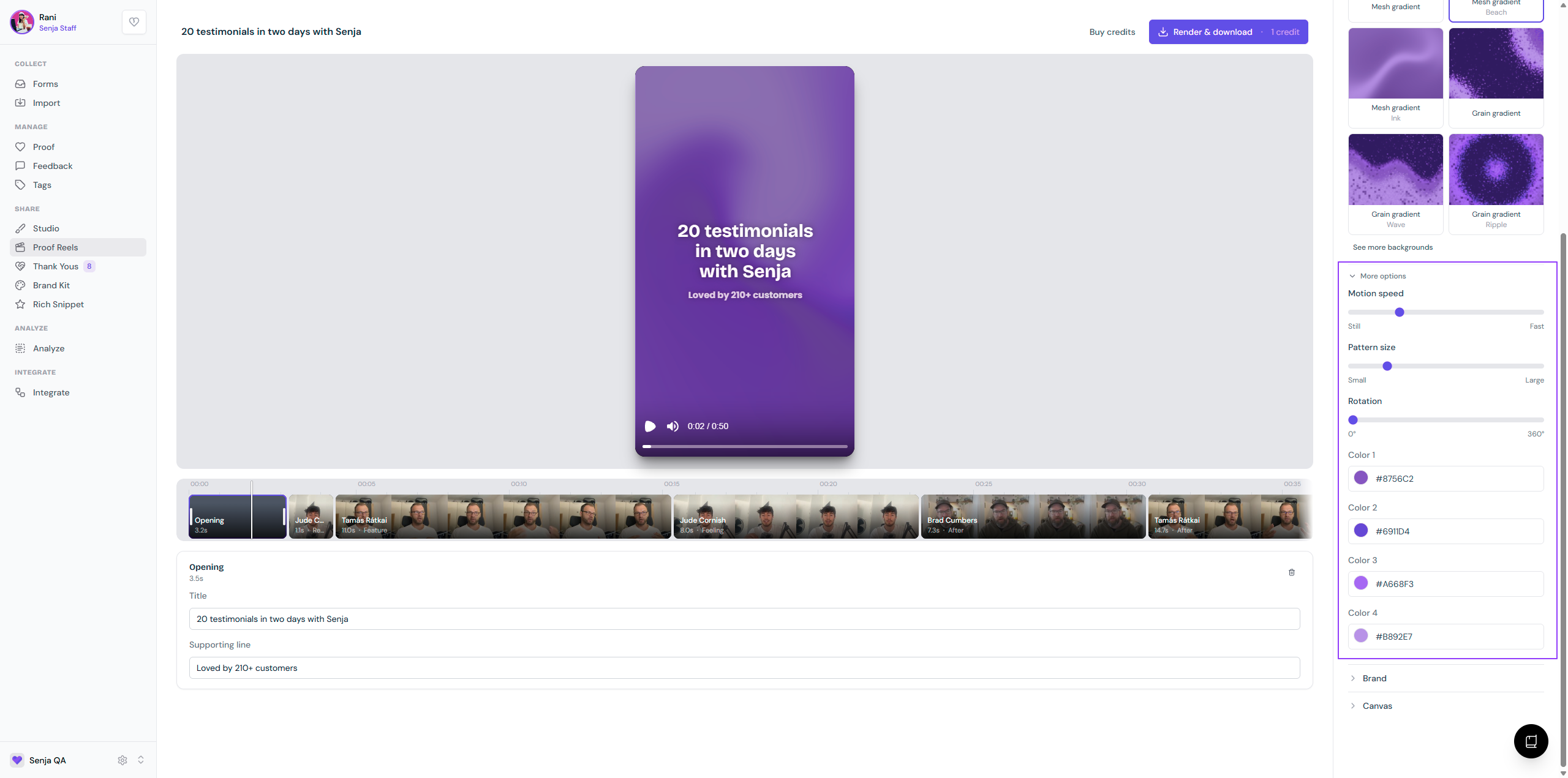
Click More options to modify the animation (Motion speed, Pattern size, Rotation) and colors (4 shades)
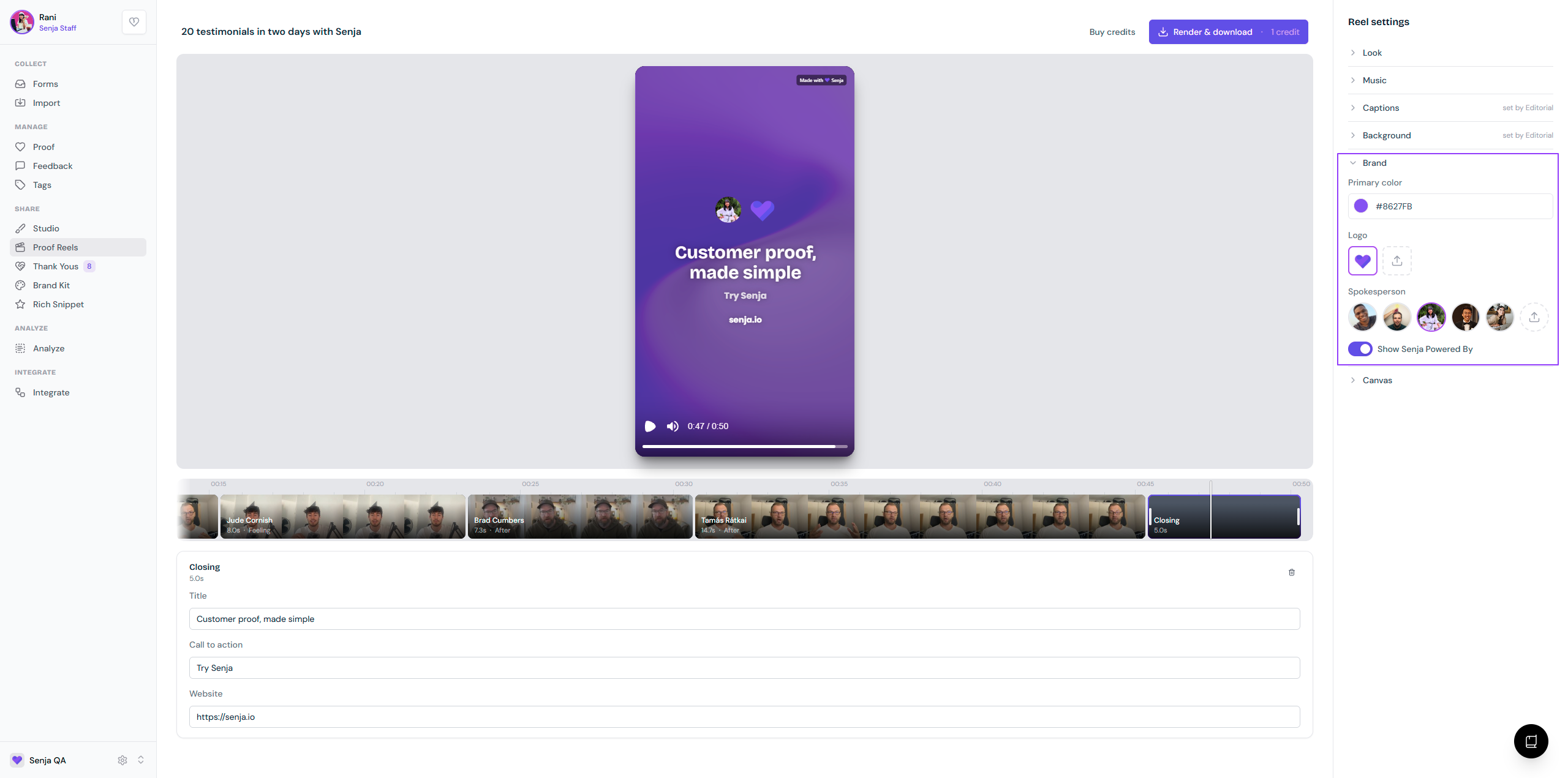
Brand
Setup the Primary color (displayed as vertical bar on the customer's name/title/company showcase) - using HEX code or color picker
Click on the Logo preview to select/deselect the image
Click on the Spokeperson preview to select/deselect the avatar
Show Senja Powered By can be toggled off (remove the Made with Senja label) if you're on paid plan
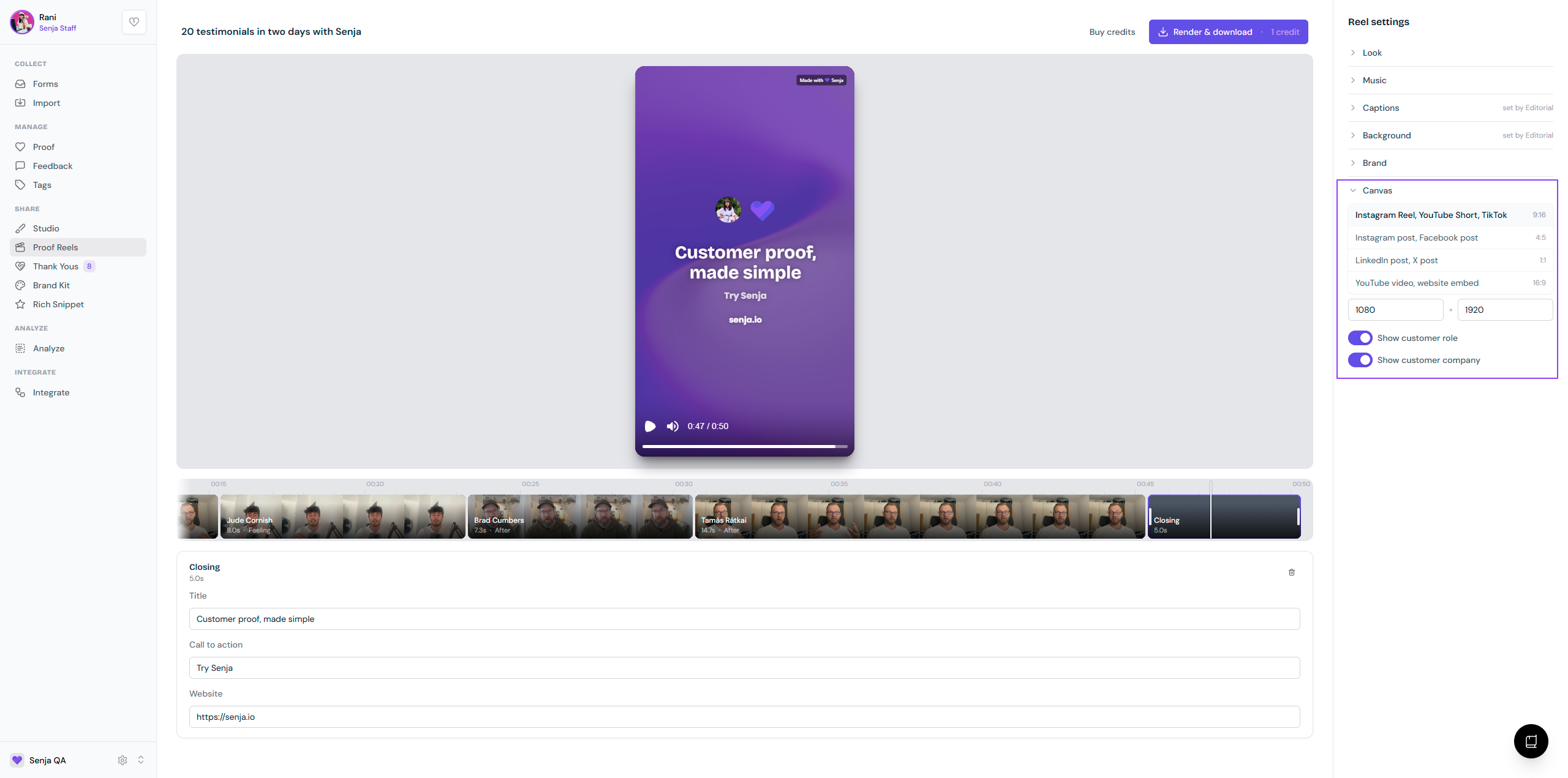
Canvas
Setup the size of your reel using the given options or custom size
Toggle on/off the Show customer role to show/hide the customer's job title
Toggle on/off the Show customer company to show/hide the customer's company name
If you edit an existing reel, the Render & download option will appear again, indicating that the current video is a different version than the latest download. You will be charged 1 - 3 credits to download the updated version, depending on the duration.
Working with reel timeline
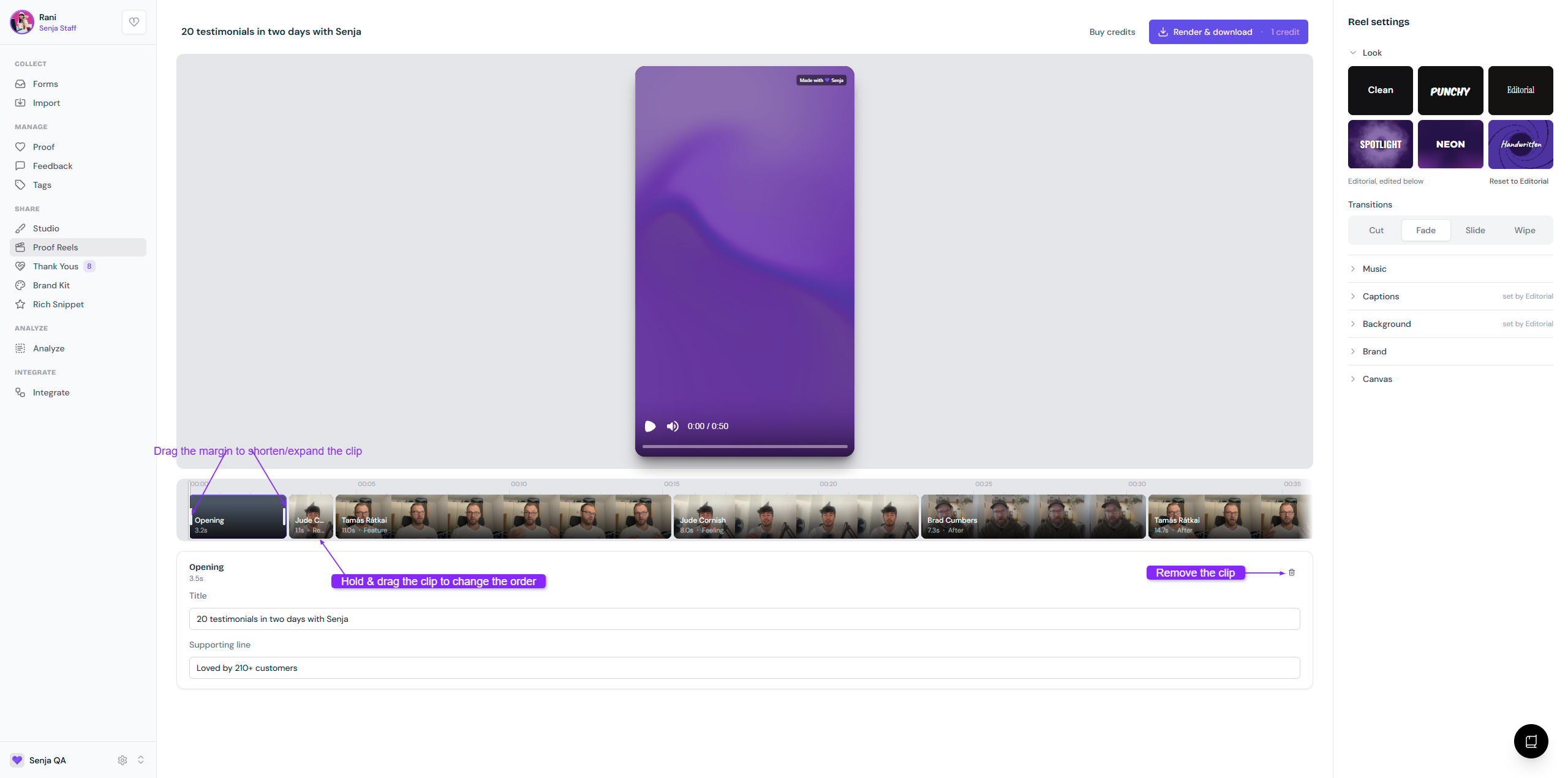
Under the reel preview, you see the timeline track, containing the clip segments. Hold and drag the playhead (the long vertical line overlapping with the timeline track) to navigate through the whole timeline.
Generic actions
Drag a clip segment to change the order
Remove the clip segment by clicking on the 🗑️ icon
Shorten/expand the duration by dragging the left/right margin
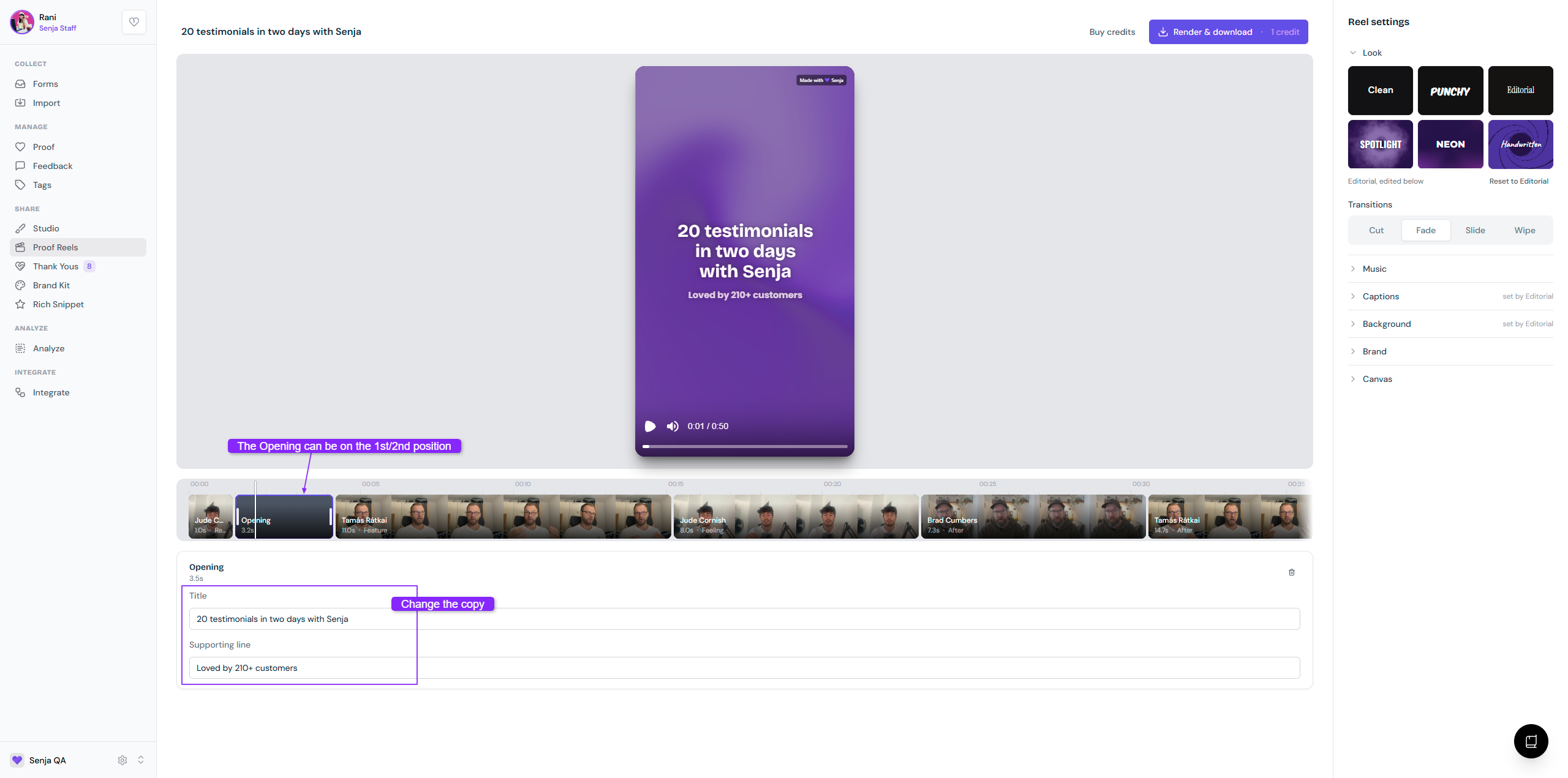
Actions on Opening and Closing clip segment
The first cut will always have Opening and Closing clip segments
You can modify the text in the Opening/Closing
You can move the Opening to the first/second position or the Closing to the last/second-from-last position
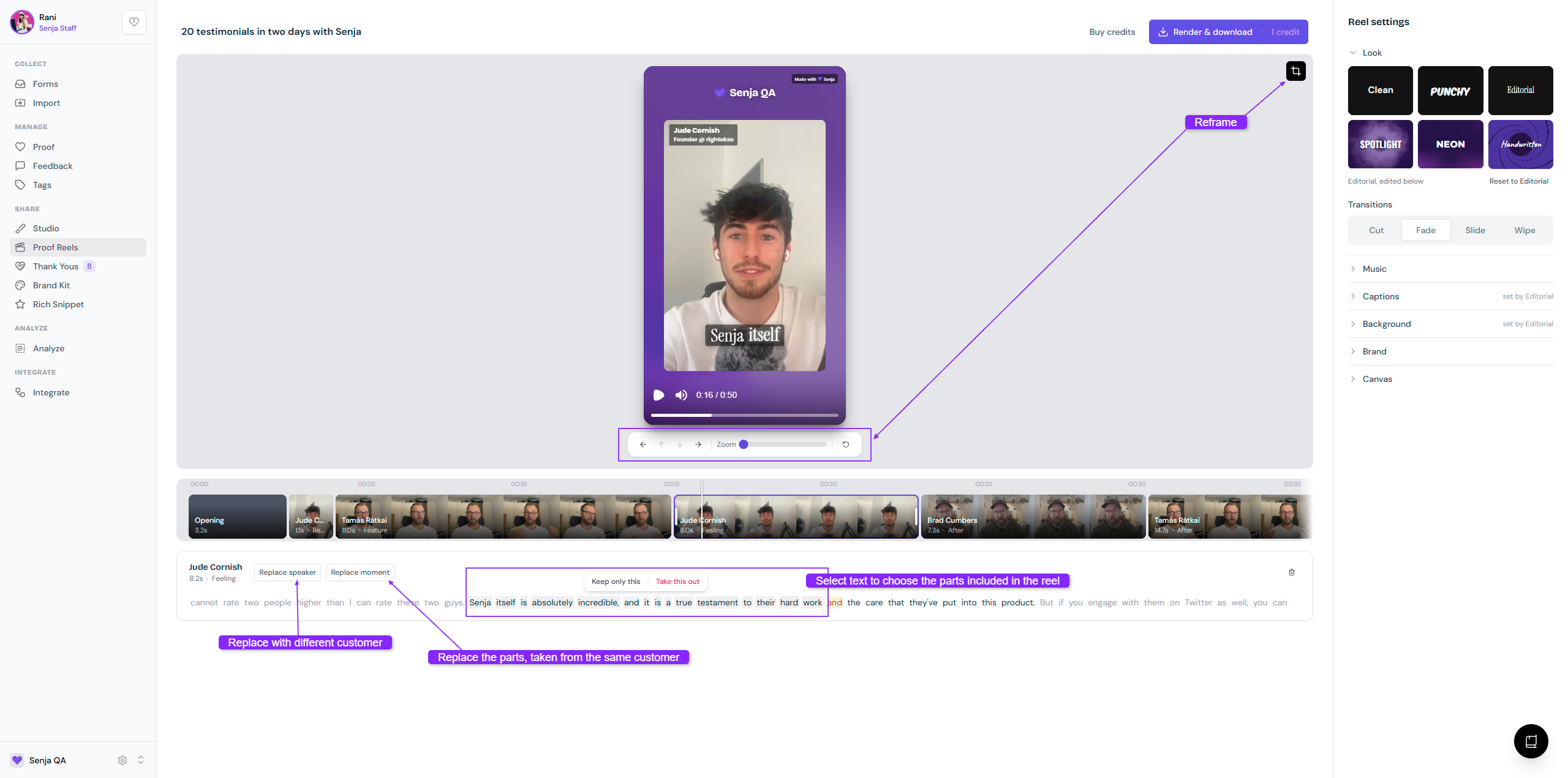
Actions on testimonial clip segments
Reframe the preview: Shift the position left/right/top/down and zoom in/out
Replace speaker to change the clip segment with another customer's testimonial
Replace moment to change the current part with a different part from this customer's testimonial
Manually drag over a line of text to select the parts that you want to use in a video
Already have a reel?
The reels that you've created will go to Proof Reels page: https://app.senja.io/proof-reels
Click on the saved reels to edit/download it
Any editing will activate Render & download button, with credit(s) charged
If the reel was previously rendered and downloaded, you can re-download for free