
How to set up the form settings
The Settings tab controls what happens behind the scenes of your form: its link, notifications, approval, tags, translation, the confirmation email, and whether it’s open for submissions.
Form settings are available on all Senja plans: Free, Starter, and Pro. Some options need a paid plan, and they’re marked below.
Open your form settings
Go to your Forms page: https://app.senja.io/forms
Click the ⚙️ icon on your form and choose Edit
Click the Settings tab
Click Save changes (top right) when you’re done
Form slug
The slug is the last part of your form’s link, for example coupon in https://senja.io/p/senjaqa/r/coupon. A short, readable slug in your form link. like review or your product name, looks more trustworthy than a random code, and it’s easier for customers to remember.
Type your new slug in the Form slug field
Use letters, numbers, and dashes only
Click Save changes
To change the first part of the link, edit your project’s slug or add a custom domain (paid plans only).
Changing the slug breaks any links you’ve already shared or embedded. Update those places right after you save.
Slack notifications
Get a Slack message every time someone submits a testimonial through this form.
Connect Slack (first time only)
Go to Integrations → Slack: https://app.senja.io/settings/integrate
Click Connect with Slack, then Allow
Choose a channel for this form
In the form’s Settings tab, click Choose a channel
Pick the Channel from the dropdown
Turn on Include testimonial image and pick a style if you want an image, or leave it off for text only
Turn on Include case study follow-up if you also want alerts for AI-generated case study drafts
Click Save changes
Each alert shows the customer’s name, the form name, the rating, a snippet of the testimonial, and links to open it in Senja or on its public page.
Future modifications
To change the channel later, click the gear icon
To pause alerts, turn the toggle off
To disconnect Slack from this form, go to Integrations → Slack → Disconnect: https://app.senja.io/settings/integrate
Using Discord, Telegram, or Microsoft Teams instead? Use Integrations to send alerts there.
Approve testimonials
By default, new testimonials come in as Unapproved, so you can review them before they appear in widgets or your Wall of Love.
Turn on Approve testimonials to approve them automatically
This only applies to this form, so turn it on in each form where you want it
Learn more in What do approved and unapproved mean?
Prompt for landscape recording on mobile
Turn this on to ask customers recording on a phone to rotate it to landscape before they start. Leave it off if you prefer portrait videos, which usually look better in widgets.
Tag collected testimonials
Add a tag automatically to every testimonial from this form. It’s handy for sorting by product, campaign, or audience.
Click Add a tag
Choose one or more tags, or click Create new tag
Click Save changes
Tags apply to new submissions only, not to testimonials you already collected. They work like tags you add by hand, so you can filter by them and use them in widgets and Walls of Love.
Translate collected testimonials
Auto-translation needs the Pro plan.
If your customers write in different languages but your website uses one main language, Senja can translate every new submission into that language for you. No more translating testimonials one by one later.
Click Add a language in the Translate collected testimonials section
Choose the language you want submissions translated into
Click Save changes
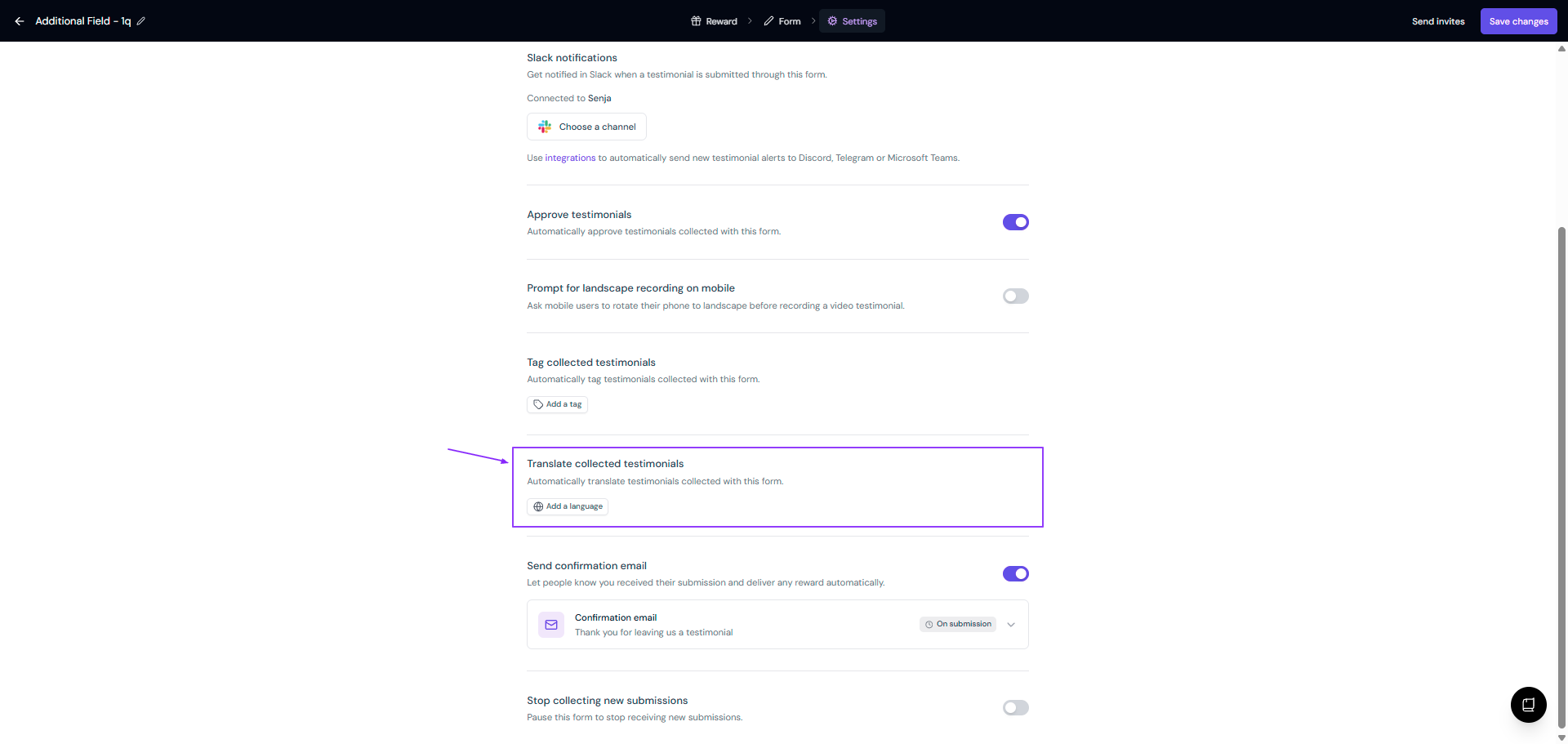
From then on, every new submission through this form arrives already translated. Need a language that isn’t listed? Suggest it on our feedback board.
Can I translate my form questions?
Not automatically. Auto-translation only works on what customers submit.
Your questions, buttons, and the rest of your form text stay exactly as you wrote them, so write them in the language your customers use.
You can edit all of it in the Form tab, see How to set up questions and pages in Senja form.
Collecting testimonials in several languages? Create one form per language, each with its questions written in that language. Your plan’s form limit applies.
Send confirmation email
When this is on, Senja emails customers after they submit to say thanks and deliver any reward you’ve set up. It’s on by default.
Edit the email
Click the Confirmation email block to open it
Update the From name, Reply-To address, subject, and message
Show or hide your spokesperson avatar and company logo
Record or attach a video (paid plans only)
Check the live preview, then click Save changes
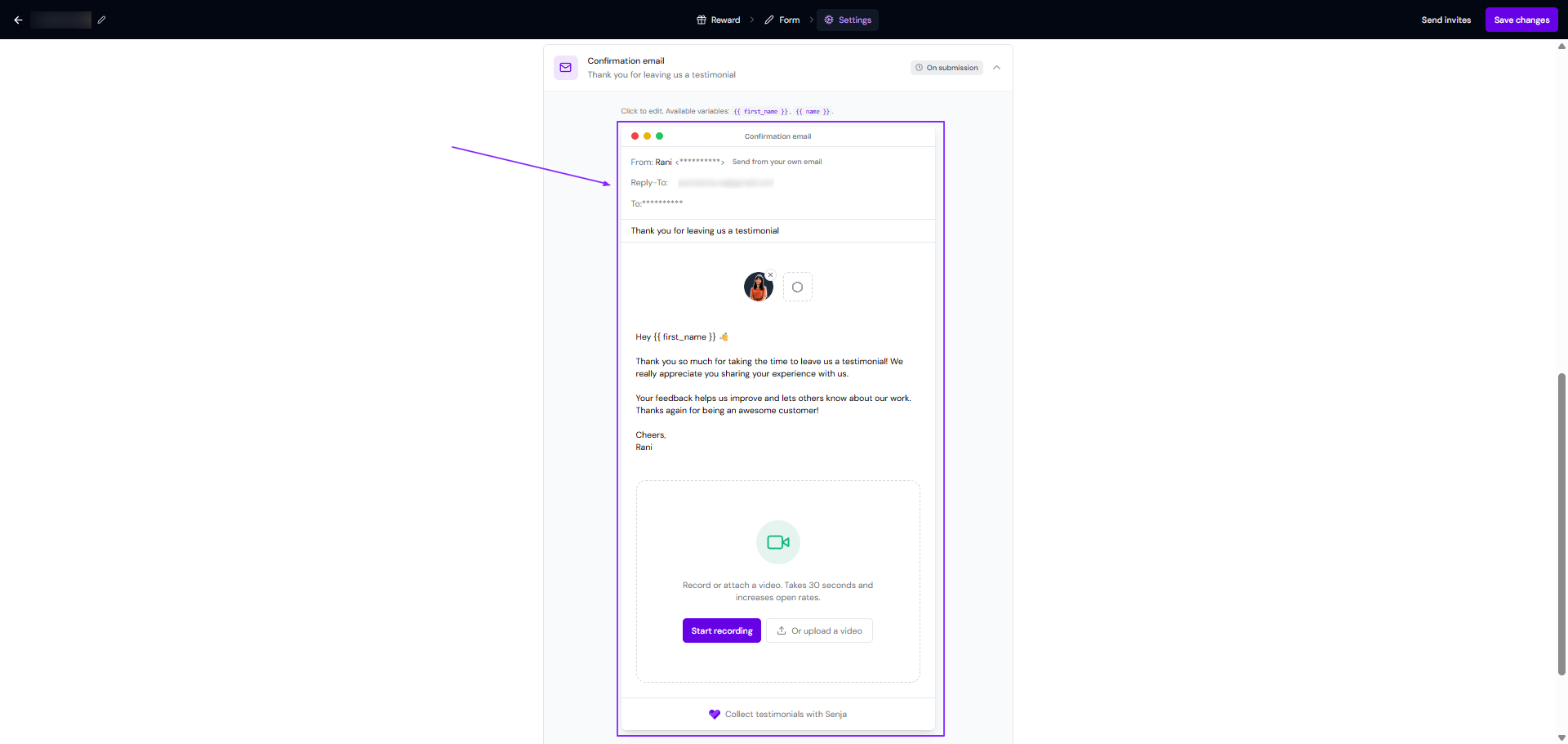
The email only goes out if the customers filled in the email address field. To make sure everyone gets their reward, make the email field required on the About you page in the Form tab.
Turn it off
Turn the Send confirmation email toggle off. You can still thank customers yourself from Thank Yous page: https://app.senja.io/thank-yous.
If you’ve set a reward, turning off the confirmation email means customers only see their reward on the Thank you & word of mouth page. Nothing is sent to their inbox.
Stop collecting new submissions
Turn this on to pause the form. People with the link can’t submit, and testimonials you already collected stay where they are. Turn it off to open the form again.
You can also pause or unpause a form from your Forms page.
Click the ⚙️ icon and choose Pause or Unpause
A green dot next to the form name means it’s live, and a grey dot means it’s paused