
How to reward customers for testimonials
You can give customers a reward when they submit a testimonial through your Senja form. A small thank you gets you more testimonials, and it’s a nice way to close the loop with people who took the time to help you.
Rewards are available on all Senja plans: Free, Starter, and Pro. Sending thank you gifts through Zapier needs a paid plan.
Reward ideas
Coupon code: a discount on their next purchase, which also brings in repeat sales
Donation to charity: donate to a cause in your customer’s name
Early access: first access to new products, features, or content
Exclusive content: lead magnets, video tutorials, or a private community
Digital gift card: simple, and everyone likes one
Pick your reward type
Senja form has three reward types:
Coupon code: shows a discount code after someone submits
External link: shows a Claim reward button that opens a link of your choice
Spin the Wheel: customers spin for a prize, and every spin wins something
Global rewards (Coupon code and External link) give the same code or link to everyone. If you need a unique code for each person, you’ll need to manage that outside Senja.
If you want to disable the reward, edit your form and choose No Reward to remove the coupon code/external link/spin the wheel from future submissions.
Before you start: make sure rewards land in the inbox
Customers always see their reward on the Thank you & word of mouth page. To also send it by email:
In the Form tab, make the email field required on the About you page
Turn on the thank you email in your form settings
Without a required email field, the reward only shows on screen.
Set up the reward in Senja form
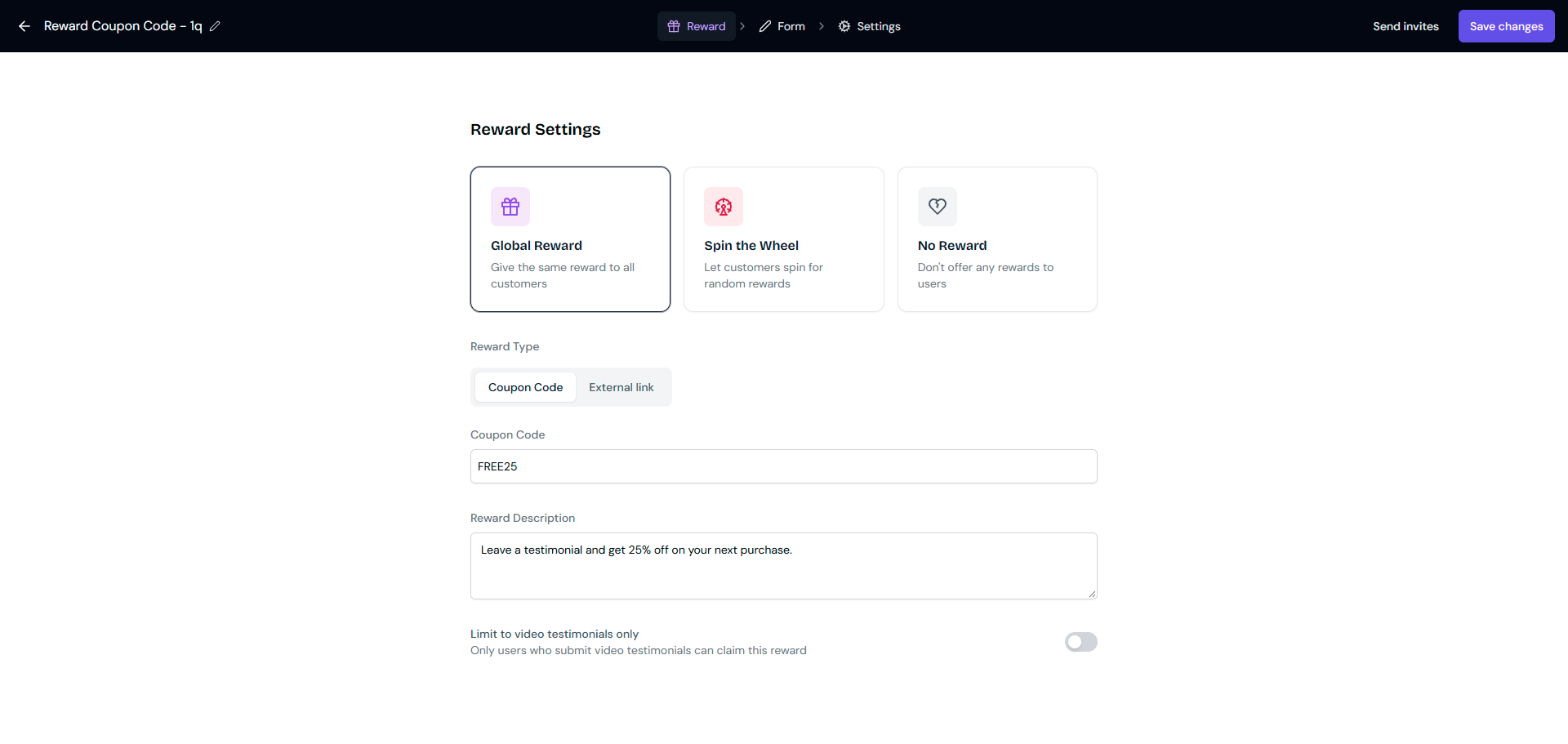
Set up a coupon code reward
Go to your Forms page: https://app.senja.io/forms
Click the ⚙️ icon on your form and choose Edit
Stay on the Reward tab
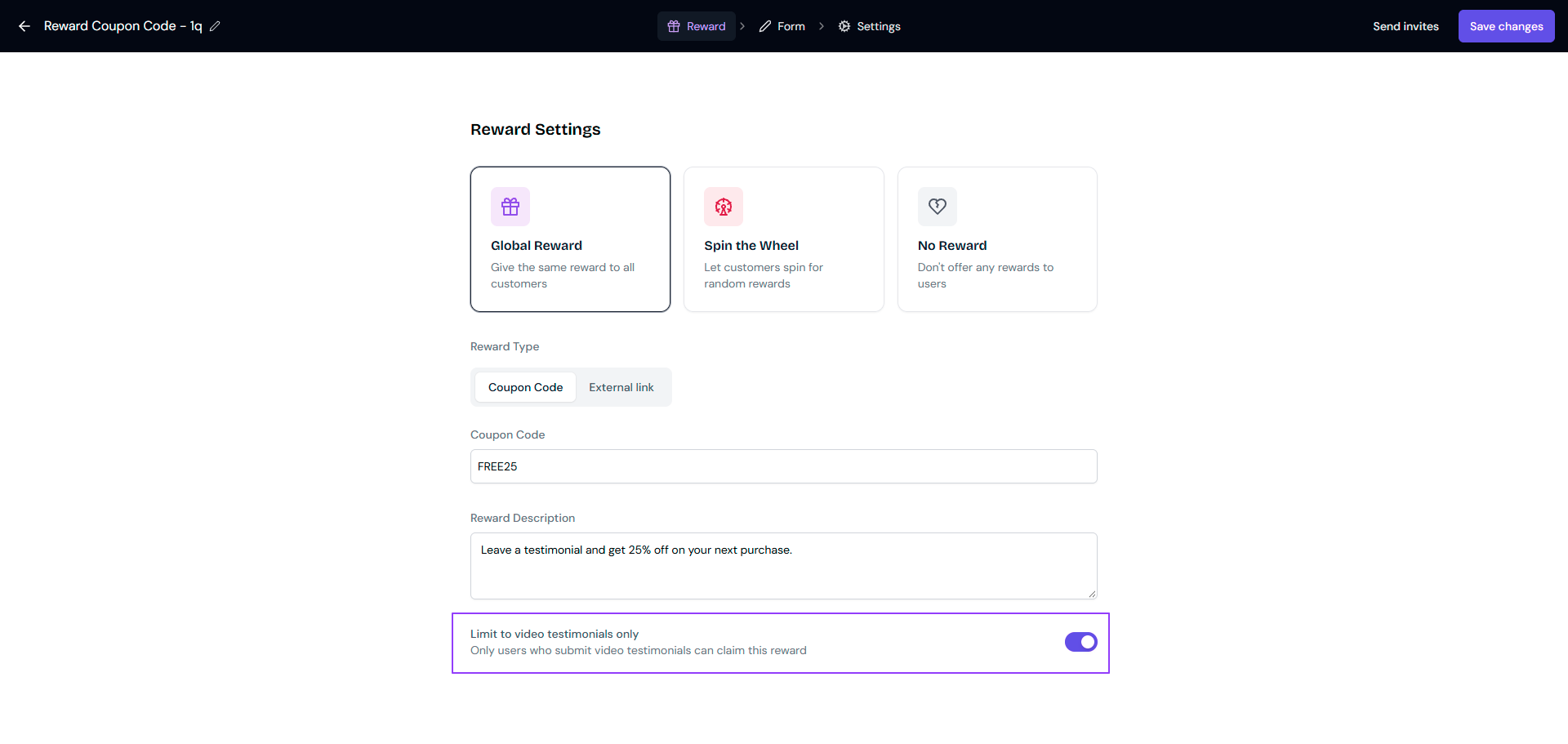
Select Global Reward → Coupon Code
Type your code in the Coupon Code field
Add a Reward Description (see writing a good reward description)
Click Save changes
Set up an external link reward
Go to your Forms page: https://app.senja.io/forms
Click the ⚙️ icon on your form and choose Edit
Stay on the Reward tab
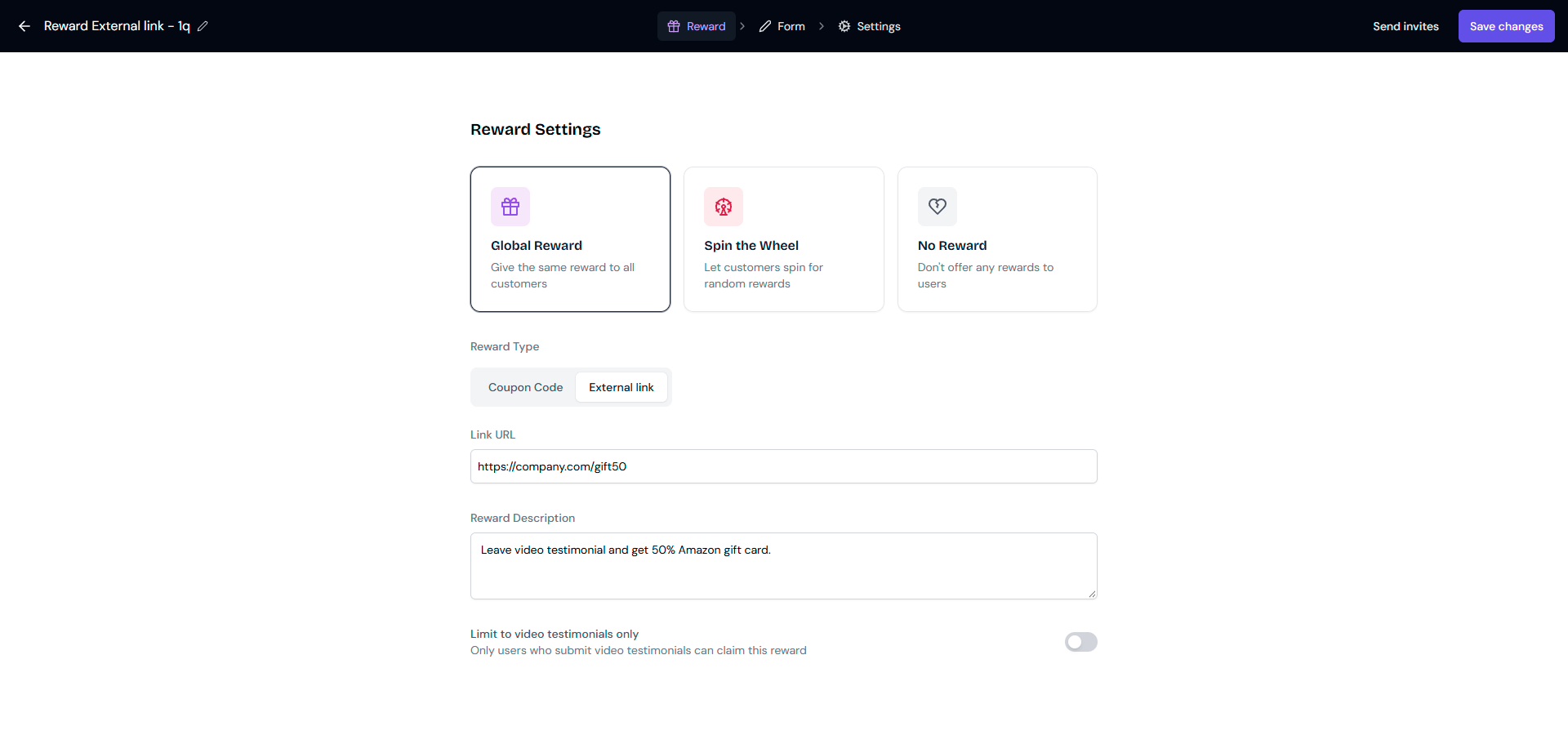
Select Global Reward → External link
Add your link in Link URL. It can be a website or an email address in mailto:[email protected] format
Add a Reward Description
Click Save changes
Senja doesn’t check that your link works or track clicks, so test it before you go live.
Set up Spin the Wheel
Go to your Forms page: https://app.senja.io/forms
Click the ⚙️ icon on your form and choose Edit
Stay on the Reward tab
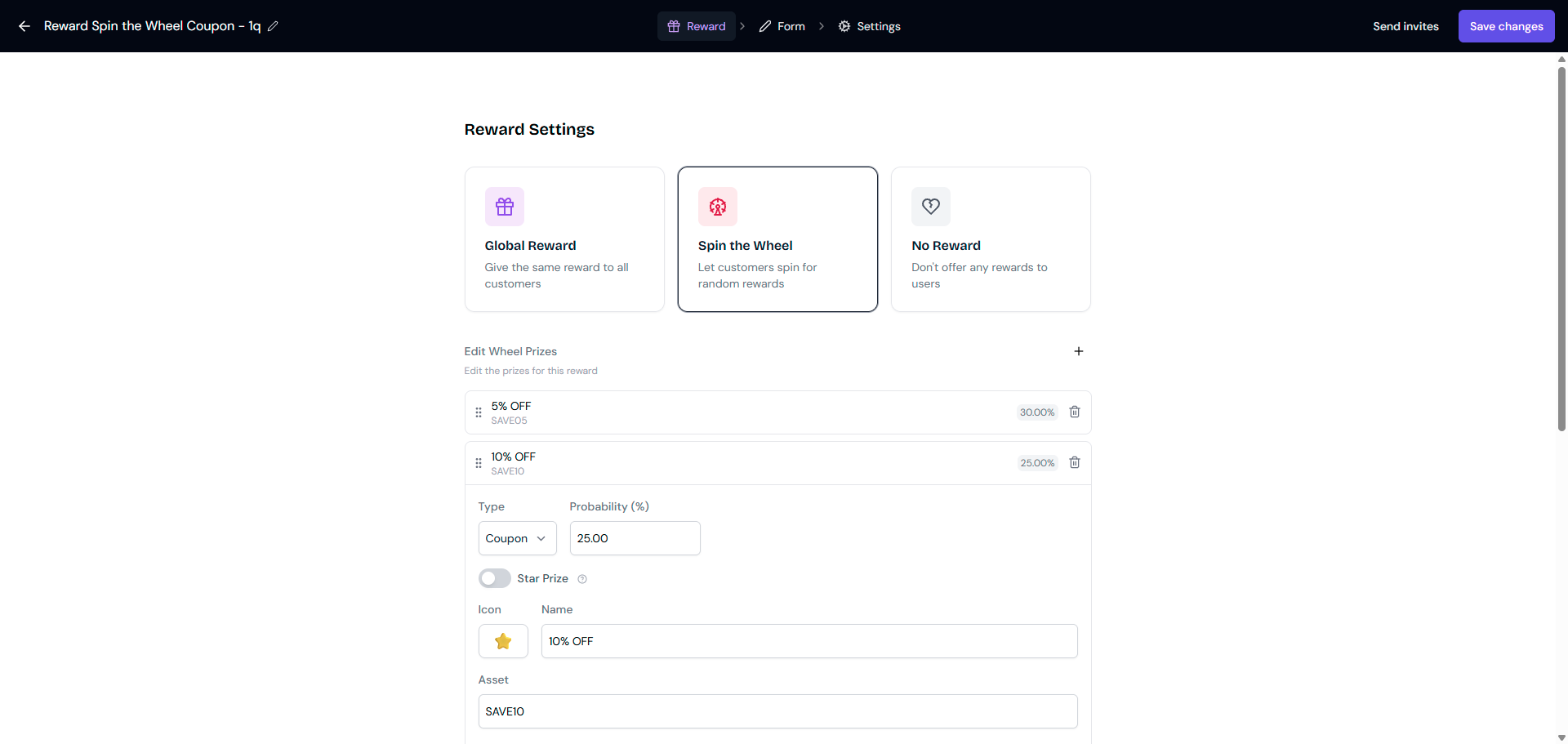
Select the Spin the Wheel card
Under Edit Wheel Prizes, click ➕ to add a prize and fill in:
Type: Coupon or Link
Probability: how often this prize comes up, in %
Star Prize: turn on for your top prize
Icon: the emoji shown on the wheel
Name: what the prize is called, like 5% OFF
Asset: the coupon code (for Coupon) or the URL (for Link)
Congrats Message: what customers see when they win this prize
Click Save after each prize
Drag prizes to reorder them, or click 🗑️ to delete one
Add a Reward Description
Click Save changes
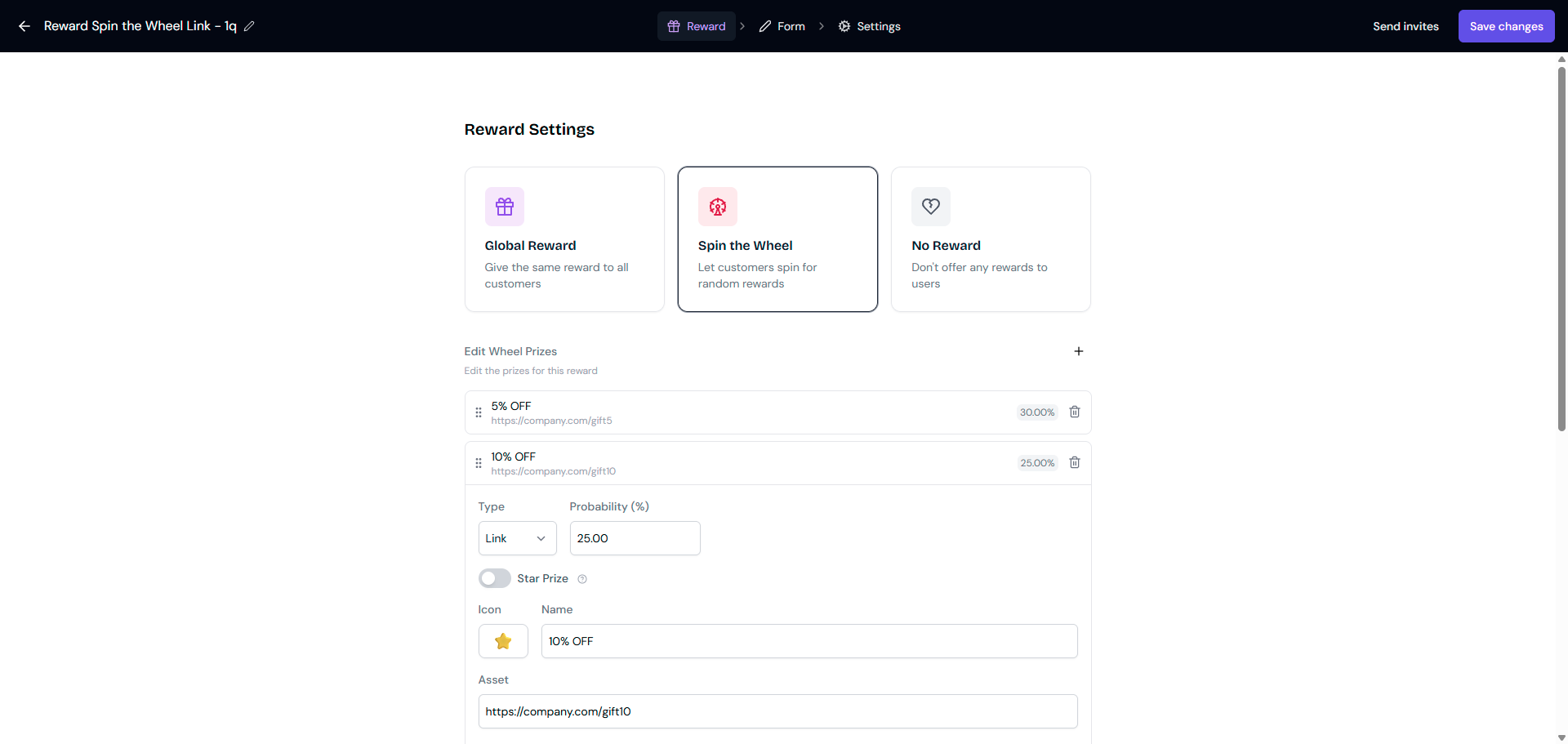
Use probability to make big prizes rare and small prizes common. You can preview how the wheel looks and spins in the editor before saving.
Write a good reward description
The Reward Description appears on the welcome screen, before customers submit. Use it to tease the reward, for example “Submit your review to unlock an exclusive discount!”
Don’t put the actual coupon code or link in the Reward Description. Customers would see it before submitting, and there goes your incentive.
Only reward video testimonials
Turn on Limit to video testimonials only in the Reward tab if you only want to reward people who record a video. Anyone who submits text only won’t see the reward or get the email.
What your customers see
Coupon code
The code appears on the Thank you & word of mouth page
A confirmation email with the code (if the email field is filled in)
External link
A Claim reward button on the thank you page, which opens your link in a new tab
A confirmation email with the link (if the email field is filled in)
Spin the Wheel
A Claim your discount button on the thank you page
The button opens your wheel, and they click to spin
When the wheel stops, they see their prize with your congrats message
A confirmation email with the prize (if the email field is filled in)
See who got which reward
Senja doesn’t notify you when someone claims a reward or wins a prize. To check:
Go to your Proof page: https://app.senja.io/
Filter by form if you need to
Click a testimonial to open the customer’s page
The reward shows above the testimonial
Senja also doesn’t track whether codes are expired or how many times they’ve been used. Keep track of that in your own billing or e-commerce tool.
Other ways to send a reward
Send a reward with Thank Yous
Thank Yous is available on all Senja plans. Free plan accounts can send up to 100 thank yous a month.
Thank Yous lets you send a personal thank you email straight from Senja, with a coupon or a custom gift attached. It’s handy when you want to reward someone after you’ve read their testimonial, or thank a customer who didn’t come through a form.
Go to your Thank Yous page: https://app.senja.io/thank-yous
Click Thank customers (top right)
Add the recipient email addresses manually or with Import CSV
Write your message, or start from a saved or global template
Add your reward:
Coupon: choose Stripe coupon or Manual coupon, then add the Code, a note in What does it get them?, and the Redemption link. Click Attach coupon
Custom gift: fill in What did you give them?, add a note explaining how to redeem it, and set the Button link and Button text. Click Add gift
Check the email preview, then click Send thank you
You can attach one reward per thank you. Once you add a coupon, the gift option is hidden, and the other way round.
The Thanked tab shows the status of each thank you you’ve sent, including Opened and Redeemed, so you can see who used their reward.
Full guide: How do I send thank you notes to my customers?
Check the Not thanked tab for customers who left a testimonial and haven’t been thanked yet. You can also thank someone straight from the Proof page.
Send a thank you gift with Zapier
This needs a paid plan, because automations run through Zapier.
Want to send something Senja doesn’t deliver itself, like a $10 gift card from Tremendous? Set up an automation:
Go to Integrations → Zapier: https://app.senja.io/settings/integrate?tab=zapier
Scroll to Send thank yous and click Connect
Adjust the Zap to fit your gift and timing
Trigger the gift when a testimonial is approved, not when it’s received. That way you can review the testimonial before anything goes out.
Troubleshooting
Customers don’t see the reward after submitting
Check the Limit to video testimonials only toggle
If it’s on, text-only submitters won’t get a reward
Turn it off if you want everyone to get one
Customers didn’t get the reward email
Check that the email field is required on the About you page
Check that the confirmation email is turned on
The wheel won’t spin
This can happen in rare cases because of the browser or cache
The prize email is still sent automatically, so ask the customer to check their inbox
A testimonial shows “30% OFF” but the form has no reward
This is a default placeholder that appears when a form is set to No reward
The customer doesn’t receive any email or message about a 30% off coupon, so you can ignore it
Getting help
If something’s still not working, contact Senja Support with:
The form name or link
Your browser and version
Any error messages
Whether the reward email arrived
Screenshots or a screen recording