About forms

How to customize invitation emails

Personalize the invitation emails you send to customers when requesting testimonials. Forms 2.0 lets you save custom email templates, while Classic Forms let you customize emails each time you send invites.

For Forms 2.0 (saved templates)

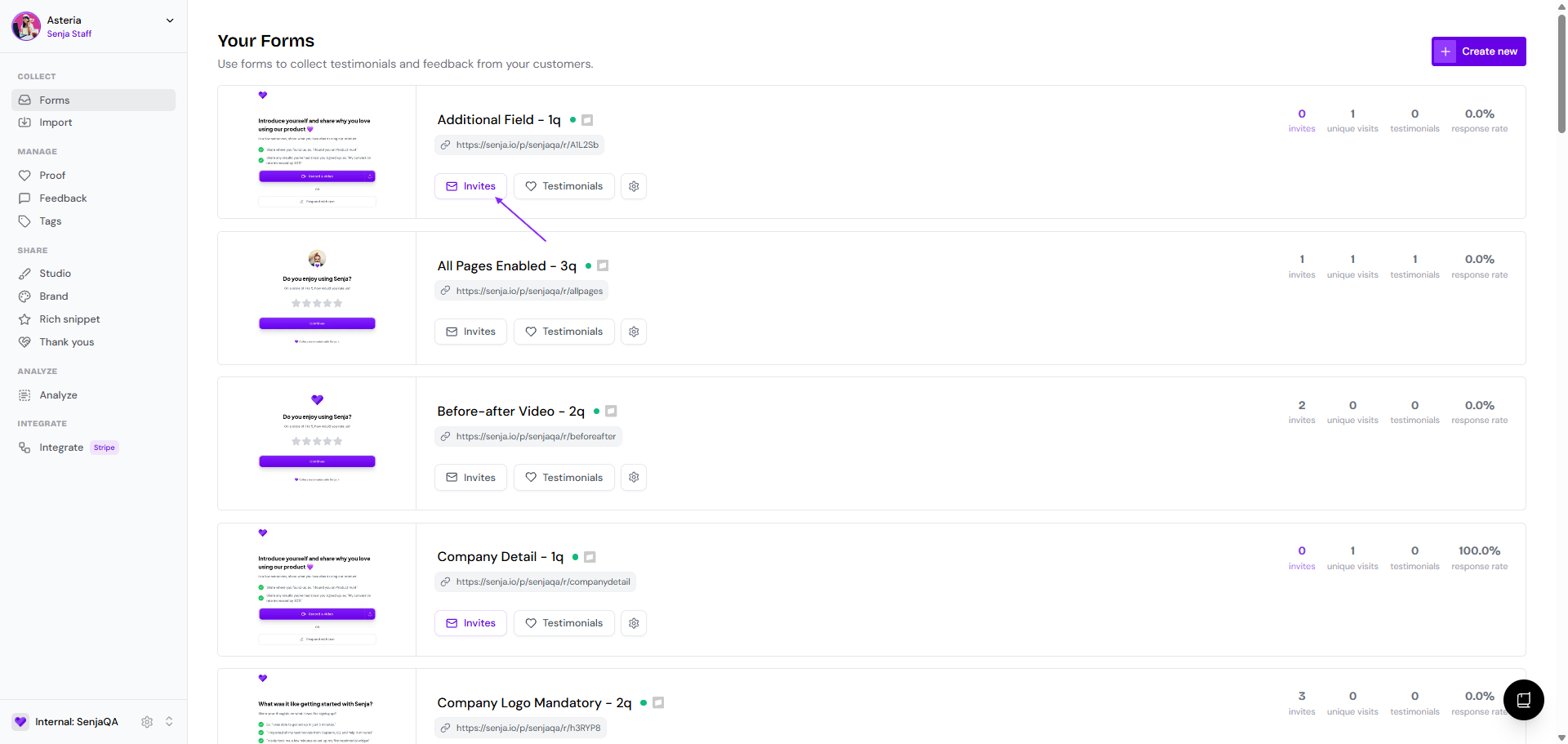
  • Go to your Forms page and click Edit on the Forms 2.0 form you want to customize

    Forms list page showing the Edit button on a Forms 2.0 card
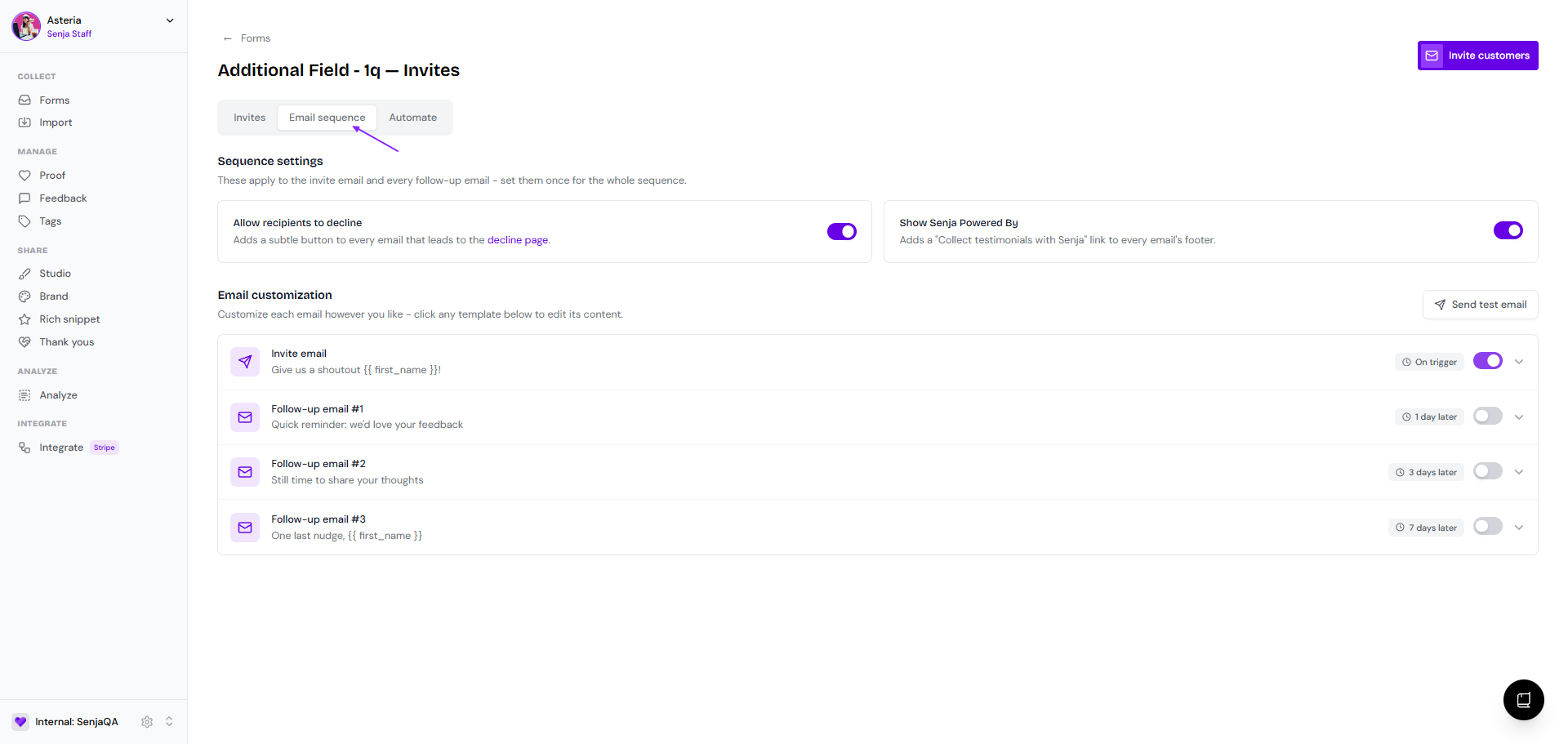
  • Click the Emails tab in the top navigation

    Form editor showing the Emails tab in the header navigation
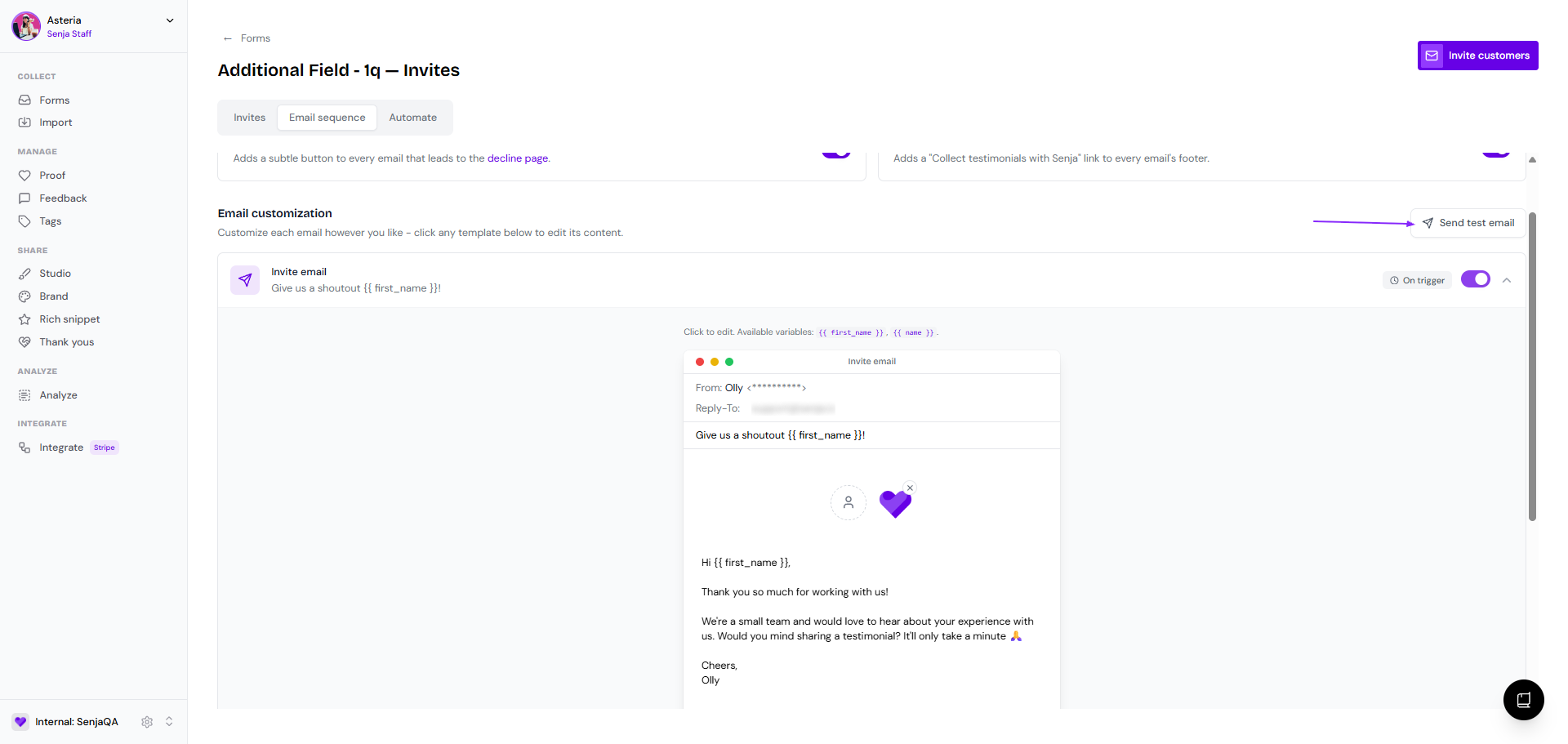
  • Select the Invite email subtab

    Emails tab showing the Invite email subtab
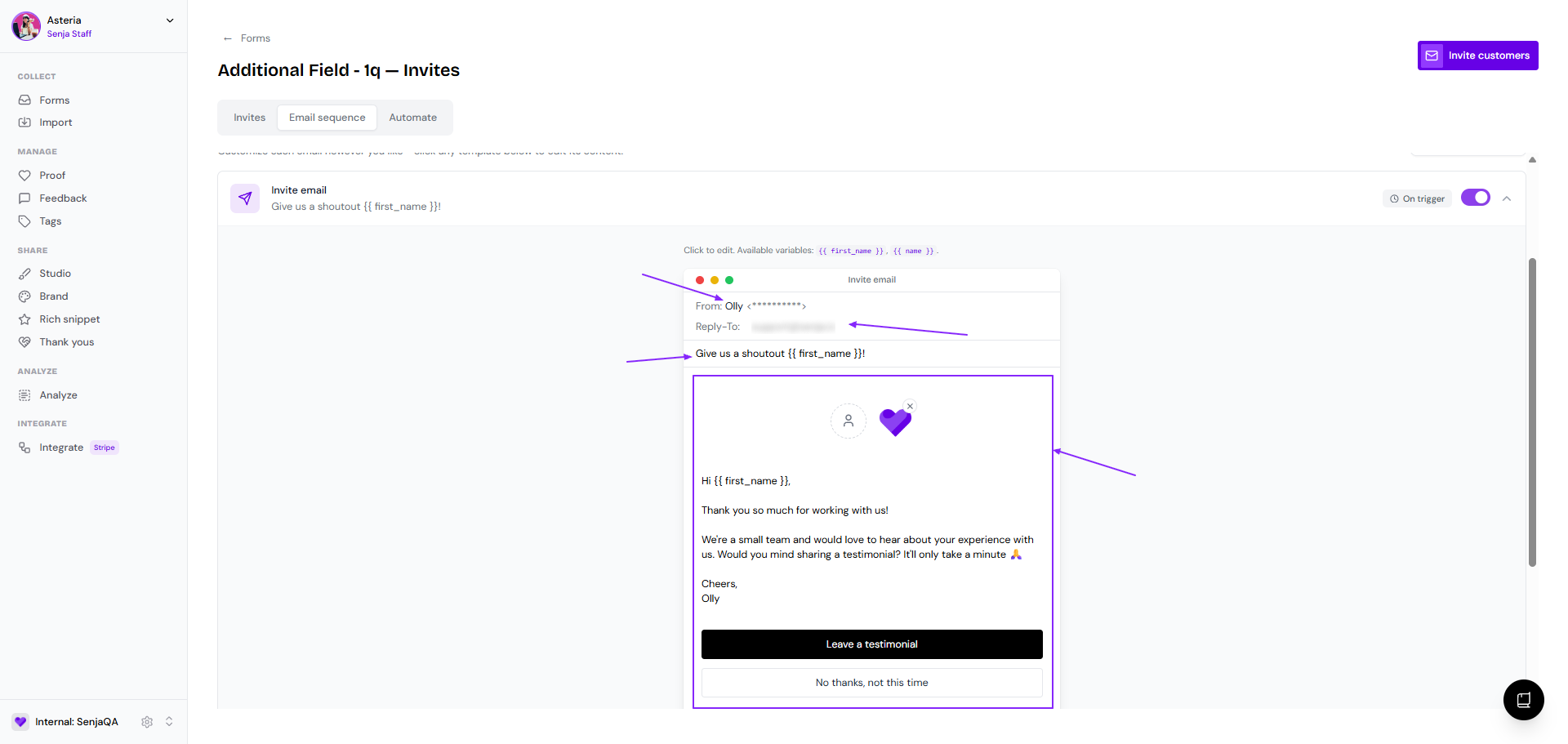
  • Click one of the template buttons (Default, Short, Friendly, or Formal) to pre-fill your email, or start from scratch

    You can customize:

    • Subject: The email subject line (supports variables like {{ first_name }})

    • Write your message: Your main email content (supports markdown and variables like {{ name }})

    • Call to action: The button text in the email

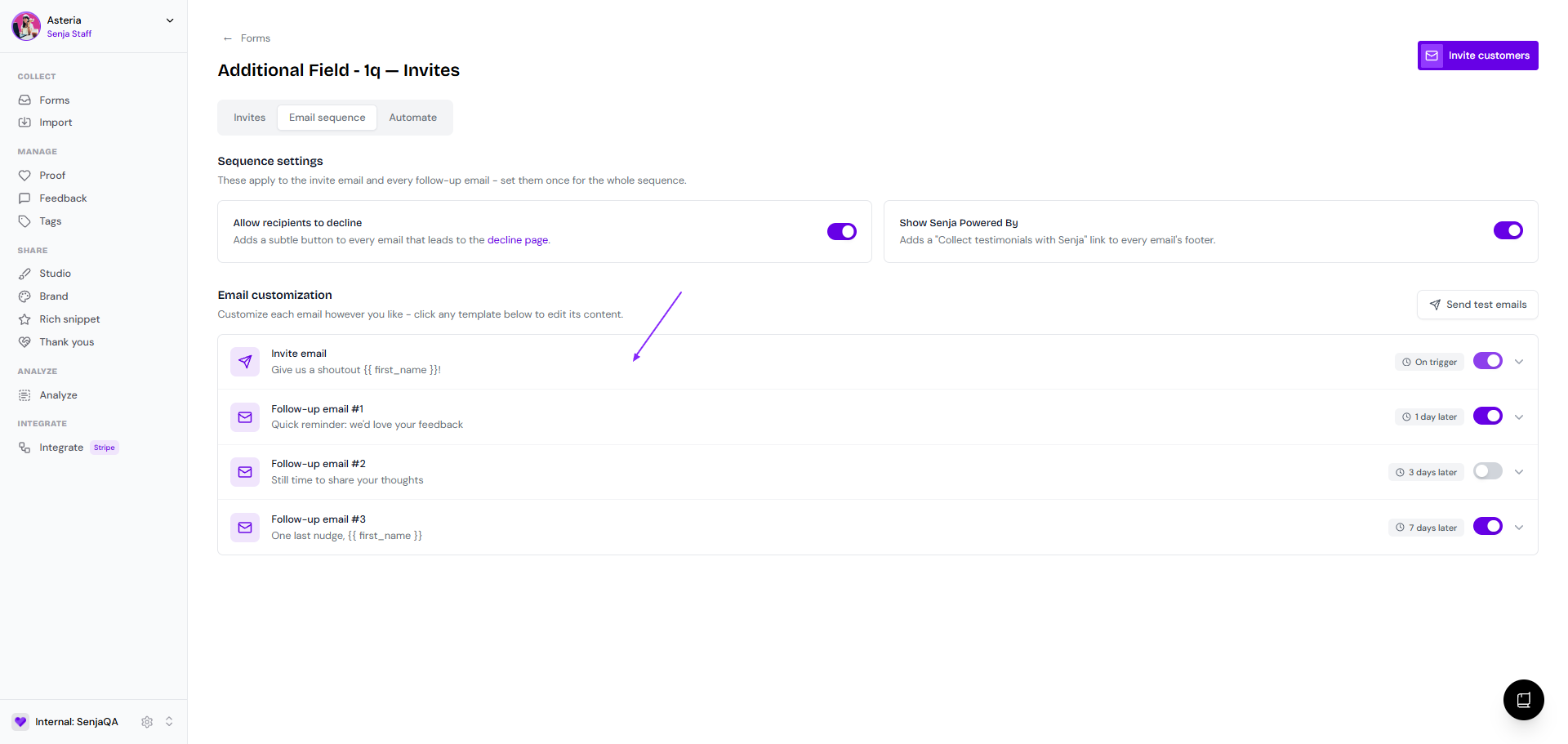
    • Automatically follow up: Toggle to send reminder emails at 1, 3, and 7 days

      Template selection buttons showing Default, Short, Friendly, and Formal options
  • Click Save changes in the top right when you're done.

    Form editor header showing the Save changes button

You can also customize your sender name, reply-to email, and logo in the Email settings subtab.

For Classic Forms (per-campaign customization)

Classic Forms don't have saved email templates in the form editor, but you can customize invitation emails each time you send them.

Right after creating a form

  • Click Save changes

  • Share your form screen will appear

  • Choose the options from Invite your customers, for example, we choose Invite using email to send to 1 person only

  • Complete the info in Customer tab, click Next when done

  • Update the email Message as you wish, click Next when done

    • Select a template (Default, Short, Friendly, or Formal)

    • Edit the Subject line with variables like {{ first_name }}

    • Edit the Message using rich text or markdown with variables

    • Customize the CTA button text

  • Update the Logo, click Next

  • Update the Email settings in the Advanced subtab, click Next when done

  • Click Send Invite

Send an existing form

  • Go to your Forms page:

  • Click Share on the form that you want

  • Follow the same steps as above

For Classic Forms, email customization applies only to that specific campaign. To save permanent email templates, upgrade to Forms 2.0.

For more details on sending invites, see How do I use form invites?

Was this helpful?