
How to use projects in Senja
Projects keep your testimonials, forms, widgets, Walls of Love and team members in separate groups. They're handy for running several businesses, separating client work or splitting different kinds of social proof.
This is applicable for all Senja plans: Free, Starter, and Pro.
Projects on each plan
Plan | Price | Projects included | Extra projects |
|---|---|---|---|
Free | $0 | 1 | Not available |
Starter | $29/month | 1 | Not available |
Pro | $59/month | 5 | $10/month each |
Good to know:
Only the project Owner needs Pro. Team members don't need their own subscription
If the Owner isn't on Pro, the project is treated as a Free account, whatever plan the team members are on
If you downgrade from Pro, your existing projects will stay, but you can no longer add more
On Free or Starter but invited to someone else's projects? You can still switch between them
When to use projects
Use a separate project when your testimonials shouldn't mix. For example:
Several businesses: one project for Senja Consulting, another for Senja Proof
Different product lines with big audiences: one project each for your courses, books and podcast
Multiple agents or representatives: one project per agent, e.g. at an insurance company or law firm
An agency with clients: one project per client, so their assets never get mixed up
Different types of proof: one project for customer testimonials, another for employee testimonials
Only need light grouping within one business? Try tags instead.
See and switch between projects
Log in to Senja
Click the project switcher (the up-down chevron at the bottom left of the sidebar)
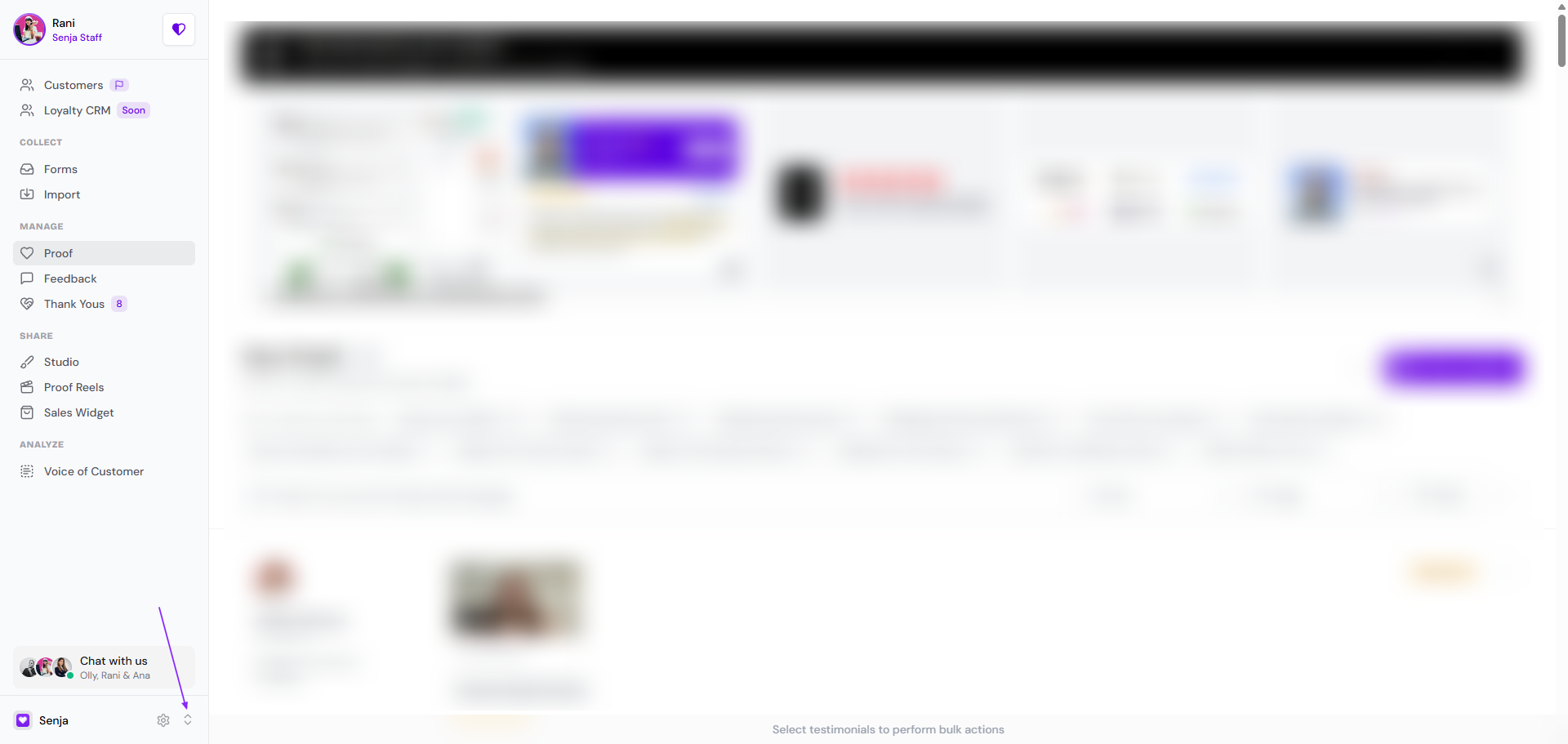
Choose the project you want to open
Create a new project
You need the Pro plan to have more than 1 project. To upgrade, go to your Billing page, click Change plan, choose Pro and complete payment.
Click the project switcher (the up-down chevron at the bottom left of the sidebar)
Click Create a New Project
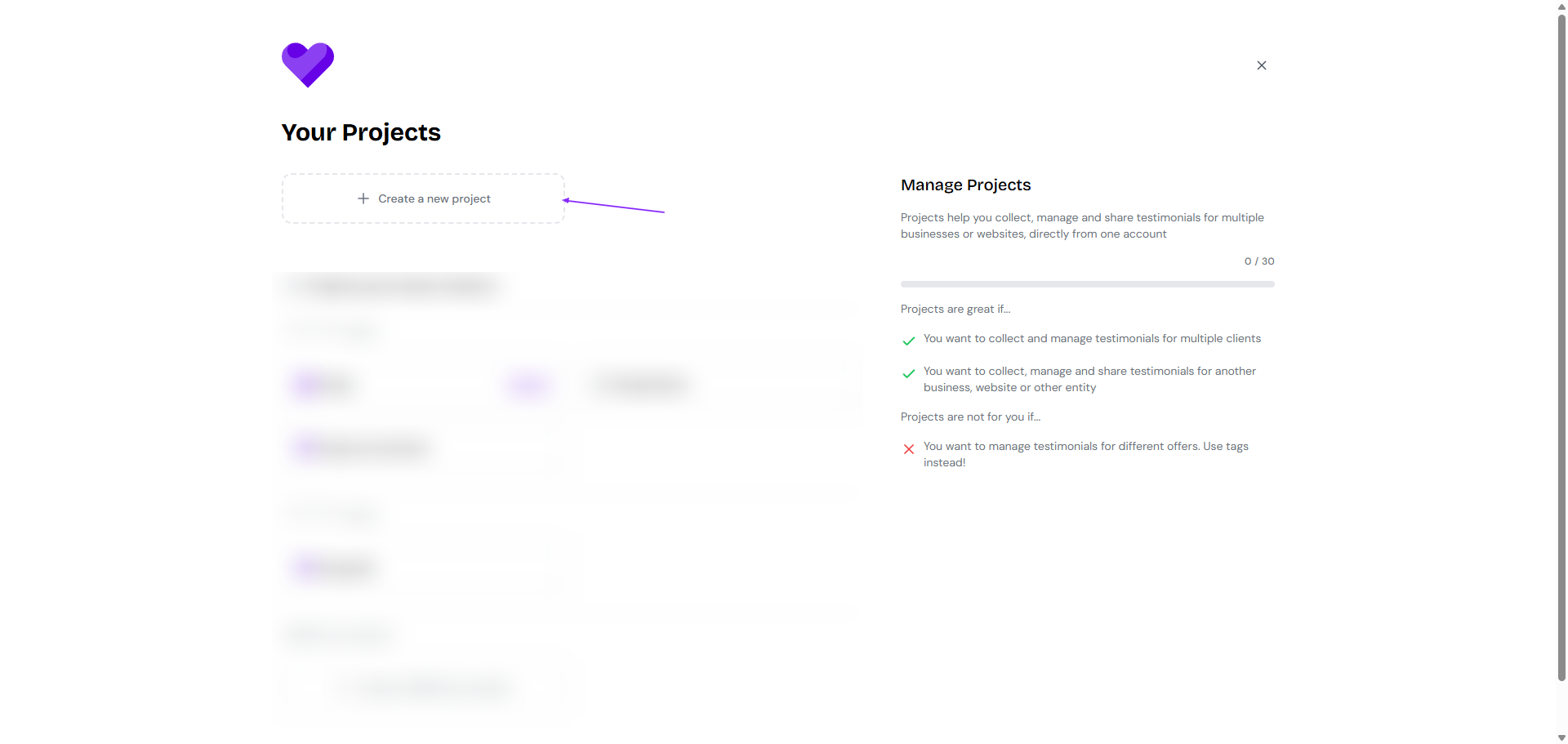
Add a Name, Slug and Site URL
Click Create Project
Buy more projects
Used all 5 projects on Pro? Add more for $10/month each.
Click the project switcher
Click Buy more projects
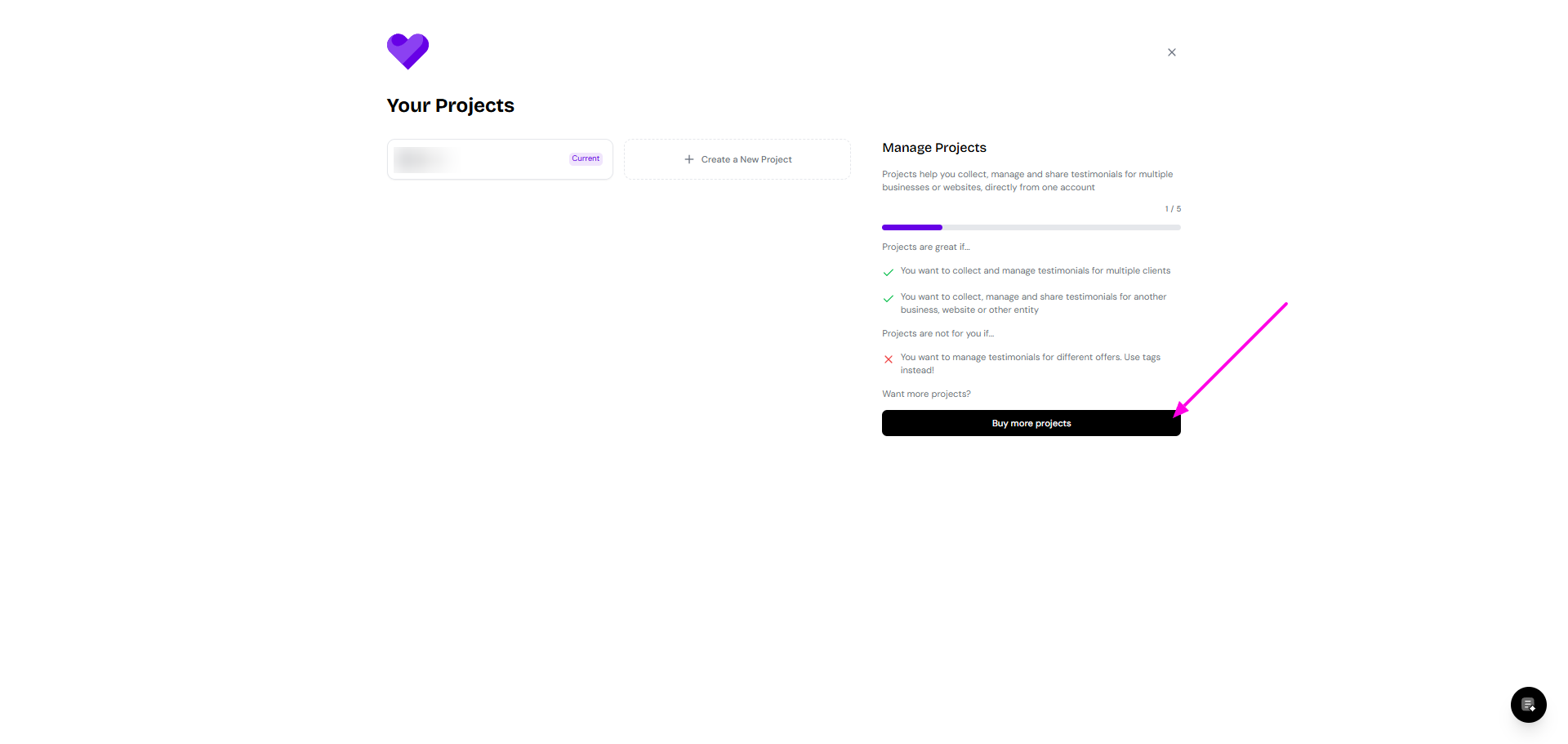
Choose how many to add
Click Buy more projects
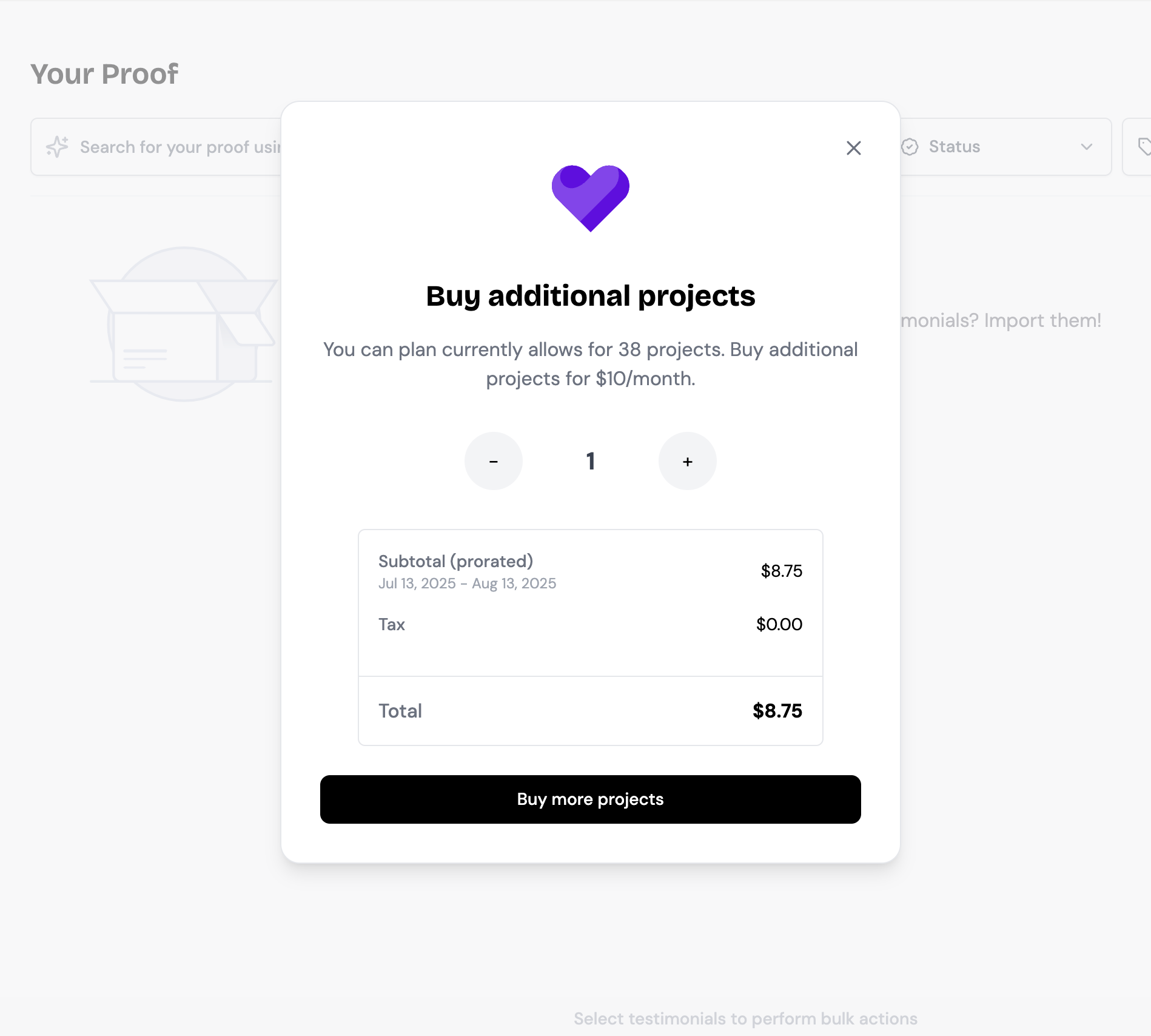
Your project allowance updates straight away.
Can't buy more projects
If Buy more projects doesn't respond, payment fails, the purchase doesn't show on your subscription, or you still can't create a project after buying:
Tell us how many extra projects you need, and that you couldn't buy them in the app
We'll add them for you, usually within a few hours during business hours. The cost is added to your next bill.
Rename a project or update the slug and URL
Click the ⚙️ icon at the bottom of the left sidebar or this link: https://app.senja.io/settings
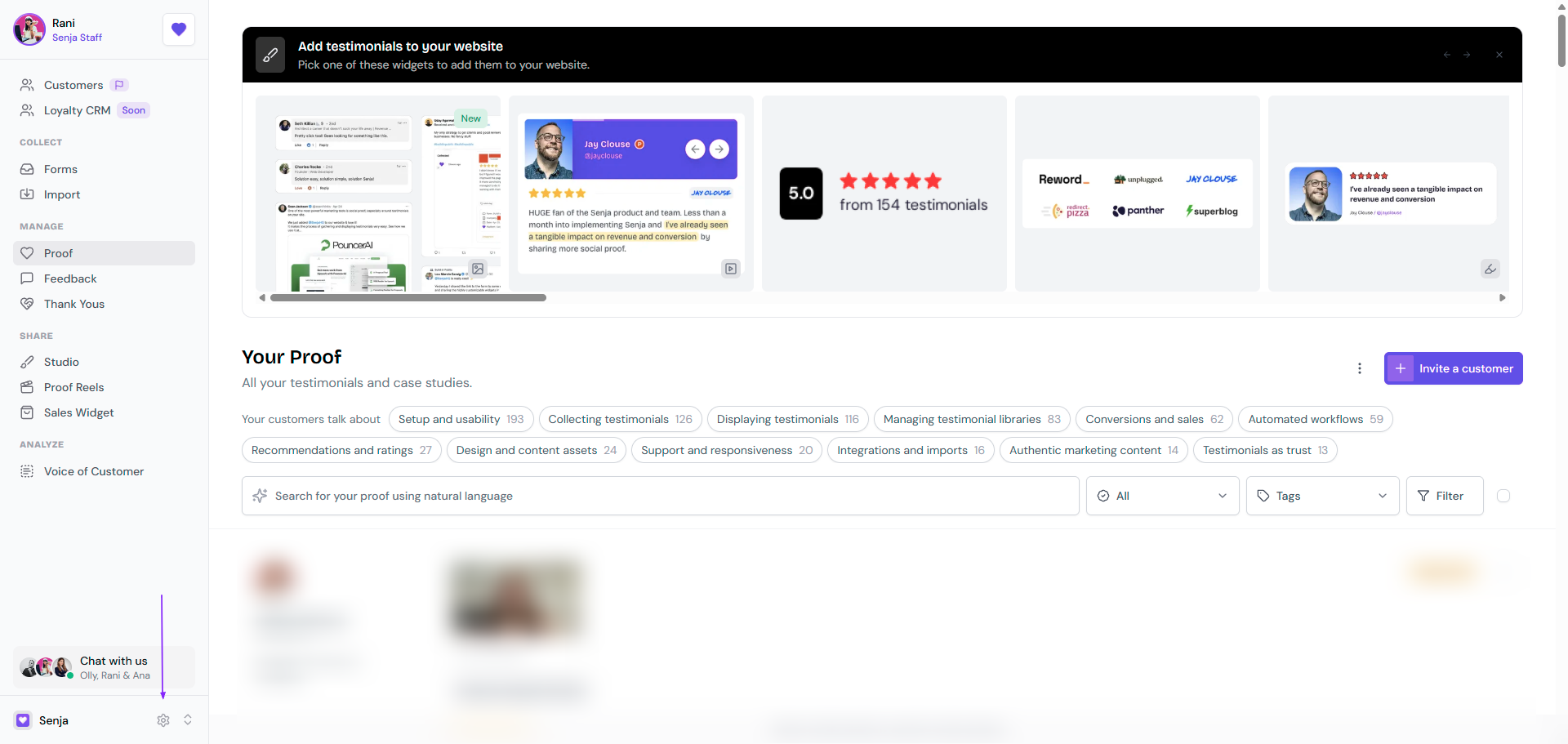
On the General tab, update the information:
Project Name: the name of your product, service, company or organisation
Project Slug: used in the links to your forms, Walls of Love and testimonials, like
https://senja.io/p/yourslugProject URL: the link to your website
Click Save settings
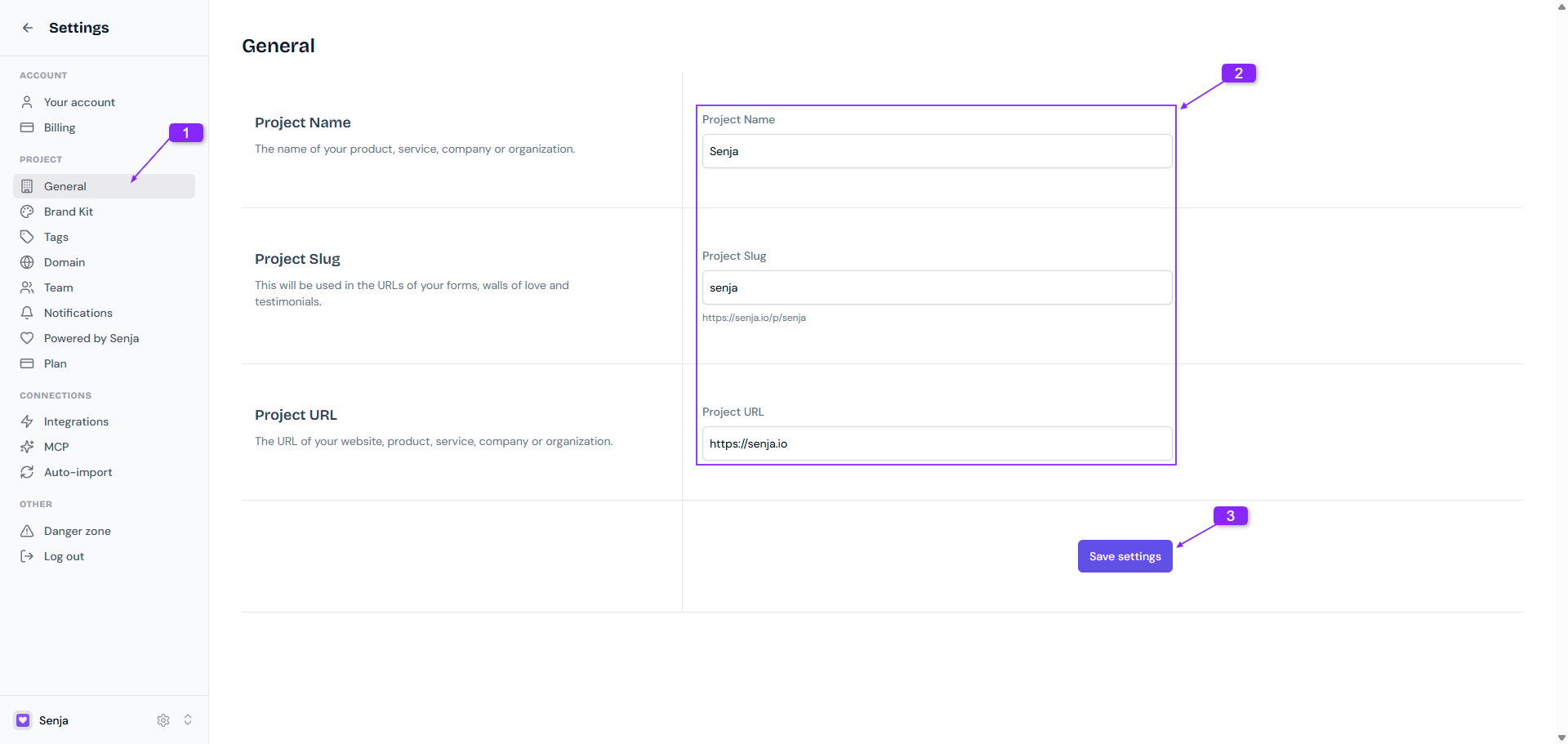
Changing your Project Slug changes the link to every form, Wall of Love and testimonial in your project. Old links stop working, so update anywhere you’ve shared them, like emails, your website or social posts. Embedded widgets keep working.
Delete a project
Only the project Owner can delete a project, and you need at least one other project in your account. You can't delete your only project.
Click the ⚙️ icon at the bottom of the left sidebar or this link: https://app.senja.io/settings
Click Danger Zone
Click Delete Project
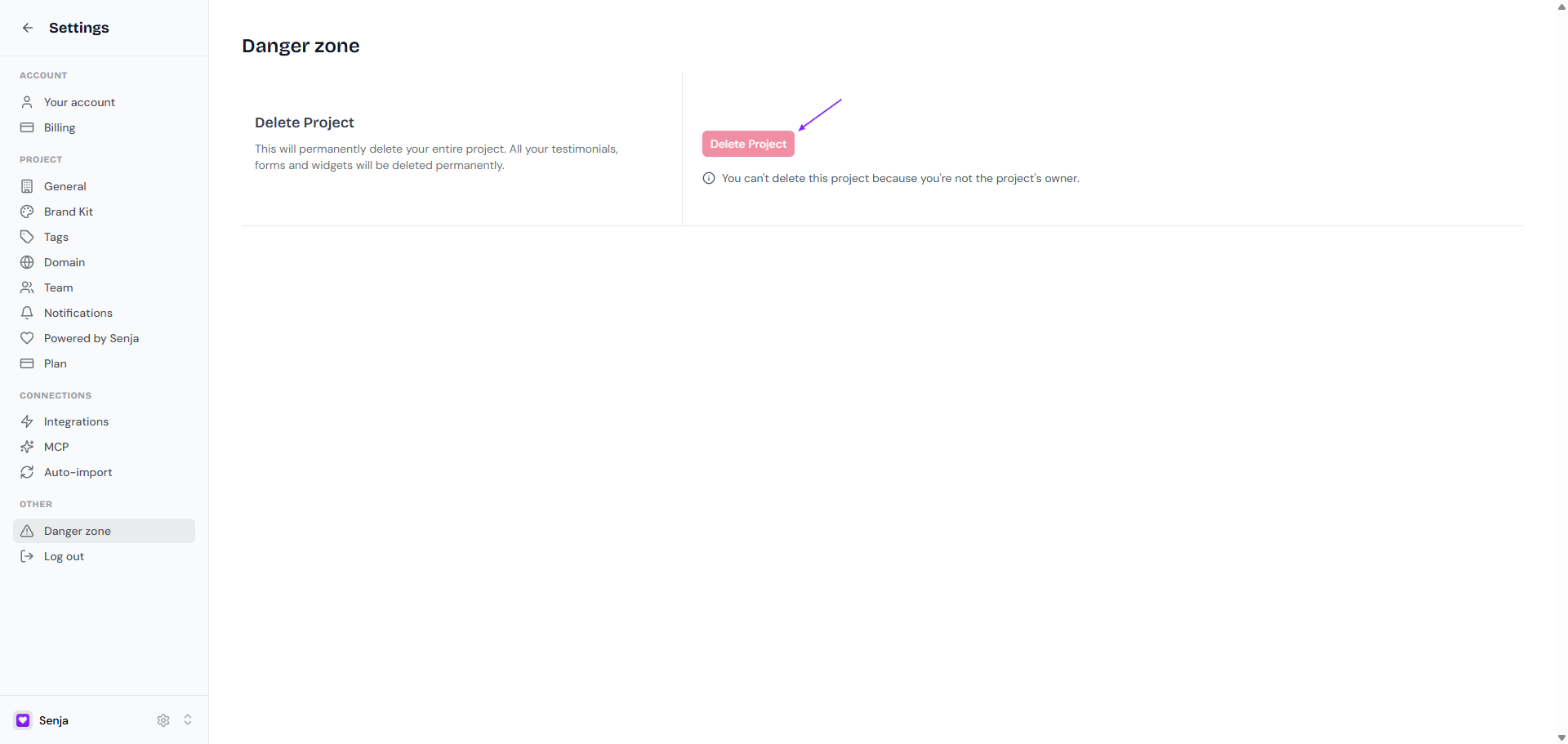
Type your project slug exactly (e.g.
my-project-slug)Click the confirm button
You'll be taken back to your dashboard once it's deleted
Deleting a project permanently removes all its testimonials, forms and Widgets. This can't be undone.
Want to give a project to someone else instead? See How to transfer a project to another Senja account.