
Troubleshooting: my website isn't appearing in Senja
If you've signed up for Senja and your website isn't appearing in your account, it's likely due to a domain recognition issue during the onboarding process. This guide will walk you through the steps to resolve this problem.
This is applicable for all Senja plans: Free, Starter, and Pro.
Prerequisites
An active Senja account
The domain name of the website you want to add to Senja
Steps
Log in to your Senja account
Navigate to https://app.senja.io/ and log in with your credentials
Go to your Project Settings in Senja: https://app.senja.io/settings
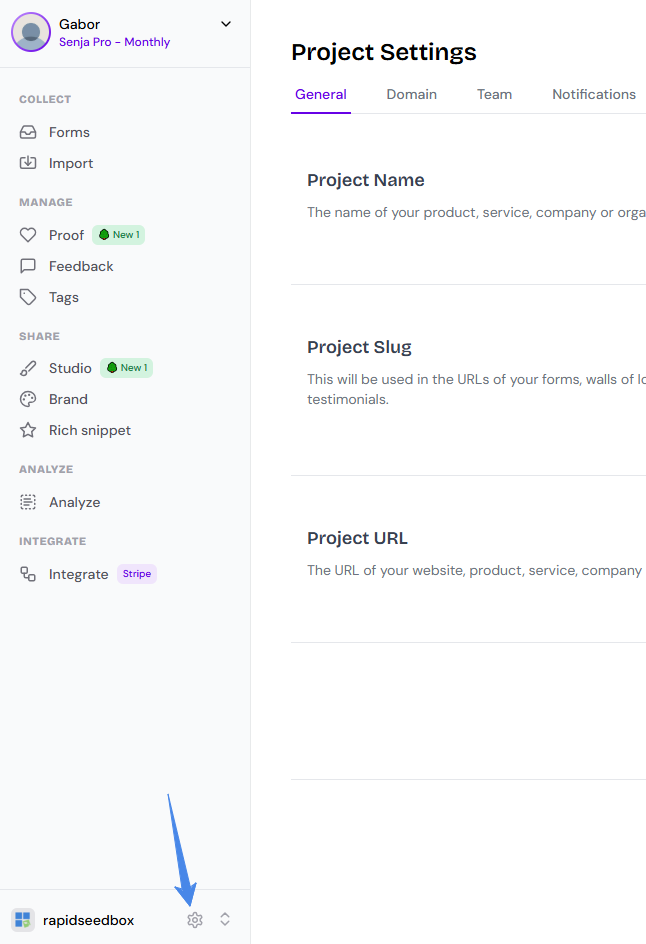
Verify your website in your project settings and make sure that you have added your website's domain correctly
If it's incorrect, you can edit it there
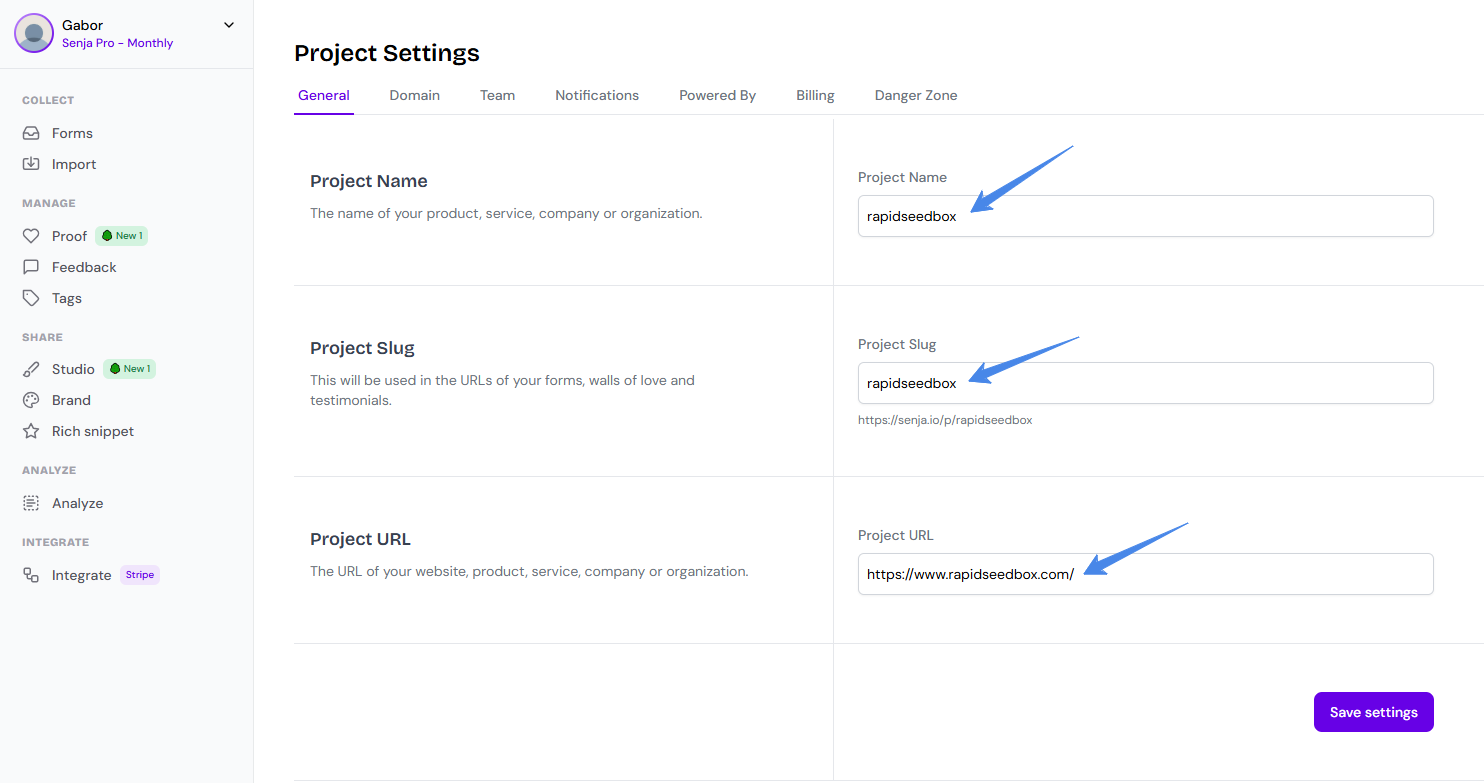
Check for common domain entry errors, make sure you’ve entered the correct website link and double-check for any typos or misspellings
Make sure the email address you used to sign up for Senja is the correct one associated with your website
If you have multiple email addresses, it's possible you used a different one by mistake
Verify the setup
After following these steps, navigate back to your Senja dashboard. Your website should now appear. If it doesn't, please allow a few minutes for the changes to propagate.
If you've recently updated your domain, it might take some time for the changes to reflect in Senja.
Getting help
If you continue to experience issues, please contact our support team. To help us resolve your issue as quickly as possible, please provide the following information:
The email address you used to sign up for Senja
The domain name of the website you are trying to add
A screenshot of your project settings in Senja