
Invoices, billing details and payment method
Everything about paying for Senja lives on your Billing page: your invoices, your billing details, and the card you pay with. Your company name and billing address show on invoices from the moment you add them, but past invoices can't be edited.
This is applicable to paid plans: Starter and Pro.
Download your invoices
Go to your Billing page: https://app.senja.io/billing
Click View/Download Invoice
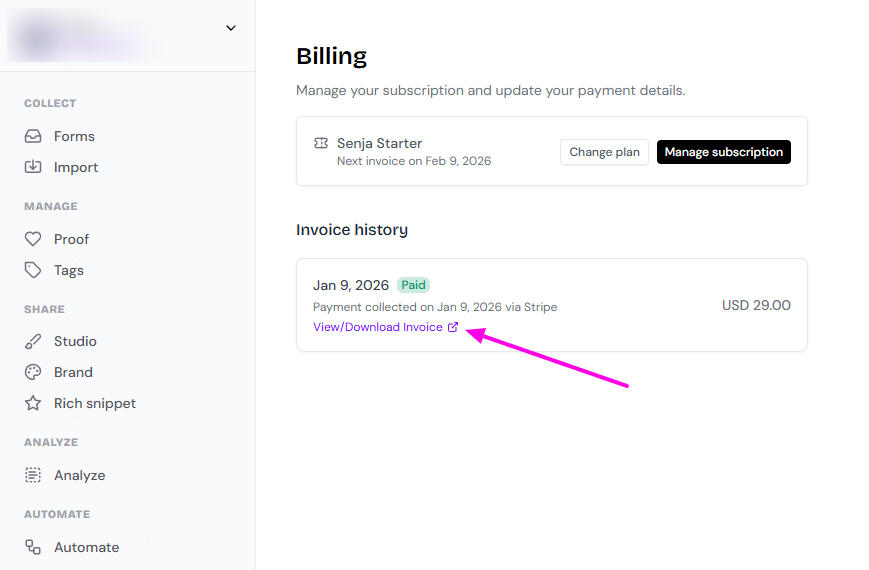
Missing an older invoice? Contact Support with the payment dates you need.
Update your payment method
Go to your Billing page: https://app.senja.io/billing
Click Manage subscription
Update your card in the Stripe billing portal
From your email
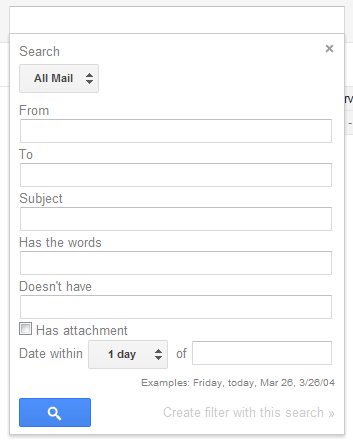
If a payment has failed, we also email you a secure link to update your card. Search your inbox for a subject like "Update your payment information" or "Your payment has failed", then open the link and follow the steps.
For your security, never send your card details to our Support team.
Payment already failed? See What to do if a payment fails.
Add your company name and billing address
The easiest time to add these is when you upgrade from Free to Starter or Pro.
Go to your Billing page and click Upgrade your plan
On the checkout page, enter your billing address
Tick I am purchasing as a business at the bottom of the payment form
Enter your business name
Your company name and address will appear on all future invoices.
Update your billing details
Already subscribed? You can change your name, address, email and other billing details any time.
Go to your Billing page: https://app.senja.io/billing
Click Manage subscription
Click Update subscription and follow the steps
Changes apply to future invoices only.
Correcting a past invoice
Once an invoice is issued, it's a permanent financial record, so it can't be edited. This keeps accounting and tax records accurate for both you and Senja.
Small typo in your company name or address?
Contact Support first. We may be able to help without a refund.
Need a new invoice with different details?
Contact Support and ask us to refund the payment
Update your billing details (see above)
Pay again. This creates a new invoice with your updated details
Your service may pause briefly between the refund and the new payment. Your account stays active once the new payment goes through.
Billing emails
Got a renewal notice for a month we gifted you?
Stripe sends renewal reminders automatically for every paid subscription, including gifted months.
Your invoice for the gifted month is $0, so you won't be charged and can ignore the email.
If you are charged, contact Support and we'll refund you.