
How do I edit the design of my testimonial image?
You can customize your testimonial images in the Studio to match your brand. All design changes update in real-time as you edit.
This feature is available for any Senja plans: Free,Starter, and Pro.
Open your image design
Go to Studio in your sidebar: https://app.senja.io/studio
Choose your saved image template
Use the Customize panel on the sidebar to edit
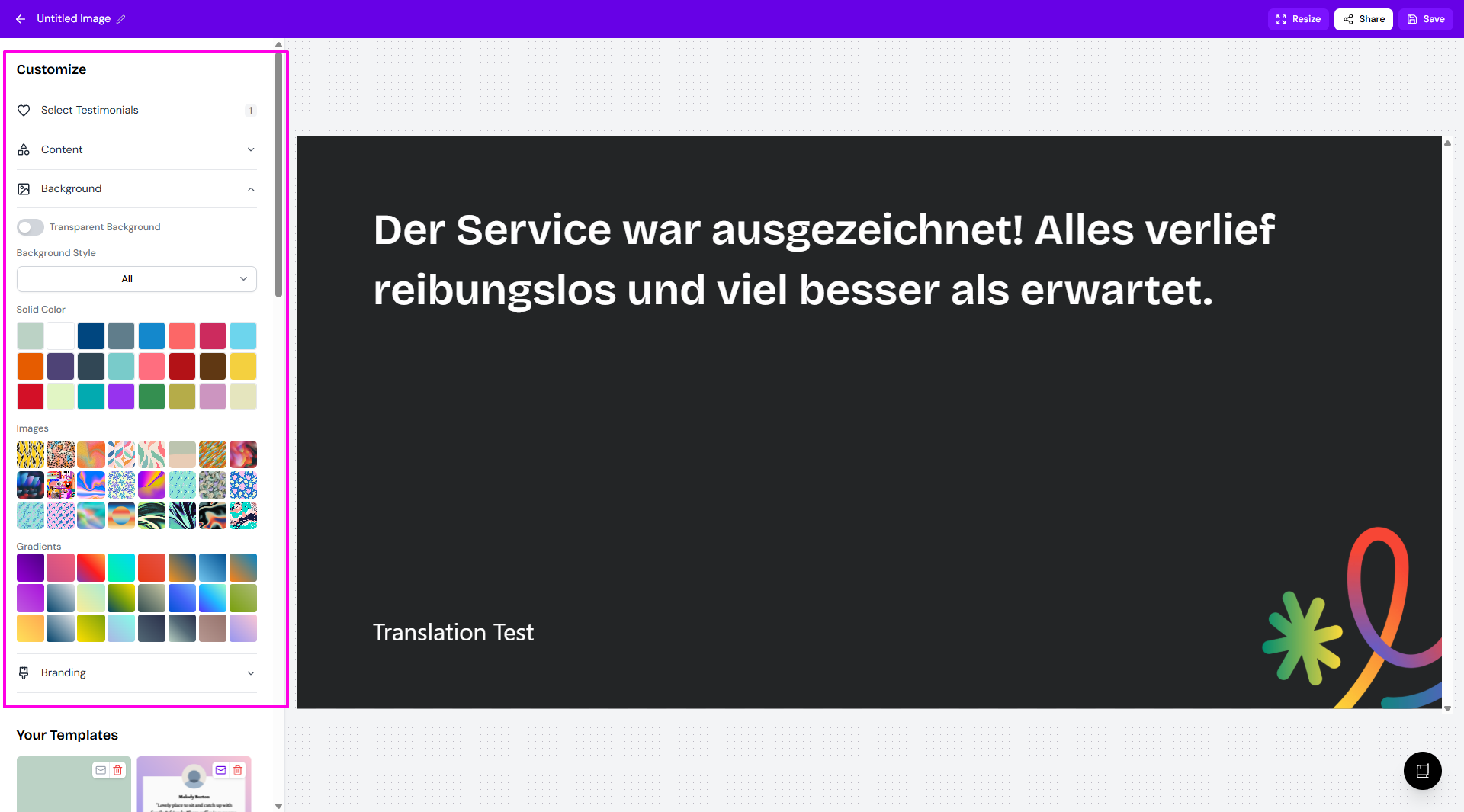
Select Testimonials
This is where you choose the testimonials to display
Each template has different testimonial counts (1, 3, 6, 10, etc.)
Content
This is where you update the text content of the chosen testimonial(s)
You can update the customer name (marked as Testimonial #1 etc.), Tagline, and testimonial text
Background
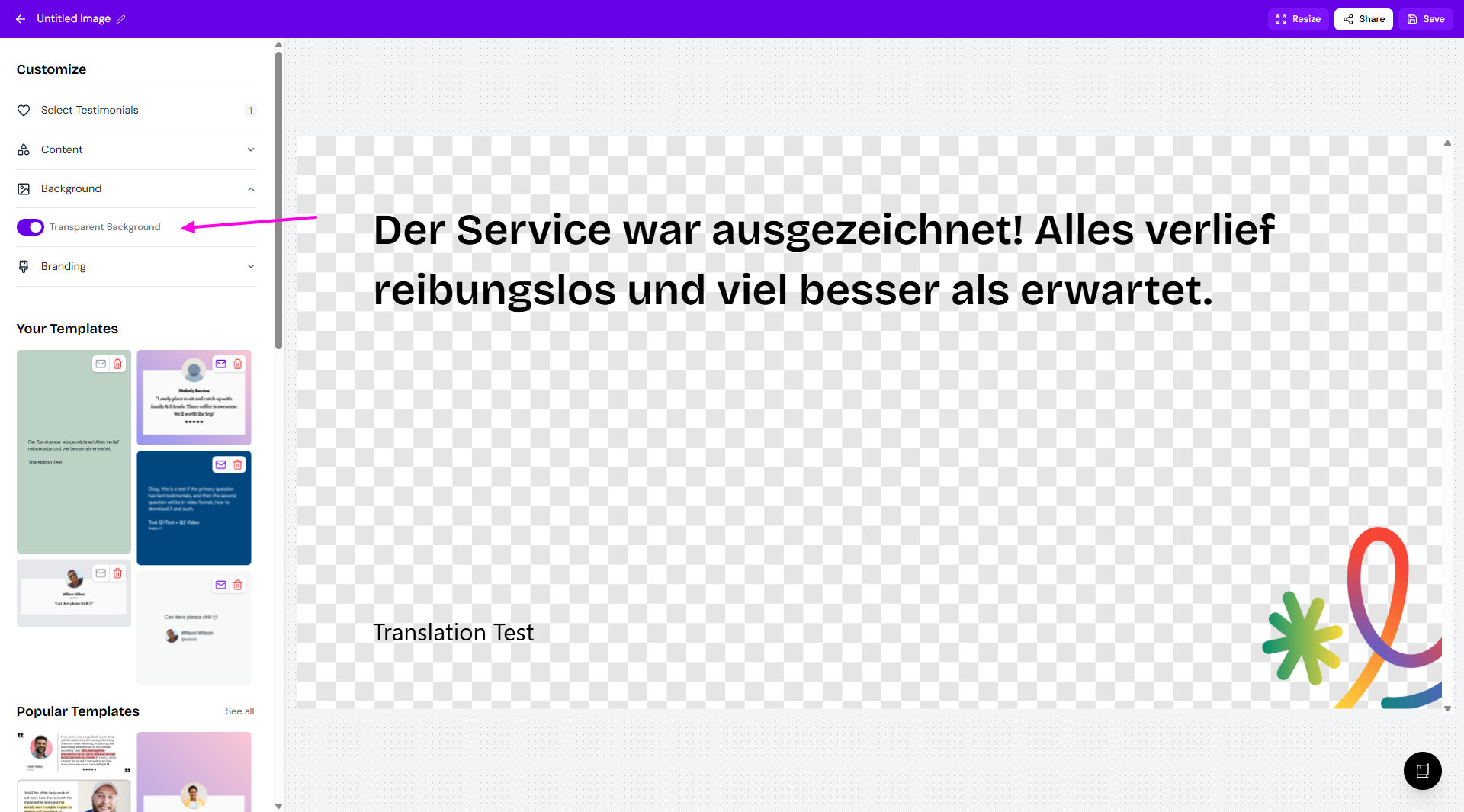
Transparent background
Useful when you want to add it to your website or a card with pre-existing design.
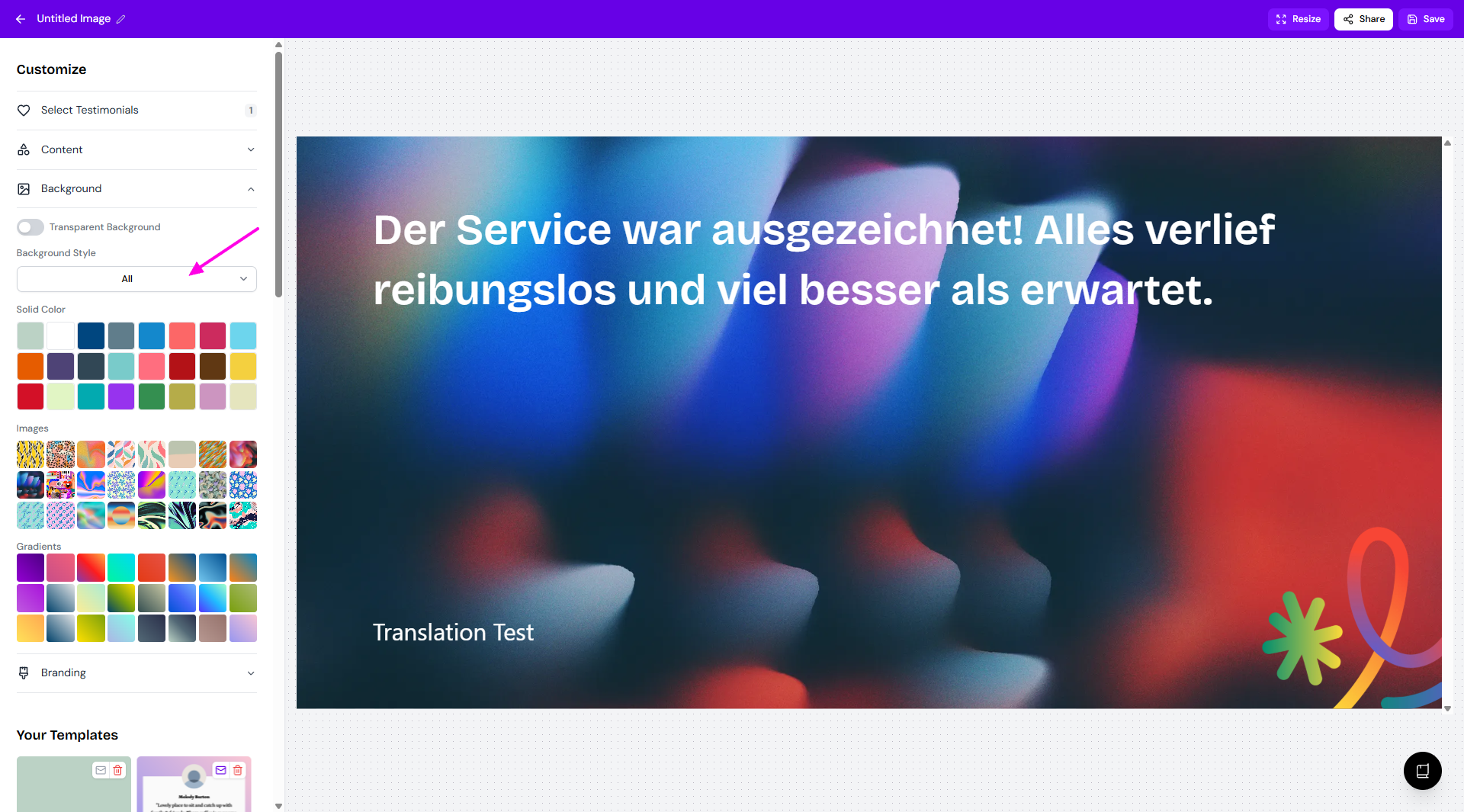
Background Style: All
Will show the background options from Senja's library of Solid Color, Images, and Gradients.
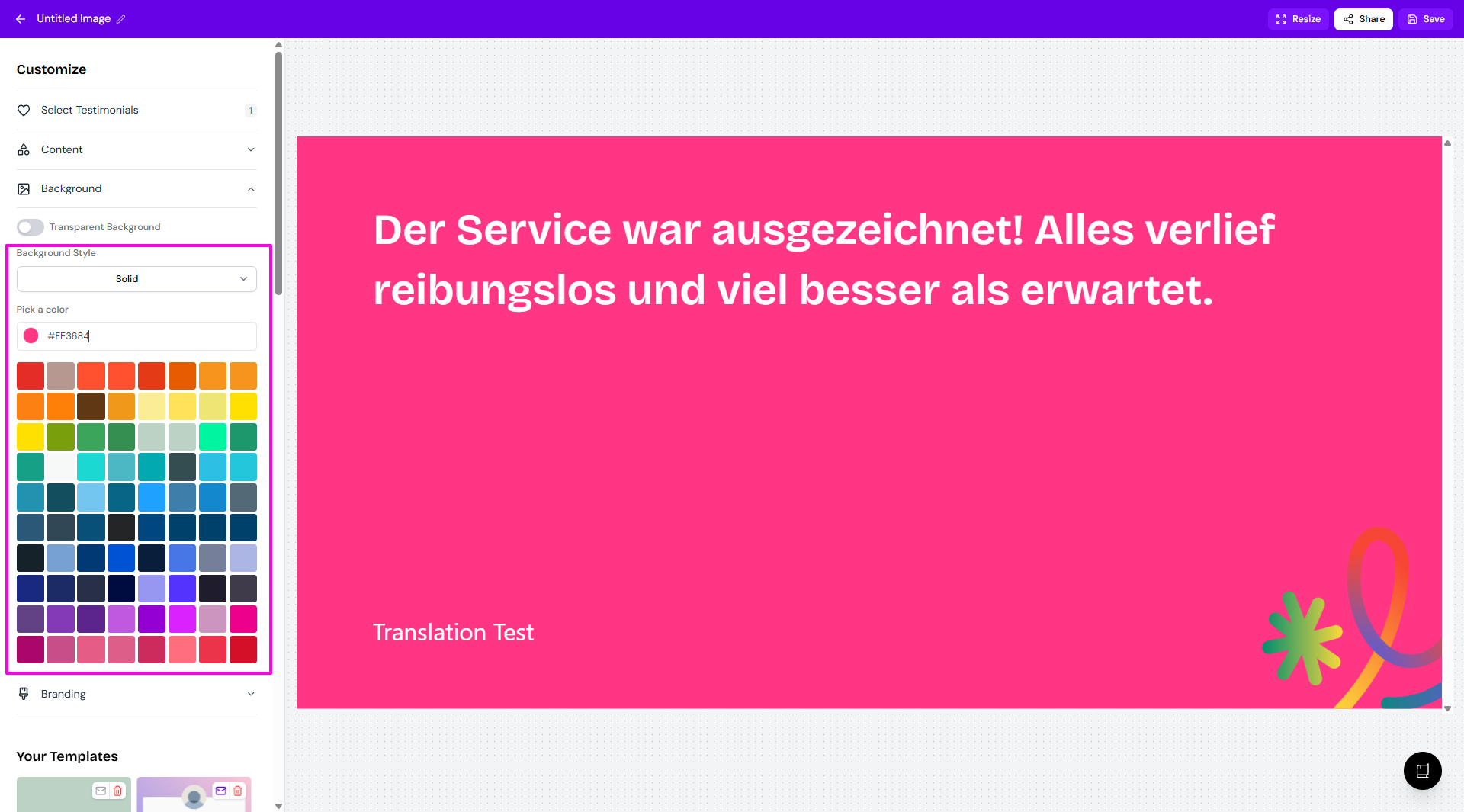
Background Style: Solid
Showing more color options, with a chance to add your own color (use HEX code).
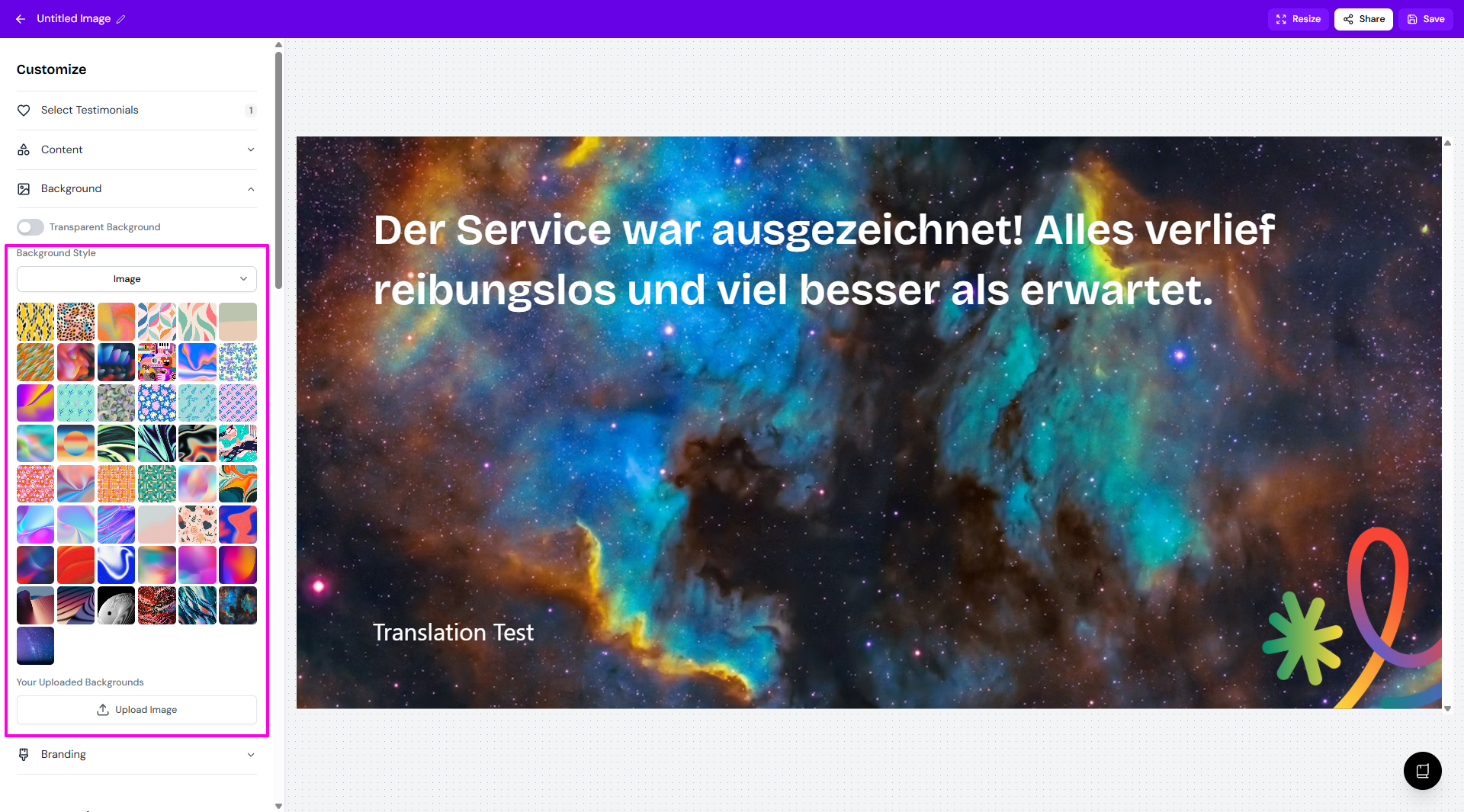
Background Style: Image
Showing more image options, with a chance to upload your own image in Your Uploaded Backgrounds.
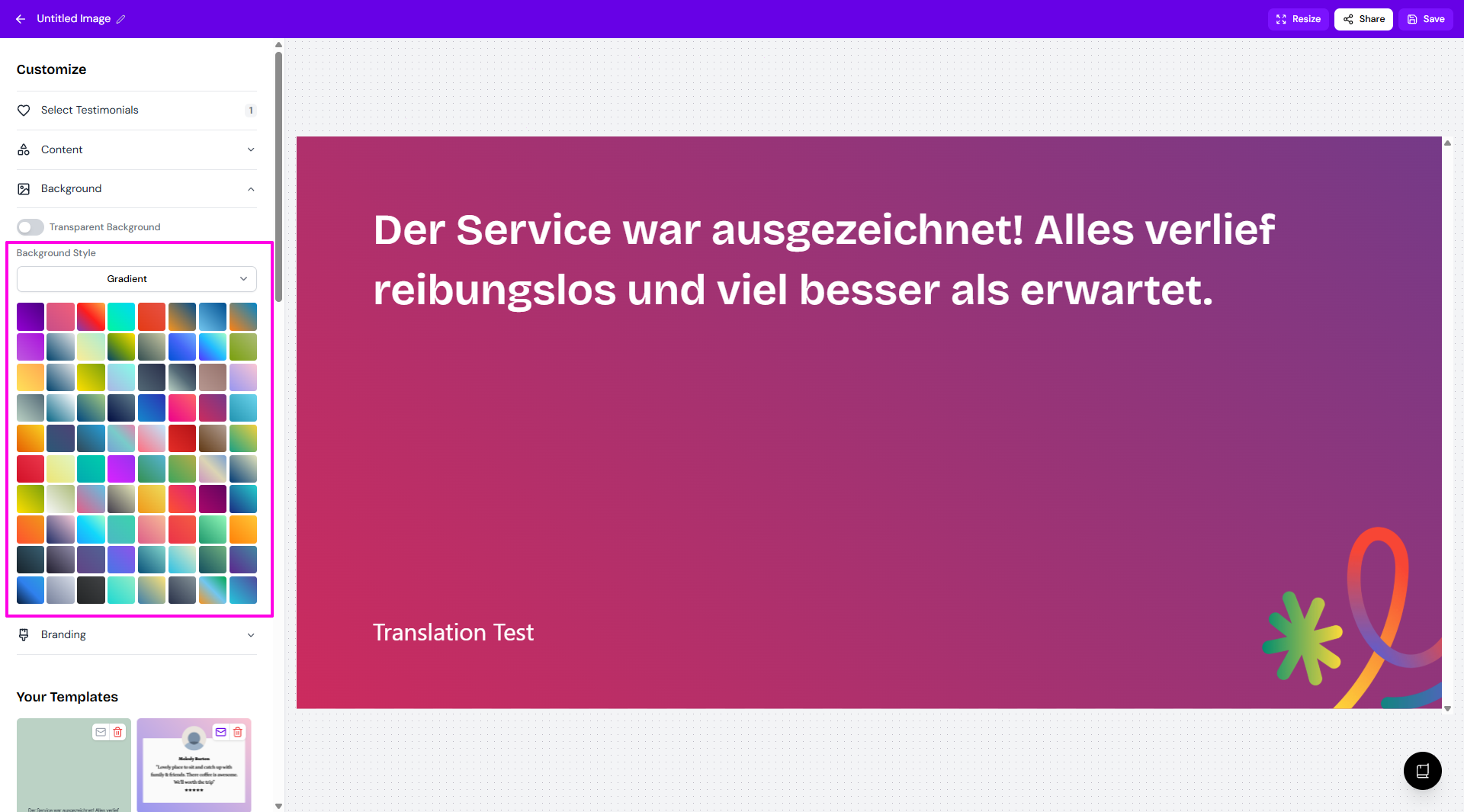
Background Style: Gradient
Showing more color gradient options.
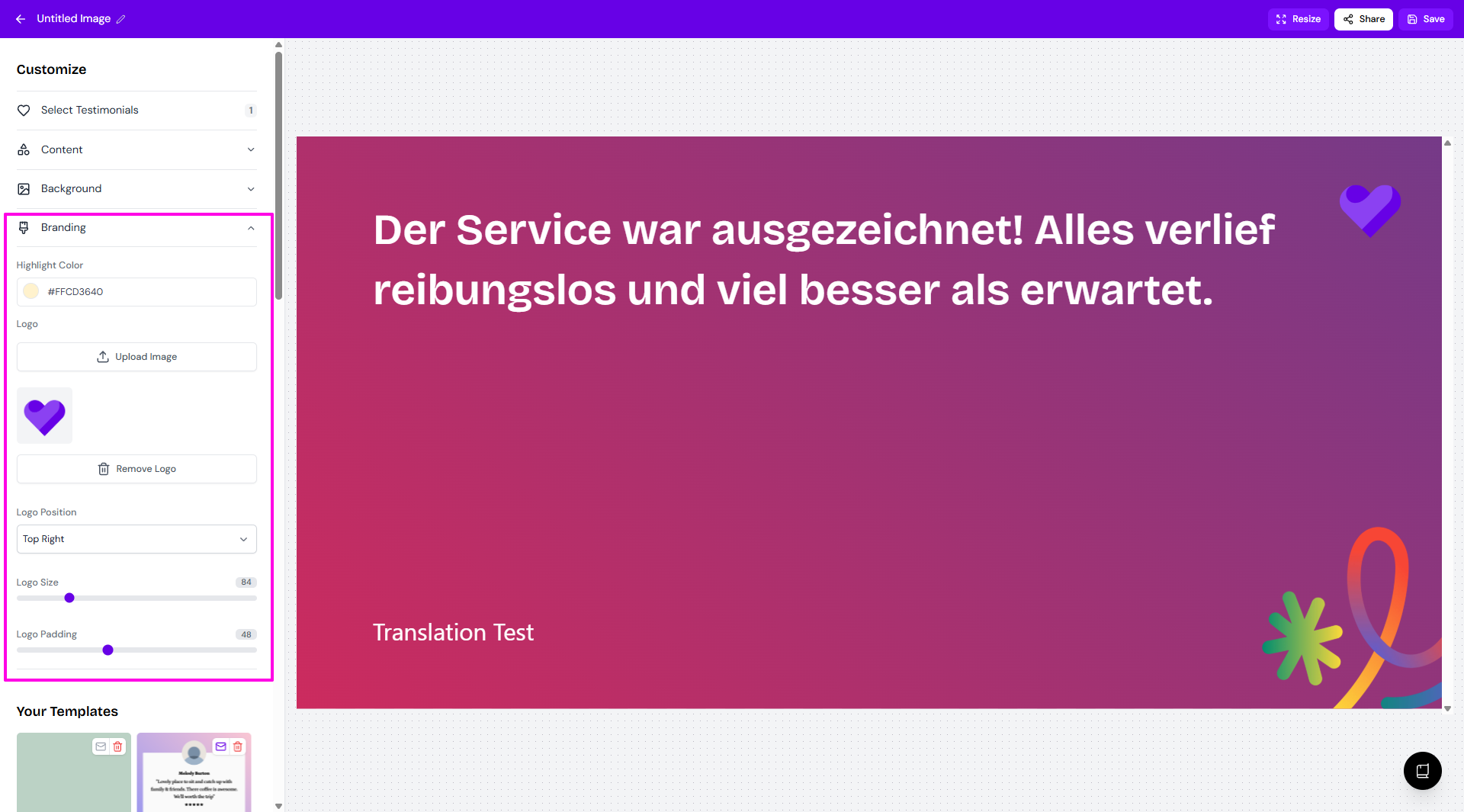
Branding
Customize the Highlight Color, if the selected testimonial(s) has highlighted parts
Add your company Logo
Set the Logo Position: top left, top right, bottom left, bottom right
Set the Logo Size
Set the Logo Padding
Save your customized design as a template to quickly create matching images for future testimonials.
Export your image
Once you're happy with the design, click Share in the top-right corner and download as PNG/JPEG/ZIP.
You can also Copy to Clipboard.
If you want to use the same image customization for your future image widgets:
Click Share
Choose Save as template